# Passing Data Between Nodes with Flow Tags
A **flow tag** is a placeholder for data that will exist when the workflow runs. Use one when a later node needs an entry field, API response, run ID, or another earlier result.
## Flow tag basics
### Insert a flow tag
A setting that accepts flow tags shows **Insert flow tag** on its label row. Select it to see all data for every available earlier node, nearest first.
Each value has a friendly type such as **Text**, **Email**, **Number**, **List**, or **Group**. If you run a test on a node, it will include real sample values you can choose from the shape the workflow actually produced.
Type to search, use the arrow keys to move, and press **Enter** to insert. Each node shows its first few values; select **more** for the rest or **All output (JSON)** for the complete output.
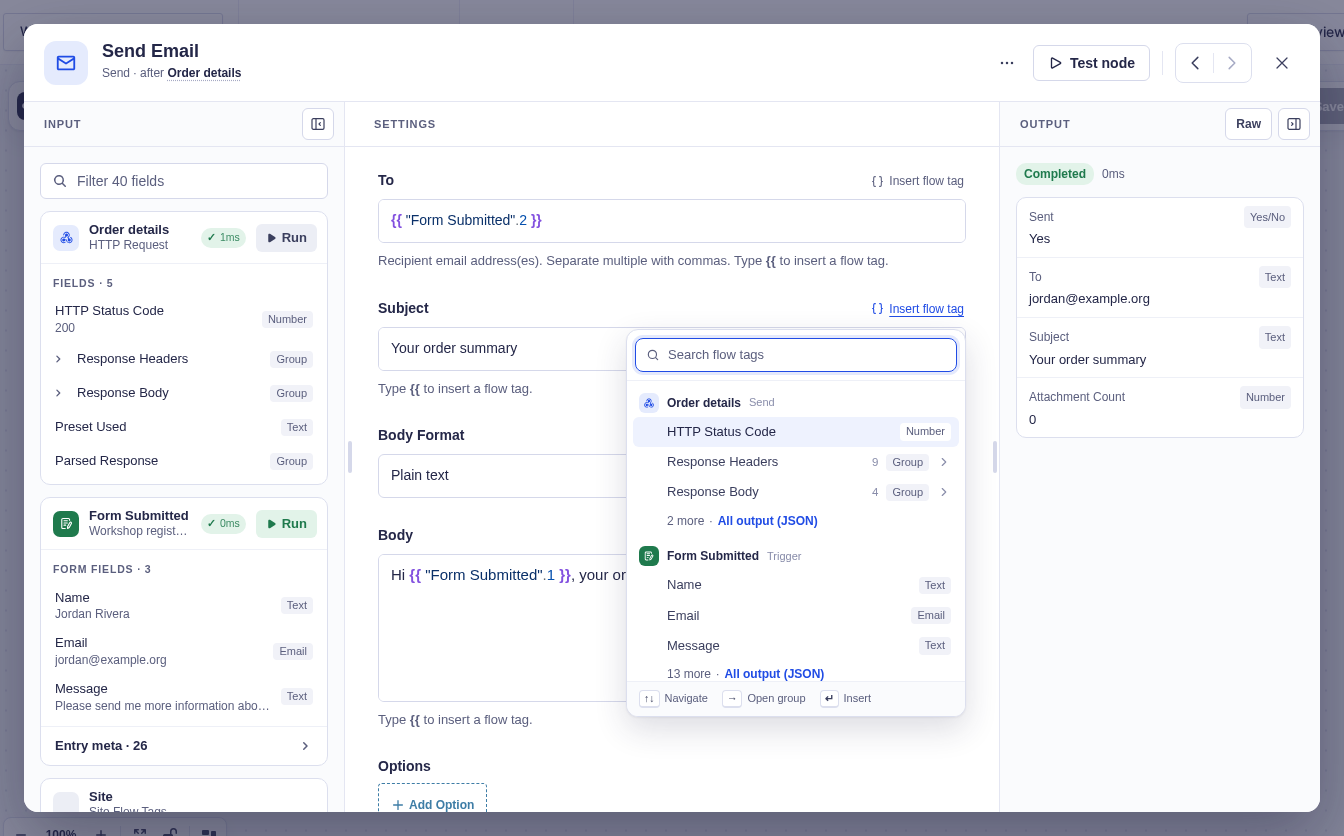
The picker inserts a tag such as:
```text
{{ "Form submitted"["3"] }}
```
This reads the raw value stored for Gravity Forms field `3` from the node named **Form submitted**.
:::note[Node names must be quoted]
Use the visible node name in double quotes. Do not use an internal ID such as `{{http_request_1.status_code}}`. Renaming a node in the builder updates references to that node.
:::
### Open the picker while typing
Type `{{` in a field that supports flow tags to open the same menu at the keyboard cursor. Continue typing to search, then press **Enter** or **Tab** to insert. **Esc** closes the menu without removing what you typed.
After a node name, type `.` to browse values inside it. Typing more letters narrows that level—for example, `.mes` can find `message`.
### Find a compatible flow tag
Certain settings require a particular kind of value. For example, **Form Source** expects a numeric form ID.
When you open the flow tag picker, the label says **Expects a form ID · number fields first**, and values known to contain numbers appear first. Values with other data types remain available under **Other types**.
This ordering makes compatible values easier to find, but it does not validate what a value represents. For example, a Number field is numeric, but it's not necessarily a valid form ID.
### Use a flow tag instead of a fixed choice
Some settings normally ask you to choose a fixed value from a dropdown, making every workflow run use that same choice.
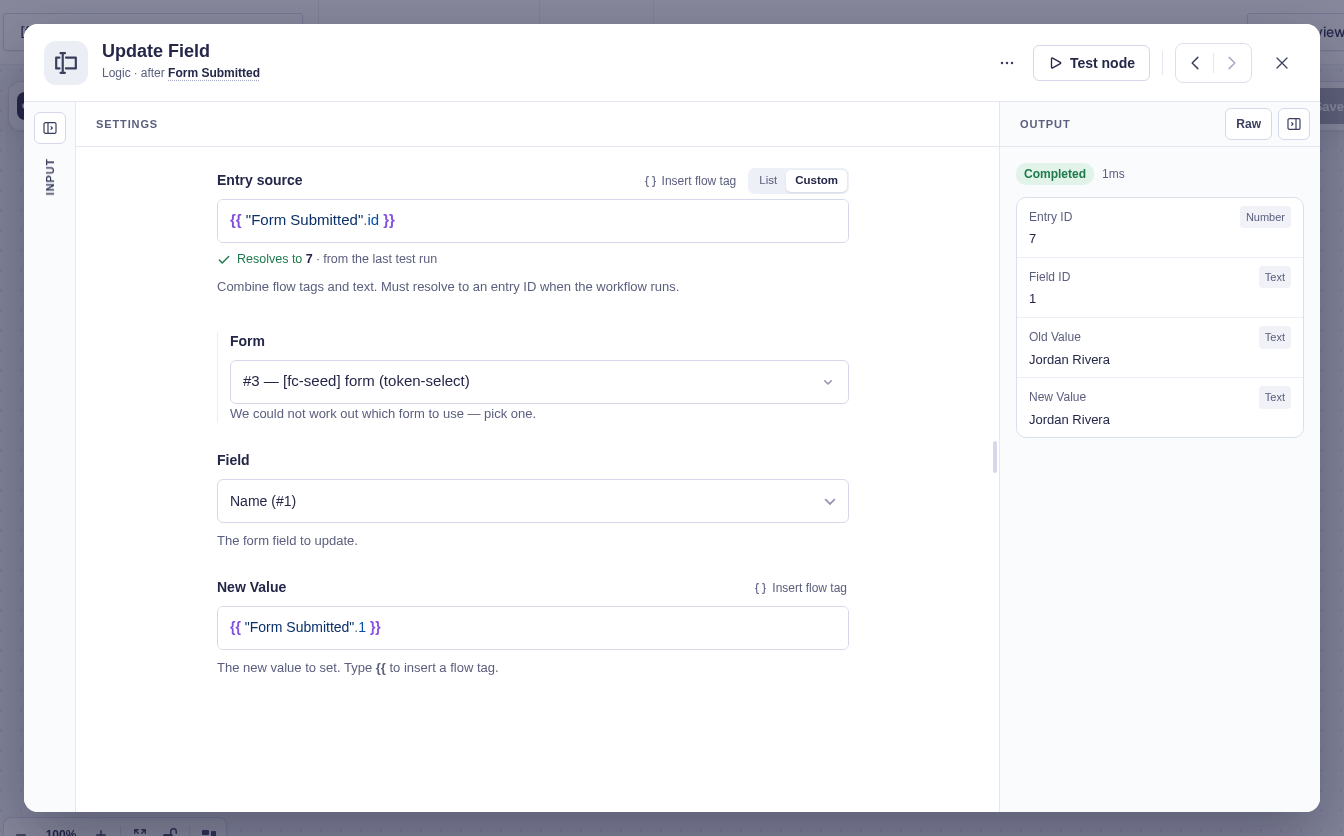
To fill those settings with dynamic data instead, switch from **List** to **Custom**. The Custom field lets you type a value or insert a flow tag.
For example, **Form Source** could be set in either of these ways:
- Select **Contact Form** under **List** to use that form every time.
- Select **Custom** and insert `{{ "Find form".id }}` when an earlier node supplies the form ID.
**List** includes the usual selector and automatic sources. Each side remembers its value while the node window remains open; only the visible mode is saved.
### Insert from the Input column
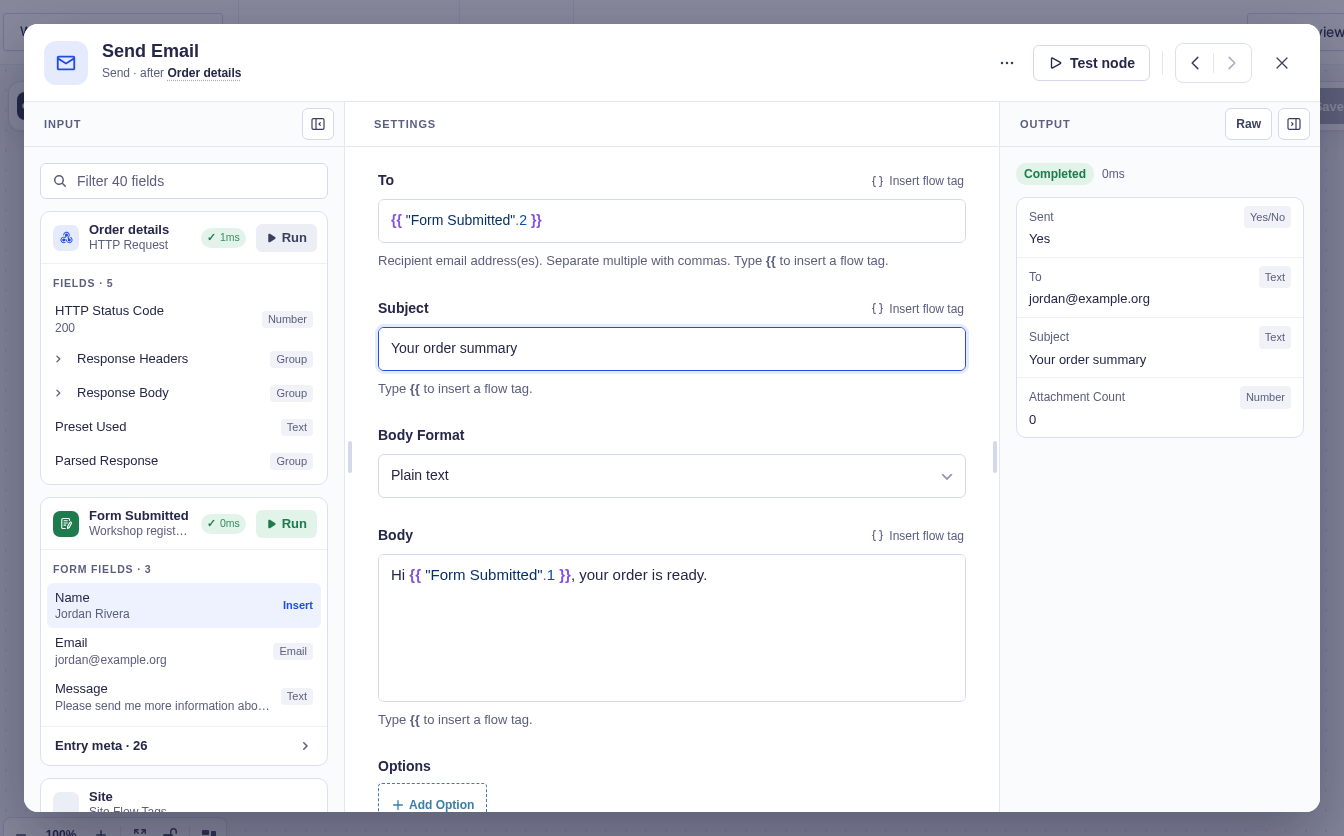
The node window's **Input** column presents the same data as cards with readable field names and types. You can add that data directly to a Settings field:
1. Select a field that supports flow tags.
2. Select a value in Input.
3. Flowcrafter inserts its flow tag at the keyboard cursor.
When no setting is ready, the value says **Drag**. Drag it to any compatible field. Valid targets turn blue; incompatible targets explain the required data.
Gravity Forms bookkeeping fields such as Entry ID, Date Created, and IP Address are folded into one **Entry meta** row so the form fields stay easy to scan.
---
## Flow tag formatting
The most basic flow tag format is `{{ "Node name" }}`, which returns the whole output as compact JSON.
:::caution[Whole outputs are re-encoded]
Rendering a whole object or list can change whitespace and number formatting. Do not use it where an exact payload or signature must match—in that case, select individual values instead.
:::
⚙️ Read individual values, groups, and lists
### Get a single value from output
Add a **path** after the quoted node name:
| Flow tag | Result |
|---|---|
| `{{ "Form submitted".id }}` | Entry ID |
| `{{ "Form submitted"["3.1"] }}` | A key containing a dot, such as a field sub-input |
| `{{ "HTTP request".body.data[0].name }}` | `name` from the first item in a response |
| `{{ "HTTP request".headers.location }}` | Lowercase `location` response header |
Use `.key` for a simple property, `[0]` for a list position, and `["key"]` for keys containing punctuation.
### Using groups and lists
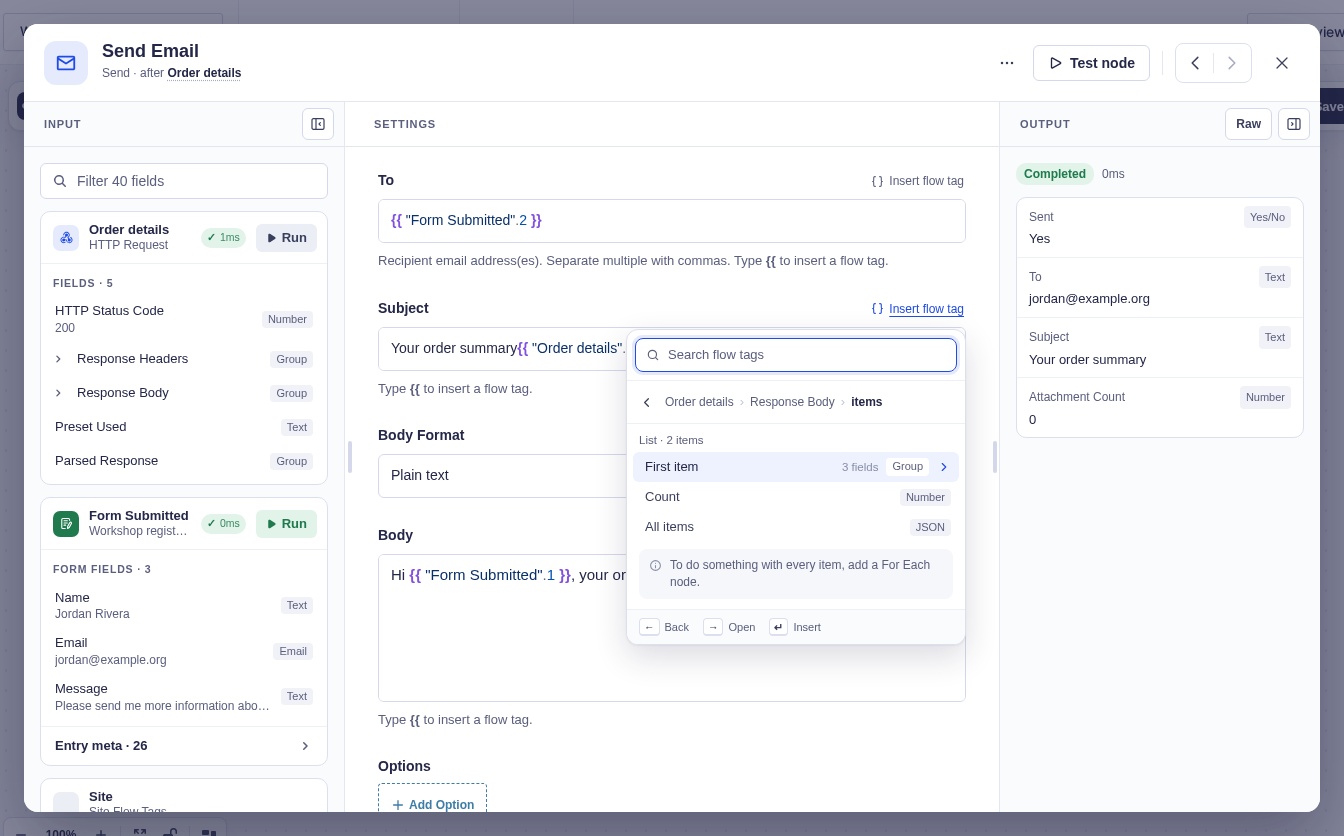
A value that contains other values has a **Group** or **List** type and a **›** arrow. Open it to move one level deeper. The breadcrumb shows where you are, while the field shows the flow tag being built.
Inside a group, you can:
- Choose an individual value; or
- Choose **Use all of …** to insert the complete group as JSON.
Inside a list:
- **First item** opens the first item in the list—position `[0]`—so you can choose one of its fields;
- **Count** inserts the number of items; and
- **All items** inserts the complete list as JSON.
**First item** always reads from the first item when the workflow runs. The picker does not display every list item. Use [For Each](/documentation/flowcrafter/nodes/flow/for-each/) when later nodes should run once per item.
To read another known position, edit the index in the flow tag. Use `[1]` for the second item or `[-1]` for the last item:
```text
{{ "HTTP request".body.data[0].name }}
{{ "HTTP request".body.data[1].name }}
{{ "HTTP request".body.data[-1].name }}
```
For dynamic output such as an HTTP response, the structure may be unknown until the node has been tested. The picker says **Fields appear after a test run** and offers a test action. You can still type a path you already know.
⚙️ Raw entry values, merge tags, and filters
### Raw entry values and merge tags
Use a numeric path for the raw stored Gravity Forms value:
```text
{{ "Form submitted"["3"] }}
{{ "Form submitted"["3.1"] }}
```
Use `.mergeTag()` when you want Gravity Forms to produce its display-formatted value:
```text
{{ "Form submitted".mergeTag('{Field:3}') }}
```
The quoted node must provide an entry. Colon-style field shorthand is not supported.
### Format a value with filters
A pipe (`|`) sends the selected value through a filter. Filters run from left to right:
```text
{{ "Order".total | number(2) | default('0') }}
```
| Flow tag filter | Example use |
|---|---|
| `number(decimals=0)` | `number(2)` formats `1234.5` as `1234.50` |
| `upper` / `lower` | Change text case |
| `trim` | Remove surrounding whitespace |
| `truncate(length, ellipsis='…')` | Shorten text |
| `default(fallback)` | Supply a value when the result is empty |
| `date(format)` | Format a date with a PHP date format |
| `join(separator=', ')` | Turn a list into text |
| `count` | Count the items in a list or keys in a group |
| `markdown` | Turn Markdown, such as an AI reply, into formatted HTML |
For example, `{{ "Get Entries".items | count }}` returns the number of entries.
AI replies usually come back as Markdown, so `#` headings and `-` bullets show up as plain characters. Add `| markdown` to display them as real headings and lists: `{{ "AI Text".response_text | markdown }}`. Scripts and other unsafe HTML are removed.
A filter that receives the wrong kind of value fails clearly instead of guessing—for example, `join` or `count` on one string, or `number` on non-numeric text.
⚙️ Runtime values from the current run
These unquoted selectors come from the current run rather than a named node:
| Flow tag | Available when | Result |
|---|---|---|
| `{{ item.email }}` | Inside a For Each **Each item** branch | A value from the current item |
| `{{ loop_1.index }}` | Inside that For Each scope | Zero-based item position; use the picker for the real loop ID |
| `{{ run.id }}` | Anywhere | Run ID |
| `{{ run.key }}` | Anywhere | Stable, hard-to-guess correlation key |
| `{{ site.admin_email }}` | Anywhere | The site's admin email. `{{ site.name }}`, `{{ site.url }}`, and `{{ site.admin_url }}` work the same way |
**Insert flow tag** lists these under **This run** and **Site**, after your nodes.
A node actually named **item** still uses quotes: `{{ "item".id }}`.
---
## Troubleshooting flow tags
### Check an inserted flow tag
Hover over a complete flow tag, or move the keyboard cursor into it. A card will appear showing:
- The source node;
- The value's readable name and type; and
- Its value from the latest test.
Before a test, the card says **Not checked yet**. A reference to a missing node or output gets a red wavy underline, and the card explains what is missing so you can insert a replacement.
### Preview the value
After testing a node, a **Custom** setting can show the sample value produced by a simple flow tag. This helps you confirm that the tag points to the value you expected.
The preview comes from the latest test only. It is not save or activation validation. A preview may not be available when:
- The flow tag uses filters or merge tags;
- The referenced node or value no longer exists; or
- The latest test did not produce the required data.
### Broken references
Flowcrafter blocks activation when a named reference points to a missing, ambiguous, or later node. A property path can only be checked against real data when output exists.
If a flow tag cannot resolve at run time, Flowcrafter leaves the original tag visible instead of silently replacing it with an empty string.
---
## Related pages
- [Flow tag syntax reference](/documentation/flowcrafter/reference/flow-tag-reference/)
- [A Tour of the Builder](/documentation/flowcrafter/getting-started/editor-tour/)
- [Testing Before You Go Live](/documentation/flowcrafter/building/testing-workflows/)
- [Processing Lists](/documentation/flowcrafter/building/processing-lists/)