# Approve a booking, collect payment, then confirm it
Some bookings should not take payment immediately. A class may have limited places, a rental may need an availability check, or a custom service may need a person to approve the request first. This workflow approves the request, waits for its payment, and keeps fulfillment blocked until the money arrives.
Good for
Classes, events, rentals, memberships, and fixed-price services
Level
Advanced
## What you'll build
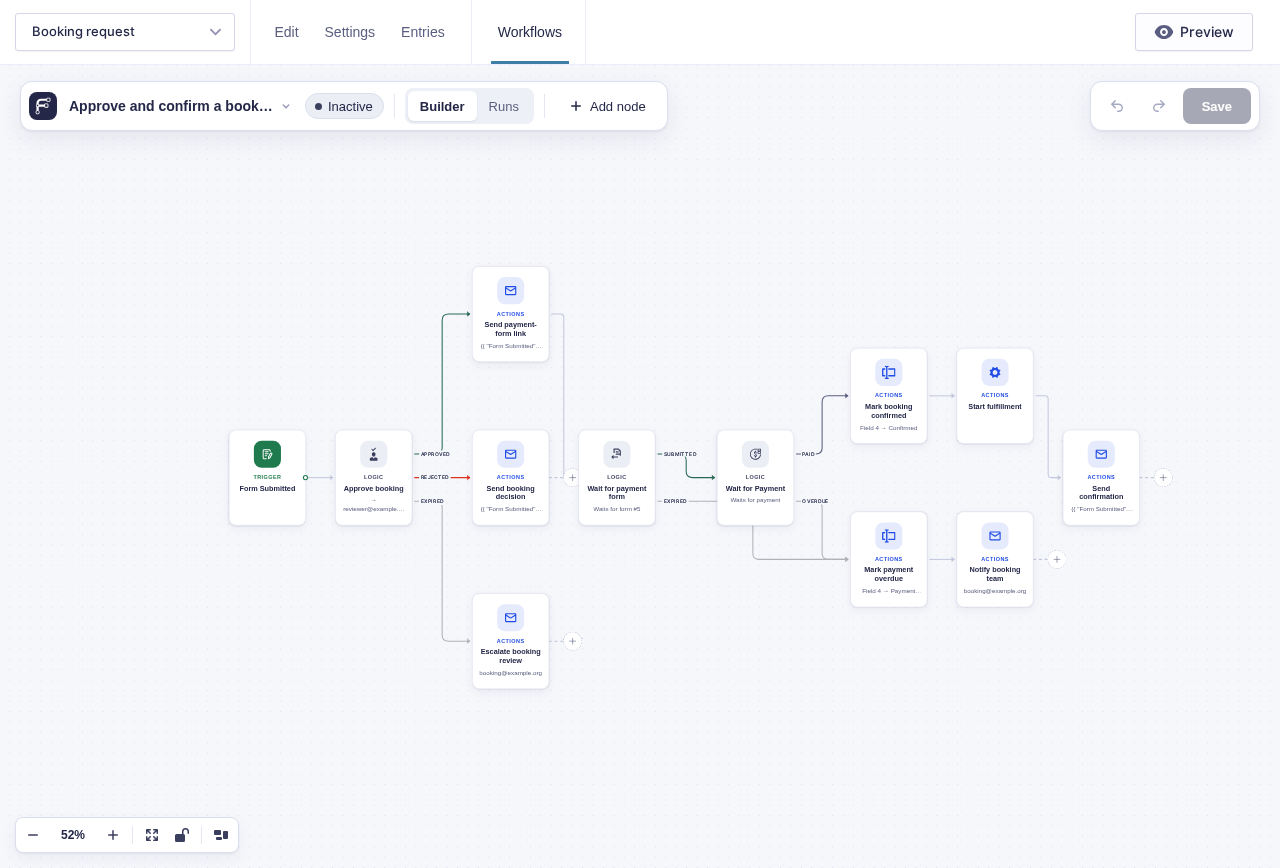
The request and payment live on separate forms. Approval sends the customer a payment-form link carrying this run's key. The workflow waits for the matching payment entry, then waits for the gateway to mark that entry paid. Payment confirms the original booking; a missed deadline marks it overdue for staff review instead.
```mermaid
flowchart TD
A[Booking request submitted] --> B[Wait for Approval]
B -->|Approved| C[Send Email: payment-form link]
B -->|Rejected| D[Email the customer]
B -->|Expired| E[Escalate the request]
C --> F[Wait for Form Submission: matching payment form]
F -->|Submitted| G[Wait for Payment]
F -->|Expired| H[Set booking status: Payment overdue]
G -->|Paid| I[Set booking status: Confirmed]
G -->|Overdue| H
I --> J[GF Feed: start fulfillment]
J --> K[Send confirmation]
H --> L[Notify the customer and booking team]
```
## Before you build
- Create separate booking-request and payment forms.
- Configure the payment form's Gravity Forms payment feed and test it in the gateway's sandbox.
- Decide how long customers have to submit the payment form and how long a submitted payment may remain pending.
- Choose the booking and escalation inboxes before adding approval nodes.
## Build it step by step
1. Build a **Booking request** form with the details your team needs to approve. Add an administrative-only **Booking status** field with a default such as `Pending review`, so only staff and the workflow control it.
2. Create a separate **Booking payment** form with the fixed price and your payment add-on. Add a hidden field for the workflow key, turn on **Allow field to be populated dynamically**, and use `key` as its parameter name.
3. Open the Booking request form and click **Workflows** in the form toolbar. Click **New Workflow**, then **Add Trigger** and choose [Form Submitted](/documentation/flowcrafter/nodes/triggers/form-submitted/).
4. Add [Wait for Approval](/documentation/flowcrafter/nodes/flow/wait-for-approval/). Include the request details in the email, choose the approvers, and set reminders and an expiry. On **Rejected**, email the customer. On **Expired**, alert the booking team.
5. On **Approved**, add [Send Email](/documentation/flowcrafter/nodes/actions/send-email/) with a link to the payment form, such as `https://your-site.test/pay/?key={{run.key}}`; replace the domain and path with the real payment page.
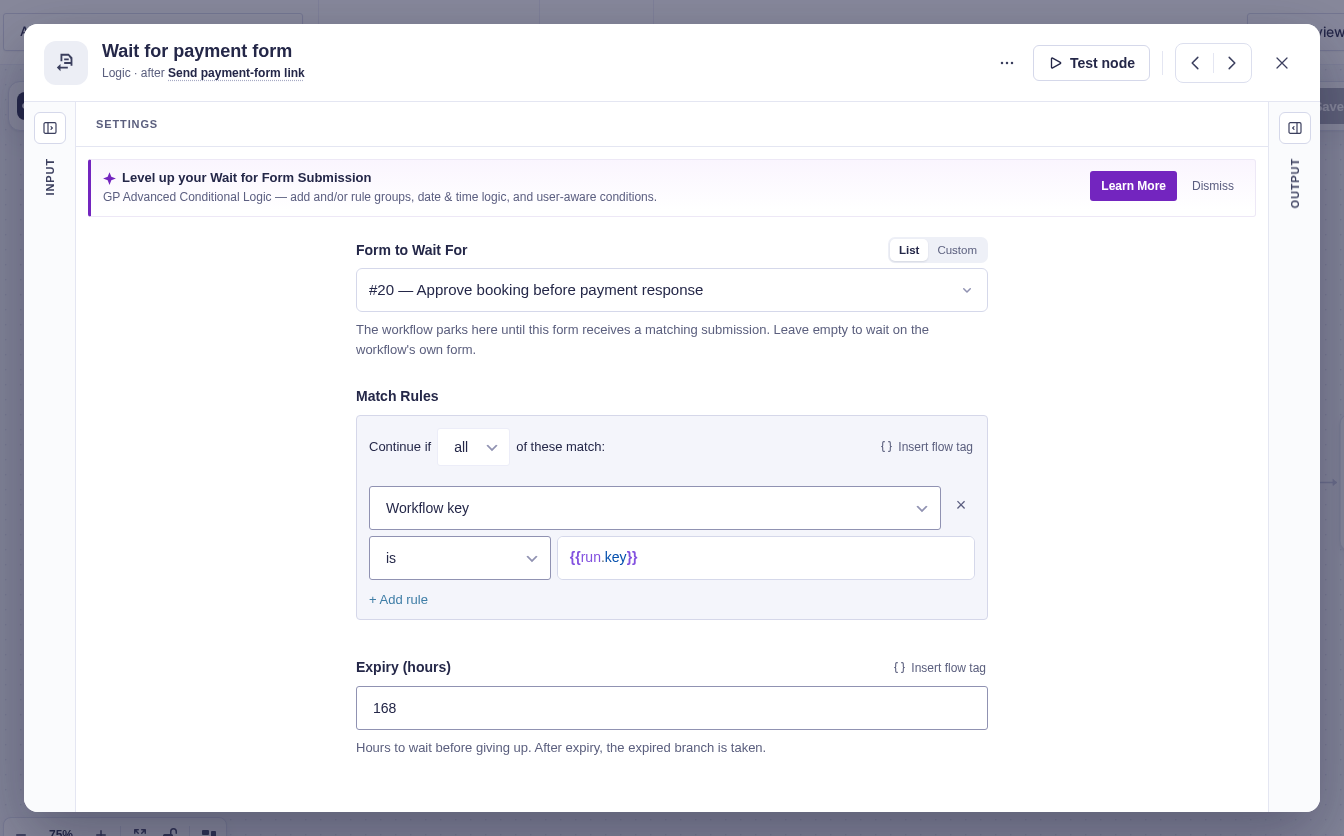
6. Add [Wait for Form Submission](/documentation/flowcrafter/nodes/flow/wait-for-form-submission/). Choose the Booking payment form and match its hidden key field to `{{run.key}}`. Set its expiry to the time the customer has to open and submit the payment form. Connect **Expired** to the overdue path.
7. On **Submitted**, add [Wait for Payment](/documentation/flowcrafter/nodes/flow/wait-for-payment/). Set **Form source** to the Booking payment form and **Entry source** to `{{ "Wait for Form Submission".entry_id }}`. Set **Overdue in** (hours) to a window that fits the payment method: card payments may need hours, while bank transfers may need several days.
8. On **Paid**, add [Update Entry Field](/documentation/flowcrafter/nodes/actions/update-entry-field/) targeting `{{ "Form Submitted".id }}` on the Booking request form, and set **Booking status** to `Confirmed`.
9. Add [GF Feed](/documentation/flowcrafter/nodes/actions/gf-feed/) after the status update when an existing feed should register the attendee, create the membership, or hand the booking to another service. Point it at the original booking entry, then send the customer a confirmation.
10. Join the payment form's **Expired** path and Wait for Payment's **Overdue** path at an Update Entry Field node that sets the original booking status to `Payment overdue`. Follow it with an email to the customer and booking team so someone can check the gateway before cancelling the request or releasing the place.
## Keep in mind
- **Keep the price out of the link:** Use a fixed price on the payment form or load the approved amount from trusted server-side data. Do not put an editable amount such as `?amount=500` in the payment URL — a customer could change it before paying.
- **Overdue does not disable the payment form:** **Overdue** means Flowcrafter stopped waiting after the configured window. It does not cancel a gateway session, disable the payment form, or prevent a late payment. Keep fulfillment blocked and have staff check the gateway before cancelling the booking or releasing limited inventory. A gateway-specific API step can close the payment opportunity when the provider supports it.
## Data passed between nodes
| From | Data used later | Where it goes |
|---|---|---|
| Run context | `run.key` | Payment-form URL and Wait for Form Submission match |
| Wait for Form Submission | Payment form `entry_id` | Wait for Payment entry source |
| Wait for Payment | `payment_status`, `transaction_id`, `payment_amount` | Customer confirmation, staff messages, and run history |
| Form Submitted | Original booking `id` | Booking status update and fulfillment feed |
## Test and activate safely
New workflows start **Inactive**. Use builder tests for rejection and approval first. Paid and Overdue require a real parked run, so temporarily activate the workflow on staging, or use test recipients and the gateway's sandbox during a controlled live test. Complete one successful payment, then use a short **Overdue in** (hours) value for a second run. Restore the real deadline before production activation. The field defaults to `168` hours; clearing it waits indefinitely, which is rarely appropriate for limited inventory.
Before going live, confirm the payment add-on does not independently run the same fulfillment action, activate the workflow, and monitor the first paid and overdue runs. If a run is already parked on an older Wait for Payment node, changing the setting does not rewrite that frozen run.
## What Flowcrafter adds
Gravity Forms can collect payment and run supported feeds afterward. It does not hold a request for approval, connect an approved request to a second payment form, update the original booking, and take a separate overdue path when payment misses the business deadline.
Flowcrafter keeps those moments in one run: approval decides whether payment should be requested, the run key connects the two forms, Wait for Payment blocks fulfillment, and the original booking records whether the outcome was confirmed or overdue.
## Related resources
- [Wait for Approval](/documentation/flowcrafter/nodes/flow/wait-for-approval/) — decide whether the customer should be asked to pay
- [Wait for Form Submission](/documentation/flowcrafter/nodes/flow/wait-for-form-submission/) — match the payment form to this booking
- [Wait for Payment](/documentation/flowcrafter/nodes/flow/wait-for-payment/) — continue through Paid or Overdue
- [Update Entry Field](/documentation/flowcrafter/nodes/actions/update-entry-field/) — keep the booking status on the original request
- [GF Feed](/documentation/flowcrafter/nodes/actions/gf-feed/) — start fulfillment only after payment
- [Pausing & Waiting](/documentation/flowcrafter/building/pausing-workflows/) — understand event-driven waits