# Approve an expense claim by amount
An expense form is easy. The hard part is the policy around it: who needs to approve, what happens when they reject, and how a request that nobody answers gets escalated instead of forgotten.
Good for
Finance and operations teams with a spend-approval policy
Level
Intermediate
## What you'll build
Every claim goes to the submitter's manager. Claims over a threshold wait for finance as well — both approvals must land before the claim is marked approved. A rejection records the reason, marks the claim rejected, and tells the submitter the decision. An unanswered request escalates instead of sitting forever.
The manager and finance approvals share the same **Rejected** and **Expired** paths.
```mermaid
---
config:
flowchart:
nodeSpacing: 25
rankSpacing: 25
padding: 12
subGraphTitleMargin:
top: 8
bottom: 15
---
flowchart TD
A[Expense form submitted] --> C[Manager approval]
C -->|Approved| B{Over threshold?}
B -->|No| F[Set status: Approved]
B -->|Yes| E[Finance approval]
E -->|Approved| F
C -->|Rejected| G[Set status: Rejected]
E -->|Rejected| G
G --> H[Email submitter with reviewer note]
C -->|Expired| I[Escalate to finance lead]
E -->|Expired| I
```
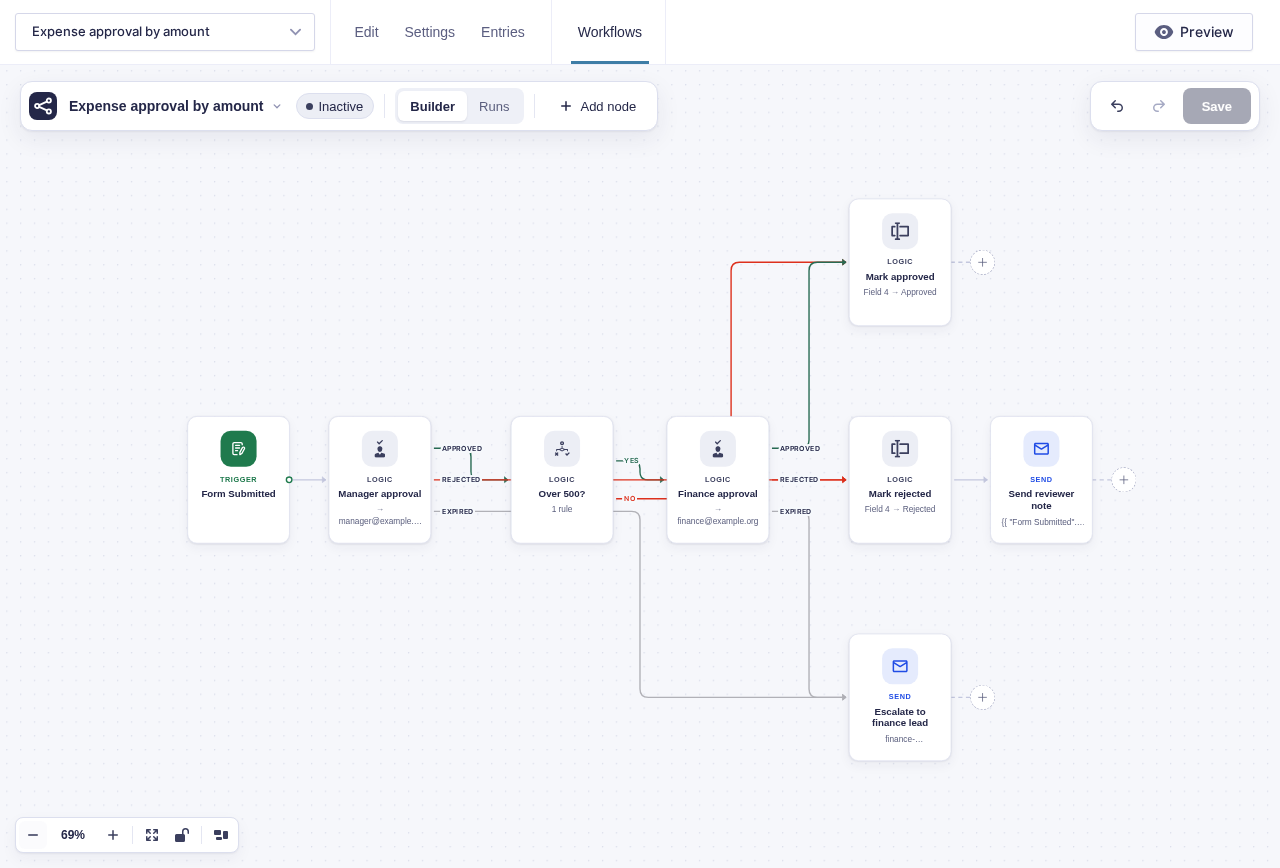
:::note[Finance approval only runs when the manager approves]
When the manager rejects, the finance node sits on a branch the run never takes, so it is skipped — finance is never asked to approve something the manager has already refused. Skipped branches never block later nodes, so the run finishes cleanly on the rejected path.
:::
## Before you build
- Add an amount field plus administrative **Claim status** and **Manager email** fields.
- Decide the finance threshold, approval policy, expiry, reminder interval, and escalation owner.
- Make sure manager email values come from trusted staff data, not a field the submitter can edit.
- Confirm WordPress can send approval mail reliably.
## Build it step by step
1. Build an expense form with a total or amount field, and administrative-only fields for **Claim status** and, if you route by manager, the submitter's manager. Set visibility to **Administrative** so submitters cannot pick their own approver or mark their own claim approved.
2. Open your expense form and click **Workflows** in the form toolbar. Click **New Workflow**, then **Add Trigger** and choose [Form Submitted](/documentation/flowcrafter/nodes/triggers/form-submitted/).
3. Add [Wait for Approval](/documentation/flowcrafter/nodes/flow/wait-for-approval/) named **Manager approval**. Set **Approver emails** from the administrative manager field, **Approval policy** to `First response decides`, **Expiry** (hours) to `72`, and **Reminder** (hours) to `24`. Include the claim details in **Email Body** and turn on **Require a note when rejecting**.
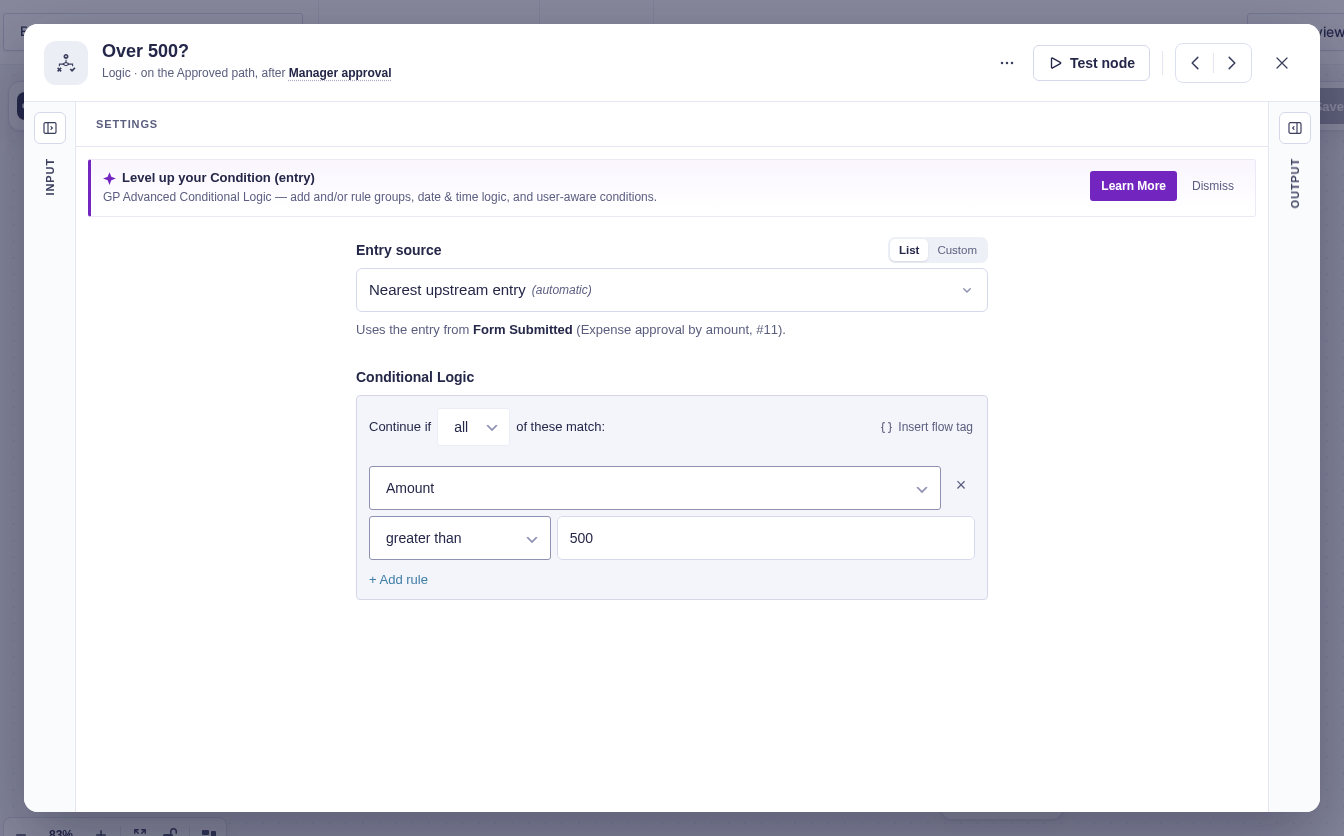
4. From the manager's **Approved** output, add [Condition (entry)](/documentation/flowcrafter/nodes/logic/condition-entry/) named **Over threshold**. Build one rule — total is greater than your policy amount, such as `500`.
5. On the condition's **Yes** branch, add a second Wait for Approval named **Finance approval**. Use the **All approvers must approve** policy when more than one finance approver should sign off.
6. Join the condition's **No** branch and Finance approval's **Approved** output at one [Update Entry Field](/documentation/flowcrafter/nodes/actions/update-entry-field/) that sets **Claim status** to `Approved`. The shared node waits for whichever branch actually ran; the skipped one never blocks it.
7. Connect both approval nodes' **Rejected** outputs to one path that sets **Claim status** to `Rejected`, then add [Send Email](/documentation/flowcrafter/nodes/actions/send-email/) for the submitter. Include `{{ "Manager approval".note }}` or `{{ "Finance approval".note }}` as appropriate.
8. Connect both approval nodes' **Expired** outputs to an escalation — an email to the finance lead or [Add Entry Note](/documentation/flowcrafter/nodes/actions/add-entry-note/) — so a request nobody answers is still visible.
## Data passed between nodes
| From | Data used later | Where it goes |
|---|---|---|
| Form Submitted | Amount, submitter email, manager email, and entry identity | Manager approval, threshold check, and status updates |
| Manager approval | Decision and `note` | Threshold branch or rejection email |
| Finance approval | Decision and `note` | Approved status or rejection email |
| Each approval | `resolved_by` and `resolved_at` | Run history and optional entry note |
## Edge cases
- **Exactly at the threshold:** `greater than 500` sends `500` down No. Use `greater than or equal` if policy includes the boundary.
- **Missing manager:** an empty Approver Emails value fails the node. Route incomplete staff data to triage before approval.
- **Forwarded links:** approval URLs are signed bearer links. Anyone holding one can act as that approver.
- **Expiry:** after the configured deadline, new parked approvals continue through Expired automatically. An approval already waiting before expiry scheduling was installed has no retroactive timer.
## Test and activate safely
New workflows start **Inactive**. Test below, at, and above the threshold. Simulate manager and finance rejection separately so the email uses the correct note. Expired needs a real parked run, so verify each expiry on staging or during controlled live tests with temporary recipients and short deadlines. Restore the policy values and production recipients, activate, then inspect the first low- and high-value claims in Runs.
## What Flowcrafter adds
A notification can ask a manager, but it cannot hold the next step until the answer arrives, route by amount, or escalate when nobody answers. Flowcrafter turns the policy into the workflow: every claim waits for its manager, the threshold decides whether finance must review it too, and the approved, rejected, and expired paths are all visible on the record.
The same shape fits purchase requests, travel authorization, overtime, refunds, and leave — any process where the amount decides how many people must say yes.
## Related resources
- [Wait for Approval](/documentation/flowcrafter/nodes/flow/wait-for-approval/) — approvers, policies, reminders, notes, and expiry
- [Condition (entry)](/documentation/flowcrafter/nodes/logic/condition-entry/) — decide who reviews based on the amount
- [Update Entry Field](/documentation/flowcrafter/nodes/actions/update-entry-field/) — keep the claim status visible on the entry
- [Pausing & Waiting](/documentation/flowcrafter/building/pausing-workflows/) — how parked runs resume