Documentation
Account Page Documentation
The Account page is a portal for managing your profile, your licenses, and billing details and for downloading plugins. This guide will walk you through the different sections of the Account page and how everything fits together.
Login
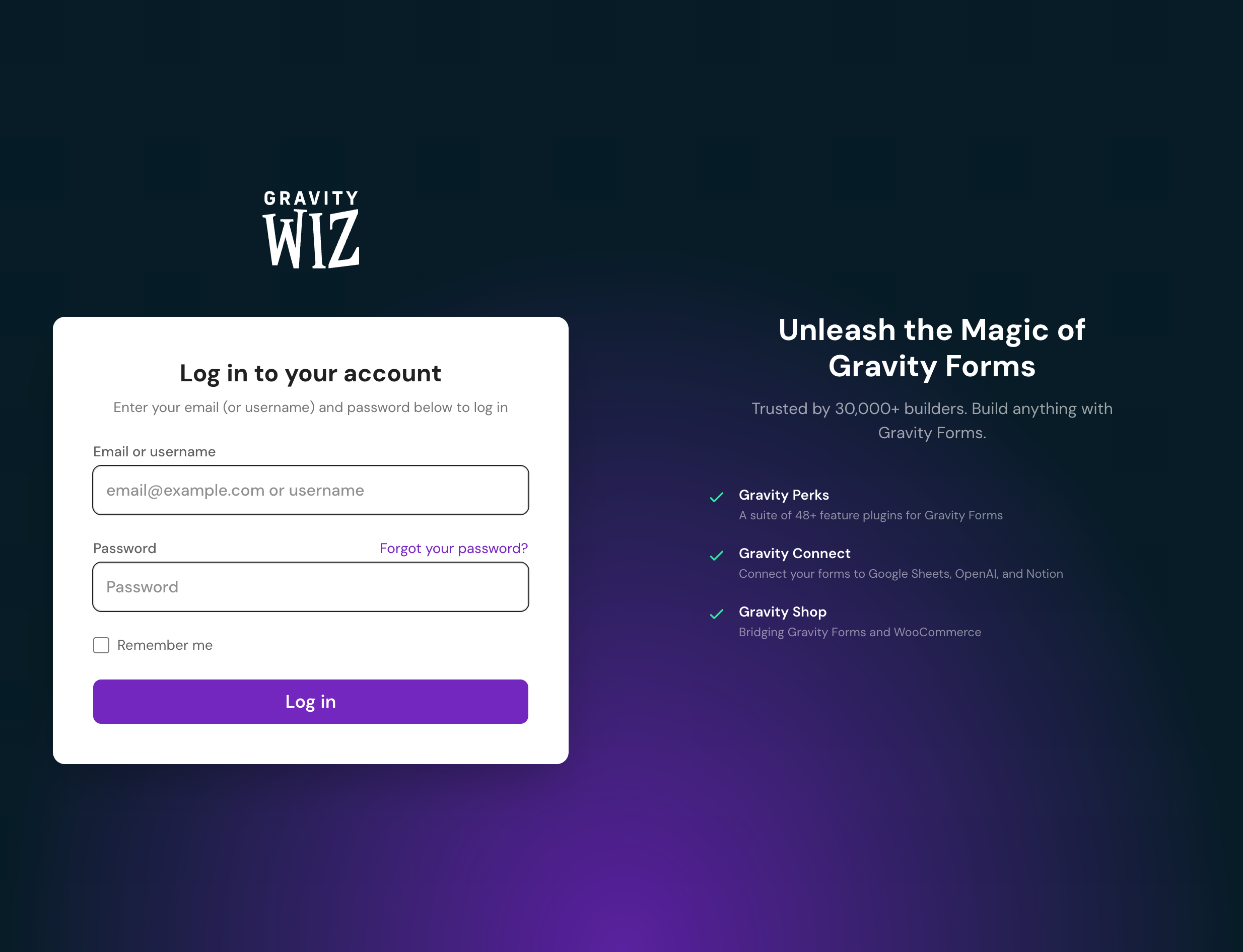
When you purchased your license, you were asked to create a username and password. Use these credentials to log in. Can’t remember your info? No problem, just click Forgot your password? and we’ll send you a reset email.
Dashboard
Once you’re logged in, you’ll be on the Account Dashboard. This will display any important information you need to know—such as upcoming license expirations—display your licenses, and give you quick access to support.
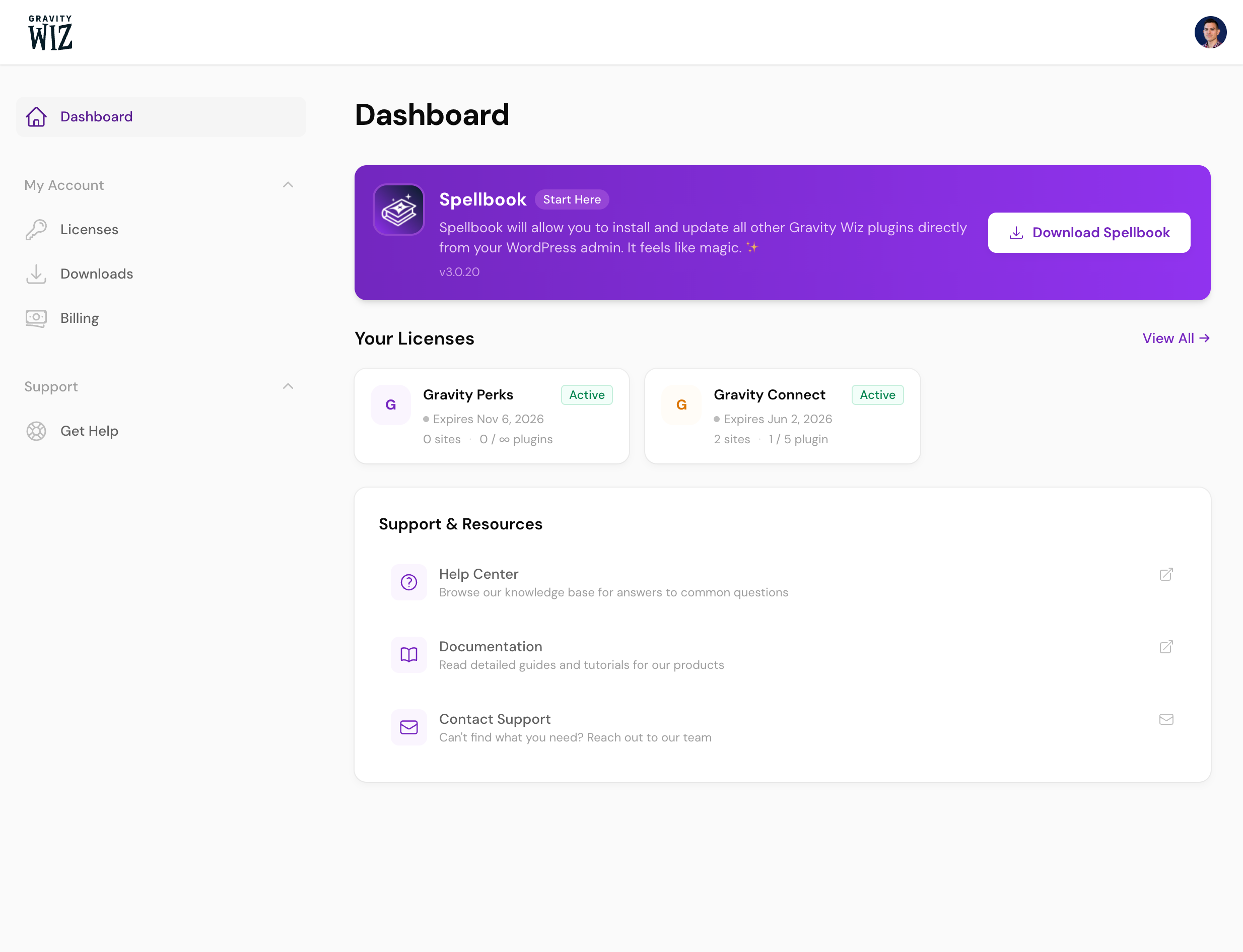
Selecting a license from this page will take you to the License Details.
Licenses
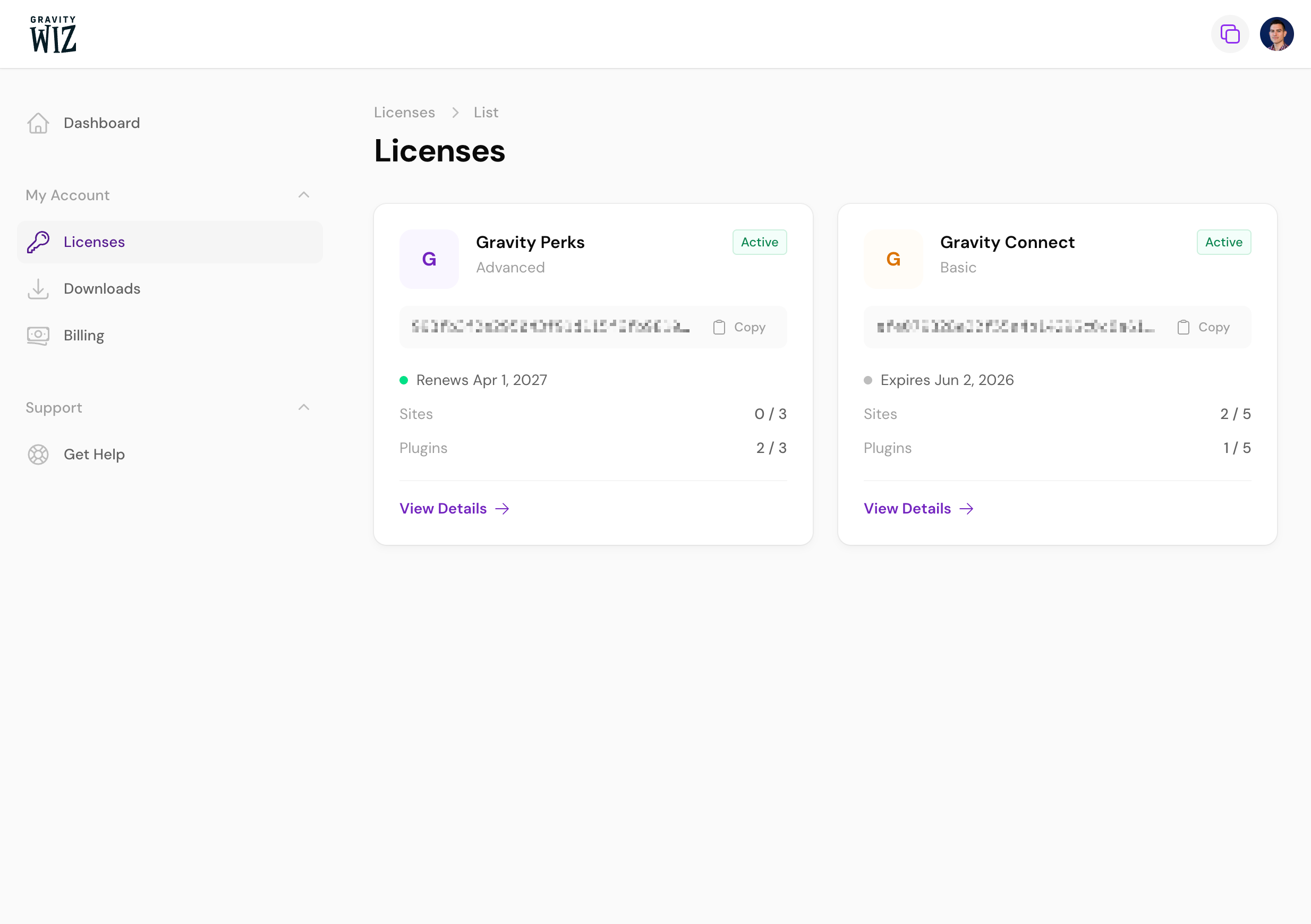
The Licenses tab will show all the licenses attached to your account. You can easily grab your license queue or manage the individual license by clicking View Details.
License Details
Once you’ve selected a license, you’ll be presented with all the details about the license, including the sites it has been registered on, what plugins are in use, and subscription information.
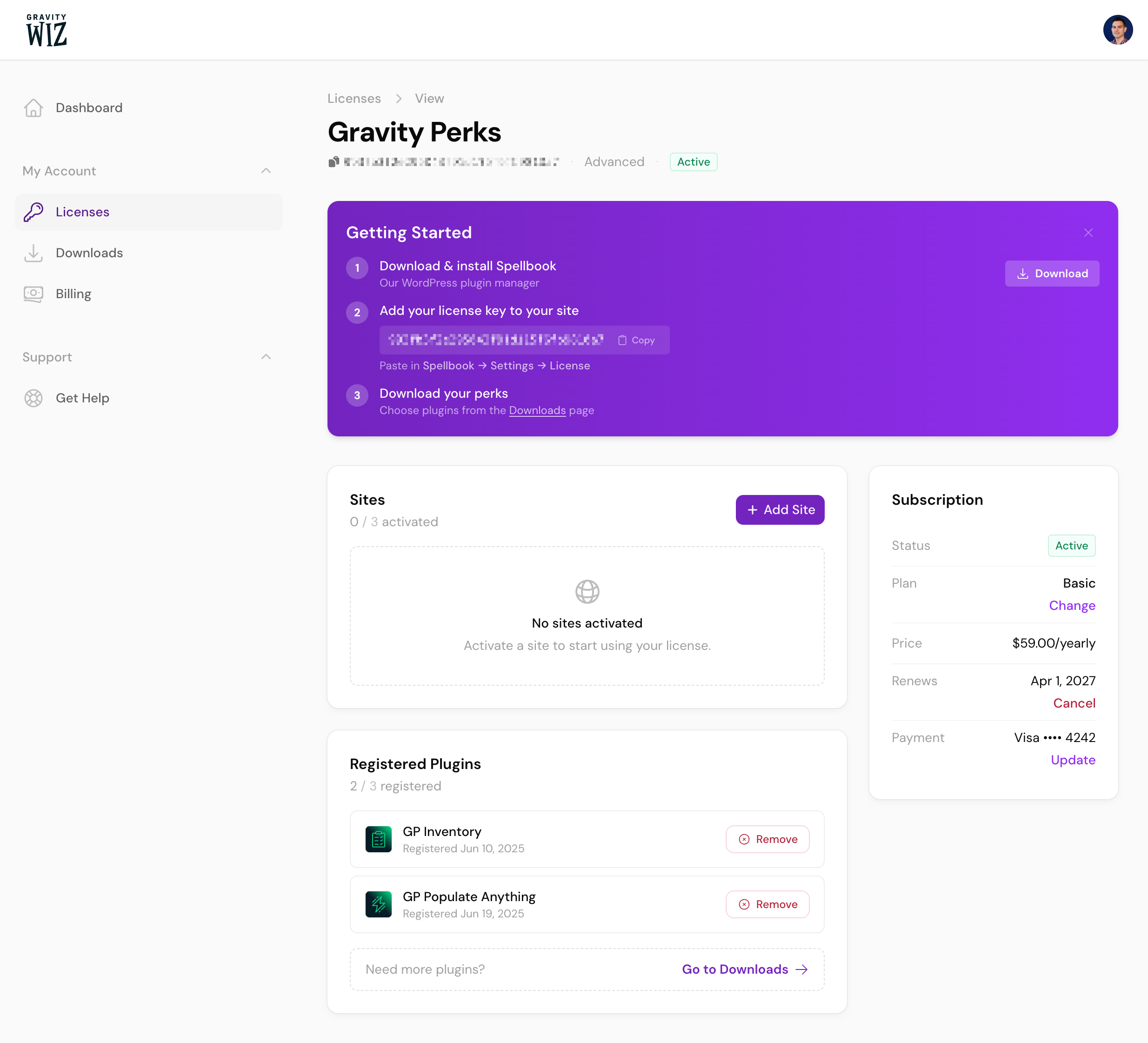
Sites
While a site is automatically added when you register your license in WP Admin via Spellbook, you can also manually register sites here.
You can also deactivate a site from this page. Doing so will remove its registration from your license, which is handy if you’re on a Basic or Advanced license and would like to register a different site.
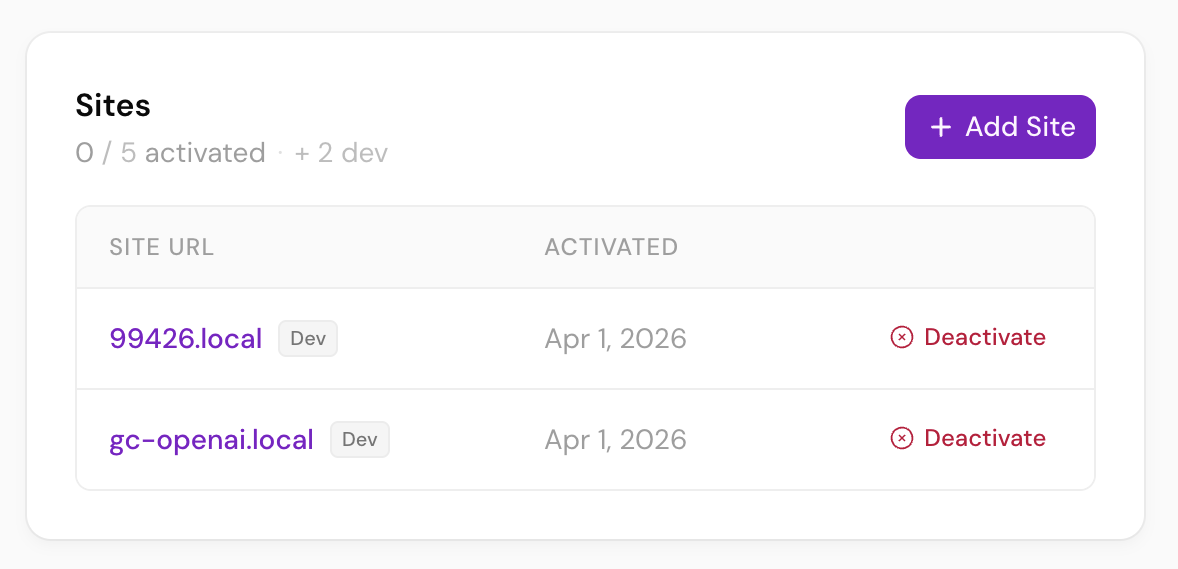
A deactivated site will re-register itself via Spellbook. To prevent this, deactivate and delete the Spellbook plugin on your site.
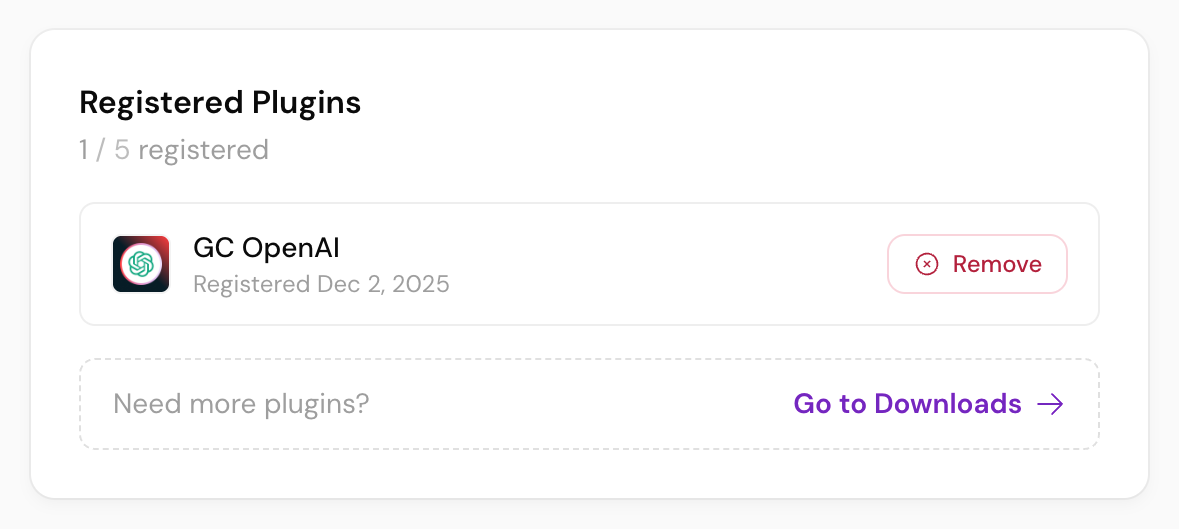
Registered Plugins
Similar to deactivating a site, you can also remove registered plugins. Just as with sites, this is key for Basic and Advanced licenses if you want to register a different plugin on your site(s).
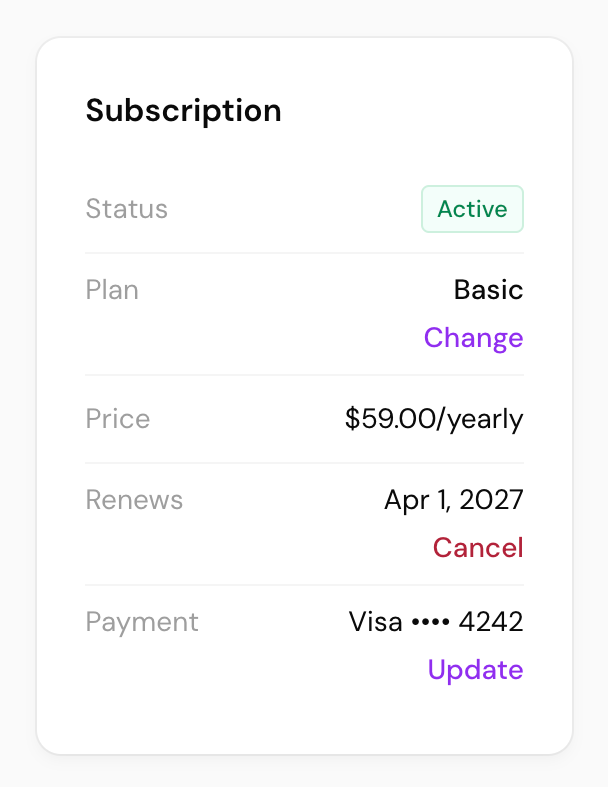
Subscription
Use the Subscription section to change your plan, cancel renewal, or update your payment method.
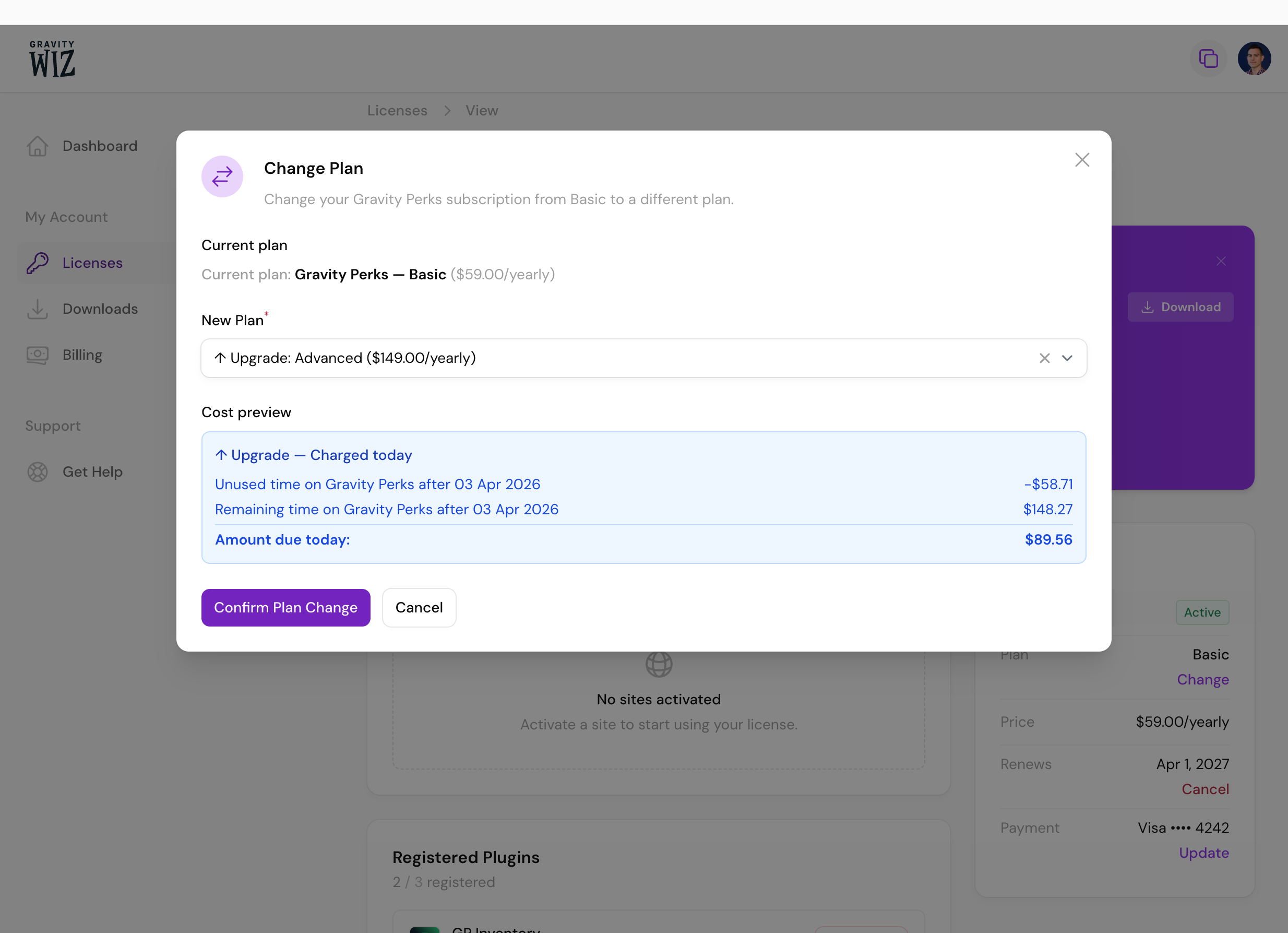
Change Plan
You can easily upgrade or downgrade your license at any time. Click Change Plan and you’ll see a modal with your options. Select a new plan, click Confirm Plan Change, and you’re all set.
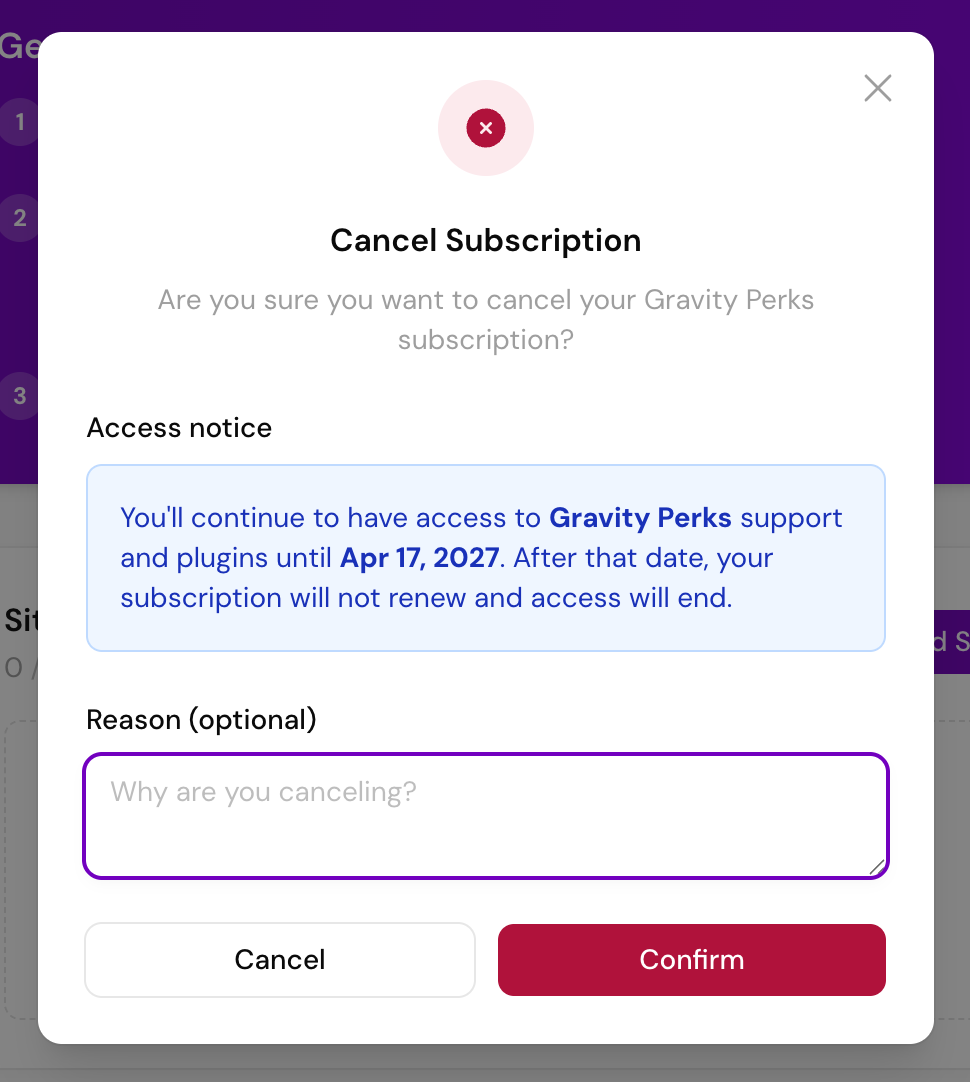
Cancel Subscription
Just like upgrading or downgrading your account, you can cancel your subscription at any time. You’ll continue to have access to support and plugins until your license expires.
Update Payment
When you click Update to update your payment method, you will be redirected to the Billing tab where you can manage your payment methods.
Inactivate Licenses
Any expired licenses will appear under Inactive Licenses. By default, the contents are hidden. Click on the Inactive Licenses toggle to display them.
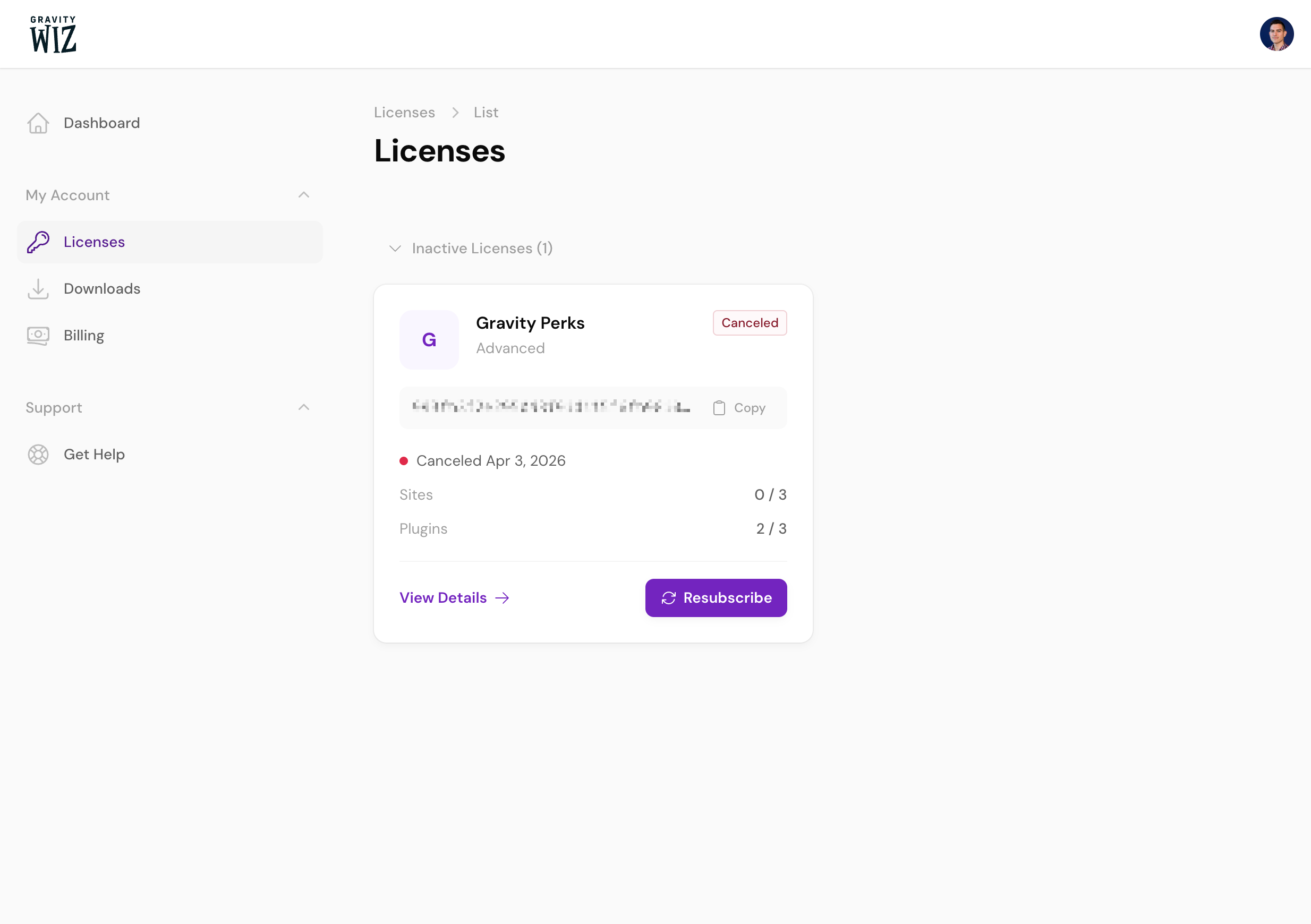
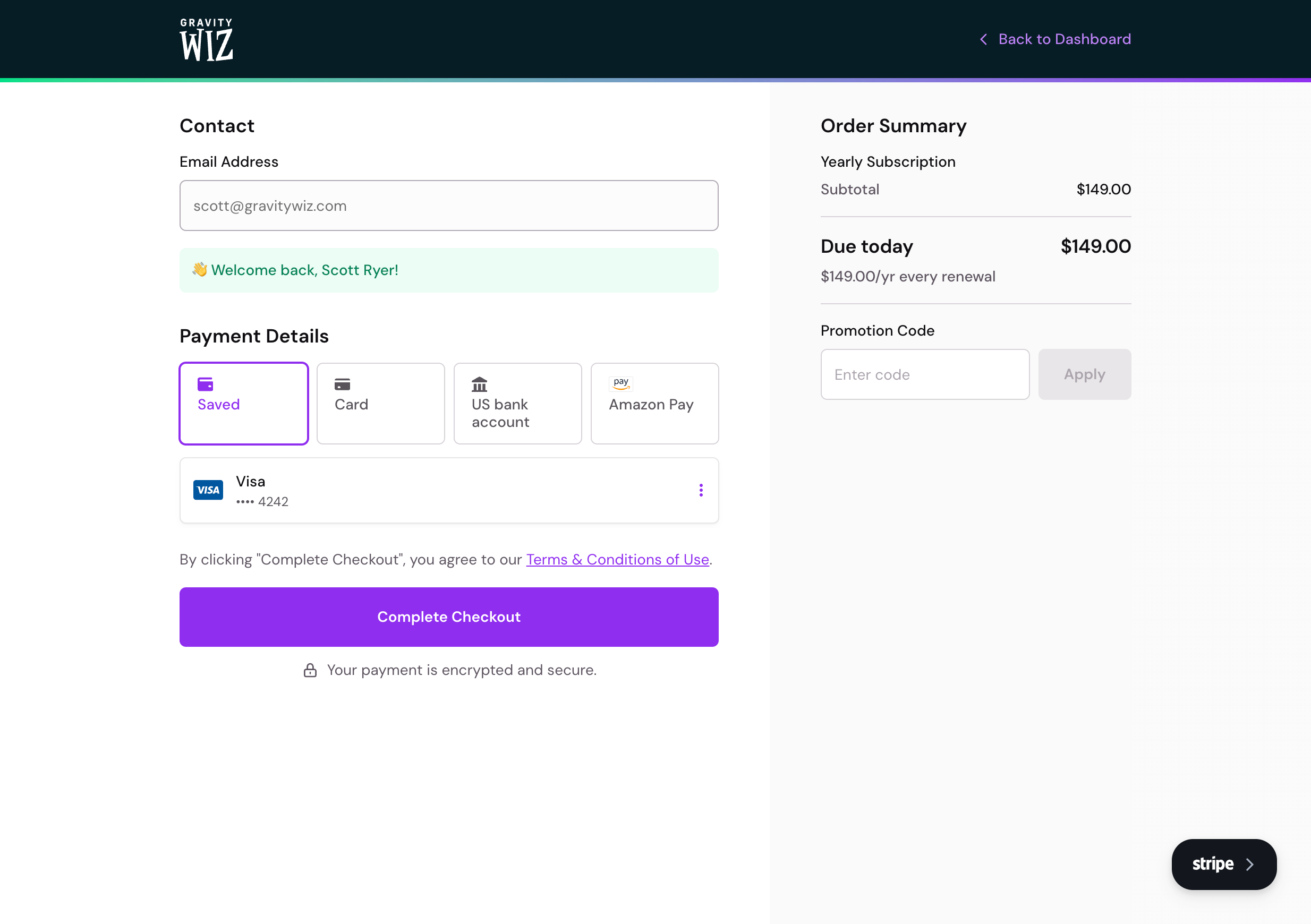
In addition to the View Details link, you’ll also see an Resubscribe button. Clicking this will take you to the checkout page to reactivate the license.
Downloads
While we recommend downloading and installing plugins using Spellbook, the Downloads tab includes additional functions for downloading and managing your plugins.
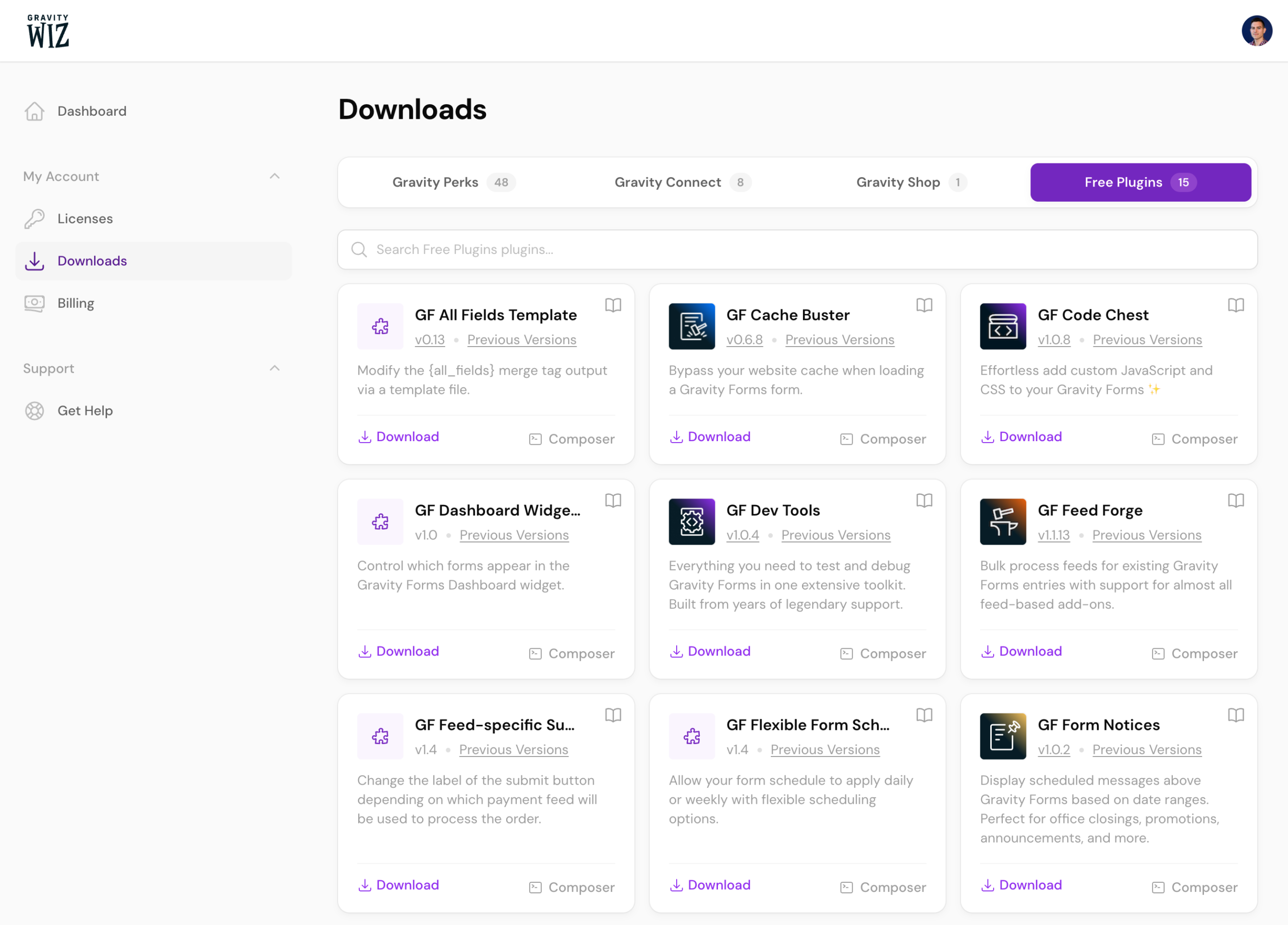
At the top you have tabs to narrow down the suite and a search bar to find exactly what you’re looking for.
The individual plugin listings are packed with functionality.
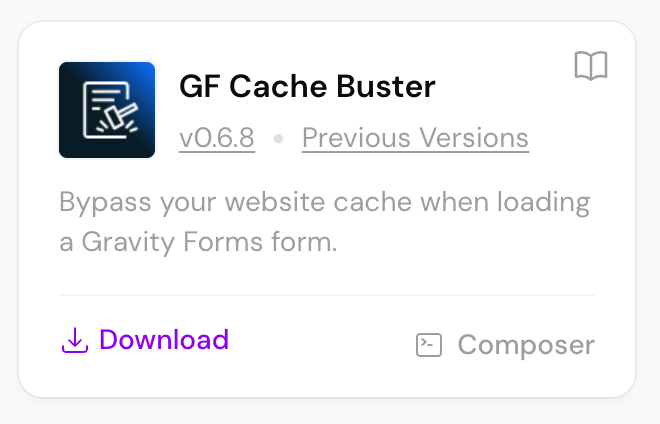
Starting from the top is a link to the documentation. Click the book icon to open the docs for that plugin.
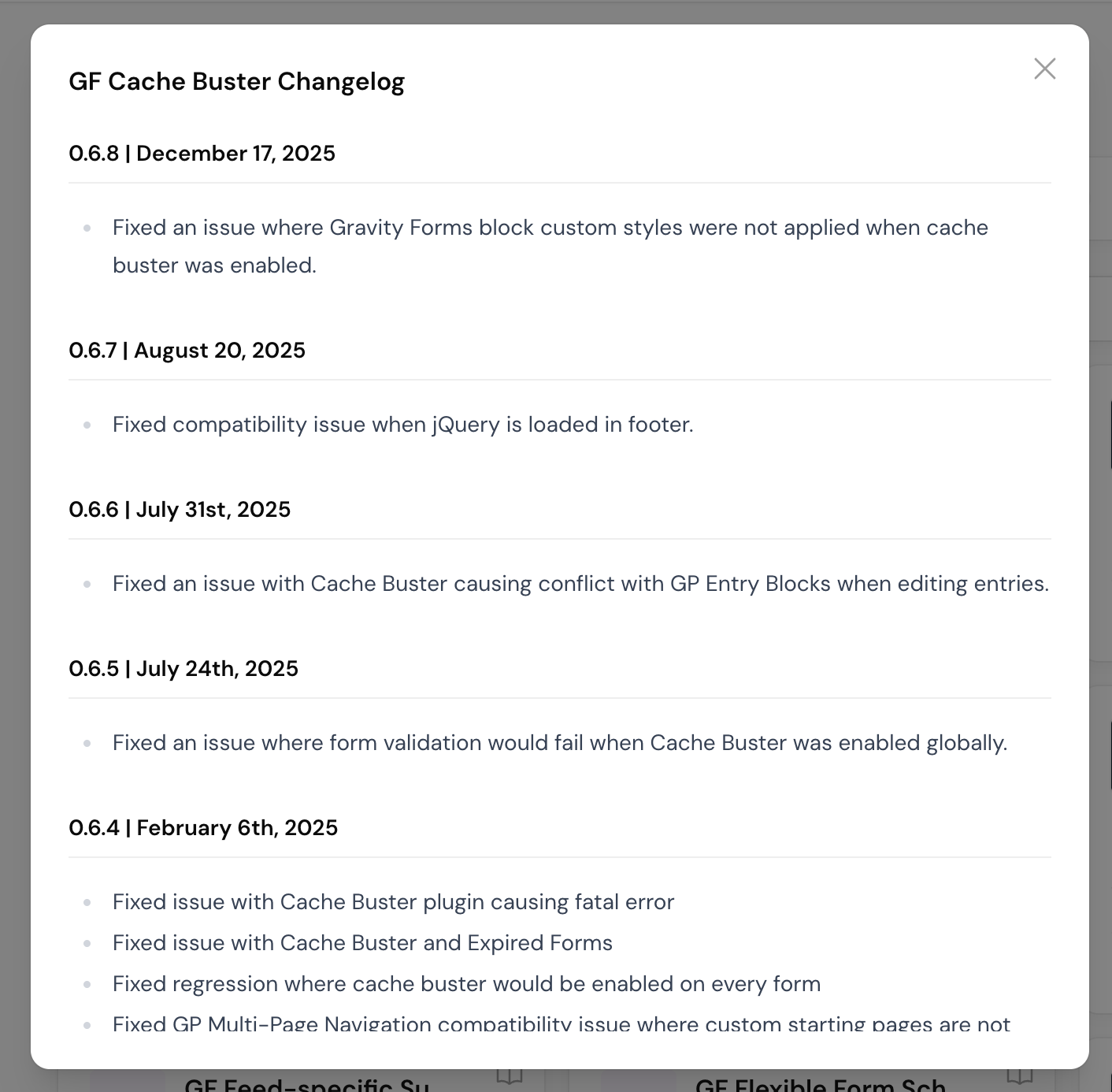
Below the name of the plugin will be the current version number and a Previous Versions link. Clicking the version number displays the changelog.
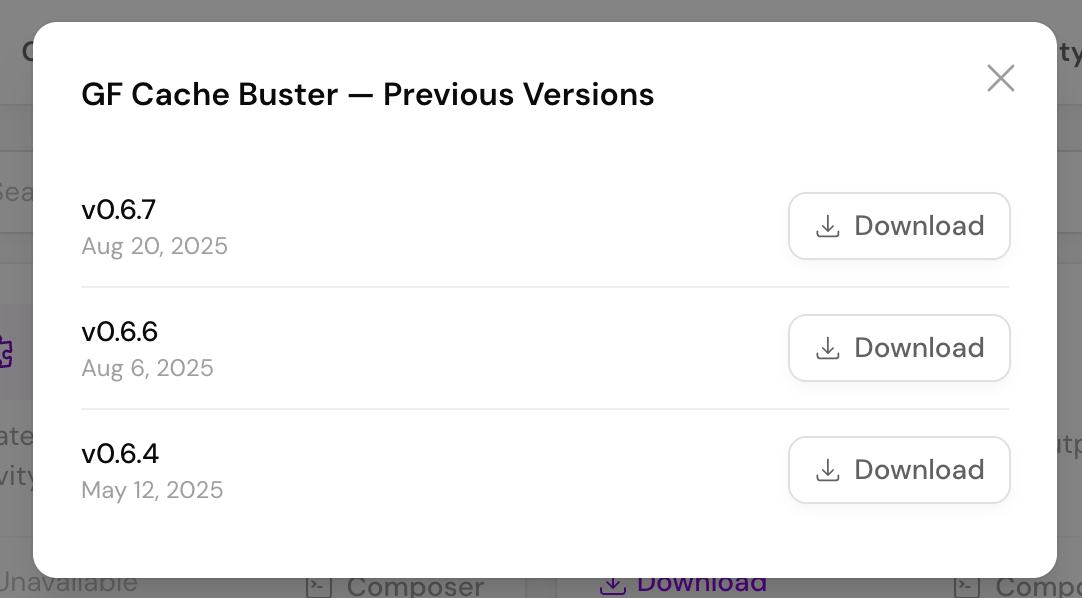
Previous Versions gives you the option to download a previous build of the plugin. This is especially helpful if you need to roll back a version.
The most obvious function is the Download link. If you want to download and install a plugin manually, use this link to do so.
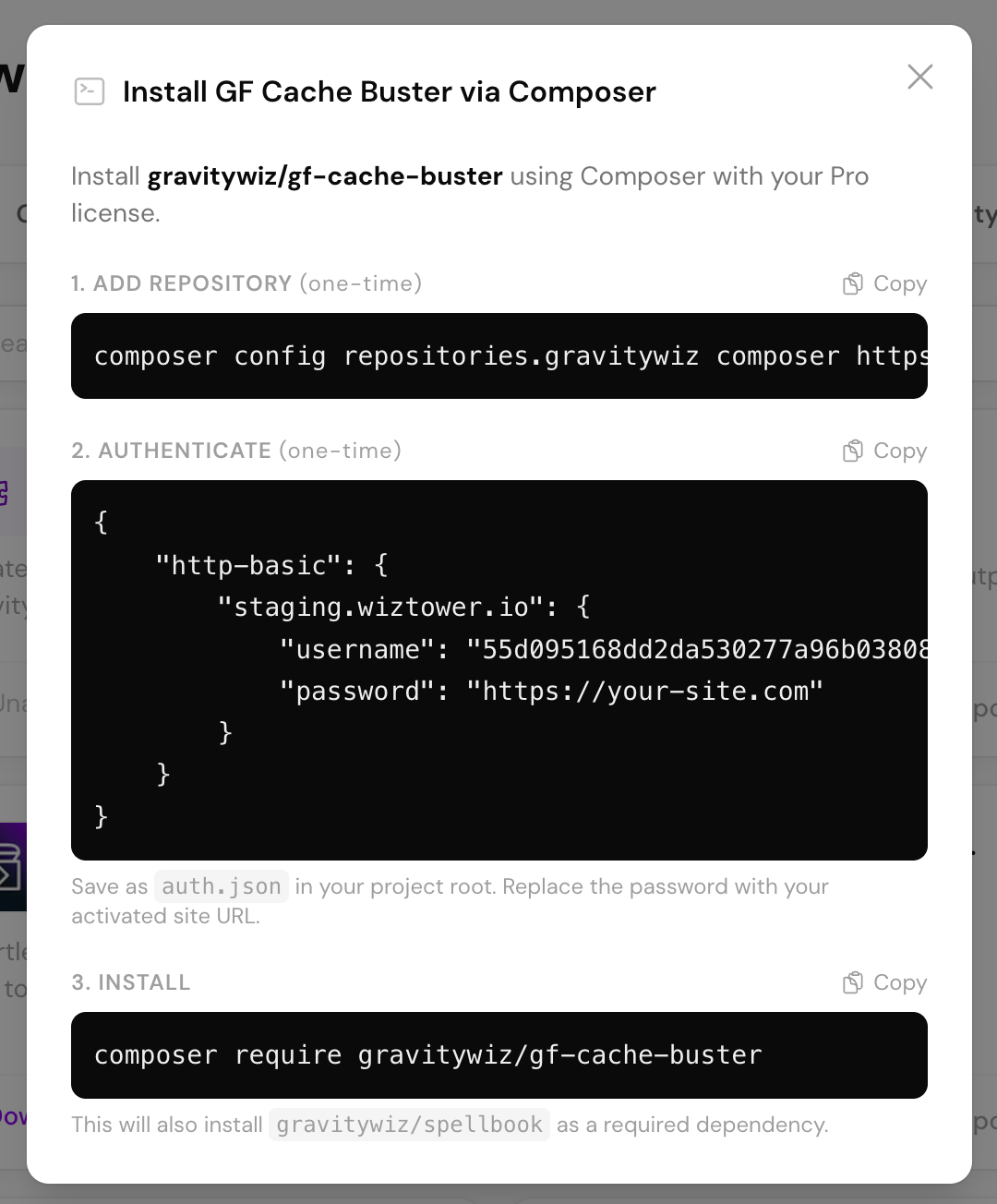
Lastly are Composer instructions. Clicking this displays a modal on how to configure Composer to install plugins on your site.
Billing
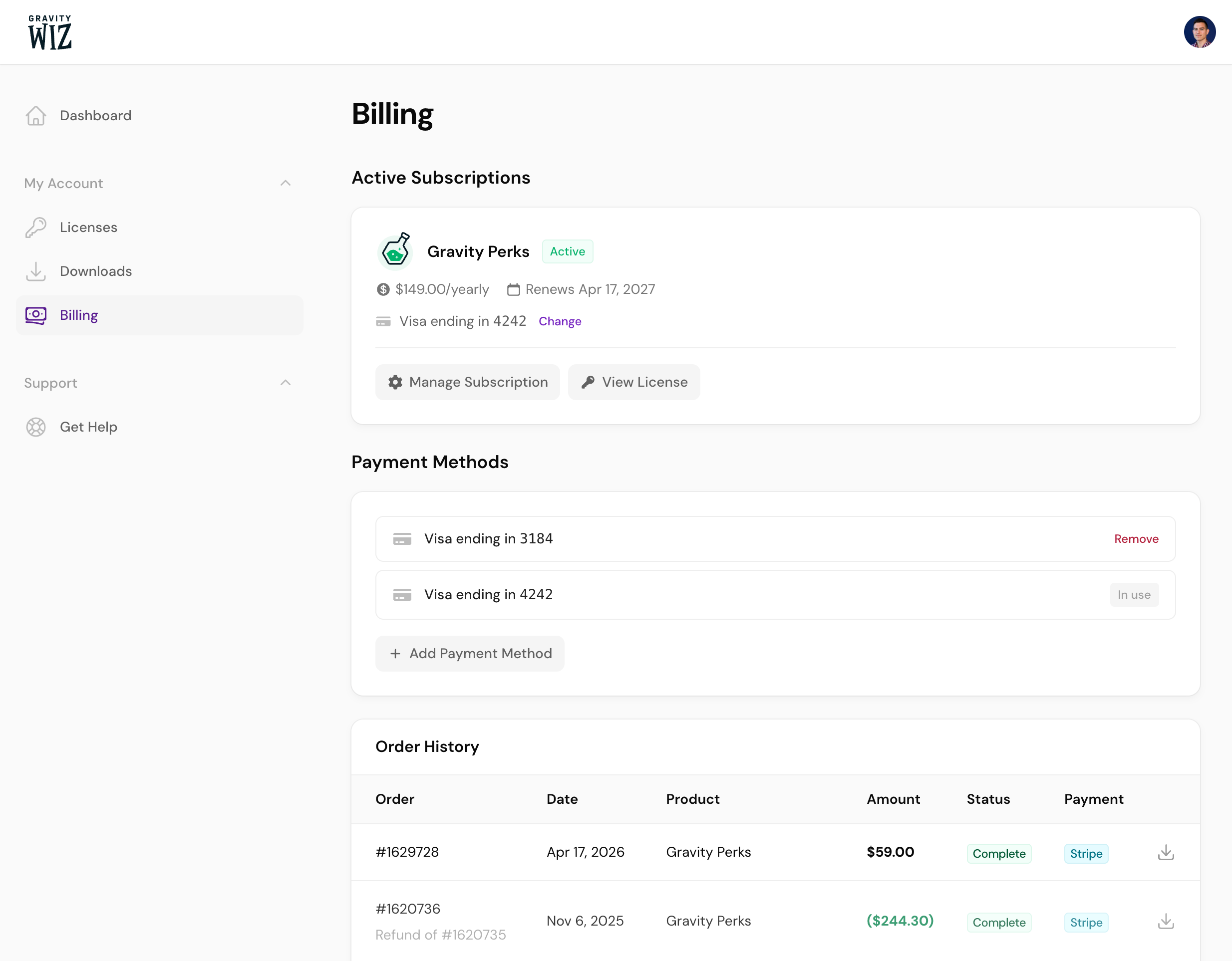
Use the Billing tab to manage your subscriptions, update and remove payment methods, and view your order history.
Change Payment Method
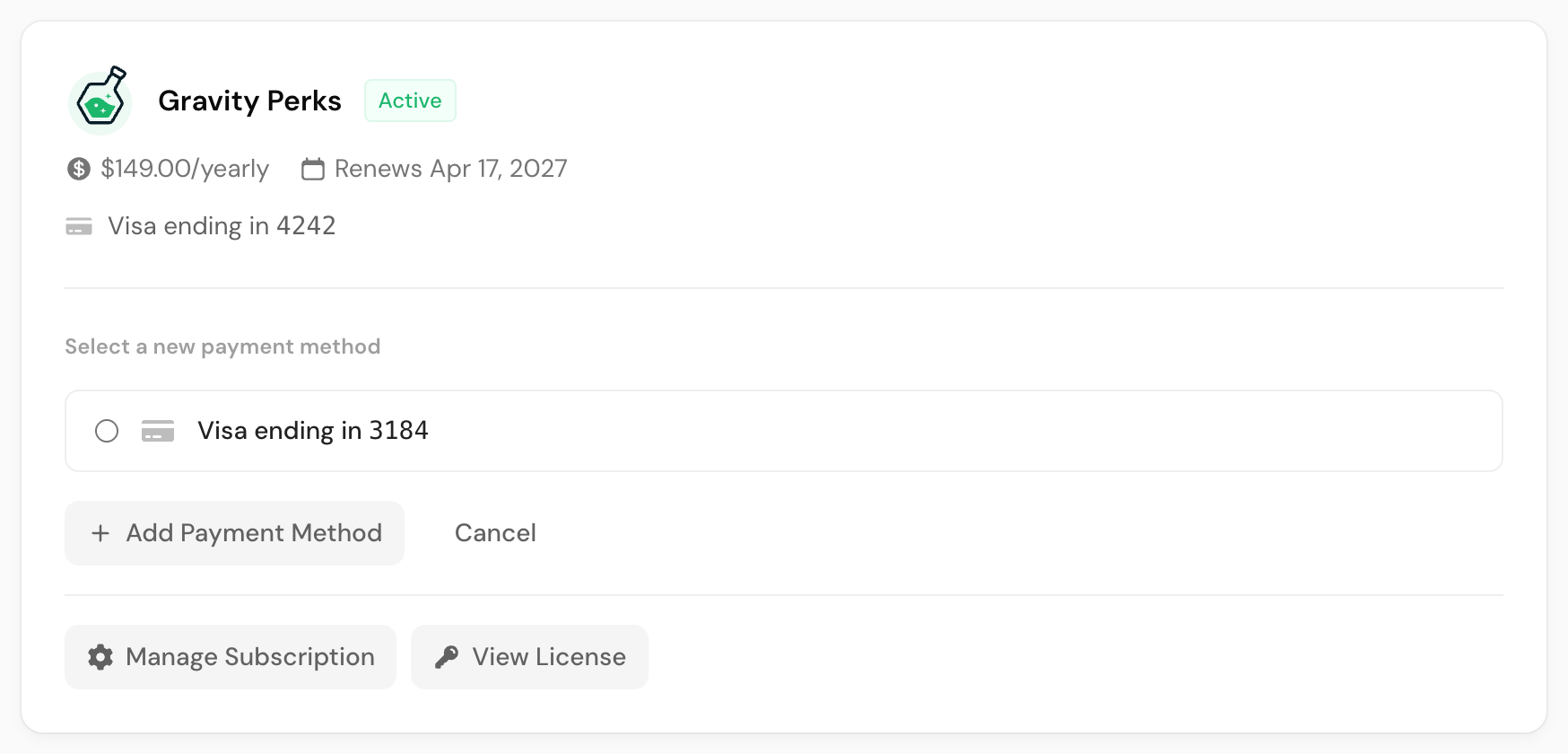
Changing your payment method is as easy as clicking Change under the subscription you want to change. The section will expand to let you select a different payment method or add a new one.
Manage Subscription
Click Manage Subscription to manage your subscription. You’ll be redirected to the License Details page, where you can make any changes you’d like.
Manage Payment Methods
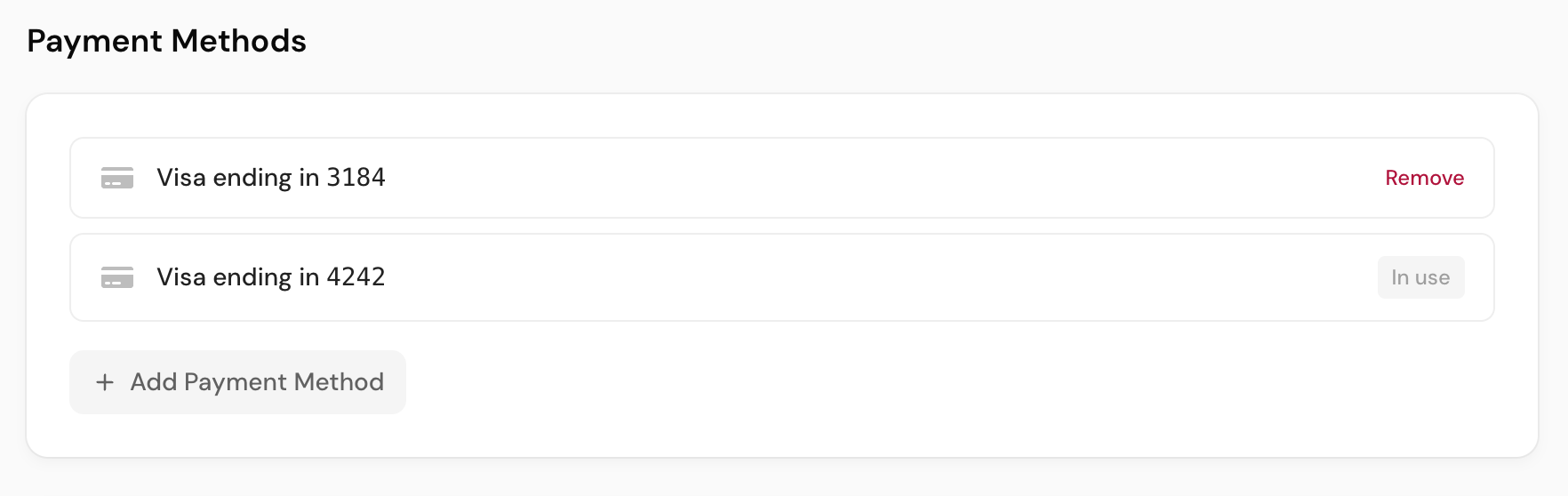
Aside from changing the payment method for a particular subscription, you can also manage your payment methods on the Billing tab. Click Add Payment Method to add a new one. Click Remove to remove any payment method not in use.
If you want to remove a payment method that is currently in use, you’ll first need to update any active subscriptions that currently use that payment method.
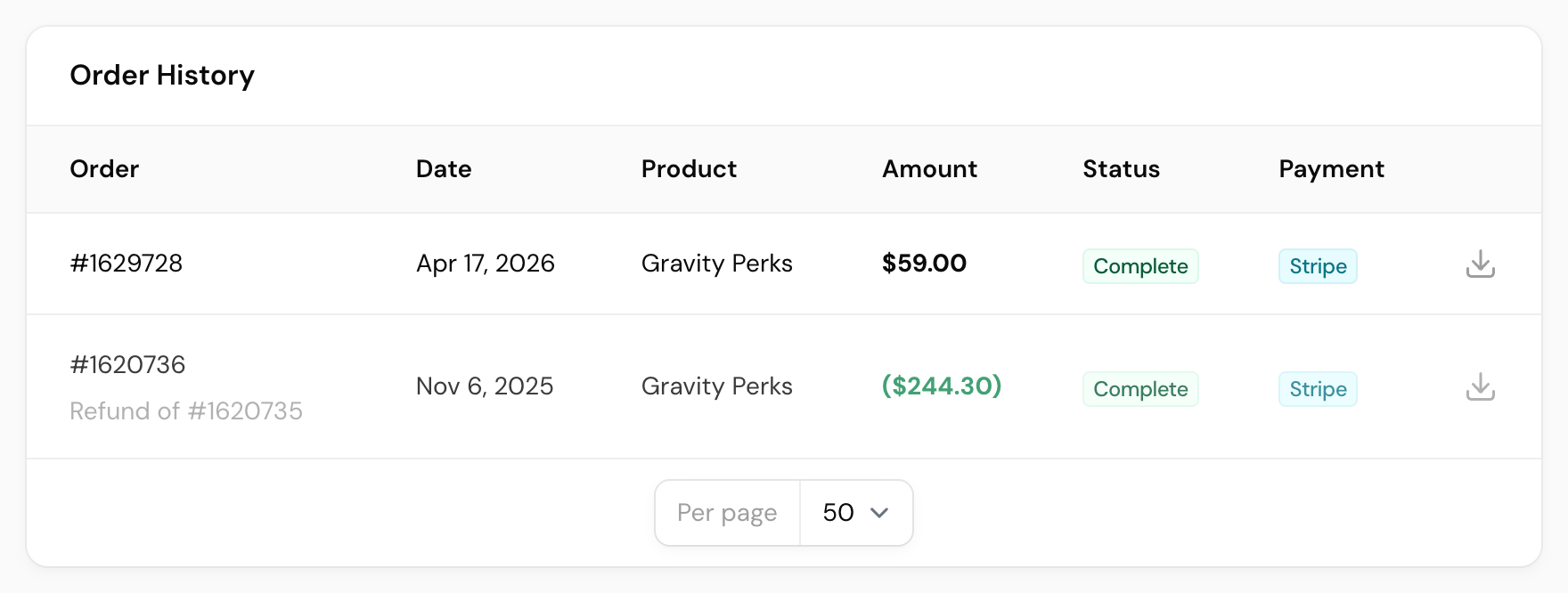
Order History
At the bottom of the Billing tab you’ll find your order history. If you ever need a record of your payment, you can download one from there.
Get Help
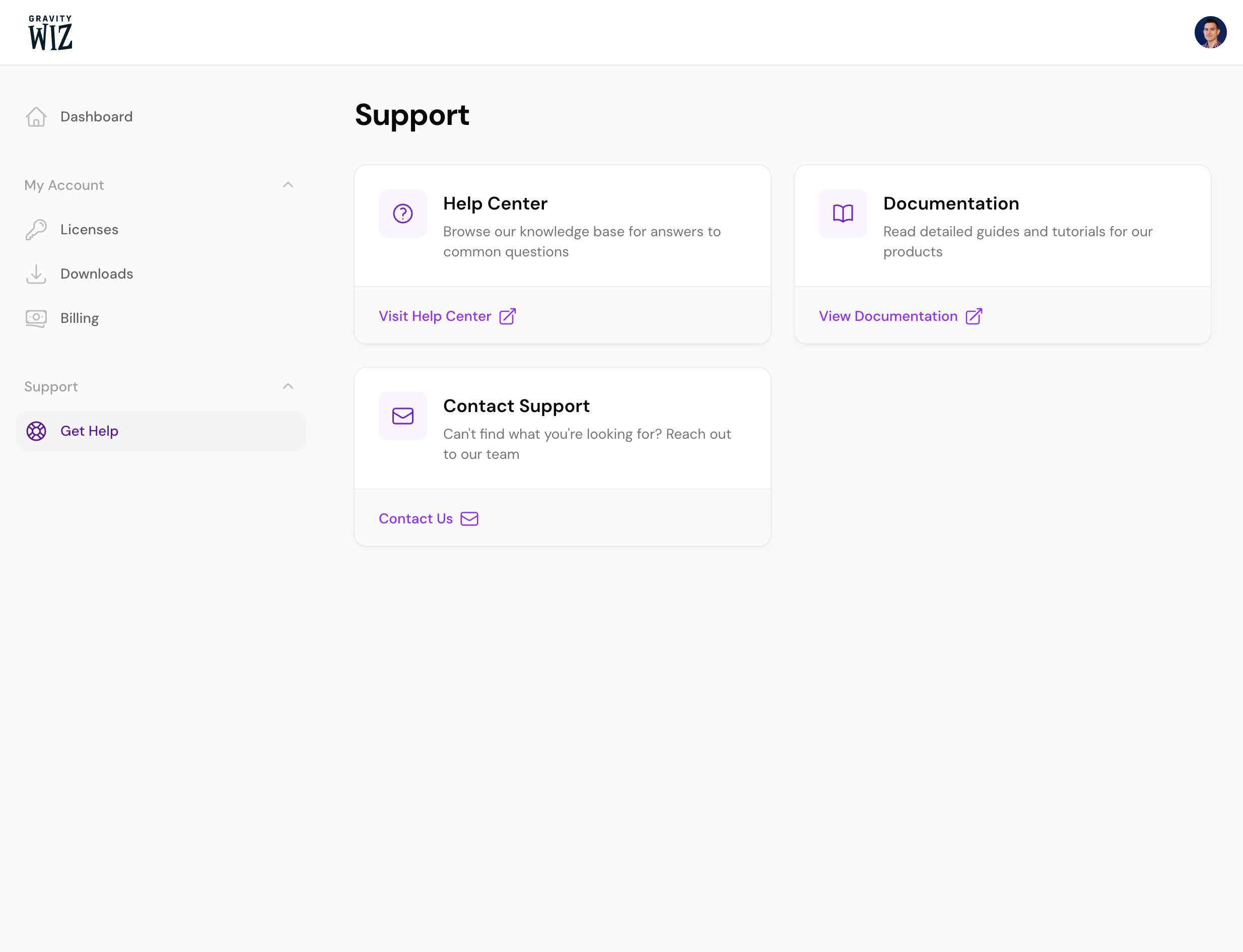
Need support? Go to the Get Help tab, where you’ll find links to our Help Center and Documentation and a Contact button to get in touch with us.