How to Set Up a Salon Booking Platform with Gravity Forms

Turn Gravity Forms into a full-fledged salon appointment platform that manages stylists, schedules, service options, and more.
If you run a salon, handling appointments online saves everyone time. Gravity Forms is a great starting point because you can collect client info, handle deposits, and send appointment reminders—all on your website.
But basic forms hit a wall when booking gets complex. That’s where GP Bookings comes in. It turns your setup into a proper booking platform. 💇🏽♀️
We’ll build a simple example to show you how this works:
- Assign stylists to services so clients can book with their favorite pro.
- Add buffer time between appointments for cleanup and prep.
- Set different service durations (30-minute trim, 2-hour highlights).
If you want to follow along:
- Open your Spellbook and activate GP Bookings.
- Grab this ready-made form (right-click and save), or create your own from scratch.
This article requires the Gravity Forms Bookings perk.
Buy Gravity Perks to get this perk plus 48 other premium Gravity Forms plugins!
Building Your Booking Form
Let’s build a simple booking system that handles services, stylists, and smart scheduling.
Add Your Service and Stylist
In GP Bookings, Services are what get booked (haircuts), and Resources (stylists) are who does the work. Let’s set them up.
- Navigate to GP Bookings › Services › Add New.
- Name it “Haircut” and set Block Size to 1 hour.
- Click the Resources tab › Add Resource › Create New Resource.
- Create a resource type called “Stylists” and add “Zoe.”
- Set Zoe’s Availability Windows to Monday-Friday, 9am-5pm.
- Add Buffer Settings › 15 minutes after appointments.
- Hit Publish.
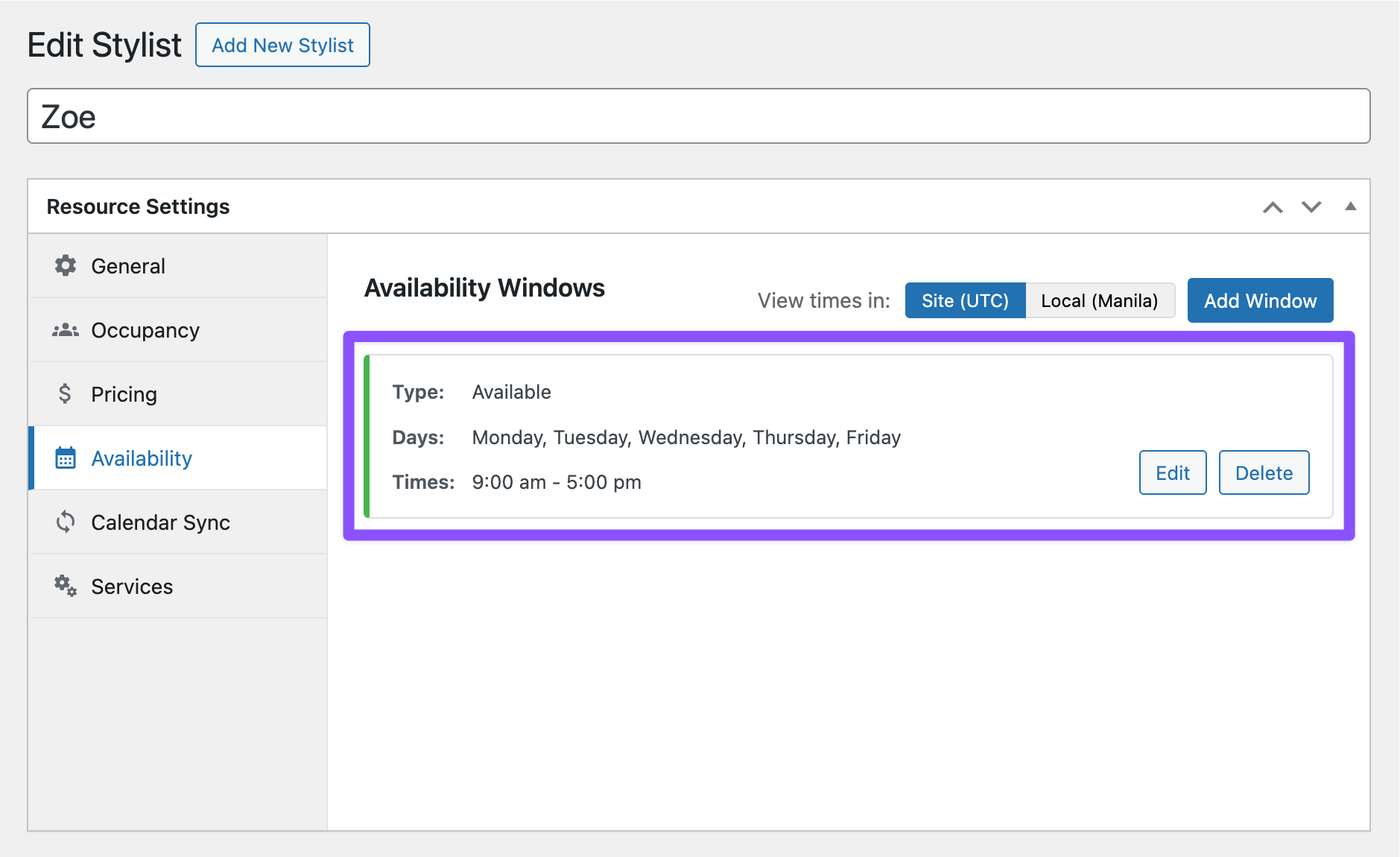
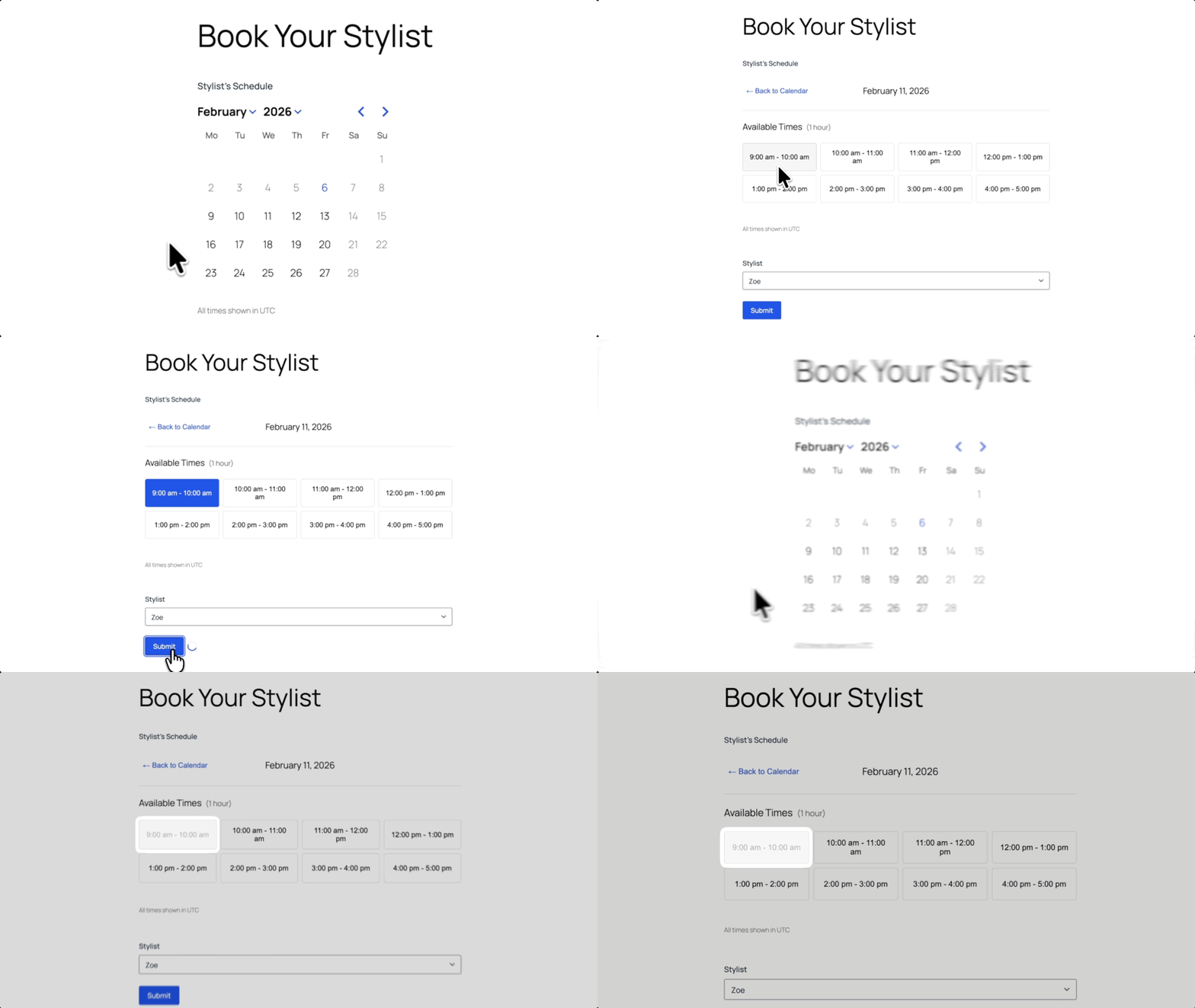
What just happened? Zoe can now take haircut appointments Monday through Friday. When someone books her at 9am, GP Bookings blocks 9am-10am plus 15 minutes for cleanup.
Pro-Tip
If you have multiple stylists doing the same service, just leave Capacity set to Unlimited. GP Bookings will track each stylist’s availability independently.
Add Booking Fields to Your Form
Now we’ll add GP Bookings fields to your form to create the interactive booking interface.
If you’re building from scratch, keep following along! If you imported the ready-made form, jump to the next section.
- Add the Booking field (under Advanced Fields).
- Add a Service field › Select Manual Selection › set Available Services service to Haircut.
- Add a Resource Field › Set Service Field to Service.
- Add a Booking Time Field (aka booking time picker).
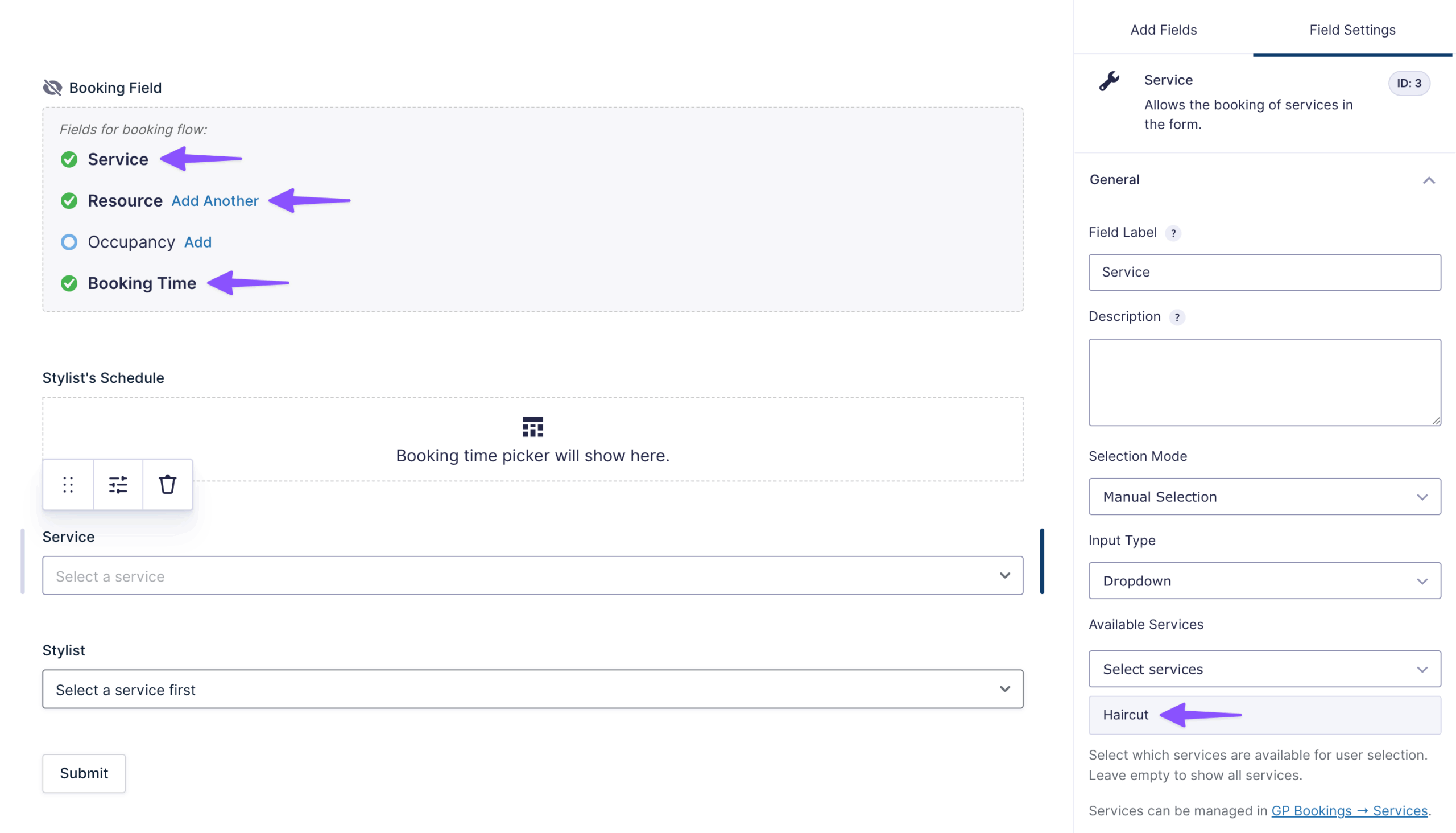
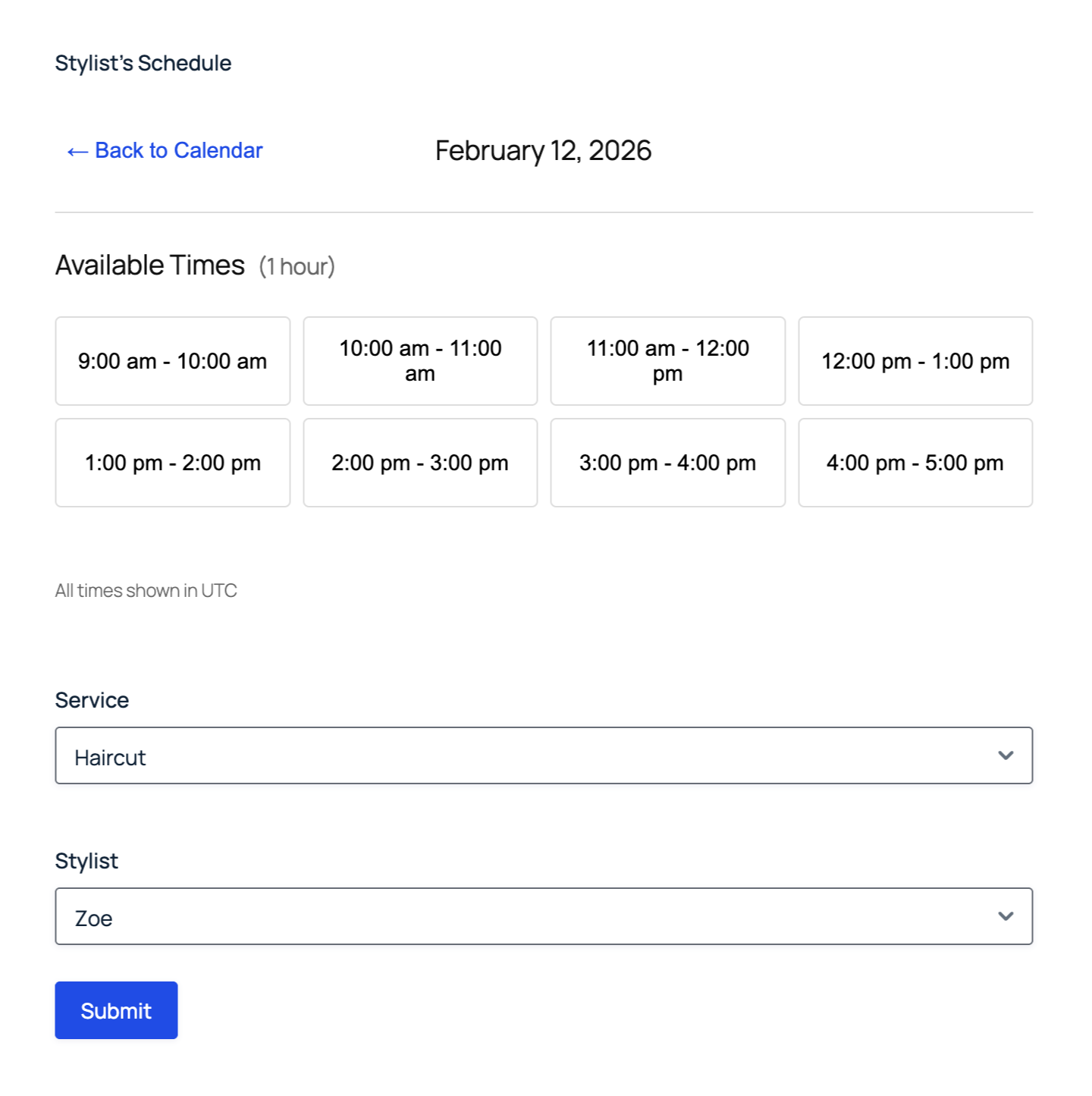
On the frontend, clients can now pick a service (Haircut), choose their stylist (Zoe), and grab an available time slot, all in one form.
Set Durations for Each Service
Not all salon services take the same time. Haircuts might take an hour, while color treatments could run 2-4 hours.
GP Bookings handles this with flexible booking durations.
- Create another service called “Color Treatment.”
- Set Block Size to 30 minutes.
- Toggle Allow flexible booking durations.
- Set Minimum to 60 minutes, and Maximum to 240 minutes.
- Assign Zoe to this service too.
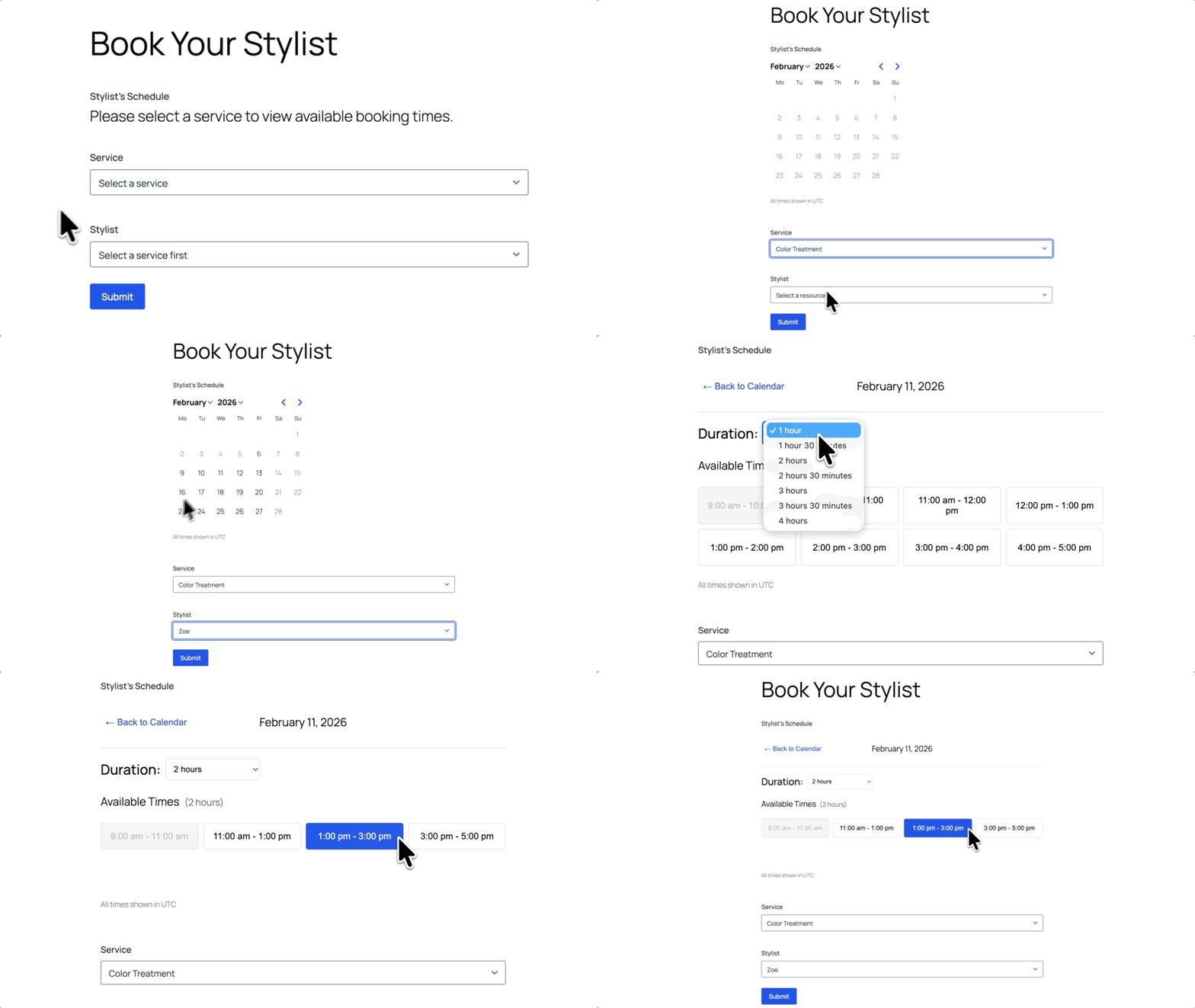
Now when someone books a color treatment, they pick how long they need—anywhere from 1 to 4 hours in 30-minute increments.
For example, they could book 2 hours for a root touch-up or 3.5 hours for full highlights.
Pro-Tips
- Want to charge more for longer appointments? In Service Settings › Pricing, set the price to multiply per booking block added.
- Example: Set a price per time block, so a 2-hour color job costs twice as much as a 1-hour.
- You can also stack pricing rules based on different conditions. Learn how stacking pricing rules can help with seasonal rates in hotels.
Taking It Further with Your Spellbook
Once you’ve got the basics down, you can stack GP Bookings with other perks in your Spellbook to further improve your salon booking experience.
Here are some sorcerous combinations:
- GP File Upload Pro lets clients drag and drop photos of their dream hairstyle to the form (learn how to get the most out of file uploads in Gravity Forms). Pair it with GP Media Library so it uploads automatically to your media library for easy access later.
- GP Populate Anything can help your booking form remember your regulars. They type in their email, and their name and phone number populate from past bookings.
- GP Advanced Phone Field validates phone numbers so your text reminders don’t disappear into the void.
Wizard’s Note
Anyone who booked your service can also reschedule or cancel on their own using a dedicated Booking Management Page. Check out how self-serve bookings work in a tutor booking form.
Abra-cut-abra! ✂️
This same setup works for barbershops, spas, nail salons—anywhere you’re managing appointments and staff schedules. If you want to learn more, check out the GP Bookings documentation for more features we didn’t cover here.
Have another industry guide you’d like to see? Drop a comment below and we might cover it next!