How to Create a Tutor Booking Form with Gravity Forms

GP Bookings turns Gravity Forms into a tutor booking platform where students pick a subject, see only the available slots, manage their own sessions, and more.
- Set Up Your Bookables and Build Your Form
- Keep Your Booking Form Under Control
- Taking It Further with Your Spellbook
- Class Dismissed. ✏️
“Is the 3pm slot still open?” GP Bookings answers that before anyone has to ask.
GP Bookings turns Gravity Forms into a fully functional booking platform. You set up your services, add your pricing, choose when you’re available, and it takes care of the rest—people pick an open slot, book it, and manage their own appointments from there. It works for just about any industry that runs on a schedule.
Today, I’ll show you how GP Bookings works for tutoring. Here’s what we’ll cover:
- Setting up a Service and Resources so GP Bookings knows what’s being booked and when it’s available.
- Building the booking form where students pick a subject and select a time slot.
- Setting capacity limits so slots close when they’re full.
- Enabling self-serve management so students can reschedule or cancel on their own.
- Sending automatic notifications for confirmations, reminders, and cancellations.
To follow along:
- Open your Spellbook and activate GP Bookings.
- Grab this ready-made form (right-click and save), or build your own from scratch.
This article requires the Gravity Forms Bookings perk.
Buy Gravity Perks to get this perk plus 48 other premium Gravity Forms plugins!
Set Up Your Bookables and Build Your Form
Before anyone can book anything, GP Bookings needs to know what’s being booked and when it’s available. We’ll set that up first, then build the actual form students will use.
Step 1 — Set Up Your Service and Resources
Every GP Bookings setup starts with a Service (what gets booked). Resources (what it delivers) are optional, but if your service is multifaceted, they give you the flexibility to manage each piece independently.
For tutoring, the service is the Tutoring session, and the resources are the subjects (Math and English).
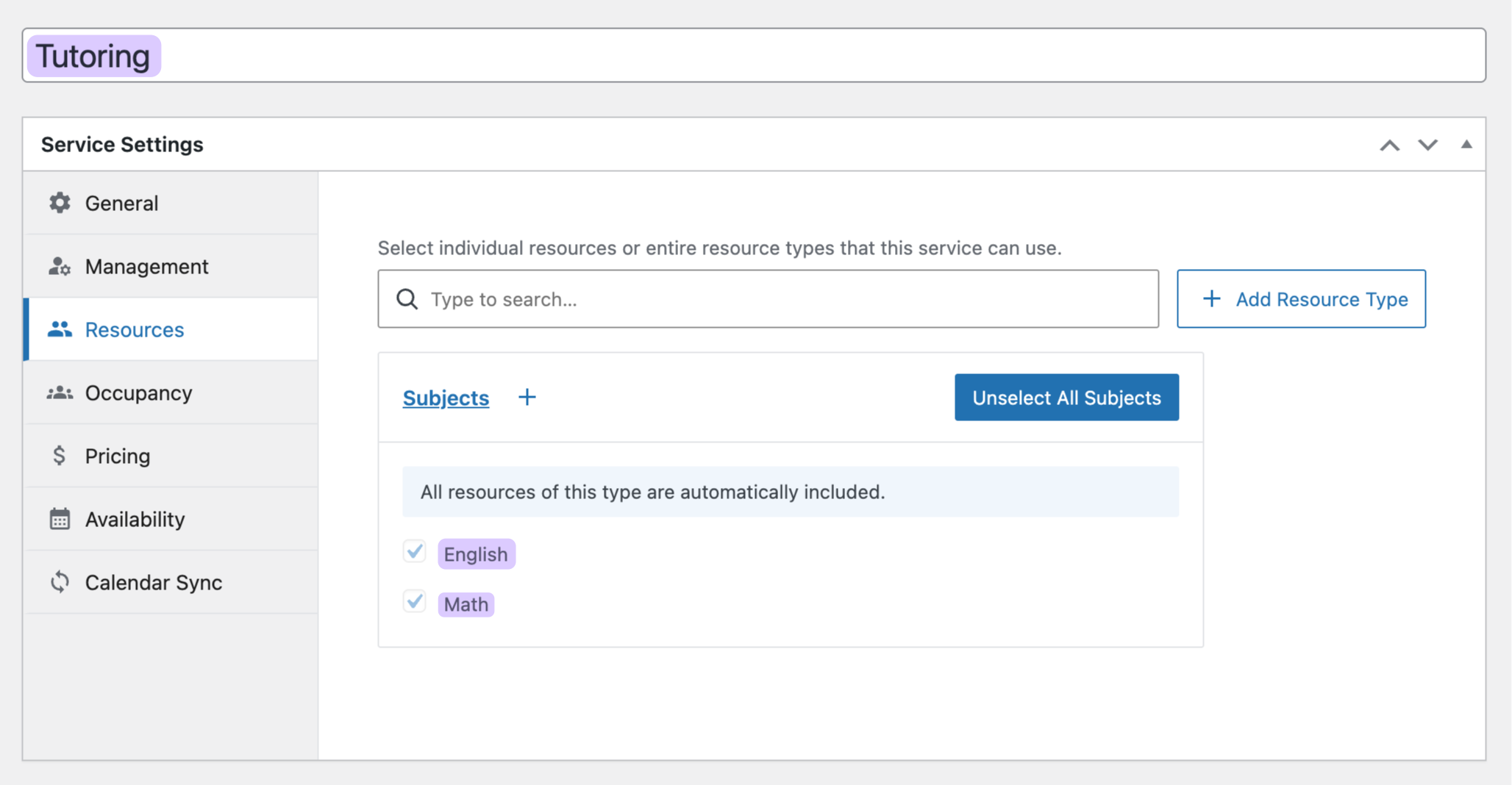
Here’s how to set it up:
- Navigate to GP Bookings › Services › Add New.
- Name it “Tutoring” and set Block Size to 1 hour.
- Click the Resources tab › Add Resource › Create New Resource.
- Create a Resource Type called “Subjects.”
- Add “Math” as your first resource.
- Set its Availability Windows to Mon-Wed-Fri, 3pm–7pm.
- Add “English” as a second resource.
- Set its Availability Windows to Tues-Thurs, 3pm–7pm.
- Hit Publish.
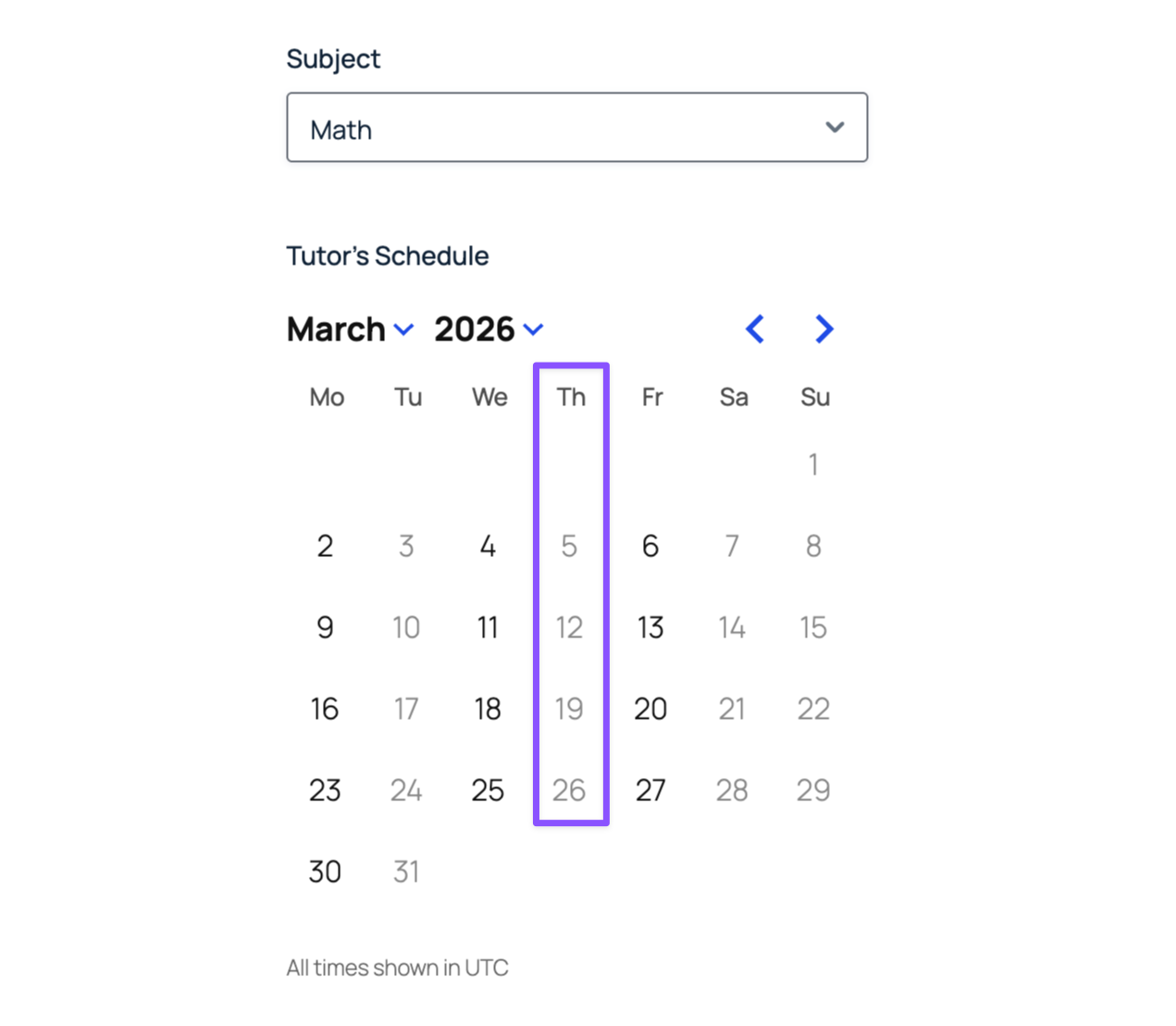
What just happened? Math and English now run on separate schedules. A student trying to book a Math session on Thursday won’t see any open slots—because there aren’t any. 🗓️
Pro Tip
Availability Windows can also be set to Unavailable for any date range you need to block off (for example, school holidays). Set the range, and those dates disappear from the booking form automatically.
Step 2 — Build the Booking Form
With the Service and subjects ready, it’s time to connect everything to a form.
Wizard’s Note
If you’re starting from scratch, keep following along. If you imported the ready-made form, feel free to skip to the next section.
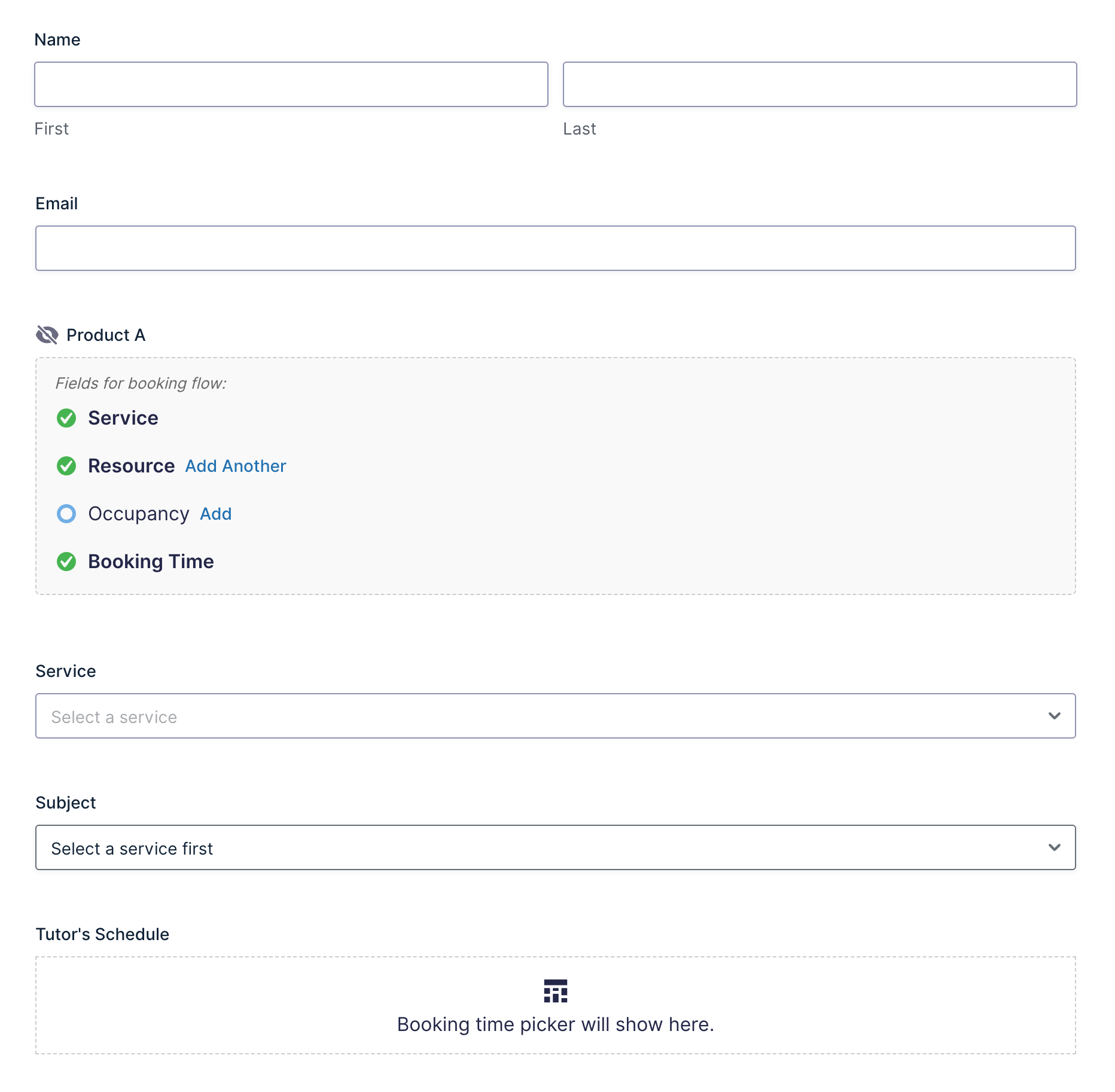
- In the Form Editor, add standard fields to collect student info, like Name and Email.
- Add a Booking field (under Advanced Fields).
- In the Booking field:
- Add a Service field › Set Selection Mode to Manual › Choose “Tutoring.”
- Add a Resource field › Set Service Field to your Service field above.
- Add a Booking Time field.
- Save form.
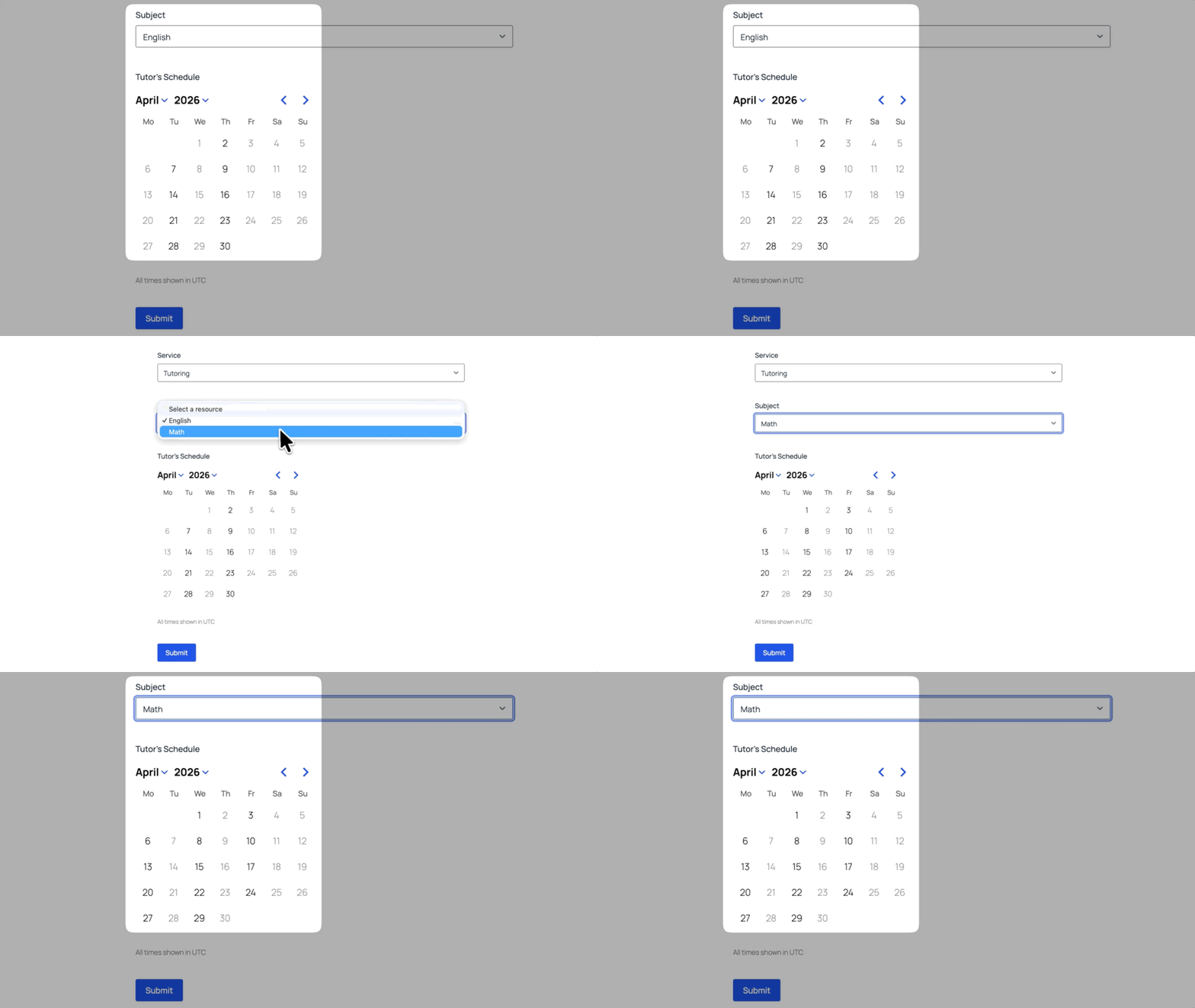
In the live form, when a student picks a subject, the calendar shows only the open times for that subject. Switch from Math to English and the available times update on the spot.
Keep Your Booking Form Under Control
The form is ready, but right now it still doesn’t know when to stop taking bookings, what to do when plans change, or when to reach out to anyone who booked.
These next settings take care of all of that.
Set Capacity Limits
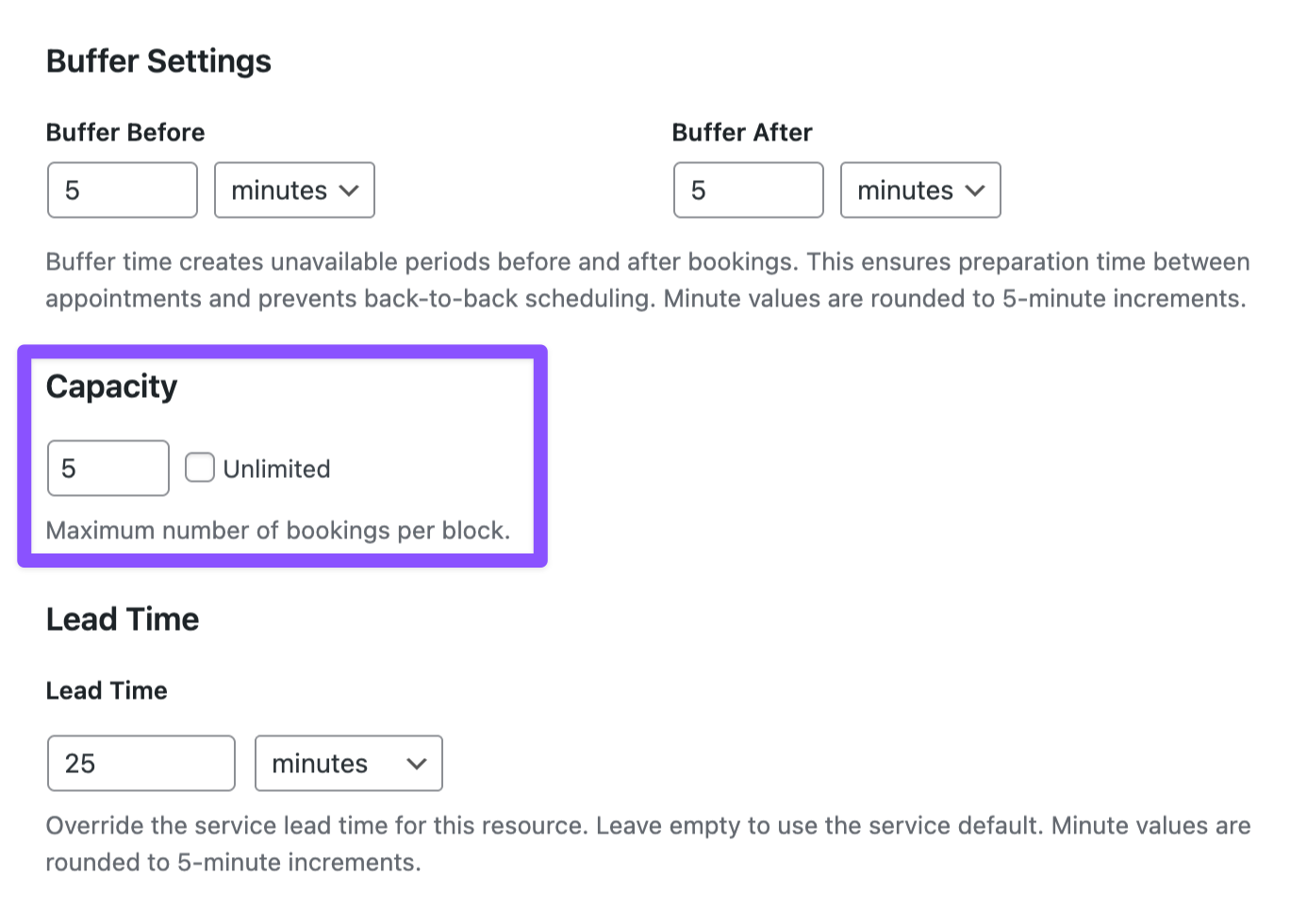
Capacity sets a maximum number of bookings per time slot. Once that limit is hit, the slot disappears from the calendar.
For a group study session, set the cap to however many students fit. GP Bookings handles the rest.
Pro Tip
Capacity isn’t the only way to control numbers. Occupancy is a separate setting that controls how many people are inside a single booking.
For example: Use Occupancy for group sessions where everyone books together under one submission.
Wizard’s Note
Capacity limits work the same way in other setups too, like groups or classes. Check out how capacity can handle overbooking for gyms.
Enable Self-Serve Booking Management
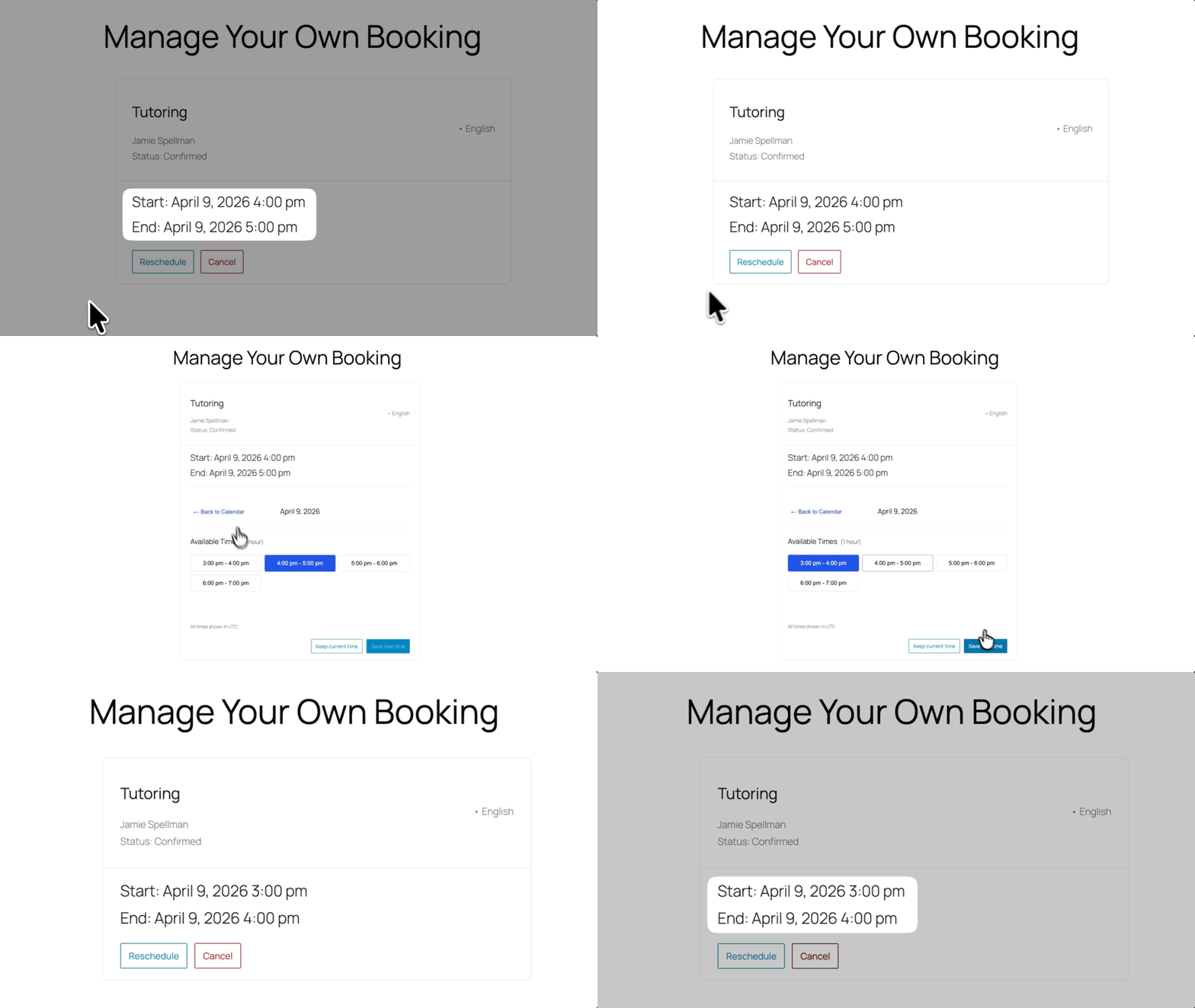
GP Bookings lets you create a Booking Management Page where anyone can reschedule or cancel their own booking. You decide if rescheduling and cancellation are allowed, and how far in advance they can still do so.
For tutoring, students get a personal link (for example, in their notification email) that takes them straight to the page where they can update their booking.
Pro Tip
The Lead Time setting prevents same-day booking. Set it to 24 hours and students won’t see any slots that are too close to start.
Send Automatic Notifications
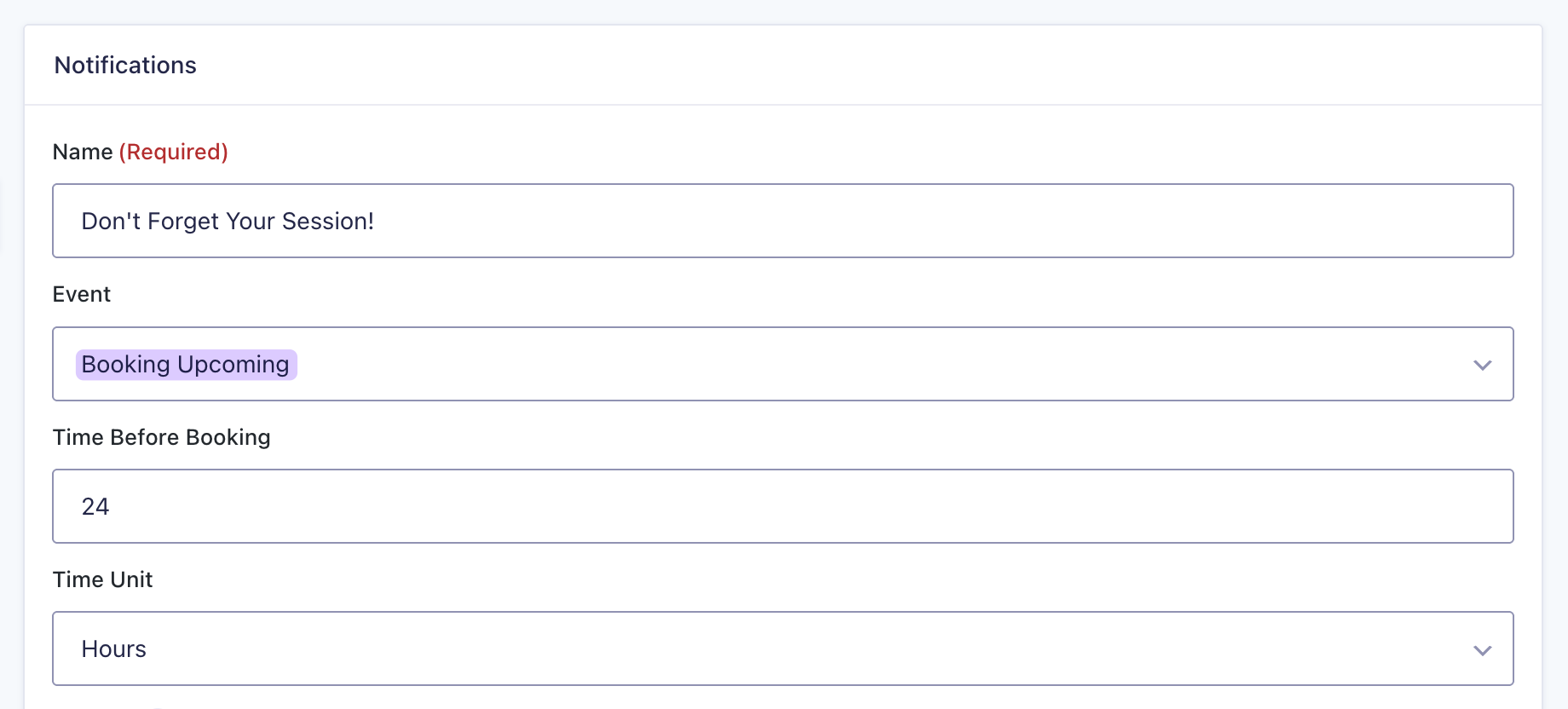
You can set up event-based notifications so the right message goes out automatically at the right moment—when a booking is confirmed, cancelled, rescheduled, and more.
Set it up once and it runs on its own.
Notifications aren’t arriving, here’s how to troubleshoot Gravity Forms email delivery.
Wizard’s Note
If you offer different session lengths, you do not have to squeeze everything into one fixed time slot! Learn how per-service durations work when you have multiple service types.
Taking It Further with Your Spellbook
GP Bookings works even harder when you open your Spellbook and stack more perks. Here are three worth adding to your tutoring setup:
- GP Limit Submissions caps how many sessions a student can book in a given period.
- GP Populate Anything filters the tutor list based on what subject a student picks. For example, Math students see Math tutors only.
- GP Nested Forms lets a parent book multiple students in one submission.
Key Takeaways
- GP Bookings turns Gravity Forms into a complete booking system. You can offer services, define availability, accept bookings, and manage appointments all inside WordPress.
- Services and Resources define what gets booked and when. The Service is the session type (like Tutoring), and Resources (like Math or English) each run on their own independent schedules.
- Students can manage their own bookings through a self-serve page. They get a personal link to reschedule or cancel, and you control how far in advance they’re allowed to do it.
- Automatic notifications go out when a booking is confirmed, rescheduled, or cancelled. You set them up once and they run on their own
Class Dismissed. ✏️
This same setup applies anywhere sessions need to be scheduled and matched to the right resource.
Want to see this applied to a different industry? Drop a comment below and we might cover it next. 🧙♂️