How to Send Follow-Up Emails to Users Who Didn’t Submit a Form

Create an automatic reminder flow for incomplete Gravity Forms submissions similar to abandoned carts—an abandoned form, if you will.
- What you’ll need
- Step 1 — Enable Partial Entries
- Step 2 — Set up Notification Scheduler
- Step 3 — Set up filter hook
- Bonus: Send link to entry in notification
- Following up with you
It’s quite common in eCommerce solutions for an abandoned cart function to be in place. Basically, a notification is sent to users who add a few items to their cart, but for some reason, leave that cart alone for some time. It serves as a friendly reminder that “Hey, you might want to buy this stuff you were looking at.”
With a few spells, you can achieve this same handy functionality in Gravity Forms and send follow-ups that nurture leads, notify customers that they haven’t finished filling out an important form, or remind students that they have yet to finish their latest assignment (which, btw, is due tomorrow 😬).
This article requires the Gravity Forms Notification Scheduler perk.
Buy Gravity Perks to get this perk plus 46 other premium Gravity Forms plugins!
What you’ll need
Make sure you have both plugins installed and activated.
Step 1 — Enable Partial Entries
Navigate to the form you want to set up follow-ups for and go to Settings > Partial Entries. Then, check Enable and save.
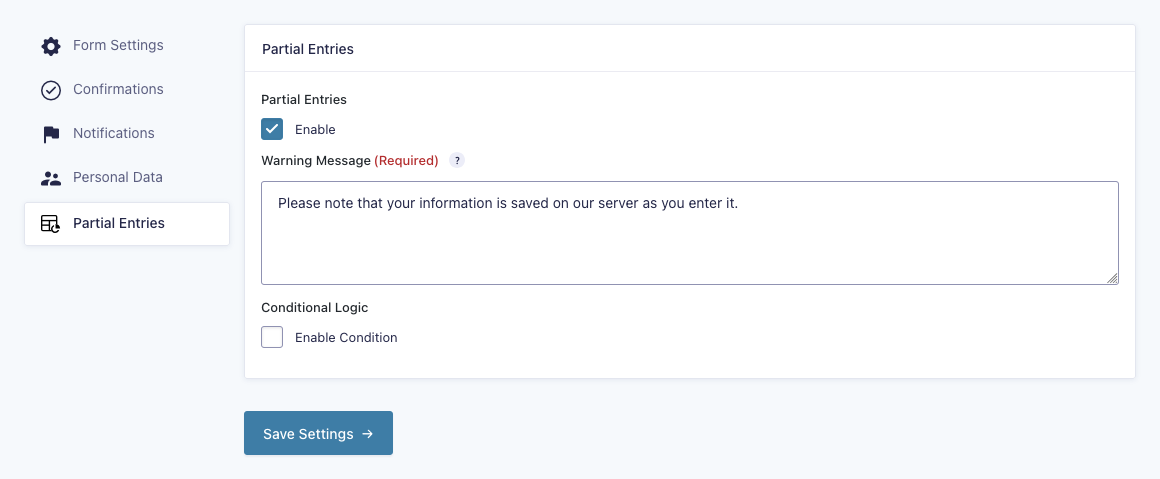
You can choose to use conditional logic to only save a partial entry after certain conditions are met. A good one is requiring the Email field being filled out—otherwise, you won’t have anywhere to send the notification to anyway.
Step 2 — Set up Notification Scheduler
Head over to the notification you want to delay (or create a new one).
On the top portion of the settings, choose Partial Entries: Saved as your Event.
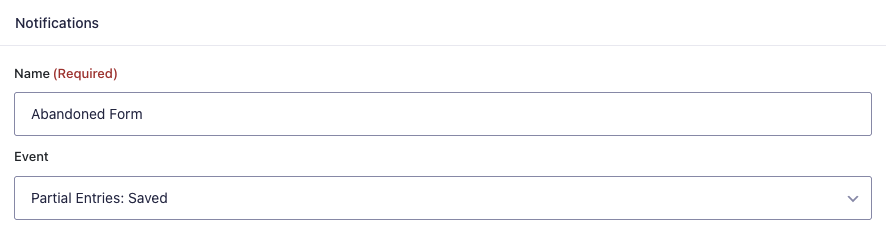
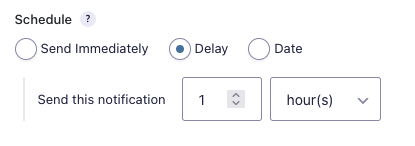
Then all the way down below Message, you’ll find the option to Schedule.
- Select Delay.
- Enter the amount of time you want to delay the notification by.
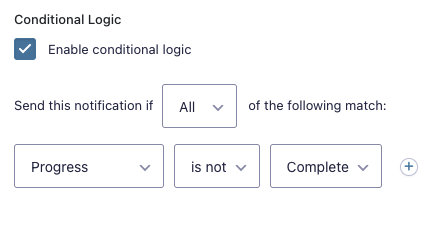
Then, set up conditional logic for the notification based on the Progress not being complete. This stops the notification from being sent in case the user comes back and finishes the form on their own before the allotted time is over.
Step 3 — Set up filter hook
Not familiar with adding filters?
We have a little article that goes over where to put snippets.
Lastly, we need to address one more thing: Gravity Forms only evaluates notification conditional logic on entry creation. To make it re-evaluate conditional logic before sending a scheduled notification, add the gpns_evaluate_conditional_logic_on_send filter to your site.
Here is it configured to run for all forms:
add_filter( 'gpns_evaluate_conditional_logic_on_send', '__return_true' );Detailed explanation: This filter makes it so that, when the day/time for the scheduled notification to be sent comes, Gravity Forms will re-evaluate the conditional logic on the Partial Entry progress property. If the user has already completed the form, the progress property will be set as “Complete” and the notification won’t be sent. However, if they haven’t submitted the form, the notification will be sent.
Bonus: Send link to entry in notification
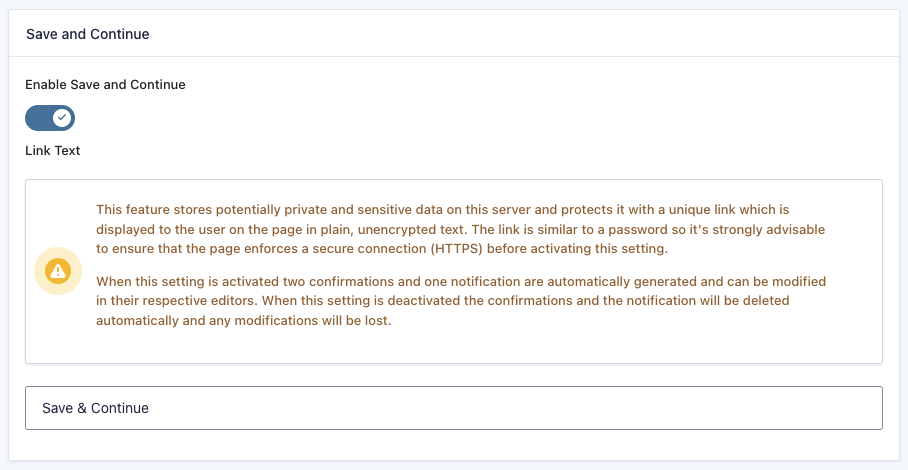
The Partial Entries add-on saves entries so they can be reviewed by admins, but it doesn’t allow users to jump right back into the partially completed submission by itself. To allow users to return where they left off, enable Gravity Forms’ built-in Save and Continue feature under the Form Settings to let users manually save their progress.
Pro-tip
The built-in Save and Continue works well, but it requires the user to manually save their progress and enter their email an additional time. Make the entire process run automatically instead with GP Advanced Save & Continue.
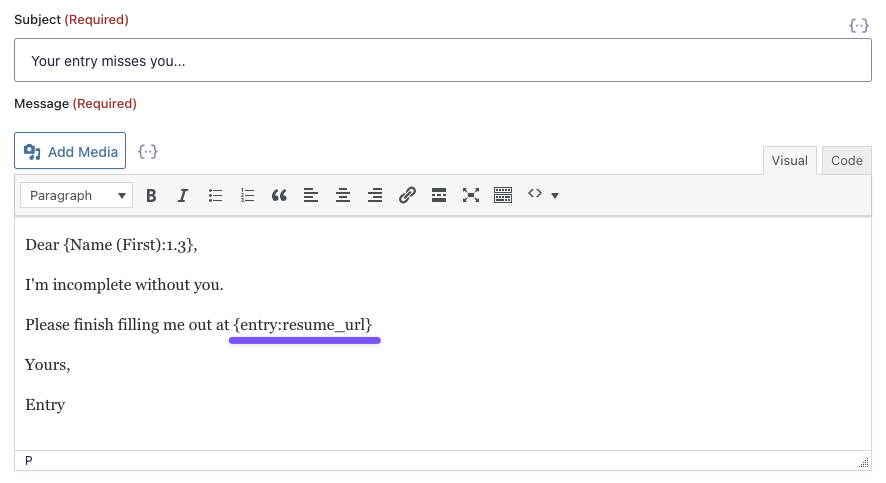
With Save and Continue in place, you can use the {entry:resume_url} merge tag to include a link in your notification to the user.
Following up with you
Pretty simple, eh? How are you planning to use this functionality in your workflow? We’re hungry to know. 😋
Any lingering questions? Drop them down below.