Gravity Forms Form Notices

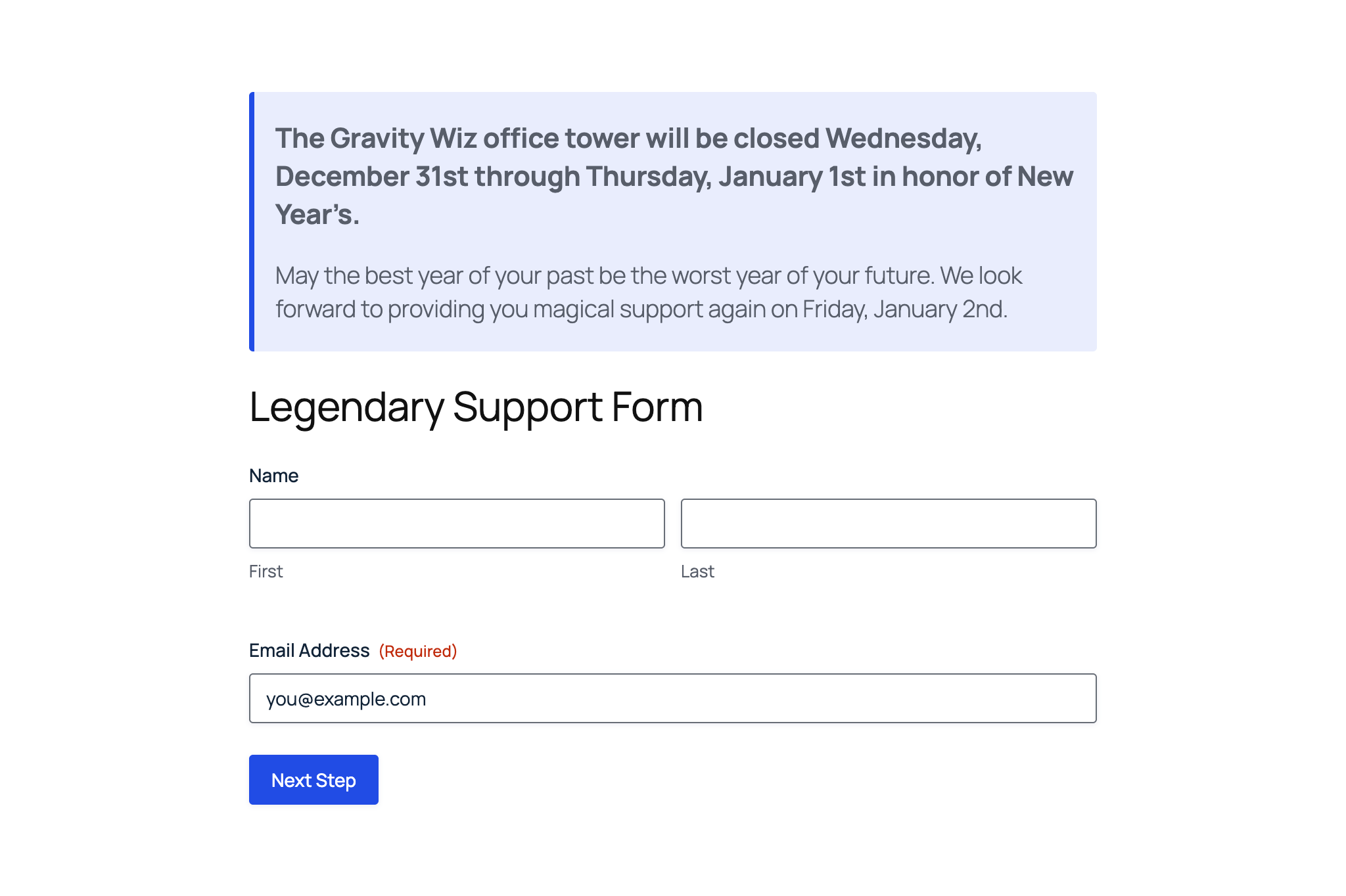
Display scheduled messages above Gravity Forms based on date ranges. Perfect for office closings, promotions, announcements, and more.

Gravity Forms Form Notices, henceforth referenced as Form Notices, is a Gravity Forms add-on that allows you to display custom messages above your forms during specified date ranges.
Each notice is managed as a feed, making it easy to create, edit, and organize multiple announcements. Whether you need to notify users about holiday closures, promote limited-time offers, or share important deadlines, Form Notices has you covered.
- What can you announce?
- Install the Plugin
- Using the Plugin
- Customizing Display
- Date Format Examples
- Real-World Examples
- Export and Import
- Known Limitations
- FAQ
What can you announce?
You can put this handy plugin to work in a number of practical ways:
- Office closings and holiday hours: Let users know when you’re closed for the holidays or taking a break.
- Limited-time promotions or sales: Drive urgency with time-sensitive offers displayed right above your forms.
- Event announcements and deadlines: Remind users about upcoming events or registration deadlines.
- Maintenance windows: Inform users when your services will be temporarily unavailable.
- Seasonal messages: Share seasonal greetings or special announcements during specific times of the year.
- Support availability updates: Keep users informed about changes to your support hours or availability.
Did we spark your imagination yet? The possibilities are endless!
Install the Plugin
Form Notices is available for free through Spellbook.
- Download and install Spellbook.
- Open Spellbook and search for “Form Notices”.
- Click Install on the Form Notices card — you’ll get free automatic updates and the latest features.
Need help? Check out our guide to installing your first plugin with Spellbook.
Using the Plugin
Form Notices is incredibly easy to use. Here’s how to get started:
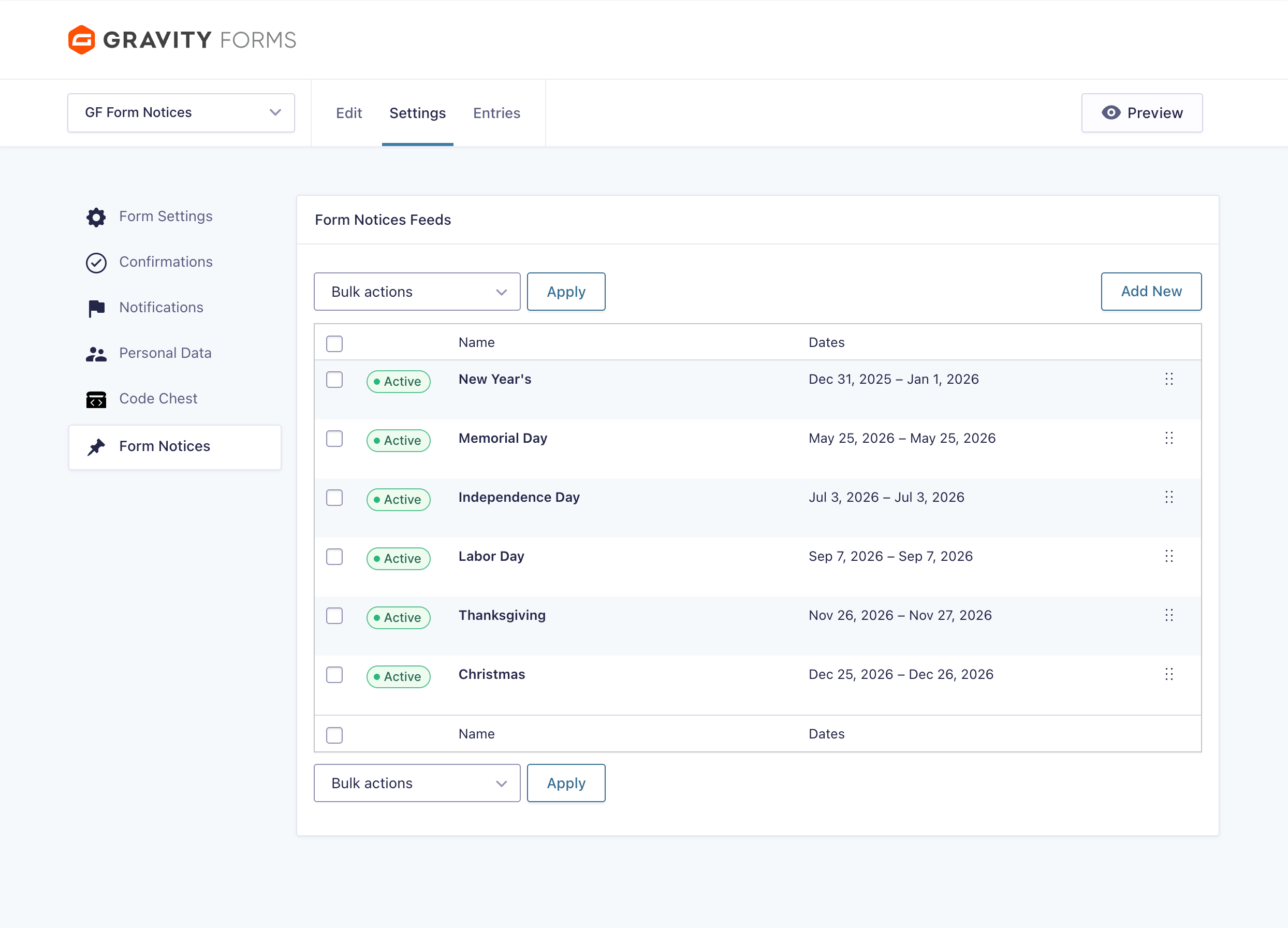
Create Your First Notice
- Navigate to your form in the WordPress admin
- Go to Settings › Form Notices
- Click Add New to create a new notice feed
Configure the Notice
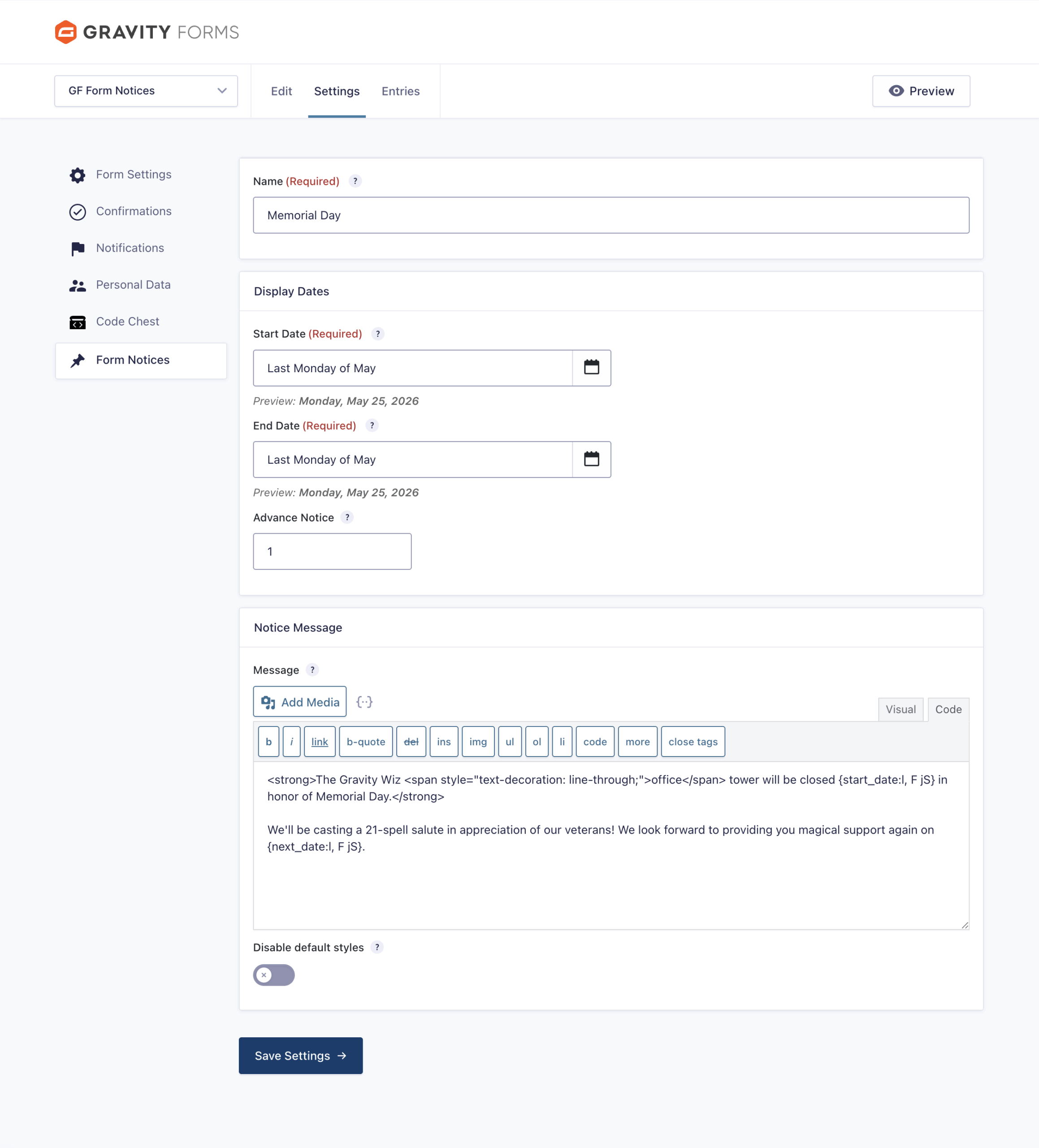
Each notice feed has three main sections to configure:
Name
Give your notice a descriptive name so you can easily identify it later. This is only visible in the admin area.

Display Dates
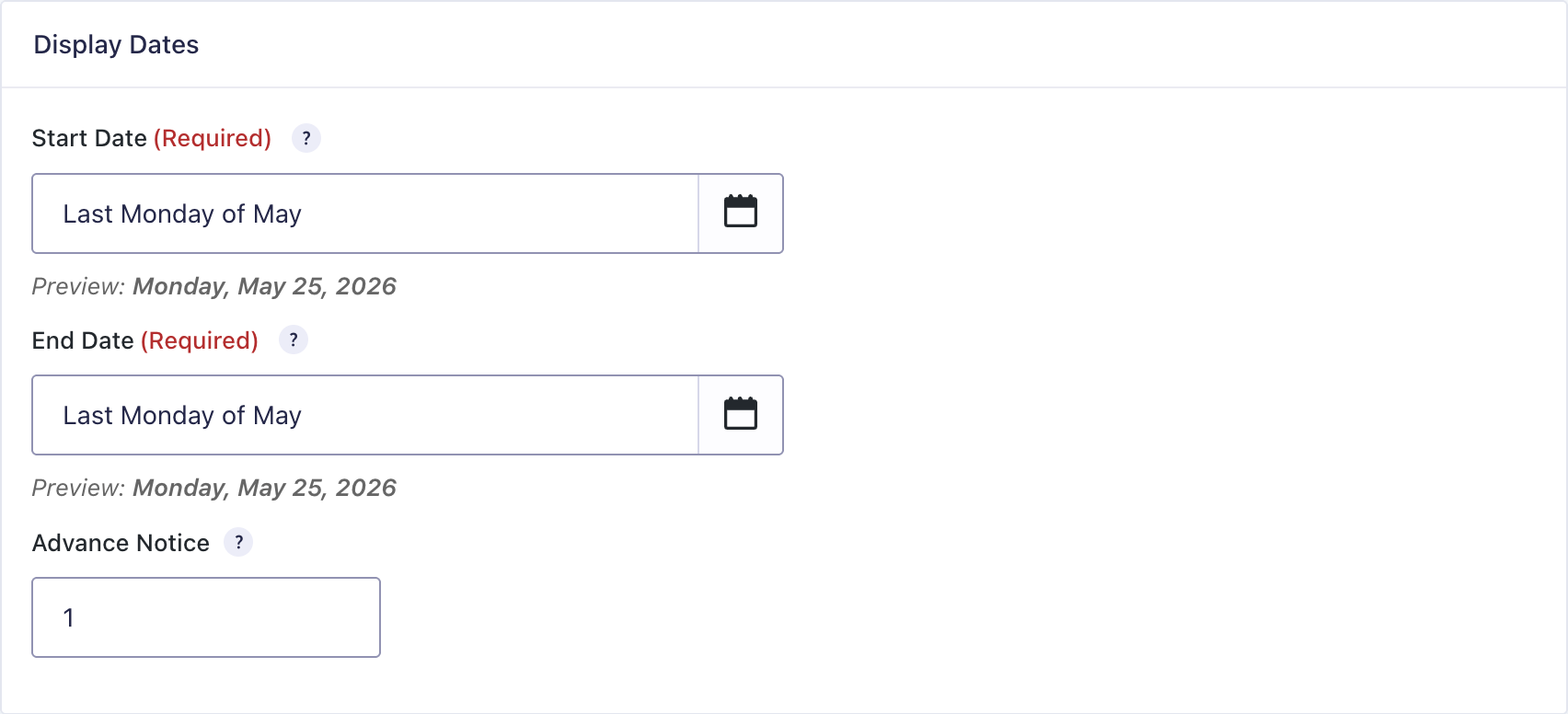
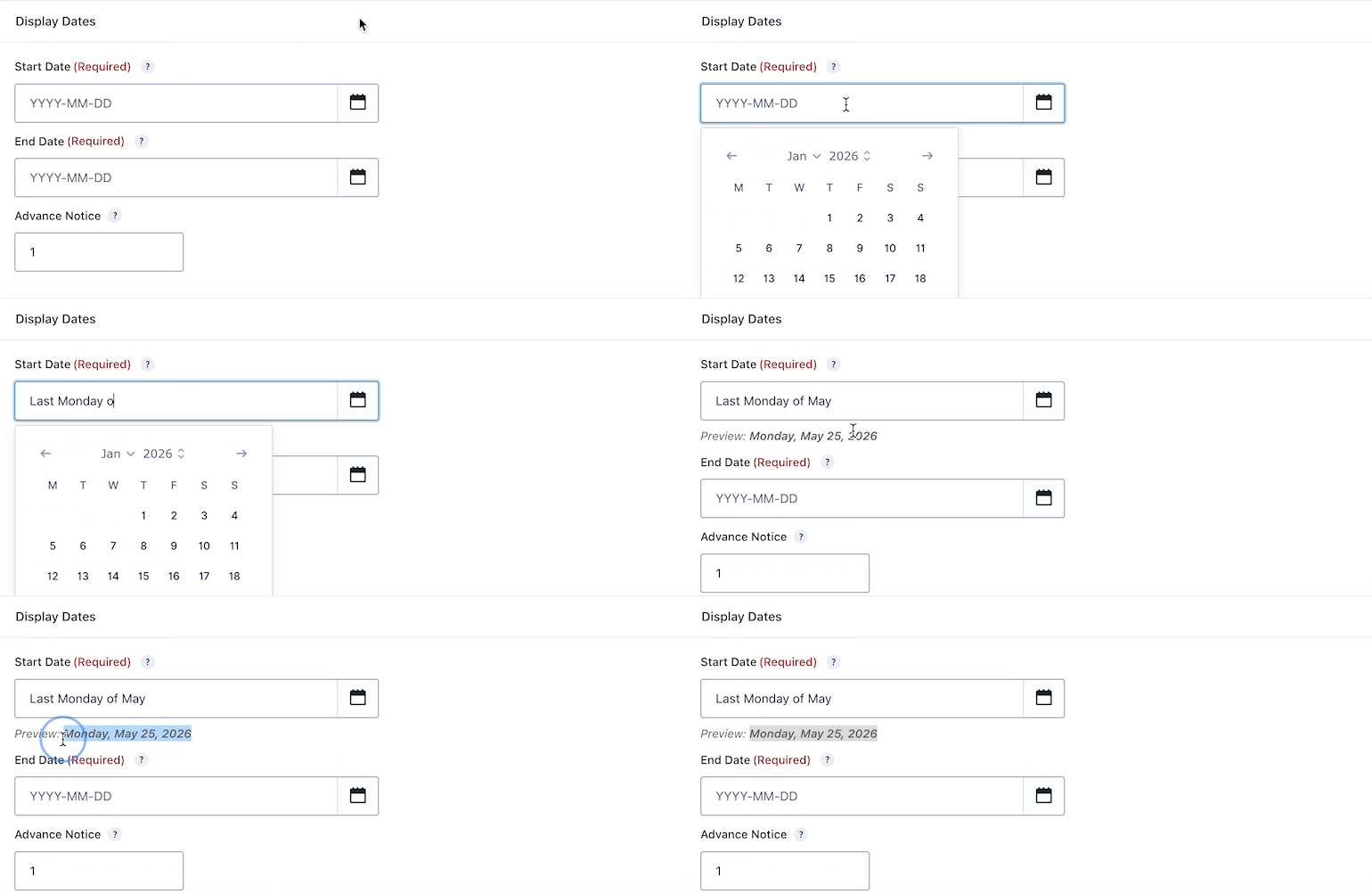
Configure when your notice should appear.
Start Date
Enter a date in YYYY-MM-DD format when the notice should begin displaying. You can also use:
- Wildcards for recurring dates:
*-12-25will match December 25th every year - Natural language dates: “Last Thursday of November” for Thanksgiving
End Date
Enter a date in YYYY-MM-DD format when the notice should stop displaying. Same wildcard and natural language support as Start Date.
Advance Notice
Number of days before the start date to begin displaying the notice. Defaults to 0 (display only on and between the start and end dates). Set to 1 or more to display the notice that many days early.
For example, if you want to notify users about an office closing a week in advance, set the advance notice to 7 days.
Date Preview
As you enter dates in the Start Date and End Date fields, Form Notices will show you a preview of how those dates will be interpreted. This is especially helpful when using wildcards or natural language dates to ensure they’re being parsed correctly.
Notice Message
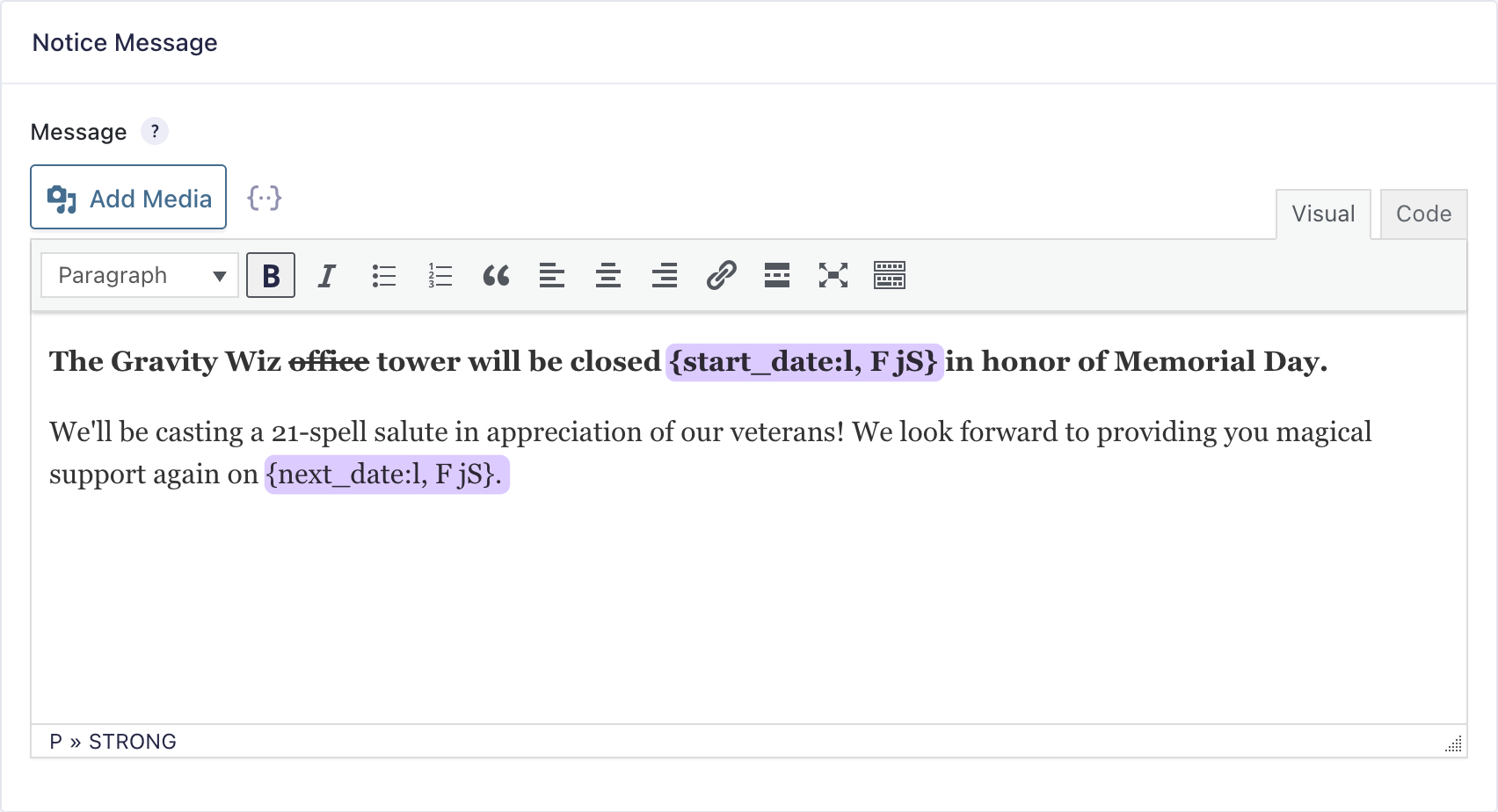
Enter the message to display during the date range. You can use the WordPress editor to format your message with rich text, links, images, and more.
Date Merge Tags
Make your messages dynamic by using these special merge tags:
{start_date:FORMAT}– Display the start date with custom formatting{end_date:FORMAT}– Display the end date with custom formatting{next_weekday:FORMAT}– Display the next business day after the end date (skips weekends)
The FORMAT portion uses PHP date format strings. Common formats:
l– Full day name (Monday)F– Full month name (December)jS– Day with ordinal suffix (25th)Y– 4-digit year (2024)m/d/Y– Date as 12/25/2024
Example:
Our office will be closed from {start_date:l, F jS} through {end_date:l, F jS}.

We'll reopen on {next_weekday:l, F jS}. Happy holidays!
Output:
Our office will be closed from Monday, December 25th through Tuesday, December 26th.

We'll reopen on Wednesday, December 27th. Happy holidays!
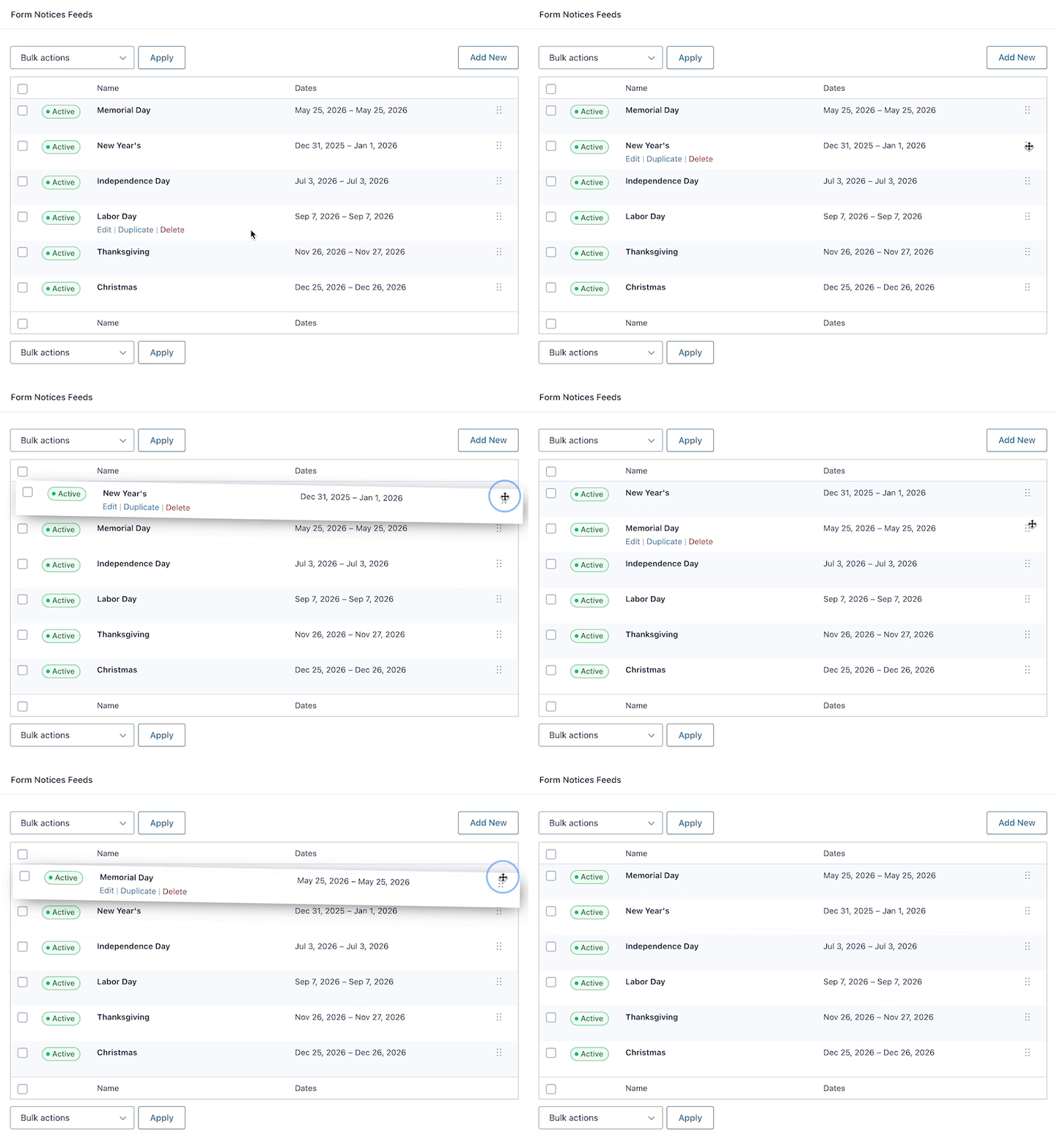
Feed Ordering
When you have multiple notice feeds, you can reorder them to control the display priority. Simply drag and drop feeds in the list to change their order. Notices will be displayed in the order they appear in the feed list.
Multiple Active Notices
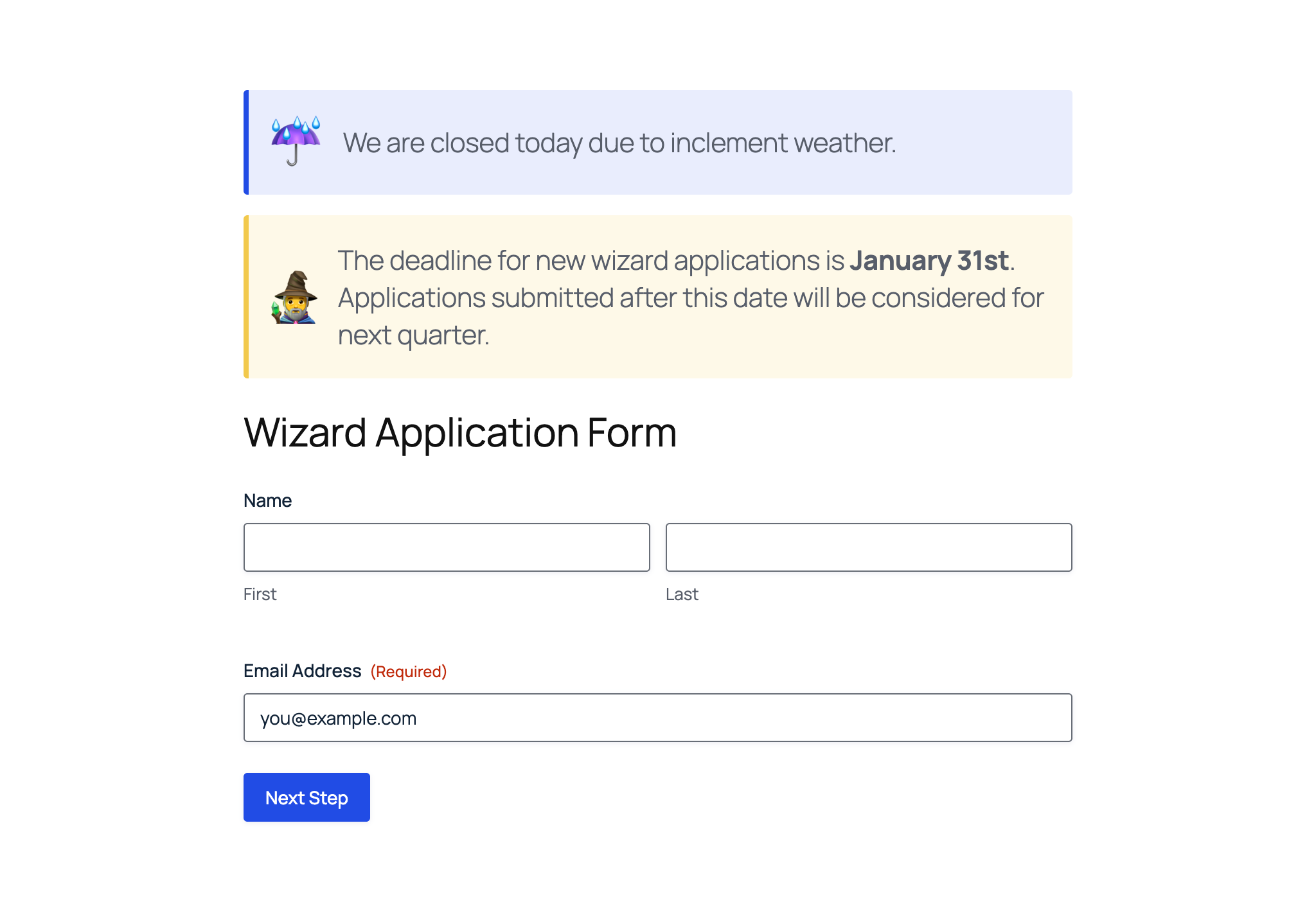
If multiple notices have overlapping date ranges, all applicable messages will be displayed above the form. They’ll appear stacked in the order you’ve configured them.
Customizing Display
Global Display Settings
You can customize how notices are displayed by going to Forms › Settings › Form Notices.
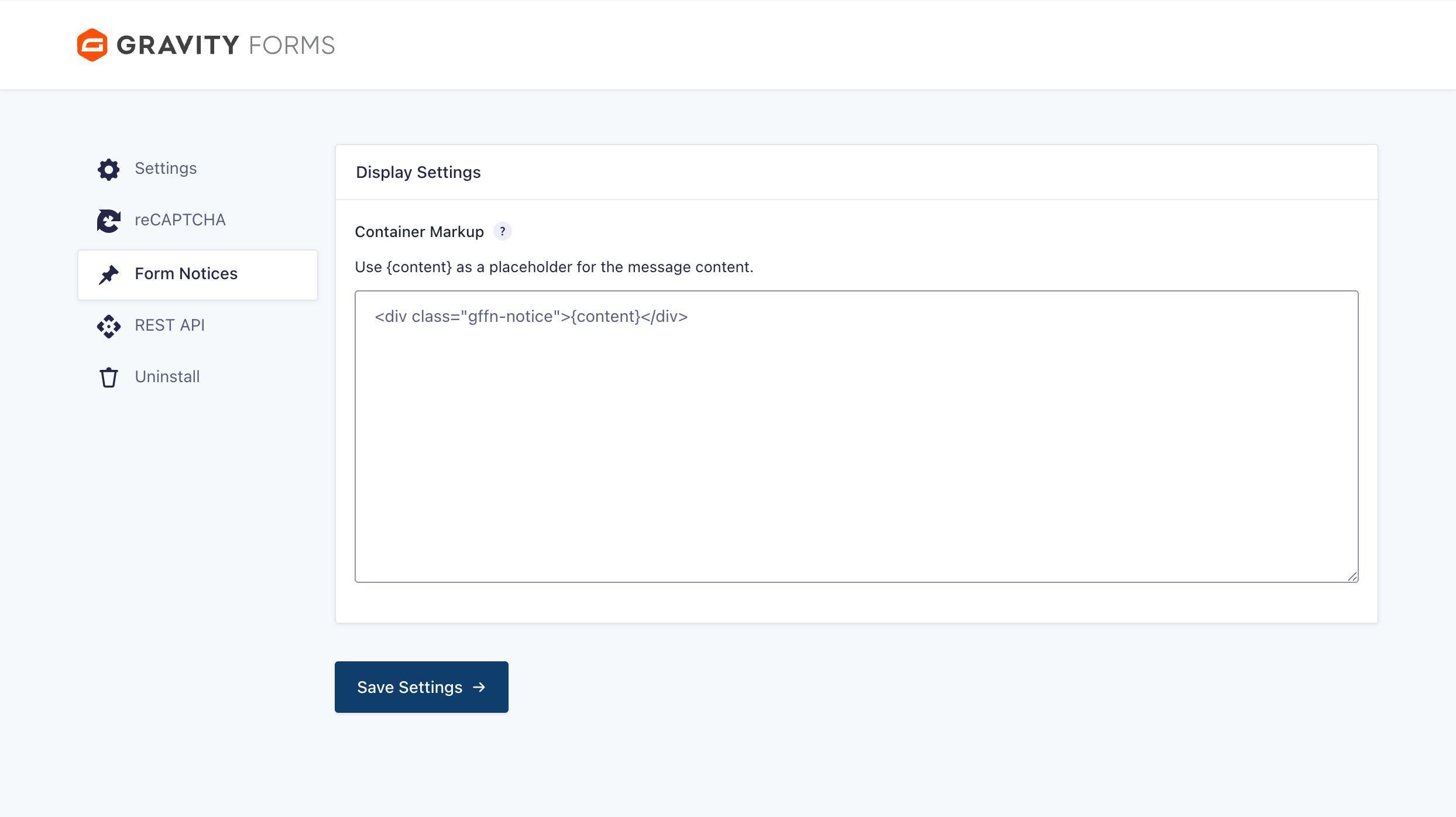
Container Markup
Specify custom HTML markup to wrap each notice message. Use {content} as a placeholder for the message content.
Default:
<div class="gffn-notice">{content}</div>All notices are then wrapped in the same outer container:
<div class="gffn-notices">
    <!-- Individual notices appear here -->
</div>
Styling Notices
You can style your notices using CSS by targeting these classes:
/* Outer container for all notices */
.gffn-notices {
    margin-bottom: 20px;
}

/* Individual notice container */
.gffn-notice {
    padding: 15px;
    margin-bottom: 10px;
    background-color: #fff3cd;
    border-left: 4px solid #ffc107;
}
Looking for a good way to include custom form CSS?
Our free Code Chest plugin makes include custom CSS for your forms a breeze and ensures it’s only output wherever your form is displayed.
Customizing Styles for a Specific Notice
By default, Form Notices outputs a shared set of styles for all notices using the default theme. If you want to customize the appearance of one specific notice—without disabling the default theme entirely—you can do so by targeting notice-specific CSS classes.
Notice-Specific CSS Classes
Each notice automatically includes unique classes based on its feed name and feed ID:
- By feed name:
gffn-notice-my-feed-name - By feed ID:
gffn-notice-{my-feed-id}(e.g.,gffn-notice-123)
These classes are added in addition to the base .gffn-notice class.
Overriding Styles While Keeping the Default Theme
If you are using the default theme (that is, you have not checked “Disable default notice styles”), the notice will also include the .gffn-default-theme class.
This makes it easy to override styles for a single notice while keeping the default theme enabled everywhere else.
Example: Targeting a Notice by Feed Name
.gffn-notice-my-feed-name.gffn-default-theme {
    background-color: #eef6ff;
    border-left-color: #2271b1;
}
Date Format Examples
Form Notices supports three types of date formats:
Specific Dates
Use standard YYYY-MM-DD format for one-time notices:
2024-12-25– December 25, 20242025-07-04– July 4, 2025
Recurring Dates with Wildcards
Use * as a wildcard to create notices that repeat every year, month, or day:
*-12-25– December 25th of every year (Christmas)*-07-04– July 4th of every year (Independence Day)*-*-01– The 1st of every month2026-*-15– The 15th of every month in 2026
Natural Language Dates
Use descriptive phrases for holidays and special occasions:
Last Thursday of November– Thanksgiving (US)First Monday of September– Labor Day (US)Last Monday of May– Memorial Day (US)
Real-World Examples
Holiday Office Closure
Use Case: Notify users that your office is closed for Christmas
- Start Date:
*-12-25 - End Date:
*-12-26 - Advance Notice: 7 days
- Message:
Our office will be closed for Christmas from {start_date:F jS} through {end_date:F jS}. We'll be back on {next_weekday:F jS}. Happy holidays! 🎄
Limited-Time Promotion
Use Case: Drive urgency for a weekend sale
- Start Date:
2025-03-15 - End Date:
2025-03-17 - Advance Notice: 0 days
- Message:
Weekend Sale! Get 20% off through {end_date:l, F jS}. Use code WEEKEND20 at checkout.
Recurring Monthly Maintenance
Use Case: Notify users about scheduled maintenance on the first Sunday of each month
- Start Date:
First Sunday of this month - End Date:
First Sunday of this month - Advance Notice: 3 days
- Message:
Scheduled maintenance on {start_date:l, F jS} from 2am-4am EST. Service may be temporarily unavailable.
Thanksgiving Closure
Use Case: Close for Thanksgiving and the day after
- Start Date:
Last Thursday of November - End Date:
Last Friday of November - Advance Notice: 7 days
- Message:
We'll be closed for Thanksgiving on {start_date:F jS} and {end_date:F jS}. We'll reopen {next_weekday:F jS}. 🦃
Export and Import
Form Notices feeds are automatically included when you export and import forms. This makes it easy to:
- Migrate notices between sites
- Create template forms with pre-configured notices
- Backup your form configurations including notices
Simply export your form from Forms › Import/Export and the notices will come along for the ride.
Known Limitations
- No end-user timezone support: Dates are evaluated based on your WordPress site’s timezone setting, not the user’s local timezone
- Natural language dates: While powerful, natural language dates depend on PHP’s
strtotime()function which may not support all formats - Supported ordinal values: Due to limitations with PHP’s
strtotimeparser, only a limited set of ordinal keywords are supported, including:first,second,third,fourth,fifth,sixth,seventh,eighth,ninth,tenth,eleventh,twelfth, as well asnext,last,previous, andthis. Other ordinal formats (e.g., “thirteenth”, “21st”, etc.) are not supported.
FAQ
Is there a better way to do this?
Nope. Sure, you could use HTML fields and conditional logic with GP Advanced Conditional Logic but you’d have to clutter up your form with a bunch of extra HTML fields. Form Notices keeps all of your announcements nicely organized in the backend and keeps your form streamlined in the editor.
How do I create a recurring notice?
Use wildcards in your date fields. For example, *-12-25 will match December 25th of any year. You can also describe recurring dates in natural language. For example, Last Thursday of November will match Thanksgiving each year.
Can I have multiple notices active at once?
Yes! If multiple date ranges overlap, all applicable messages will be displayed.
How does the advance notice feature work?
Set the “Advance Notice” field to the number of days before the start date you want the notice to appear. For example, setting it to 7 will display the notice 7 days before the start date.
Can I use HTML in my notice messages?
Yes! The message field supports the WordPress editor, so you can format text, add links, include images, and use custom HTML.
Can I customize the appearance of notices?
Yes! You can customize the HTML wrapper in the global plugin settings and use CSS to style the notices however you like.
What happens if I use an invalid date format?
Form Notices will attempt to parse the date, and if it fails, the notice won’t display. Use the date preview feature to verify your dates are being interpreted correctly.
How do I display a notice without a form?
If you want to display your notices independently of the form, we’ve added a gffn_notices shortcode. Pass the form_id parameter to display any applicable notices for the given form, or to display a specific notice (if applicable), just add the notice_id atrribute.
[gffn_notices form_id="123" notice_id="456"]How do I display the same notices across all forms?
Use this snippet to apply a single Form Notices feed globally or to multiple forms without duplicating it. By default, the snippet injects the selected feed into all forms, but you can also configure it to target specific form IDs if needed.