How to Populate Gravity Forms with Notion Data

Enchant your forms with dynamic field choices and values loaded directly from Notion by combining GC Notion with GP Populate Anything.
- What you’ll need
- Step 1 — Connect Notion account
- Step 2 — Set up Populate Anything
- Bonus: Filter Notion data with Notion data in Gravity Forms
- Potion that notion
Notion is one of the most flexible workspaces out there. You can manage teams, create CRMs, and keep projects moving with its powerful databases and ride-or-die drag-n-drop layout. Bringing that neatly organized data to Gravity Forms fields using the GC Notion and GP Populate Anything integration adds to Notion a form builder that matches its level of flexibility.
You can build on top of the data you already have to create internal systems across platforms, showing customers exactly what you have available in Notion without ever needing to duplicate data. Let’s see how it works.
This article requires the GC Notion connection and the GP Populate Anything perk.
Gravity Connect connects Gravity Forms to top-tier services. Gravity Perks enhances Gravity Forms to magical heights. Wombo combo indeed!
What you’ll need
- A Notion account.
- GC Notion: Connects Gravity Forms to Notion.
- GP Populate Anything: Pulls data from Notion and populates form fields.
Both GC Notion and GP Populate Anything are downloadable via Spellbook.
Before we continue, make sure you have a Notion database and a Gravity Forms form ready to go. If not, these resources will help you get set up:
– How to create a database in Notion.
– How to build a form with Gravity Forms.
Step 1 — Connect Notion account
If you need to connect your Notion account, head over to Settings › Notion and connect your Notion account. From there, you’ll be able to choose which top-level pages (the ones that appear in your Notion sidebar) you want to give Gravity Forms access to. Populate Anything will have access to all databases that are within a top-level page and its sub-pages.
Step 2 — Set up Populate Anything
Navigate to the form, select the field you want to populate with Notion data, and click on Populate choices dynamically or Populate value dynamically.
Under Type, select the object type from one of the Notion options: Pages, Database Properties, or Users.
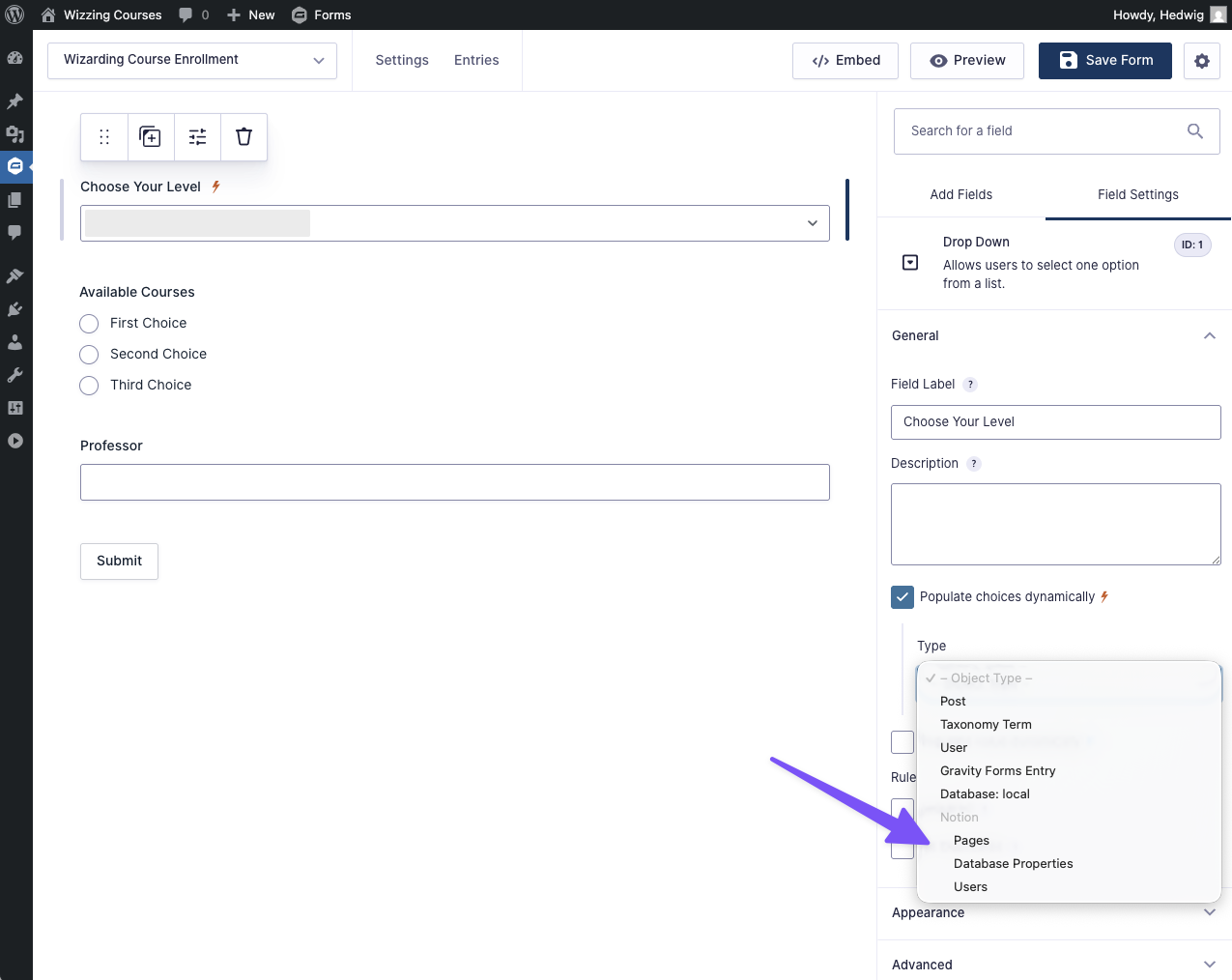
Each Notion object type opens up its own settings:
- Pages: Choose which Database to populate pages from.
- Database Properties: Choose which Database and which Property to populate from.
- Users: Choose which Workspace to populate users from.
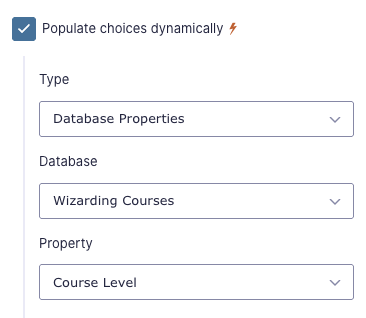
And that’s it! Now your Notion data is directly synced with Gravity Forms.
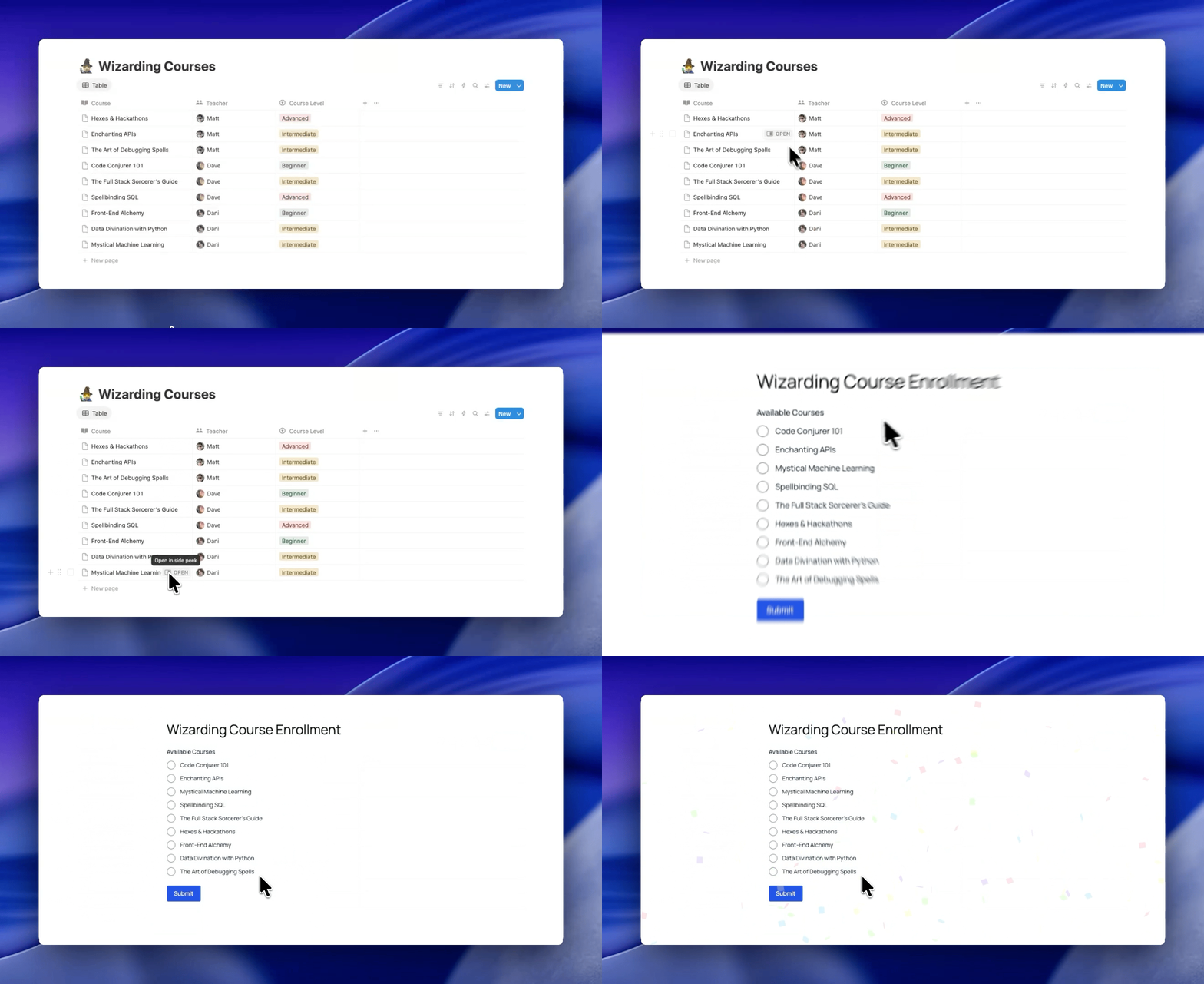
And yes!
When a page, property, or user is updated in Notion, it will also be updated in the associated field.
Bonus: Filter Notion data with Notion data in Gravity Forms
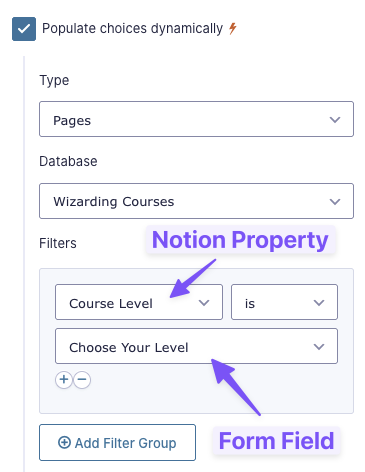
You can also choose to filter populated data based on other fields… even when all of it is coming from Notion! For example, I want users to select a Course Level (Database Properties) and filter available Courses (Pages) by the selected level.
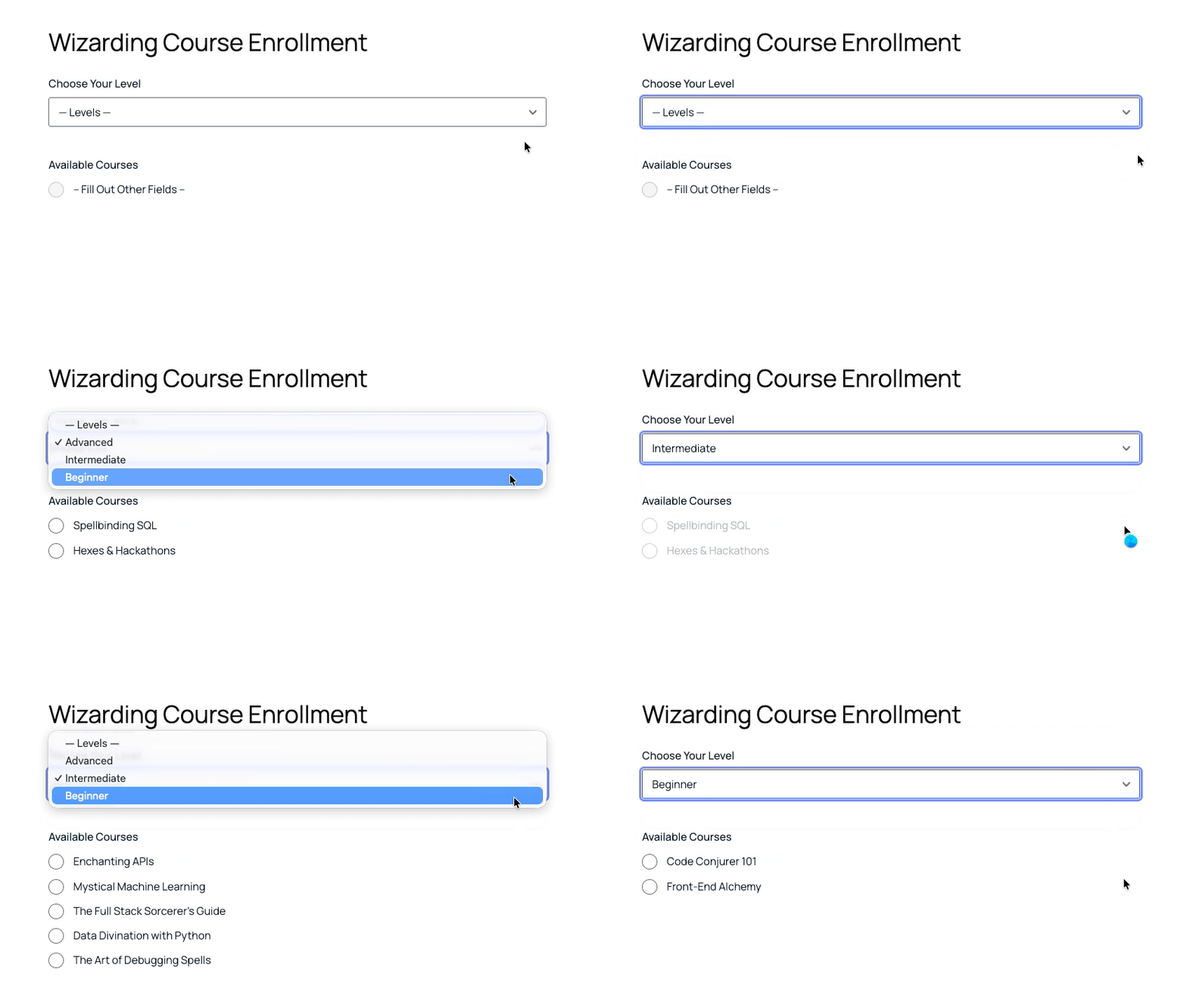
To achieve this, click on Add Filter Group under Filters and select which Notion data you want to use to filter by which field, and how. In my case, I’m filtering Pages (populated in the field I’m editing) by a Database Property (“Course Level”) that was populated and selected in the previous field (“Choose Your Level”).
Potion that notion
If you’re interested in building internal systems, learn more about how to send Gravity Forms data to Notion using GC Notion feeds.
If you have any questions about the GC Notion + Populate Anything integration, drop it down below.