How to Build a Legal Booking System with Gravity Forms

Prevent double bookings, sync calendars, control approvals, and distribute appointments across your team—all through Gravity Forms.
- Keep Your Forms and Calendars in Sync
- Add Buffer Time Between Appointments
- Distribute Appointments Across Resources
- Require Approval Before Confirming Appointments
- Taking It Further with Spellbook
- What Else Can GP Bookings Do?
- All Rise for Your New Booking System ⚖️
GP Bookings is a scheduling plugin that turns Gravity Forms into a complete booking system. It’s a flexible beast that helps you set up your own booking workflow as you need it — all within WordPress.
For example, during set up you can define any kind of service (i.e. what’s being booked), any kind of role (i.e. who’s available), and then set your hours, capacity, and pricing once. From there, GP Bookings handles the rest, including sending reminders, syncing calendars, letting people manage their own bookings, and more.
GP Bookings works for pretty much any industry. But what makes it good for the legal practice?
Today we’ll show you! Here are a few examples to whet your whistle.
- Sync bookings with external calendars
- Automatically add buffer time between appointments
- Distribute appointments across your team
- Approve appointments before they’re confirmed
Let’s see how each one works. 🏛
This article requires the Gravity Forms Bookings perk.
Buy Gravity Perks to get this perk plus 46 other premium Gravity Forms plugins!
Keep Your Forms and Calendars in Sync
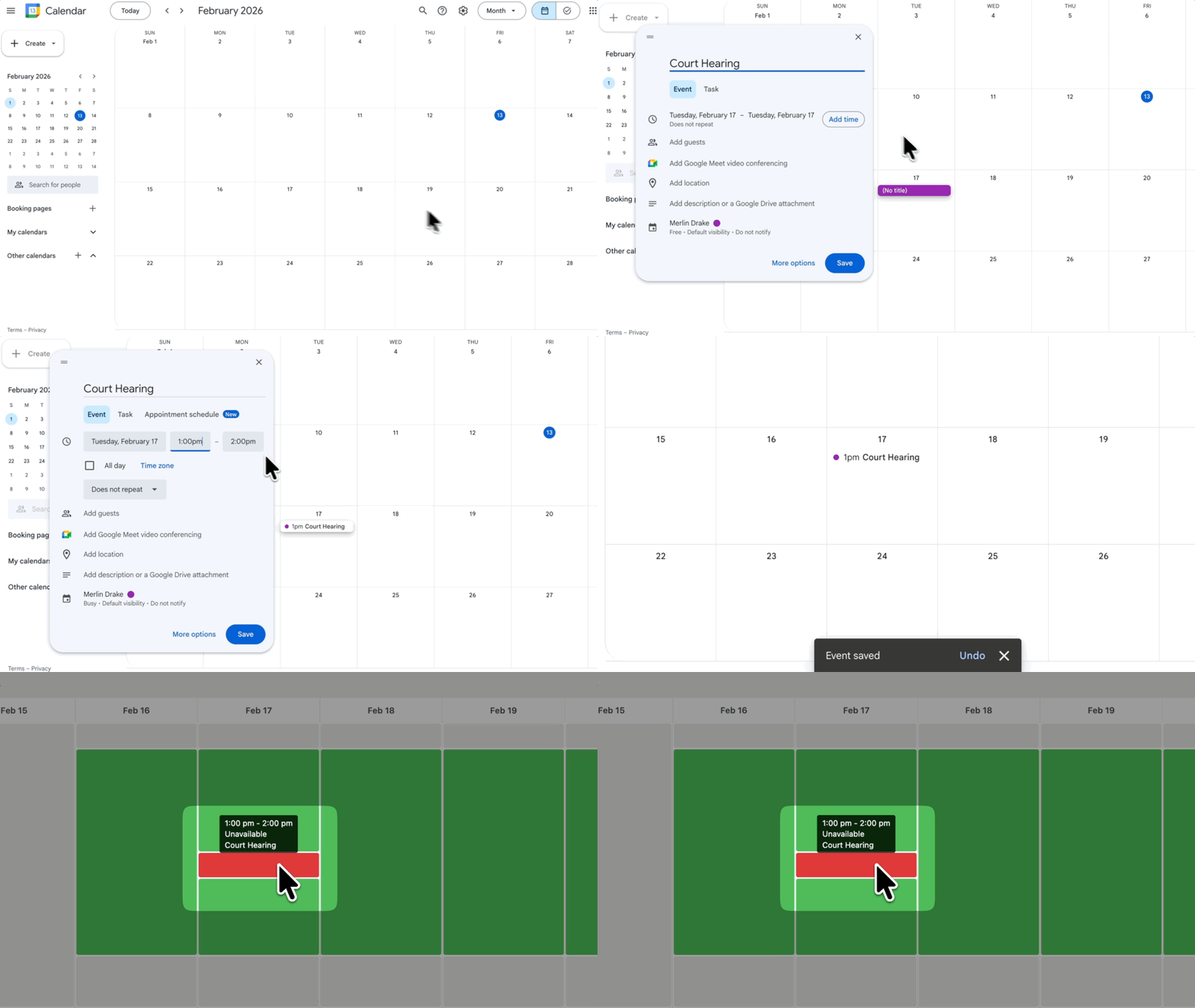
If your team manages schedules in Google Calendar, Apple Calendar, or any ICS-based calendar, GP Bookings can connect to it and keep both sides current.
Send Appointments to an External Calendar
When someone books through your form, the appointment gets added to the assigned person’s calendar automatically.
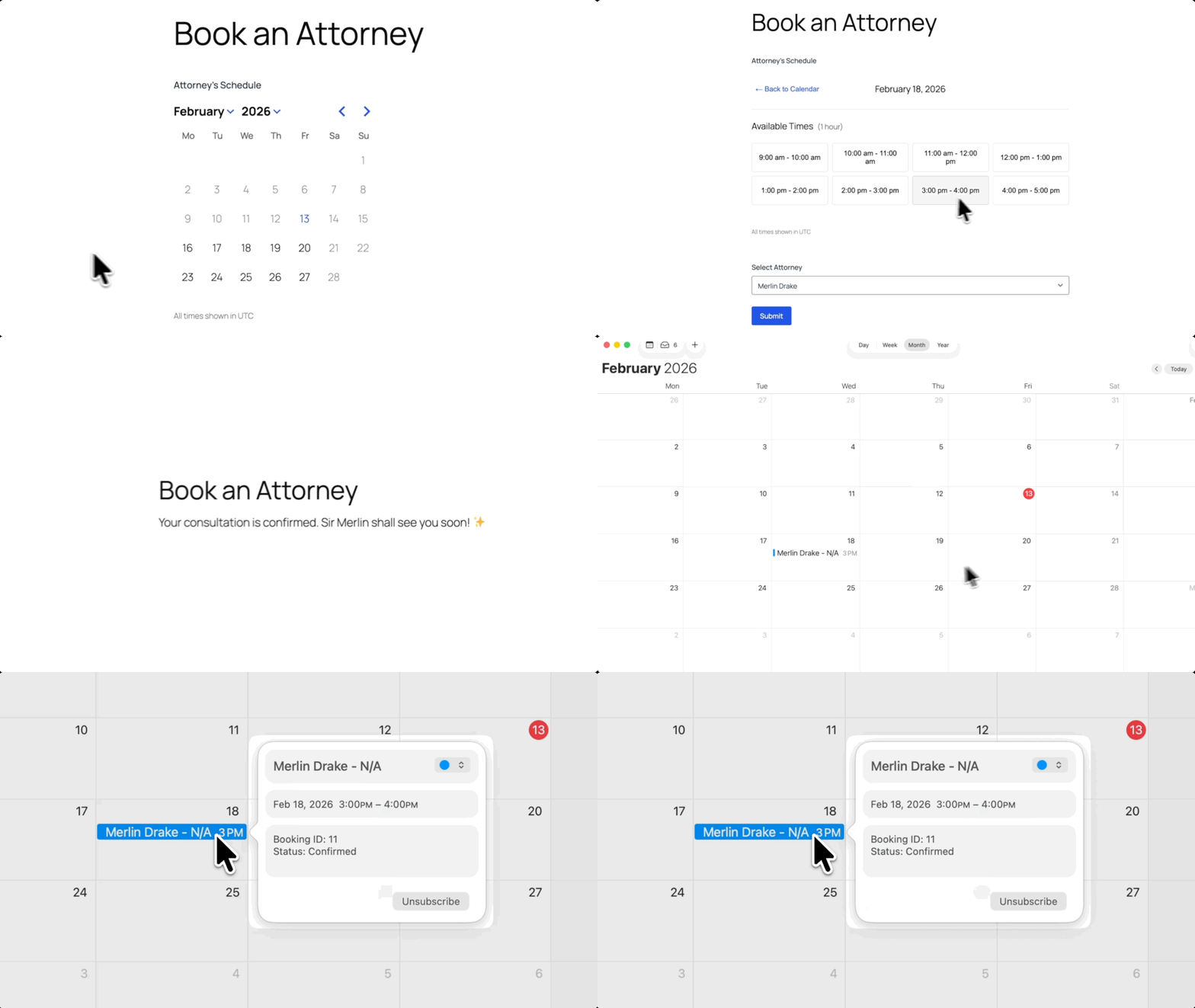
Send Calendar Events to Gravity Forms
Already have events in your external calendar? GP Bookings reads those and blocks the corresponding time slots on your form—so clients only see what’s actually open.
Pro Tip
If you’re using Google Calendar, you can use Gravity Connect Google Calendar to connect your forms and create a real-time bridge between GP Bookings and Google Calendar.
Add Buffer Time Between Appointments
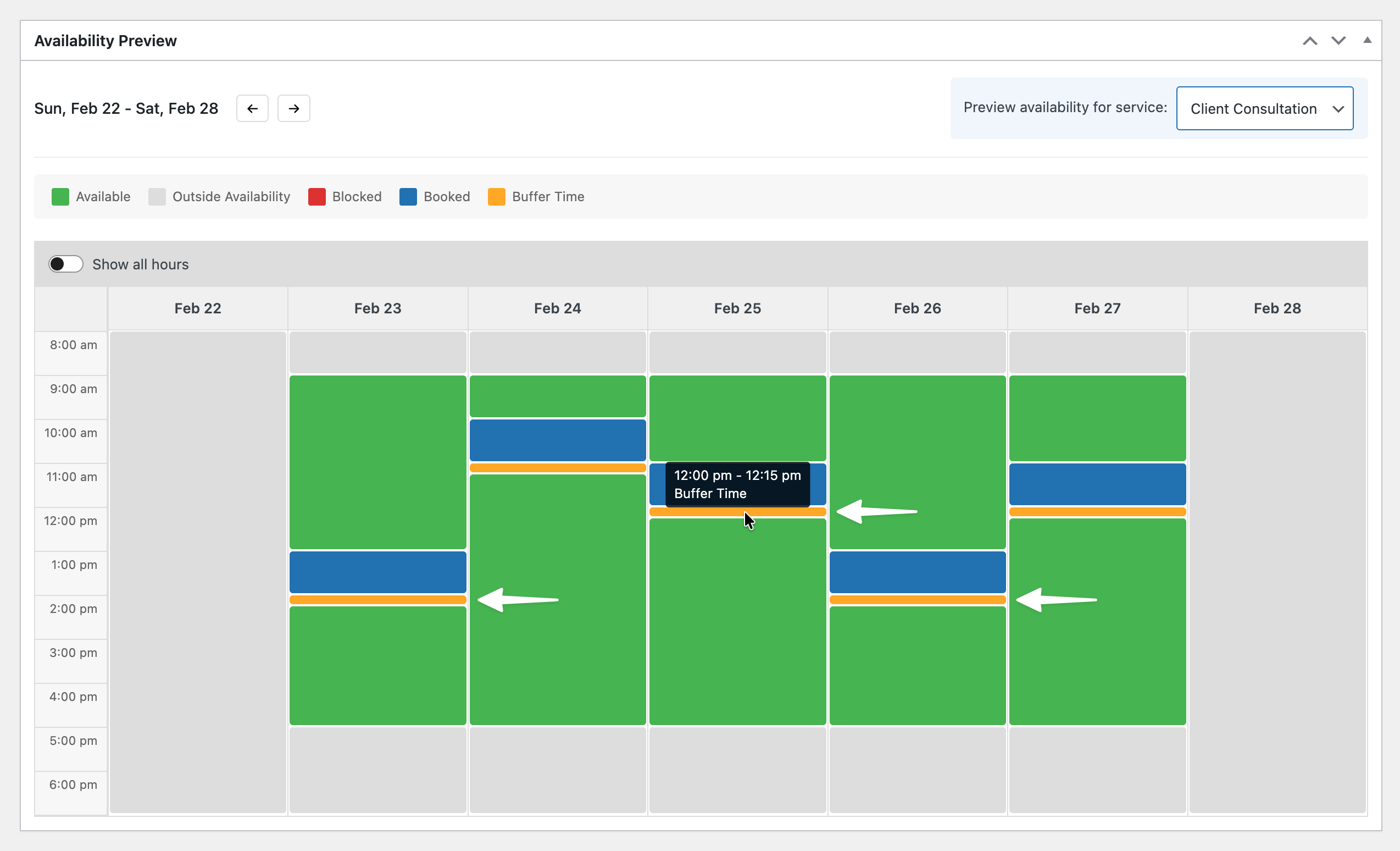
If your appointments run back to back, you might need some breathing room in between. GP Bookings lets you add automatic gaps between time slots.
Set a buffer, like 15 minutes, and that window gets blocked after every appointment.
Wizard’s Note
Buffer time is helpful whenever you need a gap between back-to-back bookings. Check out how buffer time works in a class-based setup.
Distribute Appointments Across Resources
In GP Bookings, the people or things available for booking are called Resources. In a legal practice, those might be attorneys—but they could just as easily be rooms, equipment, or any other asset that needs scheduling.
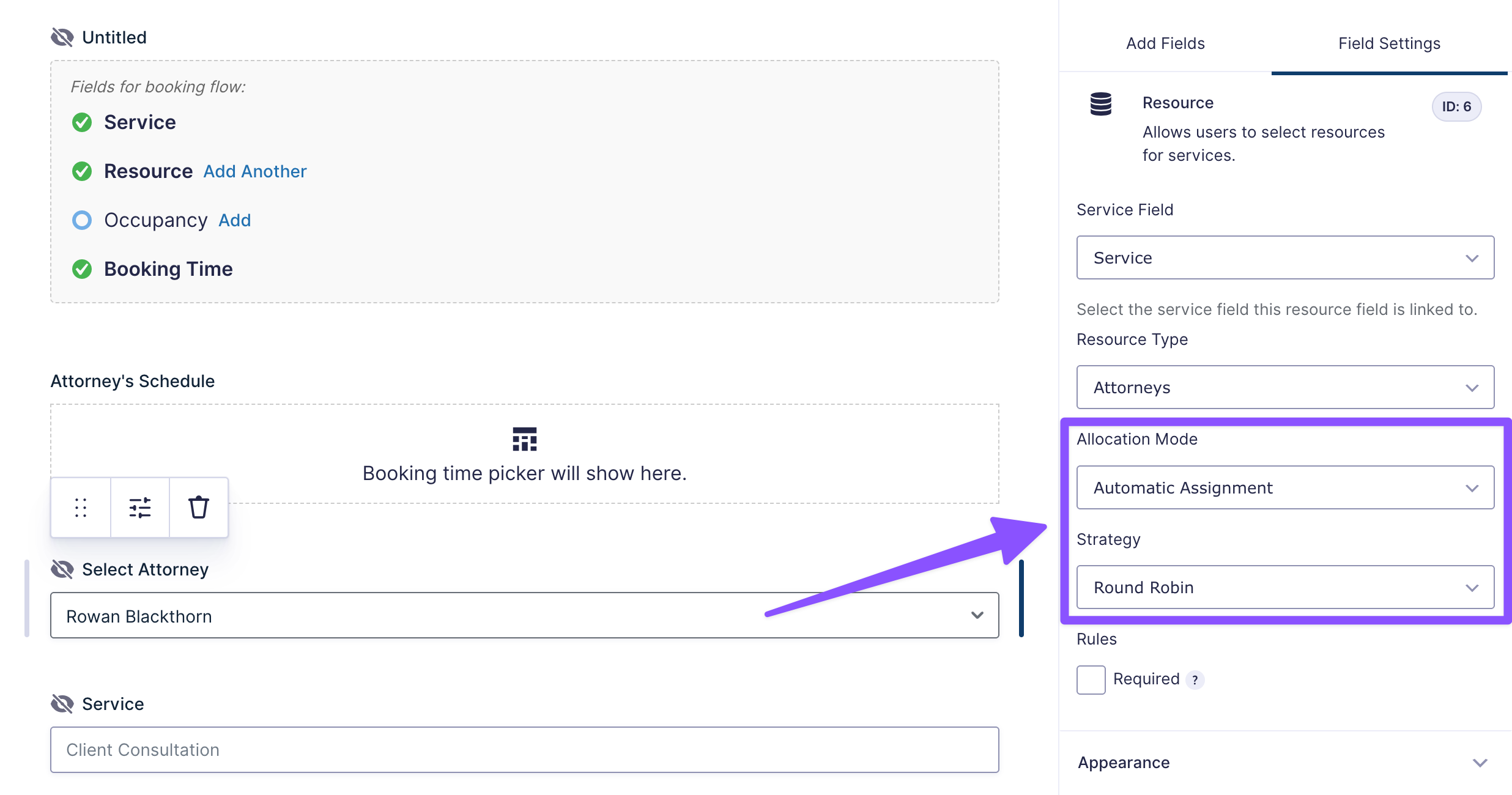
If you have multiple resources available, GP Bookings can automatically assign incoming bookings using one of three strategies:
- Round Robin distributes bookings evenly, routing the next one to whoever went the longest without a booking.
- Capacity Spread goes to the person with the fewest bookings.
- Capacity Pack fills up one person’s schedule completely before moving to the next.
Pro Tip
Want to create a new category? Just add a new Resource Type (like “Conference Rooms” or “Equipment”), add your Resources to it, and you’re good to go.
Wizard’s Note
The same assignment logic works when the resource is a physical space rather than a person. Learn how automatic assignment works when you’re managing rooms instead of staff.
Require Approval Before Confirming Appointments
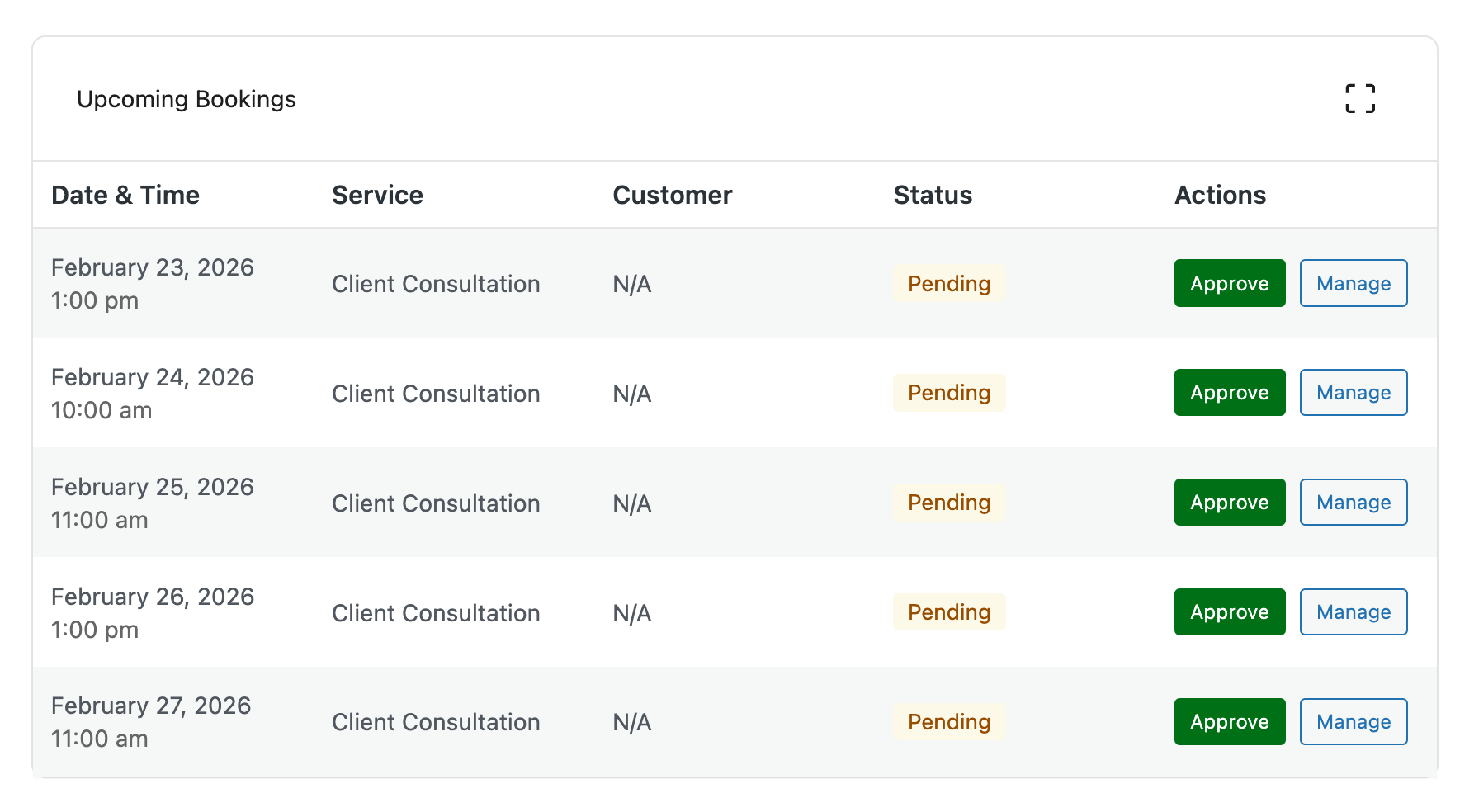
GP Bookings lets you review appointments before they’re confirmed. Set the default Booking Status to Pending, and new appointments land in your dashboard first.
That way, your team can approve or decline before anything gets locked in.
If you want a more hands-off setup, GP Bookings also supports self-service scheduling. Clients can book, reschedule, or cancel appointments on their own without needing to contact your team.
Pro Tip
GP Bookings can send notifications automatically based on what happens to a booking. When a booking gets created, confirmed, rescheduled, or is coming up soon, the right people get notified at the right time.
If you want to see how event-based notification works in a different context, check out our guide on creating a tutor booking form with GP Bookings.
Taking It Further with Spellbook
GP Bookings handles the scheduling, but pair it with Spellbook and you can take it even further:
- Create a unique case number for every booking with GP Unique ID, making it easy to track files in your case management system.
- Display your Terms of Representation directly in the form using GP Read Only. Clients can read it, but they can’t modify it.
- Add a checkbox where clients agree to your terms before they book using GP Terms of Service.
- Want to make sure your team always reaches clients the right way? Let clients specify their preferred contact method right from the booking form.
What Else Can GP Bookings Do?
Beyond what we covered above, every business has its own way of operating. GP Bookings has more to match that, like setting different prices based on the date, day of the week, or booking duration. You can also control how many bookings or people fit in a single time slot.
All of it lives in one dashboard with multiple calendar views, drag-and-drop rescheduling, and filters to find what you need.
And there’s more where that came from. Check out the full GP Bookings documentation to see what else it can do.
All Rise for Your New Booking System ⚖️
Building something specific for your industry? Drop a comment below! We might write about it next. 🧙♂️