How to Stop Gravity Forms Spam Without a CAPTCHA

Learn how Spam Hexer uses an invisible puzzle to stop most bot submissions, without getting in your visitors’ way.
- How Spam Hexer Stops Bots
- What You’ll Need
- Changing Proof of Work Settings in Spam Hexer
- Why Proof of Work Costs Bots More
CAPTCHAs do an important job: they help keep bots out. The catch is, sometimes you have to prove you’re human too. Maybe you’re selecting every square with a traffic light… and wondering, does that tiny corner count? 🤔
That’s where Spam Hexer comes in, our free plugin for Gravity Forms. It protects your forms from most automated spam, while keeping CAPTCHAs out of your visitors’ way.
Let me show you how to stop those spam bots! 🤖
How Spam Hexer Stops Bots
Spam Hexer’s first layer of protection is called Proof of Work (PoW). Before a Gravity Forms submission can go through, it gives the visitor’s browser a small puzzle to solve in the background.
Real visitors never see it and the form submits like normal.
Most spam bots aren’t so lucky. They don’t open and fill out the form like a visitor would. They send submissions straight to your site, so the puzzle never gets solved. And that’s how Spam Hexer catches them as spam.
The same puzzle protects your blog comments, too.
Curious how Spam Hexer compares? See how it stacks up against reCAPTCHA, Turnstile, Akismet, and other Gravity Forms spam solutions.
What You’ll Need
- Gravity Forms (any license)
- Spam Hexer, installed via Spellbook, Gravity Wiz’s free plugin manager
- To install: open Spellbook › search Spam Hexer › click Install
Changing Proof of Work Settings in Spam Hexer
Proof of Work is enabled by default when Spam Hexer is active, with logged-in users bypassed by default.
To change how it behaves for a form, open the form and go to Settings › Spam Hexer.
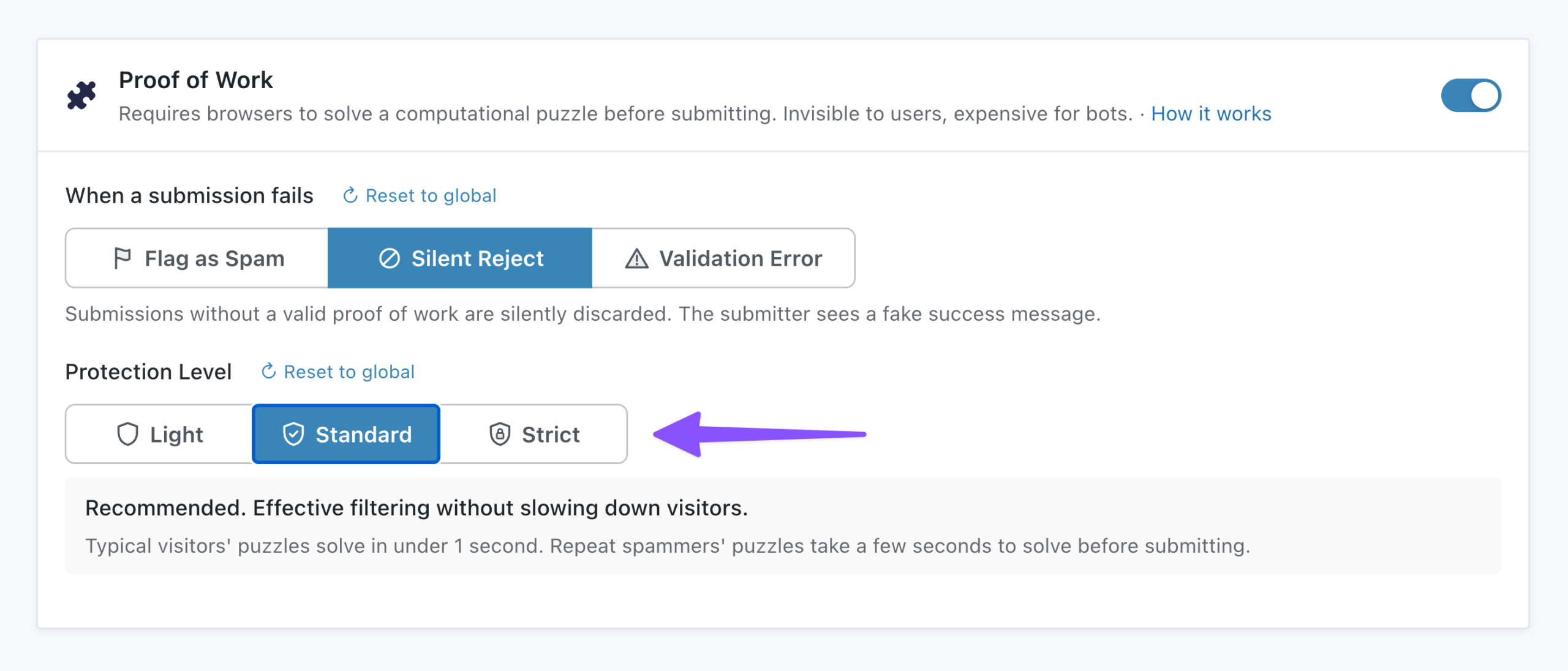
1 — Choose What Happens When a Submission Fails
Under Proof of Work, use When a submission fails to choose how Spam Hexer handles a submission that doesn’t pass the check:
- Flag as Spam: saves the entry and marks it as spam for you to review.
- Silent Reject (default): silently discards the submission, showing the submitter a fake success message.
- Validation Error: blocks the submission with a visible message and lets the submitter try again.
If you choose Validation Error, you can also change the message visitors see.
2 — Set the Protection Level
Under Protection Level, choose how difficult Spam Hexer makes the Proof of Work puzzle.
- Light: a faster, lighter check. Typical visitors solve the puzzle instantly.
- Standard (default): balances speed and protection. Typical visitors solve the puzzle in under a second.
- Strict: provides stronger protection but takes longer to solve, with delays that may be noticeable on older mobile devices.
Why Proof of Work Costs Bots More
Spam Hexer’s Proof of Work gives every submission its own small SHA-256 puzzle. Think of it like a guessing game: the browser keeps trying answers until one works.
Each puzzle is unique, so a bot can’t solve one and reuse the answer. If it keeps trying to spam your form, it has to solve a new puzzle for every submission.
That repeated work adds up, making spam more expensive the more it tries.

Want another layer of protection?
While Proof of Work stops most automated bots, Spam Hexer’s AI Classification adds a second layer by checking the submission itself for spam.
Key Takeaways
- Spam Hexer uses Proof of Work to stop most automated bots before their submissions get through.
- Proof of Work runs quietly in the browser, so real visitors can fill out and submit your forms without solving a CAPTCHA.
- Bots that can solve the Proof of Work puzzle still have to spend more resources on every spam attempt.
- Proof of Work is enabled by default, with settings to control the protection level and what happens when a submission fails.