
How to Automatically Resize Gravity Forms Textareas While You Type

Learn how to make Gravity Forms textareas grow as you type. Set the maximum height, and let Autogrow handle the resizing.

- How Autogrow Resizes Paragraph Text Fields
- What You’ll Build
- What You’ll Need
- How to Set Up Autogrow on a Gravity Forms Field
- Choosing Between vh and px
- Where Autogrow Works (and Where It Doesn’t)
Gravity Forms’ Field Size setting lets you choose the starting height for a Paragraph Text field: Small, Medium, or Large.
That gives the field a set amount of space when the form first loads. But if the answer needs more room, Gravity Forms Autogrow gives the field room to adjust, starting at the height you choose and expanding as users type, up to a maximum height you set.
Let me show you how.
How Autogrow Resizes Paragraph Text Fields
Gravity Forms Autogrow (or Autogrow for short) grows the field row by row as someone types. Once it reaches the maximum height you set, a scrollbar takes over instead of the field growing further.
This works whether the field uses the standard editor or has Rich Text Editing enabled.
What You’ll Build
By the end of this guide, you’ll have a Paragraph Text field that:
- Starts at the Field Size you choose
- Expands as users type
- Stops growing once it reaches your Maximum Height
- Works with the standard editor or Rich Text Editing
What You’ll Need
- Gravity Forms (any license)
- Autogrow, installed via Spellbook — Gravity Wiz’s free plugin manager
- To install: open Spellbook › search Autogrow › click Install
- A form with a Paragraph Text field to add Autogrow to
How to Set Up Autogrow on a Gravity Forms Field
1 — Enable Autogrow on a Field
- Edit your form and select a Paragraph Text field.
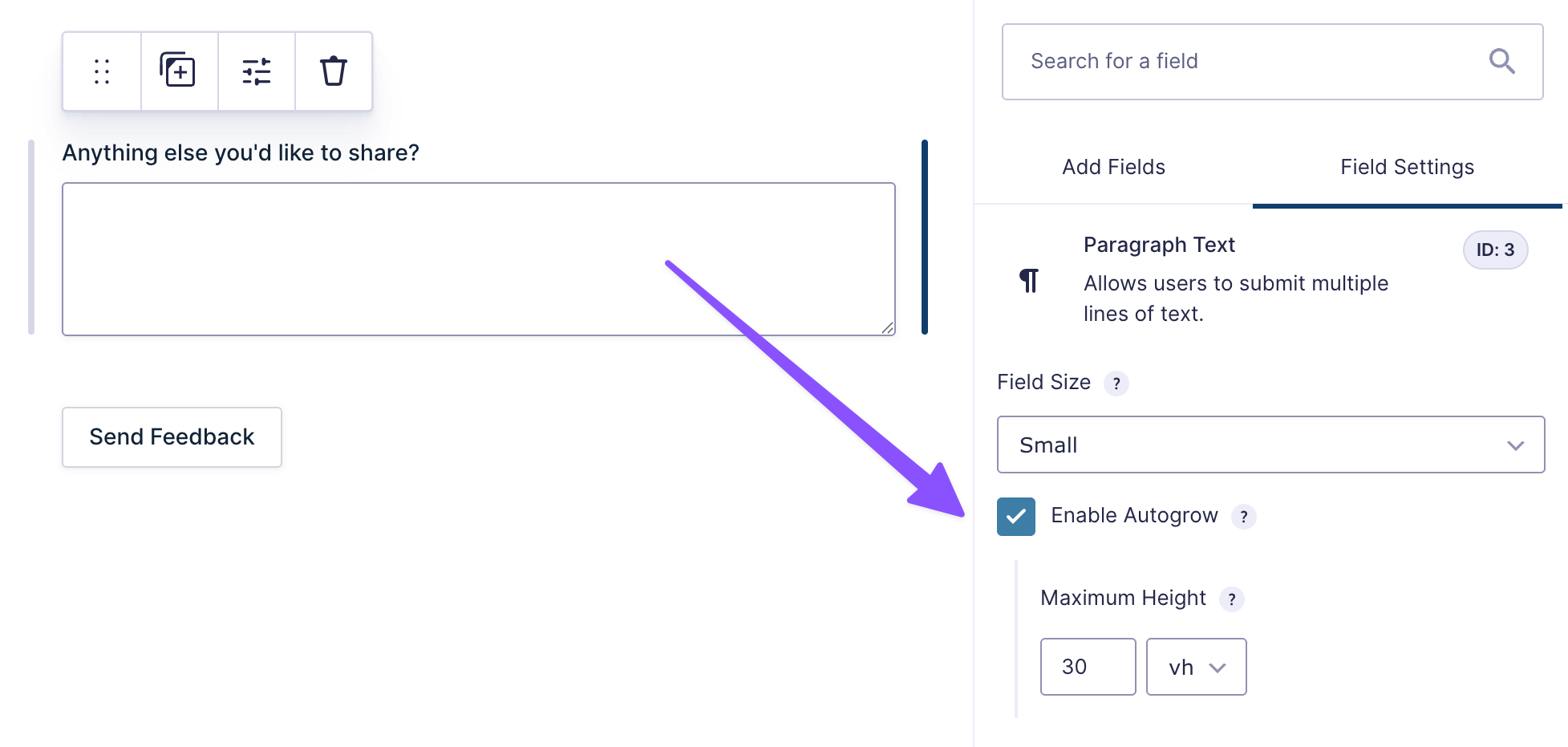
- Open the Appearance tab › check Enable Autogrow.
2 — Set a Maximum Height
- Once Autogrow is enabled, the Maximum Height setting appears. It accepts
pxorvh. - Set it to whatever value you’d like — it defaults to
30vh. If you’re not sure which one to use, you can jump to the next section for help.
Note
Your field’s Field Size setting still controls its starting height. Maximum Height only sets the ceiling above that — it doesn’t change where the field starts.
3 — Test the Field
- Preview the form and type into the field.
- Confirm it grows as you type, and that a scrollbar appears once it reaches the maximum height.
Choosing Between vh and px
Before picking a value, it helps to know what vh and px actually mean. They both do the same job — the only difference is what that height is relative to.
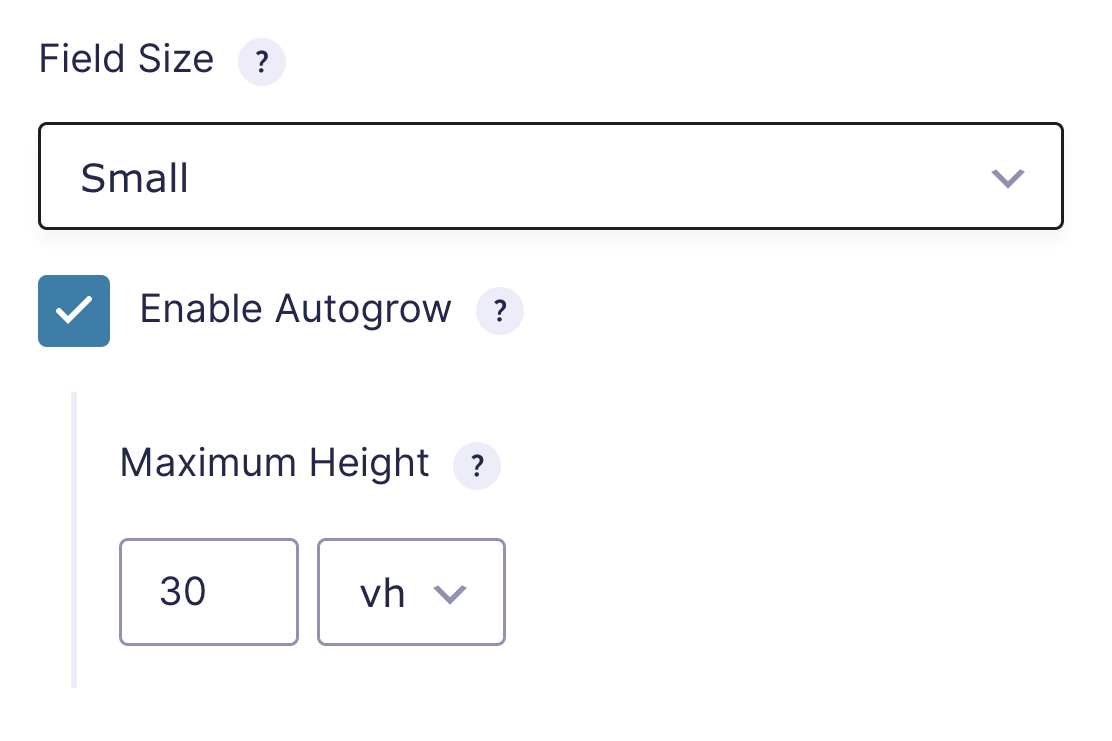
vh stands for viewport height, based on the height of the user’s screen. 30vh, for example, lets the field grow to about 30% of the screen height — and because it’s relative to the screen, it’s a solid default for most forms, scaling automatically across devices.
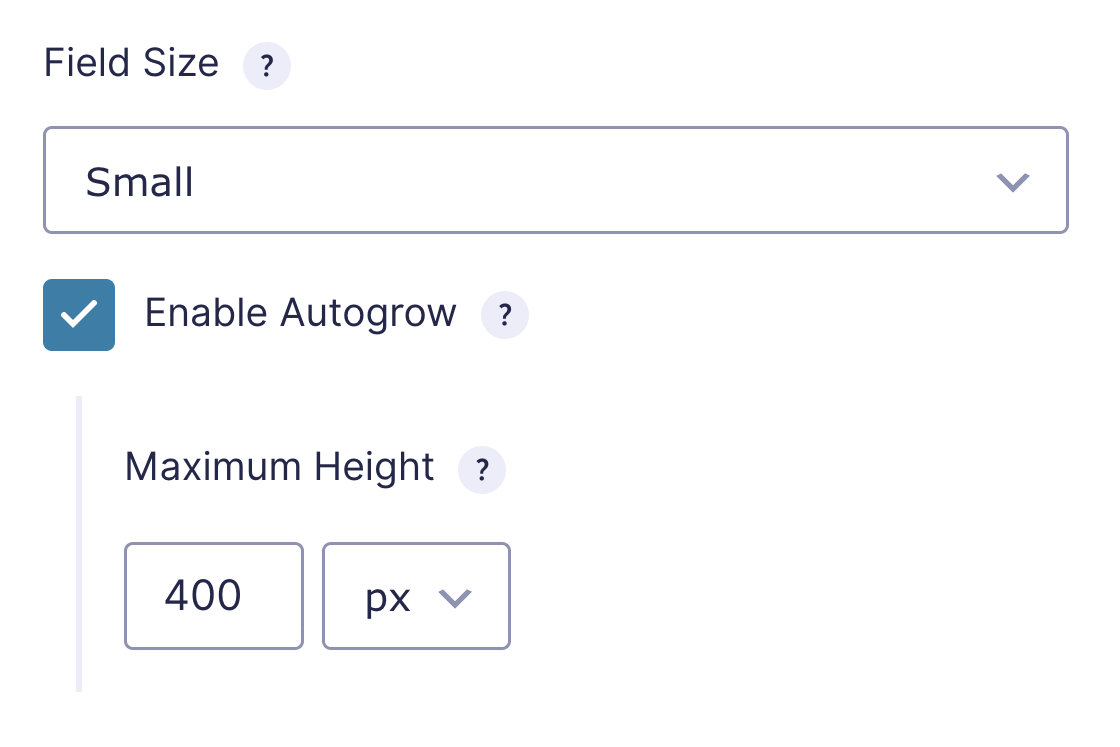
px stands for pixels, a fixed measurement that holds steady no matter the screen size. That makes it the better choice when a field needs to fit a specific space exactly, like a sidebar, modal, or tighter layout.
For a few common values to start with, check out Autogrow’s documentation.
Where Autogrow Works (and Where It Doesn’t)
- Autogrow is built for Paragraph Text fields. It doesn’t apply to other field types, like Single Line Text or Name, since those fields aren’t designed for longer, multi-line responses.
- Turning on Autogrow hides the field’s manual resize handle. This is intentional. Autogrow controls the field height, so manual dragging doesn’t compete with automatic resizing.
- Autogrow works with multi-page forms, conditional logic, and AJAX submissions — it automatically applies to any new field as soon as it shows up, without you having to do anything extra.
- Autogrow also works on Post Body fields, which can be useful for forms that submit content from the front end of a site.
Key Takeaways
- Gravity Forms’ Field Size setting controls the starting height for Paragraph Text fields. Autogrow lets the field expand from there as someone types, up to a maximum height you choose.
- Setup happens on the field itself: enable Autogrow, then set a Maximum Height.
vhgives a height limit that scales with the screen.pxholds a fixed maximum height.- Autogrow works the same way on Rich Text Editor and Post Body fields, and keeps working automatically on multi-page forms, conditional logic, and AJAX submissions without extra setup.



Hi,
This is an awesome perk, thank you!
I don’t know what I’m doing wrong though as I can’t get my original height to stay. I note it says “Gravity Forms’ Field Size setting controls the starting height for Paragraph Text fields.” so I’ve set my paragraph for medium, ticked autogrow, yet in the HTML it says:
And it makes the area only 42px, yet my Medium height is set as: .gform_wrapper.gravity-theme .gfield textarea.medium { height: 192px; }
I’d rather not post my website address in the public forum, happy to send privately with pics.
Many thanks!