Add Numeric Values to Gravity Forms Choice Fields for Calculations

Make user selections influence calculations by assigning numerical values to your Choice fields.

- How do you give Choice fields numerical values directly?
- How do you keep choice values flexible and calculate numbers separately?
- Taking it further
- It’s your choice
In Gravity Forms, pre-defined choices can be given values that are different from their label (aka what you see in the form).
What does that mean? It means that you can have a totally different piece of data in the backend than the one the user interacts with on the frontend.
This is specially useful for calculations. By giving your choices numeric values, user selections can influence a numeric outcome, logic, or pricing, making forms for assessments, orders with multiple product / shipping options, and quoting possible. 🙌
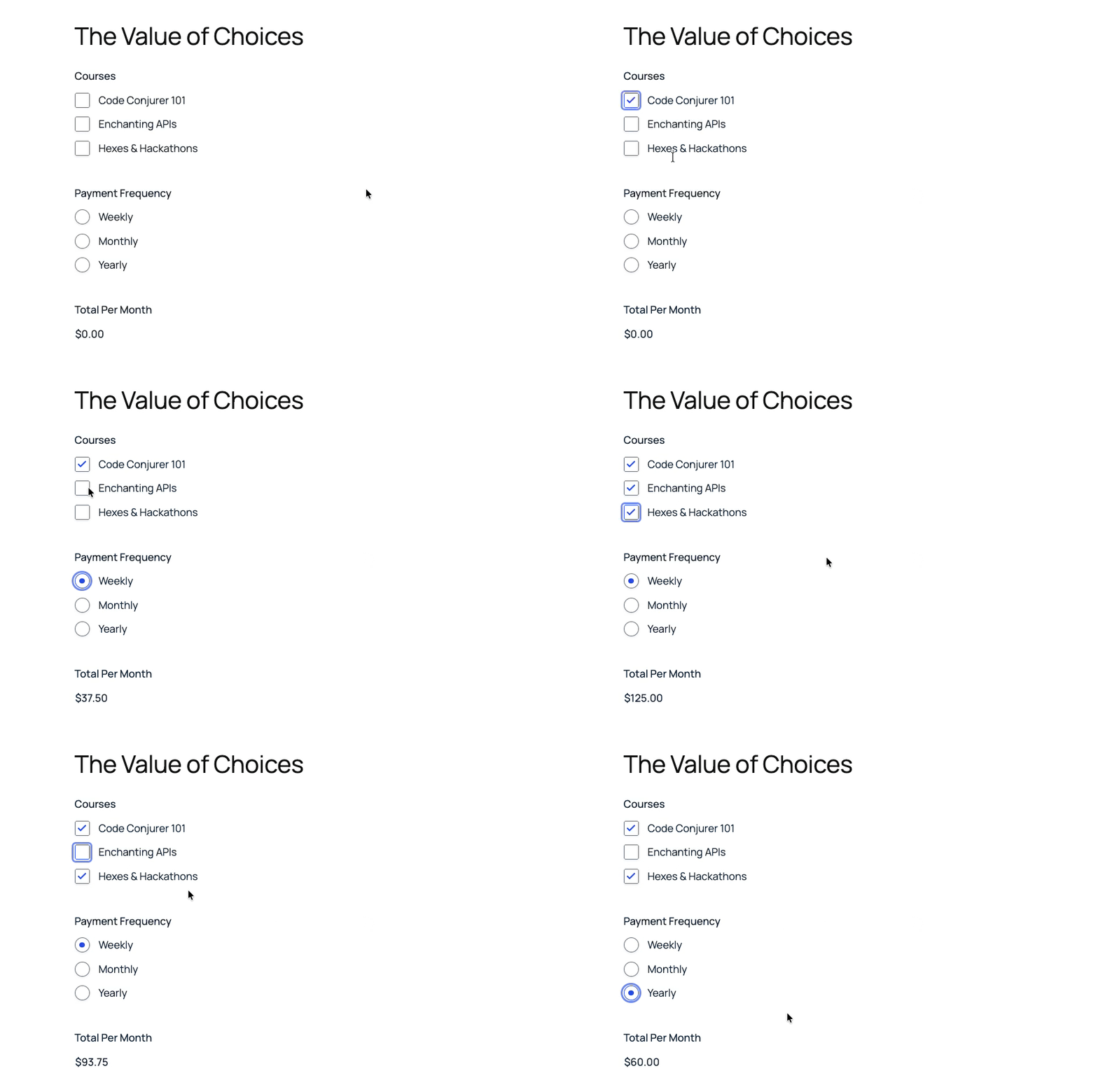
There are two simple methods to assign number values to choices:
- Directly in the Choice field: Good for simple calculations (like quiz scoring), weighted logic, and conditional logic simplification.
- Via calculation: Good for separating choice values from a specific number, allowing for consistent data collection with unique values, different numbers tied to the same choice number, and more complex calculations.
Which method is right for me?
Ask yourself: Do your Choice field values need to serve a purpose outside of the calculation?
(e.g., tracking IDs, CRM keys, readable strings)
| NO Set values directly in the Choice Field | YES Set values in a separate Number field |
| Best for: quiz scoring, weighted logic, simple conditional logic | Best for: system integrations, multi-combo checkboxes, complex calculations |
How do you give Choice fields numerical values directly?
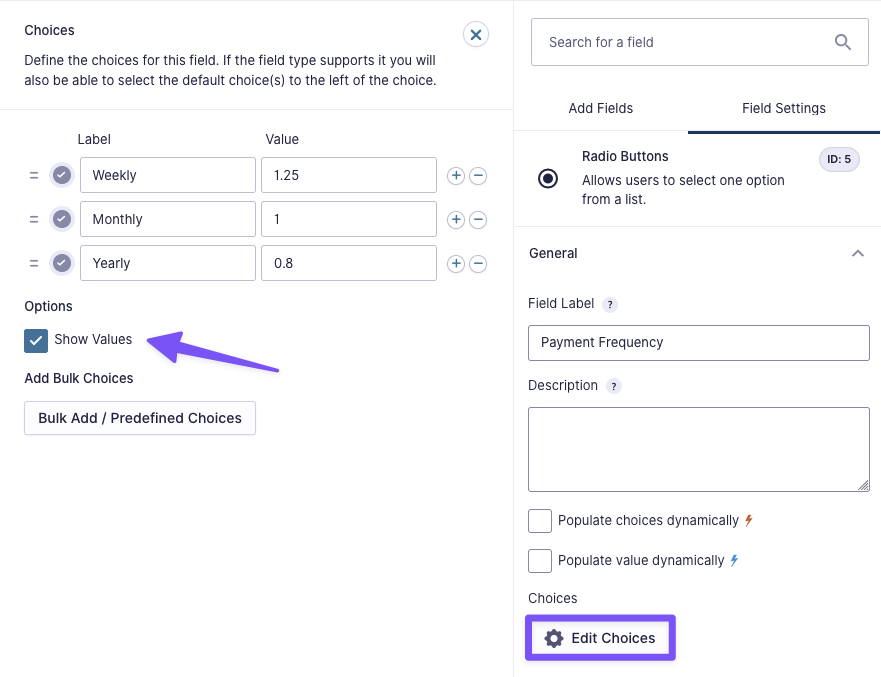
Gravity Forms allows you to set choice values directly in the choice flyout panel. This is a classy solution if all you need from those values are for them to be numbers.
- Open the Choice field’s Field Settings.
- Click on Edit Choices.
- Under Options, enable Show Values.
Type the choice values in the new Value column.
How do you keep choice values flexible and calculate numbers separately?
There are situations where you might need to use direct choice values for other purposes. For example, it might need to be a tracking ID (e.g. 000234) for report sheet imports or a readable string (text data, like course_2_advanced) that is part of a bigger system in Google Sheets or a CRM.
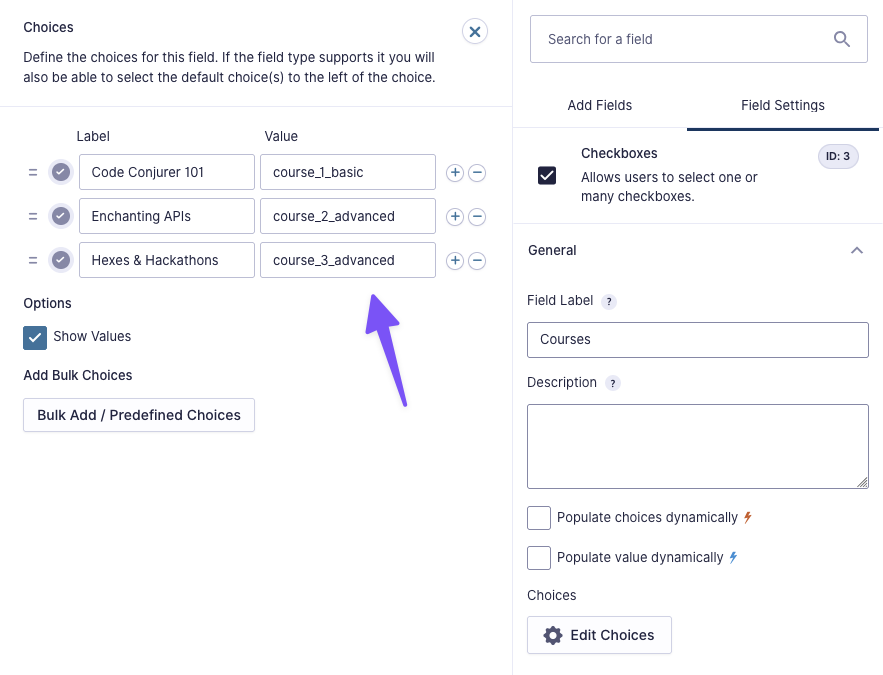
In those cases, you can assign an additional numerical value to your choices using GP Advanced Calculations in a dedicated Number field.
Advanced Calculations gives you the ability to reference strings and create conditional statements with comparative operators in formulas. So, if you need your direct choice values to be more unique than a number, you can:
- Create an additional Number field. You can hide it by setting its Visibility to Hidden or using CSS.
- Click on Enable Calculations.
- Use a conditional statement to equal choice values to numerical values.
- Reference this Number field in the formula that relies on the numerical values.
Simple Example:
if( F1 == 'Choice 1' ):
    7
elseif( F1 == 'Choice 2' ):
    6
else:
    4
endif;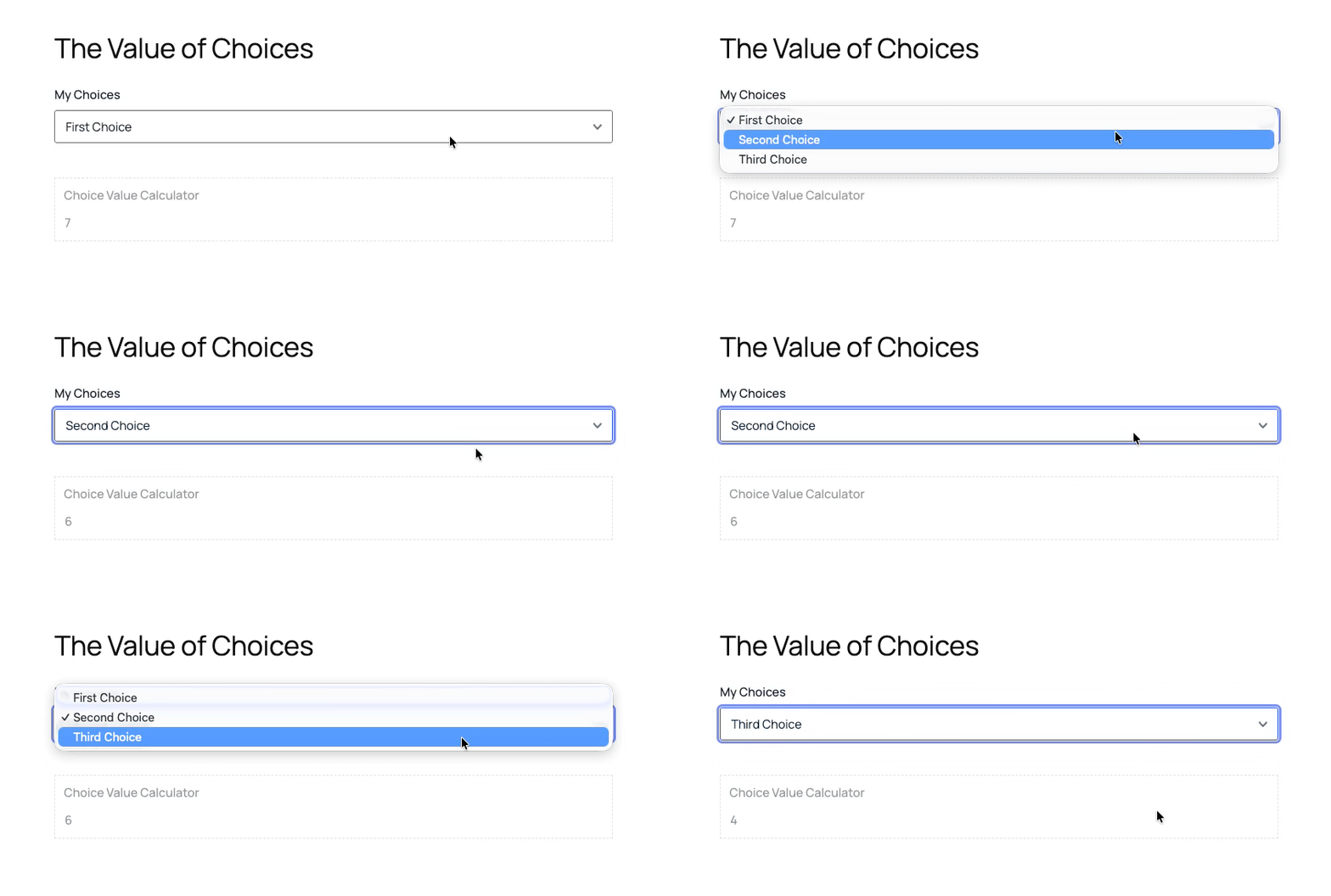
This method also allows you to integrate Checkboxes in calculations and account for the combination of choices as well.
Example – Checkboxes Combinations:
if( F3 == 'Code Conjurer 101' ):
  30

elseif( F3 == 'Enchanting APIs'):
  40

elseif( F3 == 'Hexes & Hackathons'):
  50

elseif( F3 == 'Code Conjurer 101, Enchanting APIs'):
  65

elseif( F3 == 'Code Conjurer 101, Hexes & Hackathons'):
  75

elseif( F3 == 'Enchanting APIs, Hexes & Hackathons'):
  85

elseif( F3 == 'Code Conjurer 101, Enchanting APIs, Hexes & Hackathons'):
  100

else:
  0

endif;
Depending on the role that the choices play on your formulas, you can skip creating an additional Number field and equal choices to specific formulas instead.
Example:
if( F3 == 'Choice 1' ):
    (F1 + F2) * 7

elseif( F3 == 'Choice 2' ):
    (F1 + F2) * 6

else:
    (F1 + F2) * 4

endif;
Taking it further
If your choices represent a scale, score, rating, or stepped value, you can have them as a slider using GP Sliders. It lets users pick from labeled steps while storing numeric values that work in calculations and conditional logic.
It’s your choice
Which one of these methods is most useful for you? Any questions? Let us know in the comments. 👇