How to Build a Loan Calculator in Gravity Forms

Learn the building blocks of creating customized calculators in Gravity Forms with a very complete loan formula powered by GP Advanced Calculations.

Key Takeaways
- You can build a fully customized loan calculator in Gravity Forms, covering simple interest, compound interest, and even variable rates.
- GP Advanced Calculations is required since it unlocks the advanced formula logic needed for loan math.
- The calculator in this article is built using a conditional statement and five form fields — interest type, loan amount, loan term, interest rate, and payment frequency.
- Variable interest rates can be supported by using GP Populate Anything to pull live rates from anywhere like an API, Google Sheets, or Airtable directly into the form.
Having a tailored calculator on your website can come in handy for your users (and future clients). As a bonus, it might even prove itself to be a powerful SEO tool.
Gravity Forms is a fine tool to build calculators with, giving you full control over the inputs and formulas based on your use case. To illustrate, let’s explore a complete loan formula built using GP Advanced Calculations. It offers a lot of flexibility, covering both simple and compound interest loans.
- What kind of calculators can I build with Gravity Forms?
- What does GP Advanced Calculations add to Gravity Forms?
- How do I build a loan calculator with Gravity Forms?
- How do you handle variable interest rates in a loan calculator?
- Interest… ed in your thoughts
This article requires the How to Build a Loan Calculator in Gravity Forms perk.
Buy Gravity Perks to get this perk plus 46 other premium Gravity Forms plugins!
What kind of calculators can I build with Gravity Forms?
Gravity Forms offers a great built in calculation tool that is able to do basic math. With a little bit of magic, you can upgrade its mathematical abilities with GP Advanced Calculations and unlock more complex formulas like the ones used for loans, mortgages, financing, and installment plans.
If you’re looking for inspiration, we have many spotlights (aka customer stories) on calculators for varied industries. What’s fun is that some of them use other perks to power their math instead of Advanced Calculations, like GP Conditional Pricing and GP Nested Forms.
- Land value calculator.
- Lab tests quote calculator.
- Monthly software fees calculator.
- Calendar printing price calculator.
- Planting area and spacing calculator.
- Stainless steel fixtures quote calculator.
- Industrial manufacturing quote calculator.
What does GP Advanced Calculations add to Gravity Forms?
GP Advanced Calculations boosts Gravity Forms calculations, adding many mathematical functions, comparison operators, conditional statements, and a colorful formula editor with merge tag shorthands to keep things lean and clean.
What we’ll be using:
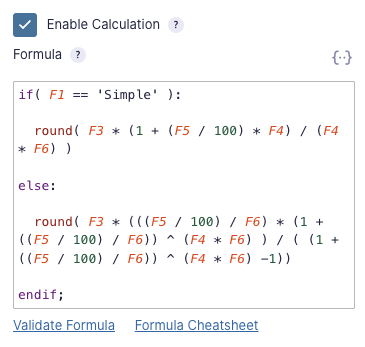
==comparison operatorif/elsestatementsroundfunction- Merge tag shorthands (e.g.
{Loan Type:1}becomesF1)
How do I build a loan calculator with Gravity Forms?
Step 1 — Prepare input fields
Before jumping into the formula itself, we’ll need to prepare the fields we want to include in it. If you want to skip building, you can download my form.
While loan structures can vary, most loans are calculated based on the same core inputs:
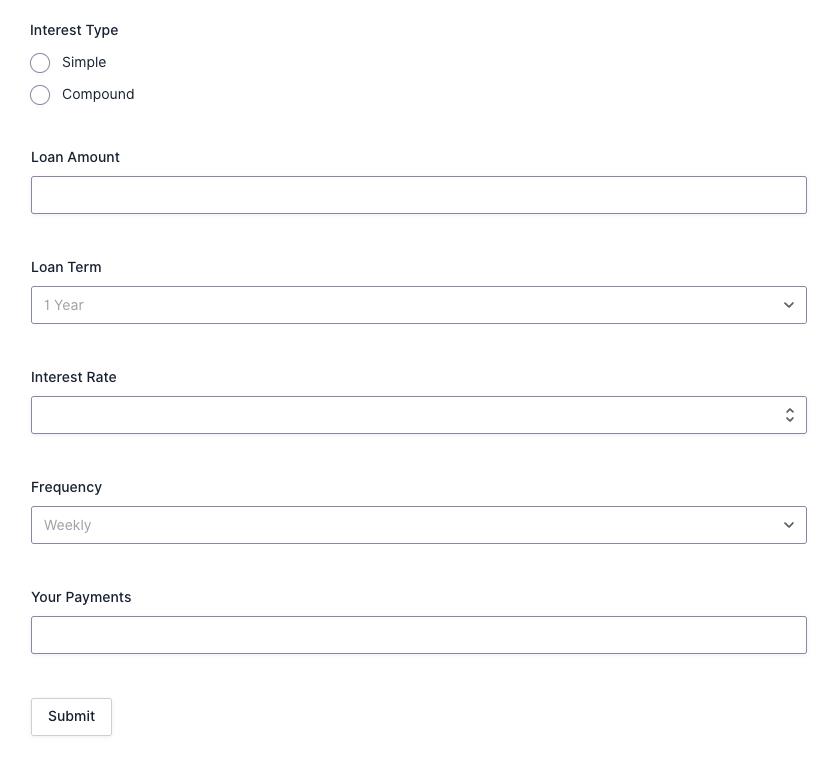
Most field types used here can be turned into or swapped to an interactive slider using GP Sliders. If you’re curious, we have a guide on how to add sliders to your forms.
Field 1 (F1) → Radio Buttons: Interest type
What to do:
- Add a Radio Buttons field (ID 1)
- Name it “Interest Type”
- Click on Edit Choices and add “Simple” and “Compound”
What this means:
This will toggle how interest is calculated over time in our formula. Simple (add-on) interest ignores balance reduction and favors the lender, while amortized compound interest ties interest to the remaining balance, rewarding consistent repayment.
On fixed vs variable interest
The main loan we’ll cover is fixed-rate, but we also cover some tips on how to implement variable interest in your formula below.
F3 → Number field: Loan amount (aka principal)
What to do:
- Add a Number field (ID 3)
- Name it “Loan Amount”
- Set the Number Format to Currency
- Optional: Set minimum and maximum values
What this means:
For the borrowers, it defines how much money they need. For the lender, it defines the size of the risk and capital commitment.
F4 → Drop Down: Loan term
What to do:
- Add a Drop Down field (ID 4)
- Name it “Loan Term”
- Click on Edit Choices
- Click on Bulk Add / Predefined Choices and paste:
1 Year|1
2 Years|2
3 Years|3
4 Years|4
5 Years|5
6 Years|6
7 Years|7
This Drop Down field is part of the calculation itself, so we need to assign numerical values to its choices. This can be done in two ways: directly in the choice editor (what we did here), or with an additional formula. Learn more about adding numerical values to Choice fields.
What this means:
The loan term sets the time horizon for repayment. This directly affects risk, total interest paid, and affordability. Longer terms reduce periodic payments but increase total cost and possibly uncertainty if dealing with variable interest.
F5 → Number field: Interest rate
What to do:
- Add a Number field (ID 5)
- Name it “Interest Rate”
- Optional: Set minimum and maximum values
What this means:
The interest rate is a percentage that prices the cost of borrowing. It balances the opportunity cost for the lender for time value of money, credit risk, and inflation.
F6 → Drop Down: Payment frequency
What to do:
- Add a Drop Down field (ID 6)
- Name it “Frequency”
- Click on Edit Choices
- Click on Bulk Add / Predefined Choices and paste:
Weekly|52
Monthly|12
Yearly|1
What this means:
The payment frequency controls cash flow timing. More frequent payments reduce outstanding principal faster (lower total interest) and help lenders manage default risk; less frequent payments improve short-term borrower liquidity.
Perfect! This gives our formula everything it needs to calculate a very customizable loan.
Step 2 — Add calculation Number field
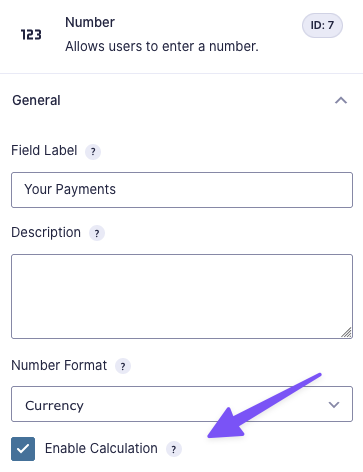
We’ll use the core inputs prepared in Step 1 to calculate the payment amount for each installment in a Number field with calculations enabled.
- Add a Number field
- Name it “Your Payments”
- Set the Number Format to Currency
- Click on Enable Calculation
Step 3 — Write loan formula
Here’s what a loan formula looks like in Gravity Forms:
if( F1 == 'Simple' ):

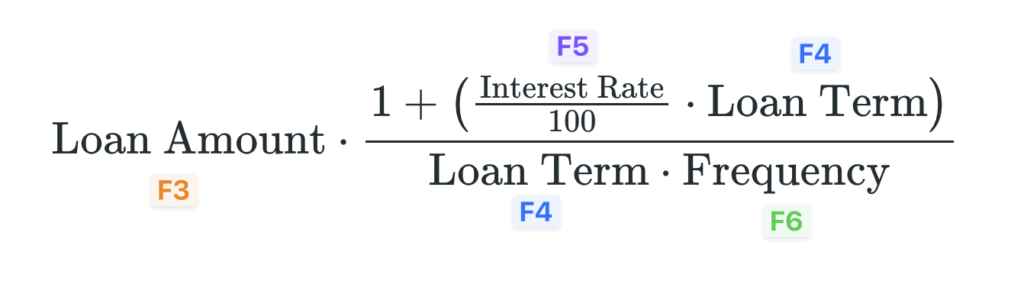
  round( F3 * (1 + (F5 / 100) * F4) / (F4 * F6) )

else:

  round( F3 * (((F5 / 100) / F6) * (1 + ((F5 / 100) / F6)) ^ (F4 * F6) ) / ( (1 + ((F5 / 100) / F6)) ^ (F4 * F6) -1))

endif;
Translation:
Based on the value of the Interest Type (F1) field, the formula runs either:
-
A simple interest calculation.
-
Or a compound interest calculation.
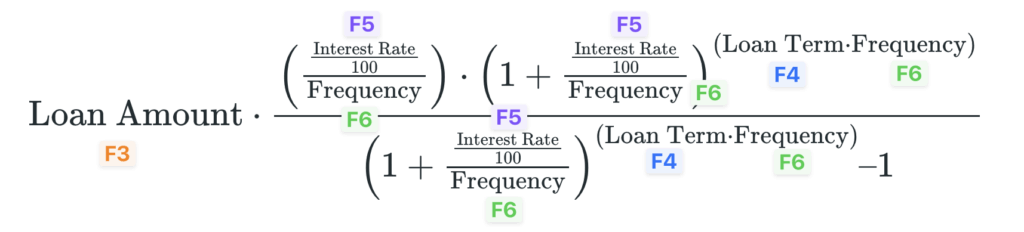
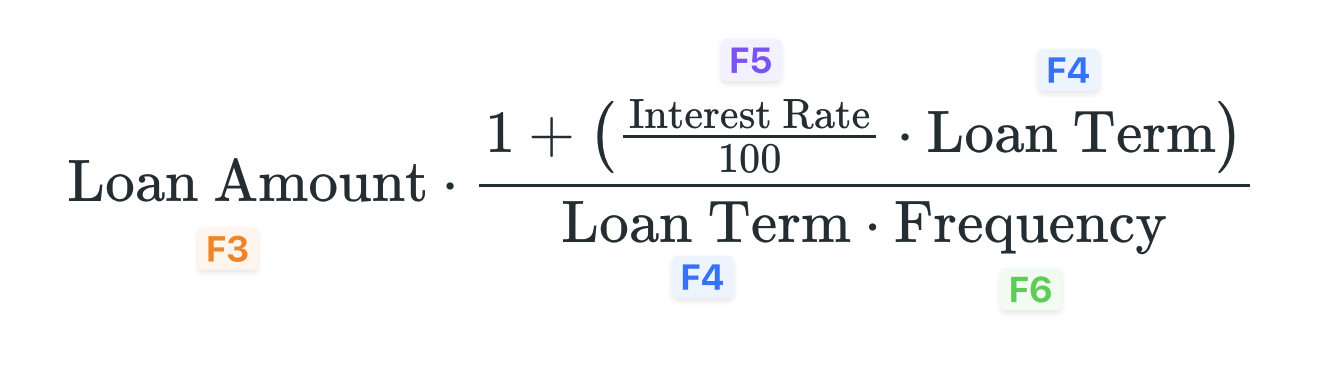
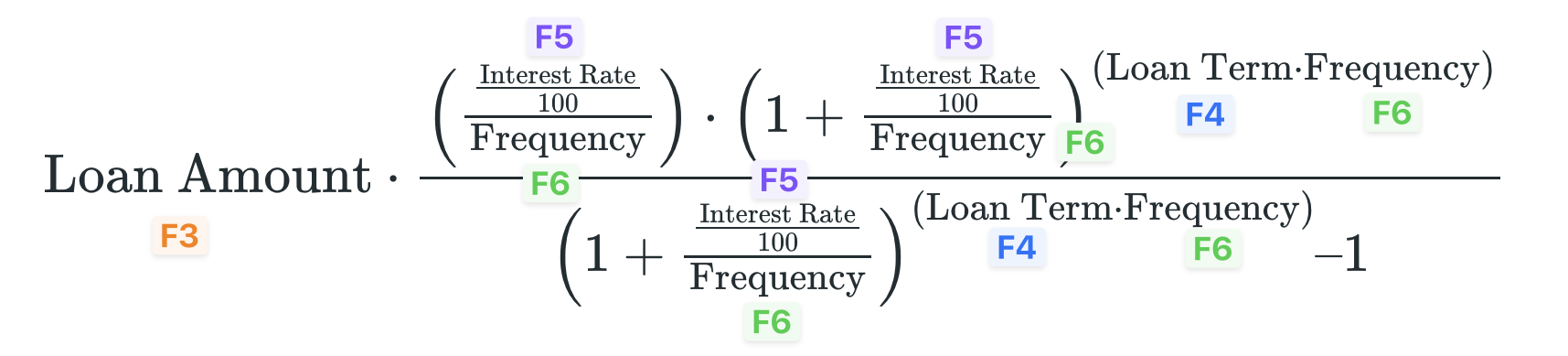
If you followed the exact order of the fields in Step 1, you can just copy-and-paste this into the Formula setting. Now, it’s time for some math!
PS — If you’re doing just one type of interest, like compound, you can strip down all of the conditional statements and end up with just this:
round( F3 * (((F5 / 100) / F6) * (1 + ((F5 / 100) / F6)) ^ (F4 * F6) ) / ( (1 + ((F5 / 100) / F6)) ^ (F4 * F6) -1))How do you handle variable interest rates in a loan calculator?
A fixed-rate loan has an interest rate that stays the same for the entire loan term, making payment amounts predictable. On the other hand, a variable-rate loan has an interest rate that can change over time based on a benchmark or market rate, so payments may go up or down.
If you’re building a calculator that references variable rates, you can populate them directly into the Interest Rate field by using GP Populate Anything. If your rates are stored in WordPress, that’s all you need.
If your rates are stored:
- In an API: Pair Populate Anything with API Alchemist.
- In Google Sheets: Pair Populate Anything with GC Google Sheets.
- In Airtable: Pair Populate Anything with GC Airtable.
If you get your benchmark from API, you can also populate it directly into Gravity Forms and calculate your interest rate from there.
Example:
Interest Rate = API Benchmark (populated) + Spread Adjustment + Borrower Margin
0.0532 + 0.0010 + 0.0300Interest… ed in your thoughts
And there you have it! What are your thoughts on this loan formula? Any lingering questions? Repay us by sharing down below. 👇