How to Add a Rating Slider to Gravity Forms

If you’re building surveys or feedback forms in Gravity Forms, using a slider for your rating questions can be a small but meaningful upgrade. It’s more interactive (and fun!) to fill out — and there’s real science behind why it works.
A Stanford study I came across found that people engage with questions sooner when using sliders, figuring out their answer on the way there, not before.
If you’re looking to bring that kind of experience to your Gravity Forms, let me show you how with Gravity Forms Sliders.
This article requires the Gravity Forms Sliders perk.
Buy Gravity Perks to get this perk plus 46 other premium Gravity Forms plugins!
How Rating Sliders Work in Gravity Forms
Gravity Forms Sliders (GP Sliders for short) is part of the Gravity Perks suite. It adds a dedicated Slider field to Gravity Forms with two modes: Numeric for raw numbers, and Custom Choices for word labels.
Those labels can define almost any rating scale you need — satisfaction (Poor → Excellent), likelihood (Never → Always), or any range your question calls for.
Behind each label sits a numeric value, so slider responses work with conditional logic, calculations, and merge tags.
What You’ll Build
By the end of this guide, you’ll have a slider field within a form that:
- Has labeled steps for any rating scale you need
- Shows tick marks so respondents know where they’re landing
- Shows a word label to respondents, but stores a numeric value you can use in conditional logic, calculations, and merge tags
What You’ll Need
- Gravity Forms (any license)
- GP Sliders, installed via Spellbook — Gravity Wiz’s free plugin manager
- To install: open Spellbook › activate GP Sliders
- A form to add the slider field to
How to Set Up a Rating Slider in Gravity Forms
For this guide, we’re building a satisfaction rating question. Feel free to swap in whatever scale fits your question.
1 — Add a Slider Field
- In the Gravity Forms form editor, go to Advanced Fields and drag in a Slider field.
- Select the field to open its settings.
Need more detail? We’ve got a full guide on setting up a Slider field in Gravity Forms.
2 — Set Up Your Choices
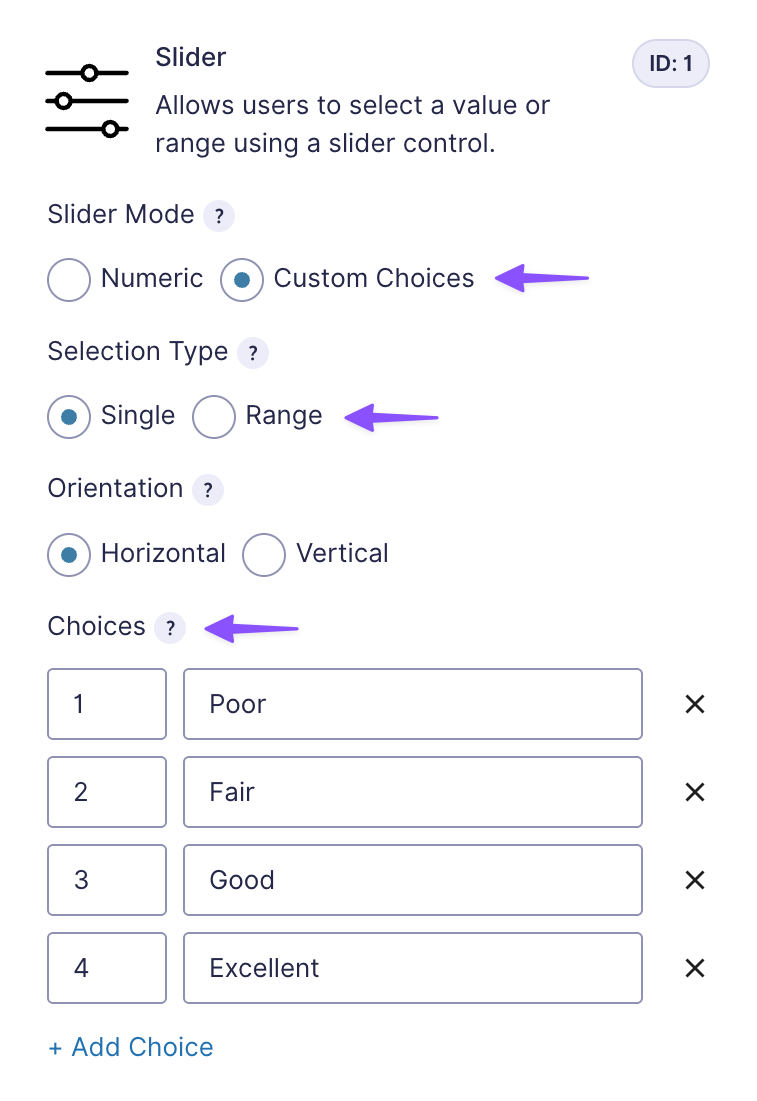
- Under Slider Mode › select Custom Choices. Under Selection Type › select Single.
- Under Choices, each row has two fields: the numeric value on the left and the label on the right.
- Fill in your steps — e.g., 1 | Poor, 2 | Fair, 3 | Good, 4 | Excellent.
- Click + Add Choice to add more.
3 — Configure Display Options
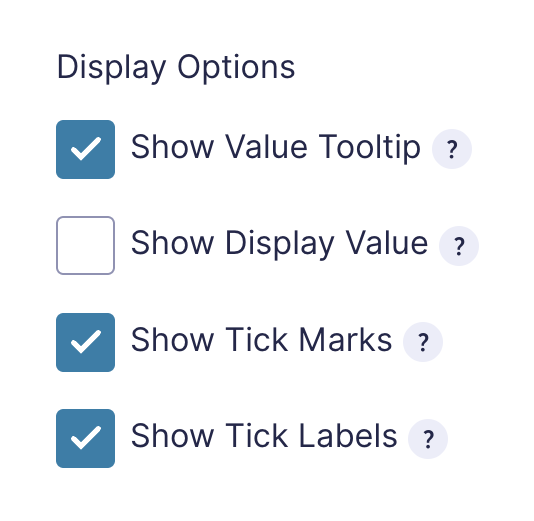
- Check Show Tick Marks and Show Tick Labels — this puts markers on the track and displays your labels beneath each one.
- Optional: check Show Value Tooltip or Show Display Value to show the selected value on or below the slider.
4 — Test the Setup
- Preview the form and drag the handle across the full range.
- Confirm that each tick shows the correct label and that the handle snaps to each choice.
- Submit a test entry and check that the selected label, such as “Good,” appears correctly in the entry detail.
- Verify that the numeric value is available where you need it, such as in conditional logic, calculations, or merge tags — for example
{:[field_id].1}.
Need something more complex, like tax, VAT, or date-based discounts? Here are more ways to do calculations in Gravity Forms.
Taking It Further
- Follow up on low ratings. Use conditional logic to show a “Tell us more…” field when the numeric value is
2or below — a simple way to catch unhappy respondents before they leave. - Score across multiple sliders. GP Advanced Calculations can sum or average values from several sliders. See how a slider feeds a calculation field for the basic setup, useful for scoring across multiple questions.
- Prefer raw numbers? Switch to Numeric mode. Same drag mechanic, no word labels.
- Already using a Number field? You can enable a slider on it via the Perks tab, though the dedicated Slider field gives you more display control.
Key Takeaways
- GP Sliders adds a dedicated Slider field to Gravity Forms, giving you a draggable rating slider for surveys, feedback forms, and more.
- You can define any scale you need — satisfaction, agreement, frequency — and let respondents drag their way to an answer.
- Slider responses work natively with conditional logic, calculations, and merge tags, so you can score answers, trigger follow-ups, and more.