How to Sync GP Bookings with Google Calendar

Connect GP Bookings to Google Calendar once, and every booking, reschedule, and cancellation stays in sync from there on out.
- How GP Bookings Connects to Google Calendar
- What You’ll Build
- What You’ll Need
- How to Connect GC Google Calendar to GP Bookings
- What You Can Do Once GP Bookings and Google Calendar are Connected
Gravity Forms makes it easy to build a booking form for collecting who’s booking, what they need, and when. And with GP Bookings, those submissions become actual bookings you can manage right inside your WordPress site.
But if you’re also using Google Calendar to manage the rest of your schedule — days off, personal commitments, anything outside your booking system — wouldn’t it be nice if GP Bookings could… see and sync all of that too?
With Gravity Connect Google Calendar, they can. 🤝
This article requires the Gravity Connect Google Calendar plugin.
Buy Gravity Connect to get this plus other premium Gravity Forms plugins!
How GP Bookings Connects to Google Calendar
Gravity Connect Google Calendar (GC Google Calendar for short) is part of Gravity Connect, our suite of direct Gravity Forms integrations.
It connects GP Bookings to Google Calendar directly using Google’s secure authentication, with nothing extra required beyond your Google account and the plugin.
Once connected, new bookings from your Gravity Forms booking form show up in Google Calendar instantly, and any changes you make in GP Bookings sync over automatically.
Already syncing GP Bookings with Google Calendar via an ICS feed? GC Google Calendar replaces that with one direct connection.
What You’ll Build
By the end of this guide, you’ll be able to:
- Send new bookings to Google Calendar
- Keep booking edits in sync on both sides
- Remove calendar events when a booking is deleted
- Send bookings to the right Google Calendar based on who or what is being booked
What You’ll Need
- Gravity Forms (any license)
- GP Bookings installed via Spellbook — Gravity Wiz’s free plugin manager
- Gravity Connect Google Calendar installed via Spellbook
- A Google account with access to Google Calendar
- A form with booking fields set up (service, date, time, etc.)
How to Connect GC Google Calendar to GP Bookings
- Navigate to Forms › Settings › Google Calendar tab › Add Account › connect your Google account.
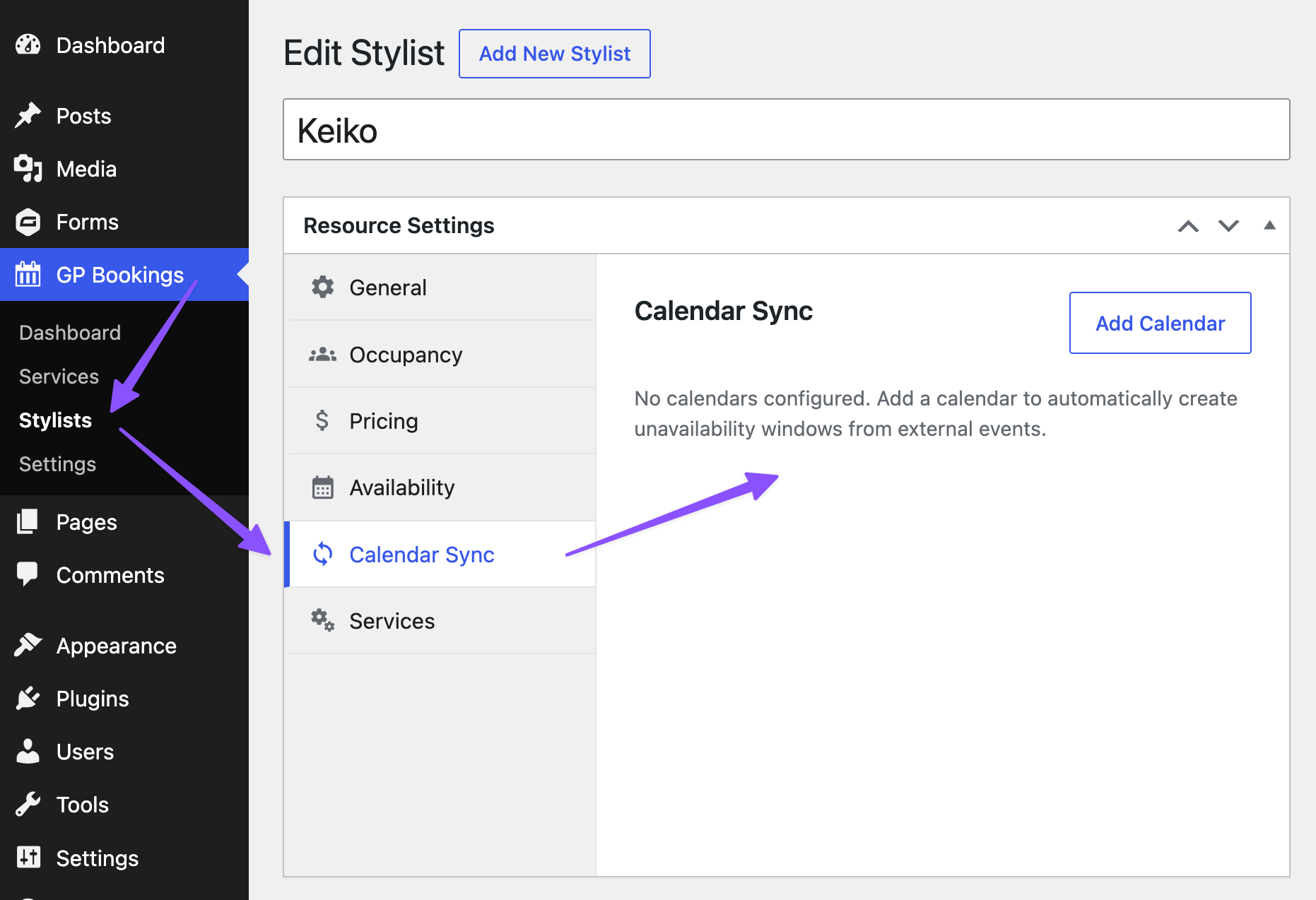
- Click GP Bookings in the admin sidebar › open the service or resource you want to sync › Calendar Sync tab › Add Calendar.
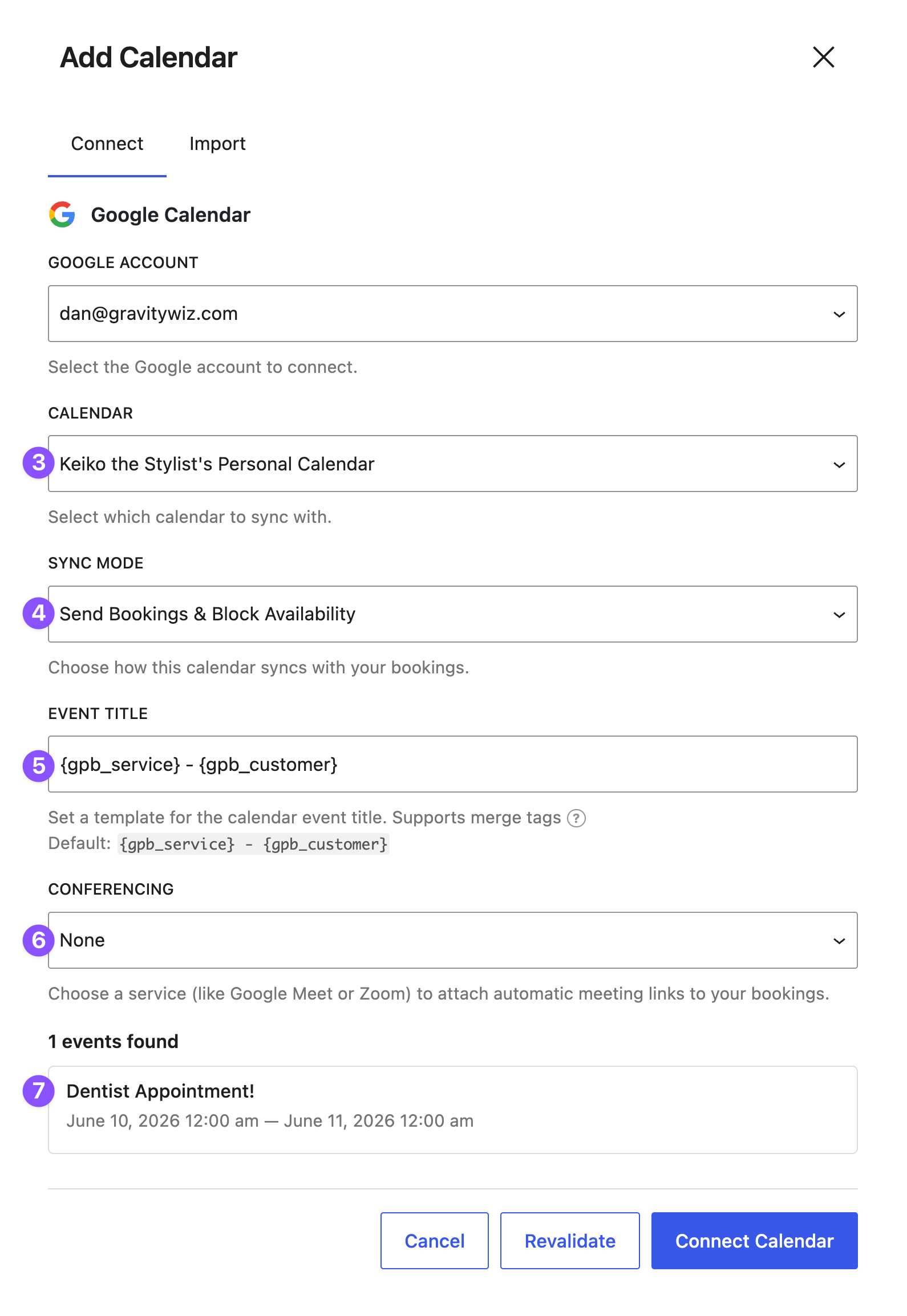
- Select your Google account and the calendar you want to sync with.
- Choose a sync mode:
- Send Bookings & Block Availability — adds bookings as events and blocks already-taken times
- Send Bookings to Calendar — adds bookings as events only
- Block Availability from Calendar — blocks availability only
- Set a default event title using merge tags — e.g.
{gpb_service} - {gpb_customer} - Optional: enable Google Meet conferencing
- Click Preview Events › then Connect Calendar
What You Can Do Once GP Bookings and Google Calendar are Connected
Bookings and Google Calendar Stay in Sync — Both Ways
When a client, for example, books a hair color appointment through the salon’s booking form, that appointment lands straight on the stylist’s Google Calendar.
And when the stylist blocks off personal time in their own Google Calendar — that slot closes on the booking form before any client can book it.
Remove Cancelled Bookings from Google Calendar Automatically
Let’s say a gym member cancels their fitness class through the gym’s self-serve booking page. That frees the slot back up on the booking form — and clears the event from Google Calendar at the same time.
Send Bookings to Different Google Calendars
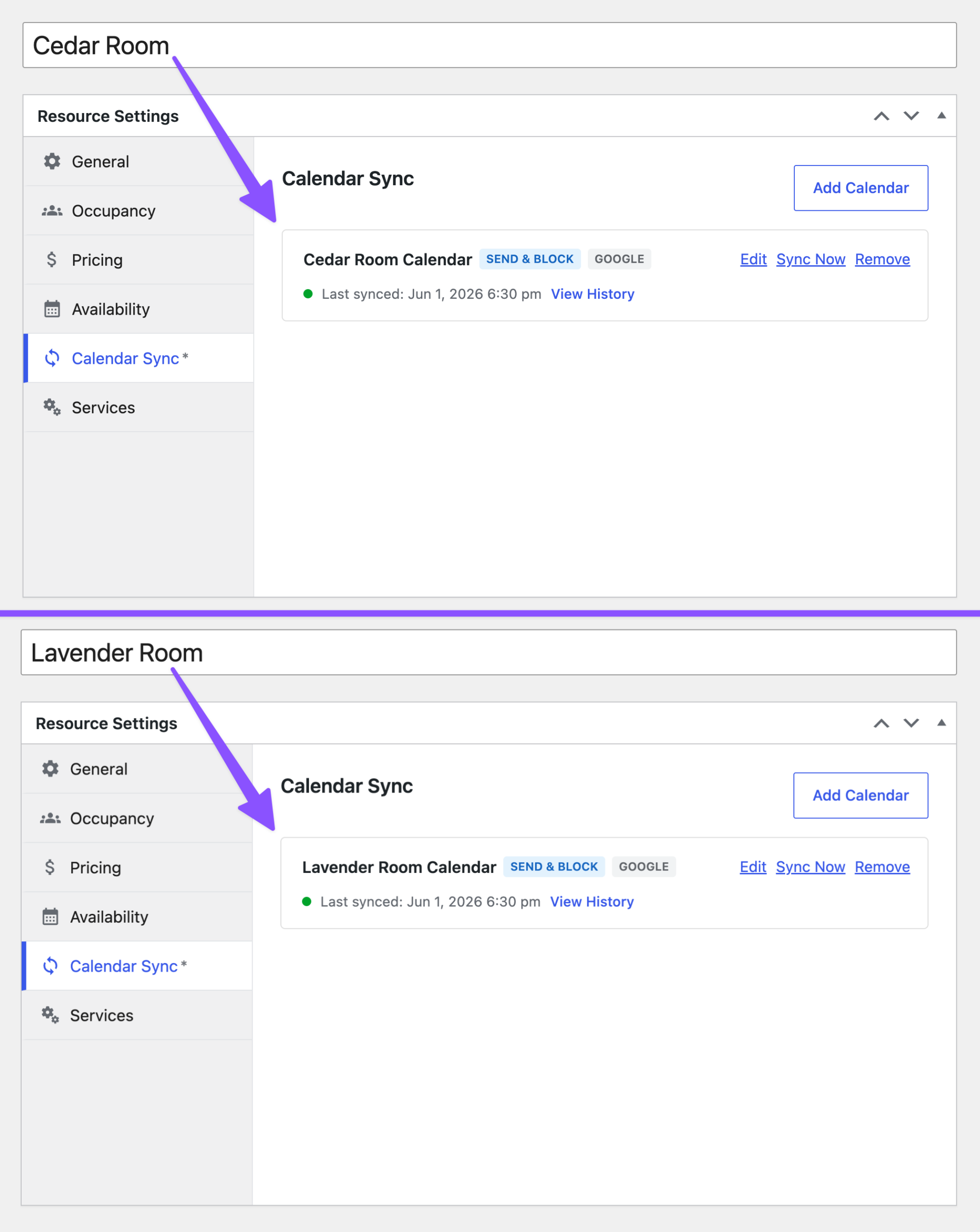
In GP Bookings, you can assign a specific Google Calendar to whatever is being booked — the service, the staff member, or the room. If, for example, you’re running a spa with multiple treatment rooms, each booking goes straight to that room’s own calendar.
Pro Tip
Each service, staff member, or room can also connect to a different Google account entirely — useful for multi-staff setups where everyone manages their own calendar
Key Takeaways
- GP Bookings turns Gravity Forms submissions into scheduled bookings for services, staff, rooms, and other resources you manage in WordPress.
- GC Google Calendar connects GP Bookings to Google Calendar — one setup, both directions.
- New bookings appear in Google Calendar instantly. Edits and cancellations follow on their own.
- You can assign a specific Google Calendar to each thing you’re booking — whether that’s a service, a person, or a space.