
How to Perform Date and Time Calculations in Gravity Forms

Calculate days between dates, count working days, track time differences, and more — all using Advanced Calculations’ built-in date and time functions.
- How Advanced Calculations handles date and time calculations
- What You’ll Need
- How to set up date and time calculations
- Taking It Further
Need to count the days between two dates in your form? Maybe calculate someone’s age, or figure out how many hours a shift ran? Gravity Forms is great at collecting dates and times — but to actually do the math with them, Advanced Calculations is the whiz you need.
It covers a lot of ground: financial calculations (like loan calculators), statistical functions, and more. But in this guide, we’re zeroing in on one of them: the date and time functions.
This article requires the Gravity Forms Advanced Calculations perk.
Buy Gravity Perks to get this perk plus 46 other premium Gravity Forms plugins!
How Advanced Calculations handles date and time calculations
Advanced Calculations is part of the Gravity Perks suite. It adds a full set of date-based and time-based functions right inside the Gravity Forms formula editor: calculate date differences, count working days, track time, and more. No separate field settings needed.
Want to see it in action before diving in?
What You’ll Need
- Gravity Forms (any license)
- Advanced Calculations installed via Spellbook — Gravity Wiz’s free plugin manager
- A form with Date, Time, and Number fields set up and ready to go
- Want to follow along? Download the ready-made form (right-click and save), import it into Gravity Forms, and you’re good to go. It includes all the calculation examples from this guide, in order. 😉
How to set up date and time calculations
For every example below, check Enable Calculation on a Number field, that’s where the formula lives. All calculations update live as the user fills in the form and recalculate on submission for accuracy.
Heads up
As a best practice, keep your Date or Time fields before the Number field on your form. Gravity Forms may not be able to run the calculation correctly otherwise.
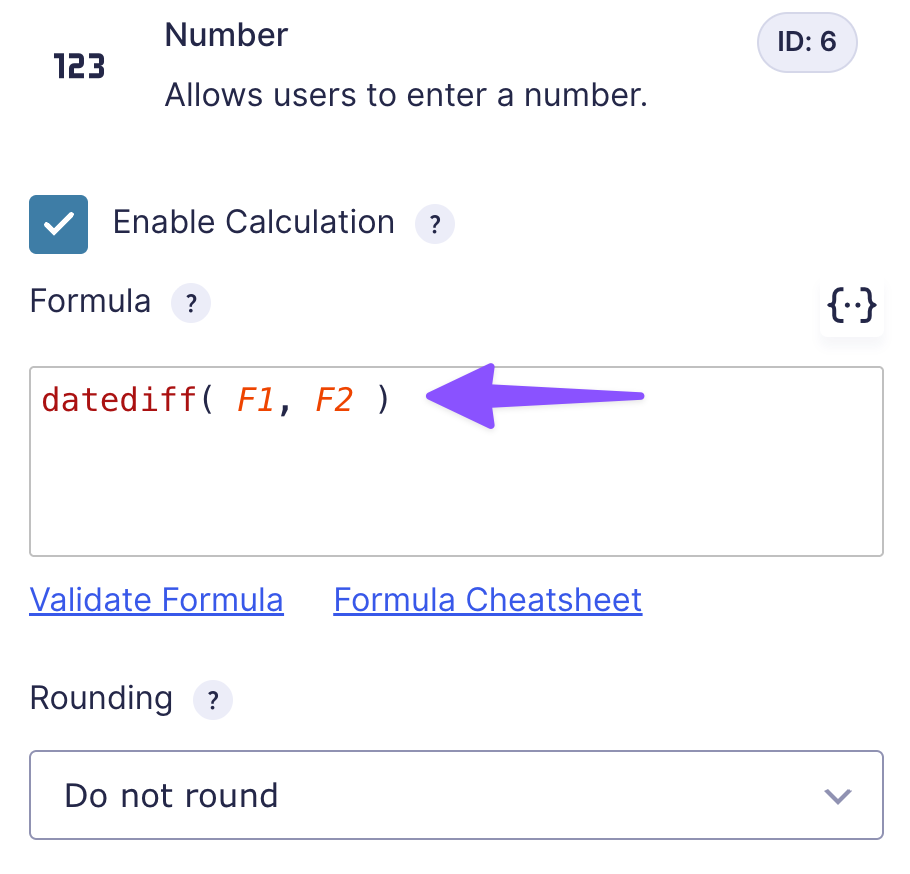
Field references like F1 and F2 are shorthand for the fields on your form, a quicker way to reference them without writing out the full merge tag (like {Date:1}). To keep things consistent, all examples in this guide use these four fields:
- F1 — Start Date
- F2 — End Date
- F3 — Start Time
- F4 — End Time
Note
You can also use static date or time values directly, like 2027-01-01, if you’re working with fixed dates instead.
Static dates must use yyyy-mm-dd format. This only applies when hardcoding a date directly in the form editor, on the frontend, Gravity Forms handles the formatting automatically.
1 — Calculate the difference between two dates
datediff() is the function you want when you need to know how far apart two dates are. Point it at your start and end Date fields and it’ll return the difference in days.
datediff( F1, F2 )Need a different unit? Set it right inside the formula:
datediff( F1, F2, unit='weeks' )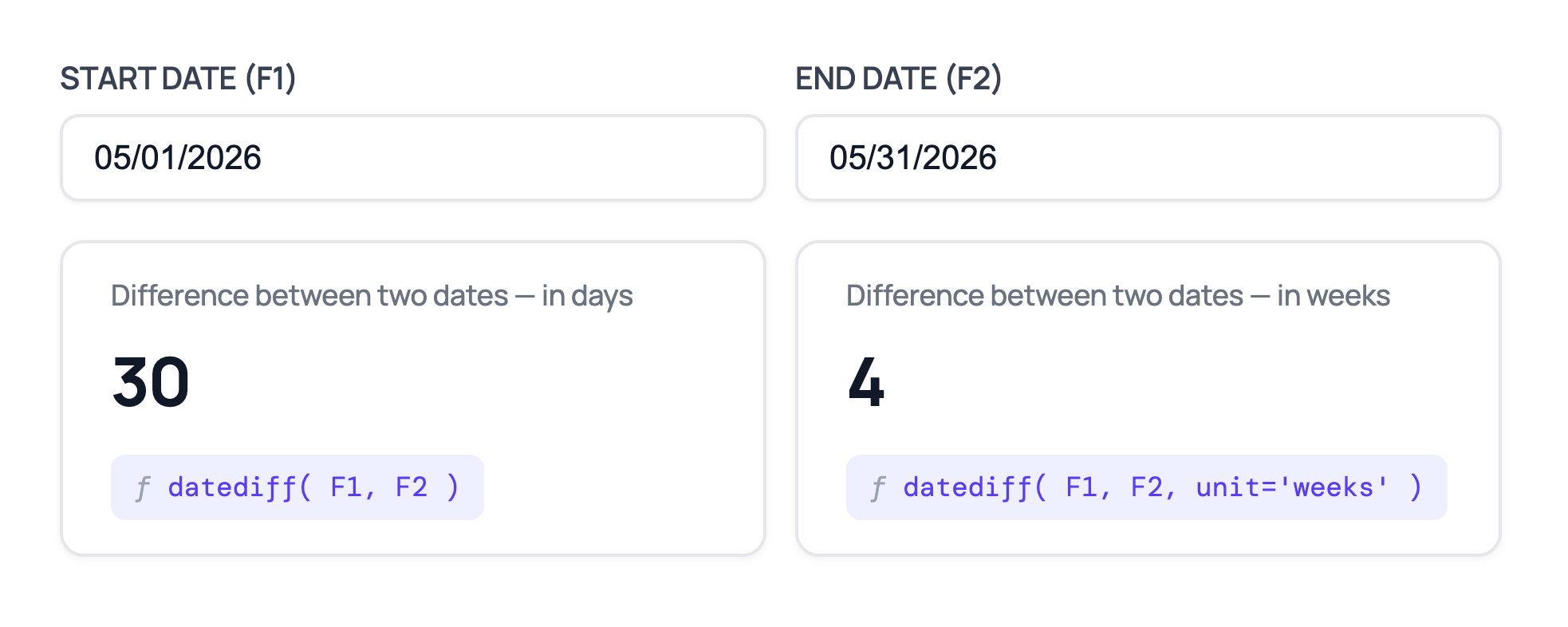
Accepted values are days, weeks, months, and years.
By default, datediff() counts the start date but not the end date. So May 1 to May 5 returns 4, not 5. If you need both dates counted, or neither, includeStart and includeEnd let you adjust that:
datediff( F1, F2, unit='days', includeStart=true, includeEnd=true )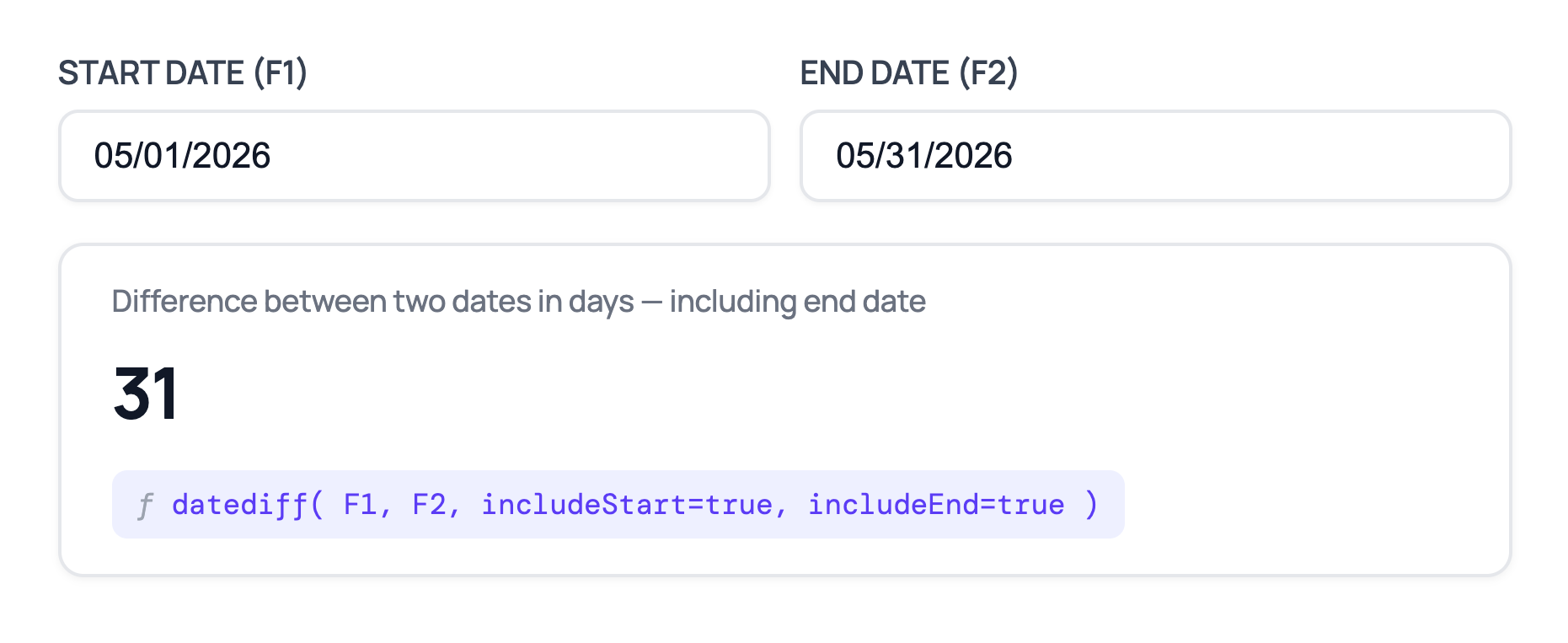
Need to count only specific days? The daysOfWeek parameter handles that without needing a separate function. See the full parameter list for details.
2 — Calculate age in years, months, or days
age() tells you how many completed years have passed between a date and today (by default), but you can swap it for any date you need. So if someone is 39 years and 8 months old, you’ll get 39.
To get started, all you need is your Date field:
age( F1 )By default, the result is in years, but you can switch to months, weeks, or days if you need a different level of detail:
age( F1, unit='months' )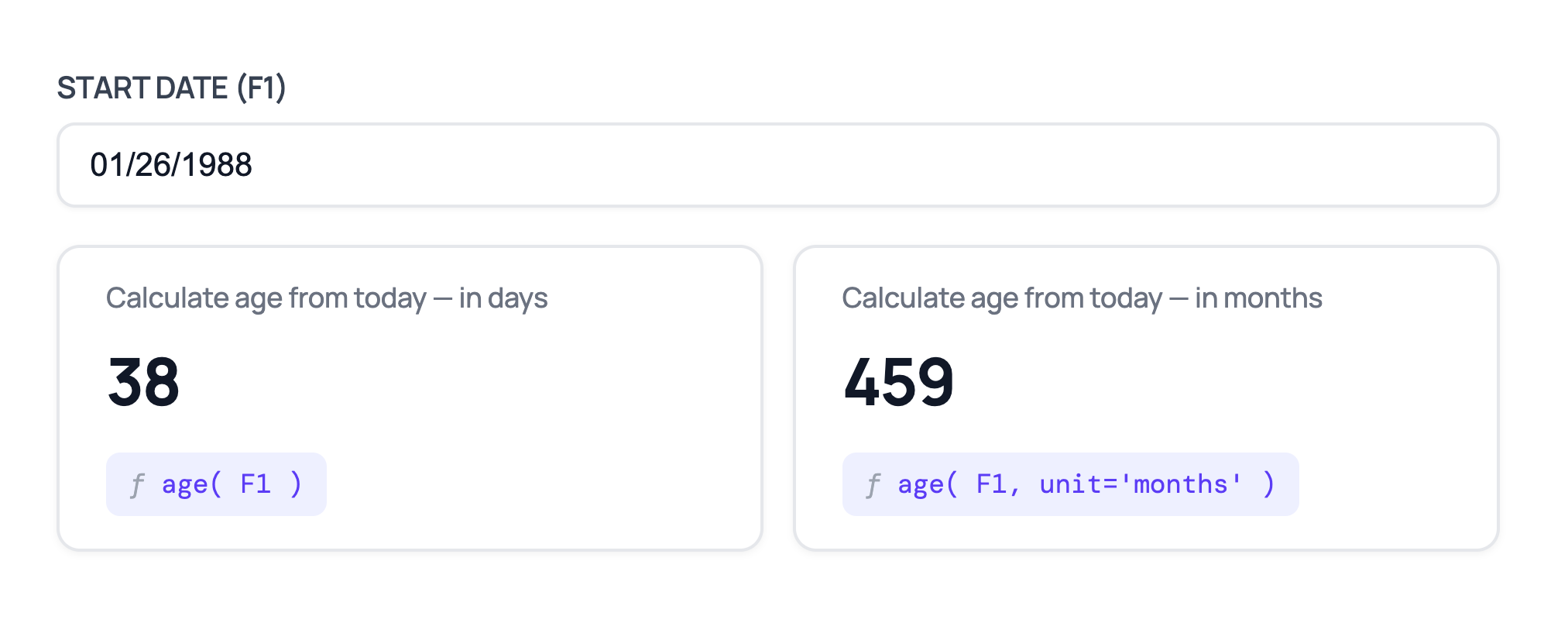
3 — Count weekdays or weekend days between two dates
Need only the working days in a range? Or just the weekend days? weekdays() and weekenddays() handle both.
weekdays() counts Monday through Friday:
weekdays( F1, F2 )weekenddays() counts Saturday and Sunday:
weekenddays( F1, F2 )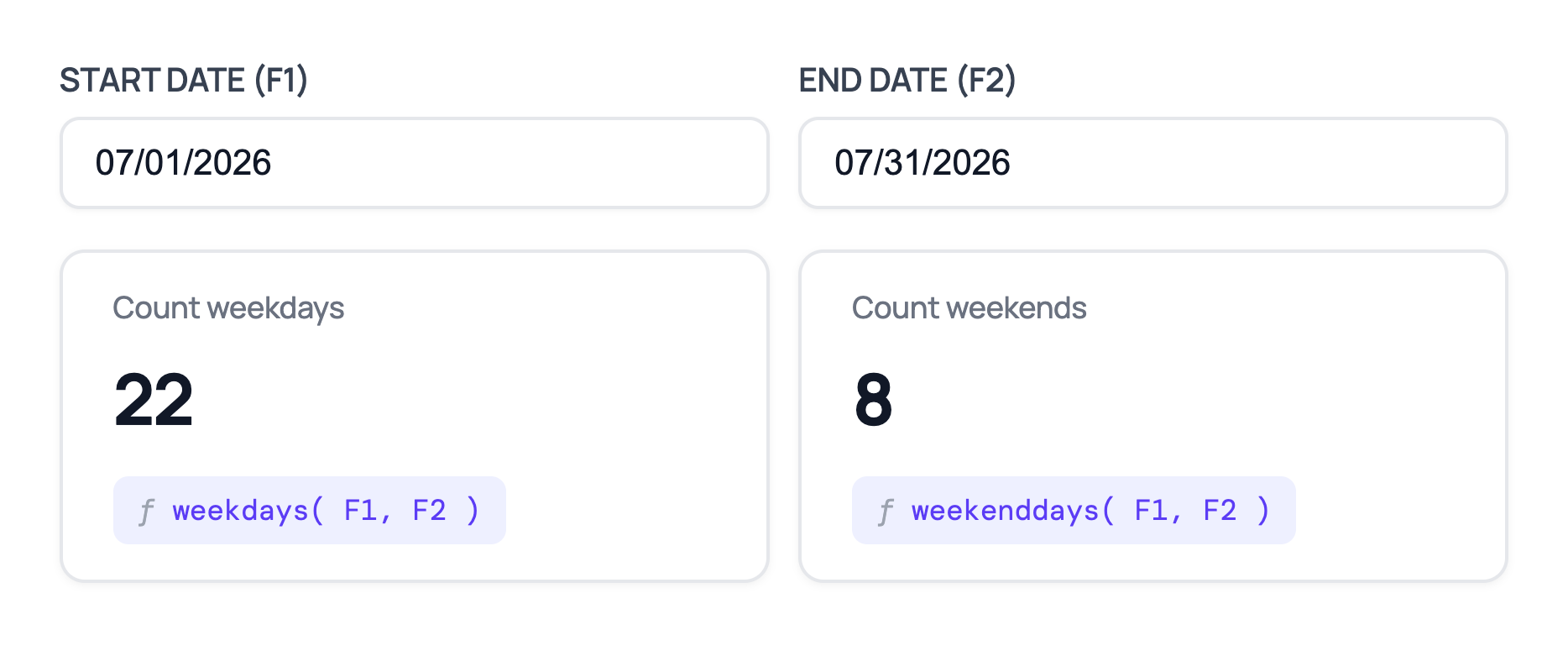
Both share the same parameters as datediff() — the start date counts by default, the end date doesn’t. Use includeStart and includeEnd to adjust that if needed.
4 — Calculate the difference between two times
timediff() does for time fields what datediff() does for dates, returning the gap between two times, in hours by default.
timediff( F3, F4 )If you need the result in a different unit, just set it right inside the formula:
timediff( F3, F4, unit='minutes' )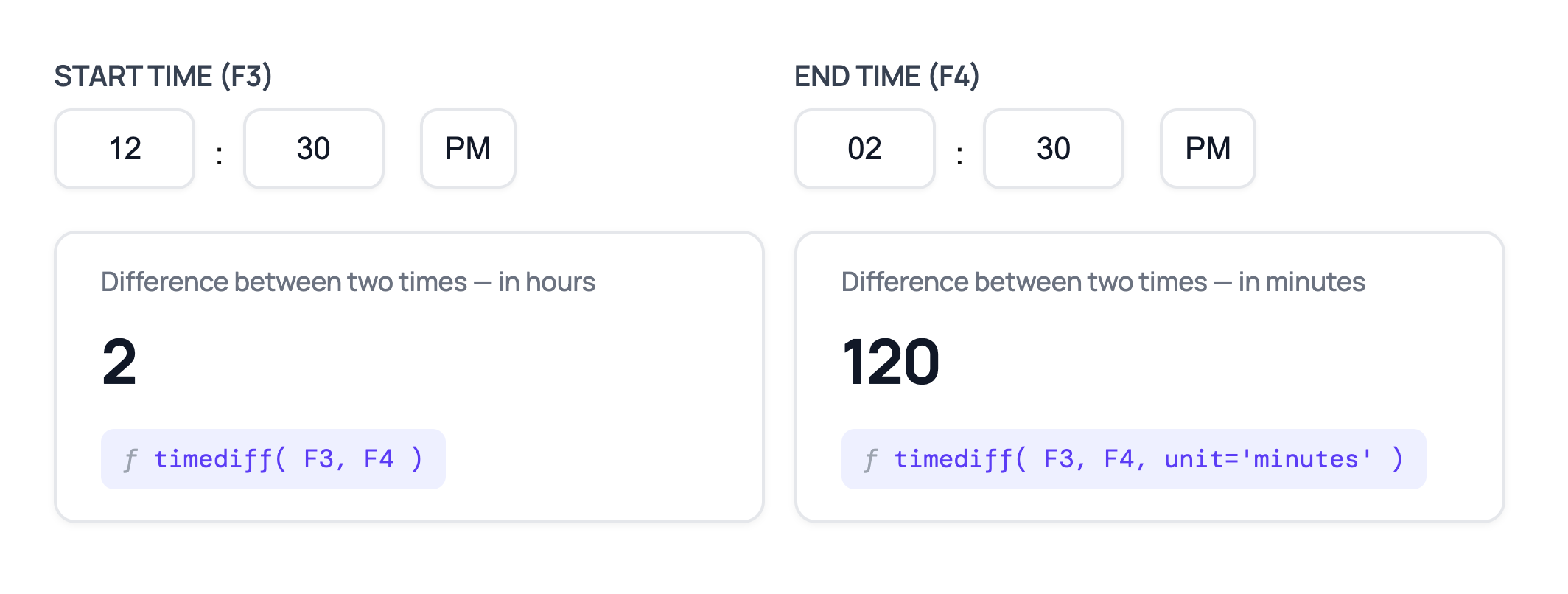
Accepted values are hours, minutes, and seconds.
If you want to round up to the next whole hour (useful for billing by the hour), wrap it in ceil():
ceil( timediff( F3, F4 ) )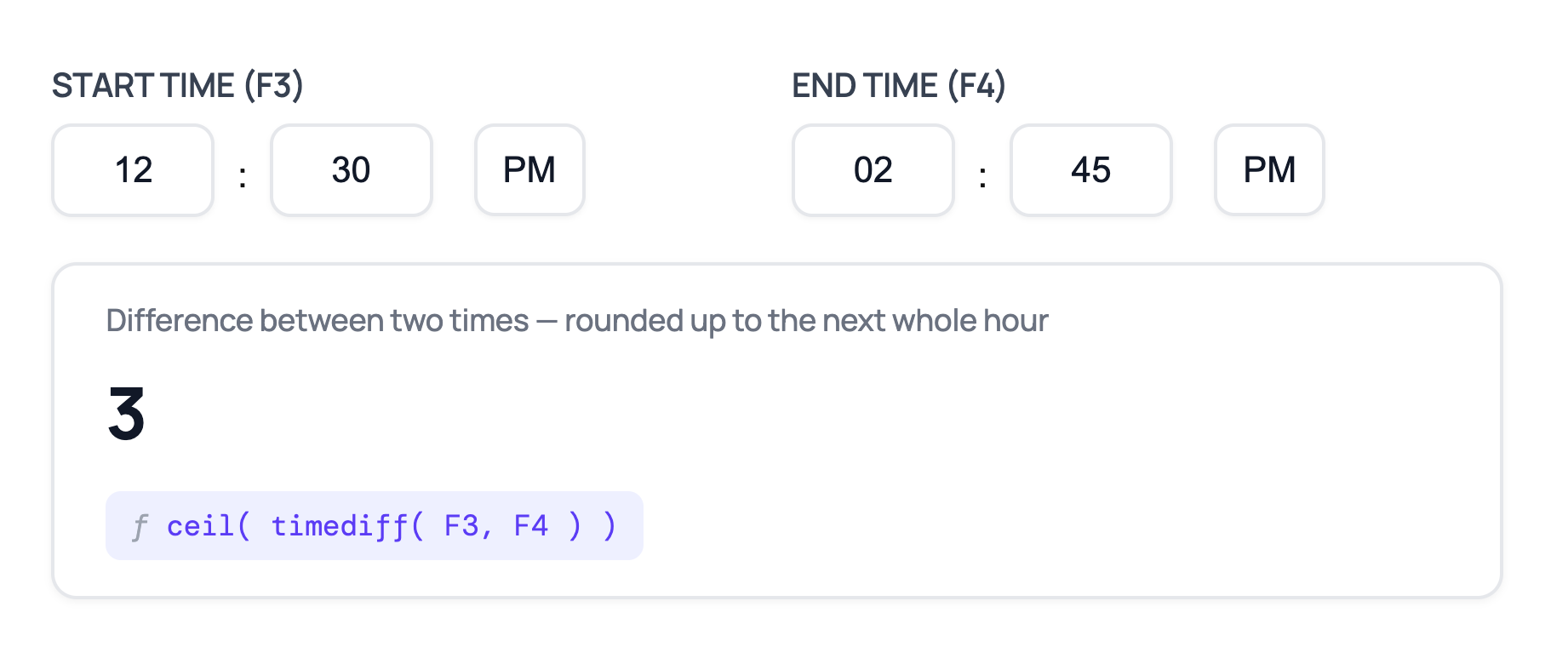
Need timezone support? The tz parameter lets you set a base timezone for the calculation. DST awareness is enabled by default — use dstAware=false to disable it if needed. See the full list of timediff() parameters for details.
5 — Combine date and time in one calculation
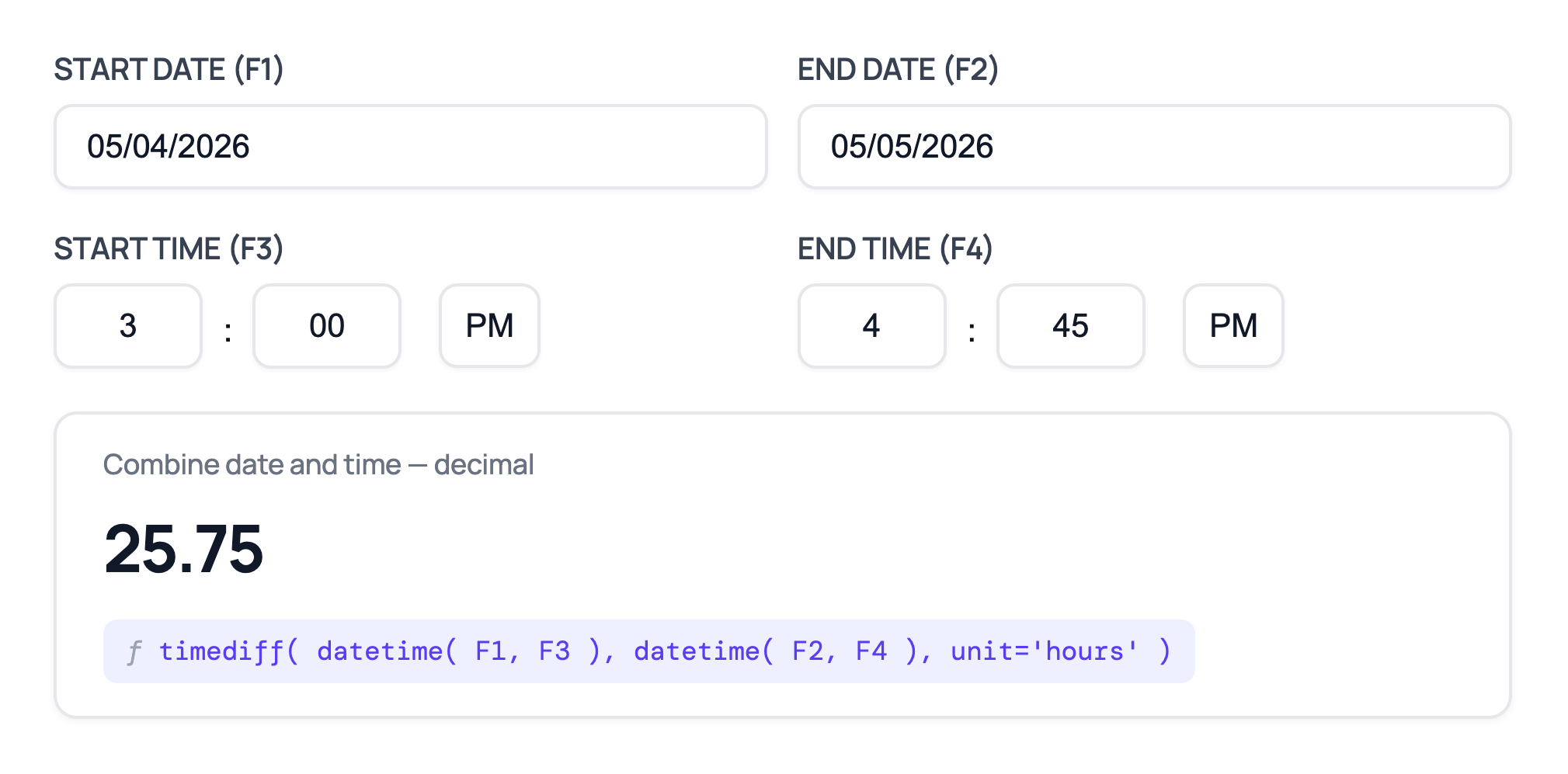
timediff() works great for comparing two Time fields, but it only accounts for the time — not the date. If, for example, you have a booking that starts Monday at 3:00 PM and ends Tuesday at 4:45 PM, you need both the date and time.
datetime() solves that by merging a Date field and a Time field into a single value. When you feed two of them into timediff(), you get the total duration across both days and times:
timediff( datetime( F1, F3 ), datetime( F2, F4 ), unit='hours' )Note
datetime() produces a raw Unix timestamp on its own. Use it inside timediff() to get a meaningful result.
The result reflects the exact duration — so if your times aren’t on the hour, you’ll get a decimal. For our Monday/Tuesday example, that’s 25.75 — 25 hours and 45 minutes expressed as a fraction.
Need a whole number? Use ceil() to always round up — useful for billing by the hour.
ceil( timediff( datetime( F1, F3 ), datetime( F2, F4 ), unit='hours' ) )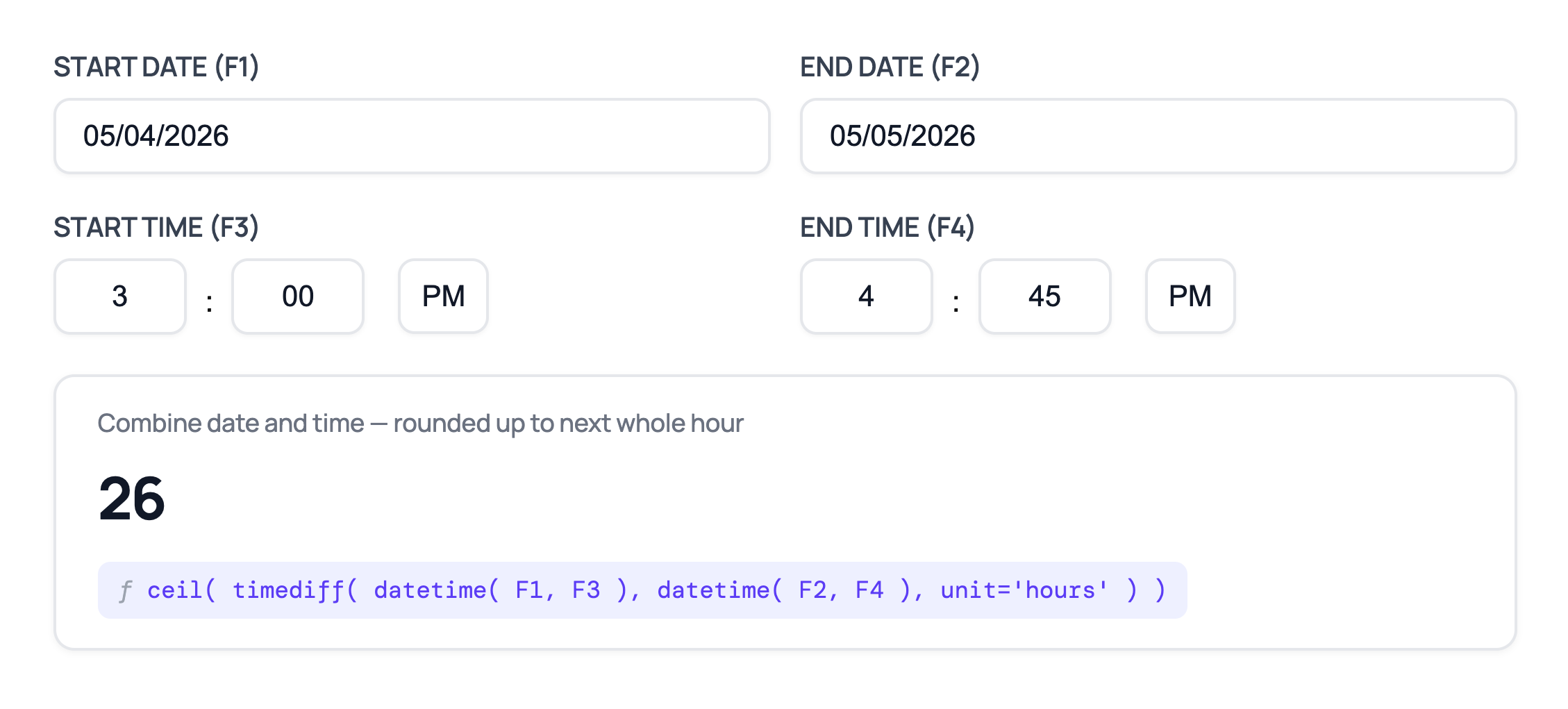
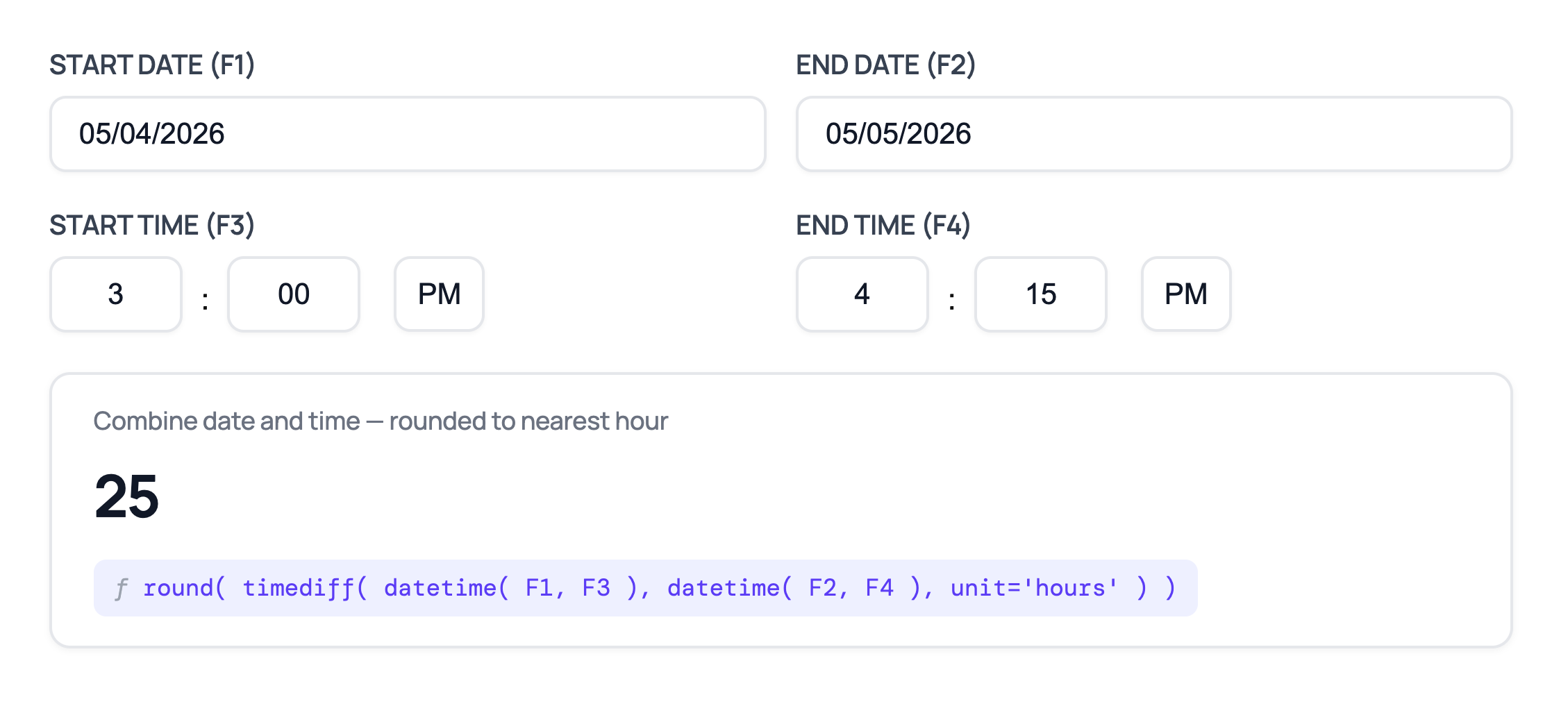
And use round() if you want the nearest whole hour instead:
round( timediff( datetime( F1, F3 ), datetime( F2, F4 ), unit='hours' ) )If all you need is a whole number at the end, Gravity Forms has a built-in Rounding setting right below the formula editor in the Number field.
round() shines when rounding is just one piece of a bigger formula, or when the result feeds into something else.
Working across timezones? datetime() accepts an optional tz parameter where you can specify a timezone, like 'America/New_York' or 'Europe/London'. See the full list of datetime() parameters for details.
6 — Use today’s date in a calculation
Not every calculation needs two date fields. Sometimes you just need to measure against the current date, and today() does exactly that.
The most common setup is inside datediff() , to count how many days between a date and right now:
datediff( F1, today() )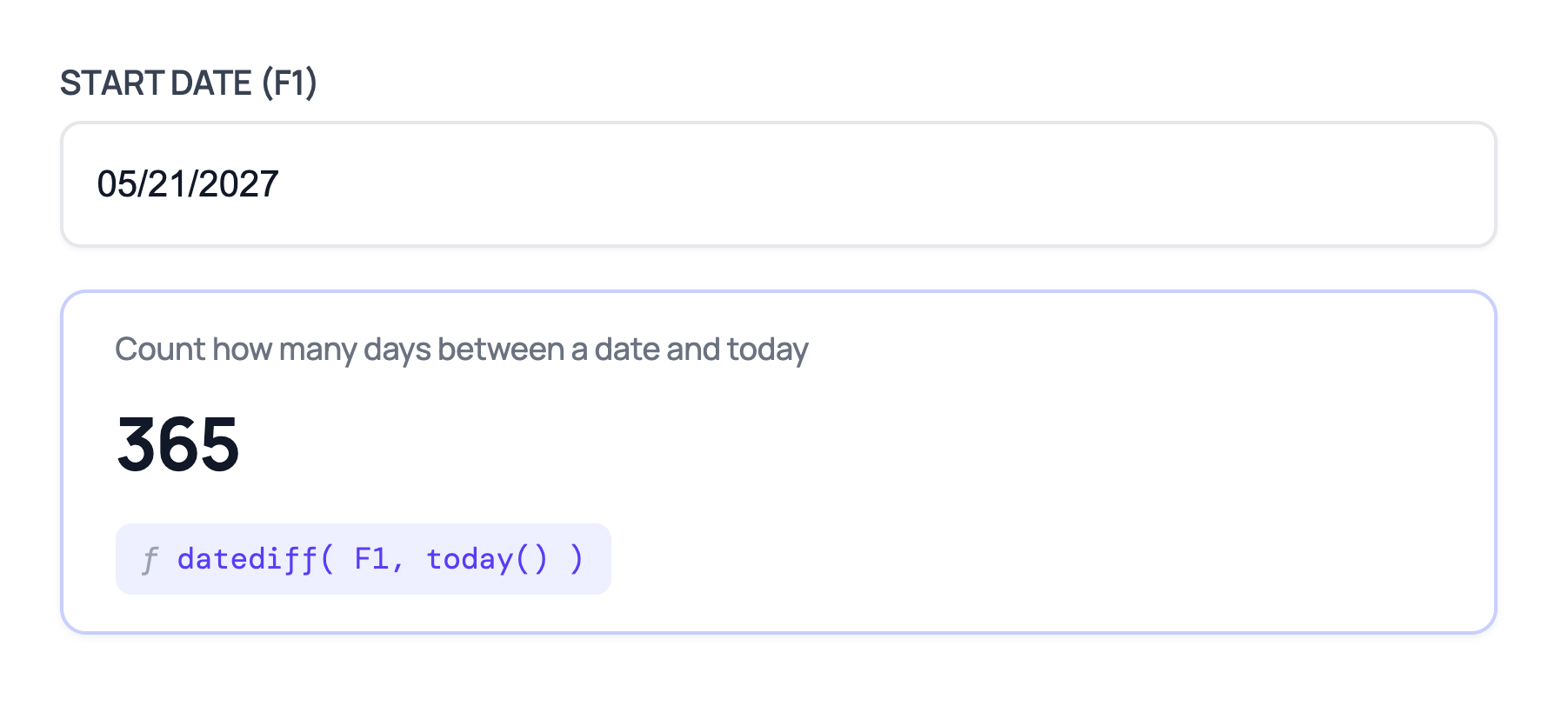
One thing to keep in mind: today() returns a raw Unix timestamp on its own. Use it inside a function like datediff() if you want to display it in a different unit.
Taking It Further
Once you’ve got the basics down, here’s how to get more out of these functions.
Skip specific dates
All three date-based functions — datediff(), weekdays(), and weekenddays() — support an exclude parameter if you need to leave certain dates out of the count.
To exclude a single date:
datediff( F1, F2, exclude='2026-12-25' )To exclude multiple dates, pass them in as a list:
datediff( F1, F2, exclude=['2026-12-25', '2027-01-01'] )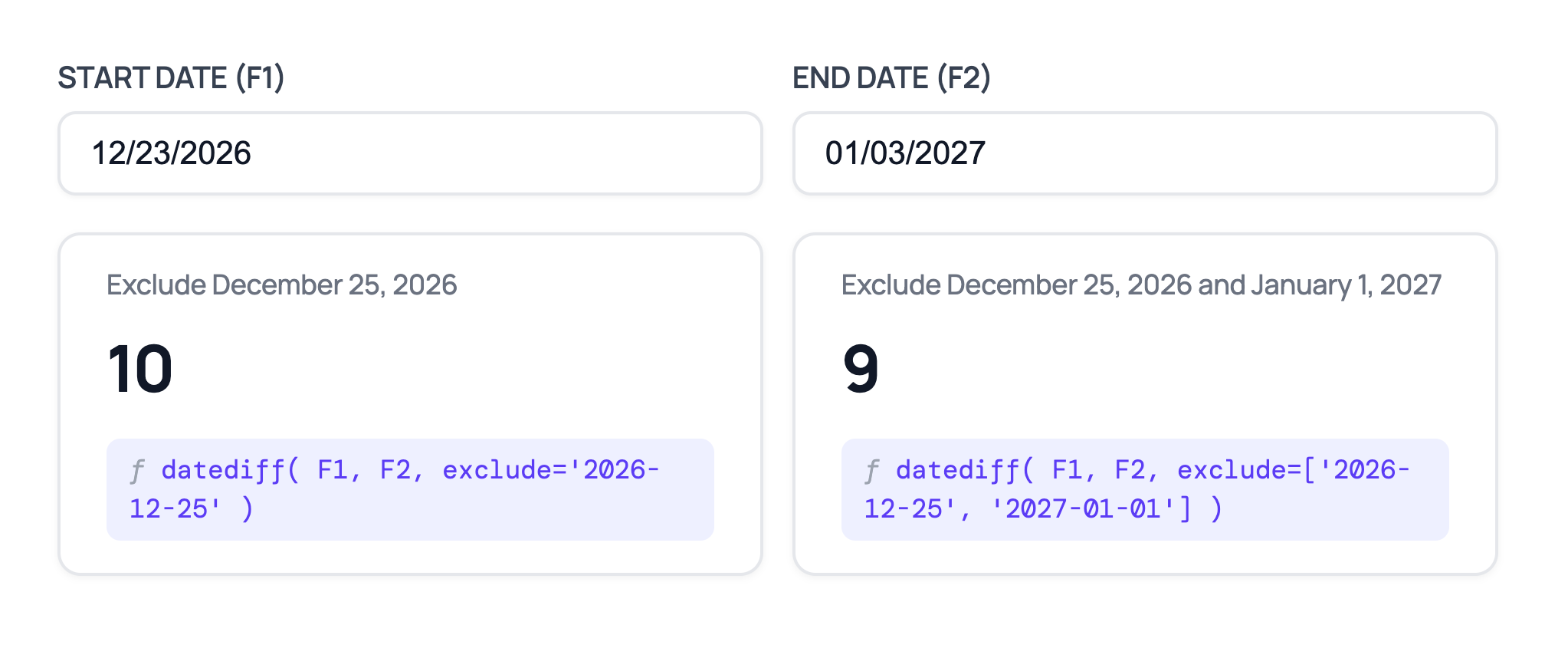
It also supports wildcard dates and natural language values like 'first Monday of May' , e.g. datediff( F1, F2, exclude='first Monday of May' ).
Working with holidays or company closures?
Instead of listing every date manually, use the date group snippet to register a named group of dates, then reference it by name in your exclude parameter. Keeps your formula clean and your exclusions easy to manage.
To let users know about those closures, too, Form Notices displays scheduled messages above your form. It also supports wildcard and natural-language dates.
Use conditional logic in your formulas
If you need your formula to behave differently depending on the result, Advanced Calculations supports if/elseif/else statements directly.
For example, you can apply a different rate depending on booking length: bookings longer than 7 days get one rate, shorter stays get another.
if( datediff( F1, F2 ) > 7 ):
    100 * 150
else:
    100 * 100
endif;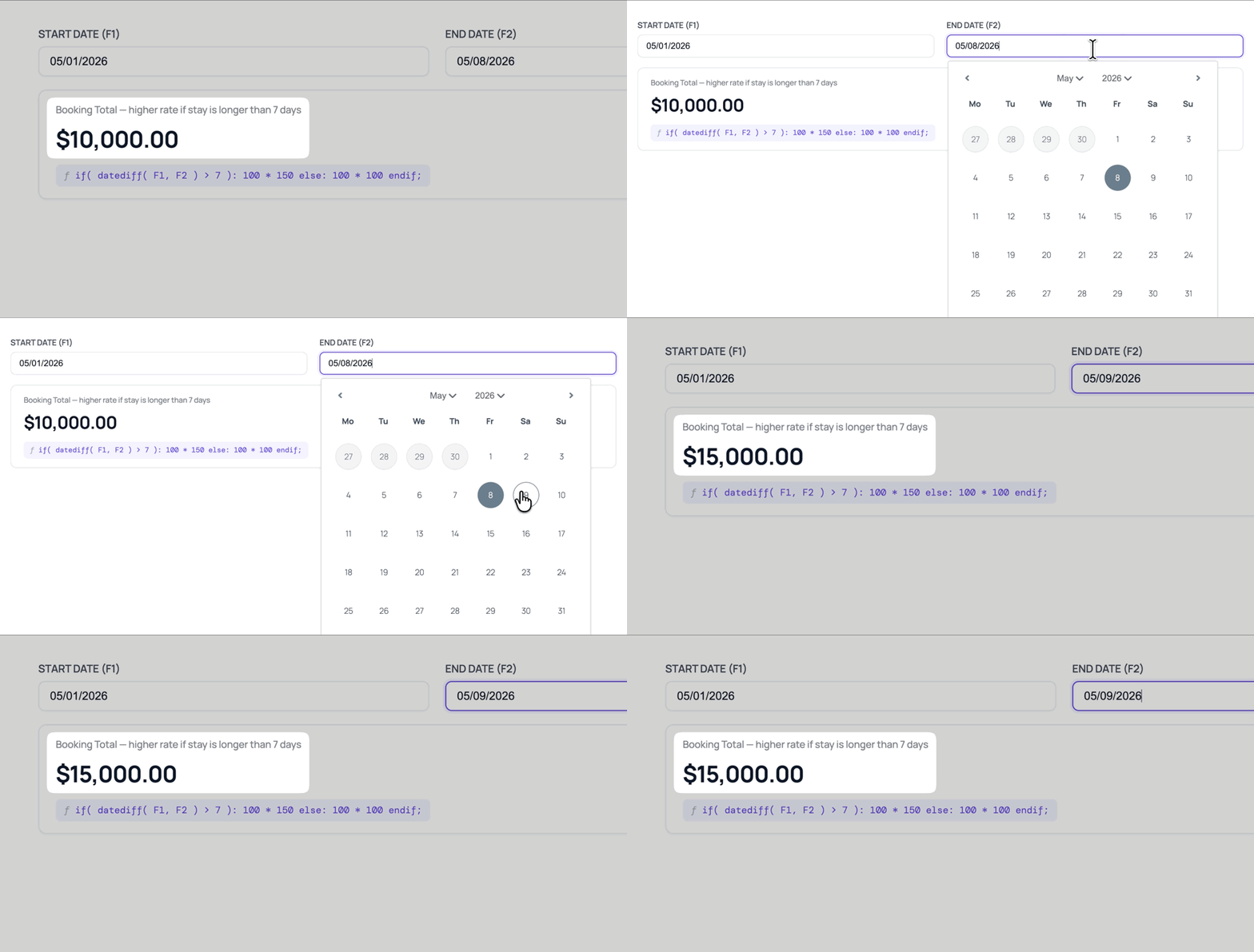
Trigger form behavior based on a calculation result
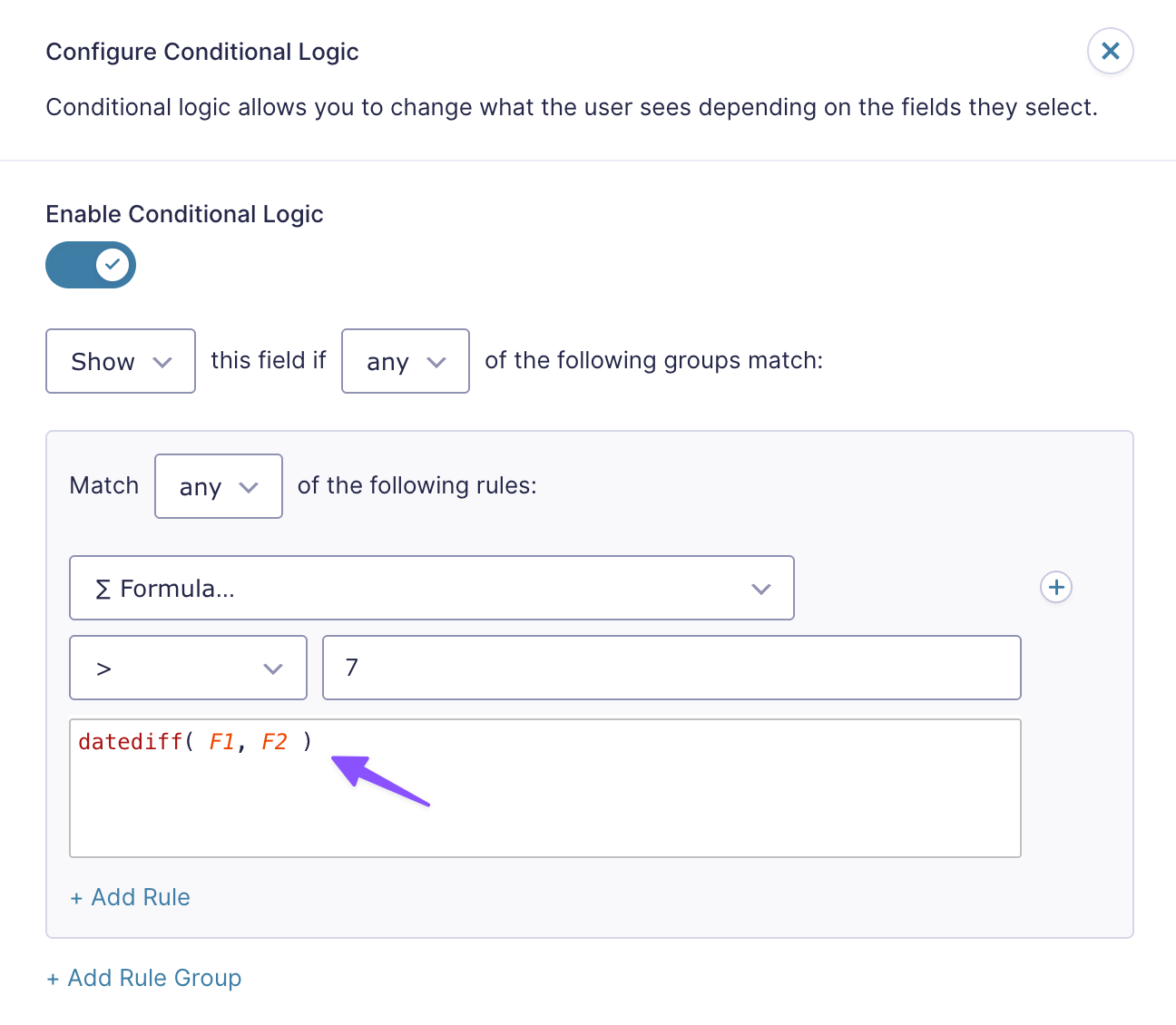
Advanced Conditional Logic is a separate perk that lets you use formula results as conditions. Use it with Advanced Calculations to show or hide fields, send different notifications, and more, based on the outcome of a date or time calculation.
For example, here’s how you’d show a field only when a date range exceeds 7 days:
Key Takeaways
- Gravity Forms doesn’t natively support date and time math in calculations.
- Advanced Calculations adds dedicated date and time functions (
datediff(),age(),timediff(),datetime(), and more) right inside the Gravity Forms formula editor. - Each calculation type has its own function — and all the units, options, and parameters live inside the formula itself, not scattered across separate field settings.
- Advanced Calculations works with Gravity Forms’ native Date, Time, and Number fields. No custom field types needed.



It would be welcome, if the plugin could be able to calculate a date from a date plus/minus specific number days.
Hi,
This isn’t currently supported by GP Advanced Calculations, although it’s something we’d like to add in the future. In the meantime, our Populate Date snippet should help you achieve the desired result. Please check out the documentation, give it a try, and let us know if you have any questions or run into any issues.
Best,
Hi, I’m moving from Date Time Calculator to this – is there anything Date Time Calculator did, that this perk doesn’t do? Thanks!
Hi Lana,
No. The Date Time Calculator perk has been deprecated, and we’ve migrated all of its functionality into the latest version of GP Advanced Calculations. As you transition to GP Advanced Calculations, please let us know if you encounter any issues. We’ll be happy to help.
Best,