The Ultimate Guide to Testing and Debugging Gravity Forms

The 10 most common Gravity Forms issues: what causes them, where to start, and where GF Dev Tools can help you debug faster.
We’ve been supporting Gravity Forms for over a decade, and that time in the trenches has given us a front-row seat to where it breaks and why. Over the years, we built tools internally to help us debug faster, and at some point it just made sense to package them up and share them with every Gravity Forms user. That’s how Gravity Forms Dev Tools was born.
When we launched Dev Tools, I wanted to see for myself how it held up against the issues our users actually run into. So I asked our team of Support Wizards to rank the most common Gravity Forms issues they’d ever dealt with, then cross-referenced their answers with our support ticket data and the Gravity Forms troubleshooting knowledge base.
Turns out, the same 10 kept showing up. So in this guide, I’ll walk you through each one — what it looks like, why it’s happening, where to start debugging, and where GF Dev Tools can help you get there faster. 😉
- How Gravity Forms Dev Tools Works
- What You’ll Need
- 10 Common Gravity Forms Issues and How to Debug Them Faster
- Edge cases and limitations
How Gravity Forms Dev Tools Works
Gravity Forms Dev Tools (aka GF Dev Tools) is a free Gravity Forms plugin that gives you a dedicated set of tools for reproducing, isolating, and inspecting issues in Gravity Forms.
Just remember: GF Dev Tools won’t fix things for you, but it’ll help you find what’s wrong faster. As they say, knowing is half the battle. 😉
What You’ll Need
- Gravity Forms (any license)
- GF Dev Tools (free), installed via Spellbook — Gravity Wiz’s free plugin manager
- Query Monitor (free), a WordPress debugging plugin required for the Query Monitor Integration feature covered in this guide
Your mileage may vary…
The recommendations in this guide are great starting points, but not guarantees. Every site is different, and you might find a better fix for your specific situation.
10 Common Gravity Forms Issues and How to Debug Them Faster
I’ve organized these issues into five categories based on the area of Gravity Forms they affect.
Before you dive in…
All screenshots and GIFs in this guide use Live Form Preview, a Dev Tools feature that shows your form exactly as it appears on the frontend in your live WordPress theme.
1 — Form submission and behavior issues
Why isn’t my form submitting?
What the problem looks like: You click submit and nothing happens, or the page reloads with no clear field error in sight.
Why it happens: The most common causes are reCAPTCHA blocking the submission, a JavaScript conflict, or an AJAX issue. Sometimes another plugin or your theme is quietly interfering with Gravity Forms’ scripts, and the form fails with no visible error.
Where to start: Open your browser’s developer tools and check the Console tab for JavaScript errors. If something else on the page is conflicting with Gravity Forms, that’s usually where it shows up.
How GF Dev Tools helps: Use Preview Tools to isolate the issue.
- Unrequire bypasses required fields and reCAPTCHA validation in one click. It’s a good first check when the form won’t submit and no specific field is flagged.
- Toggle AJAX on and off to see if it’s the cause.
- If entry limits or a submission window might be blocking submissions, switch to Live Preview and enable Ignore Form Restrictions. Unlike the default preview, Live Preview respects these restrictions, so disabling them here tells you if they’re the cause.
Is reCAPTCHA giving you grief?
Consider dropping it. Spam Hexer is our free spam plugin that doesn’t use a CAPTCHA, but a combination of an invisible puzzle and an optional AI content classification. It fully integrates with GF Dev Tools too. 🪄
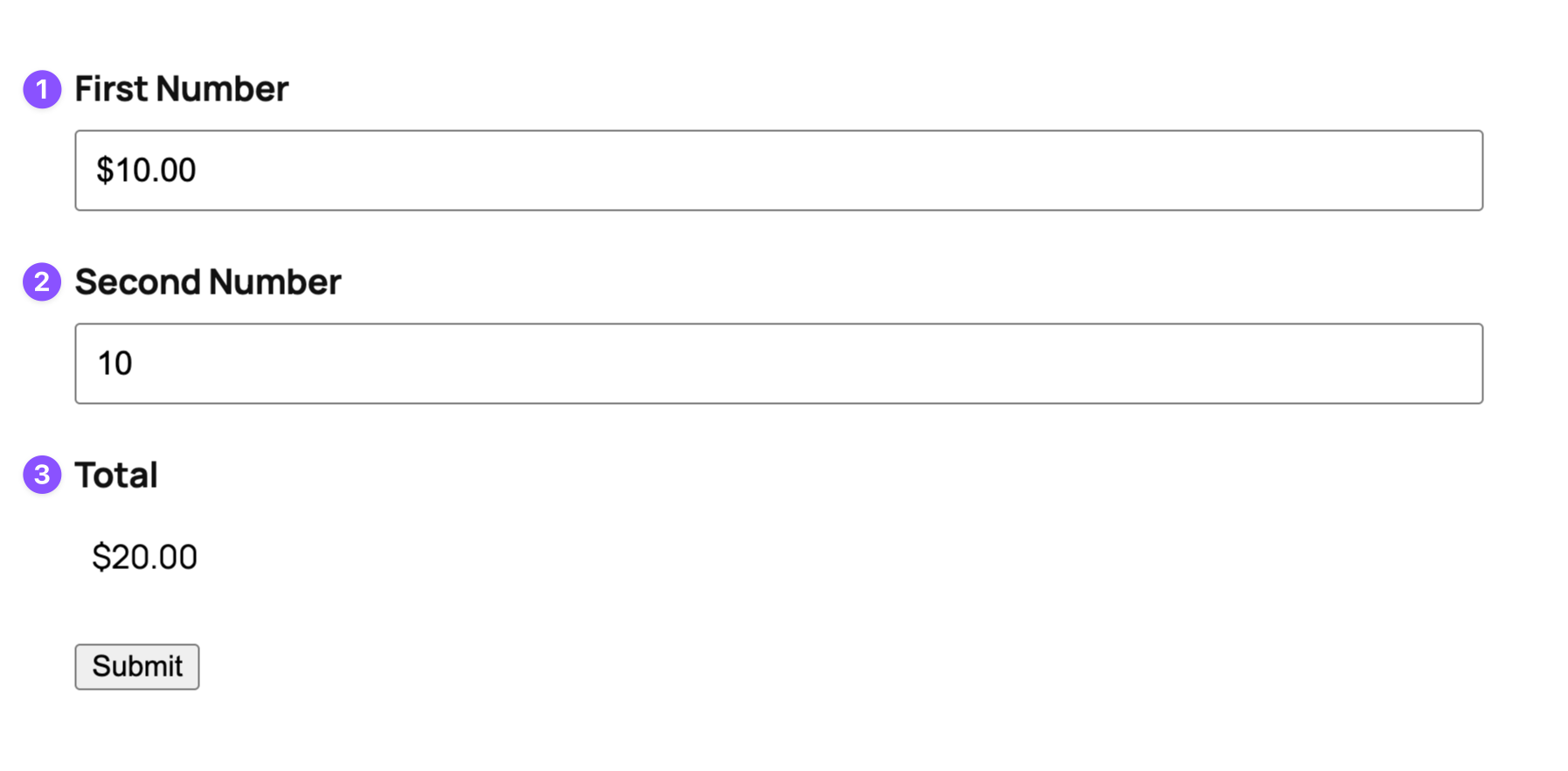
Why are my calculation fields showing the wrong result?
What the problem looks like: A calculation field shows the wrong value, or it doesn’t update when other fields change.
Why it happens: The most common cause is field order. When a form submits, Gravity Forms recalculates field values in order. If a calculation field comes before a field it references, that value simply isn’t there yet.
Where to start: Check field order first. Your calculation field needs to appear after every field it references in the form editor. If the order looks correct, enable Gravity Forms’ logging and resubmit. The log will show you exactly which field values weren’t available when the calculation ran.
Why is my form taking too long to submit?
What the problem looks like: You click Submit and the form processes, but there’s a noticeable delay before anything happens.
Why it happens: Common causes include heavy conditional logic or GP Populate Anything running overly complex queries during submission.
How GF Dev Tools helps: Use the Query Monitor Integration to find what’s slowing things down.
- Open the Query Monitor panel after submission and check the Logs tab. It shows a record of everything that ran during the submission process, so you can see exactly where things went sideways.
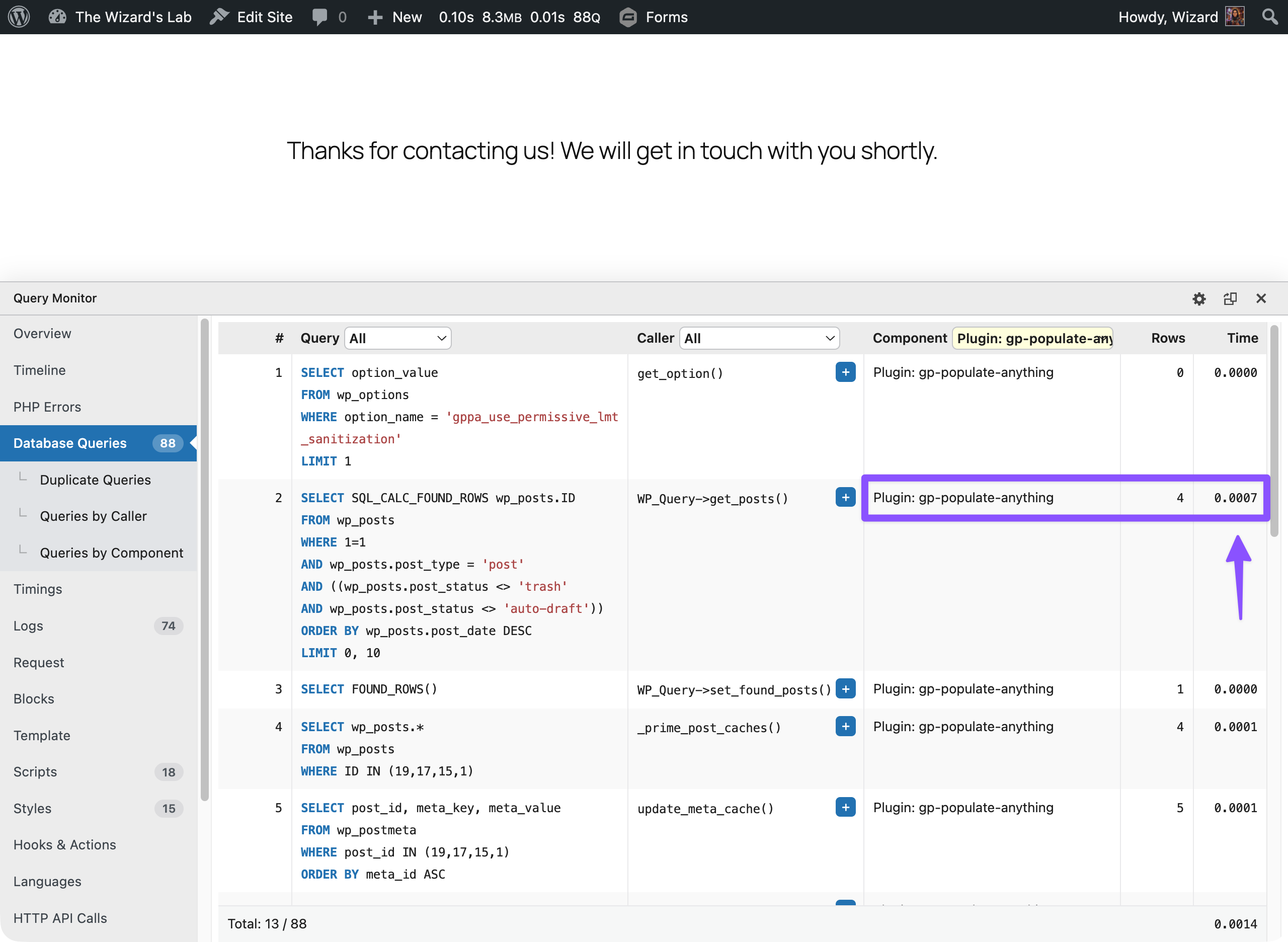
- If you’re running GP Populate Anything, switch to the Database Queries tab, filter by its component, and check the Time column to see which queries are taking the longest.
Heads up: Query Monitor can’t capture submission data when AJAX is enabled. Use the AJAX toggle in Preview Tools to disable it before running your test.
2 — Email and notification issues
Why aren’t my notifications sending?
What the problem looks like: The form submits successfully but no email arrives. No error shows up. It just never lands.
Why it happens: Most of the time it’s one of three things: the notification is off, the From address is wrong, or your site isn’t sending mail reliably.
Where to start:
- Check spam and junk first.
- Confirm the notification is set to Active.
- Check the entry’s note section for a note on whether the notification was sent successfully or where something went wrong.
- Make sure the
Fromemail is set to a valid email address. - Send mail through SMTP — Gravity SMTP is Gravity Forms’ own solution, and WP Mail SMTP is a solid free option.
Or check out our guide to setting up Gravity Forms email notifications correctly, which covers each of these in depth.
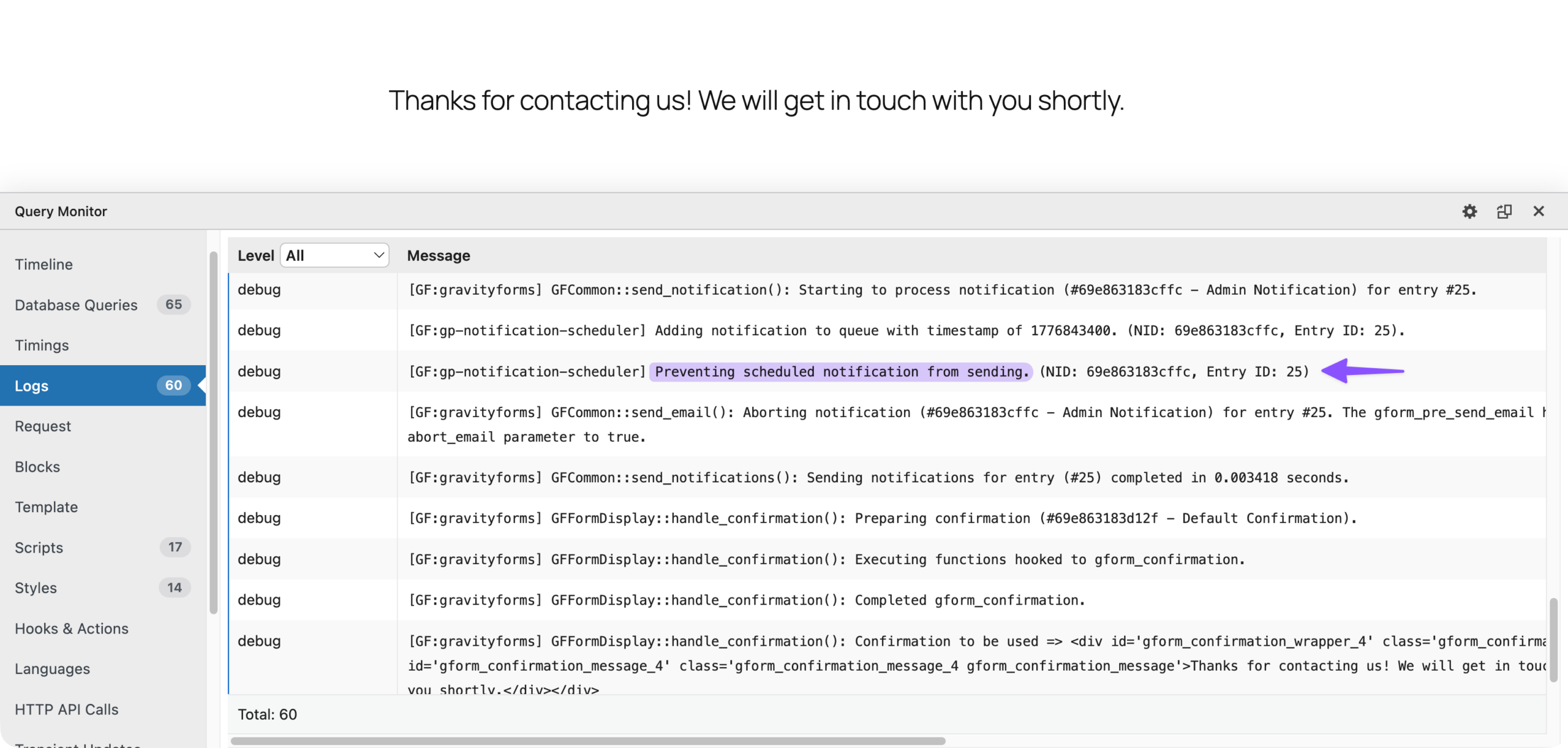
Where GF Dev Tools can help: Once you’ve tested the above, use the Query Monitor Integration to inspect the notification logs generated during form submission. It won’t diagnose email delivery issues, but it can help you confirm whether Gravity Forms attempted to send the notification or whether the problem is happening further downstream.
Using GP Notification Scheduler? Depending on your configuration, notifications may not send immediately, so a delay doesn’t always mean something is broken.
Why are my post-submission actions not firing?
What the problem looks like: The form submits and an entry is created, but certain things that should happen afterward don’t. For example, feeds don’t run and delayed notifications never send.
Why it happens: Gravity Forms uses WordPress background processing and scheduled WP-Cron events to run delayed actions and background tasks. On some shared or managed hosting, WP-Cron doesn’t always run reliably, which means scheduled actions can end up delayed or skipped entirely.
Where to start:
- Go to Tools › Site Health and look for any failed checks, specifically anything related to scheduled tasks or background requests.
- Go to Forms › System Status and check that Background tasks shows Yes.
- If either check fails, it’s likely a server-level issue. Your host can confirm if WP-Cron is running correctly on your environment.
Where GF Dev Tools can help: The Query Monitor Integration can help you confirm which feeds ran after submission. This is useful if Site Health and System Status look fine, but something still isn’t firing.
3 — Third-party integration issues
Why is my integration receiving the wrong data?
What the problem looks like: Your integration is receiving data, but the values are wrong. For example, it shows Yes or First Choice instead of the underlying value you expected.
Why it happens: The most common cause is a field mapping mistake in the feed. Depending on how the feed is set up, a field can end up sending its label instead of its value, or vice versa.
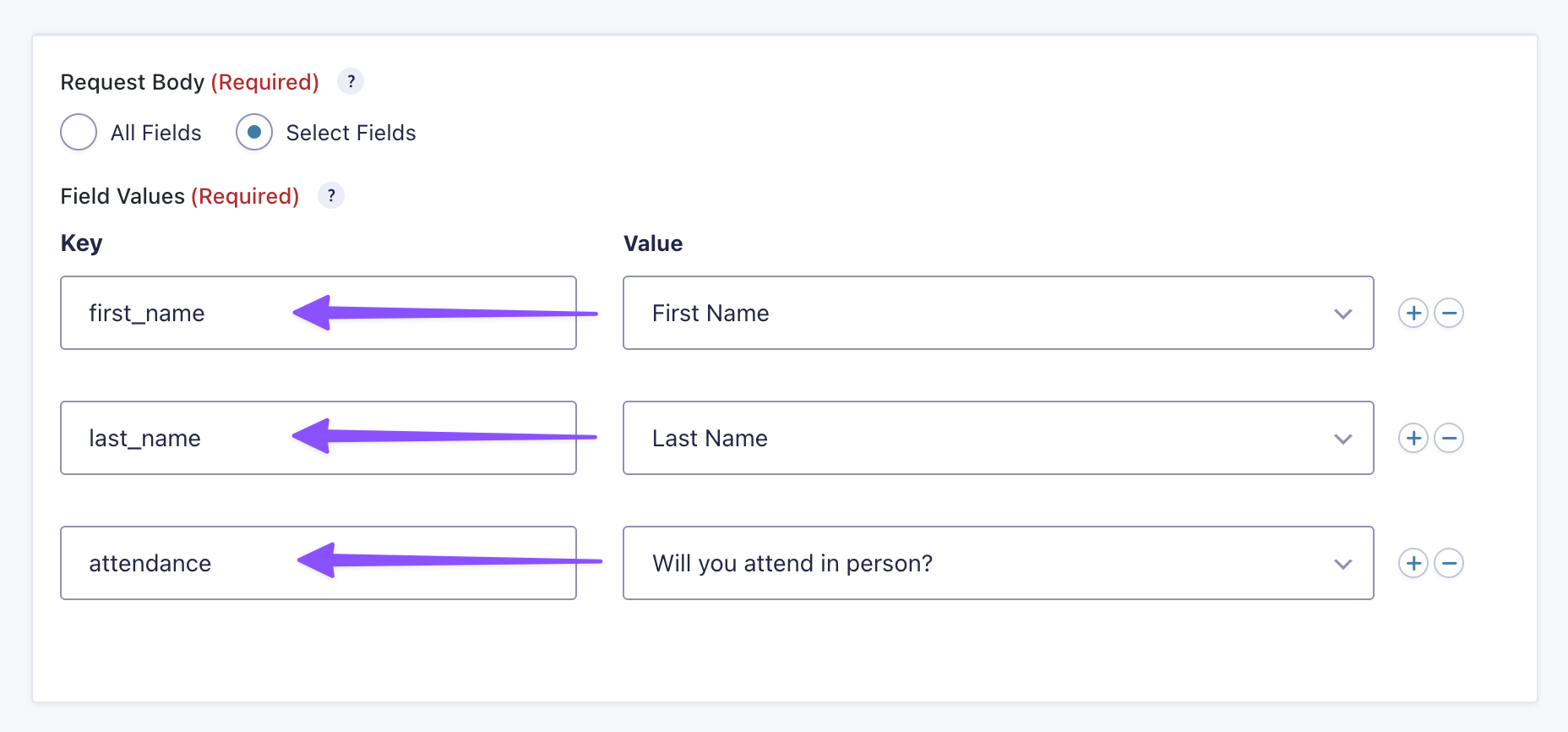
What’s field mapping? It’s how you tell Gravity Forms which form field should send its value to which field in your third-party service.
Where to start: Go into the feed settings and review the field mapping. Make sure each field is mapped to send its value, not its label.
Where GF Dev Tools can help: Once you’ve reviewed the feed mapping, use the Populate action in the Query Monitor panel to speed up testing. It fills your form fields with dummy data so you can submit the form yourself and confirm what data actually reaches your third-party service.
4 — Payment processing issues
Why isn’t my payment feed processing?
What the problem looks like: The form submits successfully but no payment is collected, or the actions that should follow a completed payment never trigger.
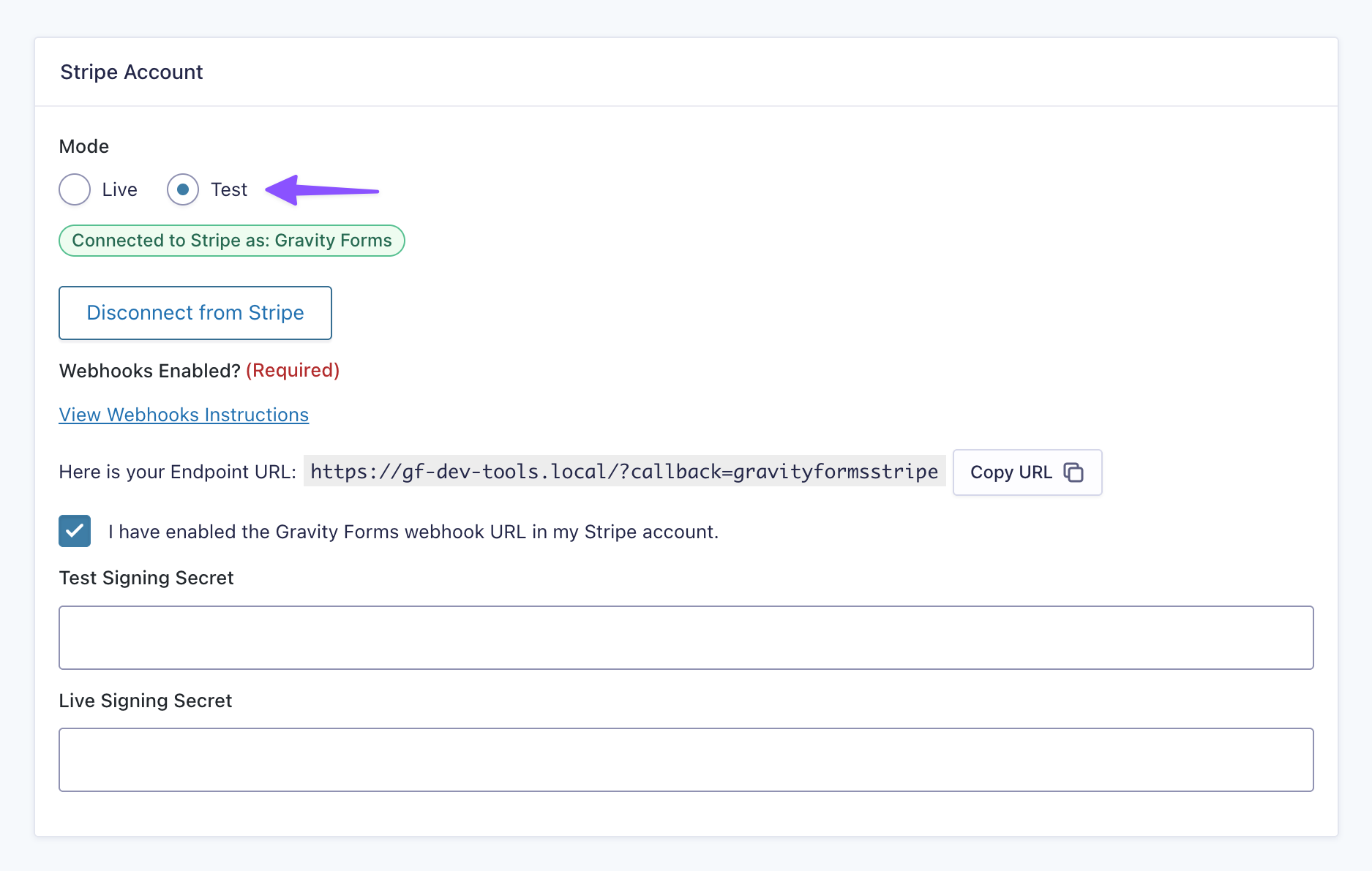
Why it happens: Common causes include the payment gateway being in the wrong mode (test vs. live), a payment feed condition isn’t being met, or the payment amount is coming out as zero.
What’s a payment feed? A set of instructions that tells Gravity Forms how to handle the transaction and what to do after it completes.
Where to start:
- Make sure Gravity Forms, your payment add-on, and WordPress are all up to date.
- Check the feed’s conditional logic and confirm it’s actually being met on submission.
- Double-check that the payment amount is calculating to a positive number before the form submits.
- Test with your payment add-on’s sandbox mode. Both Stripe and PayPal have one built in for testing full payment flows without real charges.
How GF Dev Tools helps: The Dummy Payment Gateway is worth trying if you haven’t connected a real payment add-on yet and want to test your payment flow without real credentials. Since it bypasses your payment add-on entirely, it can also help you isolate whether the issue is in the add-on itself or in Gravity Forms’ payment framework.
For a live setup, your payment add-on’s sandbox mode is the right starting point.
5 — Admin, settings, and export issues
Why is a plugin or theme breaking my form?
What the problem looks like: Something breaks after installing a new plugin or switching themes. Scripts stop loading, the form editor malfunctions, or the form stops working on the frontend.
Why it happens: Another plugin or theme is loading scripts or styles that conflict with Gravity Forms.
Where to start: Use the Health Check & Troubleshooting plugin to disable plugins and switch themes in a separate browser session without touching your live site. Start with everything except Gravity Forms disabled, then re-enable plugins one at a time until the problem reappears.
How GF Dev Tools helps: The Admin Bar Plugin Manager is useful in two specific situations:
- You already have a strong suspect. Toggle the plugin on and off directly from the admin bar without navigating to the Plugins page.
- You’re testing between multiple versions of the same plugin. Rename the older version before uploading it so WordPress treats it as a separate plugin. From there, switch between them right from the Admin Bar Plugin Manager. It deactivates the other version automatically, so no need to revisit the Plugins page.
Why is my feed menu item or settings page missing?
What the problem looks like: A feed-based add-on doesn’t show up under Form Settings, or the Settings page for an add-on loads blank.
What’s a feed-based add-on? A plugin that uses feeds to define what happens after a form submits, like sending data to a third-party service, limiting submissions, or passing data between forms.
Why it happens: Either the add-on isn’t active, or the current WordPress user doesn’t have the right capabilities to view it. On multi-user sites, this is almost always a capability issue.
Where to start:
- Confirm the add-on is active on the Plugins page.
- If it’s active but still not showing, check your WordPress user role’s Gravity Forms capabilities. Your account may not have permission to view it.
- Run a quick conflict test: deactivate everything except Gravity Forms, then re-enable plugins one by one. The Admin Bar Plugin Manager can speed this up if you already have a strong suspect.
- If all else fails, enable WP_DEBUG and check for any errors that might point you in the right direction.
Why is my entry export empty or incomplete?
What the problem looks like: You export entries to CSV and get missing rows, missing columns, or an error on the export page.
Why it happens: Most of the time it’s either a conflict with another plugin or theme, or a server limitation cutting the export short.
Where to start:
- Use the Health Check & Troubleshooting plugin to rule out a plugin or theme conflict.
- If the conflict test comes back clean, the server is probably the culprit. Your host can check your PHP memory limit and execution time settings. Gravity Forms’ entry export troubleshooting guide walks through both in detail.
Edge cases and limitations
GF Dev Tools covers a lot of ground, though a few edge cases are worth knowing:
- When AJAX is enabled on your form, Query Monitor can’t log what happens during submission. Disable AJAX using Preview Tools’ AJAX toggle while testing to work around this.
- The Dummy Entry Generator ignores conditional logic. Entries are generated as if every field is visible, so the test data won’t always reflect what a real user would submit.
- The Dummy Payment Gateway supports one-time payments only. Recurring and subscription flows aren’t supported yet.
- The Identify action doesn’t work inside Elementor modals. Test the form outside the modal instead.
Key Takeaways
- Most Gravity Forms issues are caused by a small number of recurring problems, including JavaScript conflicts, incorrect form settings, plugin conflicts, and failed background processing.
- The fastest way to debug a Gravity Forms issue is to test one change at a time instead of changing multiple settings all at once.
- Gravity Forms Dev Tools helps you troubleshoot forms faster by making it easier to preview forms, test submissions, inspect hidden fields, and monitor what happens after a form is submitted.
- When troubleshooting a form, start with the simplest possible setup, then re-enable plugins, settings, and integrations one step at a time.
None of these 10 fixes match what you’re seeing?
Request a Gravity Forms audit and we’ll diagnose what’s wrong and show you how you can fix it — free.
Already tried everything here and still stuck? Reach out to our team instead. 🧙