Gravity Forms Autogrow

Make Gravity Forms Paragraph Text fields automatically expand as users type, up to a height you control. Works with both standard Paragraph Text fields and those with Rich Text Editing enabled.

Gravity Forms Autogrow, henceforth referenced as Autogrow, is a Gravity Forms add-on that replaces the static height (and awkward manual resize handle) of Paragraph Text fields with a smooth, per-row expansion. Users get more room as they type; you keep control over the maximum height so a long answer never balloons your form off-screen.
Autogrow is configured per-field in the form editor, with a maximum height that accepts either pixel or viewport-relative values.
- Where is Autogrow useful?
- Install the Plugin
- Using the Plugin
- How Autogrow Behaves
- Real-World Examples
- Developer Notes
- Known Limitations
- FAQ
Where is Autogrow useful?
Anywhere a Paragraph Text field needs to feel less cramped — without dominating the form when it’s empty:
- Feedback and comments: Start small and let the field grow only if the user has a lot to say.
- Cover letters and applications: Give applicants room to write without forcing every visitor to scroll past a giant empty box.
- Support requests: Encourage detailed descriptions while keeping the form compact at first glance.
- Long-form survey questions: Make optional essay-style answers feel inviting, not intimidating.
- Product descriptions or listings: Submission forms where the length of any given entry varies wildly.
The default 30vh maximum keeps long responses from pushing the rest of your form (and the submit button) below the fold.
Install the Plugin
Autogrow is available for free through Spellbook.
- Download and install Spellbook.
- Open Spellbook and search for “Autogrow”.
- Click Install on the Autogrow card — you’ll get free automatic updates and the latest features.
Need help? Check out our guide to installing your first plugin with Spellbook.
Using the Plugin
Autogrow is configured on a per-field basis in the form editor.
Enable Autogrow on a Field
- Edit your form and select a Paragraph Text field.
- Open the Appearance tab in the field settings.
- Check Enable Autogrow.
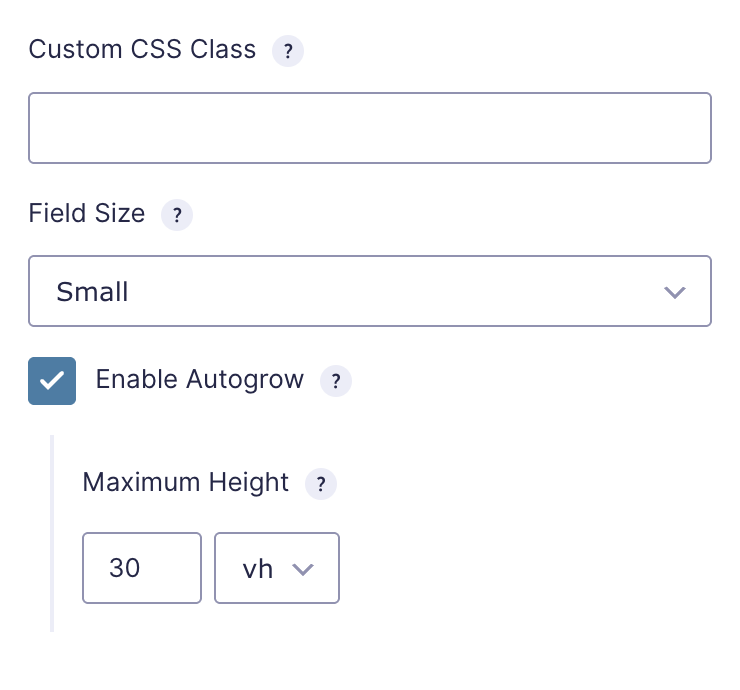
Field Settings
Autogrow adds two settings to the Appearance tab:
| Setting | Description |
|---|---|
| Enable Autogrow | Turns Autogrow on for this field. Off by default. |
| Maximum Height | The point at which the field stops growing and a scrollbar appears. Accepts pixel (px) or viewport-height (vh) values. Defaults to 30vh. |
When Autogrow is enabled, the Maximum Height setting appears beneath the checkbox.
We recommend vh for most use cases — it keeps the field proportional to the user’s screen, which is especially helpful on smaller viewports. Use px when you need an exact, predictable height regardless of device.
How Autogrow Behaves
Autogrow handles the standard Paragraph Text field and its Rich Text Editor variant a little differently. The setup is the same in both cases — the differences are in how the field grows.
Standard Paragraph Text Fields
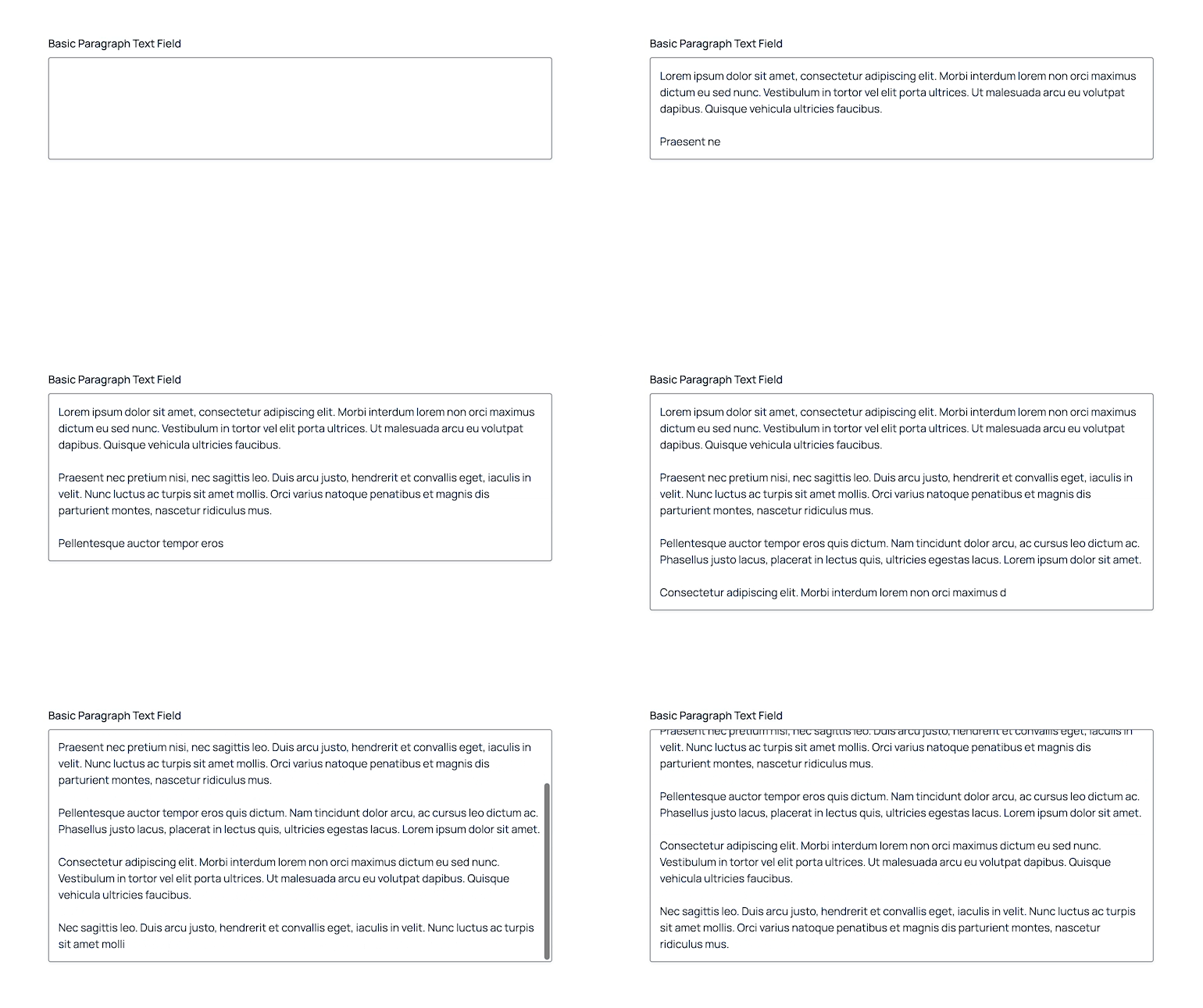
- The field grows vertically as the user types, snapping cleanly to whole rows so it never jumps a partial line.
- The starting height matches the field’s configured Field Size setting as closely as possible.
- The browser’s manual resize handle is hidden — Autogrow is in charge of the height, so there’s no conflict between user dragging and automatic sizing.
- When content reaches the maximum height, an internal scrollbar appears.
Rich Text Editor Fields
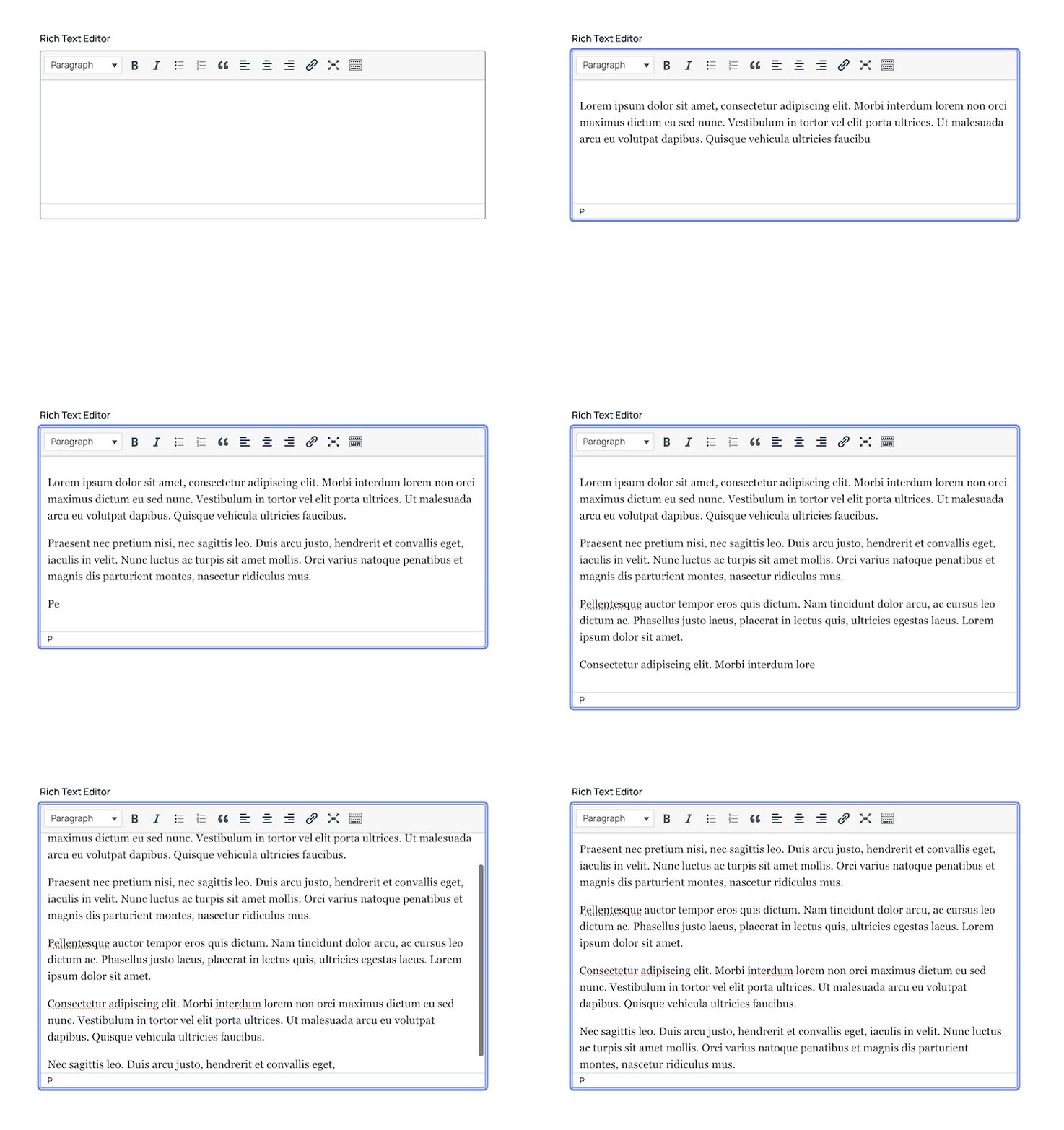
- The field grows vertically as the user types.
- The starting height matches the field’s configured Field Size setting as closely as possible.
- When content reaches the maximum height, an internal scrollbar appears.
Post Body Fields
- The field grows vertically as the user types.
- The starting height matches the field’s configured Field Size setting as closely as possible.
- When content reaches the maximum height, an internal scrollbar appears.
Multi-Page Forms, Conditional Logic, and AJAX
Autogrow works on forms that re-render on the page — including multi-page forms, conditionally revealed fields, and AJAX-submitted forms. Fields are initialized as soon as they appear, no extra setup required.
Maximum Height Examples
A handful of common values to anchor your decision:
| Value | What it does |
|---|---|
30vh | (Default) Field grows to roughly a third of the user’s screen height. Good general-purpose value. |
50vh | Generous — half the viewport. Useful for long-form writing where you want to push back the appearance of a scrollbar. |
200px | Compact and predictable. Good for sidebars, embedded forms, or layouts where a shorter field is preferred. |
400px | A roomier fixed height. Roughly 15–20 rows of text in most themes. |
Real-World Examples
Feedback Field on a Contact Form
Use case: A contact form that asks for an optional message — most are short, but the occasional user has a lot to say.
- Field Size: Small
- Maximum Height:
30vh
The field starts small enough that it doesn’t dominate the form, but expands gracefully for the rare detailed message.
Cover Letter on a Job Application
Use case: A multi-page application form where the cover letter deserves real estate.
- Field Size: Medium
- Maximum Height:
50vh
Plenty of starting room for serious writing, with headroom to grow without pushing the submit button off-screen.
Detailed Bug Report
Use case: A support form where you want users to write thorough descriptions — but the submit button needs to stay reachable.
- Rich Text Editor: Enabled
- Field Size: Medium
- Maximum Height:
400px
A predictable cap means even verbose reports stay self-contained, and the rich-text controls let users include formatted code, links, and lists.
Embedded Comment Field
Use case: A small comment form embedded in a sidebar or modal where space is tight.
- Field Size: Small
- Maximum Height:
200px
Compact at rest, contained when full — appropriate for a constrained layout.
Developer Notes
- Rich Text Editor autogrowing is powered by WordPress’
wpautoresizeTinyMCE plugin, a fork of TinyMCE’sautoresizeplugin.- The
wpautoresizeplugin does supportvhunits. As such, if the Maximum Height is configured invh, this value is converted topxon render.
- The
Known Limitations
- Paragraph Text fields only. Autogrow does not apply to Single Line Text fields, Name fields, or other input types — those don’t benefit from height-based expansion.
- Manual resize is disabled. When Autogrow is enabled, the browser’s resize handle is hidden. This is intentional — letting users drag the height while the script also adjusts it produces conflicting behavior.
FAQ
Does this work with the Rich Text Editor?
Yes. Autogrow detects whether the field is a standard textarea or has the Rich Text Editor enabled and applies the right behavior to each.
What happens when content reaches the maximum height?
The field stops growing and an internal scrollbar appears so the user can keep typing and scroll back through what they’ve written.
Why is vh the default unit?
Viewport height keeps the field proportional to the user’s screen, which behaves nicely on both tall desktop monitors and short mobile viewports. Use px if you need an absolute height regardless of device.
Does Autogrow work on multi-page forms or with conditional logic?
Yes. Autogrow listens for Gravity Forms’ render events and initializes any newly visible fields automatically — including fields that appear after a page change, after conditional logic shows them, or after an AJAX submission.
Can users still resize the field manually?
No. The browser’s native resize handle is hidden when Autogrow is enabled. This avoids conflicts between user-set heights and Autogrow’s row-based sizing.
What’s the minimum height of an Autogrow field?
The field starts at the size you configure (via the Field Size setting), rounded up to the nearest whole row of text. This compensates for padding and borders, which would otherwise leave a partial row visible at the bottom.
Will Autogrow slow down my site?
No. The frontend script is only loaded on pages that contain at least one Autogrow-enabled field, so pages without any Autogrow fields are unaffected.
Are Autogrow settings included when I export a form?
Yes. Autogrow settings are stored on the field itself, so they travel with the form whenever you export or import it.
What versions of Gravity Forms and WordPress are required?
Gravity Forms 2.9 or later, and WordPress 5.0 or later.