5 Ways to Trigger Popup Forms in Gravity Forms

GP Popups turns any Gravity Form into a popup you can trigger by time, click, scroll, exit intent, or URL hash. Learn how each one works and when you can use it.
- How do you trigger a popup in Gravity Forms?
- What You’ll Need
- Five Ways to Trigger Your Gravity Forms Popups
- Which popup trigger should you use?
- Edge Cases and Limitations
- Frequently Asked Questions
What if a form could pop up on a timer, open when someone clicks “Buy Now,” or show up just as they’re about to leave your page?
That’s what Gravity Forms Popups (aka GP Popups) is for. Let me walk you through all five trigger types it comes with, how they work, where they can be useful, and what each one looks like in practice.
This article requires the Gravity Forms Popups perk.
Buy Gravity Perks to get this perk plus 46 other premium Gravity Forms plugins!
How do you trigger a popup in Gravity Forms?
Gravity Forms doesn’t support popups natively. GP Popups is part of the Gravity Perks suite and it lets you display any form in a popup and choose what triggers it to appear.
There’s no single best trigger for every situation. The right choice depends on when and how you want the popup to show up. GP Popups includes five triggers: Delay, Button/Link Click, Exit Intent, Scroll Depth, and Hash.
What You’ll Need
- Gravity Forms (any license)
- Gravity Perks (via Spellbook)
- Includes: Gravity Perks Popups (AKA GP Popups)
- A form already created in Gravity Forms
Five Ways to Trigger Your Gravity Forms Popups
Each of the five built in trigger types in GP Popups can fire under a different condition. Here’s how each one works and where it can be useful.
1 — Delay: Show a popup after a set amount of time
Let’s say you want a newsletter signup to appear after someone has been reading your blog post for a few seconds. You can give them a moment to settle in before the popup shows.
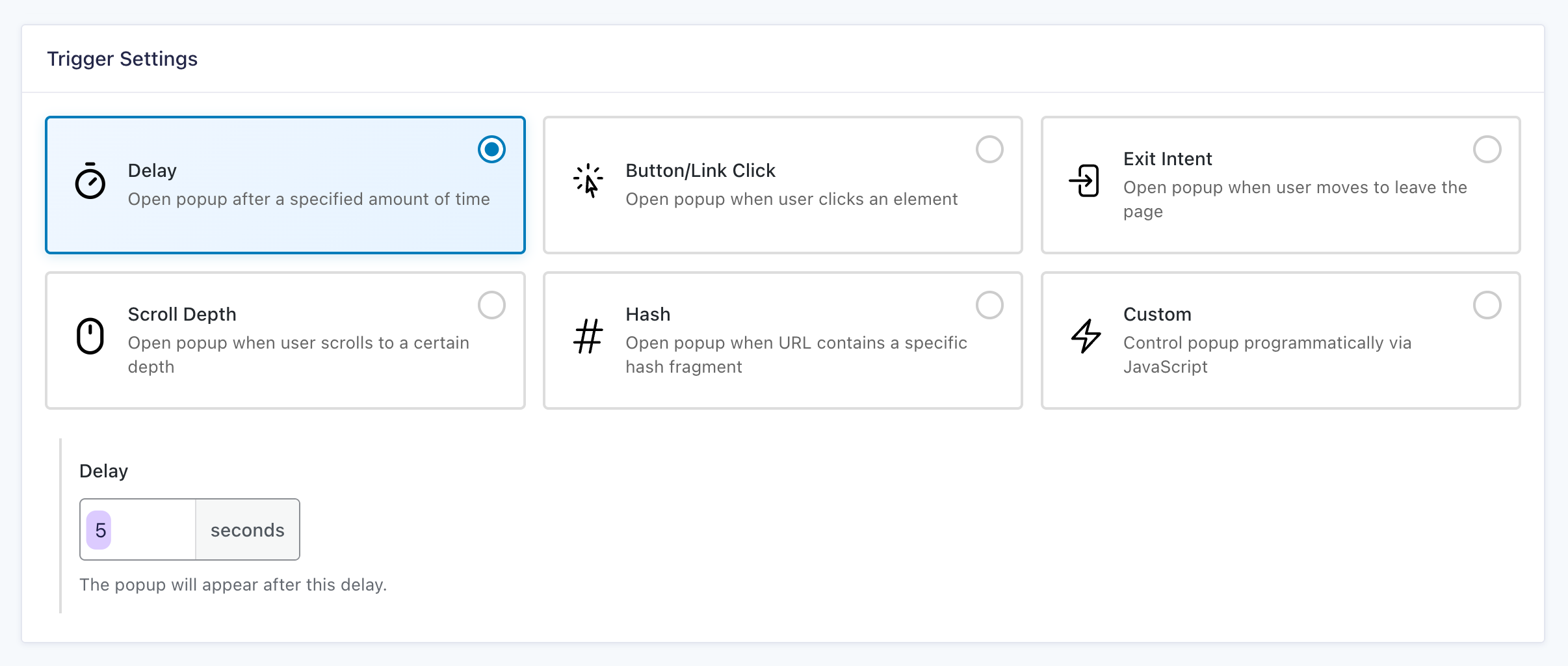
Use the Delay trigger to have your form pop up automatically after a set amount of time. The visitor doesn’t need to click or do anything. It just… pops up.
In the popup feed, set the Delay value to how long you want to wait, in seconds or milliseconds.
Use case ideas:
- Offer a free resource or download on a long-form content page
- A webinar or event signup form that appears after a short delay on a landing page
2 — Button/Link Click: Trigger a popup form from any clickable element
Let’s say a visitor clicks “Buy Now” on your page. Instead of sending them to a separate checkout page, you can keep them right where they are and pop up the checkout form instead.
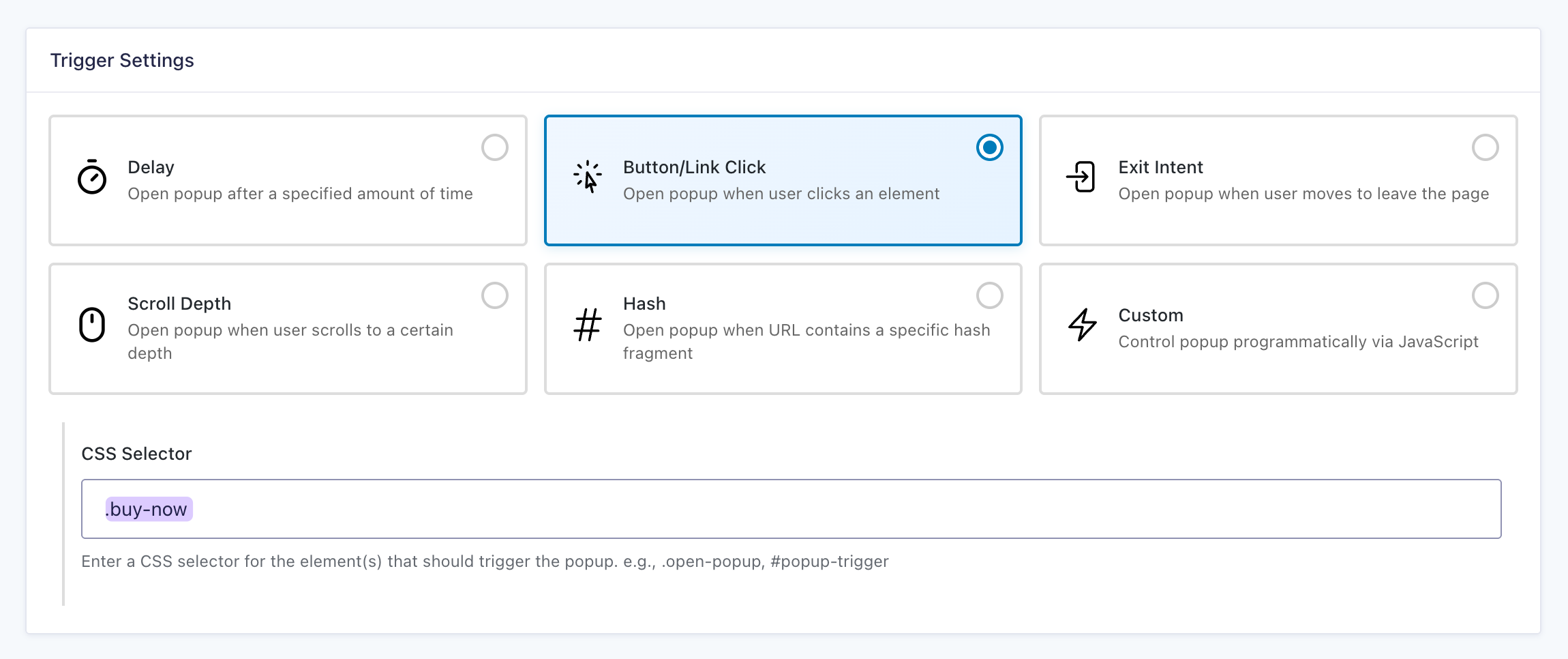
Use the Button/Link Click trigger to open the popup when someone clicks an element you choose. This can be a button, link, image, or any other clickable element on the page.
Use case ideas:
- A “Register Now” link on an events page that opens a registration form
- A “Get a Quote” or “Book a Demo” button that opens a contact form
3 — Exit Intent: Show a popup when a user is about to leave
Once a visitor is done reading your content, say a blog post, chances are they’ll move to close the tab. Before they go, you could show them a related resource or a quick signup form in a modal — something relevant to what they just read.
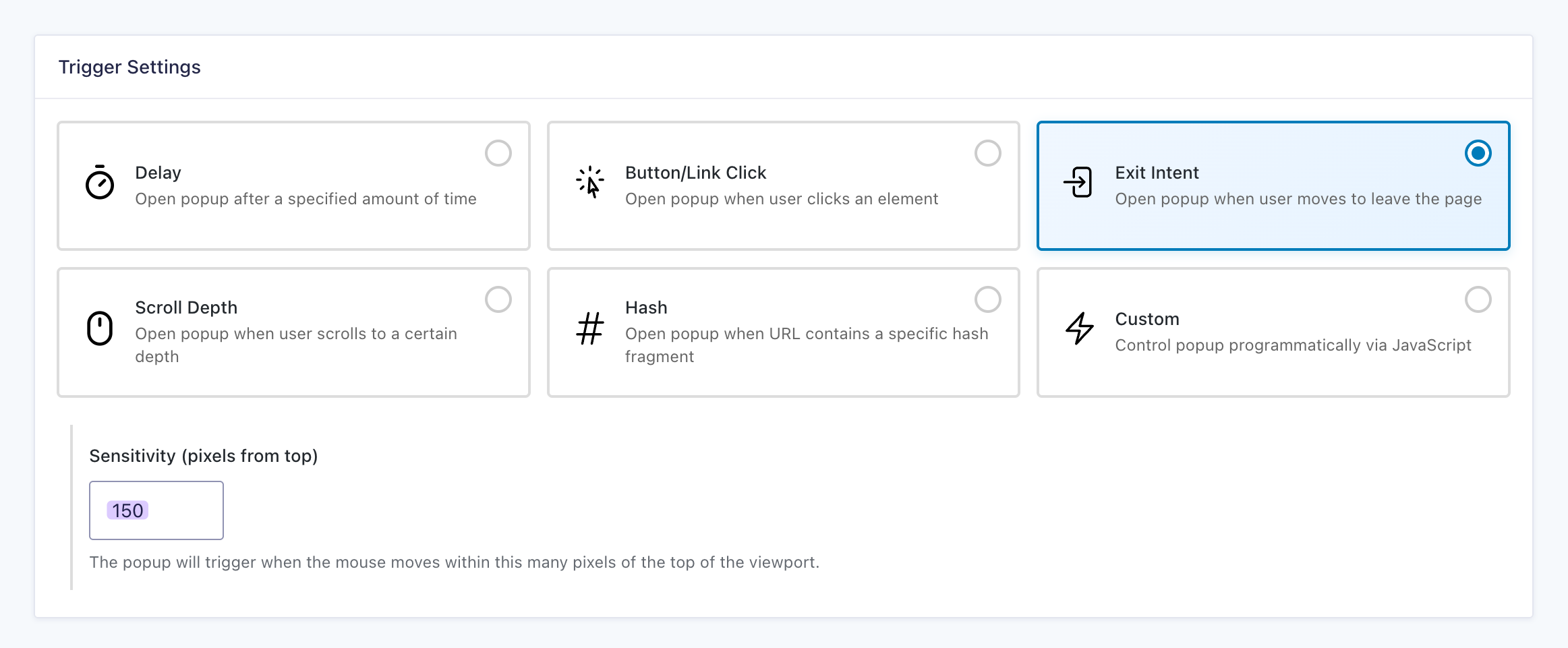
You can use the Exit Intent trigger to open that popup, detecting when the cursor moves toward the top of the browser. Just set the Sensitivity value to control how close to the top the cursor needs to be before it fires.
Use case ideas:
- A last-chance discount or special deal on your pricing page
- A quick feedback survey for visitors who didn’t convert
4 — Scroll Depth: Show a popup as the user scrolls down the page
When a visitor is halfway through your article, chances are they’re reading and paying attention — aka a good time to capture that interest.
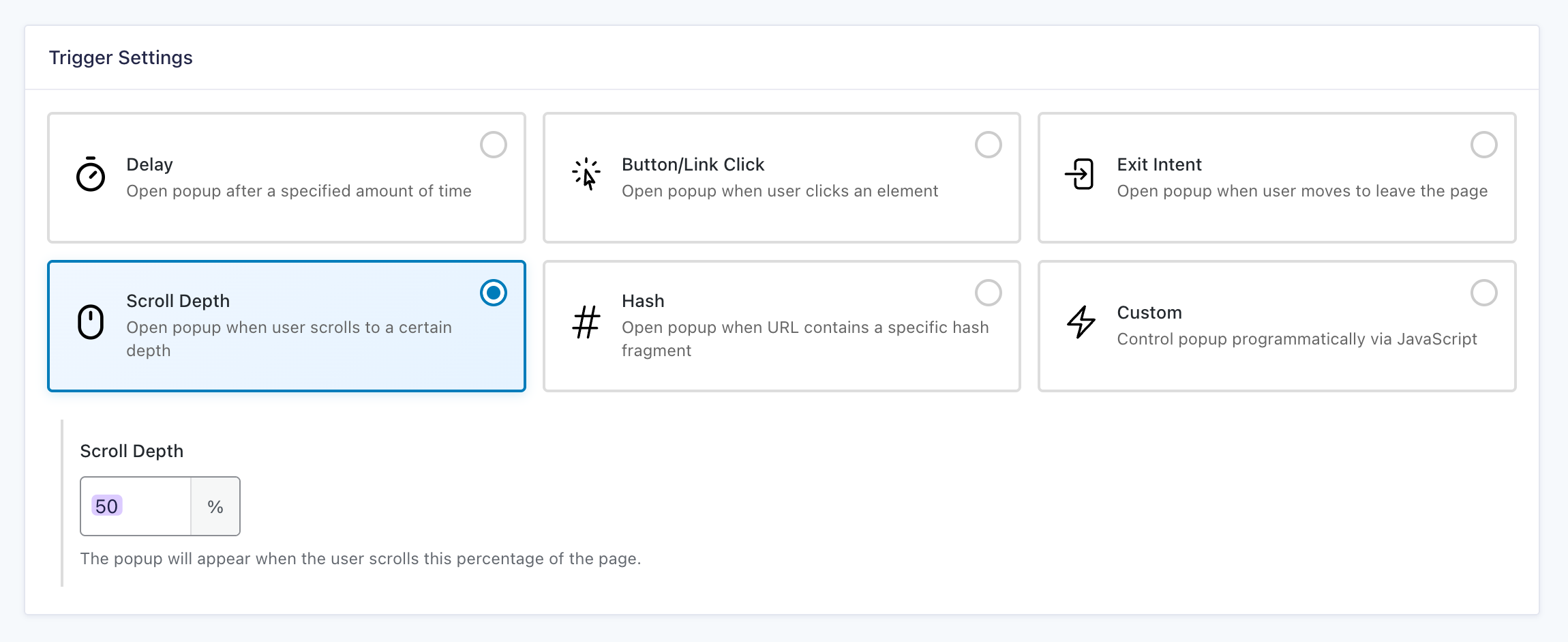
Use the Scroll Depth trigger to open the popup once a visitor reaches a specific point on the page, set as a percentage or a pixel amount.
Use case ideas:
- A lead capture or download popup on a long resource or content page
- A consultation or contact form popup that appears after someone has read through most of a services page
- A popup for returning visitors that asks for just an email and automatically enriches their entry with CRM data so your team gets the full picture without a long form
5 — Hash: Open a popup from a URL fragment
Say your newsletter has a CTA link, like a “Book a Call.” When a reader clicks it, they’re taken to your contact page and the form popup opens the moment they arrive.
You can use the Hash trigger to detect a specific fragment in the URL, like #book-a-call, and fire the popup as soon as the page loads.
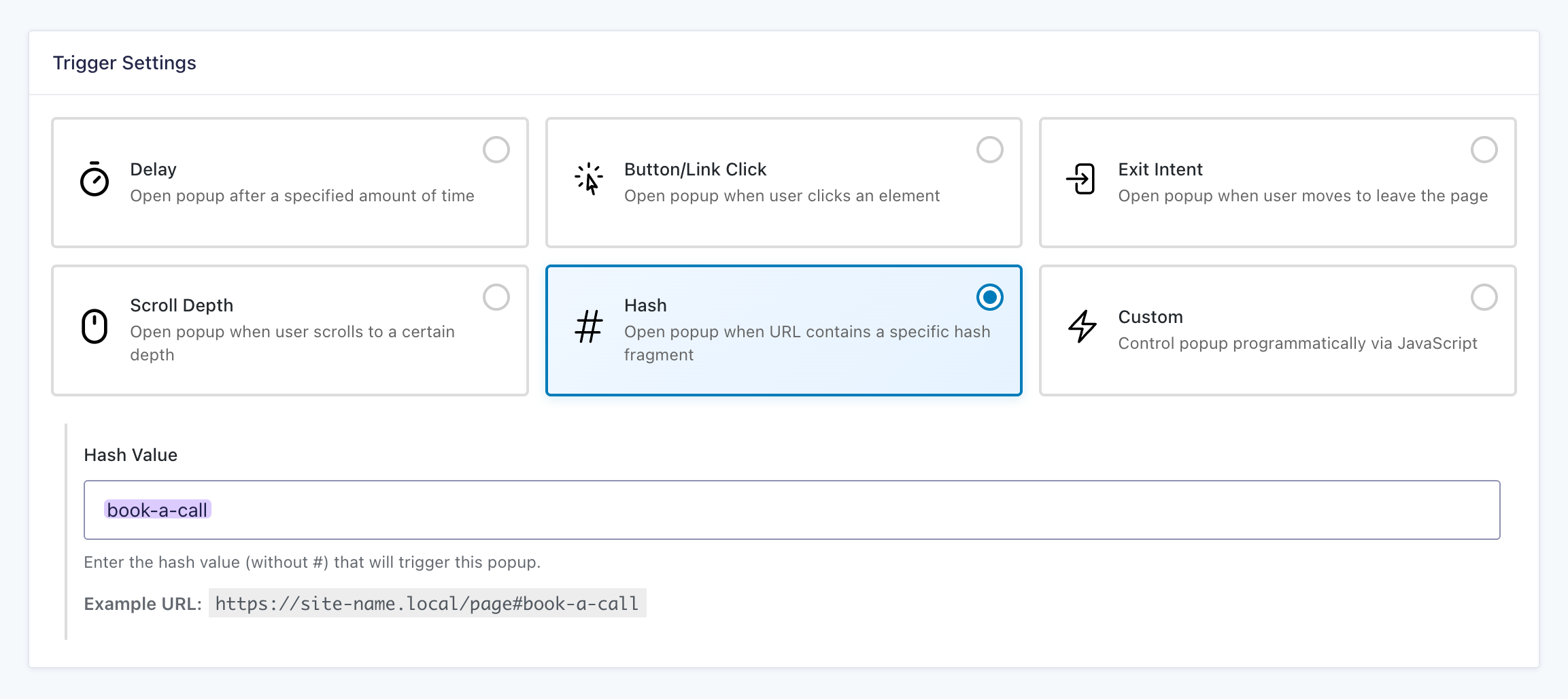
Use case ideas:
- A social ad or campaign link that pre-opens your lead capture form right away when someone clicks through
- A “Contact Us” link in your footer that sends people to your contact page and opens the form popup automatically
Can you build a custom popup trigger in GP Popups?
If none of the five triggers quite fit what you need, there’s a sixth option called Custom. It lets you control exactly when a popup fires using JavaScript.
See the Custom trigger documentation to learn more.
Which popup trigger should you use?
Not sure which trigger fits your situation? Use this as a quick reference.
| Trigger | Use it when… |
|---|---|
| Delay | You want the popup to appear automatically after someone has been on the page for a bit. |
| Button/Link Click | You want someone to open the popup by clicking a button or link. |
| Exit Intent | You want another chance to catch someone right before they leave. |
| Scroll Depth | You want the popup to show after someone has scrolled far enough to show they are engaged. |
| Hash | You want a specific link to open the popup right when the page loads |
Edge Cases and Limitations
- Exit Intent doesn’t fire on mobile/touchscreen. It relies on cursor movement to detect when someone is about to leave, and touchscreen devices don’t have cursors, so the trigger will not fire. For this, Scroll Depth or Delay are more reliable options.
- Hash only fires if the visitor arrives with the fragment in the URL. If someone browses to the page normally without the hash fragment, the popup will not open.
- Cookie and dismissal behavior. If a visitor dismisses the popup, it will not fire again until the cookie expires. Check your Cookie Settings in the popup feed to confirm the duration.
Key Takeaways
- Gravity Forms doesn’t include a built-in way to show a form in a popup.
- GP Popups adds that capability with five trigger types: Delay, Button/Link Click, Exit Intent, Scroll Depth, and Hash.
- Each trigger fires under a different condition, so the best choice depends on what the visitor is doing on the page.
- You set up each trigger in the WordPress admin for the popup feed, with no code required.
Related Use Cases
- Already using GP Popups? Page Targeting helps you choose exactly who sees your popup based on URL, device, user role, and more.
- Want to show your popup only to visitors from specific websites or UTMs? Add a Referrer targeting rule to control who sees it.
- Want to turn your Gravity Forms newsletter signup into a popup? See our guide on creating newsletter signup popups in Gravity Forms.
Frequently Asked Questions
Can I use more than one trigger type on the same popup?
No. Each popup feed supports one trigger type. If you want more than one trigger for the same form, create a separate feed for each trigger.
Can I trigger the same popup from multiple buttons on one page?
Yes. Add the same CSS selector class to every button or link you want to use, and they will all trigger the same popup.