How to Calculate Age on a Specific Date

Calculate how old someone is, was, or will be on a given date in Gravity Forms.
- What you’ll need
- Step 1 — Add a Date field
- Step 2 — Calculate the age
- Deeper formula breakdown
- Key takeaways
- Tale as old as time
Advanced Calculations lets you use dates in Gravity Forms calculations. If you want to calculate how old someone is today, the formula is ridiculously simple.
Now, if you need to calculate their age on a specific future or past date, like eligibility for an event or benefit, the formula is still simple — just a bit different.
This article requires the Gravity Forms Advanced Calculations perk.
Buy Gravity Perks to get this perk plus 46 other premium Gravity Forms plugins!
What you’ll need
- Spellbook (to install Advanced Calculations)
- Advanced Calculations
Step 1 — Add a Date field
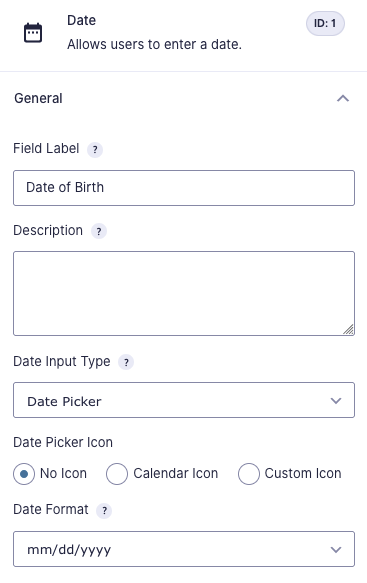
Start by adding a Date field to your form and name it Date of Birth.
Step 2 — Calculate the age
Add a Number field to your form and enable calculation.
Here, enter the formula below to calculate the difference between the Date of Birth (the “start date”) and another date (the “end date”).
floor( datediff( startDate, endDate, unit='years' ))Swap startDate for your Date of Birth field (e.g. F1) and endDate with the date you want to calculate their age on. The endDate value can be a static date (e.g. ’2026-07-12’) or another field (e.g. F4).
For example, mine looks like this:
floor( datediff( F1, '2026-07-12', unit='years' ))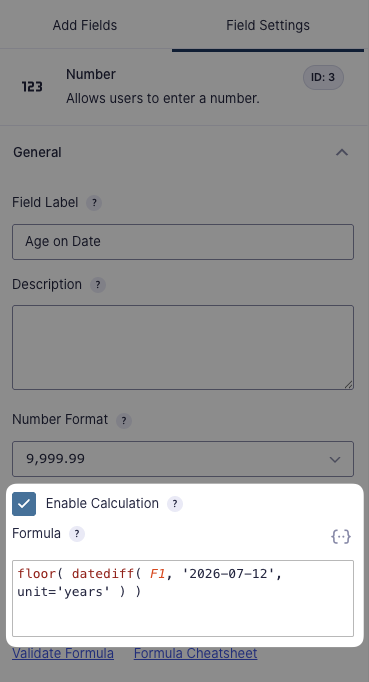
Using someone’s age in conditional logic?
Skip adding the Number field altogether and add this formula directly to your conditional logic rules with Advanced Conditional Logic.
Deeper formula breakdown
Here’s a quick explanation about the other pieces of the formula:
floor()function: Rounds the result down to the nearest whole number. Even if someone is 17 years and 6 months old, they’re still considered to be 17 years of age. Remove if you want to keep the decimals.datediff()function: Calculates the difference between two dates.unit=’years’parameter: Sets the formula’s unit to years. It can be set tomonths,weeks, ordays.
Key takeaways
- You can calculate age in Gravity Forms on any date — past or future — with
floor(datediff(startDate, endDate, unit='years'))using Advanced Calculations. startDateis your date of birth;endDatecan be any day. Either can be a static date or another field.floor()rounds the formula result down so someone stays “17” until their actual birthday- Swap
unit='years'formonths,weeks, ordaysto get age on a different scale. - If you’re using this for conditional logic, you can skip the Number field and drop the formula straight into a rule with Advanced Conditional Logic.
Tale as old as time
Hope you’ll call this formula “mine”!
If you have any questions, let us know in the comments below.