How to Set Up Gravity Forms Conditional Logic by User

Show or hide Gravity Forms fields by user, based on who’s logged in, their role, or their user meta — with Advanced Conditional Logic.
- Three Ways to Build a Conditional Logic Rule Around a User
- What You’ll Need
- Setting Up Each Type of Rule
Gravity Forms conditional logic can already show or hide a field depending on how someone answers a question. Now, let’s teach it to know a little about who’s answering, too.
We’ll need Advanced Conditional Logic for that. It adds a handful of tricks to your conditional logic, like more rules to choose from, a way to group them together, and more. But today, we’re zooming in on just one — a rule that checks what kind of user is filling out the form.
Let’s get acquainted. 🤝
New to conditional logic altogether? Start with our complete guide to Gravity Forms conditional logic.
This article requires the Gravity Forms Advanced Conditional Logic perk.
Buy Gravity Perks to get this perk plus 46 other premium Gravity Forms plugins!
Three Ways to Build a Conditional Logic Rule Around a User
Advanced Conditional Logic adds a new source value to conditional logic: User. When setting up a rule, you’ll find it in the source value dropdown, right alongside your form’s own fields.
Here’s how each one works:
Is Logged Inchecks whether a user is logged into the siteRolechecks a user’s WordPress role, like Administrator, Editor, or SubscriberMetapulls from a value stored on a user’s profile, things like a subscription level or account type, saved by a plugin or custom field
What You’ll Need
- Gravity Forms (any license)
- Advanced Conditional Logic, installed through Spellbook, Gravity Wiz’s free plugin manager
- To install: open Spellbook, find Advanced Conditional Logic, and activate it
Setting Up Each Type of Rule
1 — Show a Field to Logged-In Users Only
Set the source value to User: Is Logged In, the operator to is, and the target value to Yes.
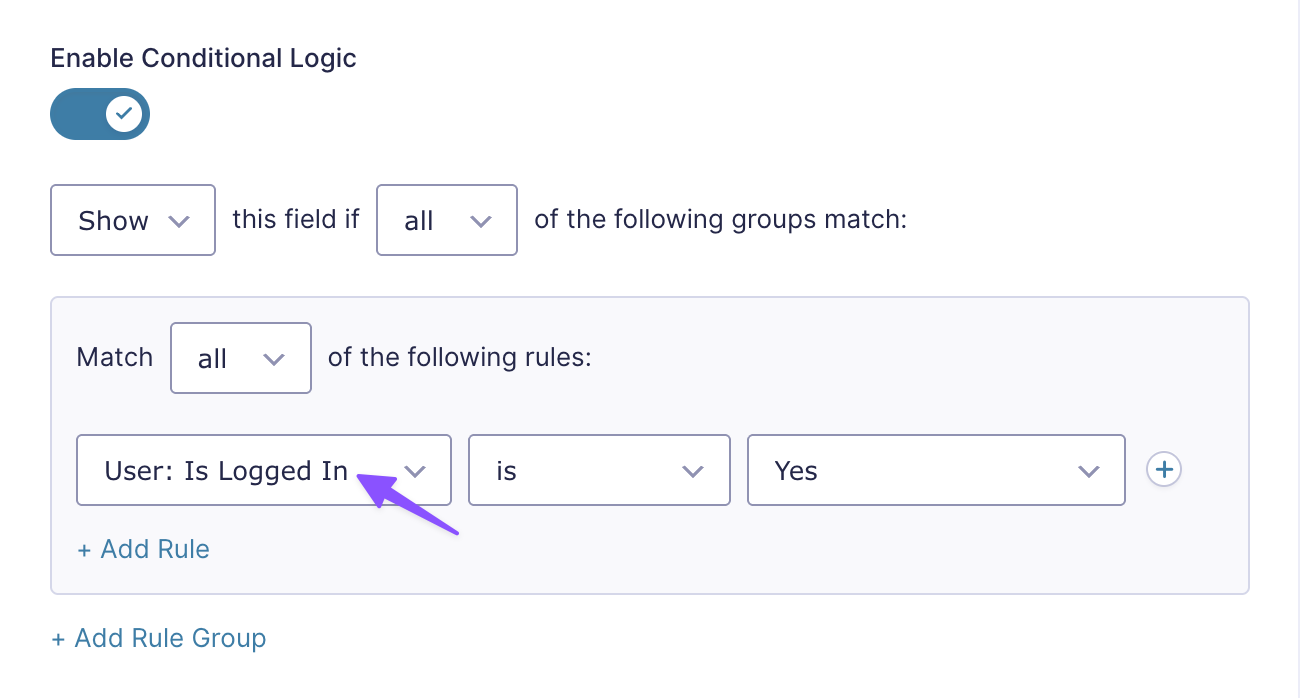
Say you’re offering a discount code field on an otherwise public form. With this rule, only people who are logged in will see it, everyone else just sees the regular form.
Want the opposite? Set the target value to No instead.
2 — Restrict a Field by Role
Set the source value to User: Role, choose is or is not, and pick the role, Administrator, Editor, or any custom role your site uses.
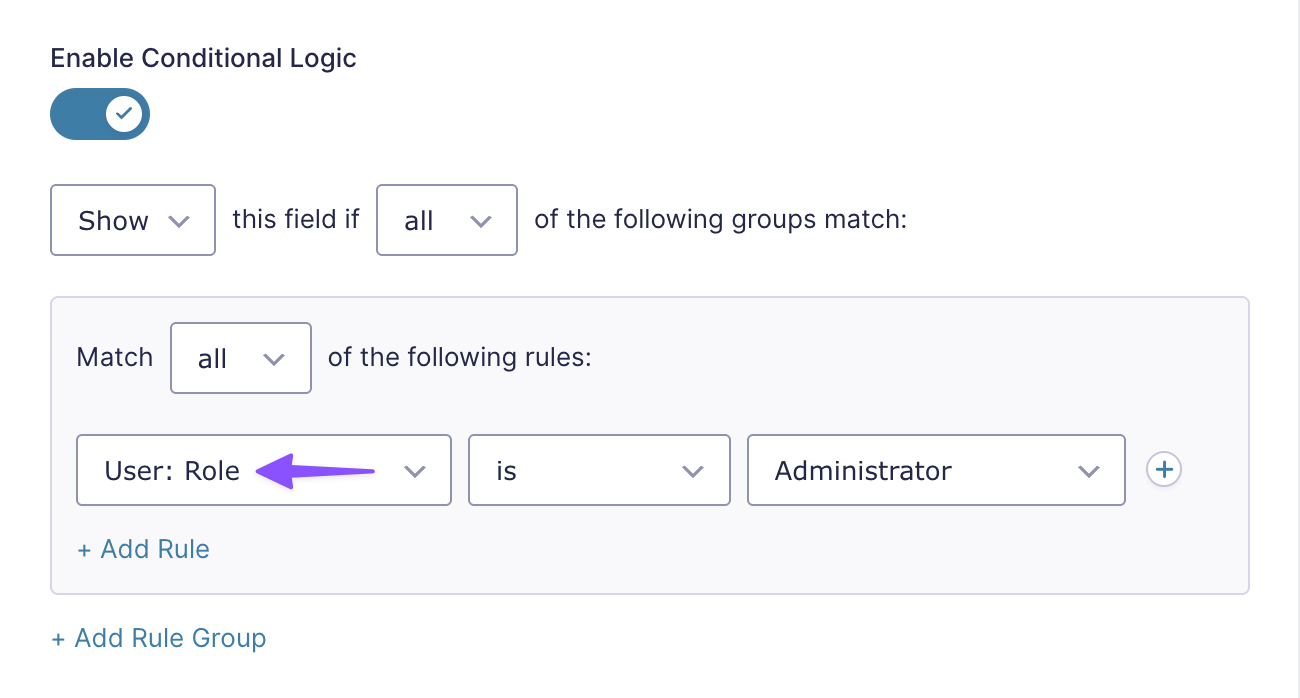
For example, a staff-only field on a form anyone can fill out. Setting the rule to Administrator keeps it hidden from everyone else.
Want different roles to see different fields? Repeat this with a new rule group for each role.
3 — Change What a Field Shows Based on User Meta
But first, what is “meta”? It just means info saved on a user’s profile, things like a membership level or account type, usually set by another plugin.
Set the source value to User: Meta, choose an operator, and set the target value. A second field appears below the rule, that’s where you enter the meta key.
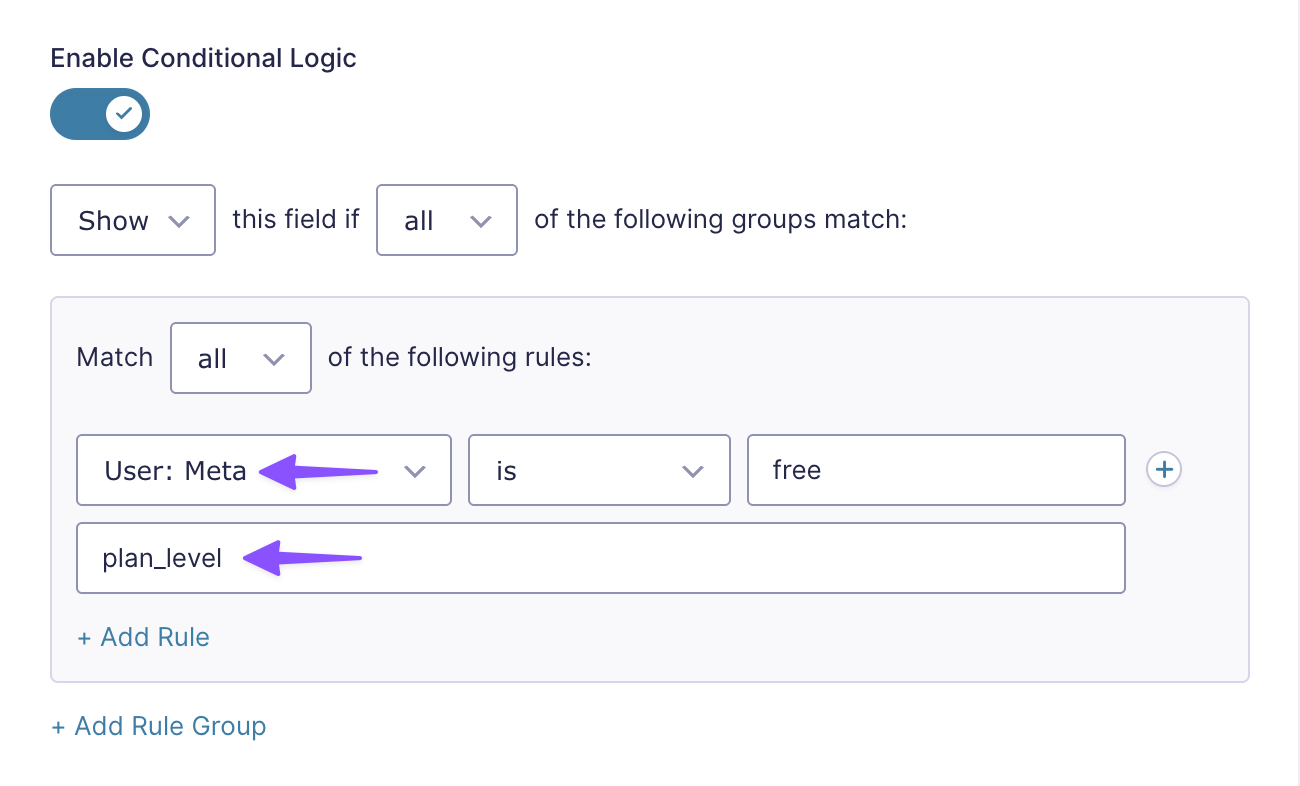
Let’s say a membership plugin is already storing plan levels for your users, a rule that checks that meta key can show one field to free users and a different one to paid users, all from the same form.
Key Takeaways
- Advanced Conditional Logic adds a “User” source value to conditional logic, with three ways to use it:
Is Logged In,Role, andMeta - Each one checks something different, whether a user is signed in, what role they have, or what’s saved on their profile
- All three show up in the same source value dropdown as your form’s own fields, no separate tool to learn
Want to fine-tune your rules even further?
Advanced Conditional Logic can go a step further — exclude values, match against a list, or catch near-typos — for the cases the built-in operators don’t quite cover. Check out our guide on how to use these advanced operators.
Now your forms know who’s who. 👯 Got a conditional logic rule you’d love to see next? Drop a comment below.