
Gravity Forms Entry Archive

Clear the clutter without losing your entries.

Gravity Forms Entry Archive is a free Gravity Forms add-on that lets you archive entries you no longer need in your main view without deleting them. Unlike trashing (which is a step toward deletion), archiving is designed for long-term safekeeping. Your entries stay intact in the database, fully searchable and restorable whenever you need it.
- Where is Entry Archive useful?
- Install the Plugin
- Using the Plugin
- How Archiving Works
- Deactivation & Uninstall
- Integrations
- Known Limitations
- FAQ
Where is Entry Archive useful?
Anywhere your entry list is getting crowded with entries you want to keep but don’t need day-to-day:
- Completed submissions: Move fulfilled orders, processed applications, or resolved requests out of your active view once you’re done with them.
- Seasonal or campaign forms: Archive last quarter’s contest or event entries without losing the records.
- Compliance and record-keeping: Retain entries for auditing or legal reasons while keeping your working list clean.
- High-volume forms: Keep your entry list focused on what’s actionable when a form collects thousands of submissions.
- Reviewed leads: Set aside leads you’ve already followed up on so your team only sees what’s still open.
Install the Plugin
Entry Archive is available for free through Spellbook.
- Download and install Spellbook.
- Open Spellbook and search for “Entry Archive”.
- Click Install on the Entry Archive card — you’ll get free automatic updates and the latest features.
Need help? Check out our guide to installing your first plugin with Spellbook.
Using the Plugin
Entry Archive works right out of the box — there are no settings to configure. Once active, archive controls appear automatically on your entry list.
Archive a Single Entry
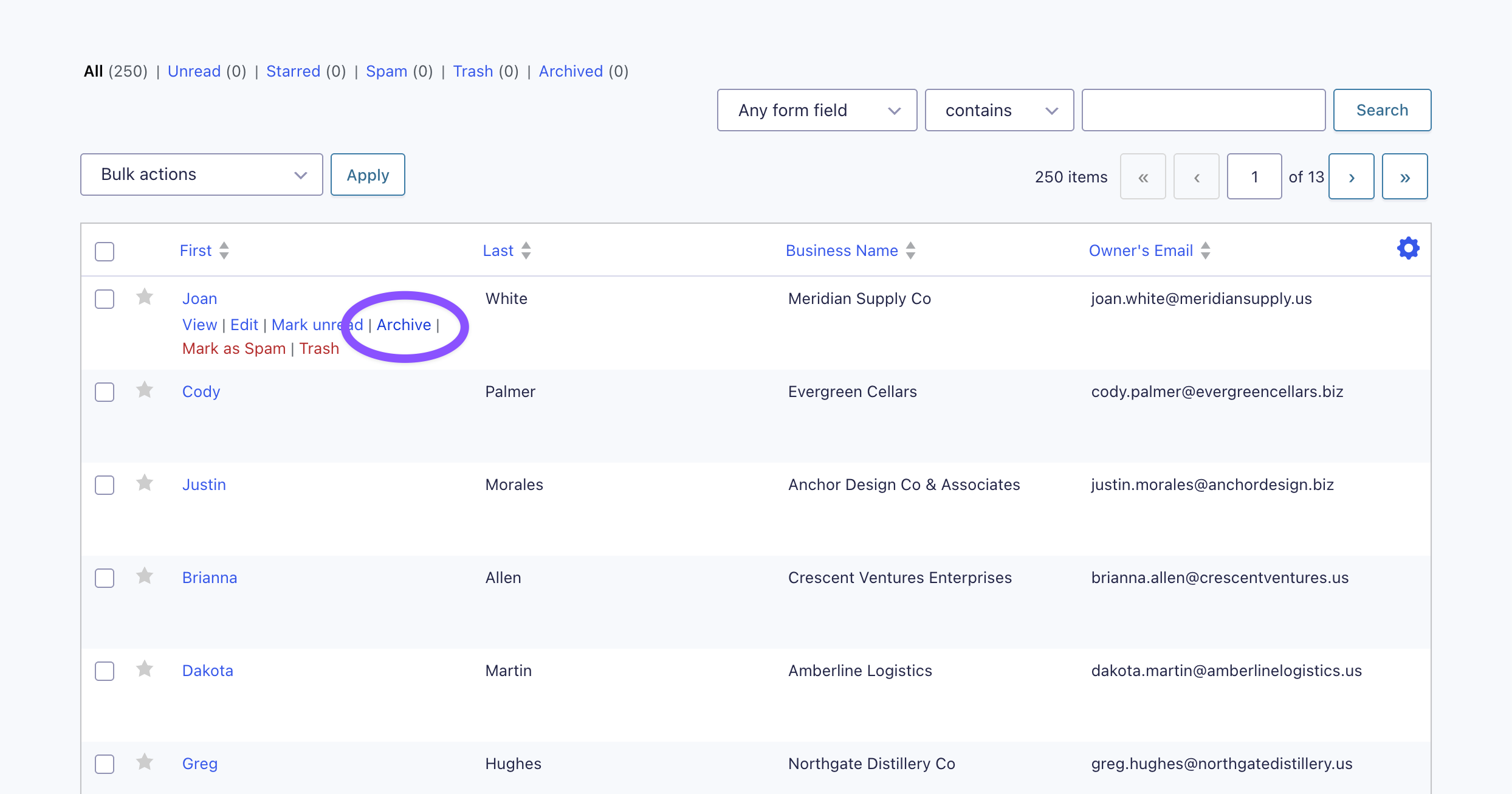
- Go to Forms › Entries and select your form.
- Hover over any entry to reveal its row actions.
- Click Archive.
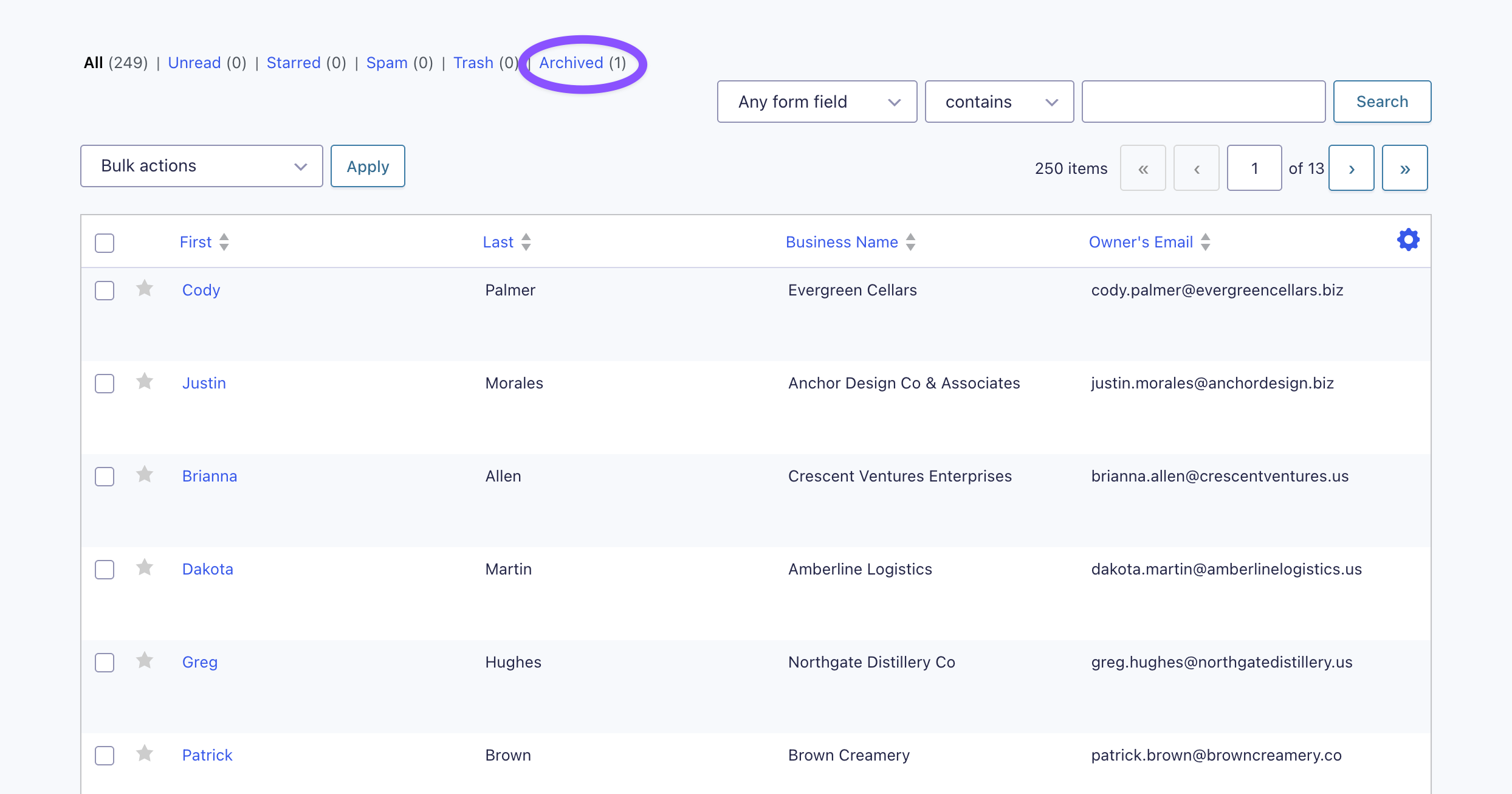
The entry immediately moves out of the active list and into the Archived filter.
View Archived Entries
Entry Archive adds an Archived filter link alongside the standard filters (All, Unread, Starred, Spam, Trash) at the top of the entry list. Click it to see all archived entries for that form, complete with a live count.
Unarchive an Entry
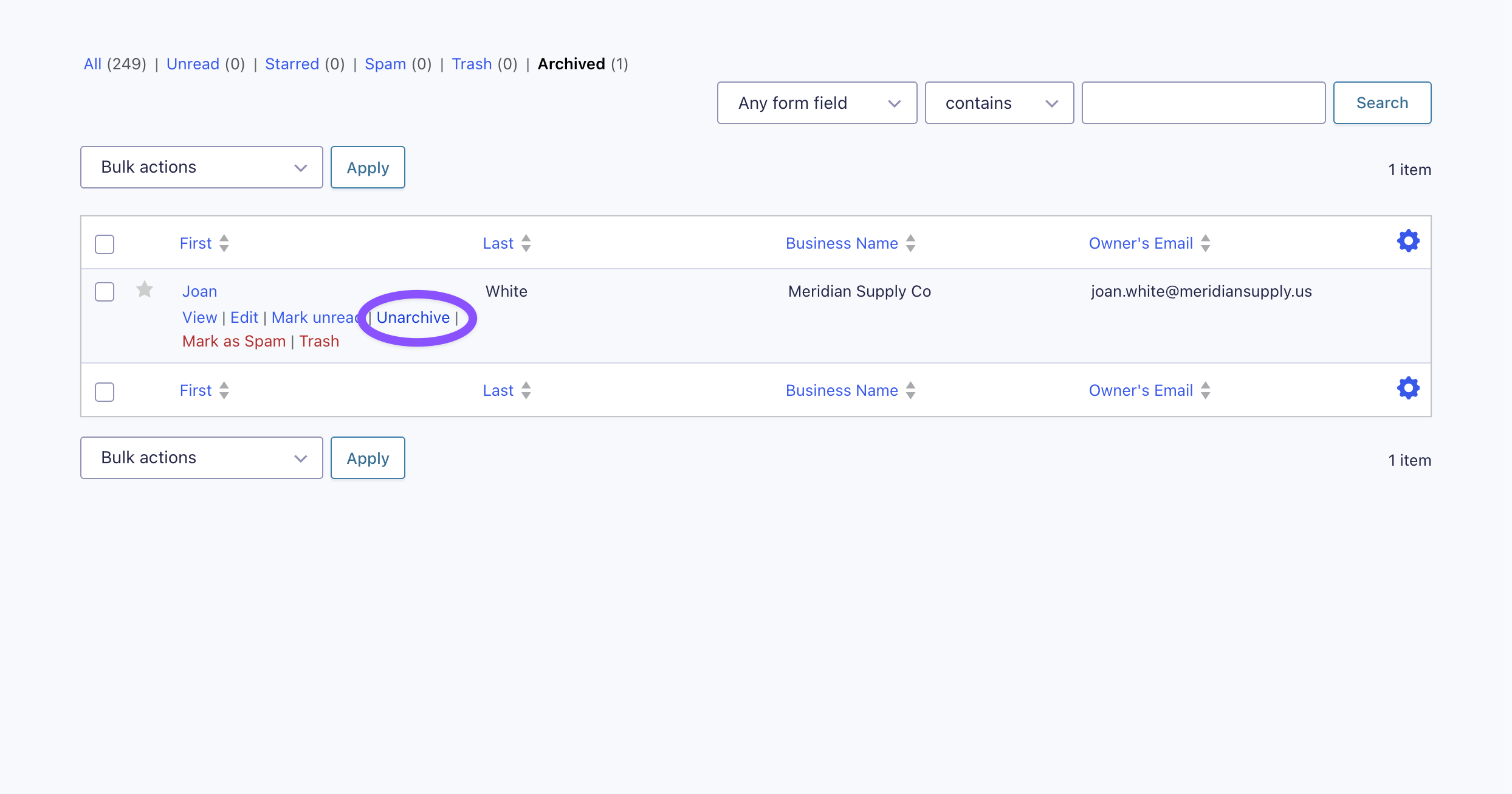
- Open the Archived filter.
- Hover over the entry you want to restore.
- Click Unarchive.
The entry returns to your active entry list.
Bulk Archive & Unarchive
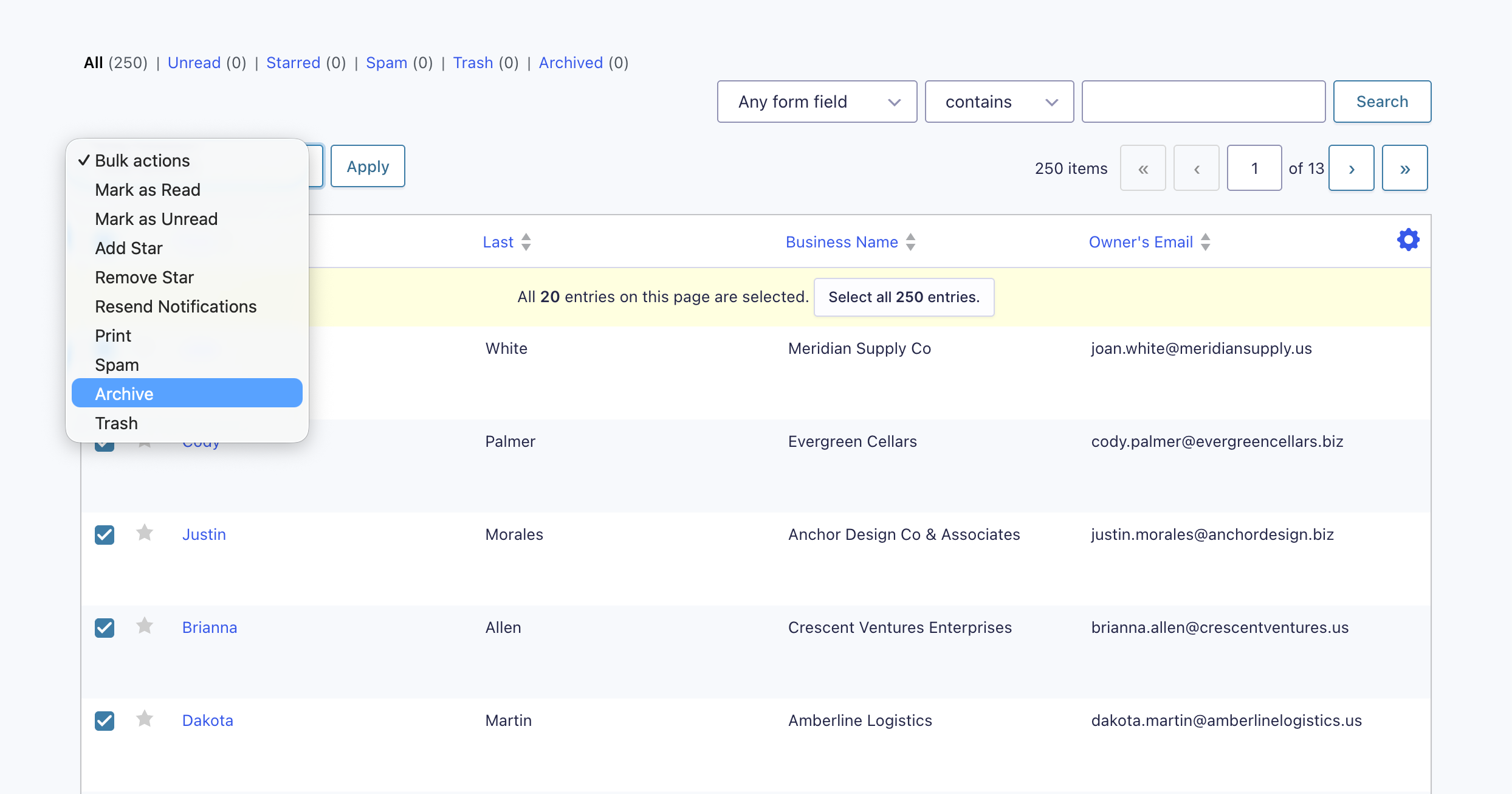
To process many entries at once:
- Select the entries using the checkboxes in the entry list.
- Choose Archive (or Unarchive when viewing the Archived filter) from the Bulk Actions dropdown.
- Click Apply.
How Archiving Works
Archiving sets an entry’s status to archived — a custom status that hides the entry from the default views while leaving the underlying record completely untouched in the database. Nothing is deleted — your entries stay exactly as they were.
Because archived entries retain all their original data, they remain available to Gravity Forms’ APIs and any integrations that query entries directly. Archiving simply changes where the entry shows up in the admin.
Querying Archived Entries
If you are are querying entries and wish to include archived entries, you will need to include archived in the query’s status argument.
Archive controls are context-aware: the Archive action is hidden on the Spam and Trash views (where it doesn’t apply), and switches to Unarchive automatically when you’re viewing the Archived filter.
Deactivation & Uninstall
Entry Archive handles your data responsibly, but it’s worth understanding what happens in each case:
- Deactivating the plugin: Archived entries remain hidden in the database. Because the Archived filter is no longer present, you won’t be able to see or restore them until you reactivate. Entry Archive will warn you about this before you deactivate.
- Uninstalling the plugin (via Forms › Settings › Uninstall): All archived entries are automatically restored to active/visible status, and the plugin’s settings are removed. This ensures no entries are ever left stranded.
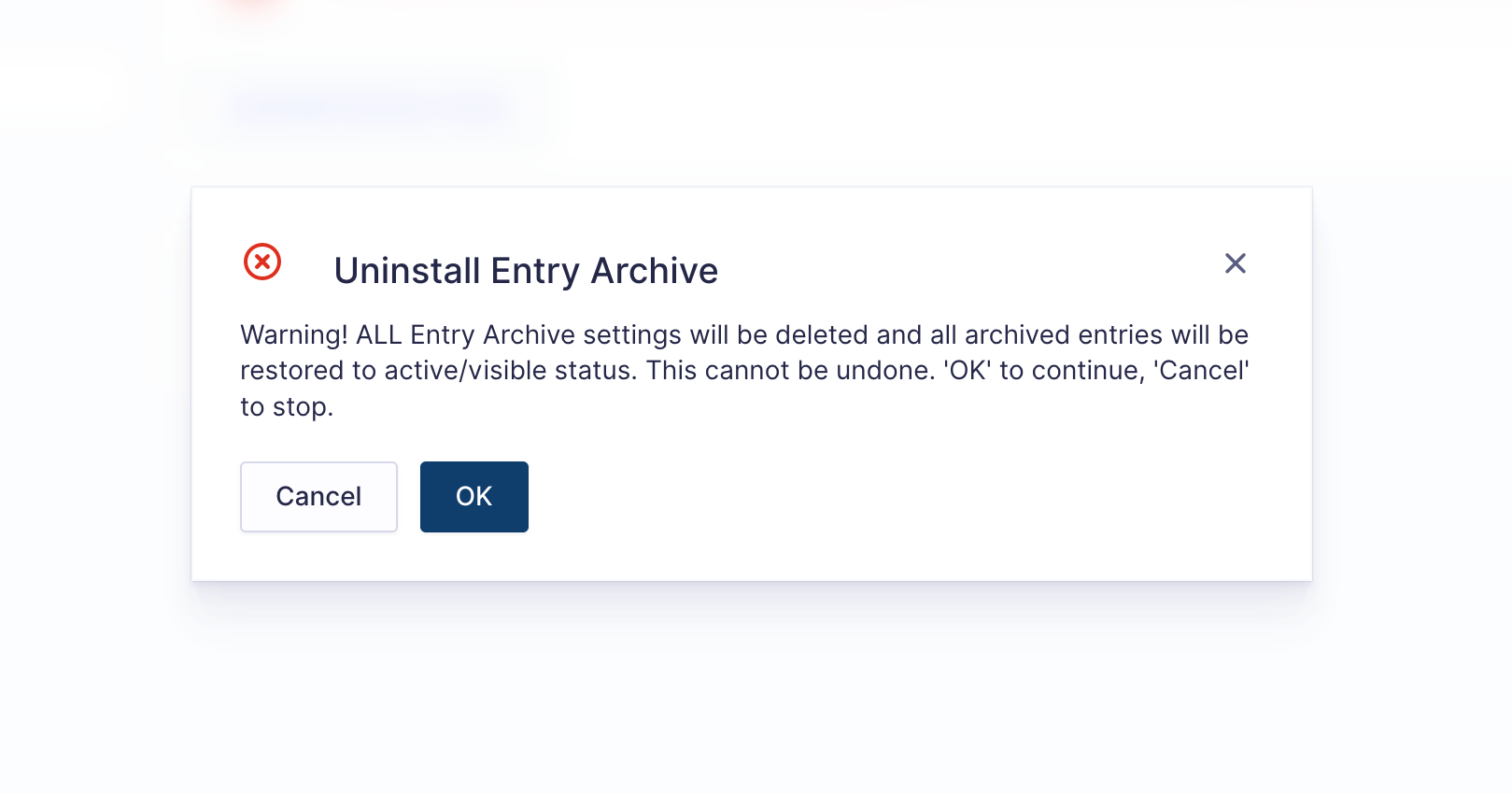
If you want your archived entries back in the active list, uninstall from the Gravity Forms settings rather than simply deactivating.
Integrations
Entry Archive is designed to work seamlessly with Gravity Forms and the broader Gravity Forms ecosystem. Because archiving doesn’t modify an entry’s data, most add-ons continue to work as expected. The only difference is whether a particular integration includes archived entries by default or requires you to explicitly opt in.
GP Populate Anything
GP Populate Anything dynamically populates form fields using data from Gravity Forms entries, WordPress content, users, databases, and more.
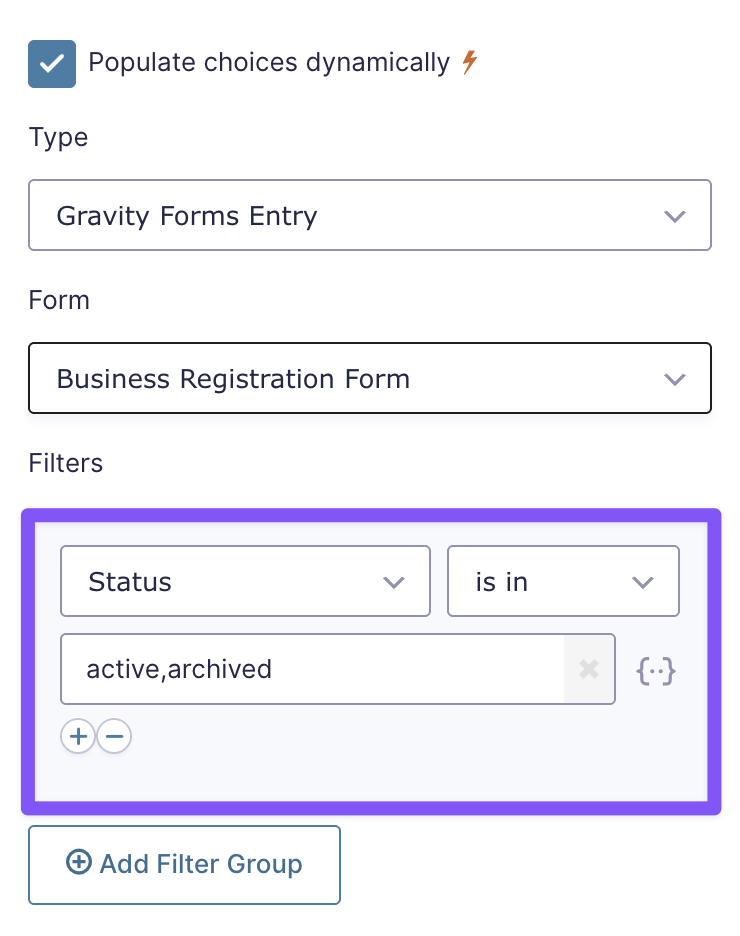
When populating from Gravity Forms entries, GP Populate Anything only includes active entries by default. If you’d like to populate from archived entries as well, simply configure your Entry Query to include the archived entry status.
GP Inventory
GP Inventory lets you track and limit inventory based on form submissions, making it ideal for products, registrations, reservations, and other limited-availability items.
Archived entries continue to count toward your inventory totals. This ensures inventory remains accurate even if you archive older submissions instead of deleting them.
GP Limit Submissions
GP Limit Submissions restricts how many times a form can be submitted based on criteria such as the user, a field value, or a global submission limit.
Archived entries continue to count toward submission limits. Archiving is intended to organize your entries—not reset or bypass submission limits.
GP Notification Scheduler
GP Notification Scheduler allows Gravity Forms notifications to be delivered at a future date or time instead of immediately after a submission.
Scheduled notifications are still sent for archived entries. Archiving an entry won’t prevent notifications that have already been scheduled from being delivered at their configured time.
GP Unique ID
GP Unique ID automatically generates unique identifiers for your entries, making it easy to assign order numbers, ticket numbers, customer IDs, and more.
Archived entries retain their assigned Unique IDs. New submissions are still checked against archived entries to ensure every generated ID remains globally unique.
GP Entry Blocks
GP Entry Blocks lets you display Gravity Forms entries anywhere on your WordPress site using flexible, customizable layouts.
GP Entry Blocks only displays active entries by default. If you’d like to display archived entries, configure your Entry Query to include the archived entry status.
Known Limitations
- No automatic archiving: Entries are archived manually (individually or in bulk). There’s no scheduled or conditional auto-archiving.
- Hidden while deactivated: Deactivating (rather than uninstalling) leaves archived entries hidden until the plugin is reactivated.
- Admin-only: Archiving is an entry-management tool for the WordPress admin; it has no front-end component.
FAQ
Is archiving the same as deleting an entry?
No. Deleting (trashing) an entry moves it toward permanent removal. Archiving keeps the entry fully intact in the database and simply hides it from your active list. You can restore an archived entry at any time.
Where do archived entries go?
They stay in your Gravity Forms entries table with an archived status. You can view them anytime under the Archived filter at the top of the entry list.
Can I archive multiple entries at once?
Yes. Select the entries you want and choose Archive from the Bulk Actions dropdown. The same works in reverse with Unarchive on the Archived view.
Will archived entries still count toward my form’s total?
Archived entries are excluded from the default (active) view but remain in the database, so they’re still counted by APIs like GFAPI::count_entries() when queried with the archived status.
What happens to my archived entries if I deactivate the plugin?
They remain safely in the database but stay hidden, since the Archived filter is removed along with the plugin. Reactivate the plugin to see and manage them again.
How do I restore all archived entries at once?
Uninstall the plugin from Forms › Settings › Uninstall. This restores every archived entry to active status and removes the plugin’s data.
Are archived entries included in exports?
Archived entries live in the standard entries table, so they can be accessed by entry queries. When exporting, target the archived status (or restore the entries first) to include them.
What versions of Gravity Forms and WordPress are required?
Gravity Forms 2.9 or later, and WordPress 4.8 or later.



Wonderful!! But it will be fascinating if we can archive according to date range for example last year, or adding the ability of automatic archiving according to the time scale for instance archiving from last month and backward automatically.
That’s a great suggestion. I’ll pass this along as a feature request for consideration. The ability to archive entries by a specific date range or automatically archive entries older than a set timeframe would definitely be useful.
Can this be used with Gravity View? I’m imagining a button the click that will display archived entries.
Hey Beth,
Not yet, but that’s an interesting idea. I’ll be following up with you via Support to gather some extra details on this.