5 Ways to Use Form Notices in Gravity Forms

Gravity Forms Form Notices is a free plugin that lets you schedule messages above your forms — helping with everything from holiday closures and recurring reminders to anything visitors need to know before they hit submit.
- 1 — Holiday Closures and Office Hours
- 2 — Promotions and Announcements
- 3 — Deadlines and Cutoffs
- 4 — Scheduled Maintenance
- 5 — Recurring Sales
- Set It and Forget It 🪄
Have you ever wanted to leave a notice on your form — to let visitors know you’re away for a few days, announce a flash sale, or share anything else they need to know before they hit submit?
That’s what Gravity Forms Form Notices does. Write a message, set the dates, and it appears above your form right on schedule. Notices can repeat automatically, look however you want, and you can manage all of them in your form settings. And once it’s set up, you never have to think about it again.
Download Spellbook for free and activate GF Form Notices under Free Plugins.
Let me show you five ways it comes in handy. 🧙
Can I customize how these notices look?
Yes! While GF Form Notices comes with default styles, you can make each notice look however you want using HTML and CSS.
Each section in this article ends with a collapsible dropdown containing the exact HTML and CSS for that notice. Open it to copy. Paste instructions are included too. 🪄
1 — Holiday Closures and Office Hours
Let’s say your team is taking a week off.
Form Notices lets you set a date range for when your message appears. For holidays that repeat every year, you can use wildcard dates—where the * acts as a stand-in for any year—so the notice fires automatically every time that date comes around.
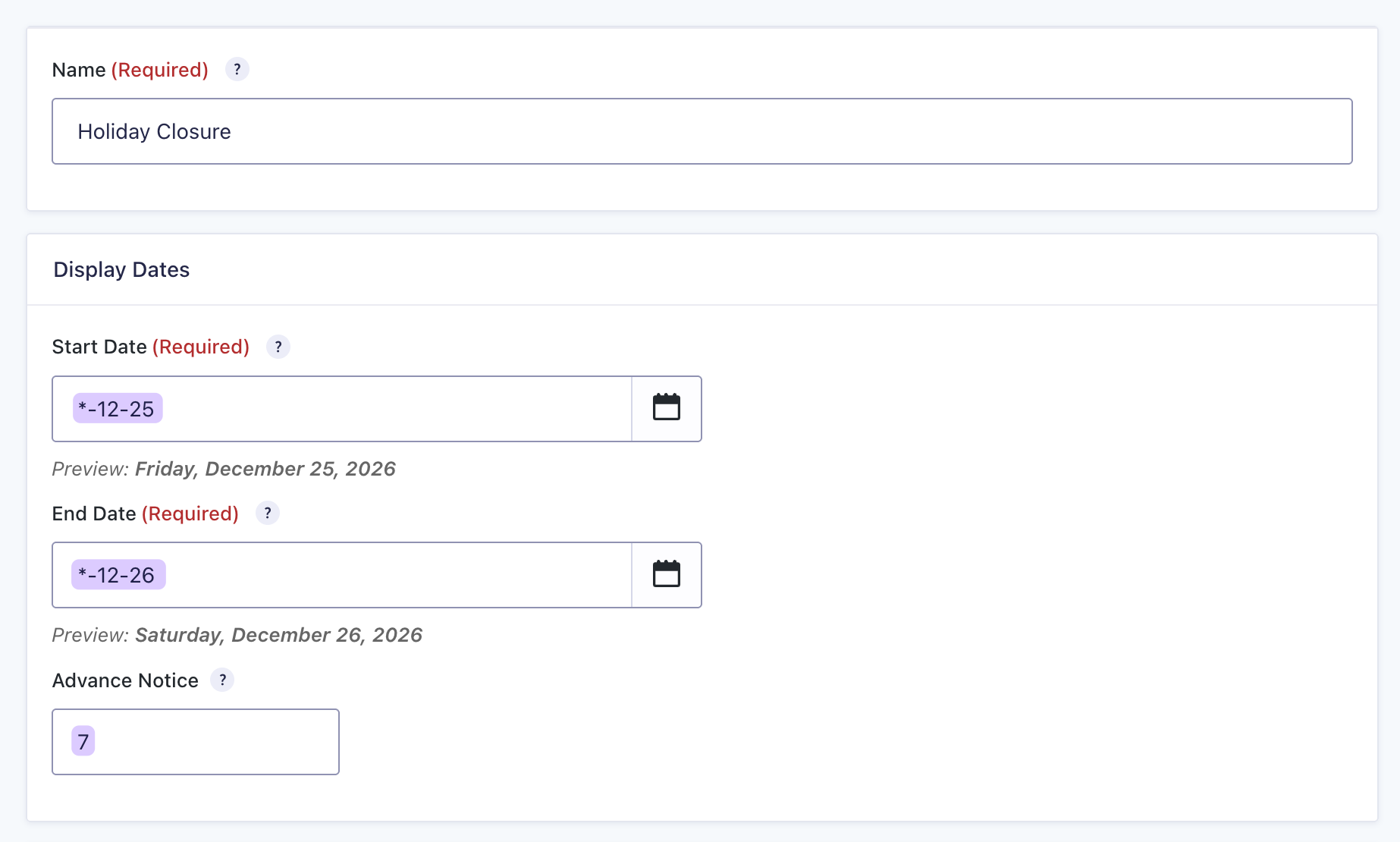
For example, write *-12-25 once and it matches every future December 25th without touching the setting again.
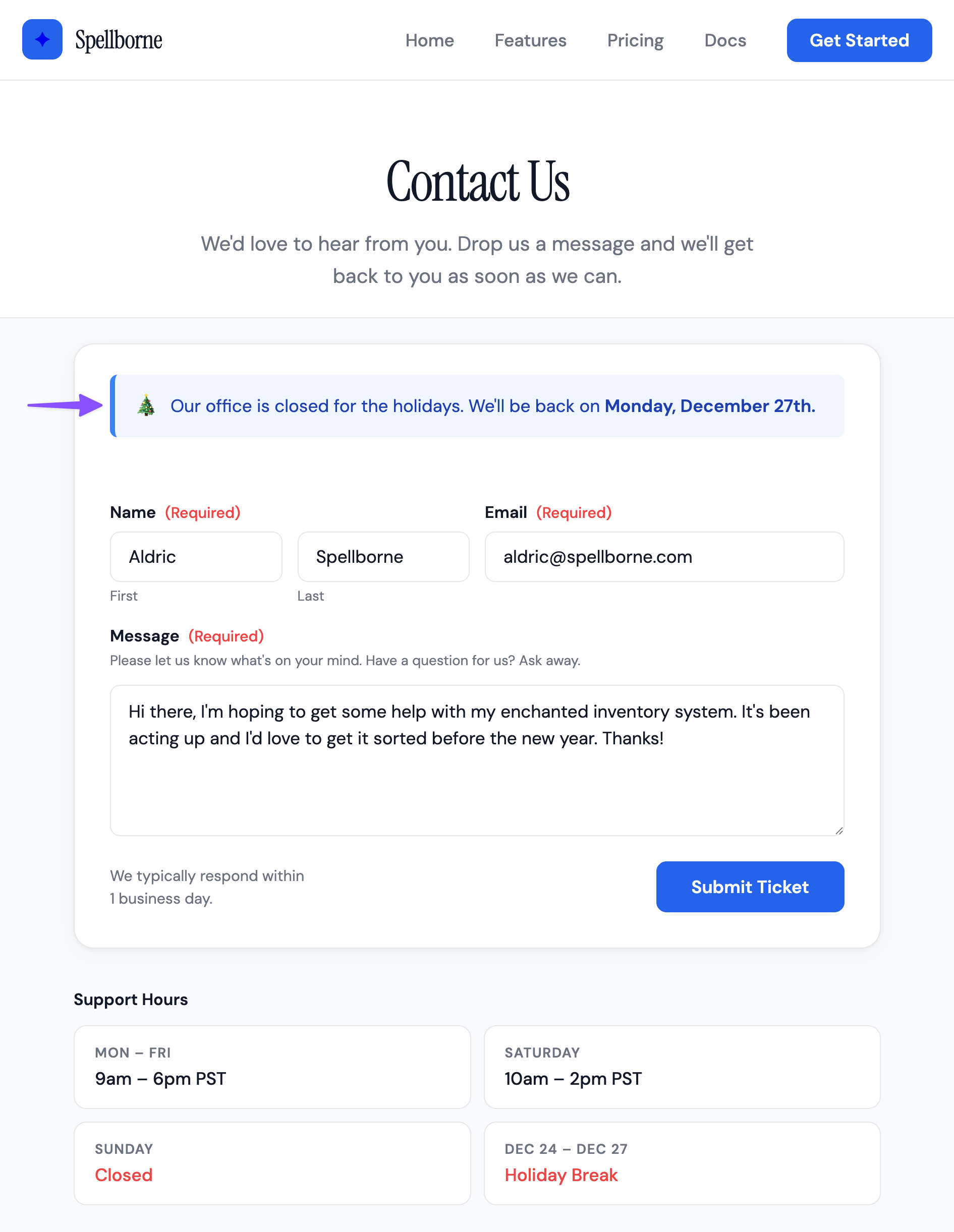
You can also use the Advance Notice setting to start showing the notice a set number of days before your closure begins.
Want to recreate this notice? Here’s the code.
- For HTML: Go to your form’s Settings › Form Notices, switch the Notice Message field to code view, copy/paste this HTML code, and enable Disable default styles.
<div class="notice-icon">🎄</div>
<div class="notice-text">
  Our office is closed for the holidays. We'll be back on <strong>{next_weekday:l, F jS}</strong>.
</div>- For CSS: Install the free Code Chest plugin via Spellbook. Then go to Settings › Code Chest, copy/paste this CSS code, and disable Scope CSS to this form only.
/* ── Holiday Closure Notice ── */
.gffn-notices .gffn-notice.gffn-notice-holiday-closure,
.gffn-notice.gffn-notice-holiday-closure {
  background: #eff6ff !important;
  border: none !important;
  border-left: 4px solid #3b82f6 !important;
  border-radius: 6px !important;
  padding: 14px 16px !important;
  display: flex !important;
  align-items: center !important;
  gap: 10px !important;
  box-shadow: none !important;
  animation: none !important;
}

.gffn-notice.gffn-notice-holiday-closure *,
.gffn-notice.gffn-notice-holiday-closure *::before,
.gffn-notice.gffn-notice-holiday-closure *::after {
  animation: none !important;
  transform: none !important;
}

.gffn-notice.gffn-notice-holiday-closure .notice-icon {
  font-size: 18px !important;
  flex-shrink: 0 !important;
}

.gffn-notice.gffn-notice-holiday-closure .notice-text {
  font-size: 14px !important;
  color: #1e40af !important;
  line-height: 1.55 !important;
  margin: 0 !important;
}

.gffn-notice.gffn-notice-holiday-closure .notice-text strong {
  font-weight: 600 !important;
  color: #1e40af !important;
}
2 — Promotions and Announcements
Running a flash sale this weekend? A notice above your signup form makes sure visitors see the offer before it’s gone.
With Form Notices, you set a start and end date and the notice shows up above your form for exactly that window. Drop the {end_date:FORMAT} merge tag into your message and it automatically displays the exact date your offer ends.
The FORMAT portion of the merge tag uses PHP date format strings, which control how the date appears in your message. Check out the GF Form Notices docs for a full list of available formats.
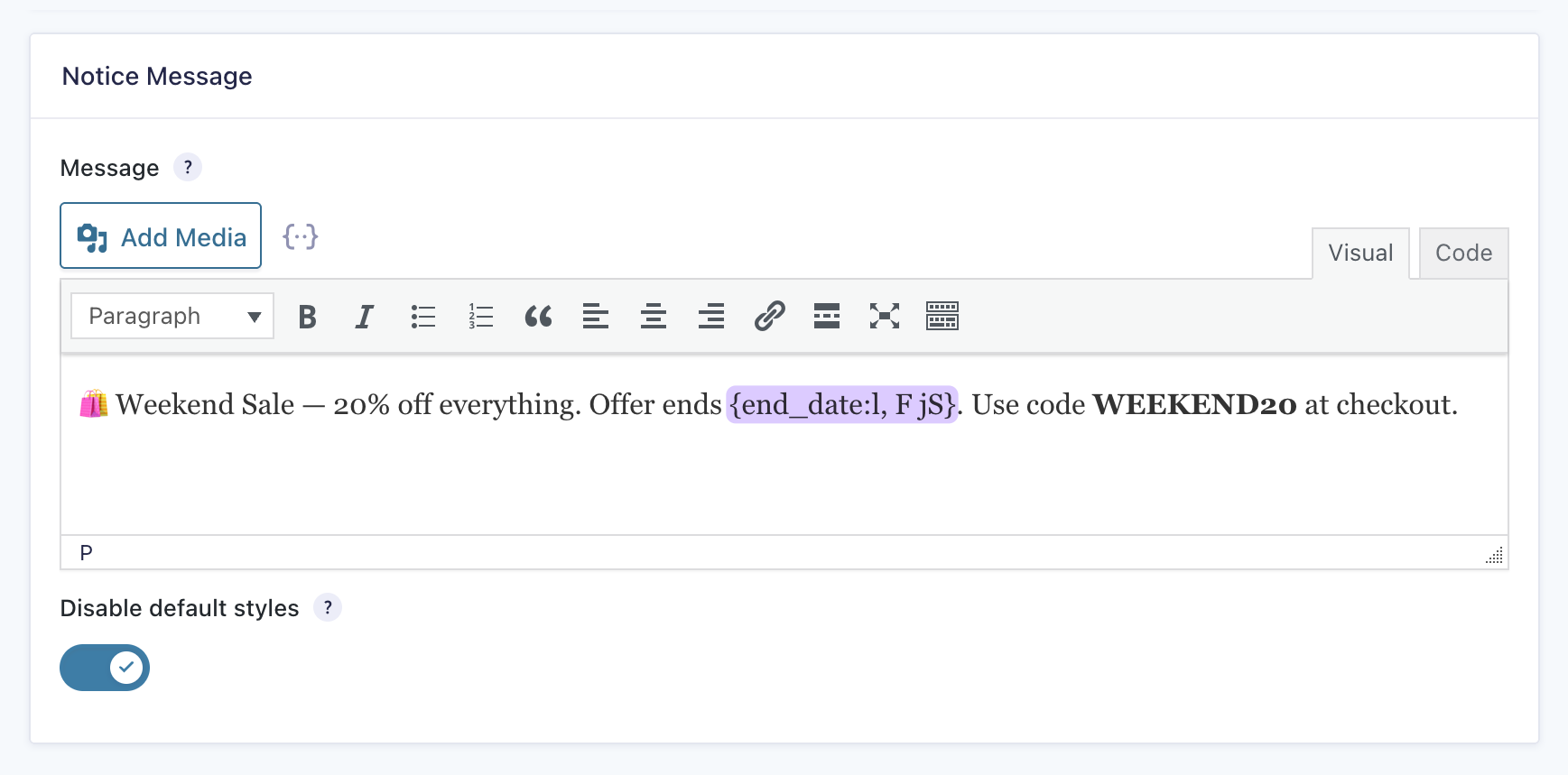
In the screenshot above, the :l, F jS modifier from the {end_date} merge tag tells Form Notices how to format the date. l outputs the full day name, F outputs the full month name, and jS outputs the day with a suffix, producing something like “Sunday, March 22nd.”
Want to recreate this notice? Here’s the code.
- For HTML: Go to your form’s Settings › Form Notices, switch the Notice Message field to code view, and copy/paste this HTML code, and enable Disable default styles.
<div class="notice-inner-wrap">
  <span class="notice-sale-tag">Sale</span>
  <div class="notice-sale-text">
    🛍️ Weekend Sale — 20% off everything. Offer ends <strong>{end_date:l, F jS}</strong>. Use code <strong>WEEKEND20</strong> at checkout.
  </div>
</div>- For CSS: Install the free Code Chest plugin via Spellbook. Then go to Settings › Code Chest, copy/paste this CSS code, and disable Scope CSS to this form only.
/* ── Weekend Sale Notice ── */

.gffn-notices .gffn-notice.gffn-notice-weekend-sale,
.gffn-notice.gffn-notice-weekend-sale {
  position: relative !important;
  overflow: hidden !important;
  background: rgba(245,166,35,0.08) !important;
  border: none !important;
  border-left: 3px solid #F5A623 !important;
  border-radius: 10px !important;
  padding: 0 !important;
  box-shadow:
    0 0 0 1px rgba(245,166,35,0.15),
    0 4px 24px rgba(245,166,35,0.12) !important;
  animation:
    noticeSlideIn 0.7s cubic-bezier(0.22,1,0.36,1) both,
    noticeGlow 4s ease-in-out 0.7s infinite;
}

/* Shimmer sweep */
.gffn-notice.gffn-notice-weekend-sale::before {
  content: '';
  position: absolute;
  top: -60%; left: -20%;
  width: 50%; height: 220%;
  background: linear-gradient(
    105deg,
    transparent 0%,
    rgba(245,166,35,0.12) 45%,
    rgba(245,166,35,0.08) 55%,
    transparent 100%
  );
  animation: shimmer 4s ease-in-out infinite;
  pointer-events: none;
}

.gffn-notice.gffn-notice-weekend-sale .notice-inner-wrap {
  display: flex !important;
  align-items: center !important;
  gap: 12px !important;
  padding: 14px 18px !important;
  position: relative !important;
  z-index: 1 !important;
}

.gffn-notice.gffn-notice-weekend-sale .notice-sale-tag {
  flex-shrink: 0 !important;
  background: #F5A623 !important;
  color: #000 !important;
  font-size: 10px !important;
  font-weight: 700 !important;
  letter-spacing: 0.12em !important;
  text-transform: uppercase !important;
  padding: 3px 8px !important;
  border-radius: 4px !important;
  white-space: nowrap !important;
}

.gffn-notice.gffn-notice-weekend-sale .notice-sale-text {
  font-size: 13.5px !important;
  color: #333 !important;
  line-height: 1.45 !important;
  margin: 0 !important;
}

.gffn-notice.gffn-notice-weekend-sale .notice-sale-text strong {
  color: #b86e00 !important;
  font-weight: 600 !important;
}

/* ── Keyframes ── */
@keyframes noticeSlideIn {
  from { opacity: 0; transform: translateY(-12px) scale(0.98); filter: blur(3px); }
  to   { opacity: 1; transform: translateY(0) scale(1); filter: blur(0); }
}

@keyframes noticeGlow {
  0%, 100% {
    box-shadow:
      0 0 0 1px rgba(245,166,35,0.15),
      0 4px 24px rgba(245,166,35,0.12);
  }
  50% {
    box-shadow:
      0 0 0 1px rgba(245,166,35,0.35),
      0 8px 40px rgba(245,166,35,0.25);
  }
}

@keyframes shimmer {
  0%   { transform: translateX(-30%) skewX(-10deg); }
  50%  { transform: translateX(280%) skewX(-10deg); }
  100% { transform: translateX(-30%) skewX(-10deg); }
}
3 — Deadlines and Cutoffs
Let’s say registration for your annual workshop closes on the last day of the month. A visitor lands on the form, thinks “I’ll do this later” and never comes back. A deadline notice might be just enough to get them to act.
Form Notices lets you set a notice to appear days, weeks, or even months before the deadline. For annual events on the same date every year, wildcard dates mean you configure it once and it recycles automatically.
Pro Tip
Form Notices handles the message, but if you also need the form to stop accepting submissions at the deadline, GP Flexible Form Schedules lets you set exactly when a form opens and closes down to a specific date and time.
Want to recreate this notice? Here’s the code.
- For HTML: Go to your form’s Settings › Form Notices, switch the Notice Message field to code view, and copy/paste this HTML code, and enable Disable default styles.
<div class="reg-notice-inner">
  <div class="reg-notice-icon-wrap" id="noticeIcon">⏰</div>
  <div class="reg-notice-content">
    <p class="reg-notice-heading">Registration Closes Soon</p>
    <p class="reg-notice-body">Don't put it off — the deadline for our annual workshop is <strong>{end_date:l, F jS}</strong>. Secure your spot now.</p>
  </div>
</div>- For CSS: Install the free Code Chest plugin via Spellbook. Then go to Settings › Code Chest, copy/paste this CSS code, and disable Scope CSS to this form only.
/* ── Registration Deadline Notice ── */

.gffn-notices .gffn-notice.gffn-notice-registration-deadline,
.gffn-notice.gffn-notice-registration-deadline {
  position: relative !important;
  overflow: hidden !important;
  background: #e0f2f1 !important;
  border: none !important;
  border-left: 4px solid #00897B !important;
  border-radius: 12px !important;
  padding: 0 !important;
  box-shadow: 0 2px 16px rgba(0,137,123,0.12) !important;
  animation:
    noticeSlideIn 0.7s cubic-bezier(0.22,1,0.36,1) both,
    tealGlow 3s ease-in-out 0.7s infinite,
    floatUp 5s ease-in-out 0.7s infinite;
}

/* Animated sweep bar across top */
.gffn-notice.gffn-notice-registration-deadline::before {
  content: '';
  position: absolute;
  top: 0; left: 0; right: 0;
  height: 3px;
  background: linear-gradient(90deg, #00695C, #00bfa5, #00acc1, #00695C);
  background-size: 200% 100%;
  pointer-events: none;
  animation: sweepBar 2.5s linear infinite;
}

/* Shimmer sweep */
.gffn-notice.gffn-notice-registration-deadline::after {
  content: '';
  position: absolute;
  top: -60%; left: -20%;
  width: 45%; height: 220%;
  background: linear-gradient(
    105deg,
    transparent 0%,
    rgba(0,191,165,0.12) 45%,
    rgba(0,172,193,0.08) 55%,
    transparent 100%
  );
  pointer-events: none;
  animation: shimmer 4s ease-in-out infinite;
}

.gffn-notice.gffn-notice-registration-deadline .reg-notice-inner {
  display: flex !important;
  align-items: flex-start !important;
  gap: 16px !important;
  padding: 18px 22px !important;
  position: relative !important;
  z-index: 1 !important;
}

.gffn-notice.gffn-notice-registration-deadline .reg-notice-icon-wrap {
  flex-shrink: 0 !important;
  width: 44px !important;
  height: 44px !important;
  background: #00897B !important;
  border-radius: 10px !important;
  display: flex !important;
  align-items: center !important;
  justify-content: center !important;
  font-size: 20px !important;
  margin-top: 1px !important;
  box-shadow: 0 4px 12px rgba(0,137,123,0.3) !important;
  animation: iconPulse 2s ease-in-out infinite;
}

.gffn-notice.gffn-notice-registration-deadline .reg-notice-heading {
  font-size: 15px !important;
  font-weight: 700 !important;
  color: #00695C !important;
  margin: 0 0 5px 0 !important;
  line-height: 1.2 !important;
}

.gffn-notice.gffn-notice-registration-deadline .reg-notice-body {
  font-size: 13.5px !important;
  color: #2e4a47 !important;
  margin: 0 !important;
  line-height: 1.55 !important;
}

.gffn-notice.gffn-notice-registration-deadline .reg-notice-body strong {
  color: #00695C !important;
  font-weight: 600 !important;
}

/* ── Keyframes ── */
@keyframes noticeSlideIn {
  from { opacity: 0; transform: translateY(-16px) scale(0.98); filter: blur(3px); }
  to   { opacity: 1; transform: translateY(0) scale(1); filter: blur(0); }
}

@keyframes tealGlow {
  0%, 100% { box-shadow: 0 2px 16px rgba(0,137,123,0.12); }
  50%       { box-shadow: 0 6px 40px rgba(0,137,123,0.35), 0 0 0 1px rgba(0,191,165,0.3); }
}

@keyframes floatUp {
  0%, 100% { transform: translateY(0px); }
  50%       { transform: translateY(-6px); }
}

@keyframes sweepBar {
  0%   { background-position: 0% 0%; }
  100% { background-position: 200% 0%; }
}

@keyframes shimmer {
  0%   { transform: translateX(-30%) skewX(-10deg); }
  50%  { transform: translateX(280%) skewX(-10deg); }
  100% { transform: translateX(-30%) skewX(-10deg); }
}

@keyframes iconPulse {
  0%, 100% { transform: scale(1); box-shadow: 0 4px 12px rgba(0,137,123,0.3); }
  50%       { transform: scale(1.15); box-shadow: 0 6px 20px rgba(0,137,123,0.55); }
}
4 — Scheduled Maintenance
Have scheduled site maintenance every first Sunday of the month? Set up an advance notice once and visitors get a heads-up a few days before it happens.
Form Notices supports natural language dates, which let you describe recurring schedules in plain English instead of manually calculating specific dates each month.
For example, write “First Sunday of this month” in the date field and Form Notices figures out the correct date automatically, every month.
Want to recreate this notice? Here’s the code.
- For HTML: Go to your form’s Settings › Form Notices, switch the Notice Message field to code view, and copy/paste this HTML code, and enable Disable default styles.
<div class="maint-inner">
  <div class="maint-icon-col">
    <div class="maint-icon">⚠️</div>
  </div>
  <div class="maint-content">
    <div class="maint-badge">Heads Up</div>
    <p class="maint-heading">Scheduled Maintenance</p>
    <p class="maint-body">Our site will be undergoing scheduled maintenance on <strong>{start_date:l, F jS}</strong>. If you're planning to submit a form, we recommend doing so before then.</p>
    <div class="maint-meta">
      <div class="maint-meta-item">📅 <strong>{start_date:l, F jS}</strong></div>
      <div class="maint-meta-item">⏱ <strong>2:00 AM – 6:00 AM EST</strong></div>
    </div>
  </div>
</div>- For CSS: Install the free Code Chest plugin via Spellbook. Then go to Settings › Code Chest, copy/paste this CSS code, and disable Scope CSS to this form only.
/* ── Maintenance Warning Notice ── */

.gffn-notices .gffn-notice.gffn-notice-maintenance-warning,
.gffn-notice.gffn-notice-maintenance-warning {
  position: relative !important;
  overflow: hidden !important;
  border: none !important;
  border-left: 4px solid #f05252 !important;
  border-radius: 8px !important;
  padding: 0 !important;
  animation: maintPulse 2s ease-in-out infinite !important;
  -webkit-animation: maintPulse 2s ease-in-out infinite !important;
}

@keyframes maintPulse {
  0%, 100% {
    background: #fff3f3;
    border-left-color: #f05252;
  }
  50% {
    background: #ffe0e0;
    border-left-color: #c81e1e;
  }
}

@-webkit-keyframes maintPulse {
  0%, 100% {
    background: #fff3f3;
    border-left-color: #f05252;
  }
  50% {
    background: #ffe0e0;
    border-left-color: #c81e1e;
  }
}

.gffn-notice.gffn-notice-maintenance-warning::before {
  content: '';
  position: absolute;
  top: 0; right: 0;
  width: 200px; height: 100%;
  background: linear-gradient(to left, rgba(240,82,82,0.12) 0%, transparent 100%);
  pointer-events: none;
}

.gffn-notice.gffn-notice-maintenance-warning .maint-inner {
  display: flex !important;
  align-items: stretch !important;
}

.gffn-notice.gffn-notice-maintenance-warning .maint-icon-col {
  display: flex !important;
  align-items: center !important;
  justify-content: center !important;
  background: rgba(240,82,82,0.08) !important;
  border-right: 1px solid rgba(240,82,82,0.15) !important;
  padding: 20px 18px !important;
  flex-shrink: 0 !important;
}

.gffn-notice.gffn-notice-maintenance-warning .maint-icon {
  font-size: 24px !important;
  line-height: 1 !important;
  display: block !important;
}

.gffn-notice.gffn-notice-maintenance-warning .maint-content {
  padding: 16px 20px 14px !important;
  position: relative !important;
  z-index: 1 !important;
  flex: 1 !important;
}

.gffn-notice.gffn-notice-maintenance-warning .maint-badge {
  display: inline-block !important;
  font-size: 10px !important;
  font-weight: 600 !important;
  letter-spacing: 0.15em !important;
  text-transform: uppercase !important;
  color: #f05252 !important;
  background: rgba(240,82,82,0.08) !important;
  border: 1px solid rgba(240,82,82,0.2) !important;
  padding: 2px 8px !important;
  border-radius: 4px !important;
  margin-bottom: 7px !important;
}

.gffn-notice.gffn-notice-maintenance-warning .maint-heading {
  font-size: 15px !important;
  font-weight: 700 !important;
  color: #c81e1e !important;
  background: none !important;
  margin: 0 0 5px 0 !important;
  line-height: 1.2 !important;
}

.gffn-notice.gffn-notice-maintenance-warning .maint-body {
  font-size: 13px !important;
  color: #555 !important;
  margin: 0 !important;
  line-height: 1.55 !important;
}

.gffn-notice.gffn-notice-maintenance-warning .maint-body strong {
  color: #333 !important;
  font-weight: 600 !important;
}

.gffn-notice.gffn-notice-maintenance-warning .maint-meta {
  display: flex !important;
  align-items: center !important;
  gap: 20px !important;
  margin: 10px 0 0 0 !important;
  padding: 10px 0 0 0 !important;
  border-top: 1px solid rgba(240,82,82,0.15) !important;
}

.gffn-notice.gffn-notice-maintenance-warning .maint-meta * {
  margin: 0 !important;
  padding: 0 !important;
  line-height: 1 !important;
}

.gffn-notice.gffn-notice-maintenance-warning .maint-meta-item {
  display: flex !important;
  align-items: center !important;
  gap: 5px !important;
  font-size: 12px !important;
  color: #888 !important;
}

.gffn-notice.gffn-notice-maintenance-warning .maint-meta-item strong {
  color: #555 !important;
  font-weight: 500 !important;
}
5 — Recurring Sales
Let’s say you run a seasonal sale on the same dates every year. Instead of logging in each time to add a notice manually, set it once with a wildcard date and it fires automatically every year.
And if you’re running more than one promotion at the same time, say a sale notice and a free shipping offer, you can stack multiple notices on the same form and drag and drop them in the feed list to control which one appears on top.
Want to recreate this notice? Here’s the code.
- For HTML: Go to your form’s Settings › Form Notices, switch the Notice Message field to code view, and copy/paste this HTML code, and enable Disable default styles.
You’ll need to add each notice as a separate feed.
Black Friday Sale HTML:
<div class="notice-inner-row">
  <div class="n1-badge">Black Friday Sale</div>
  <div class="n1-content">
    <p class="n1-heading">Sitewide Sale — 20% Off Everything</p>
    <p class="n1-body">Offer ends <strong>{end_date:l, F jS}</strong>. Use code <strong>BF20</strong> at checkout.</p>
  </div>
</div>
Free Shipping HTML:
<div class="notice-inner-row">
  <div class="n2-icon">🚚</div>
  <div class="n2-content">
    <p class="n2-heading">Free Shipping This Weekend</p>
    <p class="n2-body">No minimum spend. Valid <strong>{start_date:F jS}</strong> to <strong>{end_date:F jS}</strong> only.</p>
  </div>
</div>- For CSS: Install the free Code Chest plugin via Spellbook. Then go to Settings › Code Chest, copy/paste this CSS code, and disable Scope CSS to this form only.
Note: This CSS code works for styling both notice feeds.
/* ── Black Friday Stacked Notices ── */

.gffn-notices {
  display: flex;
  flex-direction: column;
  gap: 10px;
}

/* ── Notice 1: Coral → Orange → Gold ── */
.gffn-notice.gffn-notice-black-friday-sale {
  position: relative !important;
  overflow: hidden !important;
  border: none !important;
  border-radius: 16px !important;
  padding: 0 !important;
  background-size: 300% 300% !important;
  background-image: linear-gradient(
    125deg,
    #FF6B6B 0%, #FF9F1C 25%,
    #FFD166 50%, #FF6B6B 70%,
    #FF4081 90%, #FF6B6B 100%
  ) !important;
  animation:
    noticeSlideIn 0.7s cubic-bezier(0.22,1,0.36,1) both,
    coralShift 8s ease-in-out 0.7s infinite,
    coralMegaGlow 2.5s ease-in-out 0.7s infinite,
    floatUp 5.5s ease-in-out 0.7s infinite;
}

.gffn-notice.gffn-notice-black-friday-sale::before {
  content: '';
  position: absolute;
  top: -60%; left: -20%;
  width: 50%; height: 220%;
  background: linear-gradient(105deg, transparent 0%, rgba(255,255,255,0.2) 45%, rgba(255,255,255,0.1) 55%, transparent 100%);
  pointer-events: none;
  animation: shimmerSweep 3.5s ease-in-out infinite;
}

/* ── Notice 2: Teal → Ocean Blue ── */
.gffn-notice.gffn-notice-free-shipping {
  position: relative !important;
  overflow: hidden !important;
  border: none !important;
  border-radius: 16px !important;
  padding: 0 !important;
  background-size: 300% 300% !important;
  background-image: linear-gradient(
    125deg,
    #06D6A0 0%, #118AB2 25%,
    #06D6A0 50%, #0ABFA3 75%,
    #118AB2 100%
  ) !important;
  animation:
    noticeSlideIn 0.7s cubic-bezier(0.22,1,0.36,1) both,
    tealShift 8s ease-in-out 1.4s infinite,
    tealMegaGlow 2.5s ease-in-out 1.4s infinite,
    floatUp 5.5s ease-in-out 2s infinite;
  animation-delay: 0.2s, 1.4s, 1.4s, 2s;
}

.gffn-notice.gffn-notice-free-shipping::before {
  content: '';
  position: absolute;
  top: -60%; left: -20%;
  width: 50%; height: 220%;
  background: linear-gradient(105deg, transparent 0%, rgba(255,255,255,0.2) 45%, rgba(255,255,255,0.1) 55%, transparent 100%);
  pointer-events: none;
  animation: shimmerSweep 3.5s ease-in-out 0.8s infinite;
}

/* ── Shared inner layout ── */
.gffn-notice.gffn-notice-black-friday-sale .notice-inner-row,
.gffn-notice.gffn-notice-free-shipping .notice-inner-row {
  display: flex !important;
  align-items: center !important;
  gap: 14px !important;
  padding: 20px 24px !important;
  position: relative !important;
  z-index: 1 !important;
}

/* Notice 1 text */
.gffn-notice.gffn-notice-black-friday-sale .n1-badge {
  flex-shrink: 0 !important;
  font-size: 9px !important; font-weight: 700 !important;
  letter-spacing: 0.18em !important; text-transform: uppercase !important;
  color: #fff !important; background: rgba(0,0,0,0.25) !important;
  border: 1px solid rgba(255,255,255,0.4) !important;
  padding: 4px 10px !important; border-radius: 4px !important; white-space: nowrap !important;
}

.gffn-notice.gffn-notice-black-friday-sale .n1-content { flex: 1 !important; }

.gffn-notice.gffn-notice-black-friday-sale .n1-heading {
  font-size: 17px !important; font-weight: 800 !important;
  color: #fff !important; margin: 0 0 3px 0 !important;
  line-height: 1.1 !important; text-shadow: 0 1px 8px rgba(0,0,0,0.2) !important;
}

.gffn-notice.gffn-notice-black-friday-sale .n1-body {
  font-size: 13px !important; color: rgba(255,255,255,0.88) !important;
  margin: 0 !important; line-height: 1.45 !important;
}

.gffn-notice.gffn-notice-black-friday-sale .n1-body strong {
  color: #fff !important; font-weight: 600 !important;
}

/* Notice 2 text */
.gffn-notice.gffn-notice-free-shipping .n2-icon {
  flex-shrink: 0 !important; font-size: 28px !important; line-height: 1 !important;
}

.gffn-notice.gffn-notice-free-shipping .n2-content { flex: 1 !important; }

.gffn-notice.gffn-notice-free-shipping .n2-heading {
  font-size: 17px !important; font-weight: 800 !important;
  color: #fff !important; margin: 0 0 3px 0 !important;
  line-height: 1.1 !important; text-shadow: 0 1px 6px rgba(0,0,0,0.2) !important;
}

.gffn-notice.gffn-notice-free-shipping .n2-body {
  font-size: 13px !important; color: rgba(255,255,255,0.85) !important;
  margin: 0 !important; line-height: 1.45 !important;
}

.gffn-notice.gffn-notice-free-shipping .n2-body strong {
  color: #fff !important; font-weight: 600 !important;
}

/* ── Keyframes ── */
@keyframes noticeSlideIn {
  from { opacity: 0; transform: translateY(-20px) scale(0.97); filter: blur(4px); }
  to   { opacity: 1; transform: translateY(0) scale(1); filter: blur(0); }
}

@keyframes coralShift {
  0%   { background-position: 0% 50%; }
  33%  { background-position: 100% 0%; }
  66%  { background-position: 50% 100%; }
  100% { background-position: 0% 50%; }
}

@keyframes tealShift {
  0%   { background-position: 100% 50%; }
  33%  { background-position: 0% 100%; }
  66%  { background-position: 50% 0%; }
  100% { background-position: 100% 50%; }
}

@keyframes coralMegaGlow {
  0%, 100% { box-shadow: 0 0 0 2px rgba(255,107,107,0.5), 0 12px 40px rgba(255,107,107,0.4); }
  50%       { box-shadow: 0 0 0 3px rgba(255,107,107,1), 0 20px 70px rgba(255,107,107,0.7), 0 0 120px rgba(255,160,80,0.35); }
}

@keyframes tealMegaGlow {
  0%, 100% { box-shadow: 0 0 0 2px rgba(6,214,160,0.5), 0 12px 40px rgba(6,214,160,0.25); }
  50%       { box-shadow: 0 0 0 3px rgba(6,214,160,1), 0 20px 70px rgba(6,214,160,0.65), 0 0 120px rgba(17,138,178,0.3); }
}

@keyframes floatUp {
  0%, 100% { transform: translateY(0px); }
  50%       { transform: translateY(-6px); }
}

@keyframes shimmerSweep {
  0%   { transform: translateX(-30%) skewX(-10deg); }
  50%  { transform: translateX(280%) skewX(-10deg); }
  100% { transform: translateX(-30%) skewX(-10deg); }
}
Key Takeaways
- Form Notices is a free plugin that lets you schedule notices above any Gravity Form based on a date range. Write the message once, set the dates, and the notice appears and disappears automatically.
- Wildcard and natural language dates make notices recurring. Write
*-12-26or “First Sunday of this month” once and Form Notices handles the correct date every year, every month. - The Advance Notice setting lets you display a notice before the start date. Set a number of days and visitors see the notice before it even starts.
- Multiple notices can be active at the same time. When date ranges overlap, all active notices stack above the form, and you can reorder them with a drag and drop.
Set It and Forget It 🪄
Want to see everything it can do? Check out the full Form Notices documentation.