How to Use Advanced Conditional Logic Operators in Gravity Forms

Advanced Conditional Logic gives you a few more ways to set up conditional rules in Gravity Forms. Exclude a value, check matches against a list, or catch near matches (like a typo).
- Three Advanced Conditional Logic Operators At a Glance
- What You’ll Need
- How Each Operator Works
- Taking It Further
Gravity Forms conditional logic already covers solid ground. It can show or hide a field, or send a notification, based on what someone answers elsewhere in the form. But what if I told you it can do more?
Advanced Conditional Logic adds to that solid foundation, letting you build rules using dates, formulas, user info, and more. It also opens up more ways to check if a condition is met, and today, we’re taking a closer look at three of them.
New to conditional logic? Start with our complete guide to Gravity Forms conditional logic.
This article requires the Gravity Forms Advanced Conditional Logic perk.
Buy Gravity Perks to get this perk plus 46 other premium Gravity Forms plugins!
Three Advanced Conditional Logic Operators At a Glance
Here’s the quick rundown before we dig into each one.
does not containchecks that a field is missing a value.is inchecks a field against a list, matching any value on it.is similar to/is not similar tocatch typos and small spelling differences.
What You’ll Need
- Gravity Forms (any license)
- GP Advanced Conditional Logic, installed via Spellbook, Gravity Wiz’s free plugin manager
- To install: open Spellbook › navigate to Perks › activate GP Advanced Conditional Logic
How Each Operator Works
Exclude a Partial Match — does not contain
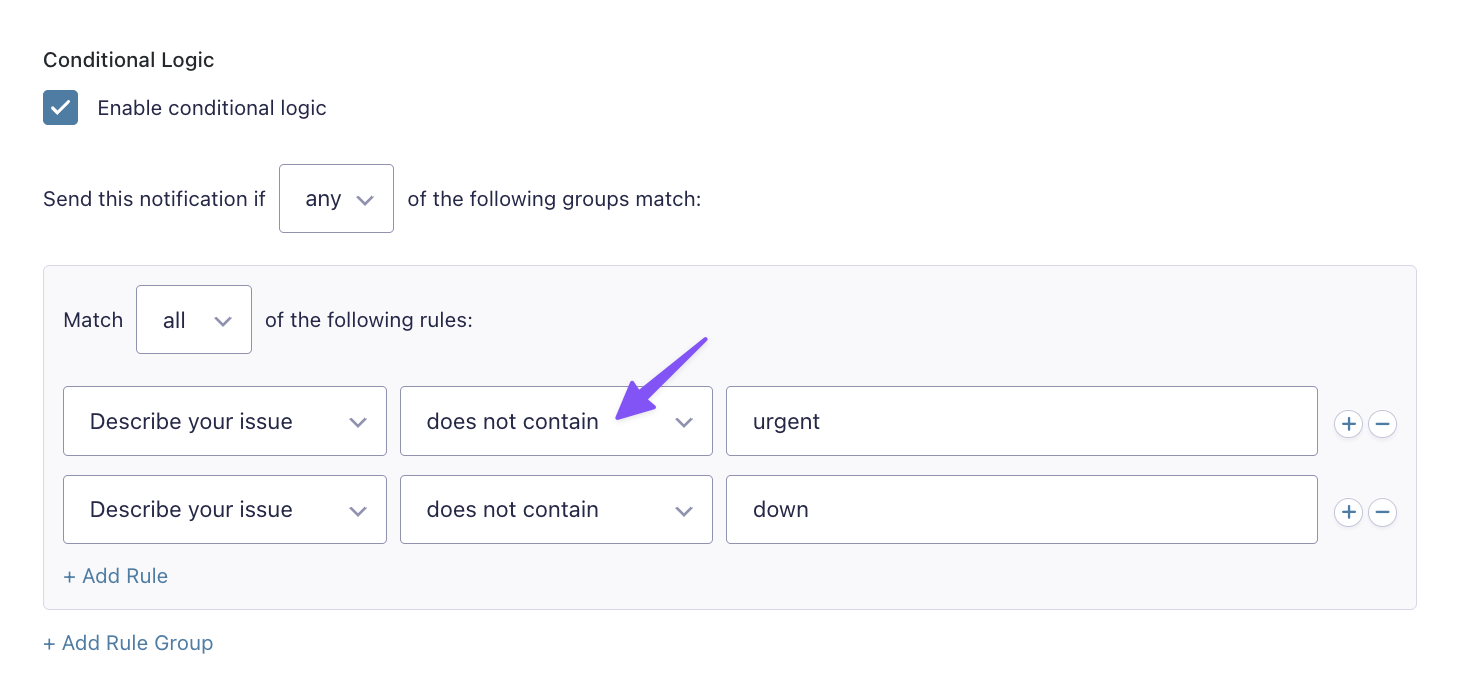
The does not contain operator checks if a field doesn’t have a certain value. It’s the opposite of contains, instead of matching a value, it rules one out.
This comes in handy for routing. Say you’ve got a support request form that asks people to describe their issue. If that description doesn’t contain words like “urgent” or “down,” the notification can skip the on-call team and go straight to the standard support queue instead.
It also works well for hiding a step. Let’s say a checkbox selection doesn’t include a specific option. You can keep a whole section out of view until conditions match.
Check a Value Against a List of Values at Once — is in
The is in operator lets you check a field against several values at once, instead of just one. You give it a list, and if the field matches anything on that list, the condition is met.
For example, you’ve got an order form that collects a shipping ZIP code. Instead of adding a separate rule for every ZIP code covered by same-day delivery, you list them all in one is in rule.
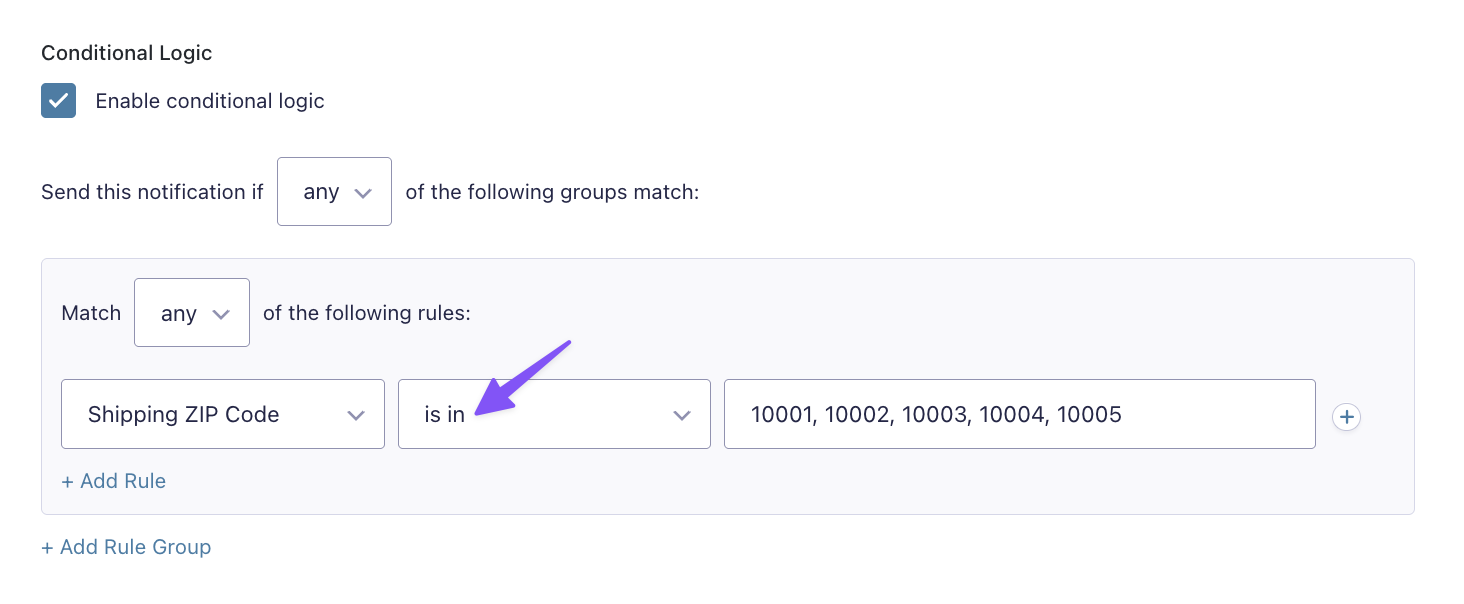
If the ZIP code matches any of them, the notification routes to the local warehouse instead of the regional one.
Catch Near Matches — is similar to / is not similar to
The is similar to and is not similar to operators treat close matches as a match, not just exact ones. Below the rule, a “Similarity threshold” setting lets you set how many characters can differ before it’s no longer considered a match. The lower the number, the stricter the match has to be.
Say you’ve got a lead form that asks people to type their department. Someone types “Marketing,” and someone else types “Markting.” With the threshold set to catch small typos like that one swapped letter, is similar to still counts it as a match, so the lead routes to the right team either way.
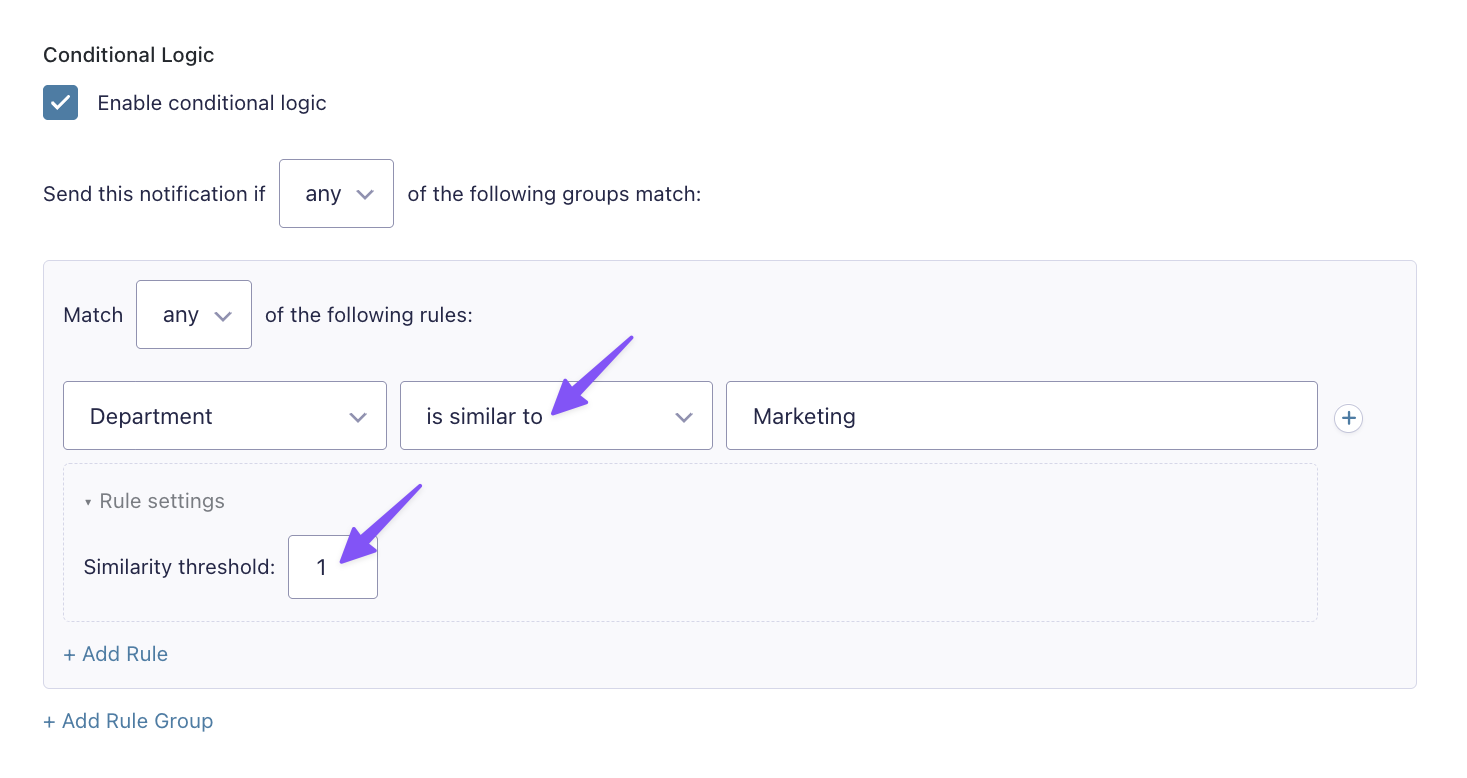
Worth knowing: this catches spelling closeness, not meaning. A different word that means the same thing won’t count as a match, only a misspelling of the word itself.
Taking It Further
A couple of ways to make the most of these operators:
- Chain a few
does not containrules together to route a notification only when none of the flagged words show up. For example, a form collecting public submissions might only notify a reviewer once a post is clear of every flagged term is indoesn’t have to work alone either. Combine it with a date rule to only match a list of ZIP codes during a seasonal promotion- Combine any of these operators with the
Usersource value to build rules around who’s filling out the form, not just what they typed.
Curious what other conditional logic issues come up most for Gravity Forms users? Check out what we found after reviewing 100 support tickets.
Key Takeaways
does not containrules out a value instead of matching oneis inchecks a field against a list of values in one ruleis similar to/is not similar tocatch near matches, like typos, using a similarity threshold- All three work anywhere Gravity Forms conditional logic already works: fields, confirmations, notifications, and feeds