How to Conditionally Save Form Submissions in Gravity Forms

Make Gravity Forms only save entries when they meet your criteria — so you can avoid cluttering databases with unnecessary submissions.
- TL;DR
- What You’ll Build
- What You’ll Need
- How to Conditionally Save Form Submissions Step by Step
- Edge Cases & Limitations
- Key Takeaways
- FAQs
Gravity Forms always creates an entry for every submission. This works for most use cases, but it can also lead to bloated entry lists, privacy concerns, or storage of data you don’t actually need.
This guide shows you how to conditionally save form submissions using GP Disable Entry Creation — so only the entries you want are kept.
This article requires the Gravity Forms Disable Entry Creation perk.
Buy Gravity Perks to get this perk plus 46 other premium Gravity Forms plugins!
TL;DR
This is possible with GP Disable Entry Creation, a perk in the Gravity Perks suite. It temporarily creates the entry so all your notifications and feeds can run, then automatically deletes it if your conditions are met. This gives you full control using Gravity Forms’ built-in conditional logic while keeping everything else working normally.
Don’t want to delete the entry?
If you still want to keep every submission (for compliance, reporting, or just in case), our free Entry Archive plugin hides entries from your active list without deleting them.
What You’ll Build
By the end of this guide, you’ll be able to:
- Save entries only when specific conditions are met
- Maintain a clean, relevant Entries list
- Reduce database clutter
What You’ll Need
- Gravity Forms (any license)
- Gravity Perks (via Spellbook)
- Includes: Gravity Perks Disable Entry Creation (AKA GP Disable Entry Creation)
How to Conditionally Save Form Submissions Step by Step
Step 1 — Configure Entry Creation Settings
- In your WordPress admin, go to Forms, and Edit the form you want to modify.
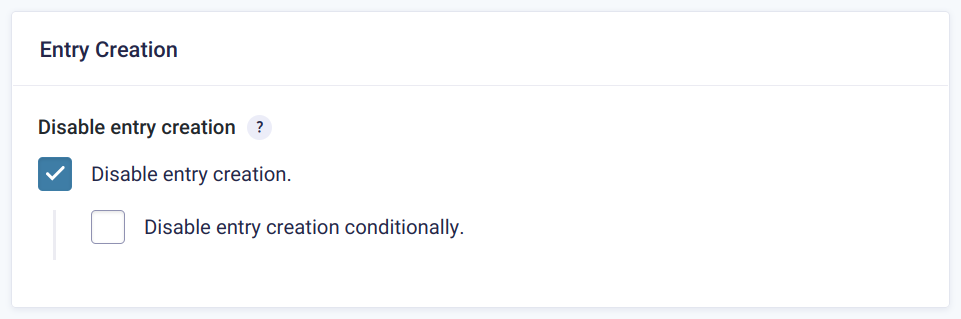
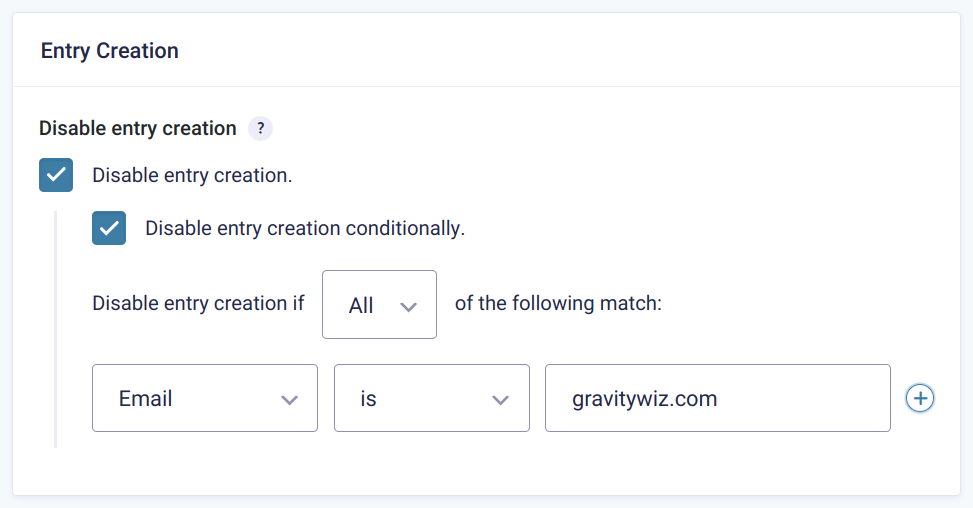
- Go to Settings → Form Settings, and scroll down to the Entry Creation section near the bottom. Check the box for Disable entry creation.
Step 2 — Set Your Conditional Logic
Enable Disable entry creation conditionally for the Disable Entry Creation setting.
Example: Disable entry creation if “Email” is “gravitywiz.com”
Step 3 — Configure Feeds and Notifications
Set up all your notifications, payment feeds, User Registration feeds, etc. These will all run before any deletion occurs.
Step 4 — Test the Setup
Before going live, run through a quick test to confirm everything is working as expected.
- Open a fresh incognito window.
- Submit a form entry that meets your save condition → it should appear in the Entries list.
- Submit an entry that does not meet the save condition → it should process (emails sent, etc.) but not be saved in the Entries list.
Edge Cases & Limitations
- File Uploads: Uploaded files are automatically deleted along with the entry. If you would like to delete the entry but keep the uploaded files, you can add this filter.
- Asynchronous Feeds: Some Gravity Forms feeds are set to run asynchronously by the plugin developers. This means that they run alongside other feeds, instead of one after another. In cases like that, Disable Entry Creation can delete an entry before that feed finishes running. To fix this, you can add this filter.
- Nested Forms: Disable Entry Creation cannot be used on child forms embedded via a Nested Forms field. However, Disable Entry Creation can be used on the parent form. In this configuration, child entries will be automatically removed alongside the parent entry after the parent form has been submitted.
Key Takeaways
- Gravity Forms stores all entries by default.
- GP Disable Entry Creation allows you to conditionally prevent entry creation without needing custom code.
- Conditional logic gives you precise control over when submissions are saved.
- You can still send notifications and fire feeds even if the entry isn’t saved.
- All processing happens before deletion, so nothing breaks.
- This approach is especially useful for privacy-sensitive or workflow-only forms.
FAQs
Can I still process payments if I conditionally delete entries? Yes. Payment feeds run before the entry is deleted.
What happens to uploaded files? They are deleted with the entry. You can use this filter if you would like to delete the entry but keep the uploaded files.
Does this work with multi-page forms? Yes, it works on all form types and structures.
Is this different from Gravity Forms entry retention settings? Yes. Disable Entry Creation can delete entries immediately. The shortest time the built-in option gives you is 1 day.