How to Limit Gravity Forms Submissions to One Per Day Per Email

Prevent duplicate daily submissions by allowing each email address to submit your Gravity Form only once every 24 hours — no custom code required.
- How do you limit one Gravity Forms submission per day per email?
- What You’ll Build
- What You’ll Need
- How to Limit One Gravity Forms Submission Per Day Per Email
- Edge Cases & Limitations
- Key Takeaways
- FAQs
Whether you’re running a daily giveaway, limiting poll or voting submissions, collecting one response per customer, or restricting booking requests, you may want to prevent users from submitting the same form multiple times in a single day.
This guide shows you how to limit one submission per day per email address using GP Limit Submissions, giving you precise control over who can submit and when.
This article requires the Gravity Forms Limit Submissions perk.
Buy Gravity Perks to get this perk plus 46 other premium Gravity Forms plugins!
How do you limit one Gravity Forms submission per day per email?
By using your Email field as the identifying value and setting a one-day submission limit, you can prevent duplicate submissions from the same email address while automatically allowing them to submit the following day again.
What You’ll Build
By the end of this guide, you’ll be able to:
- Limit each email address to one submission per day
- Automatically reset the limit every day
- Prevent duplicate daily submissions without custom code
What You’ll Need
- Gravity Forms (any license)
- Gravity Perks (via Spellbook)
- Includes: Gravity Perks Limit Submissions (AKA GP Limit Submissions)
How to Limit One Gravity Forms Submission Per Day Per Email
Step 1 — Create a GP Limit Submissions Feed
- In your WordPress admin, go to Forms and Edit the form you want to modify.
- Go to Settings → Limit Submissions, then create a new submission limit feed.
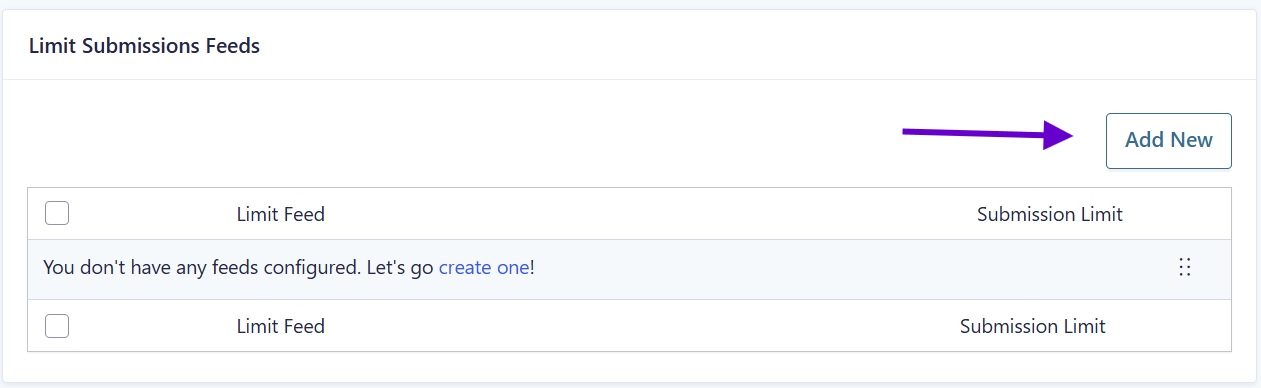
Step 2 — Configure the Daily Limit
- Set the Submission Limit to 1.
- Set the Time Period to 1 day(s).
- Scroll down to Rule Groups, add a Field Value rule, and select your form’s Email field. This tells GP Limit Submissions to track submissions by the value entered into that Email field.
This ensures each email address can only submit the form once per day.
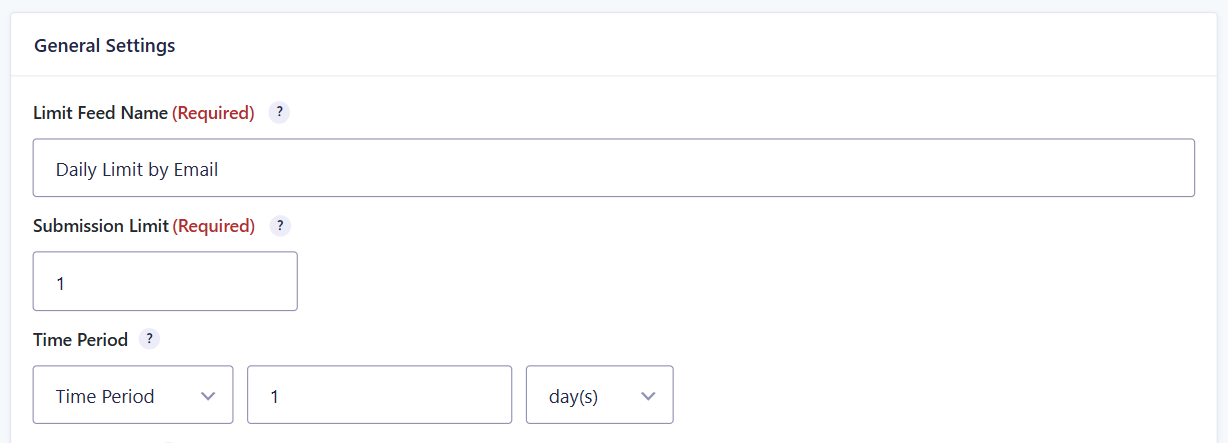
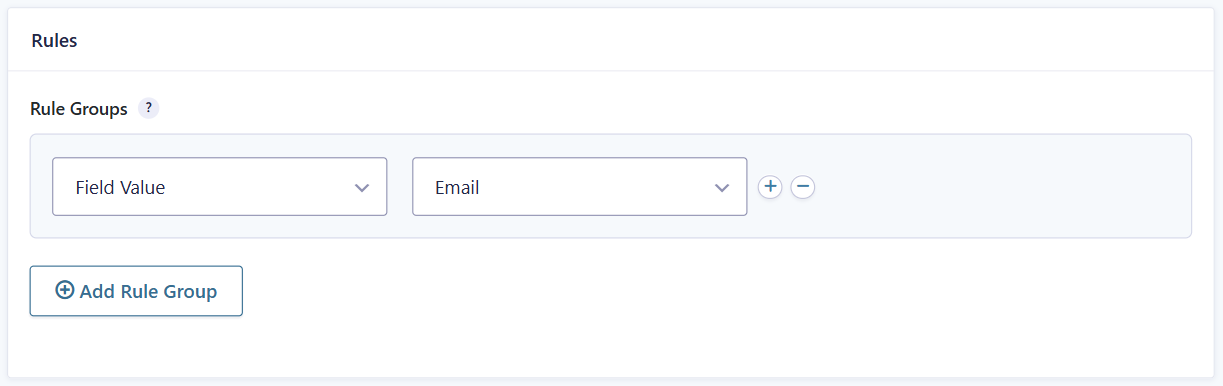
Step 3 — Customize the Validation Message
Configure the message users should see when they’ve already submitted that day.
Example:
You’ve already submitted this form today. Please try again tomorrow.
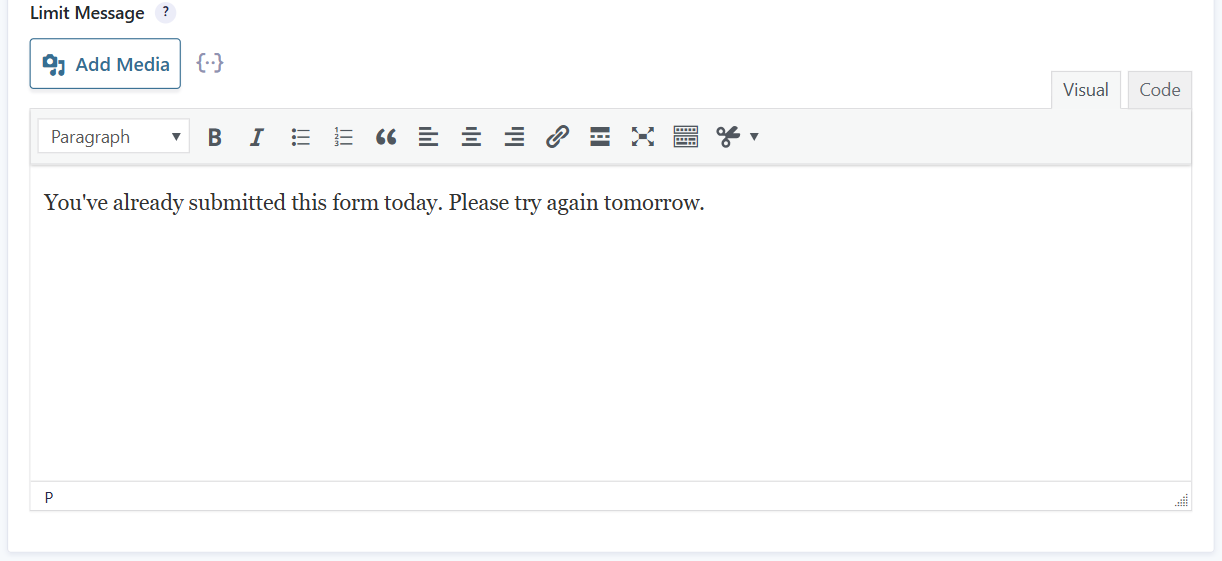
Step 4 — Test the Setup
Before going live, run through a quick test to confirm everything is working as expected.
- Submit the form using an email address → the submission should be accepted.
- Immediately submit again using the same email address → the submission should be blocked.
- Submit using a different email address → the submission should be accepted.
Edge Cases & Limitations
- Different Email Addresses: Users can still submit again by using a different email address. If stronger restrictions are required, consider combining multiple identifying fields or limiting by IP address or logged-in user.
- Shared Email Addresses: If multiple people share the same email address, they’ll also share the daily submission limit.
Key Takeaways
- Gravity Forms doesn’t natively support limiting submissions to one per day based on an email address.
- GP Limit Submissions makes it easy to enforce daily submission limits without writing custom code.
- Using the Email field as the identifier ensures that each email address can submit only once per day.
- The submission limit automatically resets after the configured time period.
- This approach is ideal for daily giveaways, poll or voting submissions, booking requests, surveys, and recurring forms.
FAQs
Can I limit submissions using more than just the email address? Yes. GP Limit Submissions lets you combine multiple identifying fields to create more advanced submission rules.
Can users bypass the limit by using another email address?
Yes. Since the limit is based on the email address, using a different email will be treated as a different user. For stricter controls, combine additional identifying fields or other submission limit criteria.
Can I apply a limit feed to all forms? Yes. You can apply a single Limit Submissions feed to every form on your site using the Global Feeds snippet.
Update the $primary_form_id variable with your own form ID.
Can I apply the same Limit Submissions feed to a group of forms? Yes. If you only want to share a Limit Submissions feed across specific forms, use the Apply Limit Feed to Group of Forms snippet. This allows multiple forms to share the same submission limit without applying it site-wide.
Are limits enforced when editing entries? No. Submission limits are only enforced when new entries are submitted. They are not enforced when editing entries via the Gravity Forms entry editor. Limits are also not enforced if you are editing entries via Nested Forms, Entry Blocks, or GravityView.