How to Calculate Distance and Travel Time in Gravity Forms

Use Address Autocomplete to calculate distance and estimate travel time between two addresses, then put those numbers to work for delivery fees, mileage, or service quotes. 📍
How much should it cost to ship a car across the country? One customer came to us wanting to calculate shipping costs based on the distance between a dealership and the customer’s address.
To do that in Gravity Forms, we need the distance between those addresses. That’s where Address Autocomplete comes in. It makes entering addresses easy, and its Travel Estimate field calculates the distance and travel time between them.
Let me show you how to set it up! We’ll use a local delivery fee as our example.
This article requires the Gravity Forms Address Autocomplete perk.
Buy Gravity Perks to get this perk plus 46 other premium Gravity Forms plugins!
What You’ll Need
- Gravity Forms (any license)
- Address Autocomplete 2.0 or later, installed via Spellbook, Gravity Wiz’s free plugin manager
- To install: open Spellbook › Perks › find Address Autocomplete › click Activate
- A configured Google API key with Routes API and Places API (New) enabled
- Google Cloud requires billing to be enabled on the project
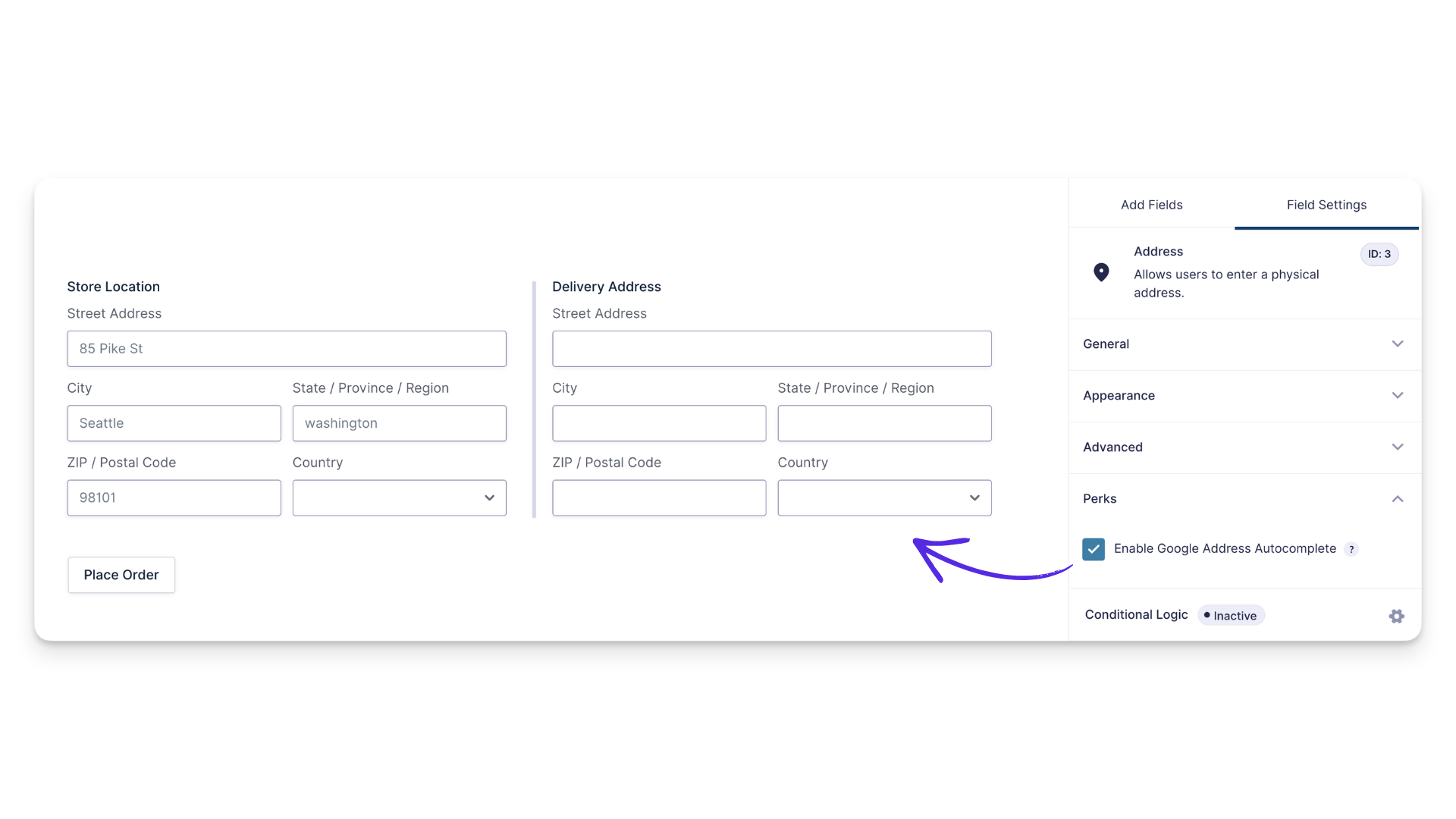
- Two Address fields with Enable Google Address Autocomplete checked under Perks
Already using Address Autocomplete?
If you set up Address Autocomplete before version 2.0, you’ll need to enable the Routes API and Places API (New) in Google Cloud, then update your API key restrictions. Follow the migration steps in our docs.
How to Add a Delivery Fee Based on Distance in Gravity Forms
Let’s say a local shop charges a $2 base fee plus $0.50 per mile for delivery.
1 — Add and Configure the Travel Estimate Field
- Add a Travel Estimate field to your form.
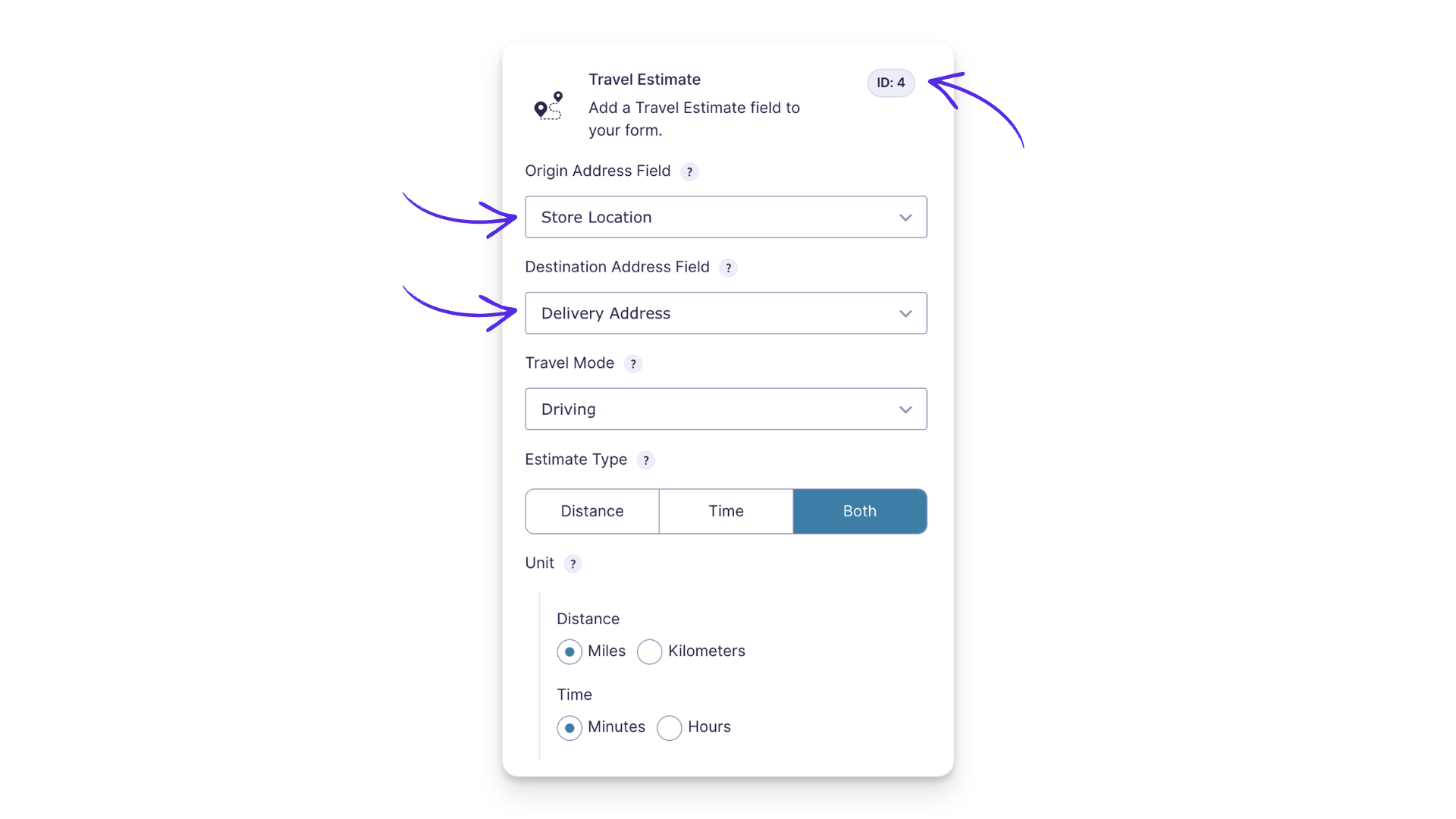
- Open General › select your starting Address field under Origin Address Field and your ending Address field under Destination Address Field.
- Set the following:
- Travel Mode: Driving — since we’re calculating delivery fees based on driving distance. Other options include Walking, Bicycling, Transit, and Two-wheeler.
- Estimate Type: Both — to calculate distance and travel time. You can also choose Distance or Time if you only need one.
- Unit: Miles for distance and Minutes for travel time.
- Note the field’s
IDat the top of its settings. You’ll need it for the delivery fee calculation.
Pro Tip: Pre-fill a fixed address
If every delivery starts from the same shop or warehouse, open the starting Address field’s settings › Advanced › fill in the address under Default Values. This pre-fills the starting address in your form.
2 — Add the Delivery Fee
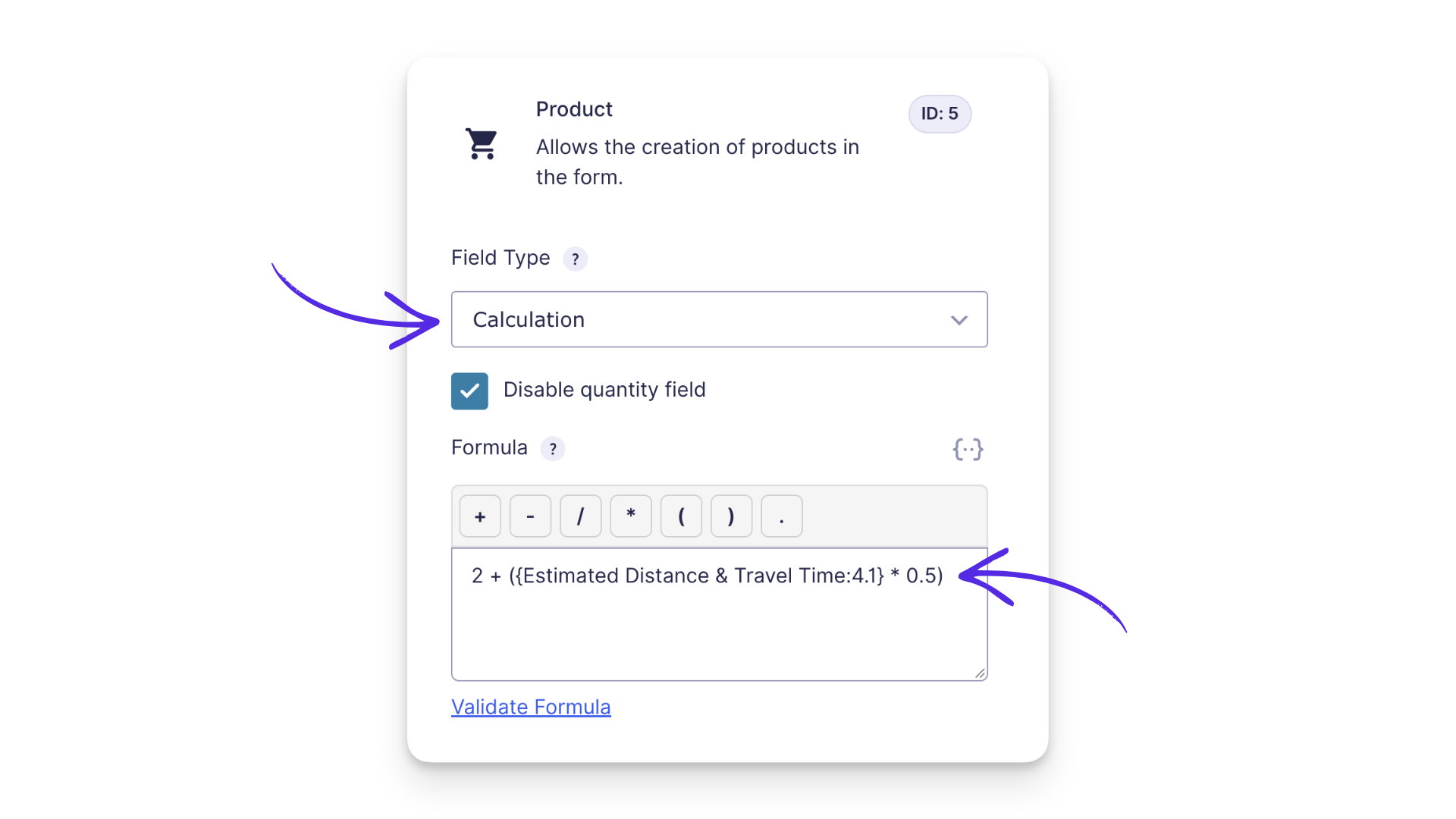
- Add a Product field › set Field Type to Calculation › check Disable quantity field.
- Under Formula, you’ll use a merge tag from your Travel Estimate field. Replace Field Name with your field’s label and
IDwith its field ID. Each value has its own merge tag:- Distance:
{Field Name:ID.1} - Travel time:
{Field Name:ID.2}
- Distance:
- Enter your formula. In our example, the Travel Estimate field is labeled Estimated Distance & Travel Time (ID 4), so we’ll use
2 + ({Estimated Distance & Travel Time:4.1} * 0.5)to charge a $2 base fee plus $0.50 per mile. - Save your form.
Good to Know: Use travel estimates in notifications, too!
Both Travel Estimate merge tags work in calculations and notifications. In notifications, they return plain numbers without units, so add miles, kilometers, minutes, or hours to your message as needed.
3 — Preview and Test
- Preview your form and enter both addresses (or just the delivery address if you pre-filled the origin).
- Check that the distance, travel time, and calculated delivery fee appear correctly.
In my example above, you’ll see the $2 base fee before entering a delivery address. Once an address is selected, the distance, travel time, and fee update. My test returned 5.04 miles, 12 minutes, and a $4.52 delivery fee.
Key Takeaways
- Address Autocomplete’s Travel Estimate field uses Google’s Routes API to calculate distance and estimated travel time between two Address fields.
- Travel Estimate provides separate merge tags for distance
{Field Name:ID.1}and travel time{Field Name:ID.2}. Both work in calculations and notifications. - An Address field’s Default Values can pre-fill a fixed address, like a shop or warehouse.
Take It for a Spin
Now it’s your turn! 🚗 Try Travel Estimate with your own addresses and see what else you can calculate.