How to Set Up Address Autocomplete in Gravity Forms

With GP Address Autocomplete, just type a few letters, select a suggestion, and addresses fill in automatically.
- The Big Picture
- Step 1: Set Up a Google Cloud Platform Project
- Step 2: Enable the Two APIs
- Step 3: Generate the API Key
- Step 4: Add the API Key to Gravity Forms
- Step 5: Enable Autocomplete on Address Fields
- You’re All Set!
Typing out a full address isn’t exactly fun, and on mobile? It kinda feels like a thumb workout. All that extra tapping and typing gives people just enough time to wonder if they really need to finish this form right now.
GP Address Autocomplete solves all this by connecting Address fields to Google’s giant address book. As soon as you start typing, location suggestions pop up, and the whole address fills in with a single click. Best of all? You only need to set it up once.
This article requires the Gravity Forms Address Autocomplete perk.
Buy Gravity Perks to get this perk plus 46 other premium Gravity Forms plugins!
The Big Picture
Address Autocomplete works its magic by connecting Gravity Forms to Google’s Places API (New), which provides address suggestions as users type. All you need? A Google API key to connect the two.
You’ll use one Google API key to connect them to your form.
Here’s the plan:
- Let Google know you’d like to connect with their services.
- Grab your key and secure it so only your site can use it.
- Plug the key into Gravity Forms.
Step 1: Set Up a Google Cloud Platform Project
Before we dive in, what’s Google Cloud Platform? Think of it as Google’s hub of online services (maps, storage, and more) that you can use on your website. To use these services, you’ll need a “project.”
But what’s a “project”?
Think of it as a folder where Google stores the services you’re using. We’ll set one up right now.
Important
Google requires billing to be enabled for your project. You’ll need to add a payment method, but Google provides monthly free usage allowances for its Maps Platform services.
Charges depend on which APIs you use and how many requests you make. Check Google Maps Platform pricing for the latest details.
Create a Project
- Head to Google Cloud Platform Console.
- Click the project dropdown in the top right (it might say “Select a project”).
- Click New Project.
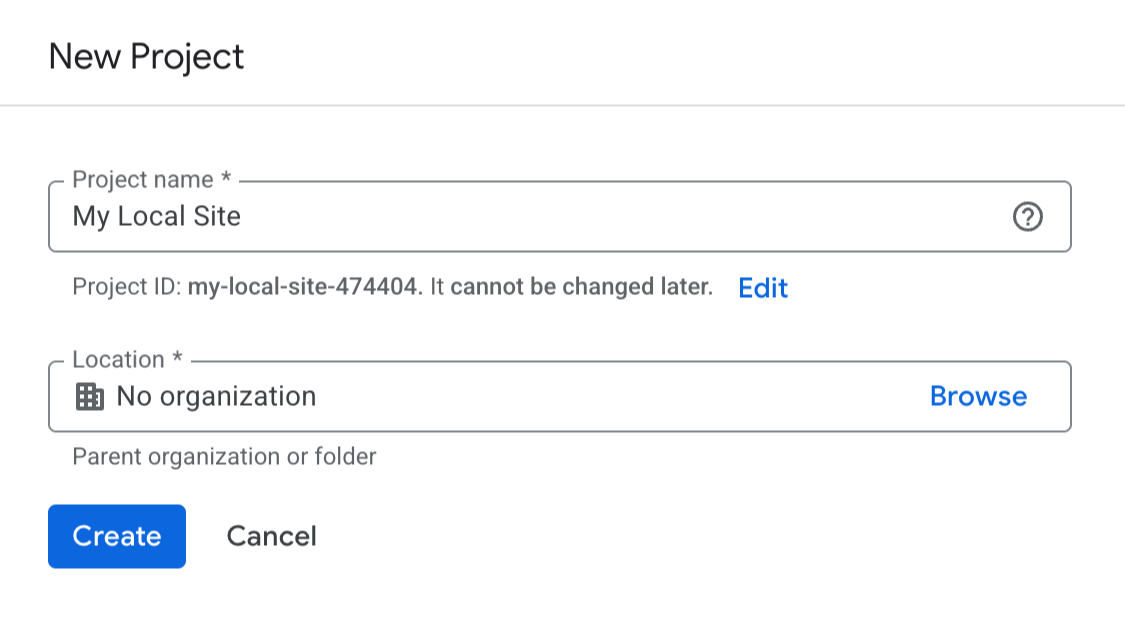
Give your project a clear name like your site’s name. Next, we’ll add in the Google Places and Maps JavaScript APIs.
Step 2: Enable the Two APIs
Quick explainer: API (Application Programming Interface) is like a messenger that lets two applications talk to each other. In this case, it’s how Gravity Forms asks Google for address suggestions. If you want to learn more, we’ve got a great guide that explains API in detail.
Let’s enable the two APIs you need:
1 – Places API (New)
This powers address suggestions and autocomplete.
- In Google Cloud, open APIs & Services › Library.
- Search for Places API (New).
- Select it › click Enable.
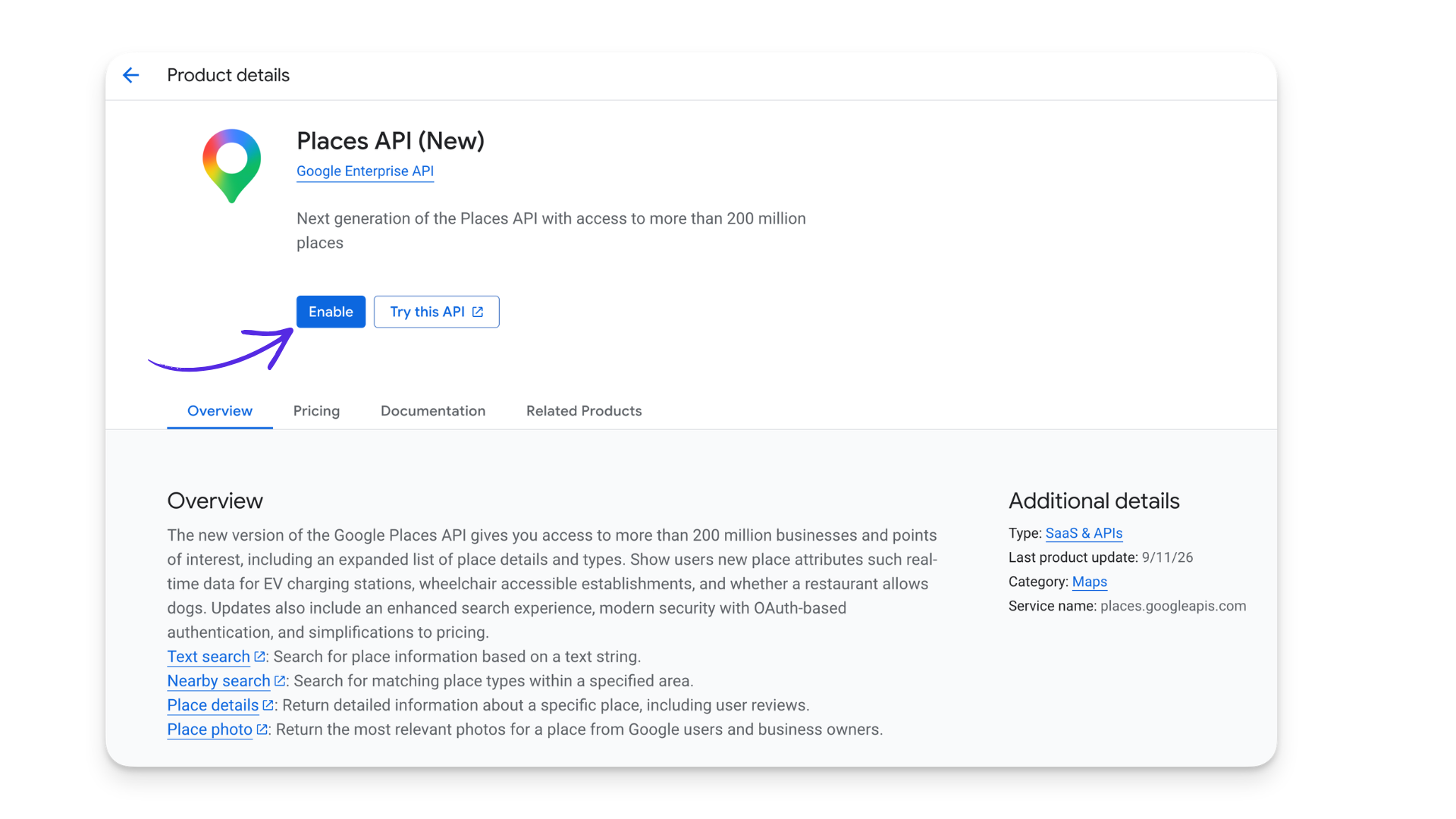
And that’s it! Google’s address suggestions are ready to connect to Gravity Forms.
2 – Maps JavaScript API
This one powers the autocomplete feature.
- Still in the API Library,
- Search for “Maps JavaScript API.”
- Click and Enable.
Now Google knows you want to use these APIs.
Step 3: Generate the API Key
What’s an API Key? Think of it as a message that tells Google “Yes, this site is allowed to use your APIs.”
Let’s Create the Key 🔑
- Click the menu icon (☰) in the top left, then select APIs & Services › Credentials.
- Click the + Create Credentials button.
- Select the API key from the dropdown.
- Under Select API restrictions › choose Places API (New).
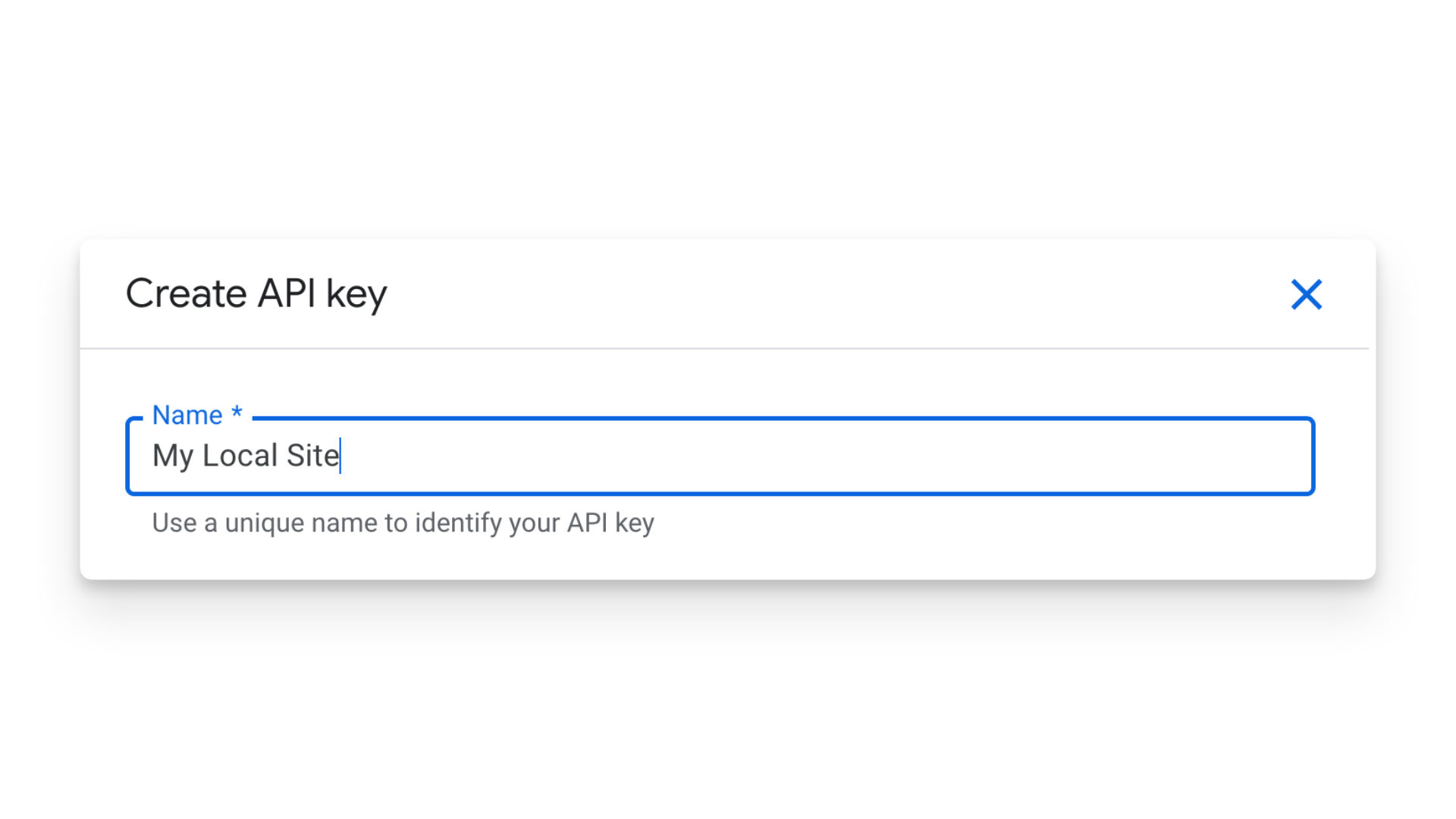
Don’t close this window yet. We’ll need to keep this key safe so only your website can use it.
Keep the Key Safe 🔐
- Under Application restrictions, select Websites.
- Click Add and enter your domain (if you have a staging or local site, you can add those too).
- Under API restrictions, select Restrict key.
- From the dropdown, select only: Places API (New) and Maps JavaScript API.
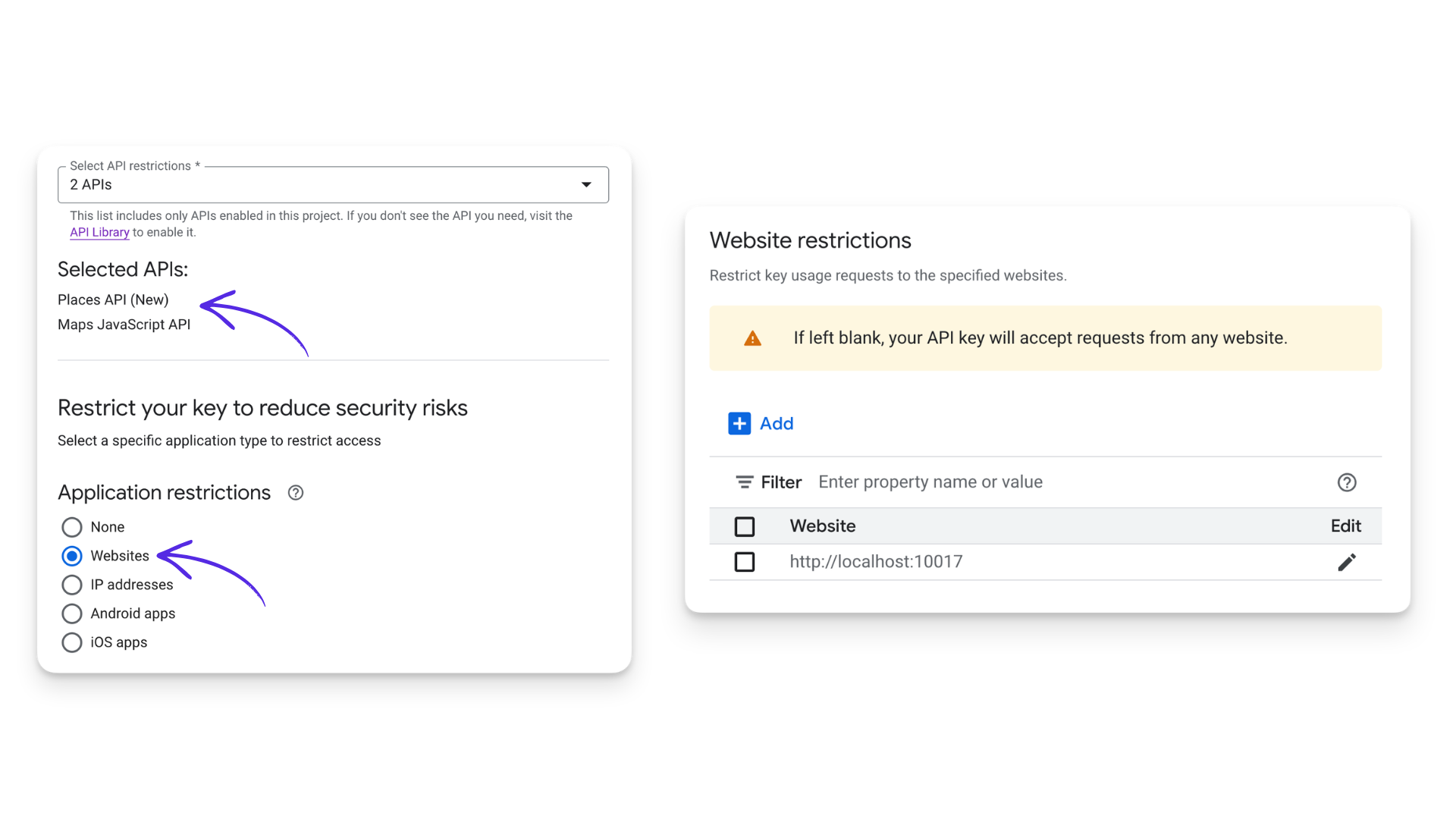
Why does this matter? These restrictions help prevent unauthorized use of your Google API key.
Obtain the Key
Once you’ve configured the restrictions, click Create to generate your API key.
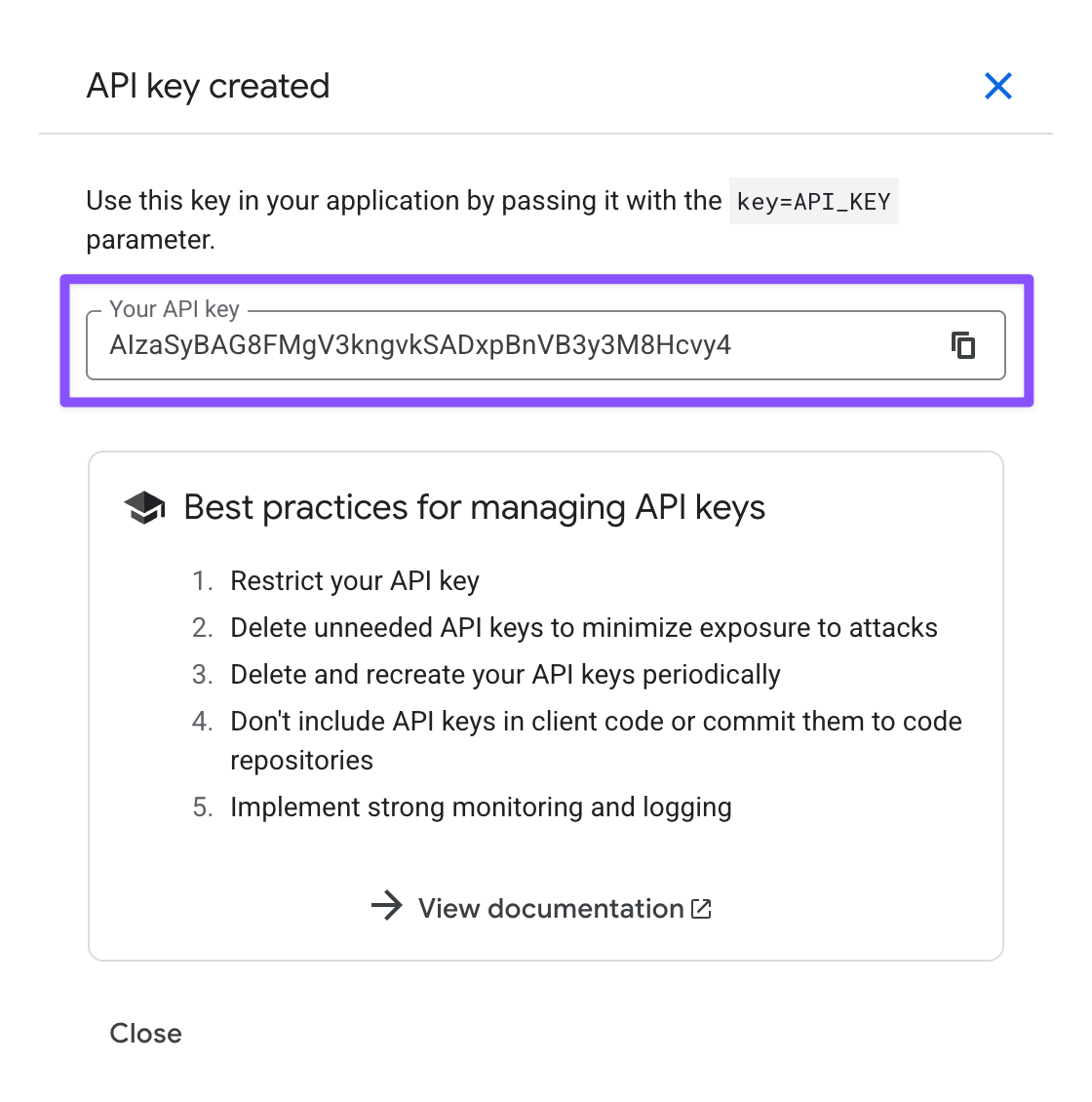
Copy that long string of characters somewhere safe, like a password manager. We’ll need it in the next step.
Step 4: Add the API Key to Gravity Forms
Let’s bring it all home. Let’s use the API key to connect our Google APIs to Gravity Forms.
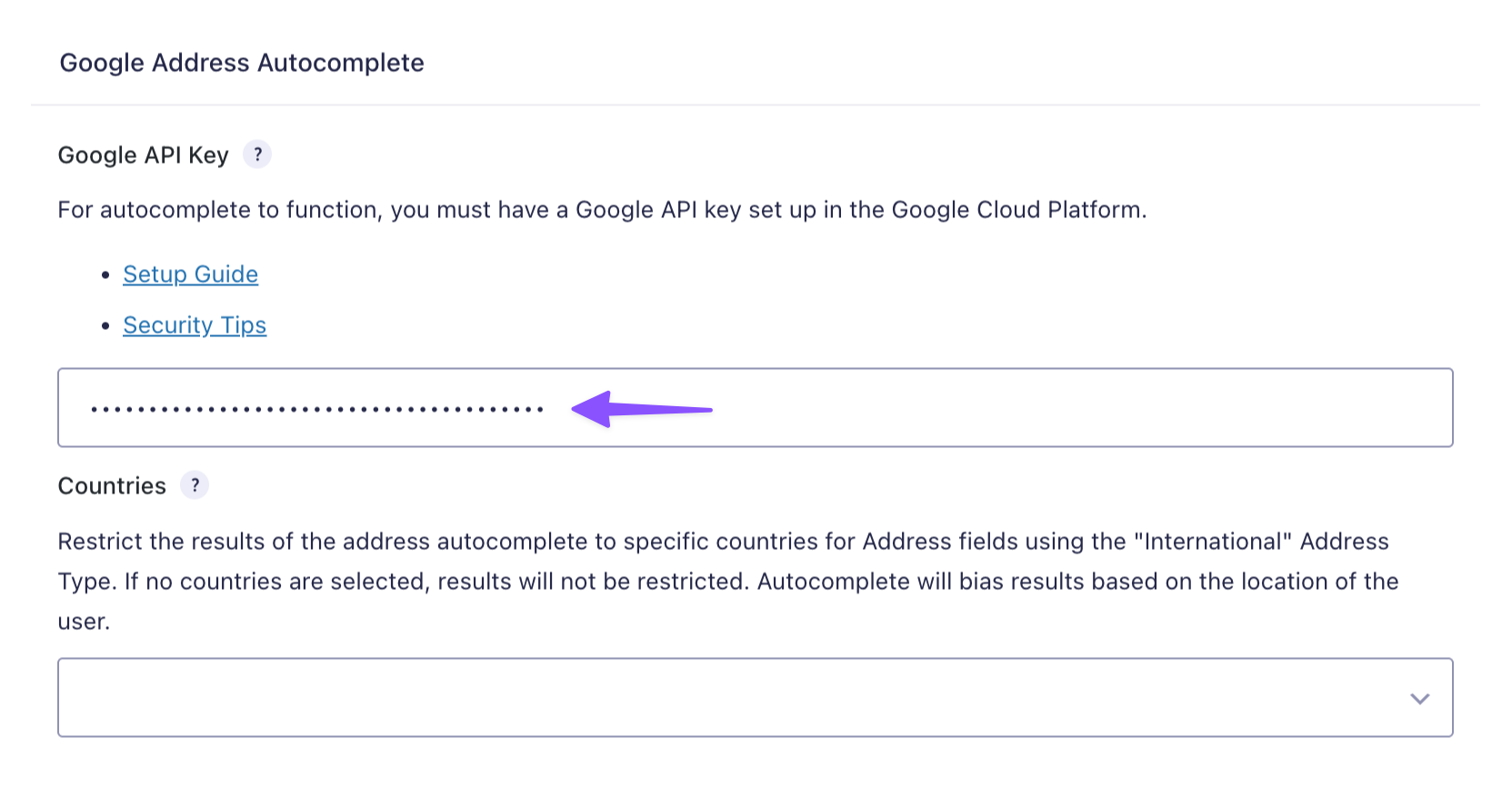
- In your WordPress dashboard, go to Forms › Settings › Autocomplete.
- Paste the API key into the Google API Key field.
- Hit Save Settings.
Tip
If you only want address suggestions from specific countries, use the Countries dropdown to select up to 5 countries. Leave it blank for worldwide results.
Step 5: Enable Autocomplete on Address Fields
Time to enchant those Address fields:
- Open your Spellbook and activate GP Address Autocomplete.
- Go to your form.
- Add an Address field (or edit an existing one).
- Open the Address field’s settings › under Perks › check Enable Google Address Autocomplete.
That’s it! Start typing and watch suggestions appear instantly. 🪄
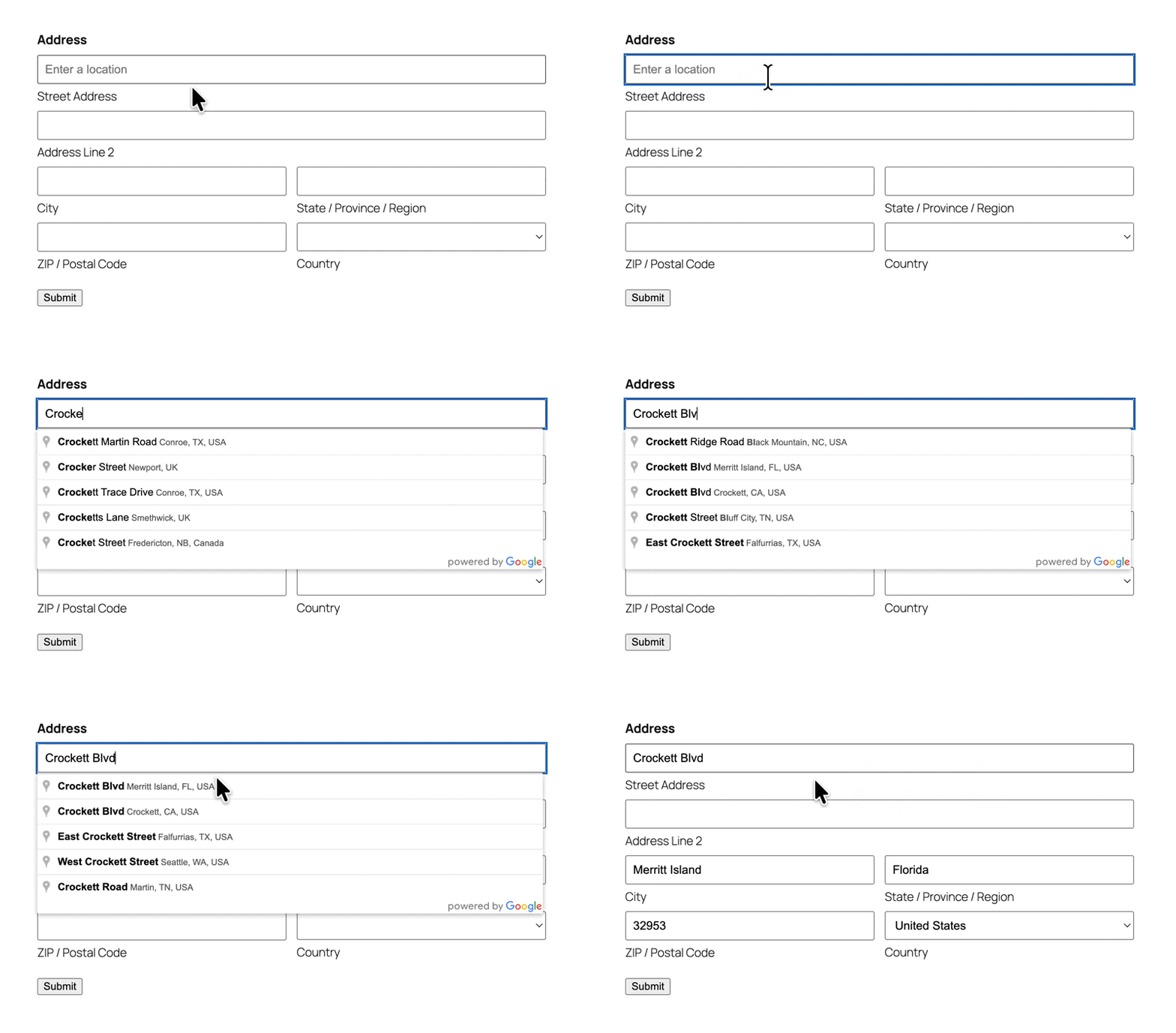
You can even take this further by adding an interactive map that automatically pins the autocompleted address as soon as someone fills it in.
Important
When someone uses Address Autocomplete on your form, whatever they type gets sent to Google to fetch those address suggestions. Since data is being shared with Google, they ask that you link to their Terms of Service and Privacy Policy somewhere on your site. It’s a simple step to stay compliant!
You’re All Set!
No more friction, no more abandoned forms. Everybody wins. 🏆