
Gravity Forms Repeaters: The Ultimate Guide

Everything you (could possibly) need to know about using Gravity Forms repeater fields. Explore what they are, what your options are, and how to use them to collect repeatable data in Gravity Forms.
- What is a Gravity Forms Repeater?
- Gravity Forms Repeater Plugins: What’s out there?
- List Field: A simple Gravity Forms repeater alternative
- Repeater Field: Gravity Forms’ native way to repeat groups of fields
- Nested Forms: A Gravity Forms Repeater Add-on
- Using Conditional Logic with a Gravity Forms repeater field plugin
- Doing Calculations with Gravity Forms Repeaters
- Exporting Data from Gravity Forms Repeater Plugins
- Applications and Use Cases for Gravity Forms Repeaters
- FAQ: Common questions about Gravity Forms Repeaters
Form repeater fields let you collect multiple instances of the same set of fields in a single submission.
For example, let’s say you’re creating an order form for a sandwich shop website. A Gravity Forms repeater field would let you create a set of fields for each person (like their name, sandwich preference, and what kind of chips they want) and let one person submit multiple orders in one go.
No more filling out and submitting the same order form multiple times.
In this article, we’ll explore the repeater field options available, share code customizations, and walk through common use cases.
After reading this article, you’ll be prepared to use repeater fields with Gravity Forms on your WordPress site (and possibly be craving a sandwich).
Sound good? Let’s go!
What is a Gravity Forms Repeater?
A form repeater, also known as a form field repeater, isn’t unique to Gravity Forms. It’s a user interface component you’ll find in all sorts of software. If you’ve built custom blocks with Advanced Custom Fields, you may have used its repeater field. Other WordPress form plugins have repeaters too.
There are loads of use cases for repeaters, ranging from simple to complex.
Simple applications might include:
- Team roster form: add a row for each member of the team, including their name, position, and phone number.
- Survey form: collect multiple responses to a single question by letting users add as many rows as they need.
- Medication form: patients can add a row with the name and dosage of each medication taken.
These are just a few ideas, but repeater fields can be used in many contexts to get structured data from users more efficiently.
Gravity Forms Repeater Plugins: What’s out there?
What options do you have if you want to use repeater fields in Gravity Forms? Turns out you’ve got a few! Which one fits depends on what you’re trying to accomplish.
The three repeaters for Gravity Forms that you’ll see most frequently:
In addition to these, you may come across other Gravity Forms repeater plugins in the wild. A quick Google search shows that many of these are unsupported or unmaintained projects.
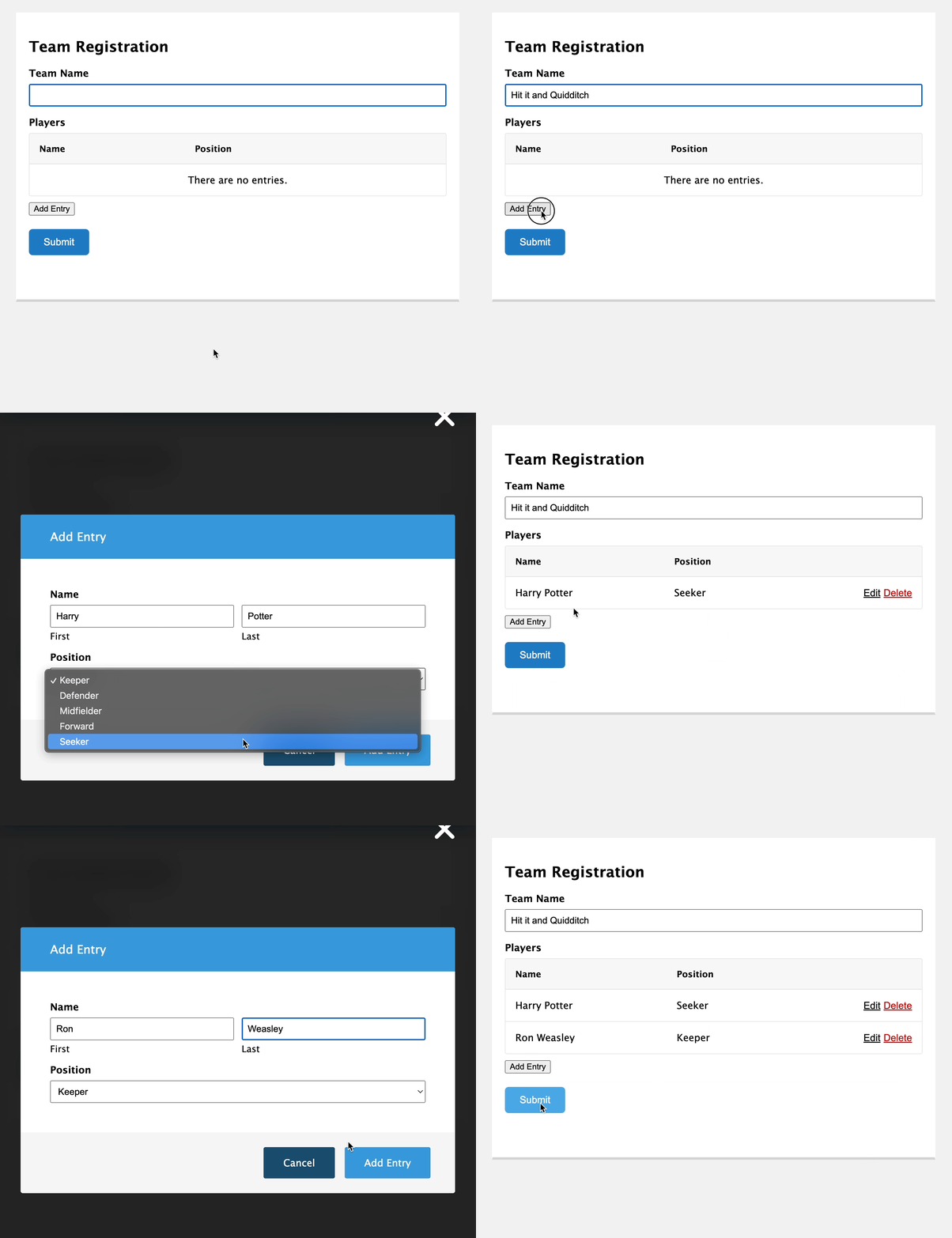
Each solution has its own strengths and weaknesses. We’re making a genuine effort not to position our own solution, Nested Forms, first — because it’s not the perfect solution for every use case. But you’ll still find it’s the most robust repeater solution available. It’s not our fault! Okay… actually, it is. 😂
Here’s how they compare at a glance:
| Category | List Field | Repeater Field | Nested Forms |
|---|---|---|---|
| Best for | Simple repeatable rows | Repeatable groups of fields | Complex repeatable forms and records |
| Setup | Simple for basic rows; code required for more flexible field types and advanced behavior | No-code setup in the form editor | No-code setup with a separate child form |
| Field flexibility | Limited | Most standard Gravity Forms fields | Full child form |
| Conditional logic inside repeated items | No | No | Yes |
| Pricing fields | Not supported | Some supported; Shipping, Coupon, and Total aren’t, and calculations aren’t supported. | Full support, with bonus features! |
| Calculations | Limited | Not supported | Robust |
| File uploads | No | No | Yes |
| Multi-page repeated content | No | No | Yes |
| How repeated data is stored | One List field value (serialized in the database) | Repeater subfields within one entry | Separate child entries linked to the parent entry |
| Export flexibility | Basic | Grouped + sub-field filtering | Robust parent + child export |
Let’s take a look at each in turn.
List Field: A simple Gravity Forms repeater alternative
The List Field is a field type natively available in Gravity Forms and is a simple version of a repeater field.
This is a great option when you need a quick way for a user to add multiple items, like a list of ingredients in a recipe or a list of attendees for an event.
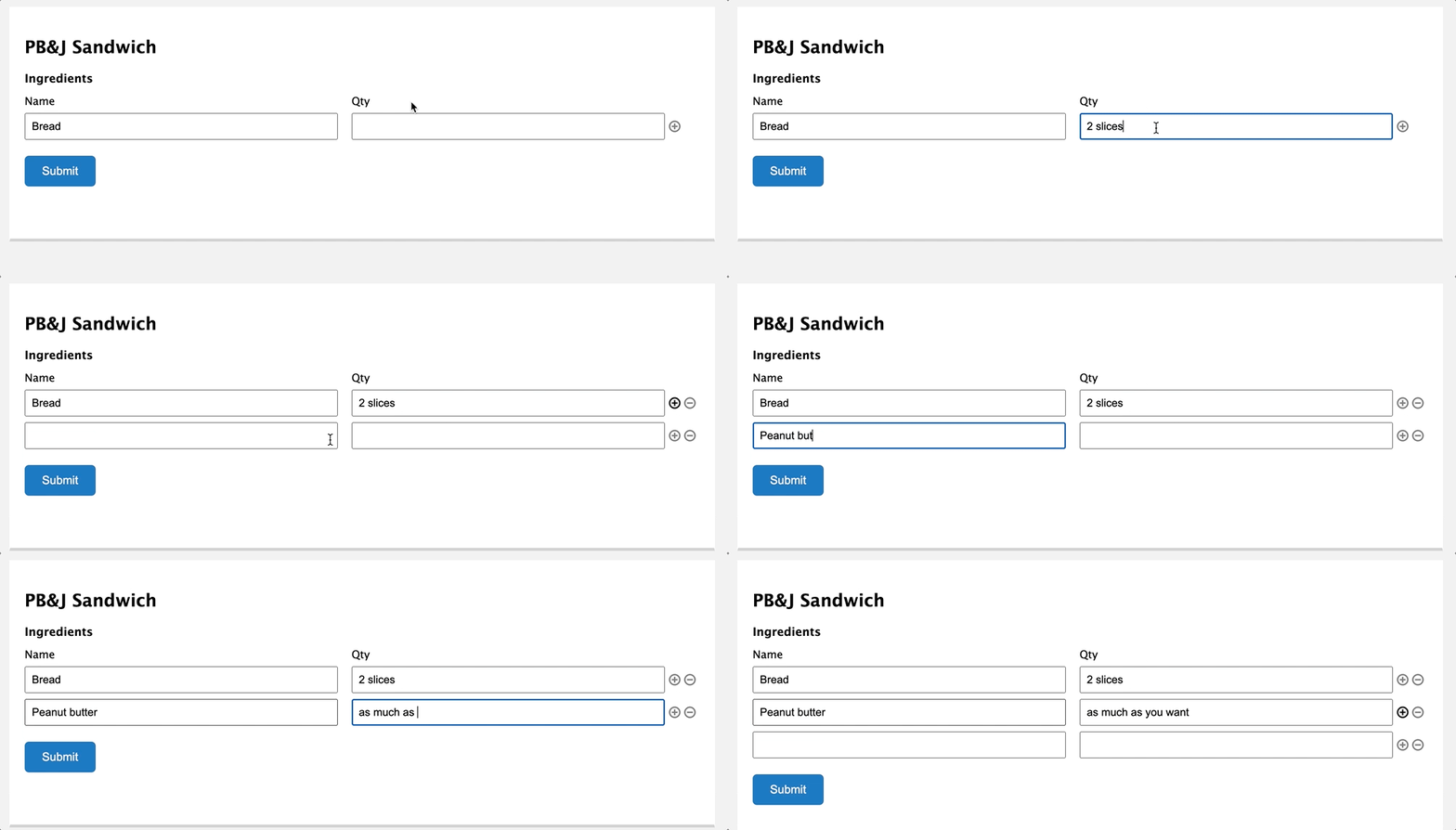
On the backend:
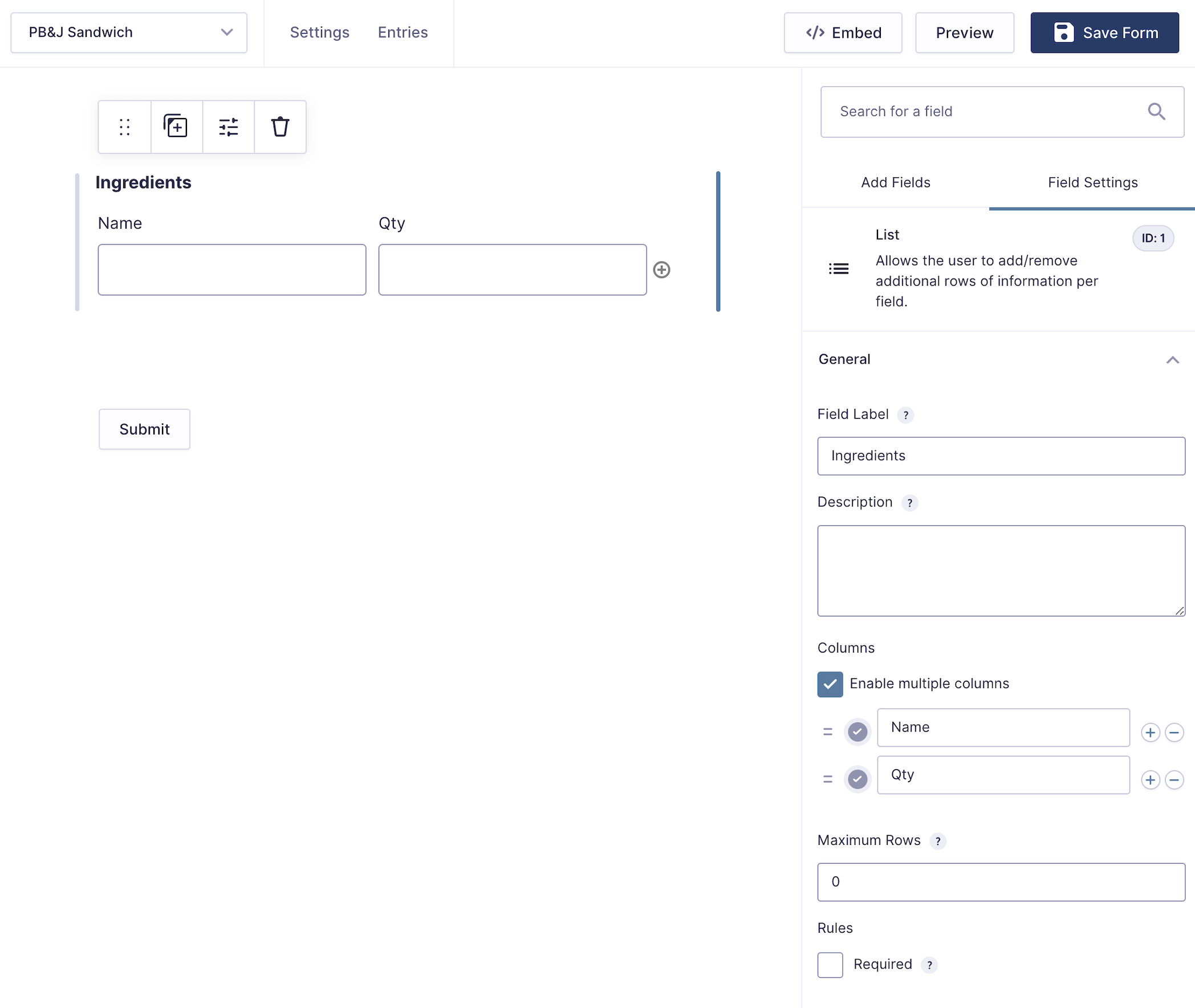
It works like this:
- Create a new form or edit an existing one.
- Go to Add Fields > Advanced Fields and select List.
- Add a Field Label.
- From there, you can select whether you want a single column or multiple columns. In the PB&J Sandwich example, we’re using 2 columns.
- You can also specify whether there’s a maximum number of rows a user can enter.
Check out the official documentation for the List field for additional configuration options.
Customizing the Gravity Forms List field
Beyond the basic stuff, Gravity Forms provides a few ways to customize the List field. Warning: these are customizations you’ll need to make with code (if you’re not code friendly, we’d recommend jumping down to our sections on the Repeater field and Nested Forms).
Let’s take a look at some Gravity Forms List Field examples.
Use Drop Down instead of a Text Field
There could be scenarios where you don’t want the List field to be a text field. Gravity Forms gives you the ability to use a Drop Down or Select field instead.
Sticking with the PB&J theme, let’s say we want to use a List field to create an order form for sandwiches.
We’ll create three columns:
- Name
- Peanut butter type
- Jelly flavor
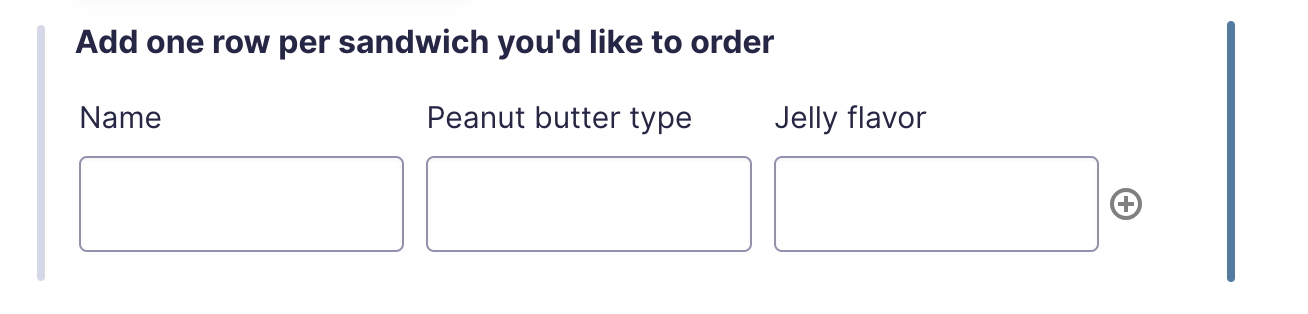
In this case, it’s OK to leave the person’s name as a text field, but let’s look at how we could create a Drop Down based-list with pre-populated options for the two other columns.
To do that, we’ll use the gform_column_input filter, which allows us to specify a different input type for a list field column. Note that the filter supports two input types: select (a Drop Down) and text.
We’re about to get into code!
If you’d rather skip it, jump to the Repeater field and Nested Forms sections below — both work without code.
First, let’s create two callback functions, one that will turn Peanut Butter Type into a pre-populated Drop Down list and another that turns Jelly Flavor into a pre-populated Drop Down.
function pbj_pb_selections() {

	$pb_types = array(
		'type'    => 'select',
		'choices' => array( 'Cashew Butter', 'Peanut Butter', 'Sun Butter' ),
	);

	return $pb_types;

}

function pbj_jelly_selections() {

	$jelly_flavors = array(
		'type'    => 'select',
		'choices' => array( 'Grape', 'Strawberry', 'Raspberry' ),
	);

	return $jelly_flavors;

}
Then, let’s complete the process by adding two filters to hook in those callbacks. Note that we’re targeting those specific columns by adding the Form id, Field id, and column number after the filter name.
// Format: gform_column_input_FORMID_FIELDID_COLUMN.
add_filter( 'gform_column_input_3_1_2', 'pbj_pb_selections' );
add_filter( 'gform_column_input_3_1_3', 'pbj_jelly_selections' );
Voila! And just like that, we have pre-populated Drop Downs.
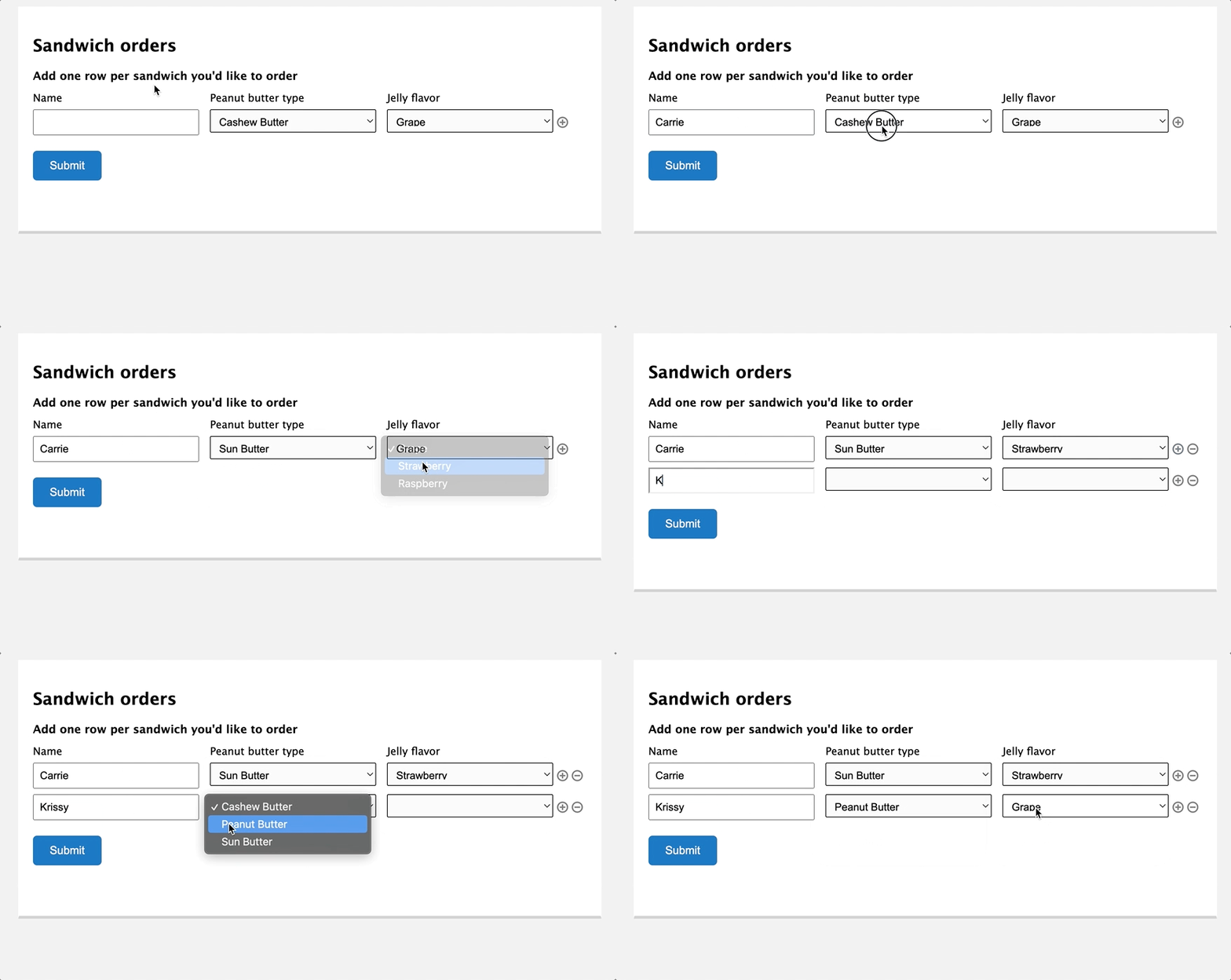
Admittedly, if you need to use a Drop Down field as part of a repeater, the List field isn’t the easiest method (we’ll look at more options later), but it’s worth pointing out what you can do natively with Gravity Forms.
Use any form field instead of a text field
The
gform_column_input filter turns a List field column into a pre-populated Drop Down. The gform_column_input_content filter goes further and lets you change the complete HTML output for a column’s input tag. Want a textarea, a checkbox, or a number input? No problem!
Let’s go back to our sandwich order form and add a checkbox for whether we want the crust cut off the bread.
To do that, we would create a callback function that builds the HTML we want to output and then we would hook it to gform_column_input_content.
// Format: gform_column_input_FORMID_FIELDID_COLUMN.
// Format: gform_column_input_content_FORMID_FIELDID_COLUMN.
add_filter( 'gform_column_input_content_3_1_4', 'pbj_crust_option', 10, 6 );
function pbj_crust_option( $input, $input_info, $field, $text, $value, $form_id ) {

	// Field name needs to match List field syntax.
	$field_name = 'input_' . $field->id . '[]';

	// We want tabindex for keyboard accessibility.
	$tabindex = GFCommon::get_tabindex();

	// Build the HTML output.
	$new_input = '<input type="checkbox" name="' . $field_name . '"' . $tabindex . '"/>';

	return $new_input;
}
And now we’ve got a checkbox a user can select if they don’t want the crust on a sandwich. 😬
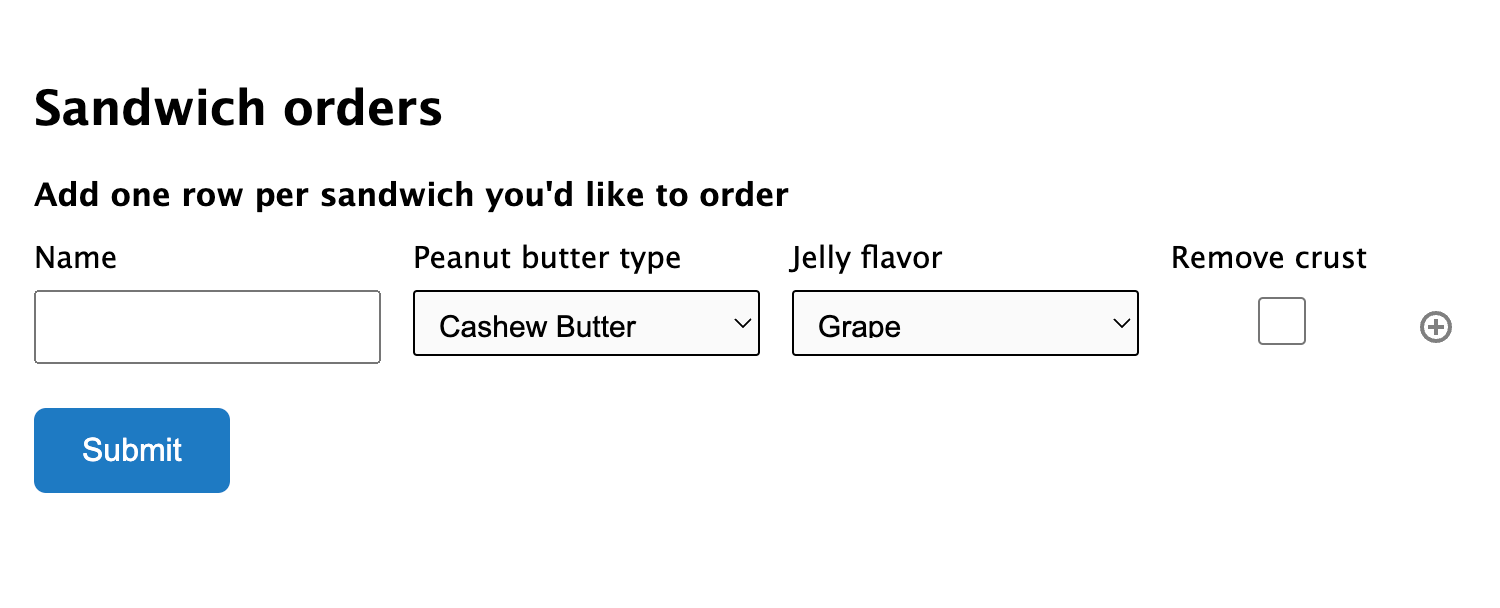
There’s a gotcha here worth noting: If you use any input that generates more than a single input value (e.g. radio buttons, multiple checkboxes), you will need to handle capturing that value correctly on submission.
The gform_column_input filter takes care of this for you. With gform_column_input_content, capturing the value is up to you.
Customize List field appearance with CSS
In addition to filters we can use to customize the List field, the lovely folks over at Gravity Forms have provided us with CSS selectors we can use to target the List field.
The UI will always be in the row/column format, but you can give it a bespoke appearance by customizing the icons used to add/remove rows or by applying alternating colors on rows. And, of course, you can style the form fields and buttons to match your site.
Taking it further with the Gravity Forms List field
If the List field looks like a good fit for your project, you can extend it to do even more. Here are a few examples.
Auto List Field and Calculations
Using Gravity Forms Auto List Field, you can sync the number of List field rows with a field value.
For example, let’s say you’ve got a form for registering event attendees. To start, a user could input the number of tickets needed. That number would then be used to generate a corresponding number of List field rows, in real time.
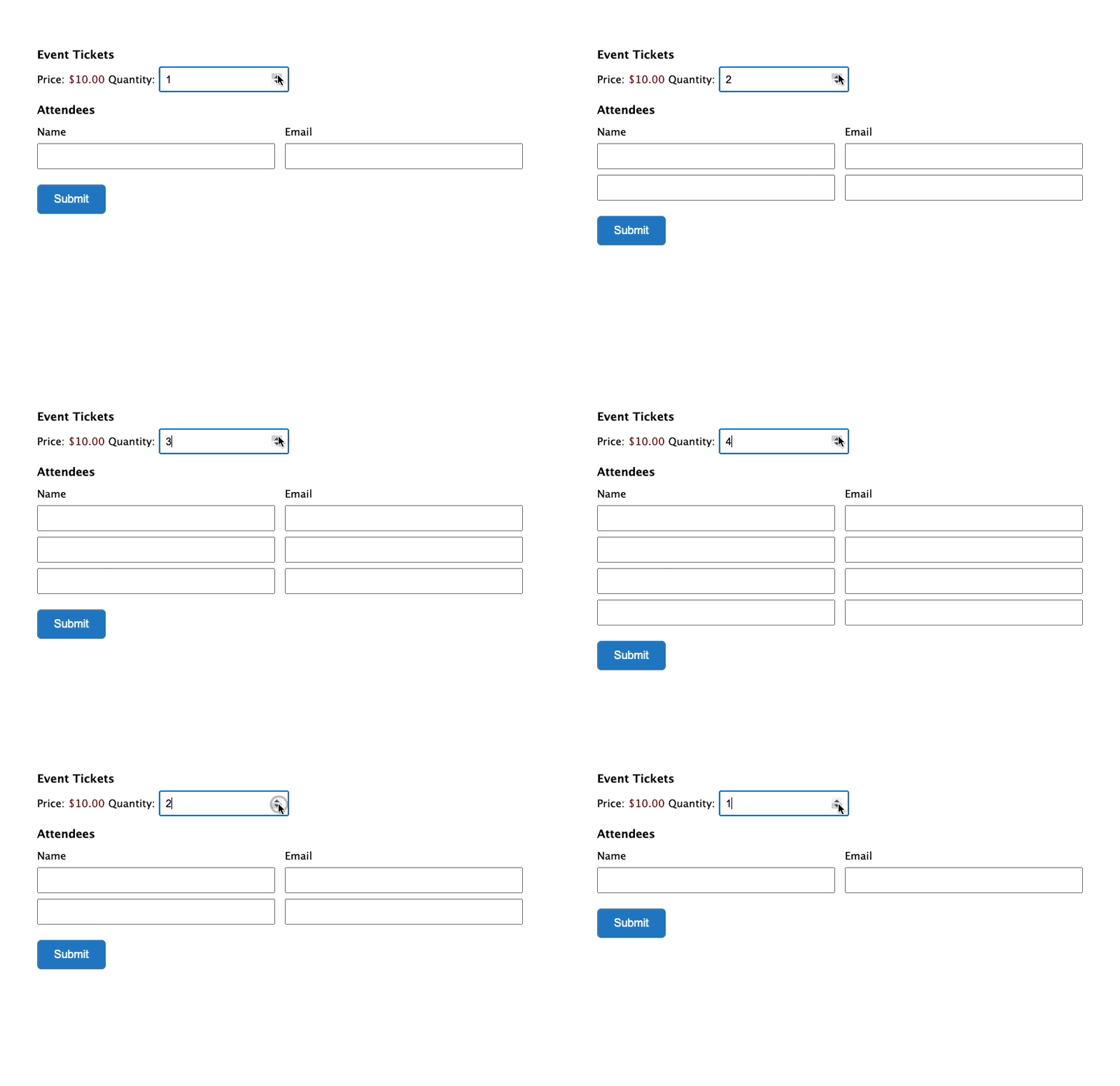
Conversely, you could use Gravity Forms Auto List Field to count the number of rows in the List field and display that number. That could come in handy for use in a calculation or simply to tabulate the number of rows.
You can see a demo of counting List field rows here.
Use CSS to Number List field rows
Earlier, we mentioned that Gravity Forms includes CSS selectors we can use to target the List field.
As long as you’re using Gravity Forms Auto List Field, why not auto-generate row numbers to go with it?
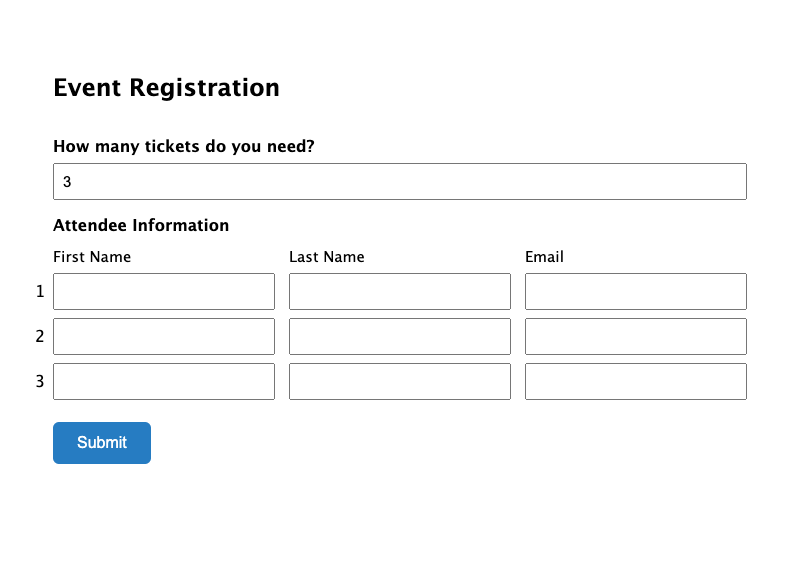
We’ve already written the custom CSS for you. Check out the demo and download the code!
Use List Field entries as Choices for Gravity Forms
You can populate List field entries into choice-based fields like Checkboxes, Drop Downs, or Radio Buttons.
For example, say you’re registering attendees for an event. Besides the main event, you may want to know if registrants will attend particular sessions. To do this, you could use the attendee information already entered to populate choice-based fields automatically.
We have an article dedicated to doing so — learn more over at Use List Fields as Choices in Gravity Forms.
Require all Columns of List Field
With Gravity Forms, you can specify any field as required. When you apply required to a List field, however, only one **input from any column within that List is required.
Clearly, that doesn’t work for a lot of use cases. If you want to specify that all columns or at least certain columns are required, how can you do that?
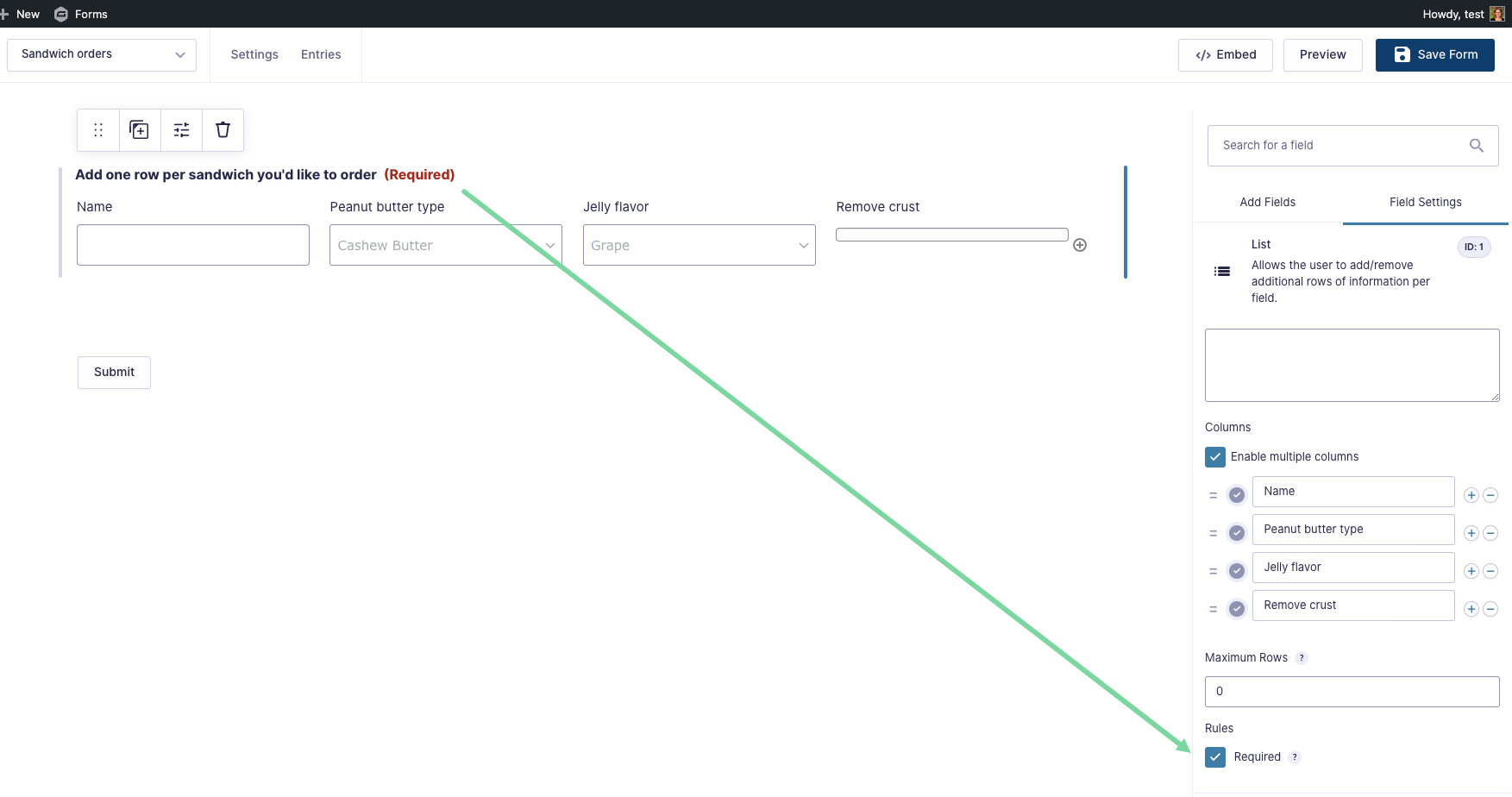
Well, it just so happens we’d like to share the answer with the class. :)
Here’s a tutorial to walk you through requiring columns on the List field. Specifically, we’ll show you how to:
- Require all columns on all forms
- Require all columns on a specific form
- Require all columns on a group of fields
- Require specific columns on a group of fields
As a bonus, you could combine any of these with Gravity Forms Auto List Field to set the number of List field rows based on a field value.
Limitations of Using a List Field as a Gravity Forms Repeater
There are certainly use cases for using a List field as a repeater, and some neat things you can do with it, but it can only take you so far.
For instance:
- If you want to use a different input type in a column, you’ll need to get your hands in the code.
- When it comes to appearance, you can use CSS to apply custom styling, but the layout stays in columns and rows.
- When you mark a List field as required, only one input from any column has to be filled in.
The List Field is a great way to go if you don’t need complex fields. That said, if you need something more robust, then the Repeater field or Nested Forms may suit you best. Onwards!
Repeater Field: Gravity Forms’ native way to repeat groups of fields
Gravity Forms has a built-in Repeater field you can add right from the form editor. Drag it in, drop other fields inside it, and people can repeat that group of fields as many times as you allow in a single submission.
A repeater field is simply a set of form fields that can be combined and repeated in a single form. The List field that we just looked at is a basic implementation of this that we can control via a UI component and customize with filters.
The Repeater field takes that further. Each row holds a full set of fields, arranged in the editor like any other form, so you can build more robust repeatable fieldsets without writing code.
Let’s look at an example using a “Sandwich Portfolio” form.
We want a form where sandwich artists can submit a resume of sorts for their custom sandwich creations. The artist should be able to include multiple sandwiches in the submission, and each sandwich entry can include multiple details.
Maybe it goes something like this:
- Name
- Sandwiches (set of fields)
- Name (Single Line Text field)
- Description (Paragraph Text field)
- Type (Radio Buttons field)
- Submit button
Here’s a quick overview of how you’d build this out:
- Create a form and include a Name field, Email field, and Submit button.
- Add a Repeater field and label it “Sandwiches.”
- Drag a Single Line Text field, a Paragraph Text field, and a Radio Buttons field into the Repeater, and label them Name, Description, and Type.
- Optionally, set a maximum number of rows and change the text on the add and remove buttons.
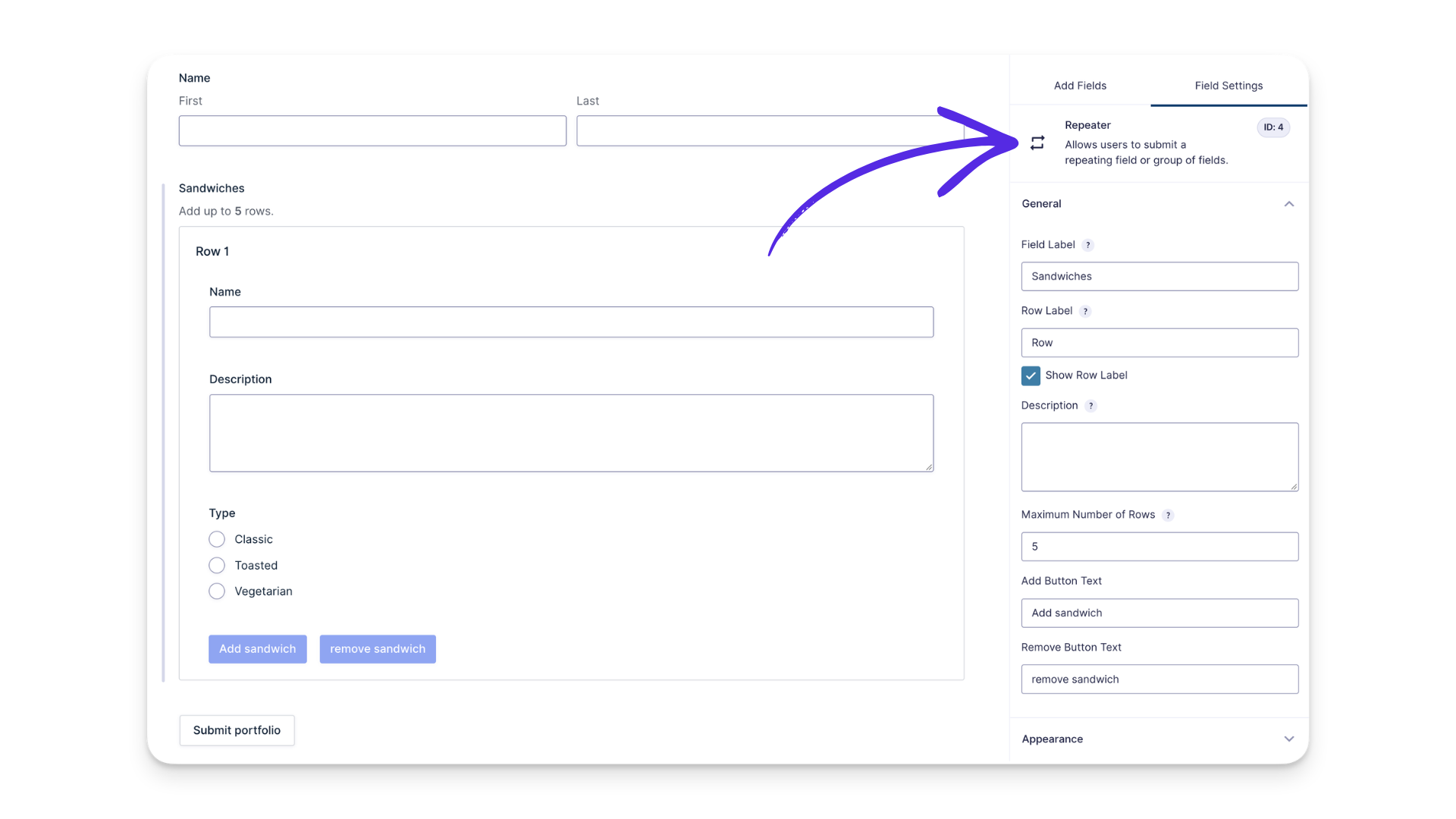
Check out the official documentation for the Repeater field for additional configuration options.
Already using the old code-based Repeater? It will continue to work, but Gravity Forms also provides a migration process if you want to manage it directly in the Form Editor.
Pros of Gravity Forms Repeater Fields
The Repeater field gives you much more room to work with than the List field.
- Rows can hold most Gravity Forms fields, so you can build more robust repeater fields. For example, you could build an employee time tracking form with a task name, start time, end time, and a Drop Down field for task type.
- Gravity Forms Repeater fields also support the Save and Continue Later feature, an excellent UX addition for longer or multi-page forms that might be filled out across multiple sessions (if you want your multi-page forms to automatically save and reload without any additional links or friction, check out Gravity Forms Advanced Save and Continue).
- Fields inside a Repeater that support dynamic population can be populated using merge tags or query string parameters. Dynamic population isn’t currently supported for fields inside nested Repeaters.
- Repeater data works with merge tags and Add-On feeds. You can output all rows, specific fields, or a row count in notifications and confirmations, and map Repeater data in feed settings.
- It comes with Gravity Forms itself, like the List field we just looked at.
- You can nest a Repeater inside another Repeater, with no enforced depth limit.
Cons of Gravity Forms Repeater Fields
The Repeater field covers a lot, but a few things aren’t available inside it.
- Conditional logic isn’t available for fields inside a Repeater, though the Repeater itself can show or hide with it.
- Calculations aren’t supported inside a Repeater.
- Some fields aren’t supported inside a Repeater, including File Upload, Credit Card, CAPTCHA, and Page Break.
- Rows can’t be reordered once they’re added.
Examples of the Repeater field in action
With the Repeater field, you can do things like:
- Create a Repeater field for phone numbers, allowing users to enter multiple phone numbers and related details in one submission.
- Create a Repeater field for company registrations consisting of employee names and job titles, so a single submission can register more than one person from the same organization.
Next, let’s look at GP Nested Forms. It’s another way to repeat fields, where each row can be a full nested form of its own.
Nested Forms: A Gravity Forms Repeater Add-on
Whether you’re creating simple or complex forms, Gravity Forms Nested Forms enables you to create forms within forms to better manage complex data collection. We know you’re thinking it — go ahead and say it: formception!

How Does the Gravity Forms Nested Forms plugin work?
Here’s a high-level overview of how Gravity Forms Nested Forms works. Using the familiar Gravity Forms UI, you will:
- Create two forms: a Parent form and a Child form. The Child form will be “nested” in the parent form via the Nested Form field.
- Add a Nested Form field on your parent form and select your Child form in the Nested Form field setting.
- Select which fields from the Child form should be displayed in the Nested Form field on the parent form.
You’ll see a lot of “Child” and “Parent” wording from here on. Child forms are “nested” in their Parent entries by way of the Nested Form field.
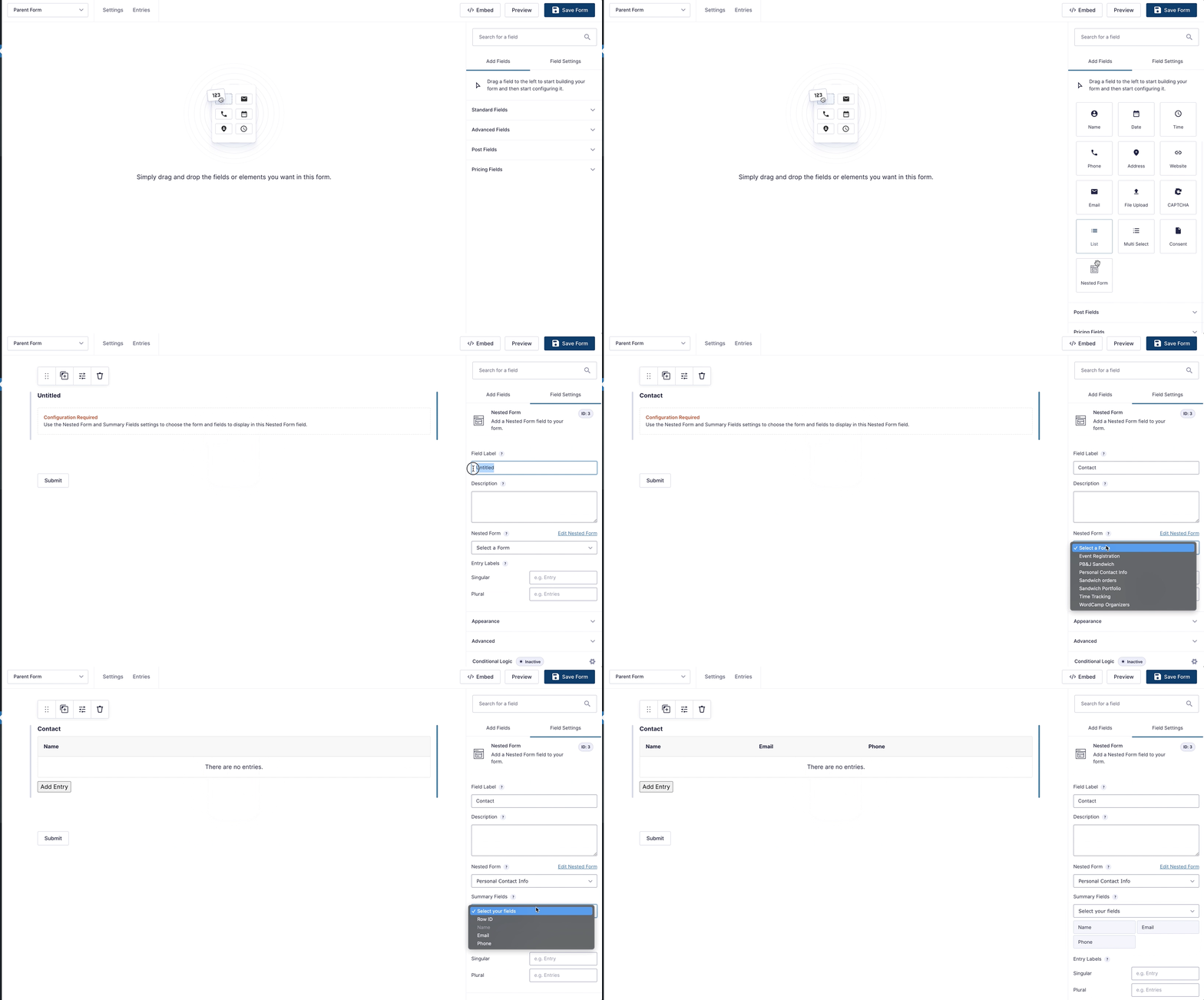
The key difference is how Nested Forms handles repeated data. Each submission of the Child form becomes its own Child entry, linked to the Parent entry. Each repeated item is stored as its own Child entry, so it can be managed and processed individually.
By default, feeds for Child entries are processed when the Parent form is submitted. You can also configure them to process when the Child form is submitted instead. To note once more, a Child entry refers to data from the Child form that has been submitted via a Nested Form field on the Parent form.
Gravity Forms Nested Forms makes it easier for you to create and manage forms and collect repeatable data, and easier for your users to fill out.
Doing more with Nested Forms than meets the… UI 👁️
Now that you have a basic idea of how Nested Forms works, let’s talk about what sets it apart.
Child forms galore
Nested Forms can handle complex data collection without making it complicated for your visitors to use or for you to process.
Of the three options covered here, Nested Forms is the only one that lets you collect multi-page submissions as part of a larger submission. In other words, you can have multiple Child forms under one Parent form, and each of those Child forms could contain multiple pages.
For example, you can register multiple people from your company for a conference, book a field trip to the zoo for a classroom of kids, or submit traveler information for your entire family.
We also have a tutorial that makes it easy to register multiple people to your WordPress site at once using Nested Forms.
Essentially, Nested Forms can be used whenever you’d like to collect individual entries grouped together under a single form submission.
Conditional Logic, calculations, and dynamic population (oh my!)
With Nested Forms, a Child form can use Gravity Forms features that aren’t available inside the native Repeater, including (drumroll) conditional logic.
Here are several scenarios where that could come in handy.
Want to use nested forms in calculations? Nested Forms enables you to perform calculations based on:
- Count (total number of Child entries* for a field)
- Total (sum of all Child entry totals)
- Sum (sum of specified Child entry totals)
- Set (a comma-delimited set of values from specified entries)
Further down, we have some examples of using Nested Forms in calculations.
If you weren’t having enough fun, you might wonder how to populate a Nested Form field dynamically. Nested Form fields can be dynamically populated in precisely the same way as other Gravity Forms fields. Nested Form fields expect a comma-delimited list of entry IDs for the dynamic population value.
More on that here if you’re curious to see an example.
Include file uploads in Nested Forms
One drawback of the List field and the Repeater field is that neither can use the File Upload field.
The File Upload field in the context of a repeater is powerful — think about applications like this:
- Event registration form: each attendee can upload a photo.
- Recipe creation form: upload an image to accompany each step in a recipe.
- Artwork submission contest: collect multiple files from each participant.
Anytime you need to collect multiple files as part of an entry, the File Upload field combined with Nested Forms is the way to go!
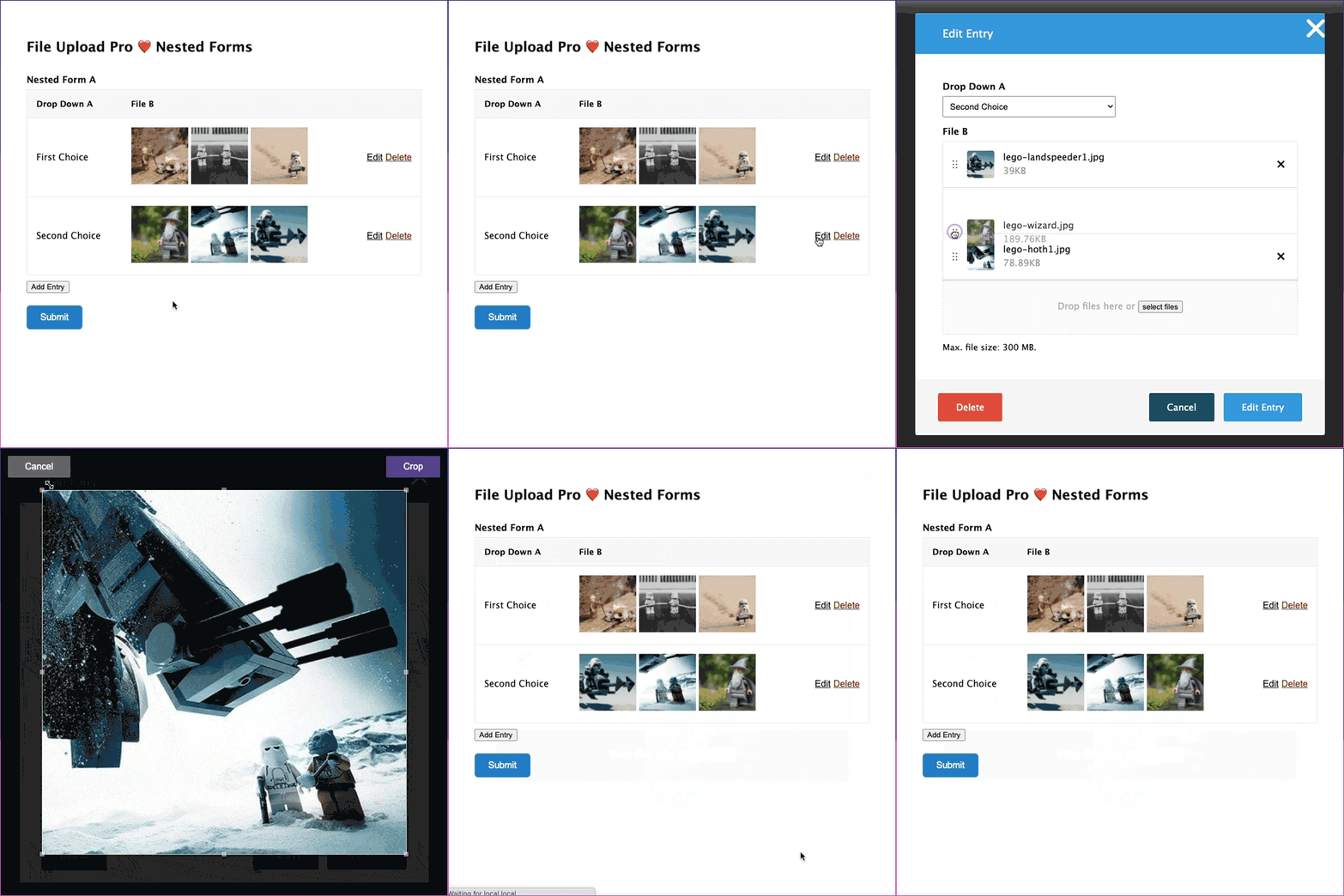
If you want cropping, sorting, and drag-and-drop for the File Upload field, Gravity Forms File Upload Pro works with Nested Forms too, including image previews (or PDFs) in Nested Form fields.
Integrate repeater entries with maps
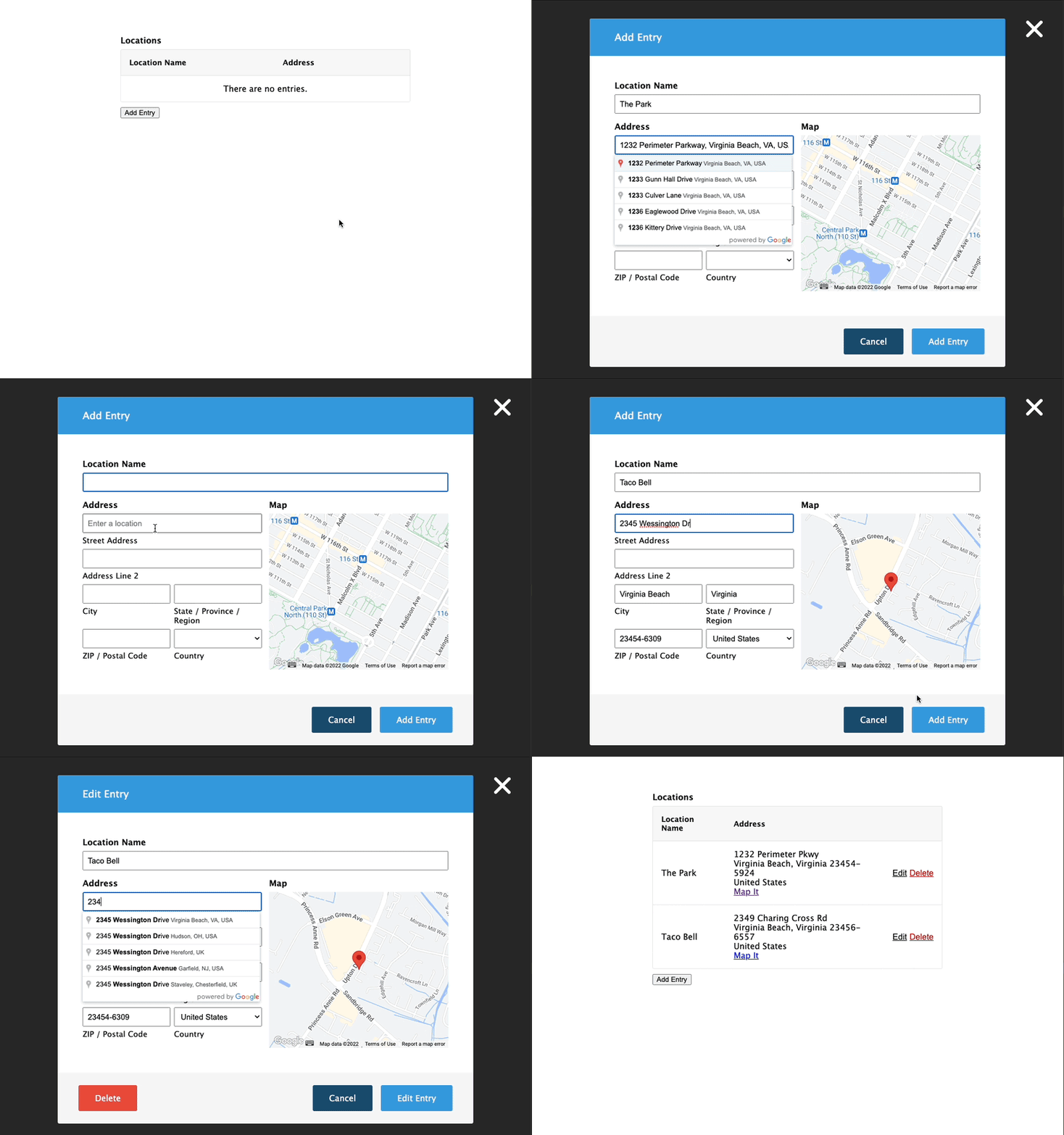
Nested Forms integrates with Gravity Forms Address Autocomplete, which makes adding location-based entries a cinch. If you need users to add multiple stores, home addresses, or business locations, autocompletion helps them add each one quickly.
Do everything you could do with a “regular” form
The real power of Gravity Forms Nested Forms is that each Child form works the same way a standalone form does.
Even with complex, nested forms, you can still do things like:
- Use the drag-and-drop builder UI
- Control the layout of the Child fields with the Gravity Forms layout editor
- Add custom field types and functionality from third-party add-ons
You get support for conditional logic, calculations, and many other Gravity Forms features that aren’t available inside the native Repeater.
To make admin work easier, Nested Forms lets you duplicate Child entries.
Using Conditional Logic with a Gravity Forms repeater field plugin
At its simplest, conditional logic lets you display or hide fields, sections, pages, and more based on what a user has selected or entered.
You can apply logic based on things a user hasn’t explicitly told you, like geography, the referring URL, or other analytics data generated from their behavior on your site prior to reaching the form.
Combine conditional logic with repeater fields, and you can do things like:
- Show or hide a set of fields based on a user’s selection.
- Skip extra questions (like new forms or fields) based on what users have already entered.
- Send notifications or follow-ups to more than one user and email added to a repeated contact entry.
- Send collected data to other services based on conditions.
- Run dynamic pricing calculations.
Pro tip
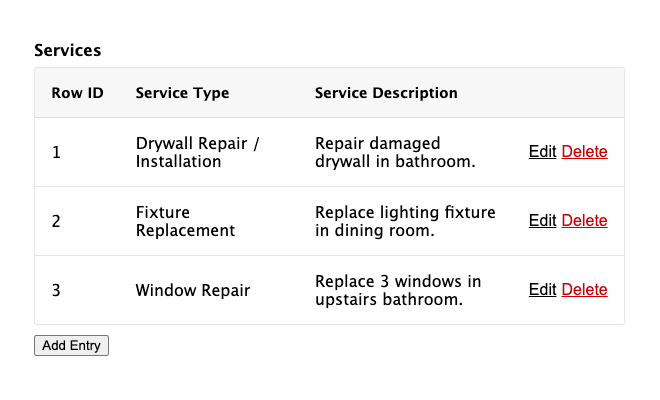
The Repeater field can show or hide itself with conditional logic, but the fields inside it can’t. If you need conditional logic on individual fields in each row, Nested Forms supports it.
Conditional Logic using the Gravity Forms List field
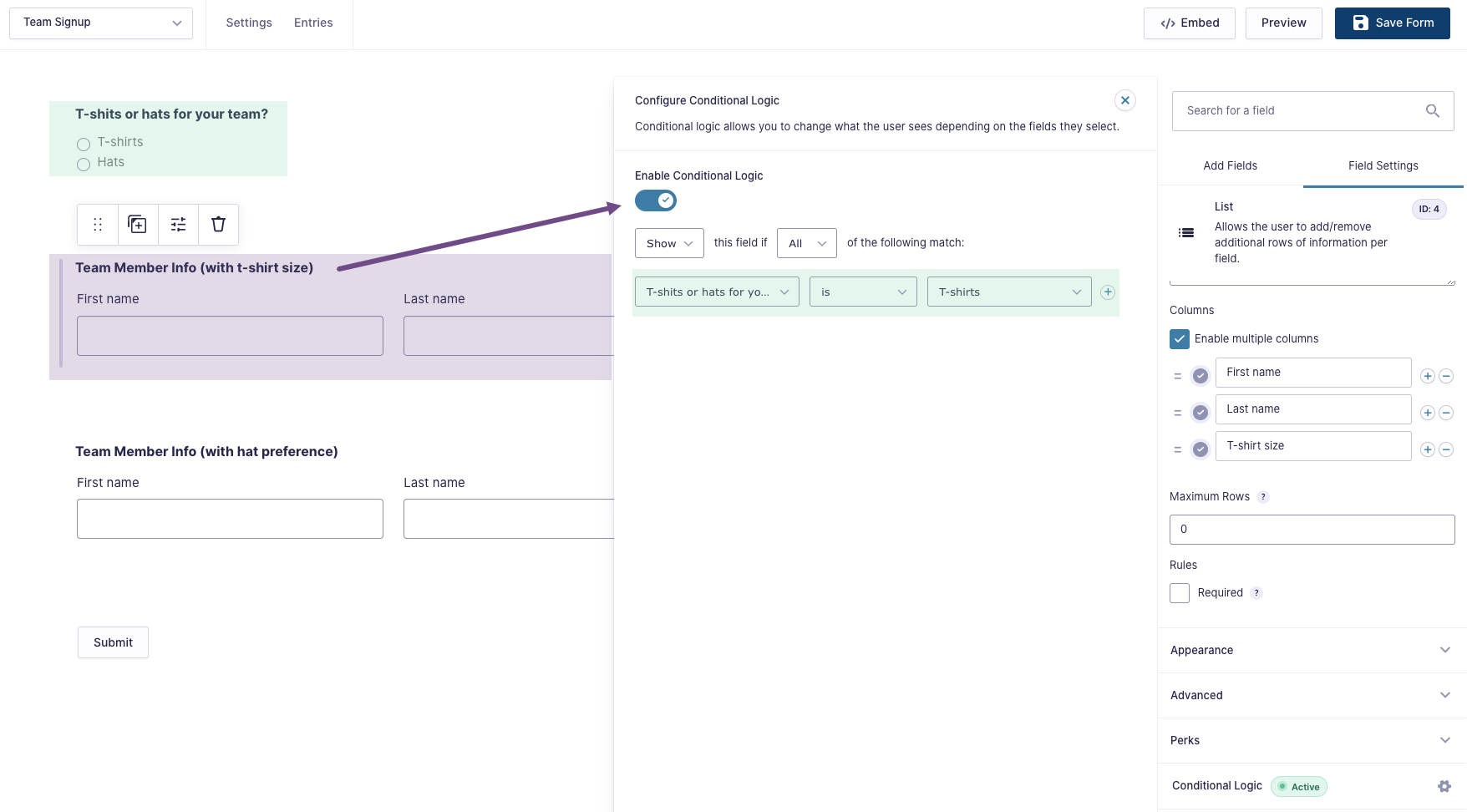
It’s possible to set conditional logic for the List field to show and hide itself, but not for its individual columns or inputs.
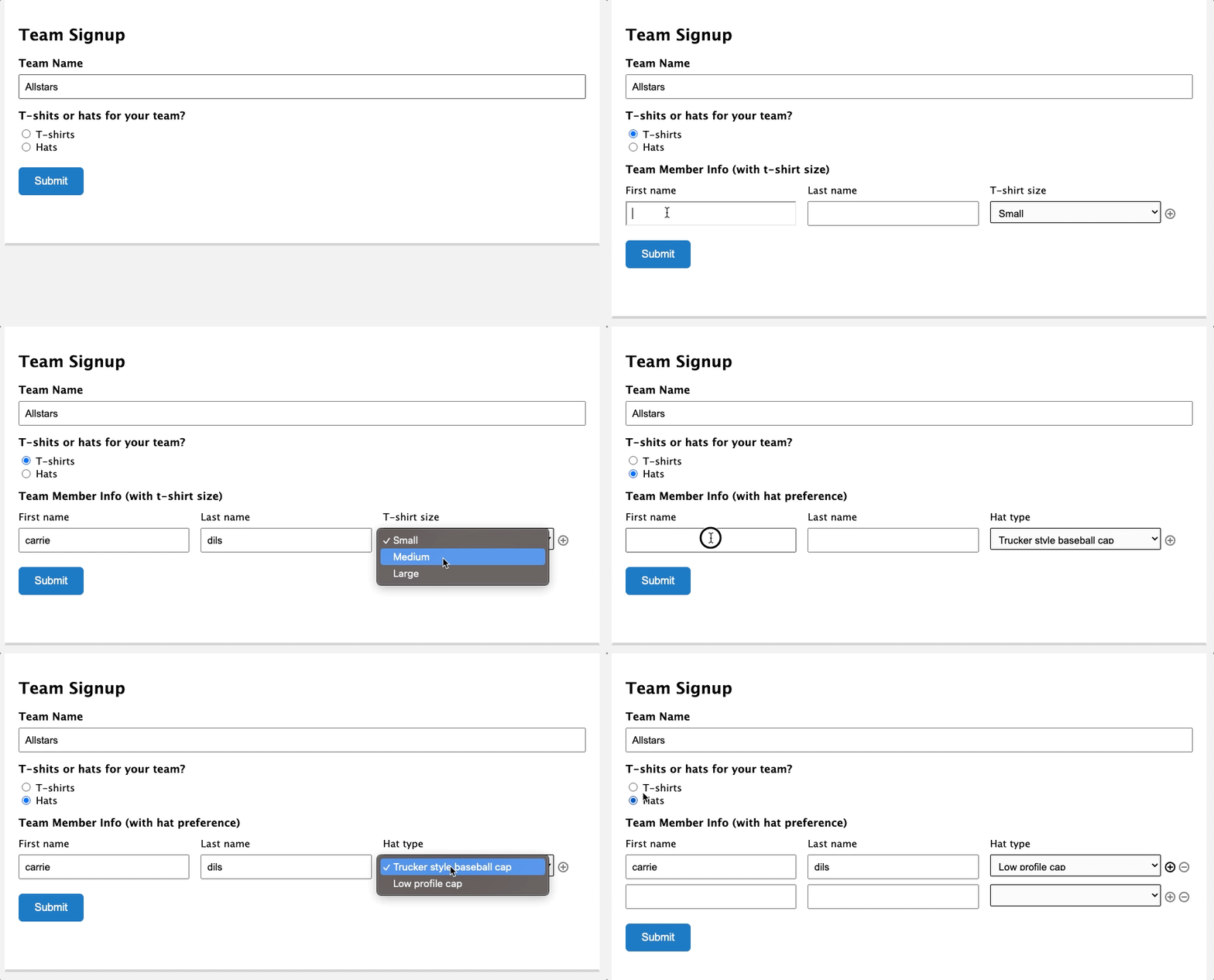
For instance, let’s say you have a team signup form and want to know if the team prefers matching hats or t-shirts. You could start with a form that has:
- Team Name (Single Line Text field)
- Select t-shirts or hats? (Radio buttons field)
- Team member info w/ t-shirt size (List field)
- Team member info w/ hat style preference (List field)
For both List fields, you’d set conditional logic to only display them based on the value of the Radio Buttons field.
Then, when someone fills out the form, they’ll either see the list field that corresponds to their selection. Handy!
Conditional Logic using the Gravity Forms Repeater field
You can set conditional logic on the Repeater field itself. For example, show the repeater only when someone selects “Yes” to a Radio Button field, and hide it when they select “No.”
Fields inside the repeater can’t use conditional logic, and the form editor won’t let you set it. If you need to show or hide individual fields in each row, Nested Forms supports that (more on it below).
Conditional Logic using Gravity Forms Nested Forms
Unlike the List field and the Repeater field, which can only show or hide themselves, Nested Forms includes full support for conditional logic on both the Nested Form field and individual fields from the Child forms.
This lends itself to all sorts of cool ways to tailor a form based on conditions.
Reduce friction and control user behavior
If you’re using repeaters, there’s a good chance you’re asking users for a lot of information. Conditional logic with Nested Forms lets you skip fields or entire pages instead of showing every field in the form, which keeps things simple for users and can help with conversions and accurate data.
For example, conditionally display any nested forms based on previous fields:
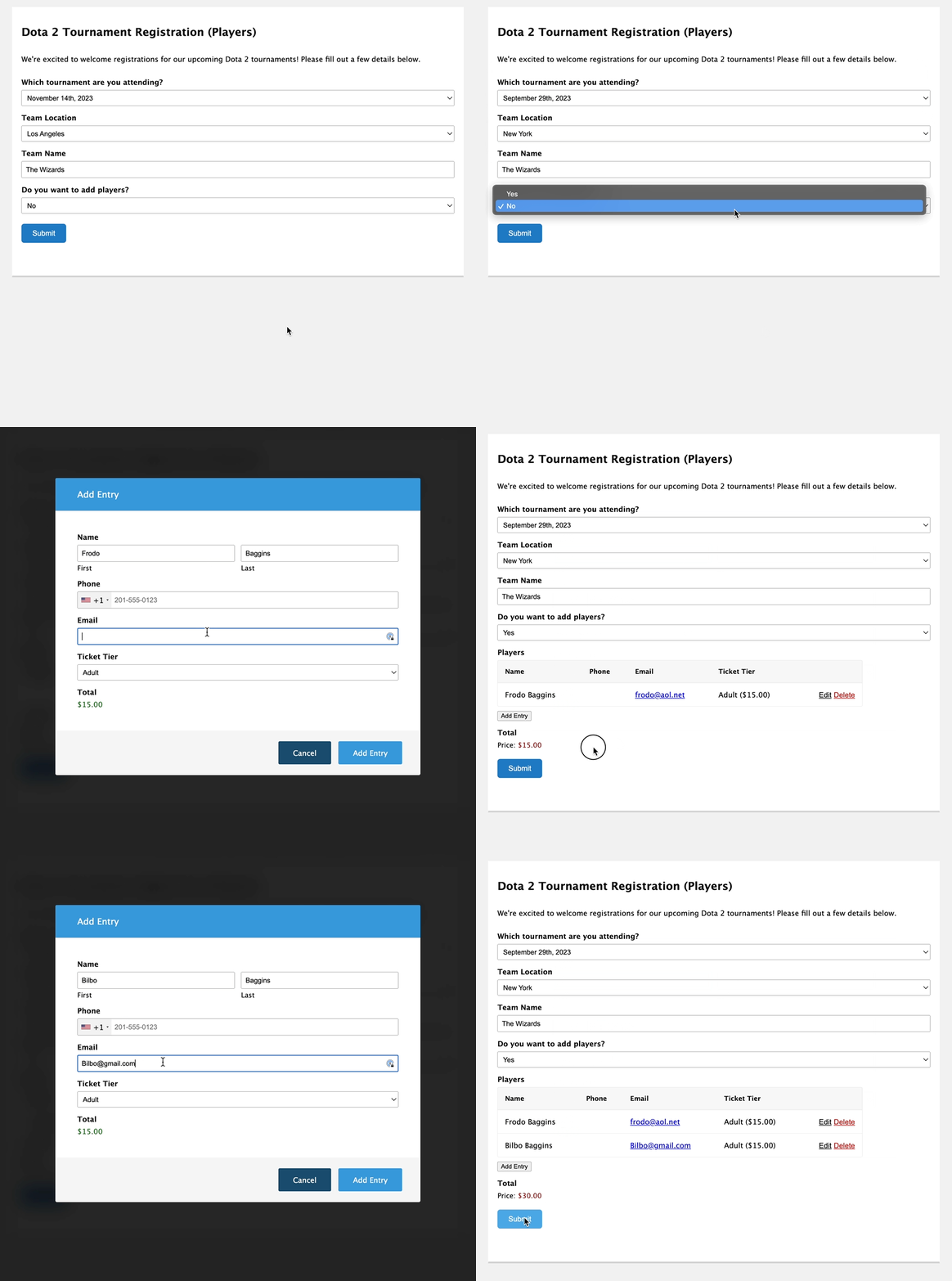
Dynamic order forms
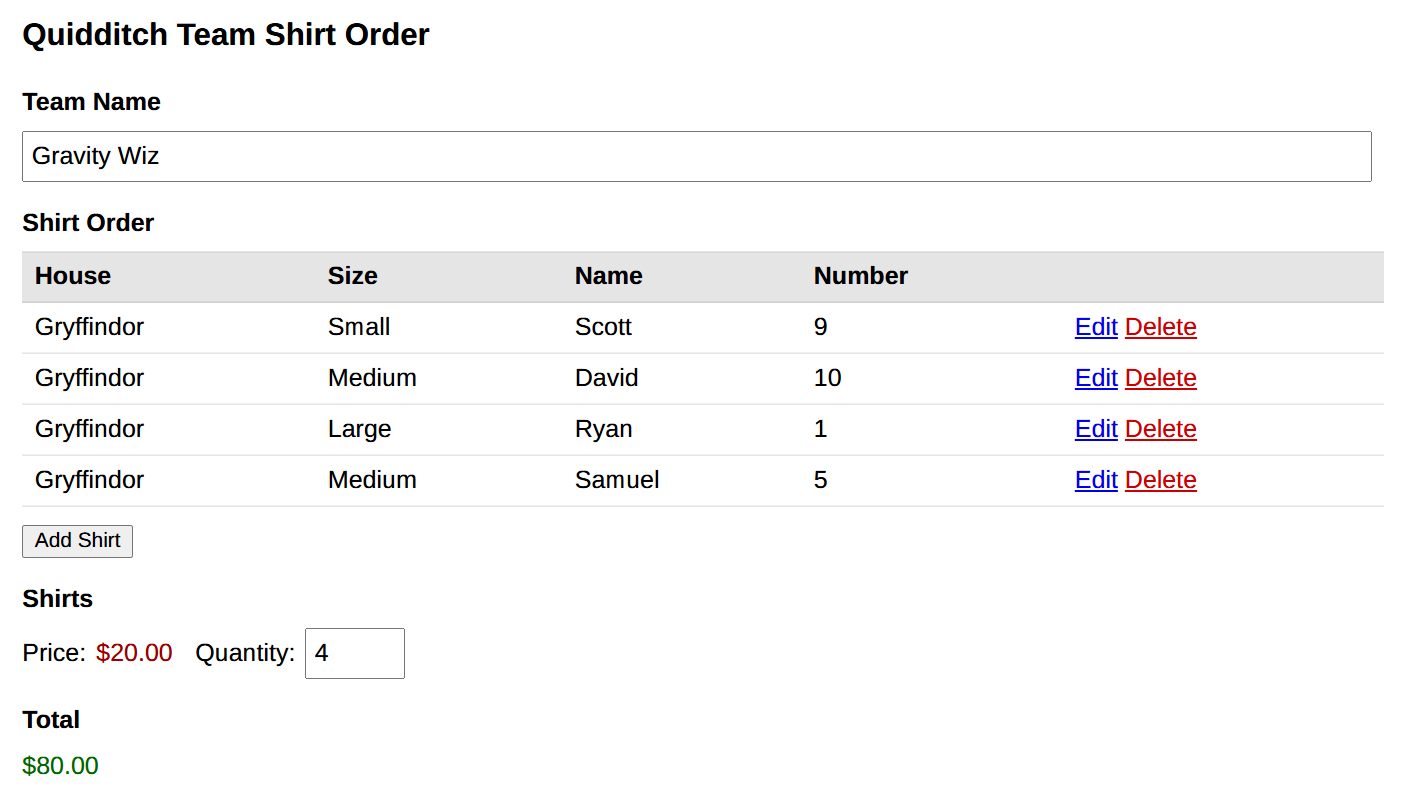
Create forms where customers can order and configure multiple products with a Nested Forms field. Depending on the product they choose, conditionally display new fields and forms for configuring that product. Once multiple products are added, capture each product’s total on the parent form automatically.
Here’s a fun example: you may have an order form for event tickets. If only one person is going, they go through the typical checkout process. However, if more than one ticket is selected, you want to collect additional details about each ticket holder. It might be a bit strange to show this ‘Additional Attendee Information’ field if only one user is going.
Solution: display the Child forms only if the number of tickets selected is greater than one.
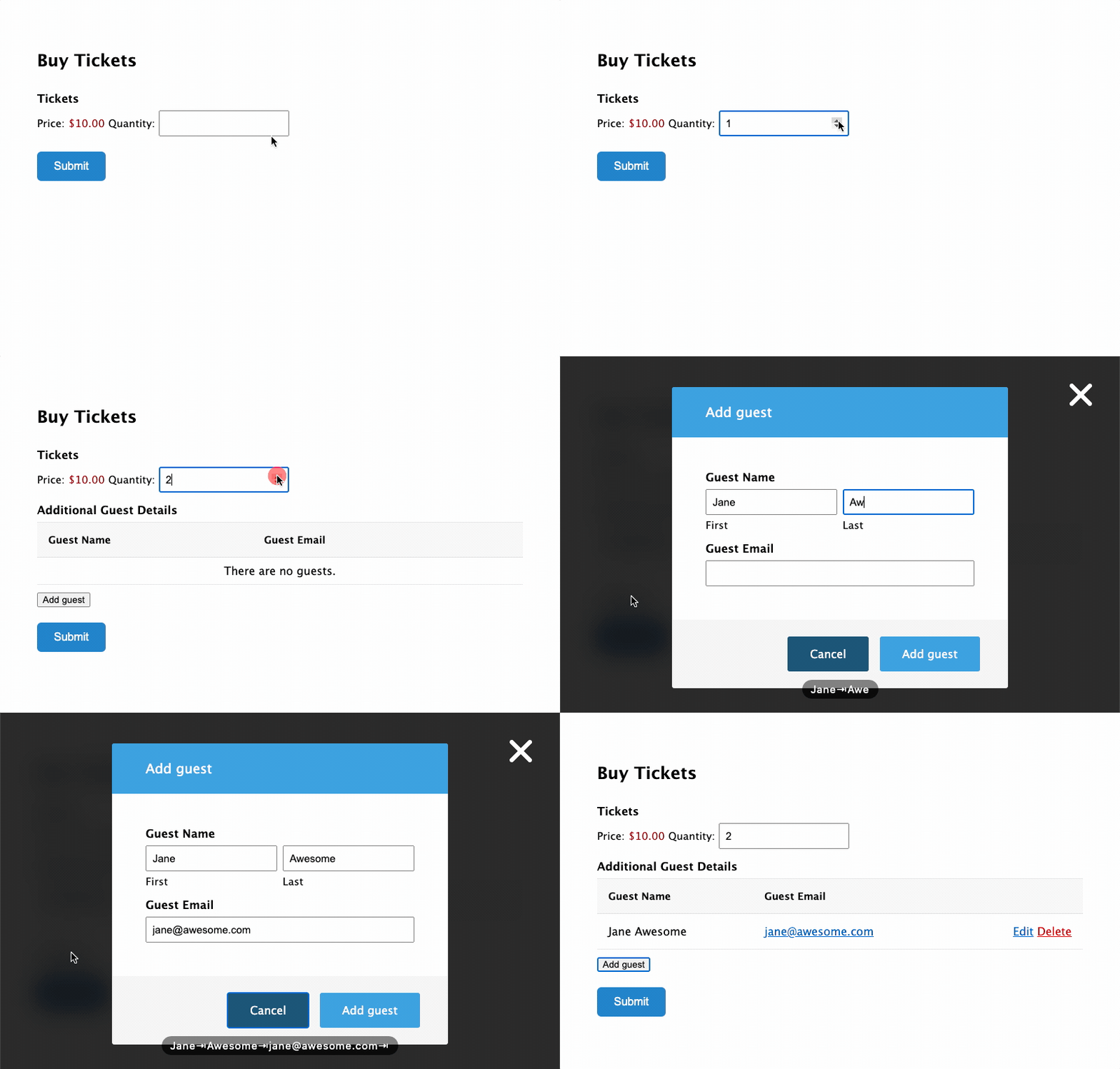
If you want to learn how to do this, it involves Gravity Forms Copy Cat and some basic conditional logic, see the breakdown.
Nested Forms integrates with blockbuster perks like Gravity Forms Advanced Conditional Logic and Gravity Forms Populate Anything for getting more out of the functionality offered in both.
Doing Calculations with Gravity Forms Repeaters
Want to run calculations on repeatable data? Easy… depending on the solution you choose.
Calculations let you total up multiple fields entered on one form or run the numbers on repeated fields. More complex setups can power expense (or time) tracking tools, loan calculators, and dynamic order forms for multiple products.
Let’s look at how we can perform calculations with Gravity Forms Repeaters, including List fields and Gravity Forms Nested Forms (note that calculations don’t work inside a Repeater field).
Calculations with Gravity Forms List Fields
While List fields don’t support calculations out of the box, you can leverage Gravity Forms Auto List Field to count the number of List field rows and output that value into a field.
For instance, let’s go back to our sandwich order form and add a field that calculates the number of sandwiches we need to order.
We’ll check the “Enable Calculation” box and then use the :count merge tag modifier in the calculation.
Now, when a visitor fills out the form, the “Number of Sandwiches in Order” field keeps a tally of each row in the List field. This works with Number and Quantity fields.
If you want to perform calculations within a List field row or column, you can do that via the List Number Format Add-on for Gravity Forms. With the add-on, you can set any column in a Gravity Forms List field to support numbers, including decimals, decimals with commas, or currency. The add-on supports rounding, specifying a range of numbers to use, column totals, and calculations using merge tags.
The List field is the most basic repeater option, but you can still use it for calculations. Next up: Nested Forms.
Doing Calculations with Gravity Forms Nested Forms
Nested Forms gives you plenty of ways to run calculations, including a few that pull data from a Child form into the Parent form. Each one uses a merge tag modifier.
Refresher: merge tags display and manipulate entered form values in real time. Modifiers take that a step further, letting you run things like count, sum, and total calculations on dynamic data within a merge tag.
They look like this: {FIELD_LABEL:FIELD_ID:MODIFIER}
Where:
Field_label— would be the name of the Nested Form field, which could be separate from the child form’s name. Note, these usually have the same name.Field_ID— the field ID of the Nested Form field.:modifier— the merge tag modifier.
All of what we’re about to discuss can be found in greater detail within our guide on doing calculations with Nested Forms.
:count merge tag modifier
The :count merge tag modifier returns the total number of Child entries attached to a Nested Forms field. That is, if there are three child entries submitted for a given Nested Forms field, the merge tag returns three.
Example: {NestedFormFieldName:1:count}
Potential use case:
- Calculating quantities. Calculate quantities based on the number of Nested Forms entries. For example, you have a webinar sign-up form and you want to charge per attendee, especially if multiple attendees are registered at once.
:total merge tag modifier
The :total merge tag modifier calculates the sum of all child entry order totals. For example, if a form’s first child entry has a total of $30 and the second child entry has a total of $20, the merge tag would return $50.
Example: {NestedFormFieldName:1:total}
Use case: collect a single payment for multiple orders. Add as many Product Fields to a Child form as you like, and collect payment once in the Parent form.
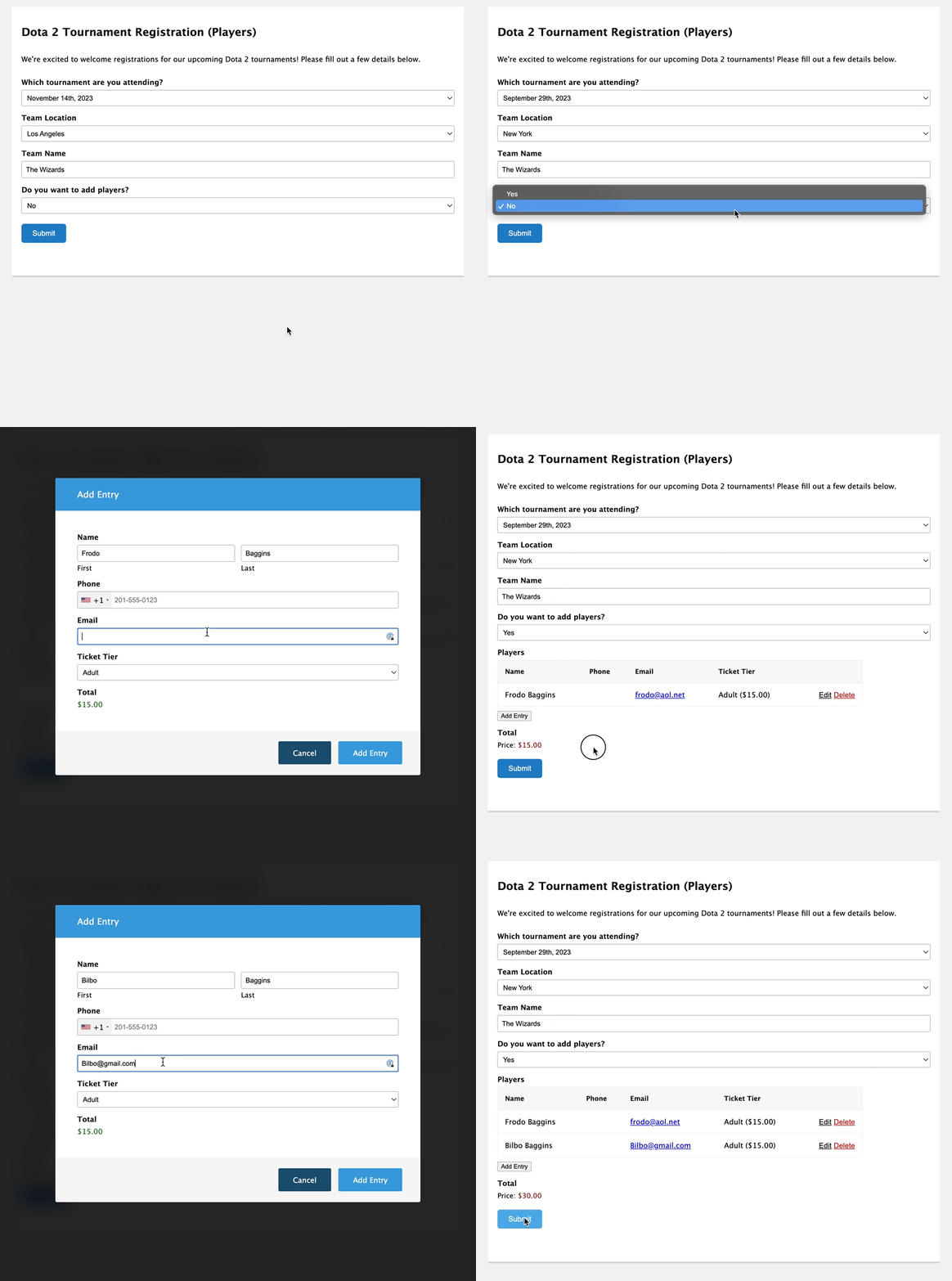
Here’s how you would set that up.
:sum merge tag modifier
This modifier returns the sum of a specific field’s value across all Child entries that field exists on, into a Parent form. Example: you target the Number field on all Child entries. Each Child entry’s Number field has a separate value —the first Child entry has a value of 3, the second Child entry has a value of 2, the third Child entry has a value of 18. This merge tag would then return 23.
The syntax works like this: specify which field in the Child form you want to sum, preceded by an = sign.
Example: {NestedFormFieldName:1:sum=2}
Where: the Form ID is 1, the Number field in the Child form’s ID is 2.
Use case: sum the number of reserved seats for an event. Pretend you have a form that will be used for different companies to register attendees for an awards dinner. Each company can reserve a certain number of attendees and those attendees can, optionally, bring a guest. Nested Forms handles registering these attendees and the :sum modifier works out how many seats are needed.
If you want to explore how to set up and calculate :count, :total, :sum, and others, head over to our article on doing calculations with Nested Forms.
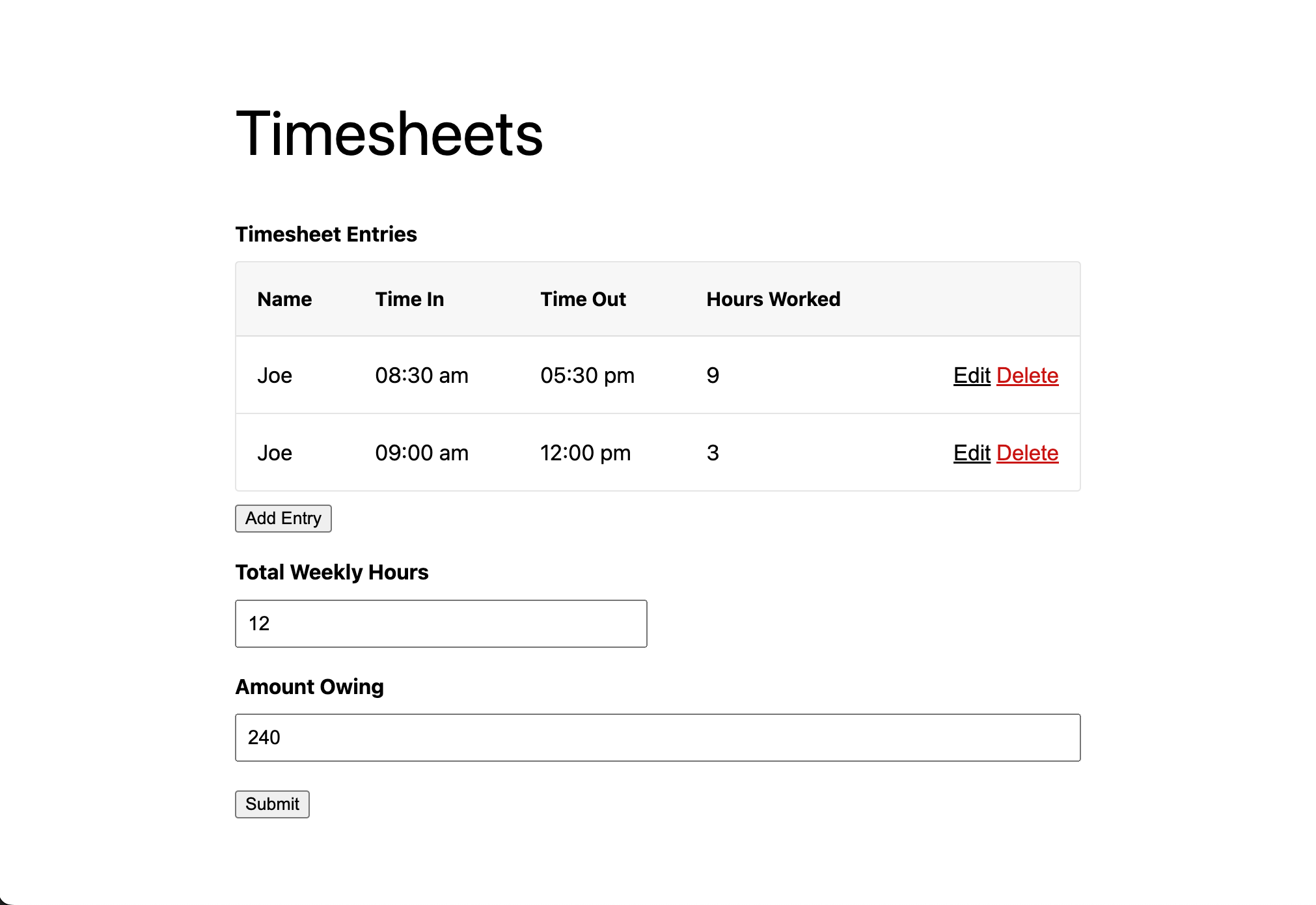
Use case: create timesheets and track time using Gravity Forms
Nested Forms makes it easy to add time tracking entries for each person you want to track time for, and calculate totals in one Parent form. You can also calculate overtime pay, restrict entries to available weekdays only, and other helpful tips. We’ve written a full guide on how to set this up: create timesheets with Gravity Forms.
Exporting Data from Gravity Forms Repeater Plugins
What makes exporting repeater data unique is that you’re managing a lot of repeated values, whether they’re grouped within one entry or stored as linked Child entries.
Exporting with Nested Forms
Nested Forms is built with that in mind. Exporting works much like exporting any other form in Gravity Forms, with a few additional features. Let’s explore those.
- Navigate to Forms > Import / Export from your WordPress dashboard.
- Open the Export Entries tab.
- Select your form from the dropdown.
Gravity Forms will show all available fields for export, and if the form contains a Nested Forms field, it will display it, along with all child fields involved in that Nested Form.
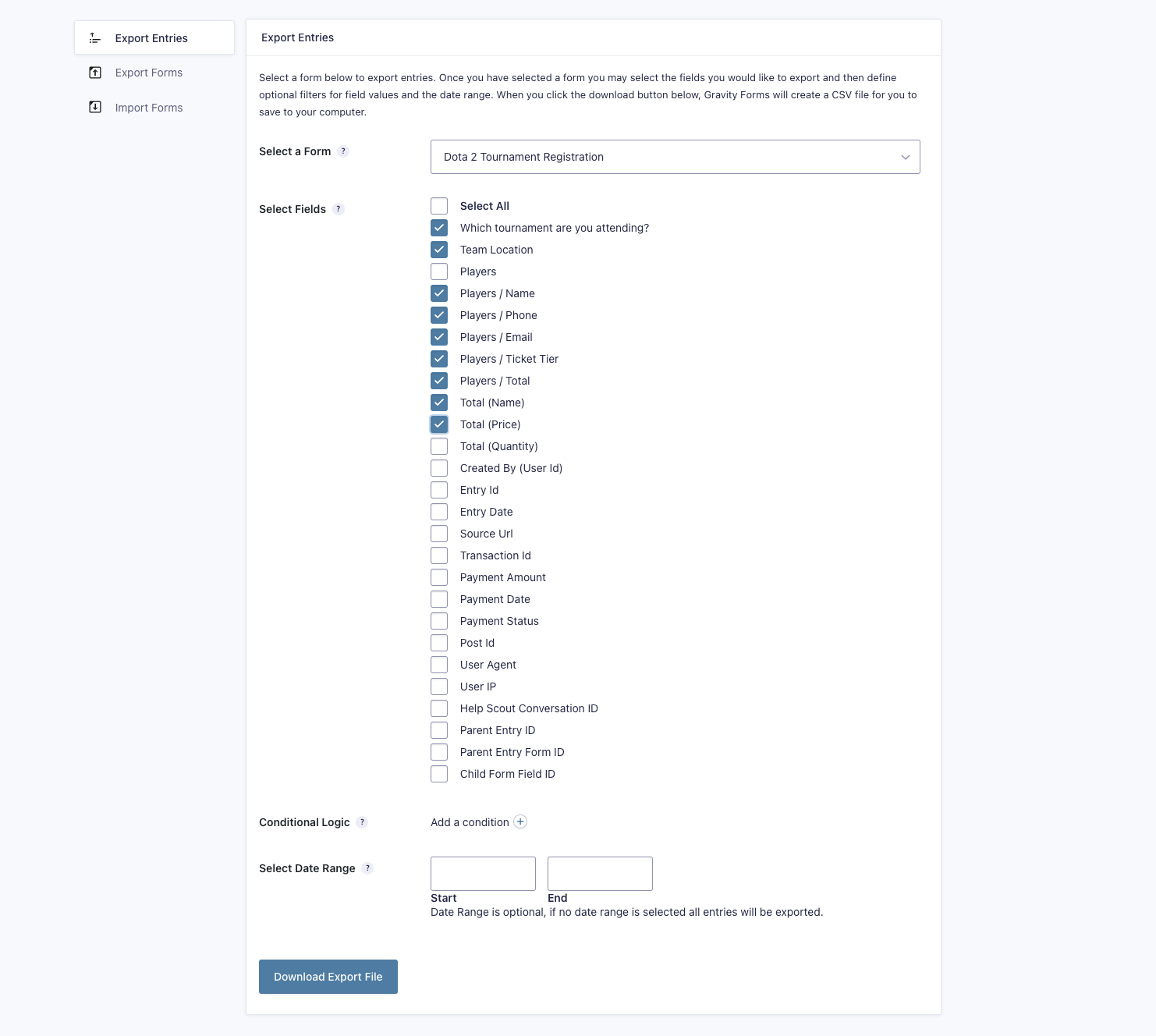
- To export child entries in a Nested Form field, find them in your Parent form’s field list and select them.
- The name will appear as Nested Form Field Name / Child Form Field Name
- When Child Form Fields are checked, your CSV file will display the child field entries as separate columns.
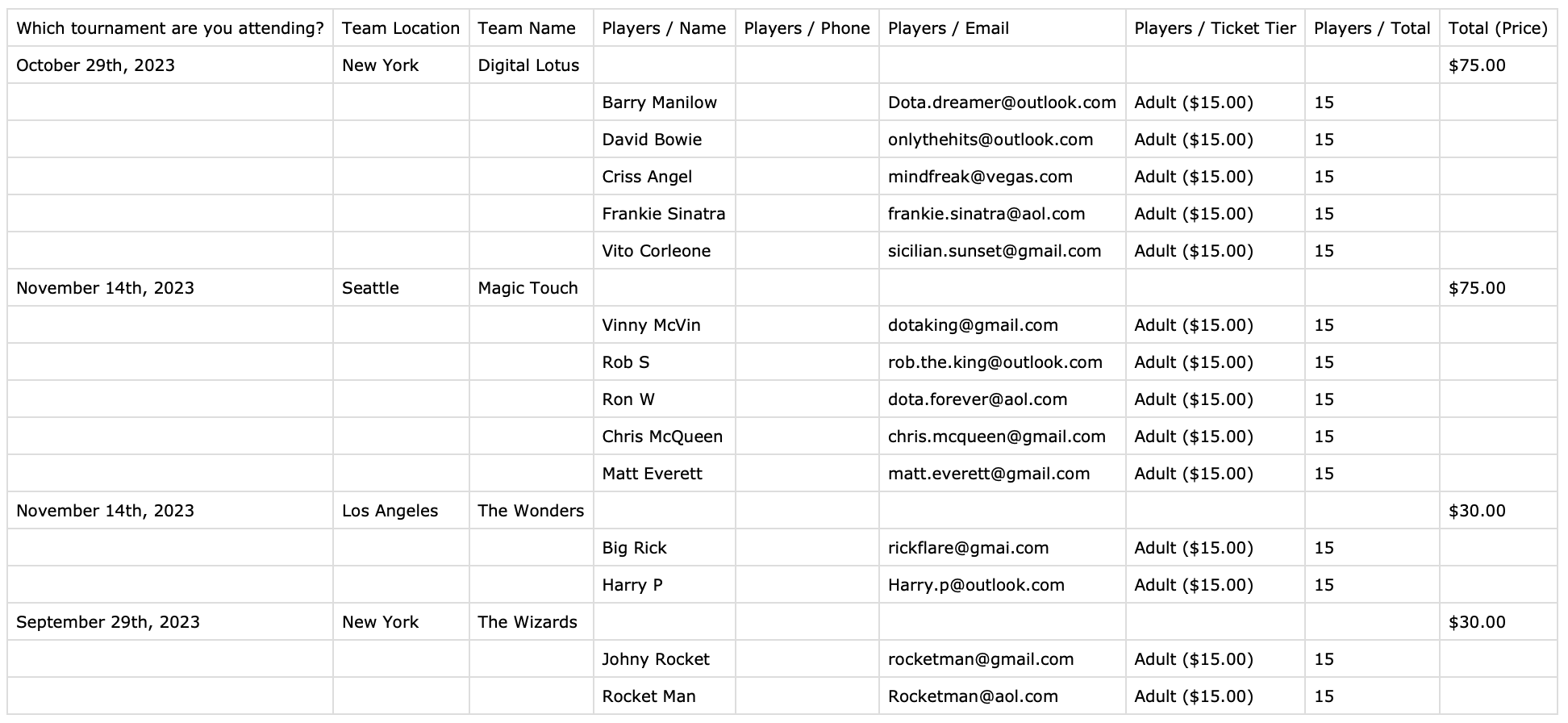
In the image above, each column represents child entries that belong to a single Parent entry.
That’s the high-level view. We have a whole guide on exporting with Nested Forms, check it out!
Exporting data from the Repeater field
Gravity Forms lists a Repeater field’s sub-fields in the export’s Conditional Logic setting, so you can filter which entries are exported by their values.
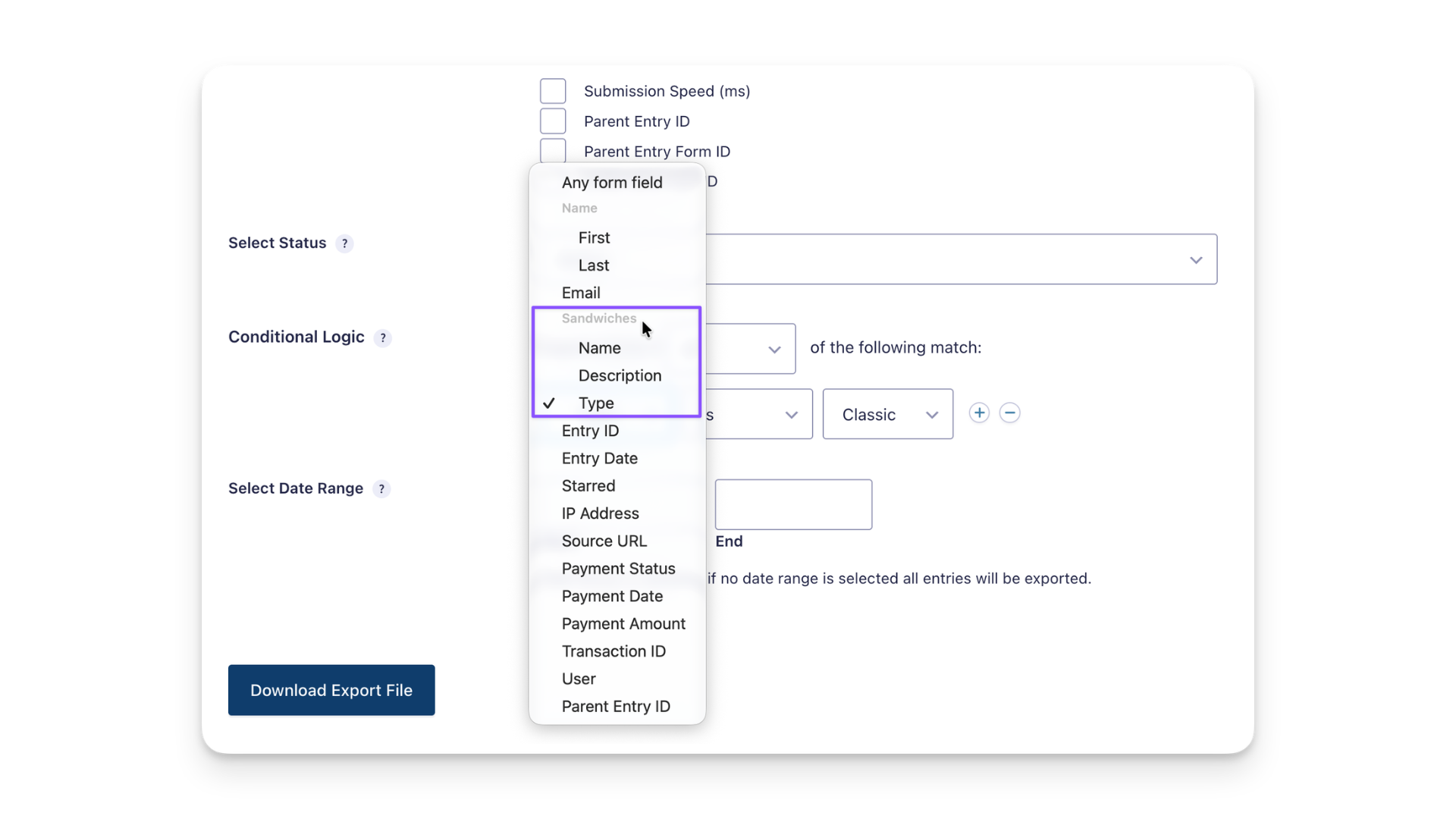
Above, sub-fields are indented.
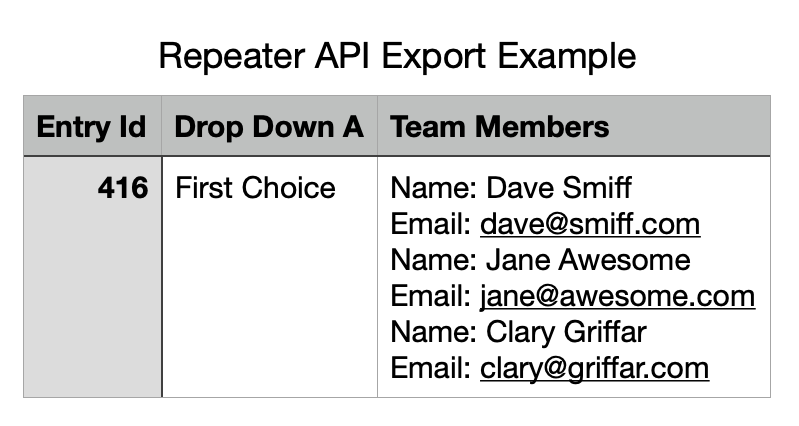
When you export entries, the Repeater field shows up as one field you can select, not its sub-fields. All of its rows come out as a single value, like this:
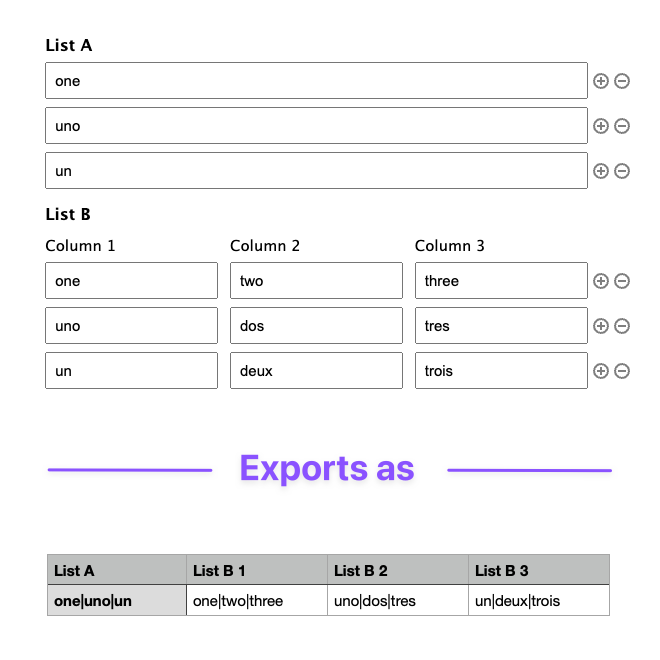
Exporting Data from the List field
Exporting data from a Gravity Forms List field works similarly to exporting any other field.
Head over to:
- Forms › Import/Export from your WordPress dashboard.
- Open the Export Entries tab.
- Select the form from the dropdown.
There are no special exporting features for List fields — they operate the same as any other field when checked, with support for conditional logic and date control for entry values. Learn more about exporting entries in Gravity Forms.
Applications and Use Cases for Gravity Forms Repeaters
So far, we’ve covered what repeaters are and what they can do. This section highlights real-world use cases.
Use them as inspiration, and if you have a use case we haven’t mentioned, share it in the comments!
Event registration: If you are collecting registration information for an event that allows attendees to bring guests, a form repeater can simplify the process of adding multiple guests by letting users add a set of fields for each guest, as many as they need.
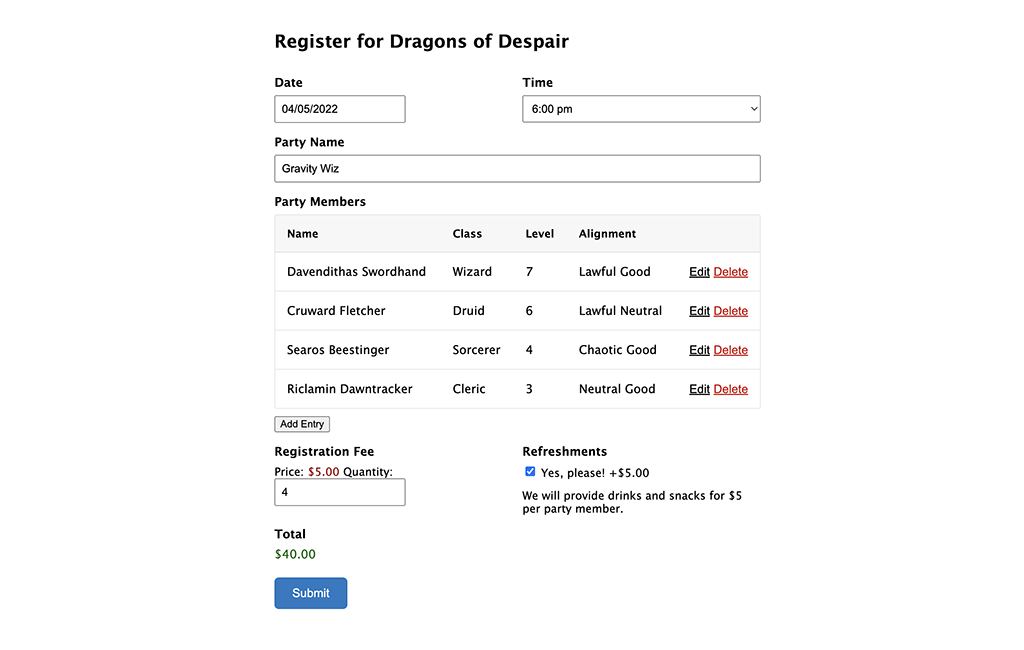
Order forms: If you are collecting orders that require users to provide information about multiple items or quantities, a form repeater lets users add as many items as they need to the form.
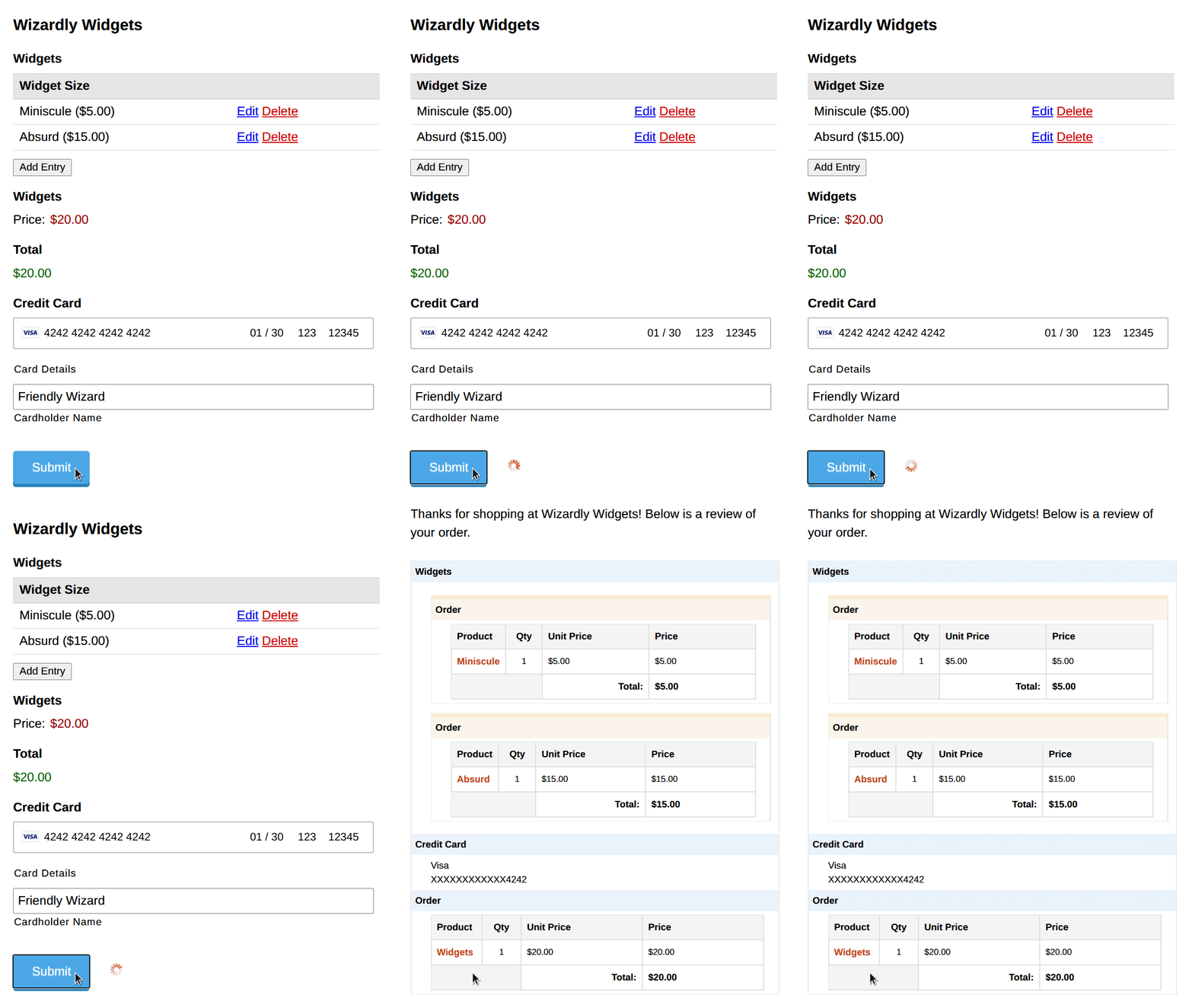
User registration: If you are collecting information for user profiles on your WordPress site, Nested Forms makes the process of registering multiple users straightforward while saving time on their end. You can gather information about their education, work experience, or skills, and once registered, use their information to create a more dynamic user experience elsewhere. Learn how to register multiple users to your WordPress site from a single form.
In all of these cases, using a form repeater can save time and effort for both the form creator and the user.
FAQ: Common questions about Gravity Forms Repeaters
We’ve covered a lot in this article, but we’re not quite through! This section answers some common questions about repeaters.
How do I repeat groups of fields?
Using Gravity Forms’ native Repeater field, you can combine fields into a set that can be used in a single form. This enables the form submitter to fill out that group of fields multiple times within a single form submission.
The Repeater field is built right in the form editor, no code needed. If each row needs conditional logic, file uploads, or multiple pages, check out GP Nested Forms, which lets you repeat a full nested form instead.
How do you create repeater fields in Gravity Forms?
As a recap, the three most common (and best supported) repeaters for Gravity Forms are:
- List field (native Gravity Forms)
- Repeater field (native Gravity Forms)
- Nested Forms (Gravity Perks Add-on)
You’ve got options, from repeating a single row with a List field, to repeating a group of fields with the Repeater field, to repeating an entire form inside another form with Nested Forms.
Can I dynamically populate custom repeater fields?
Do you want to populate data from third-party repeaters (like Advanced Custom Fields or JetEngine) into Gravity Forms?
If so, Populate Anything can do that. You can look up repeater data (typically via the Post or Database object type) and populate that data as choices into your fields.
Here are a few snippets we have that might help as well.
JetEngine
If you’re using JetEngine to manage repeatable content for your posts, this snippet will allow you to populate that content as field choices with Populate Anything.
Advanced Custom Fields
We have a few snippets that work with ACF’s Repeater field.
- This snippet allows you to target an ACF Repeater field and populate all of its items as choices with Populate Anything.
- If your ACF Repeater contains multiple subfields and you’d like to combine multiple subfields to create unique choices, this advanced snippet shows you how.
- Lastly, here’s a pretty cool snippet that lets you populate child entries from Nested Forms as unique items in an ACF Repeater field. Requires the Gravity Forms Advanced Post Creation add-on.
If none of these solutions quite match what you’re trying to accomplish, let us know in the comments.
Can I have a form within a form?
Nested Forms, FTW! You can use it for straightforward or complex forms, with multiple Child entries grouped under one Parent entry.
Gravity Forms Nested Forms is a plugin that adds a Nested Form field type. This field allows you to select another form that will be used to collect “child” entries and attach them to the “parent” entry on submission. You can view, edit, and delete child entries on the parent form via a clean, compact table.
I’m experiencing Gravity Forms repeater add-on problems. What should I do?
It depends. Issues we’ve seen with repeaters range from:
- Users reporting a 500 error caused by a Gravity Forms repeater
- Repeaters wrapped in HTML not working on websites
- Issues with repeater content not displaying in emails
- Repeaters crashing entire websites
Because the causes vary so much, start with which repeater you’re using.
If the issue is with the List field, we’d recommend troubleshooting with the Gravity Forms documentation before reaching out to their support.
If you’re dealing with the Repeater field, we’d encourage you to reach out to Gravity Forms support.
If your problem concerns Gravity Forms Nested Forms, start with our documentation! If you’re not finding what you need, please do drop us a line and open a ticket — we love to help.
–
Still have questions, or curious about what else you can do with Gravity Forms repeaters? Leave us a comment and let’s discuss!


Is there a way to detach a child entry from a parent entry?
In my case, I have a form ‘Students’ and a nested form ‘Classes’ where I can store each class a student is a part of. However, as time goes they move up/drop/add classes, and when they do, I’m looking for an easy way to detach the child entry. I kind of want the record of it that’s kep tin the child entry (dates they were in the class etc) so don’t want to delete it
Hi Chad,
We don’t have a ready solution for this, but I’m following up via email to see if we can cook up a solution for you.
That was helpful – thank you.
Along smilar lines…is it possible to somehow filter/set a condition on which entrie are displayed when using the merge tag to output them?
For example, I’m displaying them on the frontend through a custom content module in GravityView. Works great. However, I need a way to only display the child entrie where say field id 25 == Yes.
This provides a simpler solution than detatching the irrelevant ones – easier to keep a record of all child entries, easy to show/display certain ones, and easier to manage than manually detaching from the admin like I’d have to do with the snippet you provided me on that. (Which, by the way, was and is helpful in its own right so thank you….jus tnot as scalable since it’s a manual action in the backend I have to click to detach and can’t automate with workflows or other actions)
Is that possible or is there some way to modify the output? Even something as simple as being able to add a css class to the entry based on that value or even jut add that value as a css class…not totally ideal but would work.
Hello GW Team Thank you very much for your tutorials I have a question, I would appreciate it if you could help me I use the form to update user account information I wanted to use this option and every row I add will update my user meta For example I have a maximum of five metas with the names Exercise 1 Exercise 2 to exercise 5 I want every row I make Update the information of these fields Is it possible to access each new row in this plugin? Or do you have a suggestion for your own method?
Hi Deon,
Depending on your setup, this may be possible with custom code. If you have an active Gravity Perks Pro License, you can get in touch with us via our support form so we can assist you further.
Best,
Hi there,
Do you maybe has some suggestion how to style repeater fields output in email template?
Thank you
Hi Aleksandar,
If you’re using GP Nested Forms for your repeater, you can use templates to modify how the nested fields are displayed in the notifications: https://gravitywiz.com/documentation/gravity-forms-nested-forms/#templating
Best,
Hi GW team, You are doing an amazing work that makes our life easier!!
i have a question, I’m trying to use GF to create a new post into a custom post type. To achieve that I’m using gravity-forms-custom-post-types, which is working fine for almost all fields but not for repeater fields.
In the custom post type I have some repeater field for a FAQ question/answer, on the back end they will add a new row with question / answer that they can populate. But I want to limitate the access of the WP backend by setting up a GF that will populate those fields. When it comes to this ACF repeater field (FAQ) I cannot use the value entered in the GF to populate the Qestion/answer repeater field in the CPT
Any idea what I should do?
Hi Jeanluc,
Glad to know our plugin has been helpful to you. We currently do not have a solution to use the GF Custom Post Types plugin with the ACF Repeater Fields. If you have an active Gravity Perks license, you can open a ticket for this via our support form, so we can forward this as a feature request to our Product manager.
Best,