
Gravity Forms Sliders
Add interactive, draggable sliders to Gravity Forms with full support for ranges and calculations.
What does it do?
GP Sliders introduces interactive sliders to Gravity Forms via Number fields and a dedicated Slider field. Let users choose values visually, with precision, while keeping everything fully compatible with calculations, conditional logic, and exports.
With GP Sliders, you can create:
- Budget range pickers for price filtering (min/max)
- Rating scales with labeled steps (e.g. surveys)
- Quantity selectors with defined increments
- Pricing selectors that calculate totals in real time
- Donation amount sliders with custom value stops
- Score ranges for assessments or applications
- Age or eligibility filters
- And many more!
Features
- Add interactive sliders to your forms.
Replace plain number inputs with sliders — more intuitive for users, same reliable data for you. - Choose numeric scales or custom labeled steps.
Configure sliders with min/max/step increments or define your own choices like Poor → Excellent. - Create range selections.
Capture both a start and end value. Great for budget ranges, score bands, or eligibility filters. - Negative values, decimals, and fractional steps.
Configure sliders to match real-world values precisely. - Complete display customization.
Fit any layout with horizontal or vertical orientations. Add prefixes, suffixes, decimal precision, and range separators without affecting the data. - Full Gravity Forms compatibility.
Slider fields work with all Gravity Forms features — plug them straight into calculations, conditional logic, and exports. - Automatic updates.
Get updates and the latest features right in your dashboard. - Legendary support.
We’re here to help! And we mean it.
See it in action!
Get Gravity Perks
This plugin is part of Gravity Perks, a suite of 48+ essential Gravity Forms addons with support you can count on.
Have a question?
We’re here to help, just send us a message.

- Version 1.0.2
- Updated March 18, 2026
- Released March 3, 2026
All Connections
All Perks
- GF Address Autocomplete
- GF Advanced Calculations
- GF Advanced Phone Field
- GF Advanced Save & Continue
- GF Advanced Select
- GF Auto List Field
- GF Auto Login
- GF Better User Activation
- GF Blocklist
- GF Bookings
- GF Conditional Logic Dates
- GF Conditional Pricing
- GF Copy Cat
- GF Date Time Calculator
- GF Disable Entry Creation
- GF Easy Passthrough
- GF eCommerce Fields
- GF Email Users
- GF Email Validator
- GF Entry Blocks
- GF Expand Textareas
- GF File Renamer
- GF File Upload Pro
- GF Inventory
- GF Limit Checkboxes
- GF Limit Dates
- GF Limit Submissions
- GF Live Preview
- GF Media Library
- GF Multi-Page Navigation
- GF Nested Forms
- GF Notification Scheduler
- GF Page Transitions
- GF Pay Per Word
- GF Populate Anything
- GF Popups
- GF Post Content Merge Tags
- GF Preview Submission
- GF Price Range
- GF QR Code
- GF Randomizer
- GF Read Only
- GF Reload Form
- GF Sliders
- GF Submit to Access
- GF Terms Of Service
- GF Unique ID
- GF Word Count
Documentation
How do I enable this functionality?
After installing and activating GP Sliders, you can:
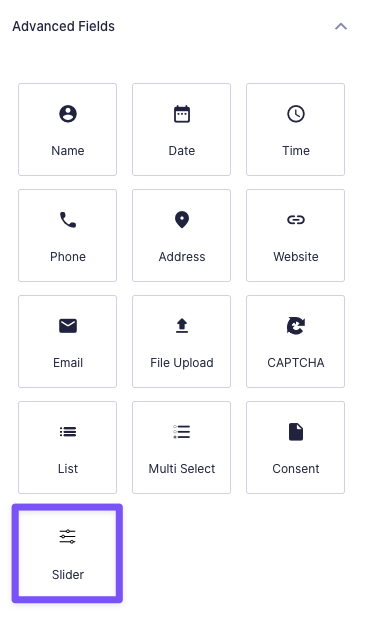
Add dedicated Slider fields
(Under Advanced Fields)
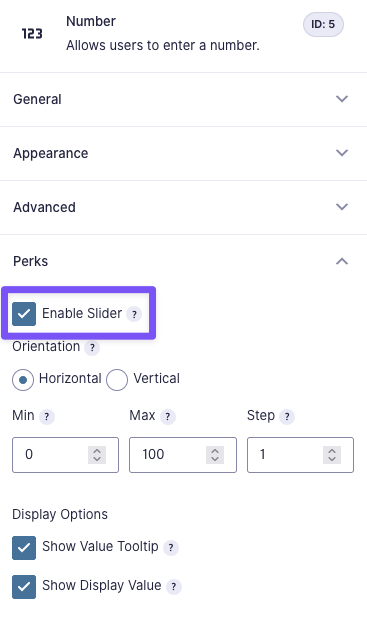
Enable sliders on Number/Quantity fields
(Under Perks tab)
Feature Details
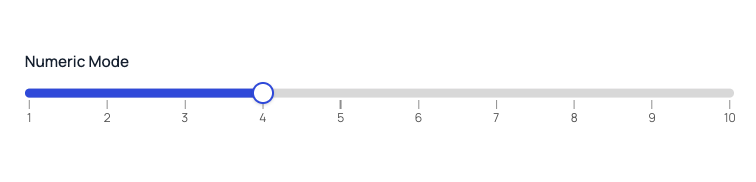
Slider Mode
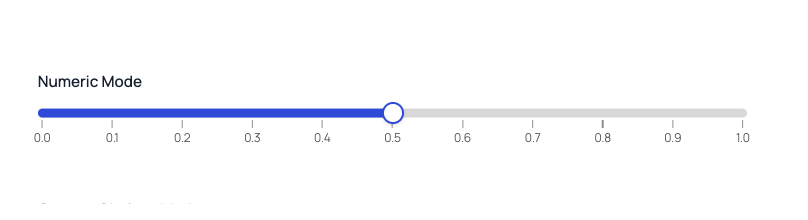
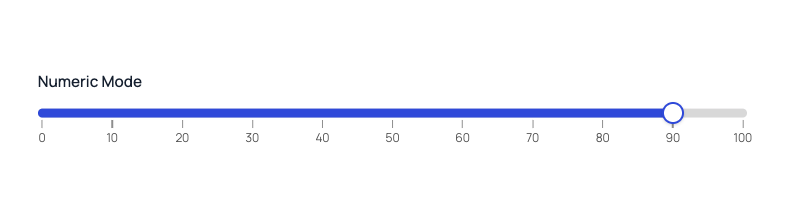
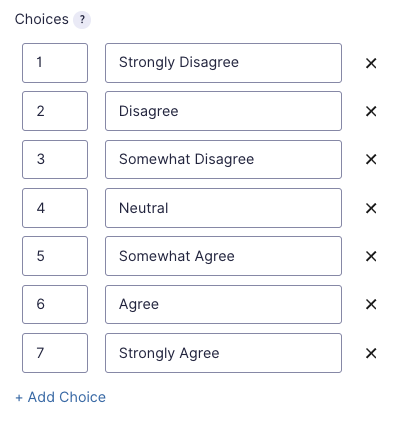
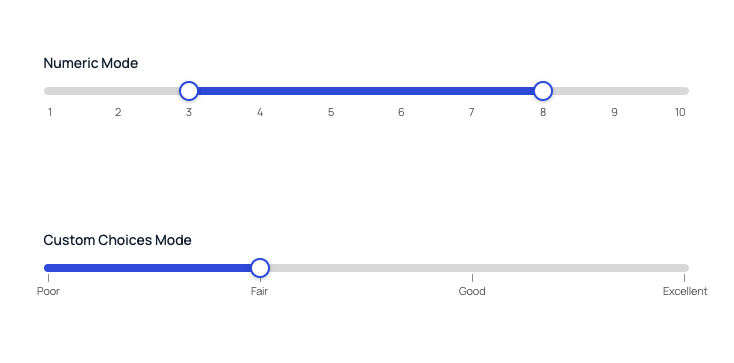
Configure sliders to be numeric (e.g., 1 – 10) or custom choices with string labels (e.g., Poor – Excellent). All modes use numerical values, making them usable in conditional logic and calculations.



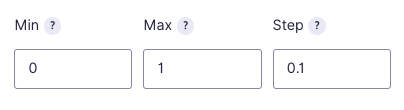
Precise Increment Control
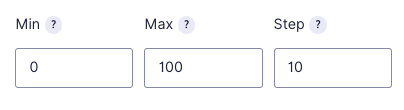
Set minimum/maximum values and set the exact size of each step for numeric sliders (including decimals).
Add as many steps as you need for custom sliders.
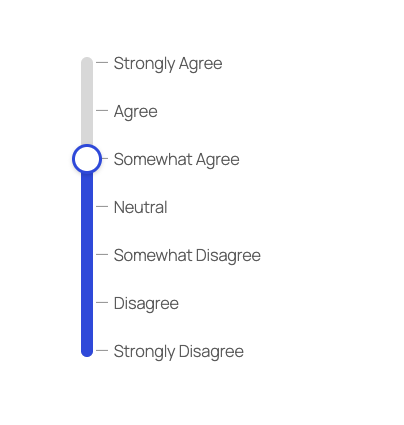
Range Support
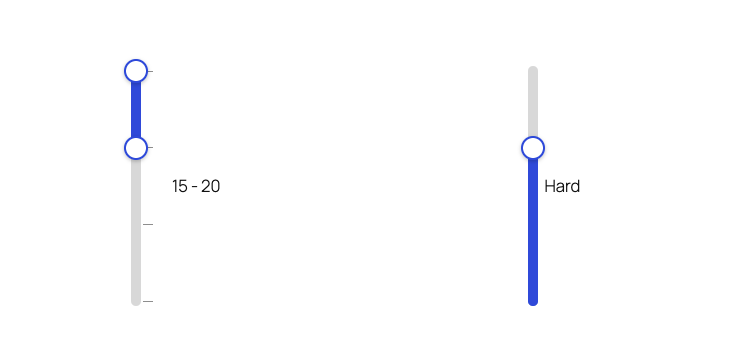
GP Sliders supports giving ranges to sliders, meaning the beginning and the end of a slider become draggable handles.


Slider Orientation
Sliders can be horizontal or vertical to fit any layout.


Custom Display Options
Customize details about your slider display. All options can be enabled at the same time.
Value Display
You can display the current selected value in two ways:
- Next to the slider
- As a tooltip on the handle


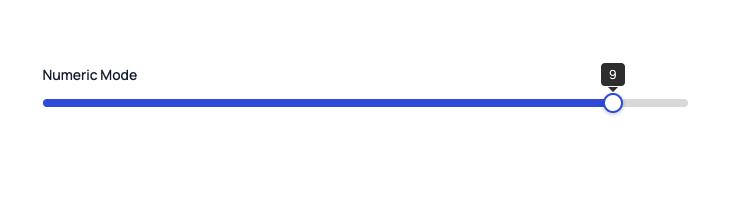
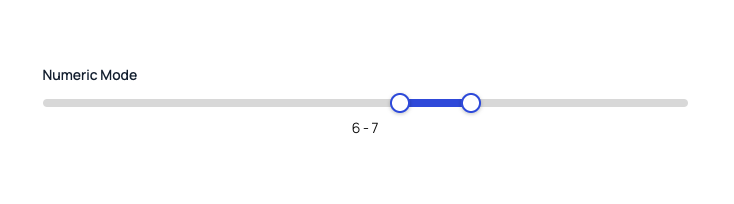
By default, values are shown below horizontal sliders and on the right side of vertical sliders. This can be changed with CSS.
Step Separators (Ticks)
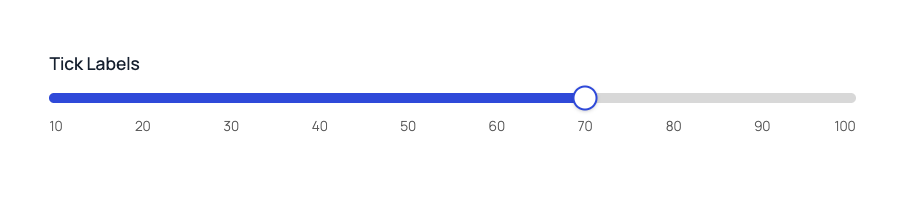
Enable tick marks and tick labels to show users where the step snaps happen. This is useful for orienting the user on what they can select and how to get there.



Additional Options
- Add prefixes (e.g., $) and suffixes (e.g., lbs) to value displays.
- Choose how many decimal places are displayed.
- Set your own range separator for the value display of range-enabled sliders (e.g.,
1 - 10,140lbs to 220lbs).
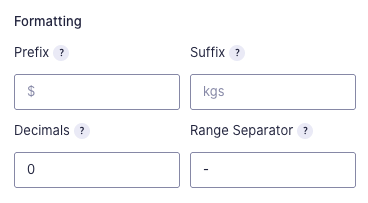
All display options are meant to be visual. None of them are included in the stored data.
Merge Tags
GP Sliders merge tags can be used anywhere merge tags are supported, including calculations.
| Selection Type | Merge Tag | GPAC Shorthand |
| Single | {:[field_id].1} | F[field_id].1 |
| Range (Start Value) | {:[field_id].1} | F[field_id].1 |
| Range (End Value) | {:[field_id].2} | F[field_id].2 |
Integrations
GP Advanced Calculations
GP Advanced Calculations lets you perform advanced calculations in Gravity Forms, adding mathematical functions and conditionals to an upgraded version of the formula editor. Values from Slider fields and slider-enabled Number fields are fully compatible with Gravity Forms calculations.
Known Limitations
-
Ranges are not supported in Number field sliders.
Reason: Number fields only capture a single value.
Solution: Use a Slider field instead.
FAQ
How do I make a continuous slider?
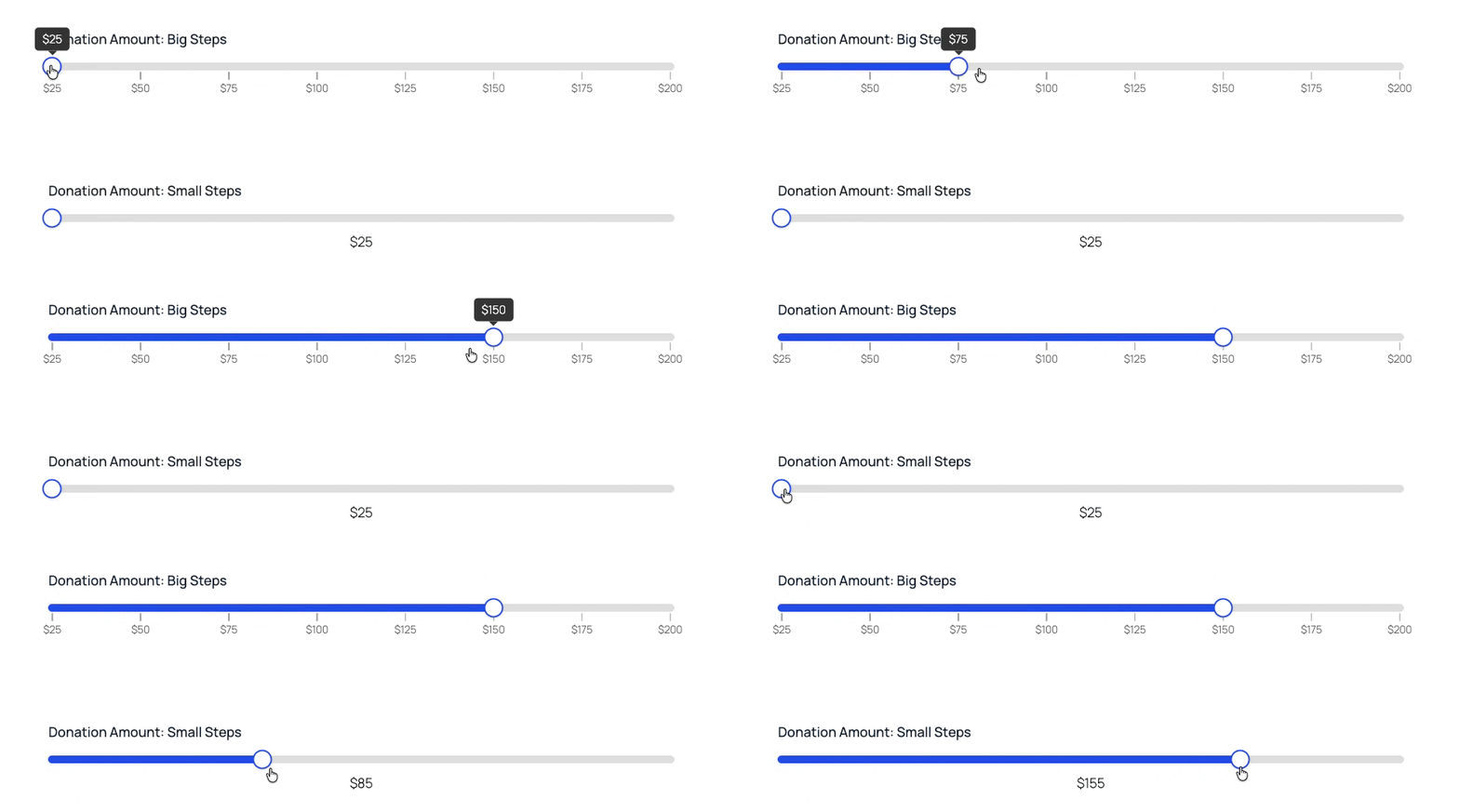
GP Sliders’ sliders always snap to the next step. To give them the smooth feel of a continuous slider, set the step size to be very small (e.g., 0.1).
Translations
You can use the free Loco Translate plugin to create translations for any of our perks. If you’ve never used Loco translate before, here’s a tutorial written for beginners.
Hooks
Gravity Forms has hundreds of hooks. Check out our Gravity Forms Hook Reference for the most thorough guide to Gravity Forms’ many actions and filters.
Related Resources
No related resources found.