
Gravity Connect Google Calendar
Automatically create and sync Google Calendar events from Gravity Forms — without touching your calendar.
“Google Calendar” is a registered trademark of Google, Inc. Gravity Wiz and Gravity Connect are not affiliated with, sponsored by, or endorsed by Google, Inc. Using Google Calendar with Gravity Connect requires a Google account.
What does the Google Calendar Connection do?
This plugin integrates Google Calendar directly with Gravity Forms to automatically create calendar events from form submissions. This is done without requiring any additional software or monthly fees, and with an emphasis on security and performance.
Additionally, your Google Calendar can be automatically synced with your Gravity Forms entries, keeping your events accurate at all times.
With the Google Calendar Connection you can create:
- Appointment booking forms that instantly create calendar events
- Event registration forms that populate Google Calendar for easy scheduling
- Internal request forms that auto-create calendar events for HR or team coordination
- Meeting scheduling forms with automatic Google Meet links
- And many more!
Features
- Create Google Calendar events directly from Gravity Forms submissions.
Unlock the power of Google Calendar for all of your Gravity Forms entry data. - Keep your calendar and entry data perfectly in sync.
Edits to your entries can automatically sync to your Google Calendar. Events for trashed or spammed entries are automatically removed. - Automatic Google Meet integration.
Generate Google Meet video conferencing links automatically with each calendar event. - Invite attendees directly from form data.
Map form fields to attendee emails and automatically send calendar invitations. - Flexible date and time configuration.
Support for all-day events, timed events, and dynamic date/time values using merge tags or relative dates. - Security first.
Uses Google’s secure authentication method to ensure only you have access to your Google Calendar data. - Money-saving, value packed.
No monthly fees or event limits. Just the unlimited power of Google Calendar. - Automatic updates.
Get updates and the latest features right in your dashboard. - Legendary support.
We’re here to help! And we mean it.
Why Google Calendar?
- Universal scheduling: Google Calendar is one of the most widely used calendar applications, making it easy for your users and team members to see and interact with scheduled events.
- Automatic notifications: Google Calendar automatically sends email notifications and reminders to event attendees, reducing no-shows and keeping everyone informed.
- Cross-platform accessibility: Google Calendar can be accessed from any device with an internet connection, syncs seamlessly across devices, and integrates with most calendar applications.
- Video conferencing integration: With built-in Google Meet support, you can automatically create video conference links for virtual meetings and appointments.
- Integration with other Google tools: Google Calendar integrates seamlessly with Gmail, Google Workspace, and third-party applications, allowing you to create a seamless workflow for scheduling and coordination.
- Version 1.0-beta-1.2
- Updated March 18, 2026
- Released February 12, 2026
All Connections
All Perks
- GF Address Autocomplete
- GF Advanced Calculations
- GF Advanced Phone Field
- GF Advanced Save & Continue
- GF Advanced Select
- GF Auto List Field
- GF Auto Login
- GF Better User Activation
- GF Blocklist
- GF Bookings
- GF Conditional Logic Dates
- GF Conditional Pricing
- GF Copy Cat
- GF Date Time Calculator
- GF Disable Entry Creation
- GF Easy Passthrough
- GF eCommerce Fields
- GF Email Users
- GF Email Validator
- GF Entry Blocks
- GF Expand Textareas
- GF File Renamer
- GF File Upload Pro
- GF Inventory
- GF Limit Checkboxes
- GF Limit Dates
- GF Limit Submissions
- GF Live Preview
- GF Media Library
- GF Multi-Page Navigation
- GF Nested Forms
- GF Notification Scheduler
- GF Page Transitions
- GF Pay Per Word
- GF Populate Anything
- GF Popups
- GF Post Content Merge Tags
- GF Preview Submission
- GF Price Range
- GF QR Code
- GF Randomizer
- GF Read Only
- GF Reload Form
- GF Sliders
- GF Submit to Access
- GF Terms Of Service
- GF Unique ID
- GF Word Count
Documentation
Terminology
Before we get started, let’s clarify a few important words we’ll use throughout this documentation.
- Google Calendar: Refers to the Google product that allows you to create and manage calendars and events.
- calendar: Refers to a specific calendar within a Google account (e.g., primary calendar, work calendar, shared calendar).
- event: Refers to a calendar event with a title, date/time, description, and optional attendees.
- GCGC: An acronym for this plugin, the GC Google Calendar Connection.
How do I enable this functionality?
After installing and activating GC Google Calendar, you can create Google Calendar feeds in any form. Use these feeds to create events from your form submissions. You can connect your Google account directly in the feed settings.
|
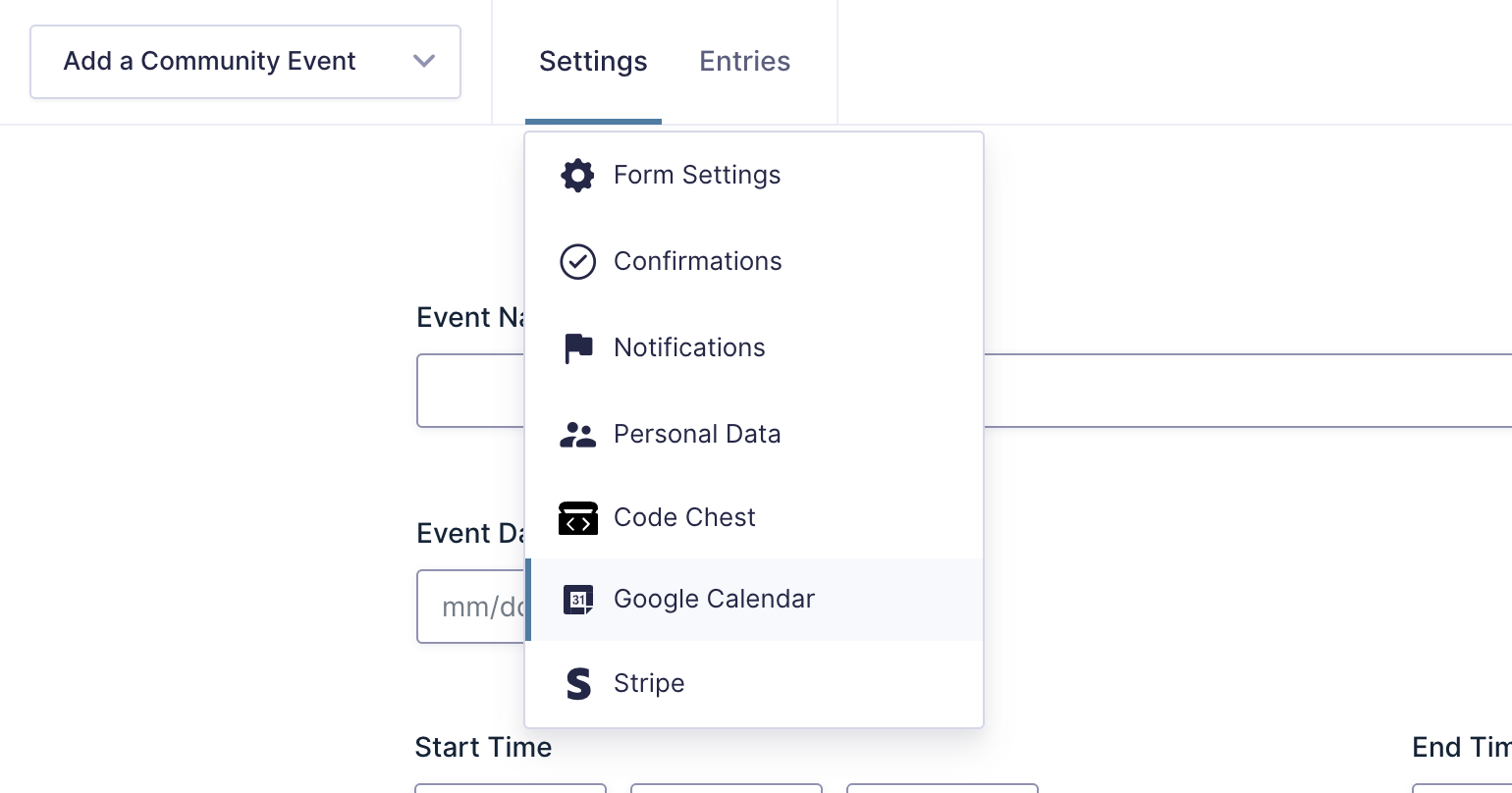
Navigate to your desired form and click the “Google Calendar” item under the “Settings” menu. |
|
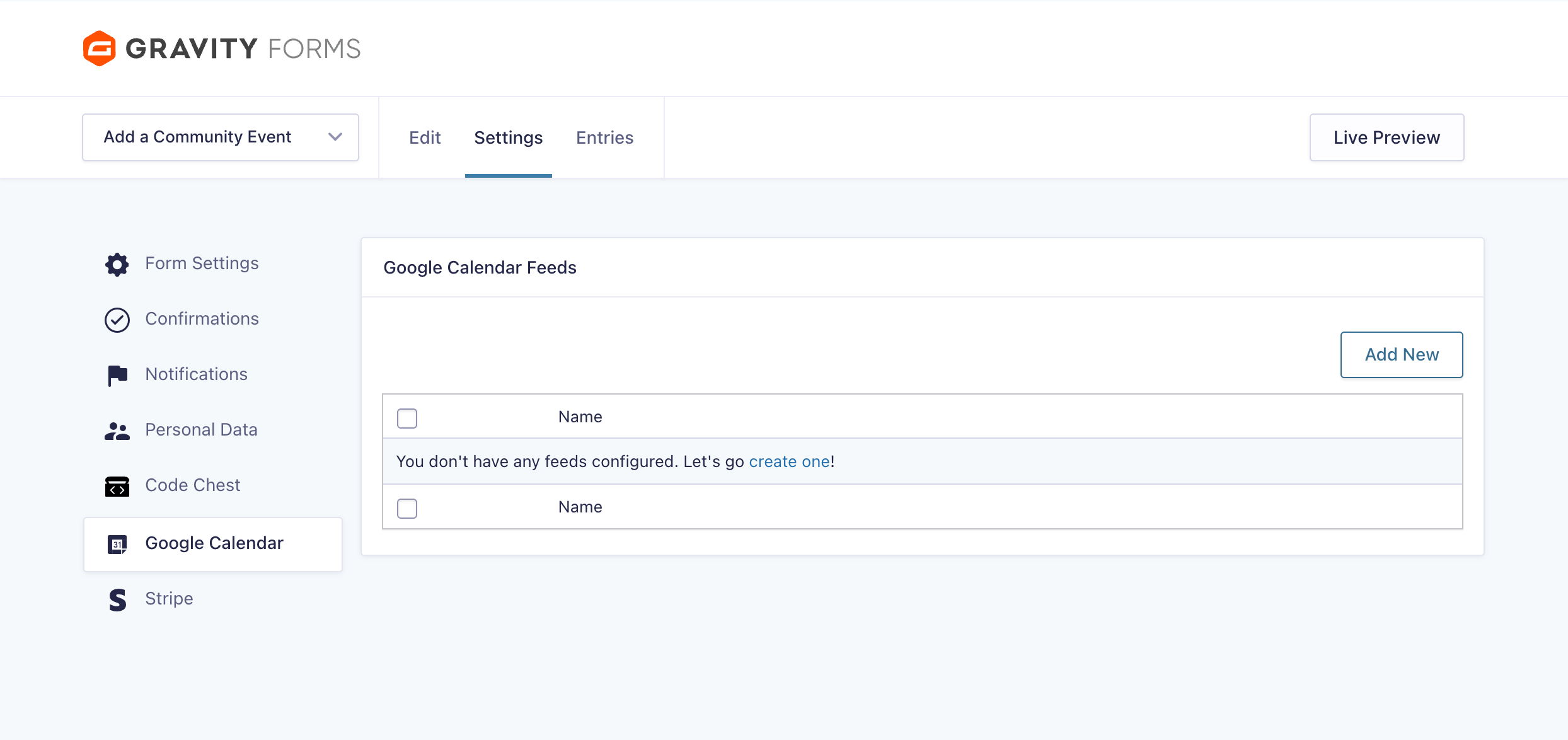
Click the “Add New” button to add a new Google Calendar feed. |
|
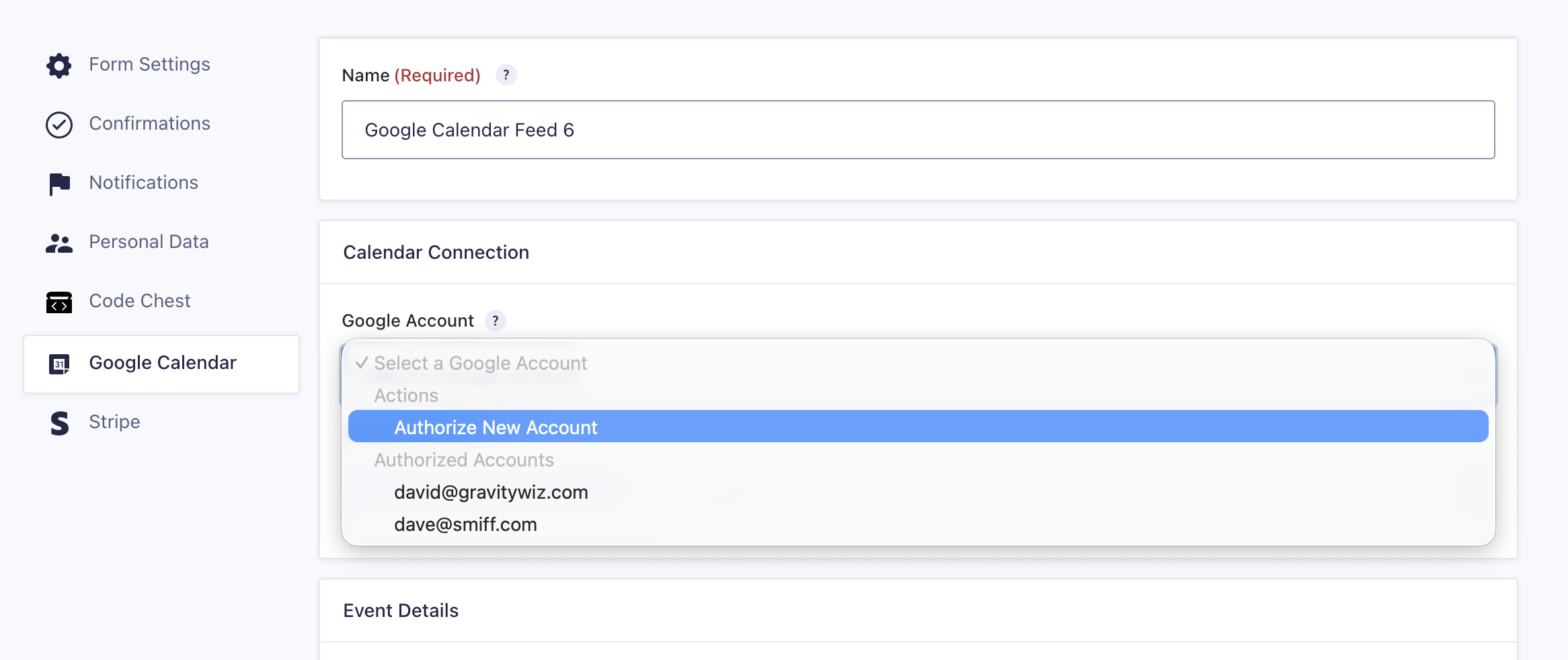
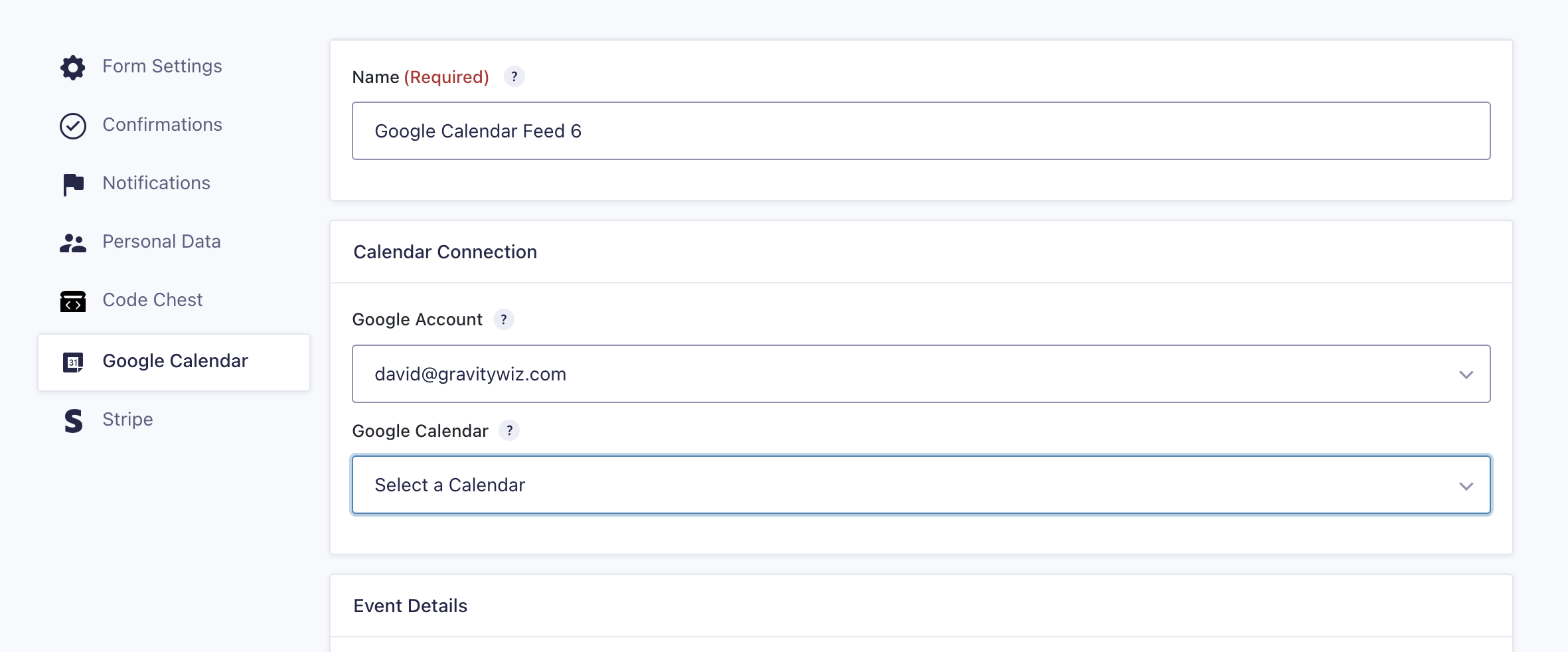
Connect your Google account by selecting “Authorize New Account” under the Account setting. |
|
Select the Google Calendar where events should be created. |
|
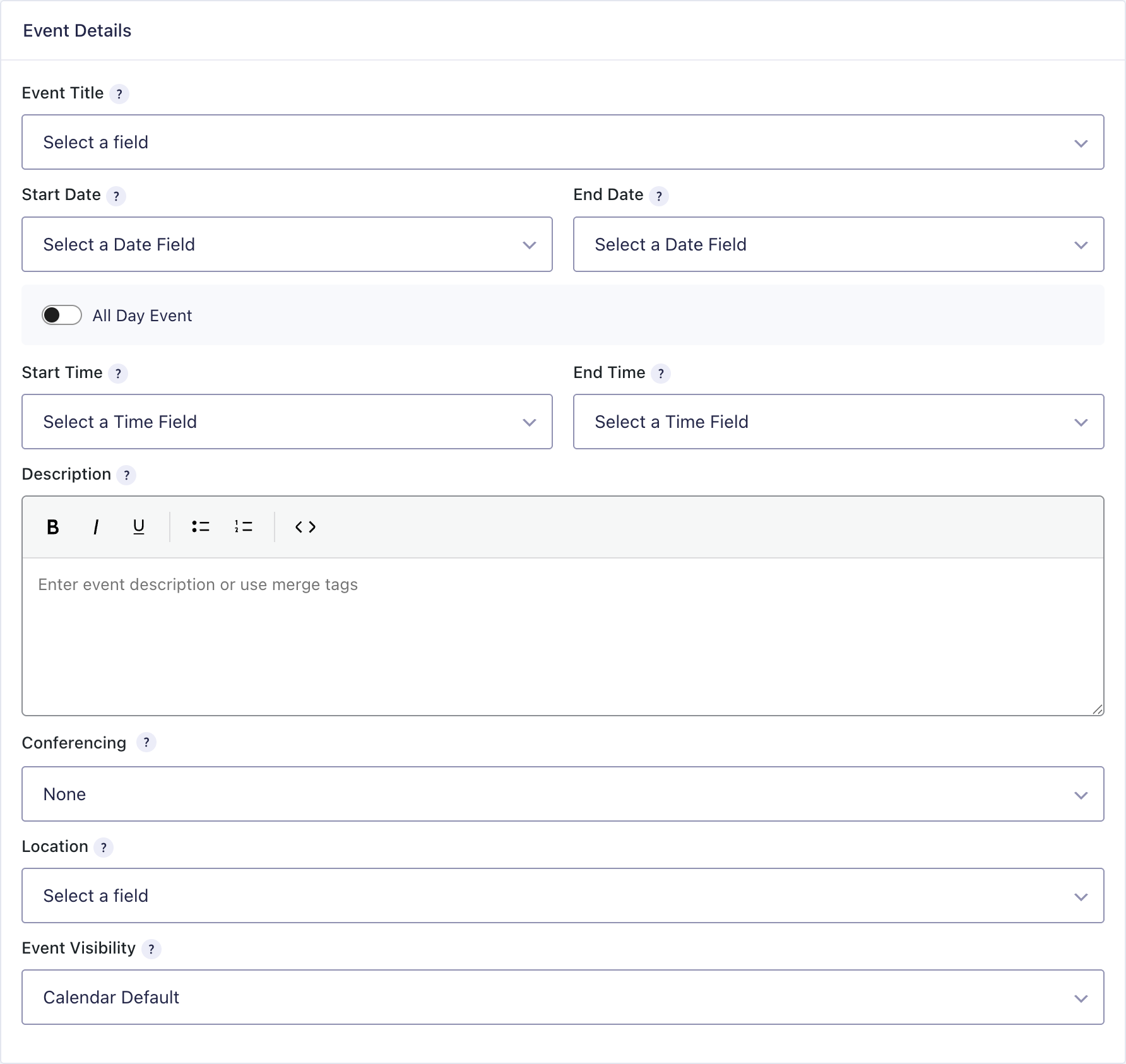
Configure your event details by mapping form fields to event properties like title, dates, times, and description. |
Feed Settings
When configuring feeds for the Google Calendar Connection, you will be presented with the following settings.
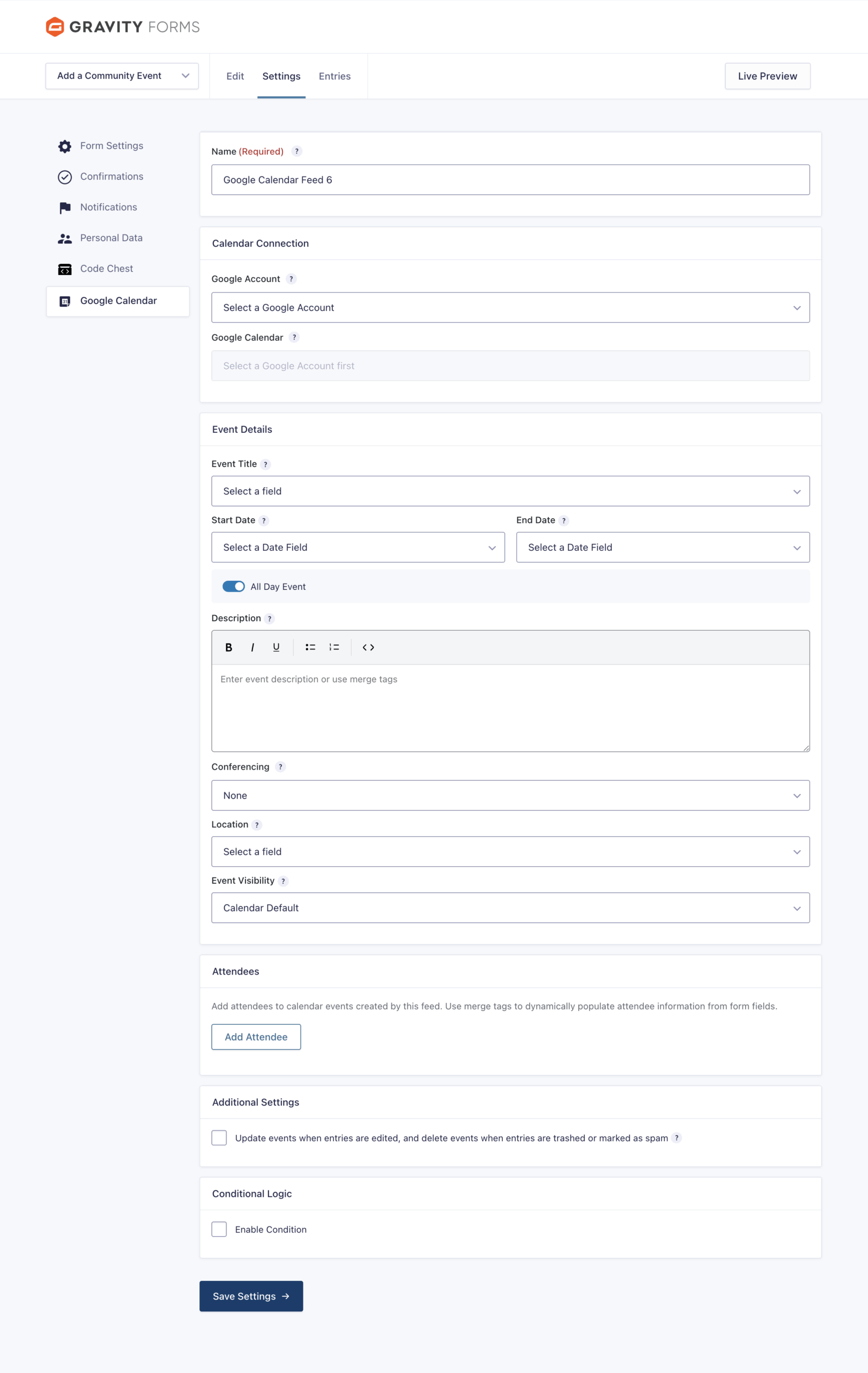
Feed Name
A unique name to identify this feed. This field is required and will auto-generate based on the feed ID.

Calendar Connection
Use these settings to connect to your Google account and select the calendar where events will be created.
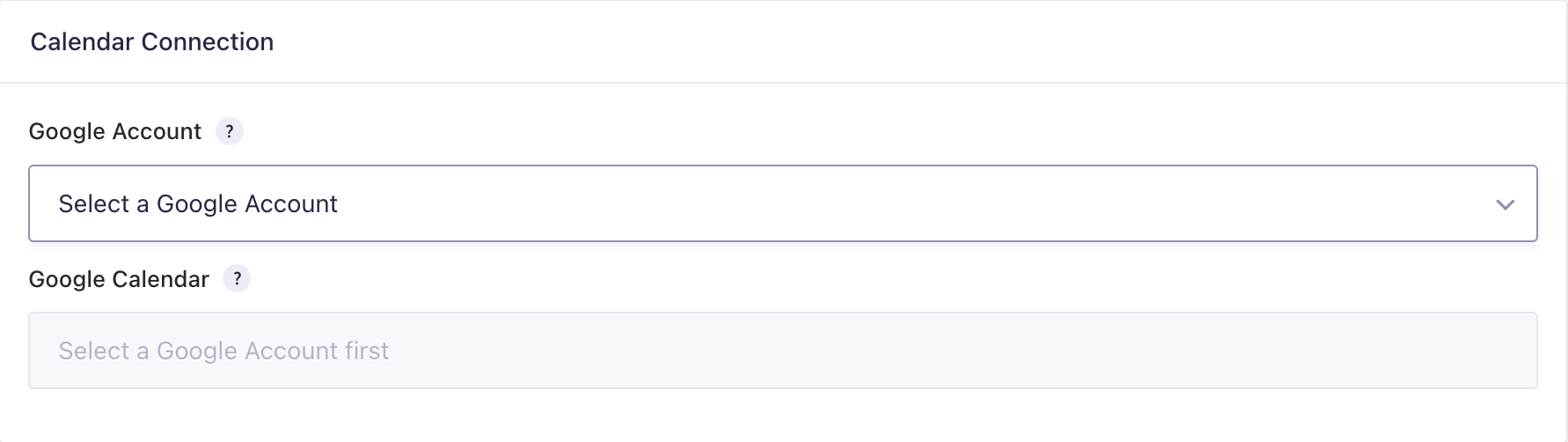
Account
Select the Google account to which your desired calendar belongs. You can authorize a new account by selecting the Authorize New Account option or select a previously authorized account.
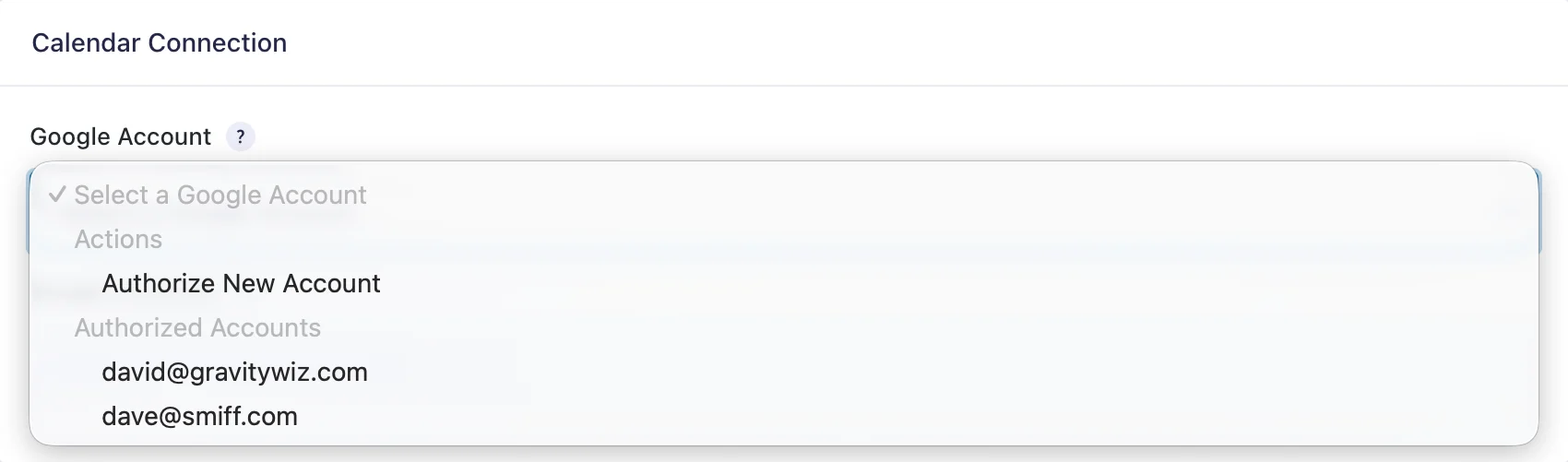
Google Calendar
Select the calendar in which events should be created. This dropdown populates dynamically after selecting a Google account and includes all calendars for which you have write access.

Event Details
Use these settings to configure how your calendar events are created from form submissions.
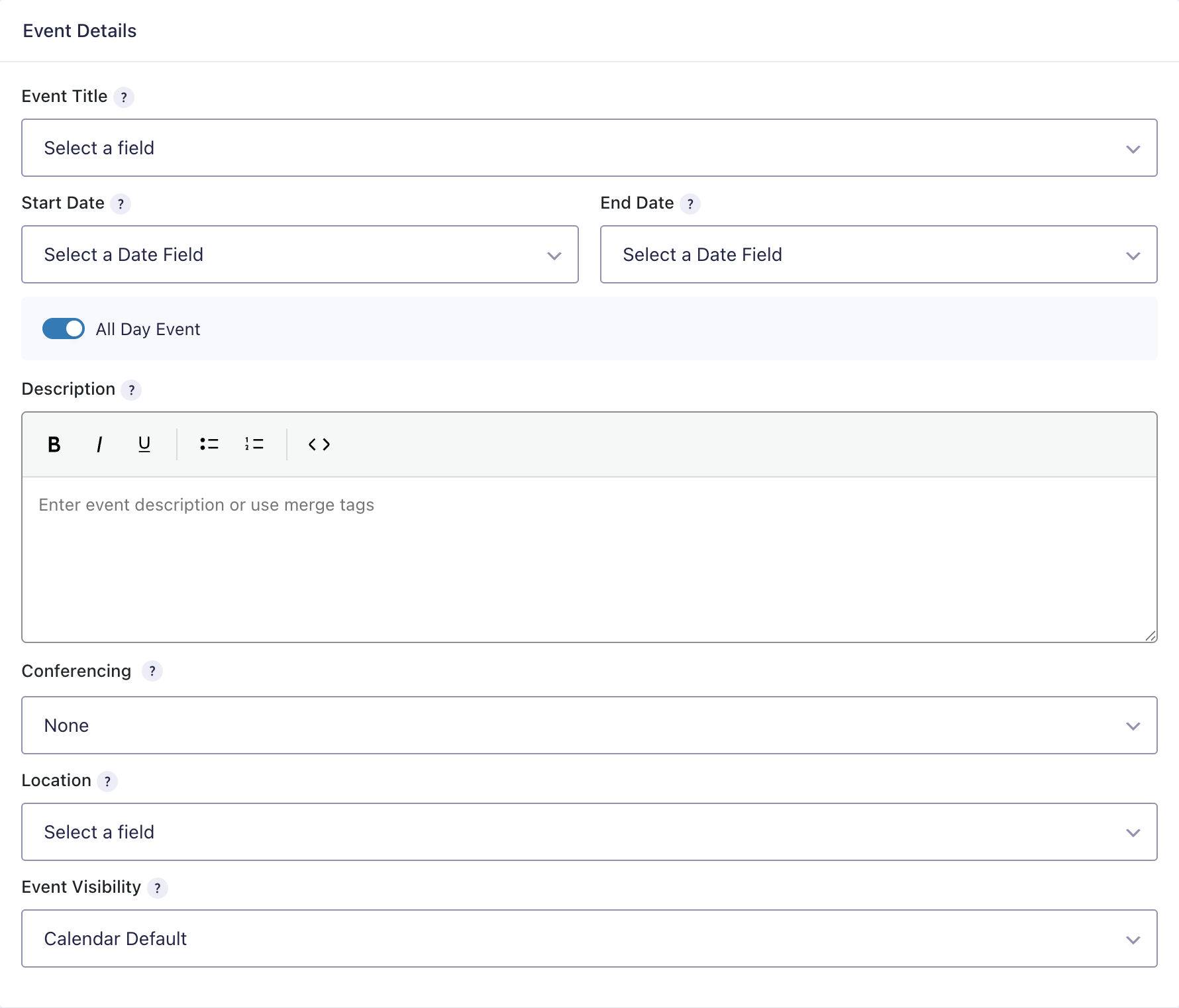
Event Title
The title that will appear on the calendar event. You can select a form field to use as the event title, or enter a custom value using text and merge tags. For example: Appointment with {Name (First):1.3} {Name (Last):1.6}. If no value is specified, the feed name will be used.
Start Date / End Date
The date when the event begins and ends respectively.
Input Options:
- Date Field – Select any Date field from your form
- Custom Value – Use relative dates or merge tags (e.g.,
tomorrow,+3 days,next Monday,{Date:1}) - Static Date – Use the date picker for a fixed date
Supported Date Formats:
MM/DD/YYYY(mdy)DD/MM/YYYY(dmy)DD-MM-YYYY(dmy_dash)DD.MM.YYYY(dmy_dot)YYYY/MM/DD(ymd_slash)YYYY-MM-DD(ymd_dash)YYYY.MM.DD(ymd_dot)
End Date Differences
Custom values for end date are calculated relative to the start date (not the submission date). For example, a value of +1 day would generate an event that ends one day after the start date.
Pro Tip: When a Date field is selected as the start date, the end date will automatically populate with the same field for ease of use.
All Day Event
Toggle whether the event should be an all-day event or a timed event. This setting is enabled by default. When disabled, the Start Time and End Time settings are displayed.
Start Time / End Time
The time when the event begins and ends respectively.
Input Options
- Field – Select a field from your form. Time fields are preferred but other field types are supported with time-like values (e.g., a Drop Down field with choices like
9am,10 amor18:00). - Custom Value – Use relative times or merge tags (e.g.,
+30 minutes,+2 hours,{Time:1}). - Static Time – Use the time picker for a fixed time.
Supported Date Formats:
- 12-hour (
9:00 AM) - 24-hour (
14:30)
Description
The description that appears in the event details.
Conferencing
Add video conferencing to your events. Currently supports Google Meet. Interested in Zoom? Let us know!
When Google Meet is selected, a unique Meet link is generated and attached to the event.
Attendees
Invite attendees to your calendar events.

Adding Attendees
Click Add Attendee to add mappings.
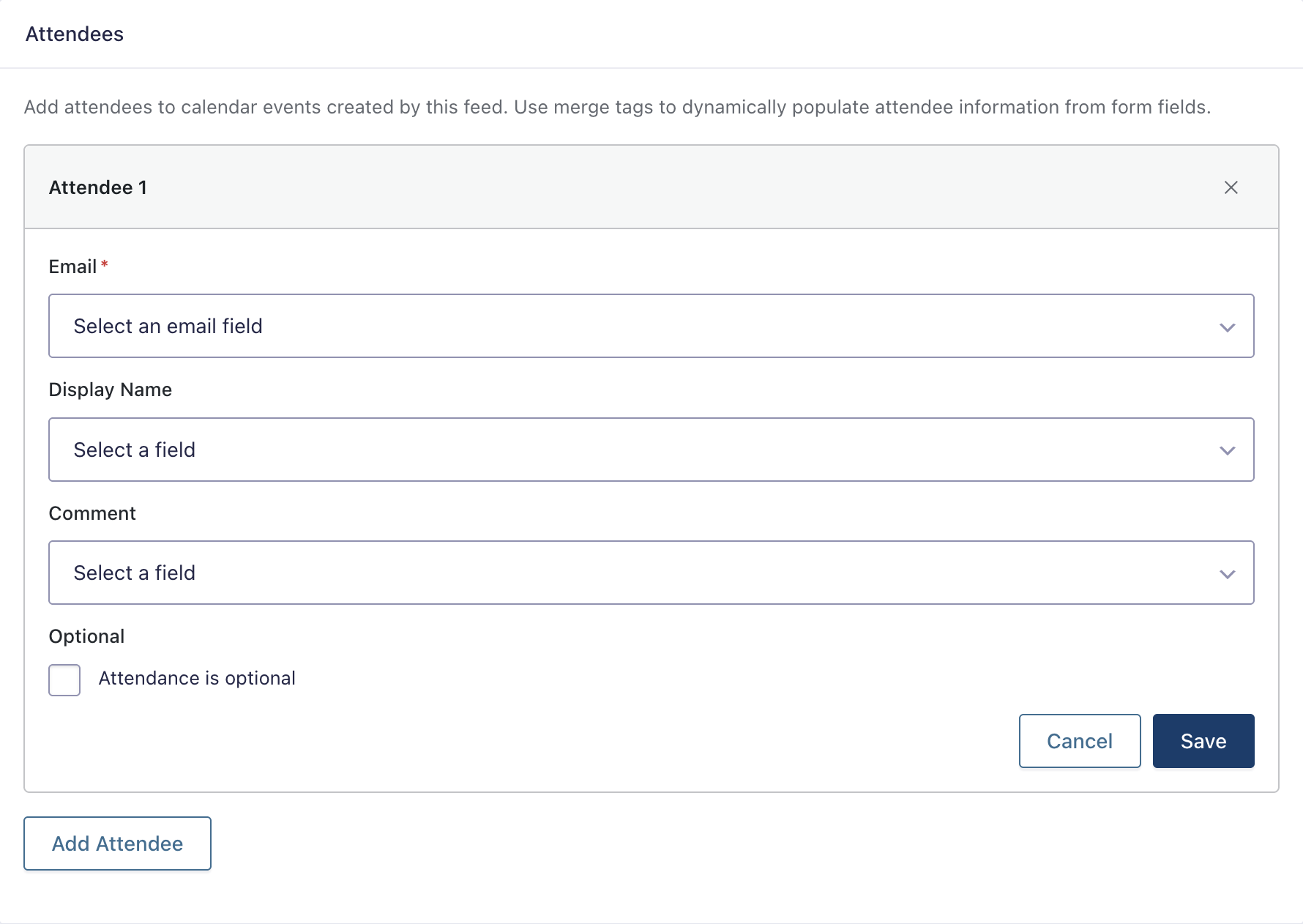
Per-Attendee Settings
- Email (Required) — The email address of the attendee. Maps to any form field but Email fields are preferred. Specifying a custom value is also supported which may include merge tags.
- Display Name — Map to a form field or specify a custom value which may include merge tags.
- Comment — Map to a form field or specify a custom value which may include merge tags.
- Optional — Enable to indicate the attendance of this attendee is optional.
After clicking Save, a summary of the attendee mapping will be displayed. Click Edit to to modify the mapping for a given attendee.
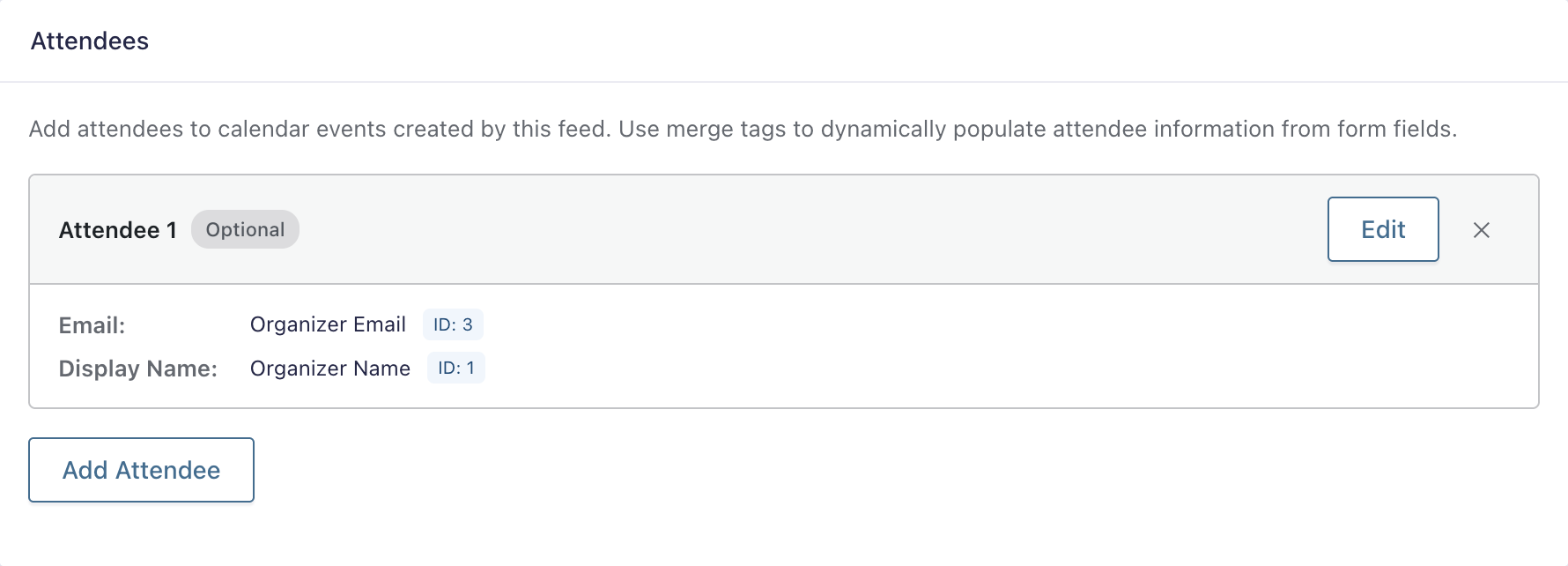
Additional Settings
Update & Delete Events
If you would like to keep your Google Calendar events synced to your entry data, enable the Update & Delete Events option. When enabled, events will be edited when entries are edited and deleted when entries are trashed or marked as spam. If an entry is restored from trash or “unspammed”, the event will be reinserted.

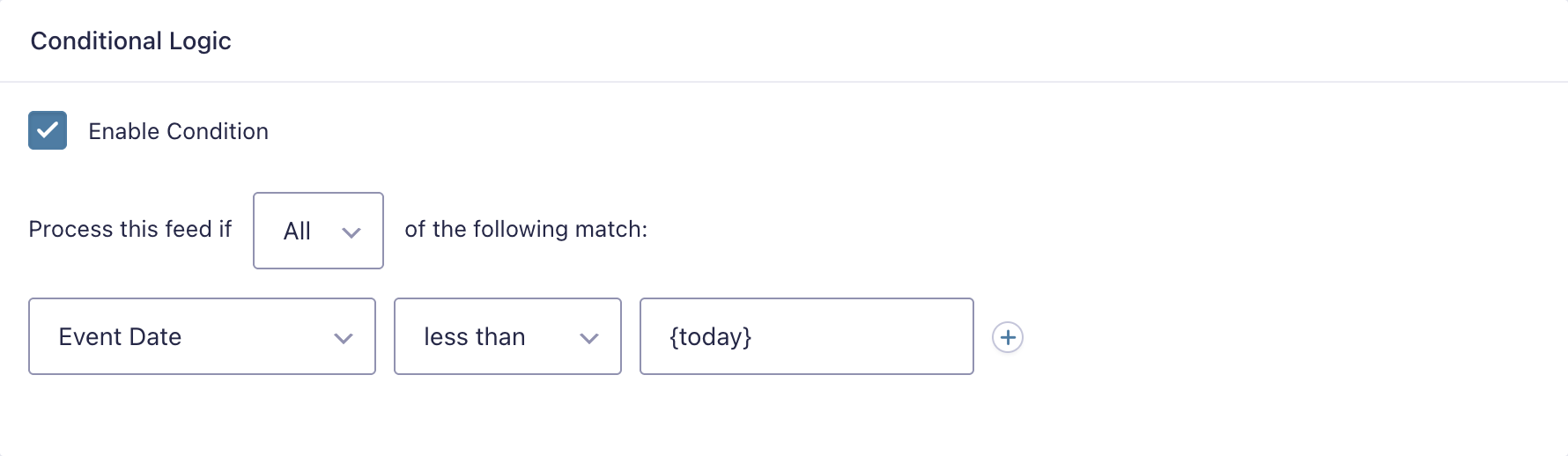
Conditional Logic
Use conditional logic to control when events are created.
Here’s an example where we use GP Conditional Logic Dates prevent event creation if the date provided in the Event Date field is less than today’s date.
Post Payment Actions
Feeds can be delayed until payment is received. To do so, simply configure the GC Google Calendar feed’s conditional logic to only process if the entry has a desired payment status. Here is an example configuration where the feed is configured to only process if the “Payment Status” is “Paid”.
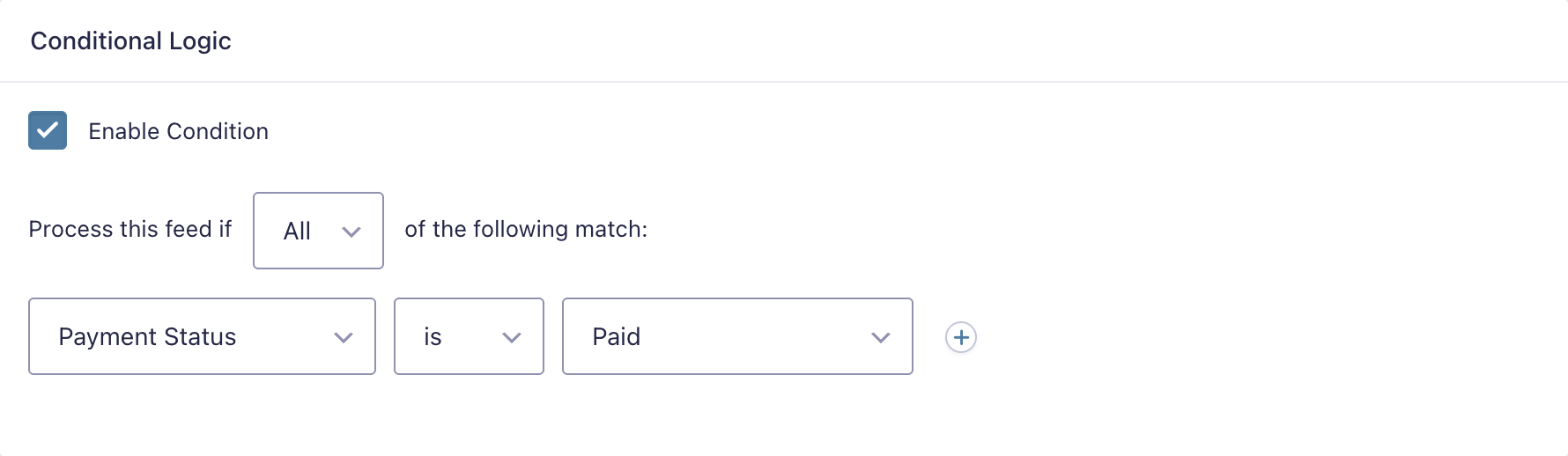
Even in contexts where the payment is collected after the entry has been collected (e.g., Stripe Checkout), the feed will be run as soon as the specified payment status is set.
Manage Google Accounts
You can manage authorized Google accounts on the plugin settings page. The Google Accounts section provides a list of authorized accounts, including the WordPress user who authorized the account and the feeds and calendars connected via that account.
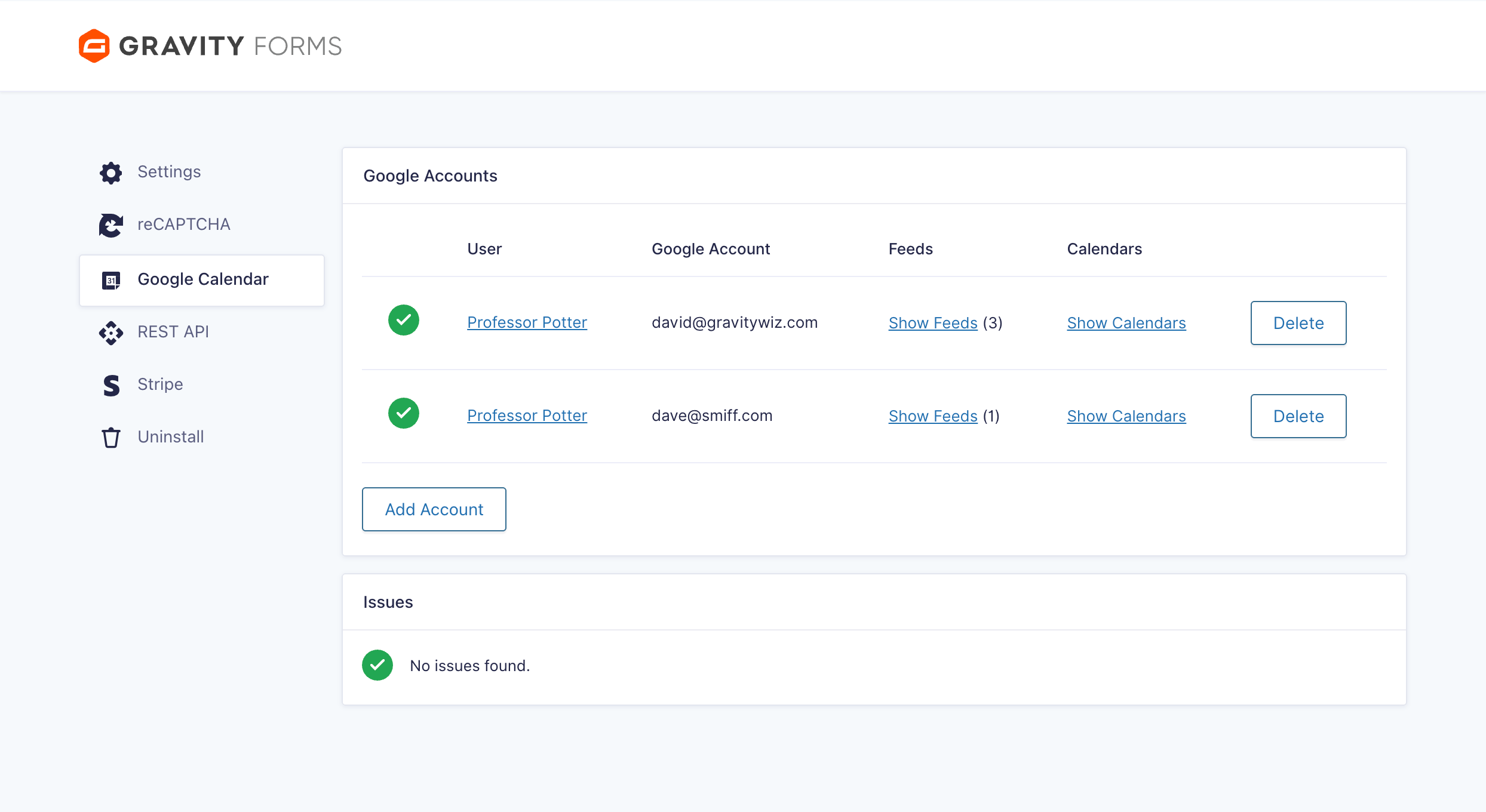
You can delete a Google account to disconnect it from the current site by clicking the Delete button. You can authorize a new Google account by clicking the Add Google Account button at the bottom of this section.
Send Existing Entries to Google Calendar
If you’re implementing GCGC on a form that has existing entries, you may want to send those entries to a calendar. Here are two ways to do this.
Bulk Process Feeds
Our free GF Feed Forge plugin allows you to bulk process feeds for most feed-based add-ons (including the Google Calendar Connection). This is by far the easiest way to send existing entry data to your Google Calendars.
Process Feeds on Import
GravityImport allows you to automatically trigger the feed for each imported entry.
Entry Detail Meta Box
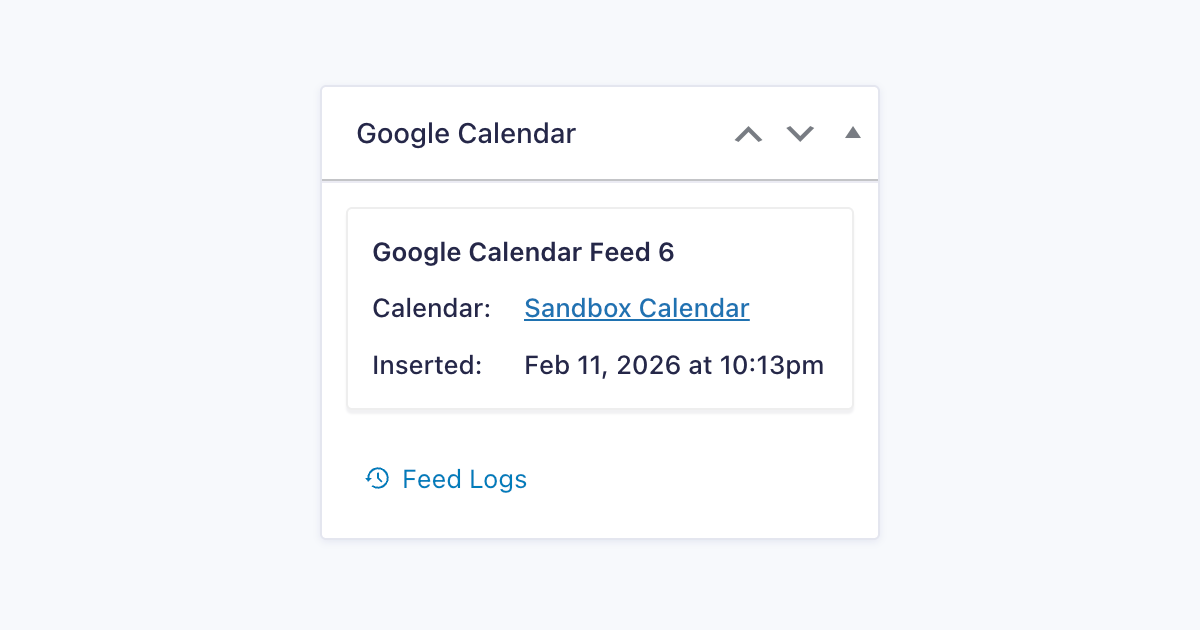
Use the Google Calendars meta box on the Entry Detail view for an overview of which Google Calendar feeds have been processed for the entry and which were not processed.
You can see the time the event was added to the calendar and, if the Update & Delete Events option is enabled, when the event was last updated.
Note: When reprocessing a feed, feed conditional logic is ignored.
Required Capabilities
| Capability Label | Description | Capability Slug |
| Google Calendar: Form Settings | Lets user configure GC Google Calendar feed settings. | gc-google-calendar_form_settings |
| Google Calendar: Add-On Settings | Lets user view and edit the GC Google Calendar Add-On settings. | gc-google-calendar_settings |
| Google Calendar: Uninstall | Lets user uninstall GC Google Calendar. | gc-google-calendar_uninstall |
Integrations
GP Notification Scheduler
Schedule confirmation emails, reminders, and follow-ups around your calendar events. Send a reminder 24 hours before an appointment, follow up a week after a meeting, or trigger recurring notifications on a schedule that suits your workflow. Notifications can be timed relative to any Date field on your form, making it easy to build automated communication around the events the Google Calendar Connection creates.
GP Limit Dates
Limit which dates are available in your Date fields to align with your scheduling needs. Block out specific days of the week (e.g., no Friday appointments), prevent selection of past dates, or restrict how far into the future events can be scheduled. Combined with the Google Calendar Connection, you can ensure only valid dates result in calendar events.
For more advanced scheduling needs, see GP Bookings.
GP Conditional Logic Dates
Use date- and time-based conditional logic to control when calendar events are created. Prevent events from being created for past dates, restrict event creation to weekdays only, or require that a date be at least two weeks in the future before an event is added to your calendar. Conditional Logic Dates works directly in the Google Calendar Connection’s feed conditional logic, giving you precise control over which submissions result in calendar events.
GP Bookings Coming Soon!
GP Bookings already supports two-way calendar syncing via ICS feeds, but a direct integration with the Google Calendar Connection is on the way. Once available, you’ll be able to sync your Google Calendars directly with GP Bookings — automatically blocking availability based on existing Google Calendar events, adding new bookings to your Google Calendars in real time, and generating Google Meet links for virtual appointments. No more double-bookings across systems, no manual calendar management. Just seamless, two-way scheduling powered by Google Calendar’s API.
Developer’s Notes
Google Calendar Security
Privacy and security are core tenets of our authentication flow. Your Google Calendar data will never touch our servers.
Our OAuth service will handle getting an access/refresh token and pass it directly back to your WordPress site. There is no database attached to the service.
You will only interact with our OAuth service during initial authentication, refreshing access tokens, or re-authenticating your connection. For all other requests, your site will communicate directly with the Google APIs.
What can GCGC access?
Only authorized calendars.
GCGC can only access calendars and events that you authorize. This includes events created by GCGC and any calendar that has been connected to a GCGC feed.
It is important to note that when you disconnect a calendar from a feed, this does not remove GCGC’s access to this calendar. It is not possible to remove GCGC’s access to a specific calendar once authorized. Instead, you must remove GCGC’s access globally and then reauthorize each feed/calendar individually.
How does GCGC authentication work?
OAuth per-user account authorization.
GCGC allows you to authenticate multiple Google accounts per user. Any user with the capability to create new GCGC feeds will be able to select from a list of previously connected feeds; however, each user must authorize their own Google account in order to connect their own calendars.
Administrators can manage which Google accounts are connected via the Google Accounts section on the plugin settings page.
GCGC will do everything it can to maintain a connection with any authorized Google account; however, there are some scenarios where an account or calendar must be manually reauthorized/reconnected. For example, changing your Google account password or removing GCGC’s access to your Google account.
Check out the Issues section on the plugin settings page for a list of any connection issues GCGC may be experiencing.
Known Limitations
- Recurring events not supported
- Attendees can’t be added retroactively
If any of these known limitations impact you, we’d love to hear from you. While some limitations are beyond our control, understanding how these limitations impact you is incredibly important in how we prioritize ongoing product development.
Error Handling
If there is an error processing a feed, the GCGC will log that error as a note for the corresponding entry. If the error is due to a configuration issue, you can reprocess the feed via the Entry Detail Meta Box after correcting the configuration issue.
Error Notifications
GCGC will attempt to reprocess any feed that fails to process. If the error persists, a notification with be sent to the site administrator with recommendations on next steps. This notification will only be sent once per hour.
Troubleshooting Issues
If GCGC is not working as expected, here are some troubleshooting steps you can take:
- Check the Issues section for any account or feed related issues.
- If your account has disconnected from GCGC, check if your Google password has changed, or if access has been revoked. There are a few situations that will cause an account to become disconnected.
- If entries are failing to send to Google Calendar automatically, but work when manually triggering the feed via the entry view, the issue may be related to asynchronous feeds not working on your site.
- To see if this is the case, use this snippet to temporarily disable the asynchronous nature of the Google Calendar feed.
- If entries are successfully sent automatically when the snippet is active, you will need to reach out to your host to find out why asynchronous feeds are not working.
- If all else fails, the issue may be related to Action Scheduler. Check out the Troubleshooting Action Scheduler guide.
Issues Section
The GCGC settings page includes an Issues section. This is the best place to start when troubleshooting.

The Issues section will give you a summary of any feeds that cannot access their configured calendar.
A few common reasons this can happen are the associated Google account’s password has changed, the calendar has been deleted, or GCGC’s access has been manually removed from the account.
If an account becomes disconnected for any reason, the authorizing user can reconnect the account by clicking the Reconnect button for the disconnected account in the Google Accounts section.
Account Disconnection Issues
There are a few different reasons why GCGC may be disconnected from your Google Account. Changing your Google password, revoking access to GCGC, or API changes from Google can all cause the connection between your Google account and GCGC to break.
Thankfully, it’s easy to reconnect your Google Account via the Google Accounts plugin setting.
Troubleshooting Action Scheduler
If you’ve confirmed that your account is connected and your Connection feed is configured correctly, you may be experiencing an issue with Action Scheduler. This tool powers Gravity Connect’s ability to handle temporary failures by automatically attempting to process the feed or entry update again.
FAQ
None yet. What questions do you have?
Translations
You can use the free Loco Translate plugin to create translations for any of our products. If you’ve never used Loco translate before, here’s a tutorial written for beginners.
Hooks
Gravity Forms has hundreds of hooks. Check out our Gravity Forms Hook Reference for the most thorough guide to Gravity Forms’ many actions and filters.
Related Resources
No related resources found.