
Building Workflows
Running & Monitoring Workflows
Start workflows automatically or manually, follow their progress, inspect their data, and recover from failures.
Once you have built a workflow, you can:
- Test it in the builder using the changes currently on the canvas.
- Run it manually from a Manual trigger.
- Activate it so Form, Schedule, and Webhook triggers can start runs automatically.
A run is one execution of a workflow. Every run is recorded, so you can follow its progress and return later to see what happened.
Turn automatic runs on or off
Section titled “Turn automatic runs on or off”New workflows are Inactive. While a workflow is inactive, Form, Schedule, and Webhook triggers do not start runs.
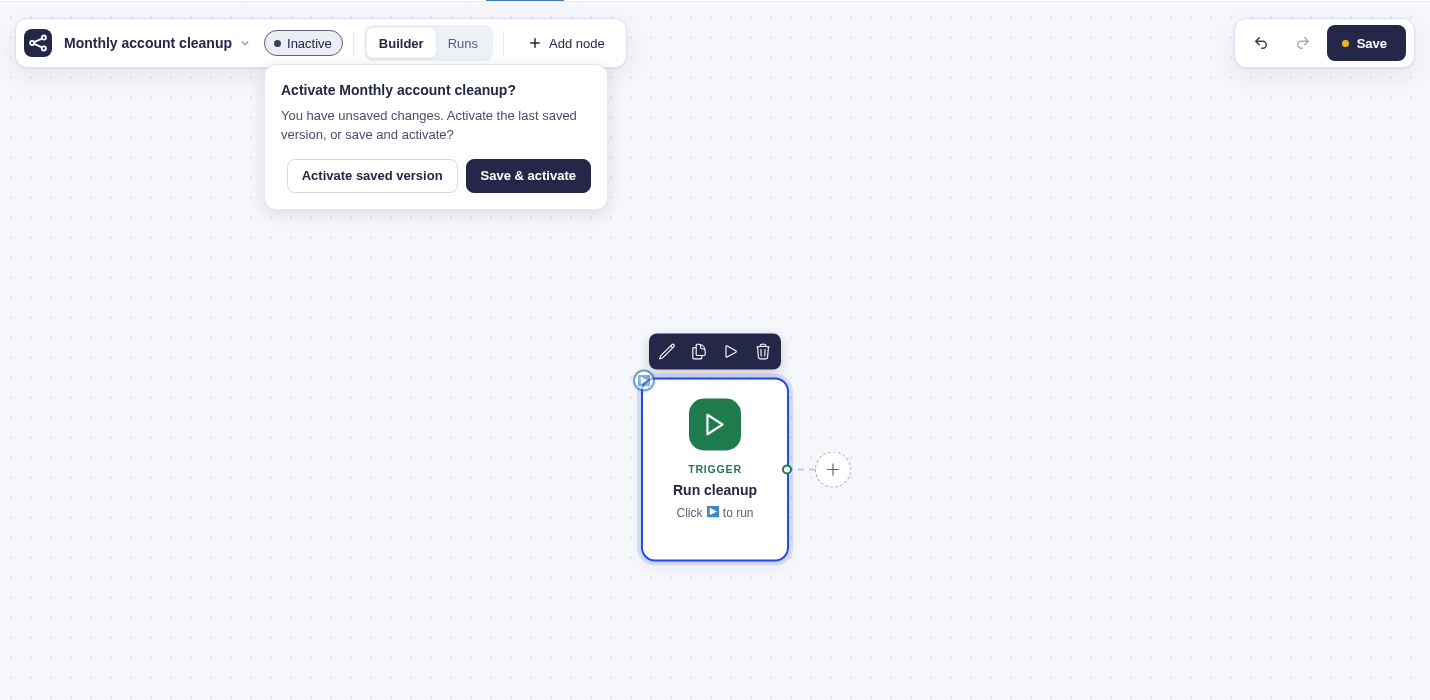
To begin accepting automatic triggers, click on the Inactive status beside the workflow name and activate the workflow.
If you have unsaved changes, Flowcrafter asks whether you want to:
- Activate the last saved version; or
- Save & activate the changes currently on the canvas.
Flowcrafter will not activate a workflow until it has a trigger and is free of validation errors.
| Workflow status | Automatic triggers | Manual runs | Tests in Builder |
|---|---|---|---|
| Inactive | Do not start runs | Available | Available |
| Active | Start runs normally | Available | Available |
Activation takes effect immediately. You do not need to select Save again.
To stop new automatic runs, select the Active status and confirm that you want to deactivate the workflow. Runs that have already started will continue using the version of the workflow they started with.
Start a workflow manually
Section titled “Start a workflow manually”Workflows with a Manual trigger can be started whenever you need them.
- Save the workflow.
- Select the Manual trigger.
- Select Run on the trigger card.
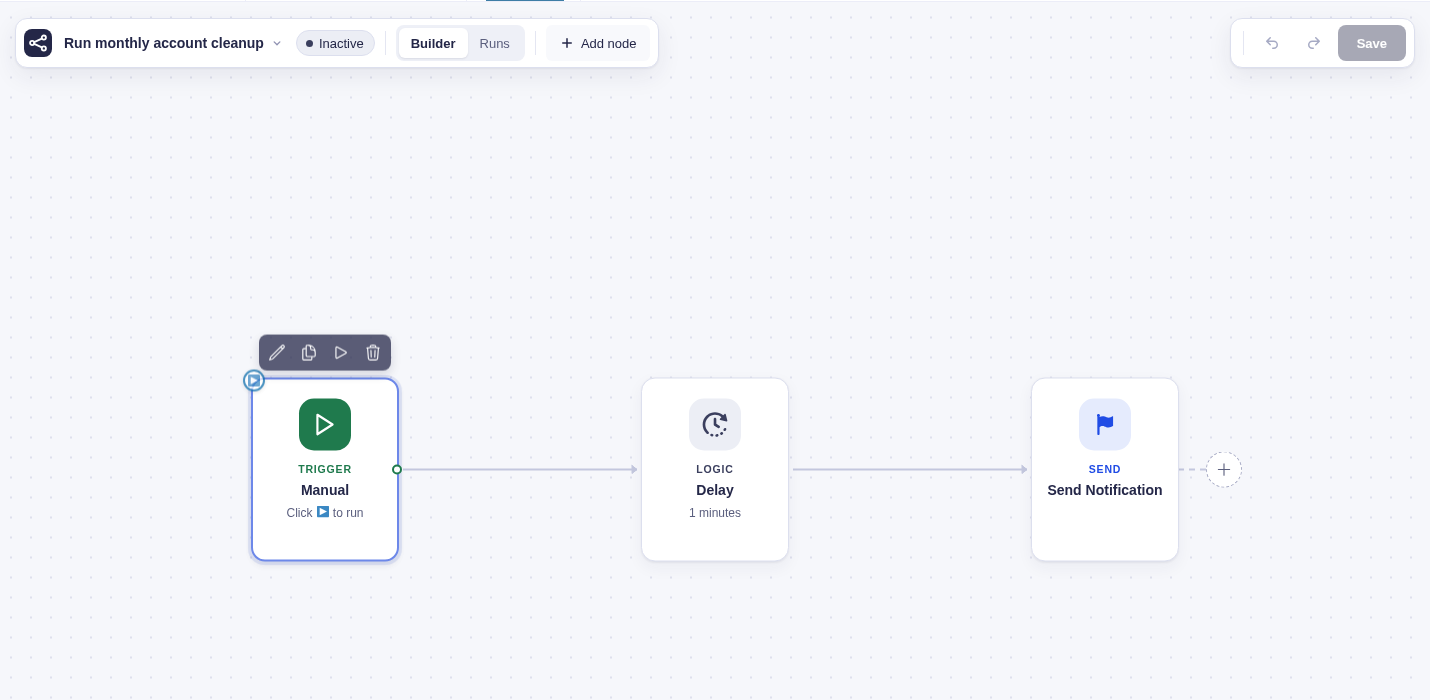
The workflow does not need to be active, but Manual runs always use the last saved version. Unsaved changes on the canvas are not included in the run.
After the run starts, Flowcrafter opens it in Runs so you can follow its progress.
View a workflow’s runs
Section titled “View a workflow’s runs”Switch from Builder to Runs in the toolbar. Flowcrafter opens the newest run and displays Run history on the left.
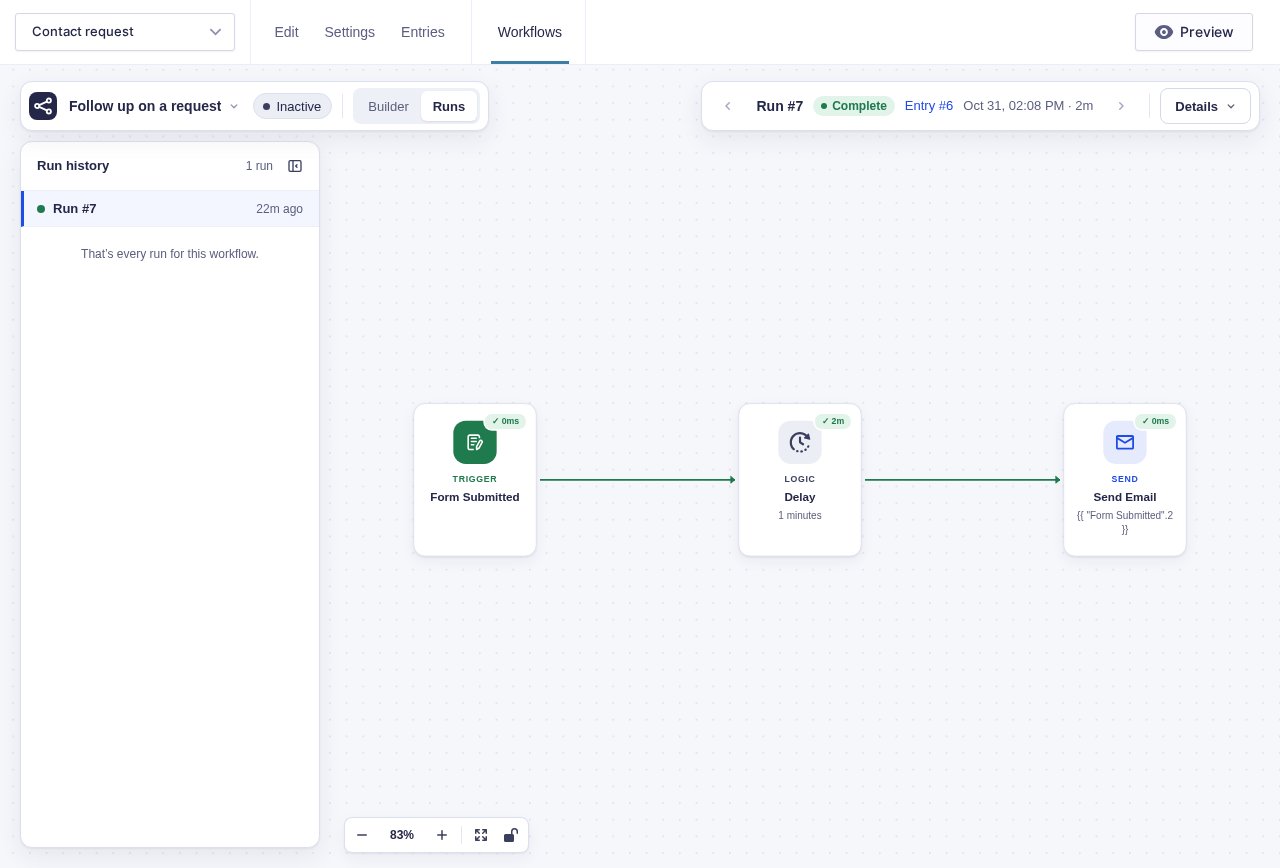
Run history shows each run’s:
- Status-colored dot;
- Run number;
- Time since it started; and
- Test label, when the run came from testing in the builder.
Select any run to inspect it. The list updates while it is open, so you can follow new and in-progress runs without leaving the page.
Flowcrafter shows 50 runs at a time. Select Show older runs to load more. You can also collapse Run history when you need more room for the canvas.
To see runs from all workflows, go to Forms › Workflows › Activity.
Follow a run’s progress
Section titled “Follow a run’s progress”The canvas in Runs shows the route the workflow took and the current state of each node.
| What you see | What it means |
|---|---|
| Green connection | The run followed this route |
| Checkmark and duration | The node completed successfully |
| Red node and error message | The node failed |
| Faded, dashed node | The run did not reach this node |
| Waiting or running label | The node is paused or still working |
Runs are read-only. You can pan, zoom, and inspect nodes, but you cannot change the workflow. Switch back to Builder when you want to edit it. Any unsaved canvas changes from before you opened Runs will still be there.
Branches that were not selected appear skipped. They do not prevent a shared node later in the workflow from continuing.
See more information about a run
Section titled “See more information about a run”The status area on the right side of the toolbar shows the selected run’s status, entry, start time, and duration.
Use ‹ and › to move between runs, or open Details to see additional information, including:
- The exact start time and total duration;
- How many nodes have completed;
- Where the run is waiting or why it failed;
- For Each progress;
- Available actions, such as Run now or Cancel this run; and
- Open in Action Scheduler for the underlying background jobs.
You can also share or bookmark a specific run. A URL containing &run= opens that run directly.
⚙️ Inspect a run from WP-CLI
For a detailed terminal report, run:
wp flowcrafter run inspect <run-id>The report includes node states, logs, For Each iterations, queued work, and pending background actions.
Inspect the data used by a node
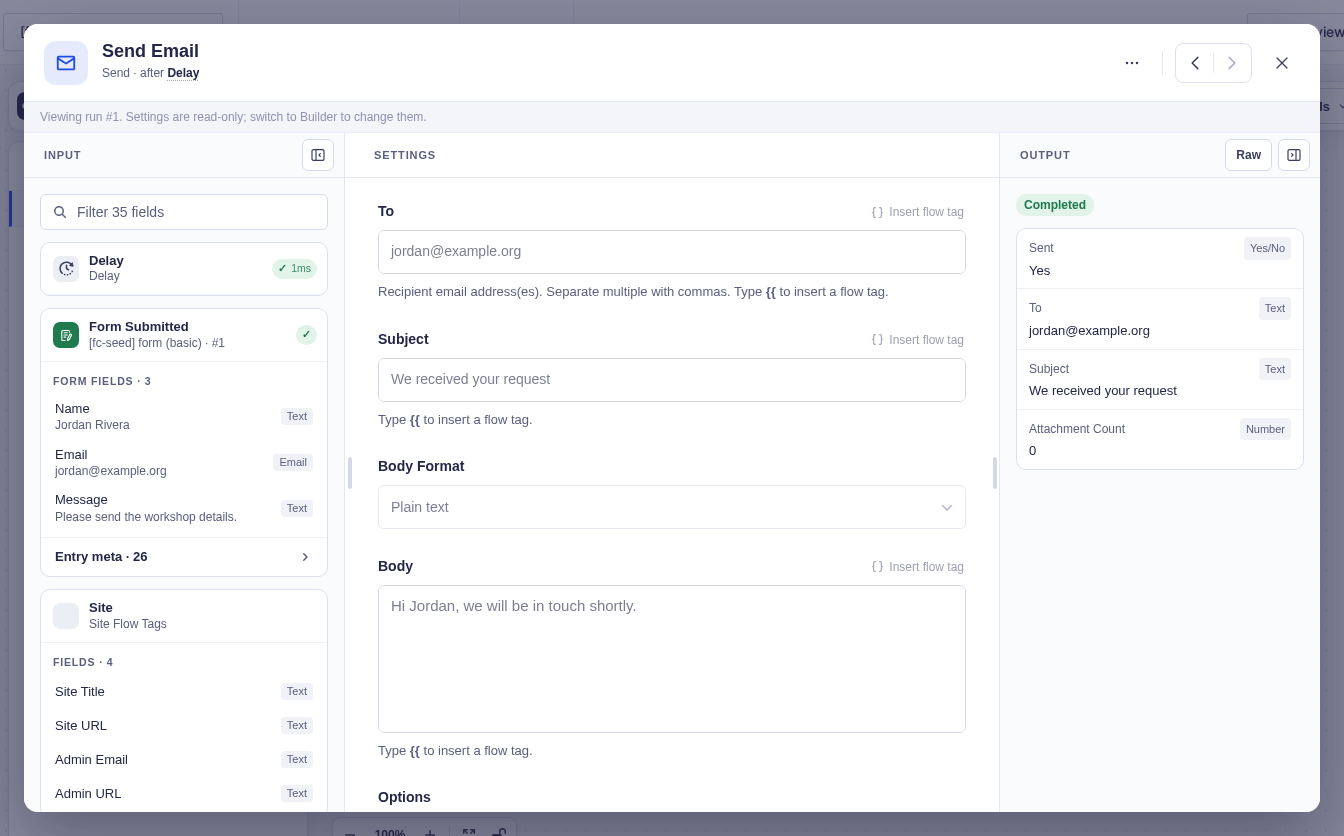
Section titled “Inspect the data used by a node”Select a node in Runs to see what it received and what it produced.
- Input shows the values the node received from earlier nodes.
- Output shows the node’s result, status, duration, and any error.
- Settings shows how the node was configured when the run started.
- Raw shows the complete data structure instead of the formatted preview.
Some nodes provide richer previews. For example, a Confirmation node shows the confirmation as the visitor saw it, while nodes inside a For Each branch let you inspect one item at a time.
Entry data is refreshed when a node runs
Section titled “Entry data is refreshed when a node runs”Nodes that work with an entry use upstream data to identify it, then reload it from Gravity Forms when they execute.
This matters when a workflow waits before continuing. If an entry is updated during a Delay, for example, later conditions, notifications, feeds, and entry actions use the newly saved values.
When Gravity Forms starts permanently deleting a run’s original entry, Flowcrafter cancels the active run, pending node actions, and unsent dispatches. Completed actions are not undone, and work already executing may finish. Moving an entry to Trash does not cancel the run.
The run deliberately executing Delete Entry may continue after its own deletion; other runs for that entry still stop. Cancellation relies on Gravity Forms’ deletion hook, not a failed entry lookup.
Recover from a failed run
Section titled “Recover from a failed run”Flowcrafter automatically retries temporary failures, waiting longer between attempts. Errors that cannot be retried fail immediately.
When no retries remain:
- Open the failed run.
- Select the failed node.
- Open Details.
- Select Run this step again.
Depending on changes made since the run started, Flowcrafter may offer to:
- Retry the step using compatible changes from the saved workflow;
- Retry it exactly as it ran originally; or
- Start a new run from the trigger.
Retry the failed step when its earlier inputs are still correct. Start a new run when the trigger or earlier steps also need to run again.