Reference
Troubleshooting
Find why a workflow did not start, activate, resume, or finish, then choose the safest recovery.
Start with the workflow’s Runs panel. If a run exists, open it and select the last active node. If no run exists, check the trigger and workflow status first.
No run was created
Section titled “No run was created”Check that:
- The workflow is Active. New workflows start Inactive, and automatic triggers ignore them.
- The request, submission, or schedule belongs to this workflow’s trigger.
- A webhook used this trigger’s current URL and stayed within the body-size limit.
A Manual trigger can start an inactive workflow, but it runs the saved workflow. Save changes before using its Run button.
The workflow will not activate
Section titled “The workflow will not activate”Open every highlighted node. Common causes are missing settings, broken connections, unsupported For Each shapes, and invalid flow tags.
A named flow tag must point to one uniquely named earlier node. For example, {{ "Lookup".id }} fails validation if Lookup is missing, duplicated, or runs later.
A node cannot find an entry
Section titled “A node cannot find an entry”Form Submitted supplies an entry automatically. Schedule, Webhook, and Manual triggers do not. Add an earlier node that creates or fetches the entry, such as Create Entry or Get Entries, then select it as the entry source.
Entry-aware nodes reload the selected entry from Gravity Forms when they run. If that lookup fails, the step fails rather than using stale field values. Permanent deletion through Gravity Forms is a separate signal: it cancels active runs tied to the original entry, including runs in a Delay or another wait. Moving the entry to Trash does not cancel them.
A run deliberately using Delete Entry can finish its remaining steps; other runs for that entry still stop. Direct database deletions bypass Gravity Forms’ deletion hook and do not trigger cancellation.
A node was skipped
Section titled “A node was skipped”Condition and Switch take one route. Nodes that are reachable only through another route are marked skipped and do not execute.
For Switch, check the cases in top-to-bottom order. The first match wins; Default runs only when no case matches.
A wait did not resume as expected
Section titled “A wait did not resume as expected”- Payment: inspect the entry’s latest payment status and the node’s Overdue In value. At the deadline, an unpaid entry takes Overdue; a
PaidorActiveentry takes Paid. - Approval: confirm the request was created after approval expiry scheduling was installed. Approval requests that were already waiting when expiry scheduling was added do not get a deadline automatically; review those requests manually.
- Form submission: confirm the new entry matches every configured rule and correlation value.
- Delay: confirm the target date was valid and inspect pending background actions.
A run failed or appears stuck
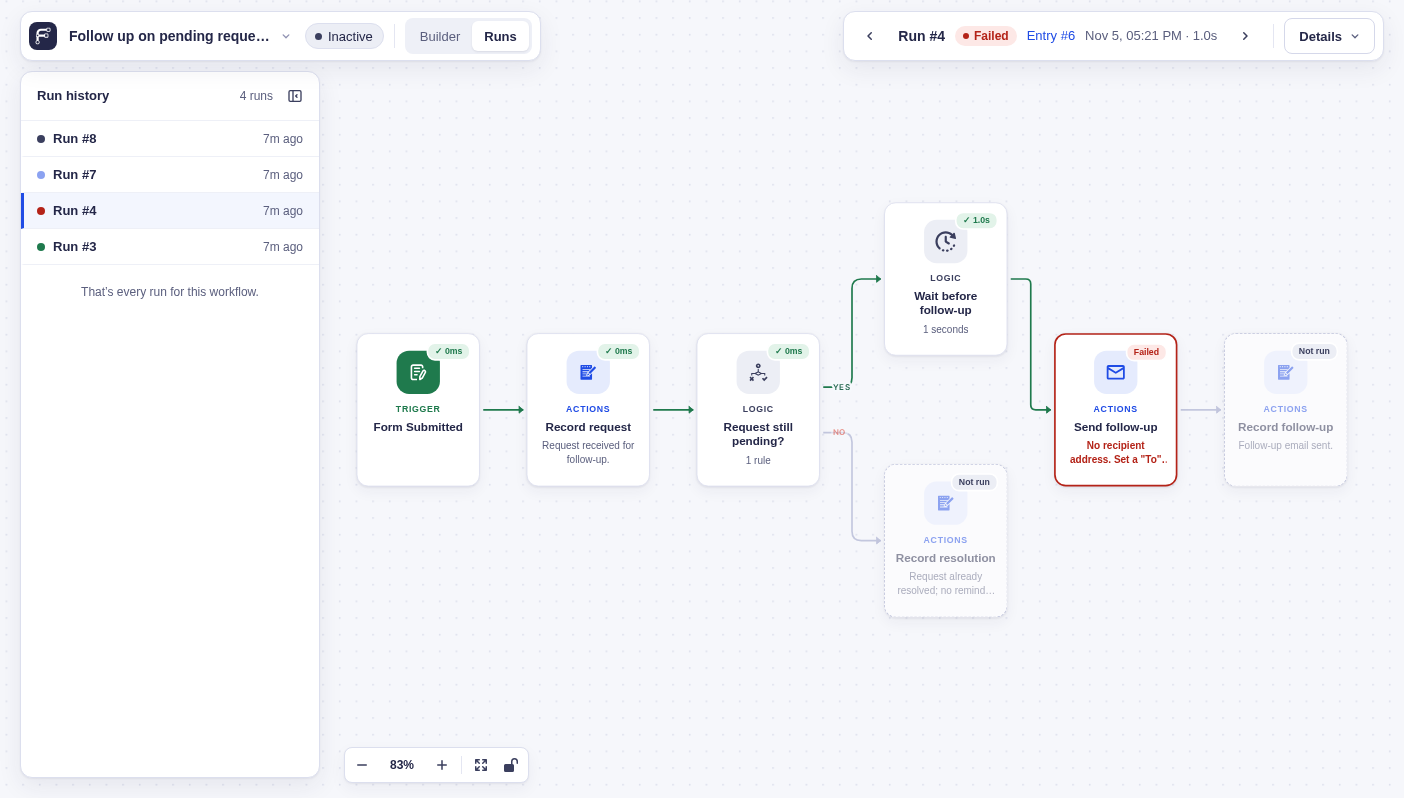
Section titled “A run failed or appears stuck”Runs mode shows waiting, retrying, failed, and per-item states. Select a node to inspect the actual Input, Output, and error recorded for that run.
For a failed node, use Run this step again and choose whether to use the original workflow snapshot or compatible saved changes. Start a fresh run when earlier inputs also need to be rebuilt.
Developers can inspect the complete state from WP-CLI:
wp flowcrafter run inspect <run-id>Add --format=json for a bug report. wp flowcrafter run logs <run-id> shows only execution logs.
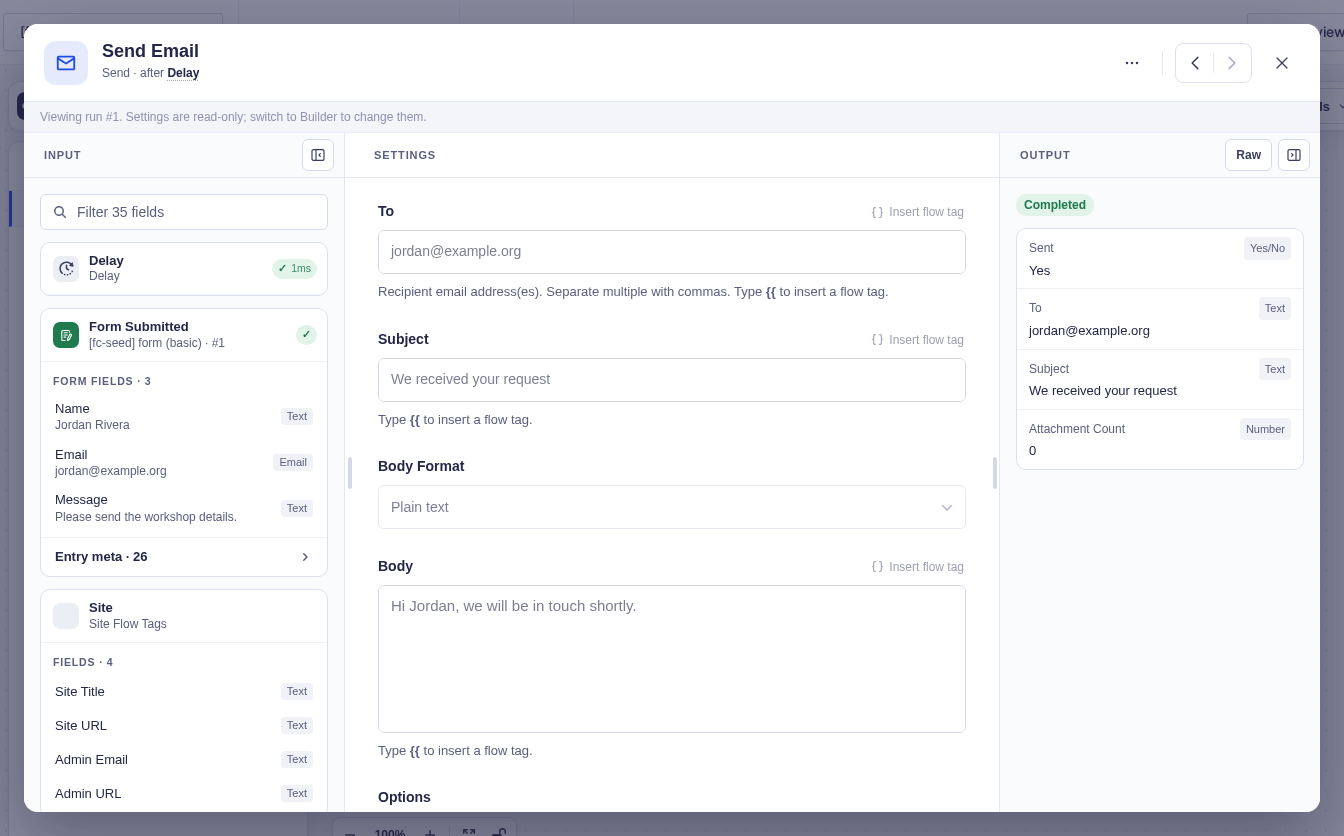
When you open a node from a saved run, inspect the resolved input and real output rather than assuming the current builder settings were used. The example below is a successful run; failed runs need their own error and retry checks.