Flow
Filter
Keep only the items in a list that match a condition.
Filter reads a list and returns only the items that match your rules. Non-matching items are discarded.
When to use it
Section titled “When to use it”Use Filter when later steps only need part of a list, such as unpaid registrations or orders above a minimum. Use Split when both matching and non-matching items need their own paths.
Settings
Section titled “Settings”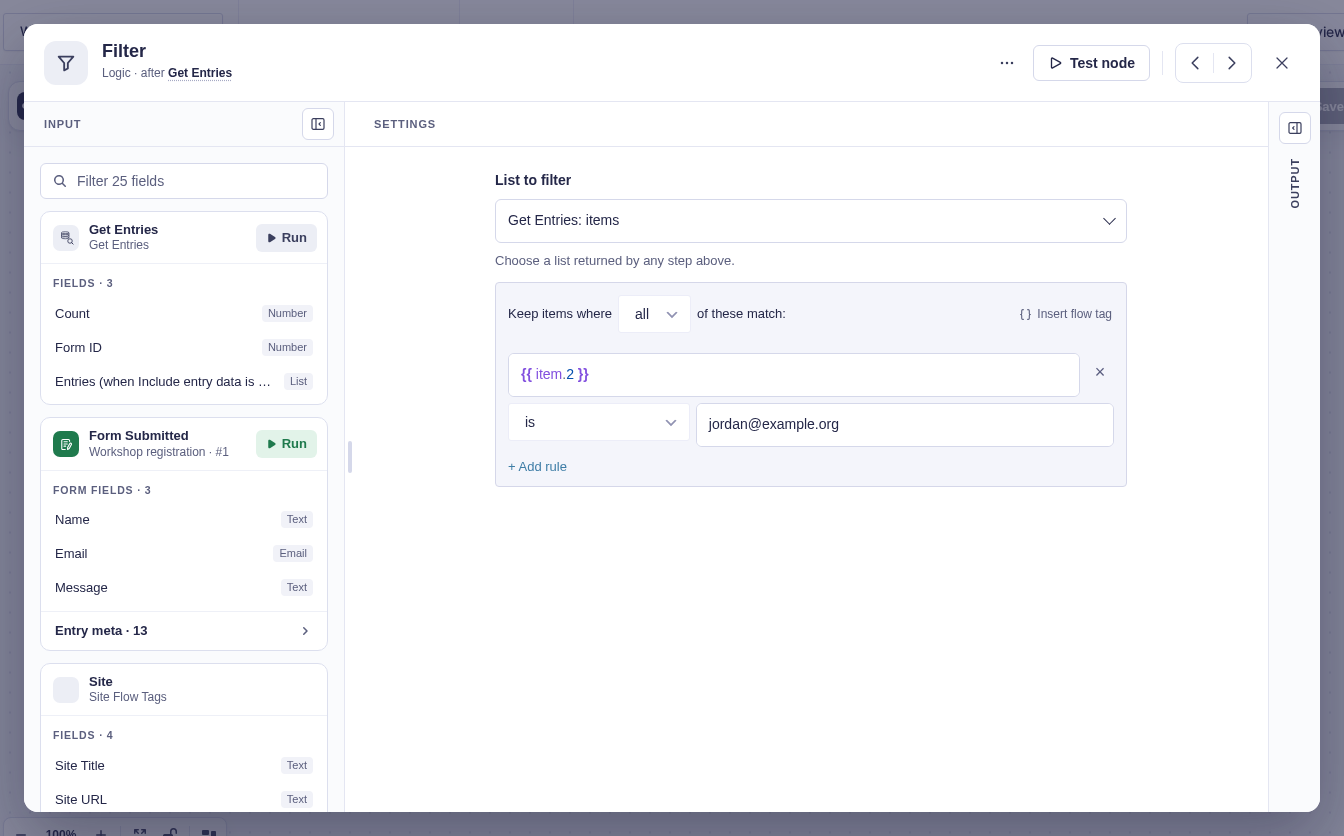
| Setting | What it does |
|---|---|
| List to filter | Chooses a list from any earlier step. Test the source step first if no list appears. |
| all / any | Requires every rule to match, or at least one rule to match. |
| Rules | Conditions applied to each item. Compare a current-item value such as {{ item.payment_status }} with text, a number, or another flow tag. No rules means every item is kept. |
Output and branches
Section titled “Output and branches”Filter has one output path. It runs even when no items match.
| Flow tag | Value |
|---|---|
{{ "Filter".items }} |
The matching items, in their original order. |
{{ "Filter".count }} |
The number of matching items. |
Good-to-knows
Section titled “Good-to-knows”- Non-matching items cannot be recovered downstream.
- An empty result does not stop the workflow. Add a Condition on
countif needed. - Use Insert flow tag and choose from Current item for item fields. Plain
payment_statusis literal text, not a field reference. - Numeric comparisons need unformatted numbers; values such as
$1,250.00may compare as text. - With Get Entries, set Return to Full entries.
Example
Section titled “Example”Choose a registrations list and add the rule {{ item.payment_status }} is Unpaid. If 30 of 200 items match, Filter outputs those 30 items and a count of 30.
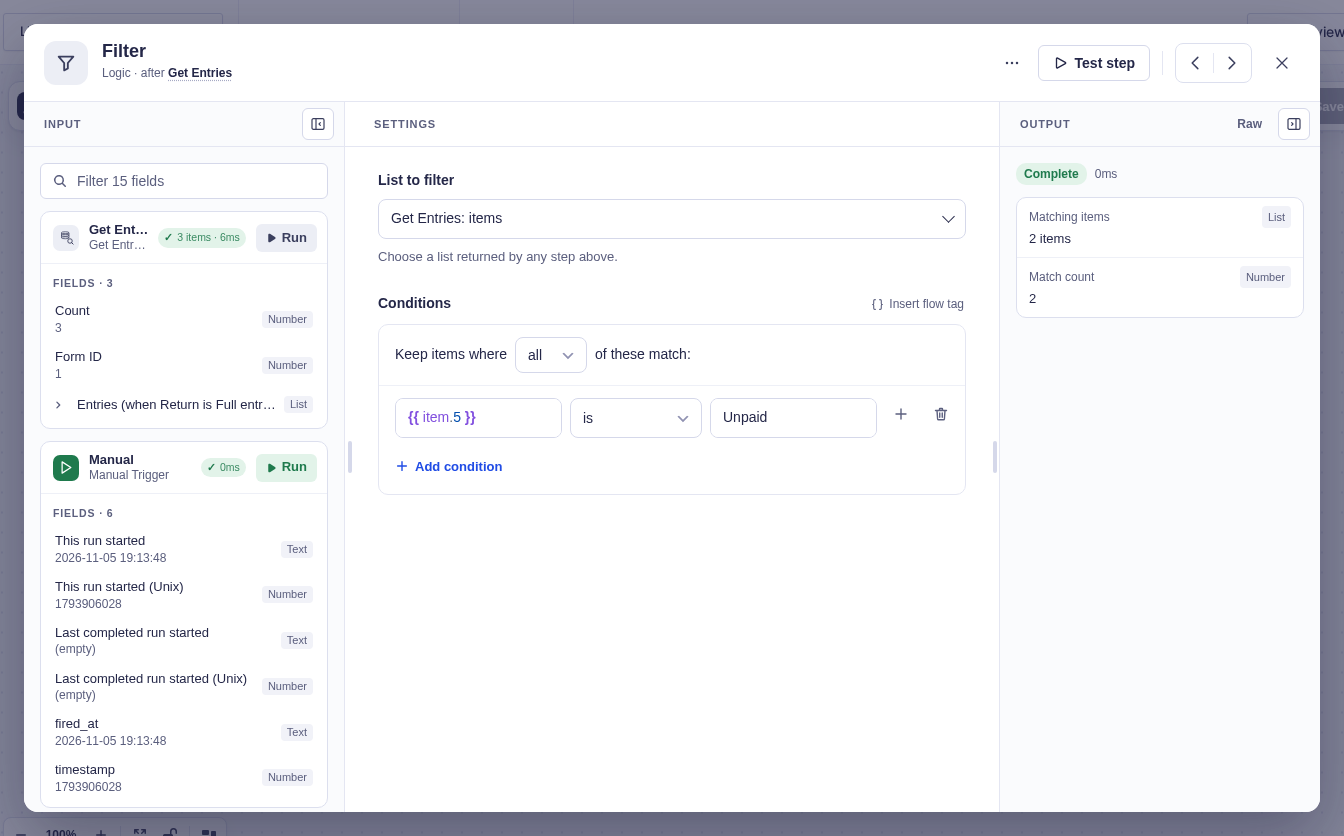
Here, Get Entries returns three entries with Return set to Full entries. Payment status is field 5, so the rule uses {{ item.5 }} is Unpaid. The quick test keeps the two unpaid entries and returns a count of 2.