

Use Cases
Request missing application information, then finish review
When an application is incomplete, send the applicant what to fix, wait for their updated answers, and make the final decision on the same record.
Applications arrive incomplete. The usual outcome is a manual loop: an email, a wait, a spreadsheet of who has replied, and a review that starts over. A workflow can carry one clear correction round and return the updated application for a final decision.
What you’ll build
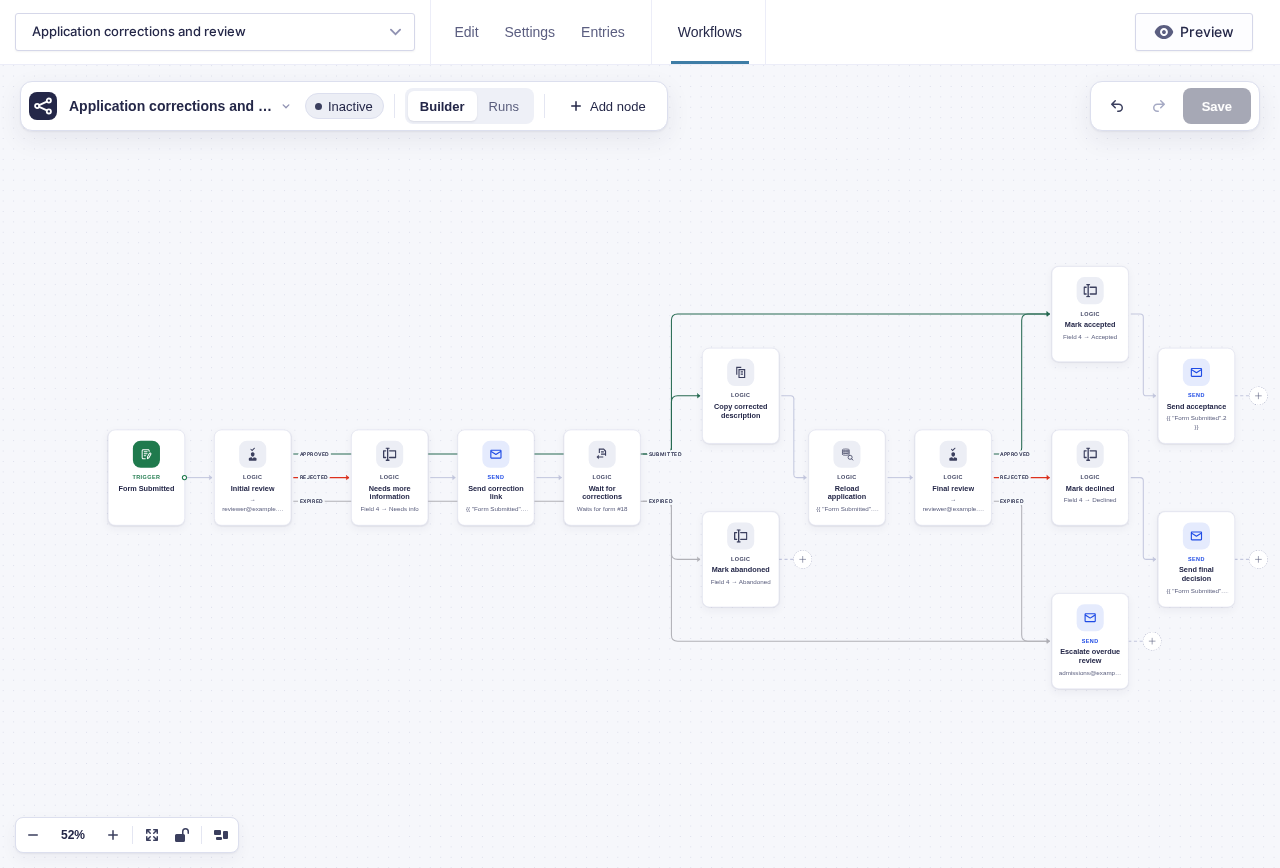
Section titled “What you’ll build”A reviewer requests missing information without leaving the run. The applicant receives a link to a correction form, the run parks until that form comes back with this run’s key, and the approved fields are copied onto the application. The workflow then reloads that entry so the second reviewer sees the saved corrections rather than the original submission snapshot.
flowchart TD
    A[Application submitted] --> B[Wait for Approval:<br/>initial review]
    B -->|Approved| C[Set status: Accepted]
    B -->|Rejected| D[Set status: Needs info]
    B -->|Expired| E[Escalate to<br/>the admissions lead]
    D --> F[Send Email: correction link<br/>with reviewer note]
    F --> G[Wait for Form Submission]
    G -->|Submitted| H[Copy corrected fields<br/>onto the application]
    G -->|Expired| I[Set status: Abandoned]
    H --> N[Get Entries:<br/>reload application]
    N --> J[Wait for Approval:<br/>final review]
    J -->|Approved| C
    J -->|Rejected| K[Set status: Declined]
    J -->|Expired| E
    C --> L[Send acceptance email]
    K --> M[Send decision email]
Before you build
Section titled “Before you build”- Create the application and corrections forms, and decide which fields applicants may change.
- Add an administrative Application status field to the application form.
- Choose reviewer, escalation, and applicant email addresses.
- Put sensitive corrections behind login or another identity check; the run key only matches submissions.
Build it step by step
Section titled “Build it step by step”-
Create a separate Corrections form with the fields an applicant may need to fix, plus a hidden field for the workflow key. Turn on Allow field to be populated dynamically for the hidden field and use
keyas its parameter name. -
Open the application form and click Workflows in the form toolbar. Click New Workflow, then Add Trigger and choose Form Submitted.
-
Add Wait for Approval named Initial review. Address it to your reviewers, include the application in the email body, and set an expiry with reminders so applications don’t sit unnoticed. Turn on Require a note when rejecting so the reviewer has to say what’s missing.
-
On Approved, set the application status to
Acceptedwith Update Entry Field and follow it with the acceptance email. -
On Rejected, set the status to
Needs info. Add Send Email to the applicant with the correction form link — for example,https://your-site.test/correct/?key={{run.key}}after replacing the domain and path with the real correction page — and{{ "Initial review".note }}in the body so they know exactly what to fix. -
Add Wait for Form Submission. Choose the corrections form and match its hidden key field to
{{run.key}}so only this applicant’s form resumes this run. Set an expiry that fits your deadline.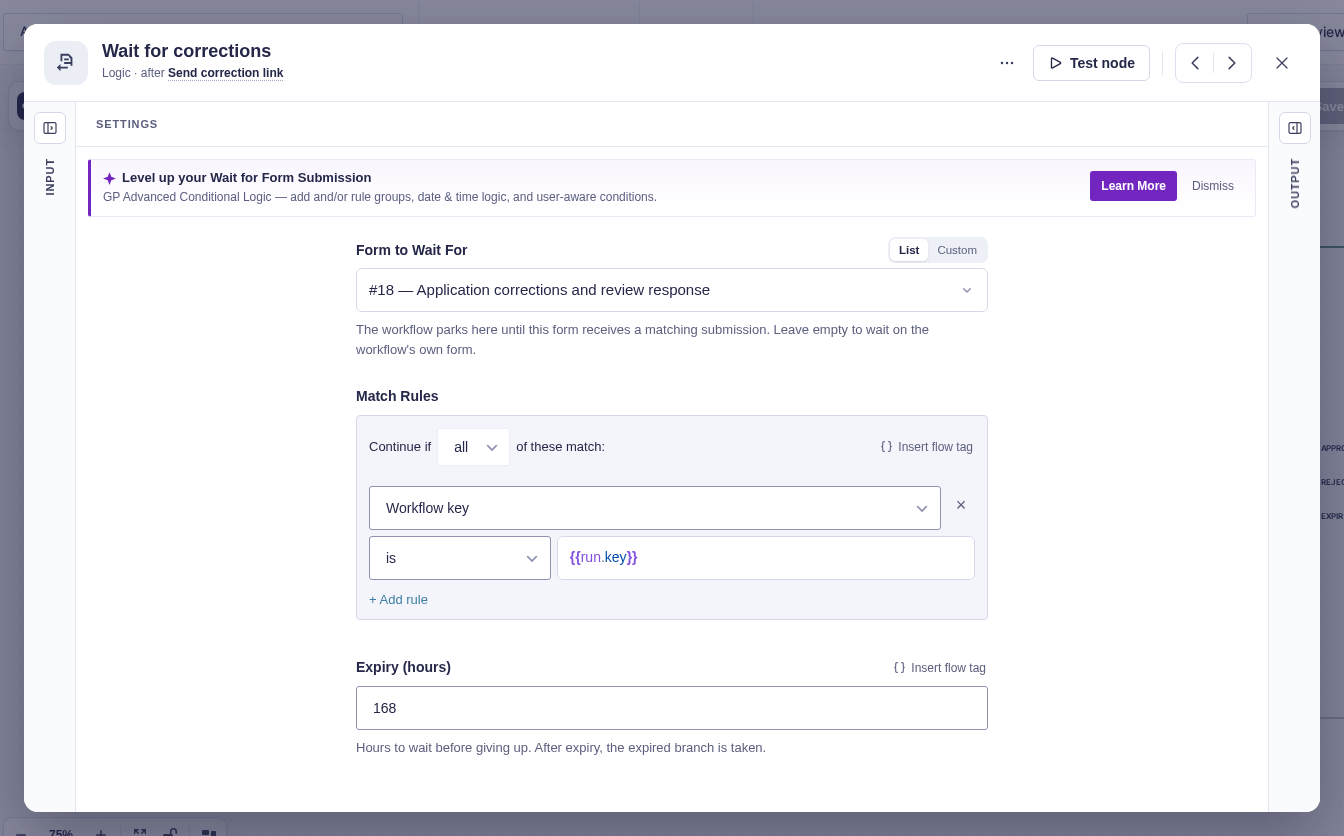
-
On Submitted, add Copy Entry Fields. Use
{{ "Wait for Form Submission".entry_id }}as the source, leave the target empty to use the application entry, and map only the fields applicants may correct. -
Add Get Entries named Reload application. Set Entry ID to
{{ "Form Submitted".id }}and set Return to Full entries. This creates a fresh output snapshot for the final email; do not reuse merge tags from Form Submitted, which still describe the original submission. -
Add Add Entry Note recording
{{ "Copy Entry Fields".updated_count }}and{{ "Copy Entry Fields".skipped_fields }}so staff can see what actually changed. -
Add a second Wait for Approval named Final review. Set Entry source to Reload application’s first item, and build the review summary from
{{ "Reload application".items[0].mergeTag('{all_fields}') }}. Entry-aware nodes reload the selected entry when they execute, while this fresh Get Entries output gives the email an updated flow tag source. Connect Approved to the accepted-status path, Rejected to aDeclinedstatus and decision email, and Expired to the admissions escalation. -
On Wait for Form Submission’s Expired output, set the application status to
Abandonedand notify the team.
Data passed between nodes
Section titled “Data passed between nodes”| From | Data used later | Where it goes |
|---|---|---|
| Initial review | Reviewer note |
Correction email |
| Run context | run.key |
Correction-form link correlation and Wait for Form Submission match |
| Wait for Form Submission | Submitted entry_id |
Copy Entry Fields source |
| Copy Entry Fields | updated_count and skipped_fields |
Entry note and audit trail |
| Reload application | Fresh items[0] entry snapshot |
Final approval entry source and email summary |
Test and activate safely
Section titled “Test and activate safely”New workflows start Inactive. While inactive, use builder tests for Approved and Rejected on both approval nodes. Then temporarily activate on staging or with test recipients for controlled live runs: reject the initial review to create the correction wait, submit the correction form with that run key, and confirm only mapped fields change. Expired also requires a genuinely parked run, so use short deadlines in these live tests. Verify a blank source answer behaves as intended: a present blank value can clear a target, while a missing or null source value is skipped. Use short expiries only in staging, restore the real deadlines, activate, and watch the first application through both review stages.
What Flowcrafter adds
Section titled “What Flowcrafter adds”A notification can ask for missing information, but it cannot hold the process, match the reply to the application, or resume the review. Flowcrafter keeps the review and correction on one record: the reviewer asks, the applicant answers, the approved corrections land on the entry, and the final approval reloads the entry so the reviewer sees the updated application.
The same shape works for grant and scholarship applications, job applications returned for missing documents, vendor onboarding compliance, and registration packets.
Related resources
Section titled “Related resources”- Wait for Approval — the initial and final reviews
- Wait for Form Submission — wait for the matching corrections form
- Copy Entry Fields — write corrected answers onto the application
- Get Entries — create a fresh flow tag source after copying fields
- Add Entry Note — leave an audit trail for staff
- Passing Data Between Nodes — use the returned entry ID, copy result, and reviewer notes