
Use Cases
Enrich and route a lead before it reaches your CRM
Call an enrichment service, reject responses you cannot trust, choose the right owner, and only then hand off the finished record.
A lead form may capture only a name, email, and company. Before the record reaches sales, an enrichment service can add details such as company size, industry, or region. Flowcrafter can check that response, save the useful fields, choose an owner, and run the CRM feed only after the entry is ready.
What you’ll build
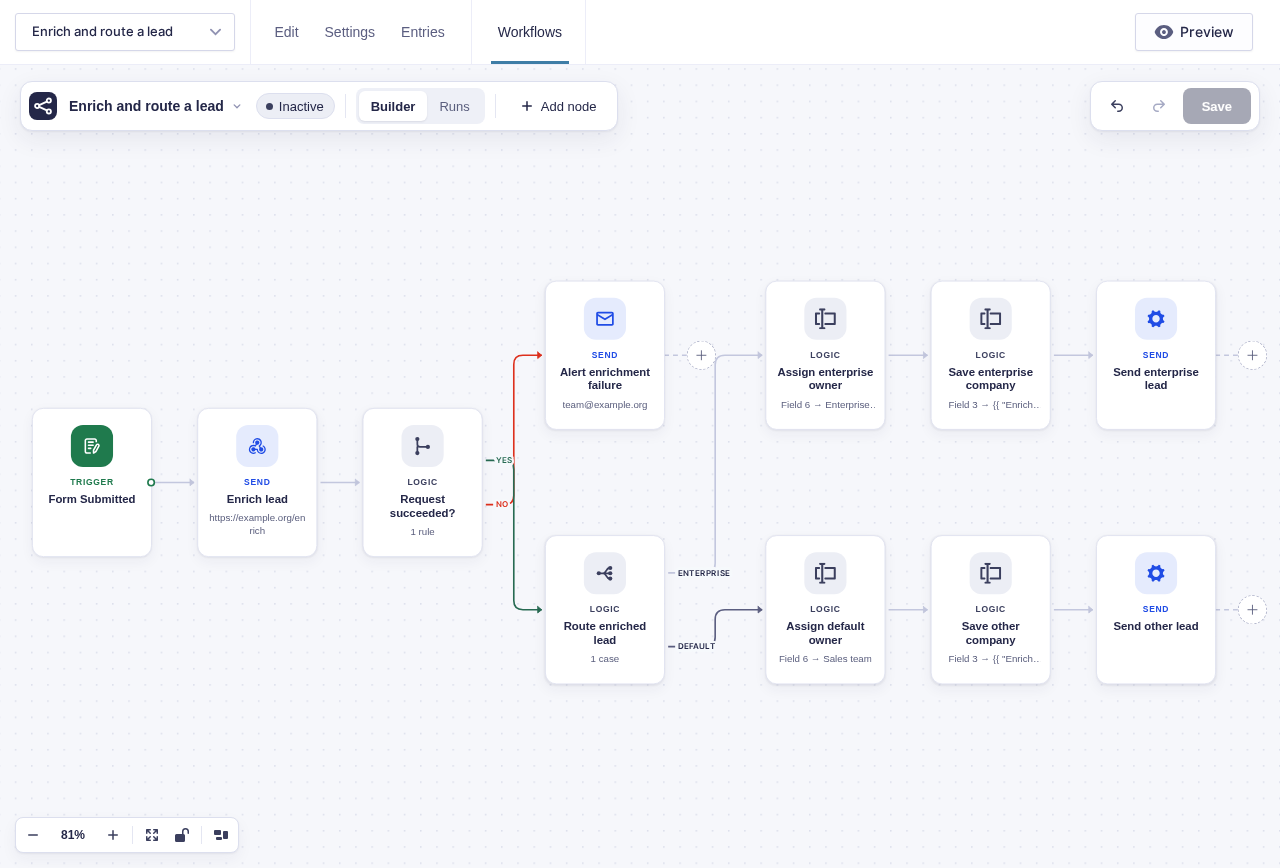
Section titled “What you’ll build”flowchart TD
A[Form Submitted] --> B[HTTP Request: enrich]
B --> C{Request succeeded?}
C -->|No| D[Mark for review and alert the team]
C -->|Yes| E{Route by returned data}
E -->|Enterprise| F[Write owner and company data]
E -->|Other| G[Write default owner and company data]
F --> H[GF Feed: send enterprise lead]
G --> I[GF Feed: send other lead]
Before you build
Section titled “Before you build”- Get the enrichment service’s endpoint, authentication method, sample success response, and documented failure responses.
- Create the Gravity Forms CRM feed, but do not leave it enabled to run independently on submission when Flowcrafter will control it.
- Add administrative fields for the response values, owner, segment, and processing status.
- Use a sandbox account or test endpoint while building.
Build it step by step
Section titled “Build it step by step”-
Add administrative-only fields for the enrichment values, owner, segment, and Enrichment status. Submitters should not control those workflow fields.
-
Open your lead form and click Workflows in the form toolbar. Click New Workflow, then Add Trigger and choose Form Submitted.
-
Add HTTP Request named Enrich lead. This example uses Method
POST, a fictional URL ofhttps://example.org/enrich, and aContent-Type: application/jsonheader. In Body Template, use{"email":"{{ "Form Submitted".2 }}"}to send the submitted email. Replace the endpoint, method, and field ID with your service’s requirements. If authentication is required, put the fixed token in anAuthorizationheader, never in a submitted field. Add anIdempotency-Key: {{run.key}}header when the service supports one.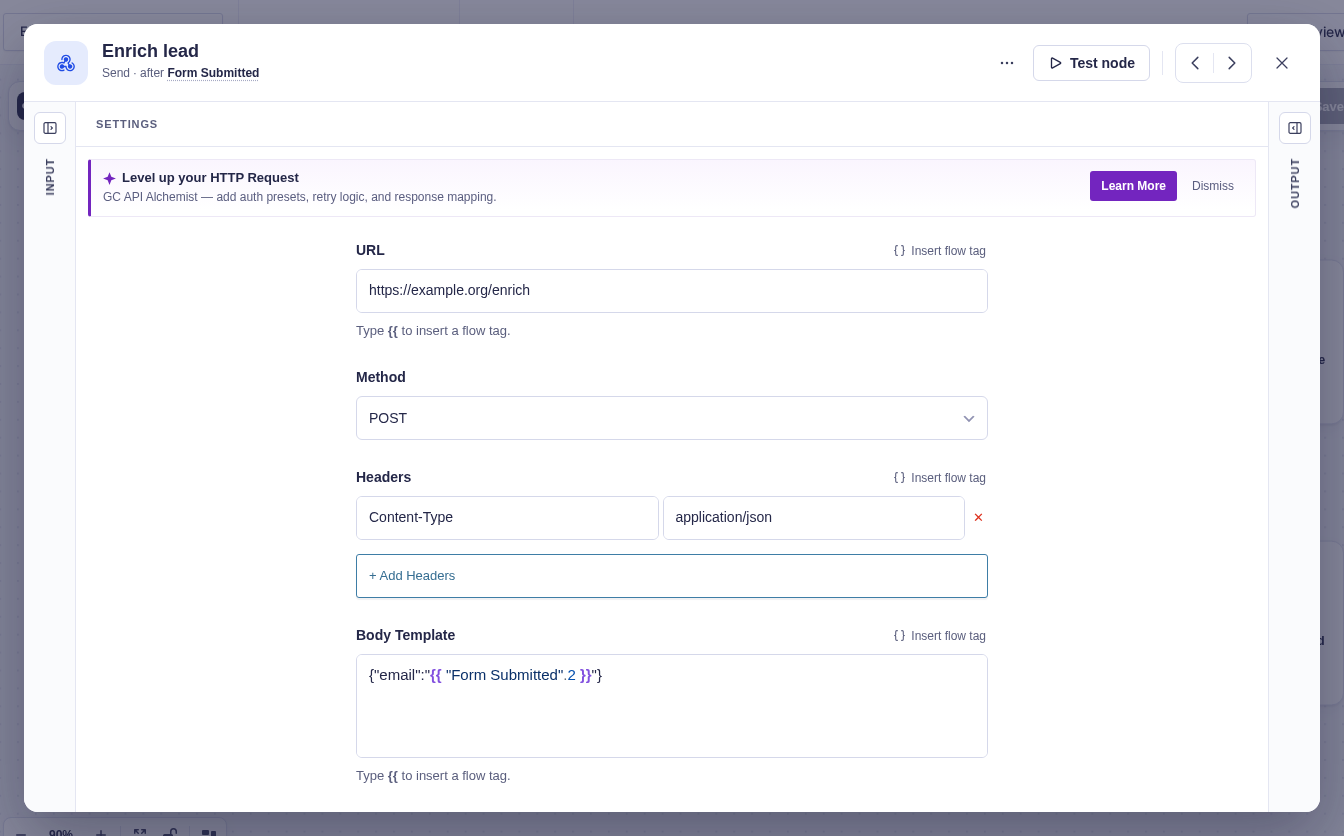
-
Add Condition (data) named Request succeeded? and set it to match All rules:
{{ "Enrich lead".status_code }}is greater than or equal to200, and the same value is less than300. On No, set Enrichment status toNeeds reviewand alert the team with the status code. -
On Yes, add Switch named Route by company size. This example assumes the service returns
{ "company": { "size_band": "enterprise", "name": "Acme" } }. Add an Enterprise case where{{ "Enrich lead".body.company.size_band }}equalsenterprise; use Default for missing or unfamiliar values. Replace these paths with the fields in your service’s real sample response. -
On Enterprise, use Update Entry Field to set Company name to
{{ "Enrich lead".body.company.name }}, Segment toEnterprise, Owner to the enterprise owner, and Enrichment status toComplete. Repeat on Default with the returned company name when present, aStandardsegment, and the default owner. -
Finish each successful path with GF Feed and select the CRM feed. Set Entry source to flow tag mode and use the final Update Entry Field node’s Entry ID so the feed reloads the enriched entry. Flowcrafter manages that feed so it runs here rather than at initial submission.
Data passed between nodes
Section titled “Data passed between nodes”| From | Data used later | Where it goes |
|---|---|---|
| Form Submitted | Email or domain and entry identity | HTTP request and later entry-aware nodes |
| Enrich lead | status_code and parsed body fields |
Success check, Switch, and entry updates |
| Update Entry Field | Updated entry entry_id |
GF Feed entry source |
| Live Gravity Forms entry | Fresh enriched and owner fields | CRM feed when it runs |
Edge cases
Section titled “Edge cases”- A
2xxresponse can still contain incomplete or invalid data. Validate required response fields before routing. - HTTP status failures reach the No branch; DNS, connection, and timeout errors retry and then fail the node instead. Monitor failed runs.
- Retries can repeat a request. Use an idempotency key such as the run key when the API supports one.
- Never place API keys in URLs or values copied from form fields.
Test and activate safely
Section titled “Test and activate safely”New workflows start Inactive. Use a sandbox to test one success response, one non-2xx response, one unfamiliar routing value, and one transport failure. Confirm the CRM feed runs once and receives the freshly updated entry. Replace test credentials and recipients, activate the workflow, and inspect its first runs for unexpected response shapes.
What Flowcrafter adds
Section titled “What Flowcrafter adds”The Gravity Forms Webhooks Add-On can send an entry to an API, and a CRM add-on can process its own feed. Flowcrafter connects the middle: validate the first service’s response, handle a rejected response, update the entry, choose an owner, and delay the CRM feed until the record is ready.
A DNS, connection, or timeout error retries and then fails the HTTP node; it does not reach the response-status branch. Monitor failed runs for those transport errors.
Use this pattern elsewhere
Section titled “Use this pattern elsewhere”The same enrich → check → route → hand off pattern works whenever a submission needs outside information before it can move on:
- Application verification: Check a license, membership, or eligibility service before sending an application to review.
- Vendor onboarding: Look up company details, flag an incomplete or risky response, and route an approved vendor to the next system.
- Service requests: Use an address or coverage API to choose the right office, technician, or service area.
- Orders and registrations: Validate inventory, location, tax, or account information before running the fulfillment feed.
Related resources
Section titled “Related resources”- HTTP Request — call the enrichment service and expose its response
- Condition (data) and Switch — reject an unusable response before routing its data
- Update Entry Field — save the enrichment on the entry
- GF Feed — send the finished record to the CRM