Getting Started
How Workflows Work
Learn how triggers, nodes, runs, saved workflow snapshots, and current Gravity Forms entry data fit together.
Flowcrafter turns a process into connected nodes on a canvas. Most of it clicks with use, but here are six ideas to help you start building and troubleshooting workflows.
A trigger creates a run and saves a copy of the workflow’s route and settings. Ready nodes follow the connected paths: conditions choose routes, some nodes pause and resume work, and For Each processes a list item by item. The run finishes when no work remains, or records an error you can inspect.
1. A trigger starts the workflow
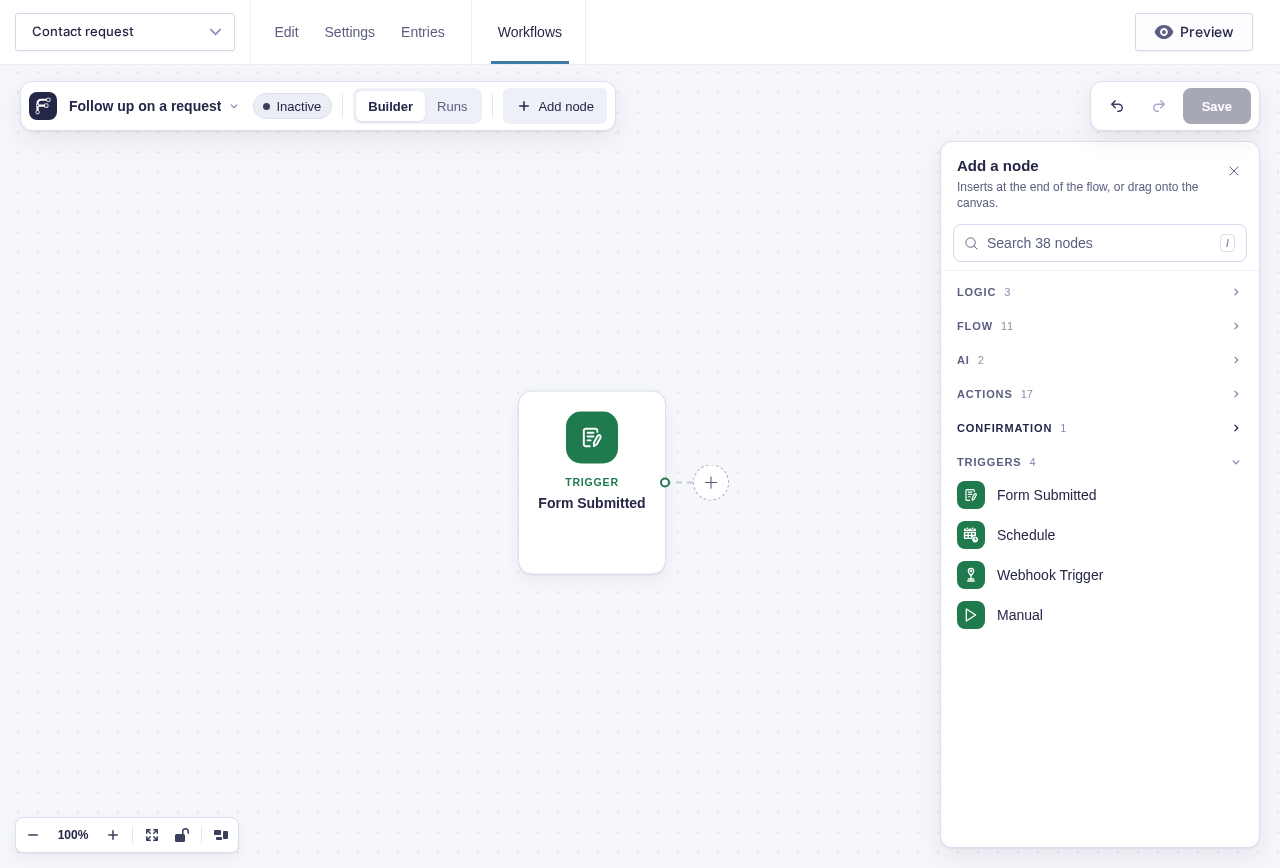
Section titled “1. A trigger starts the workflow”A workflow begins with a trigger (the event that starts a run):
- Form Submitted starts when the selected form is successfully submitted.
- Schedule starts on a recurring schedule (e.g., every Monday at 9am).
- Webhook starts when another service requests the workflow’s URL.
- Manual starts when an authorized user or command explicitly runs it.
The nodes after the trigger perform actions, make decisions, wait, or process data.
2. Each execution is a run
Section titled “2. Each execution is a run”A run is one execution of a workflow. For example, ten form submissions create ten separate runs.
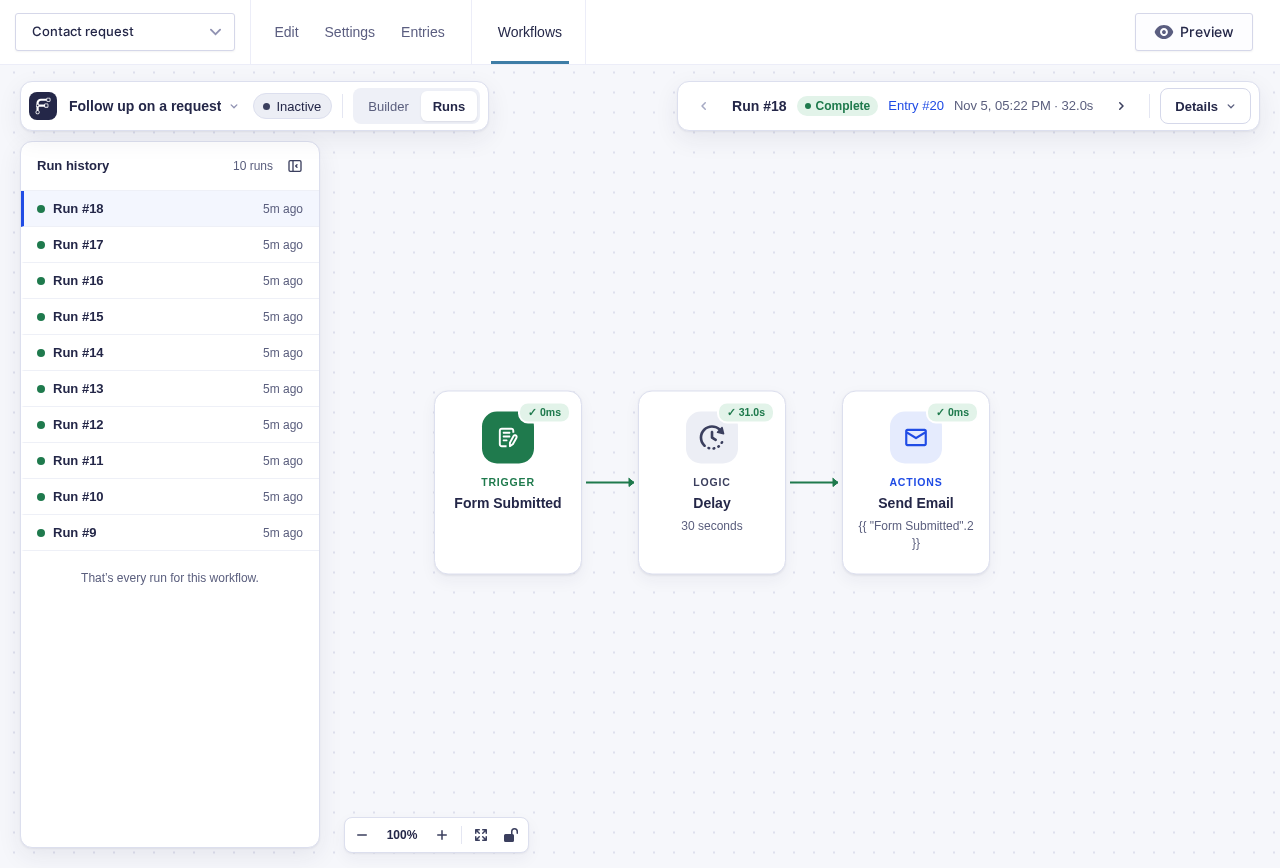
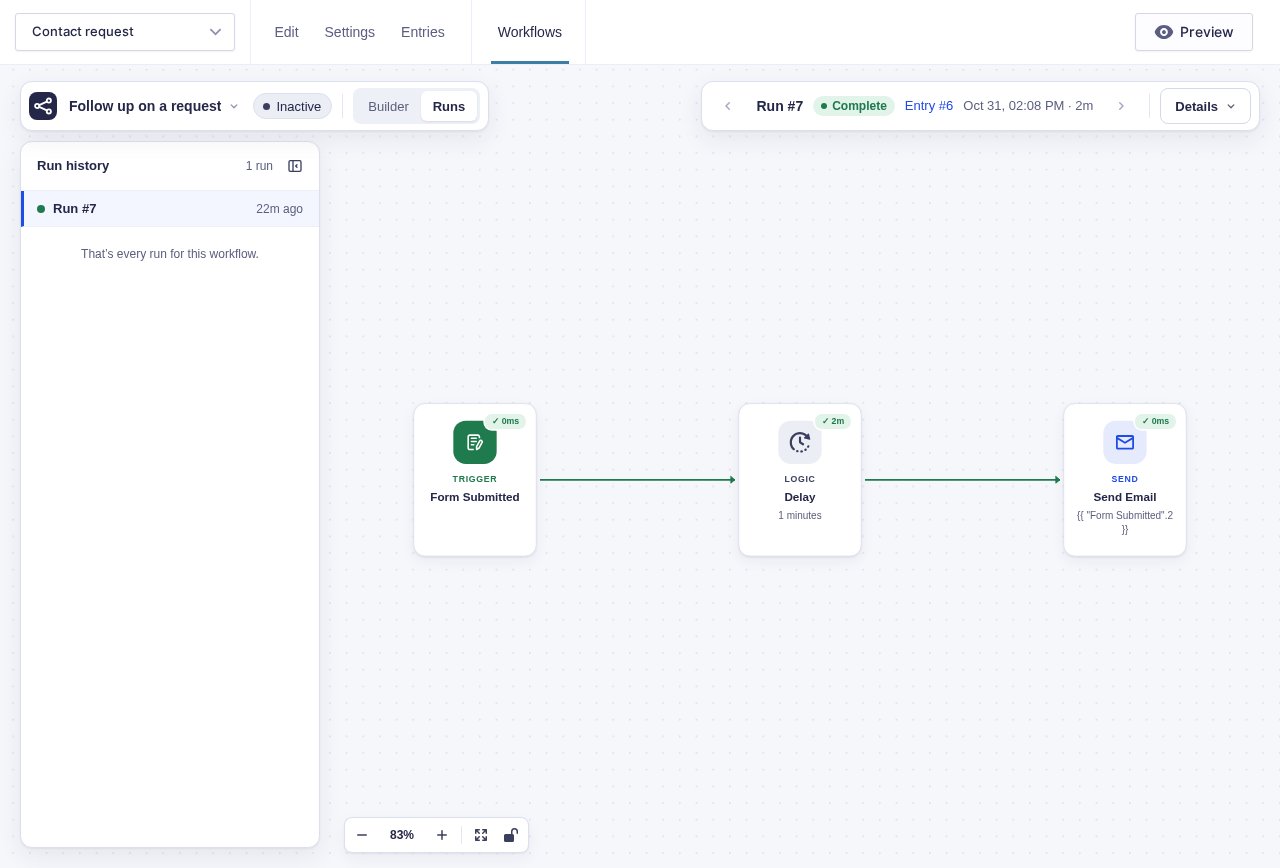
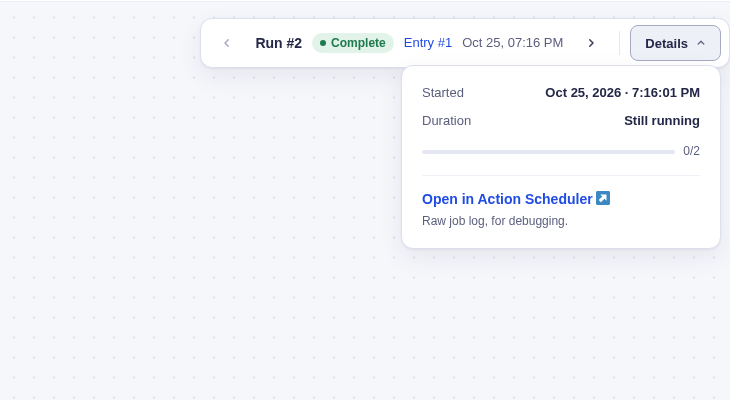
Each run records which nodes completed, which path it took, where it is waiting, and any errors. Open Runs in the builder toolbar to inspect that history.
3. Work continues in the background
Section titled “3. Work continues in the background”Workflows, once built, are completely hands off. Flowcrafter queues each step with Action Scheduler, which is included with the plugin.
This allows a run to wait for hours or days, resume after an approval or payment, and retry some temporary failures entirely on its own.
4. A run keeps the workflow version it started with
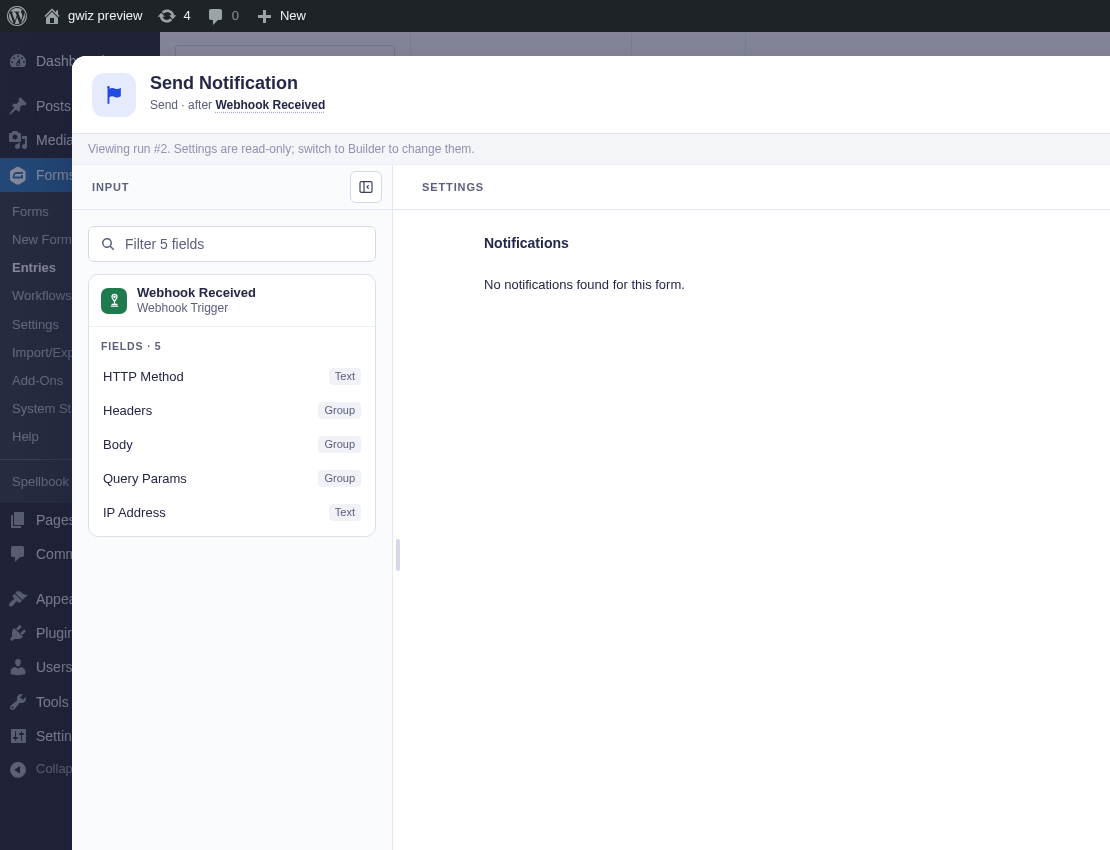
Section titled “4. A run keeps the workflow version it started with”When a run starts, Flowcrafter saves a workflow snapshot (a frozen copy of the connected nodes and their settings). Editing and saving the workflow later affects new runs, not runs already in progress.
For example, changing a Delay from one day to two days does not rewrite the settings of a run already waiting on the original one-day delay.
5. Nodes can pause a run
Section titled “5. Nodes can pause a run”Some nodes pause the run until a time arrives, a person responds, or another event occurs:
- Delay continues after a duration or at a specific date and time.
- Wait for Approval waits for a person’s decision or the request’s deadline.
- Wait for Payment waits for the selected entry’s payment.
- Wait for Form Submission waits for a matching submission to another form.
Flowcrafter keeps the run’s place while it waits. When the pause ends, it queues the next connected work in the background.
6. Status controls production triggers
Section titled “6. Status controls production triggers”New workflows start Inactive. You can save and use the builder’s test tools while a workflow is inactive, but live automatic triggers are ignored.
Set a valid workflow to Active when it is ready for production. If Flowcrafter finds a missing required setting or invalid connection, fix the issue before activation.