

Under the Hood (Developers)
WP-CLI
The wp flowcrafter commands for scripting, debugging, and test setup — and run inspect, the bird's-eye view of a single run.
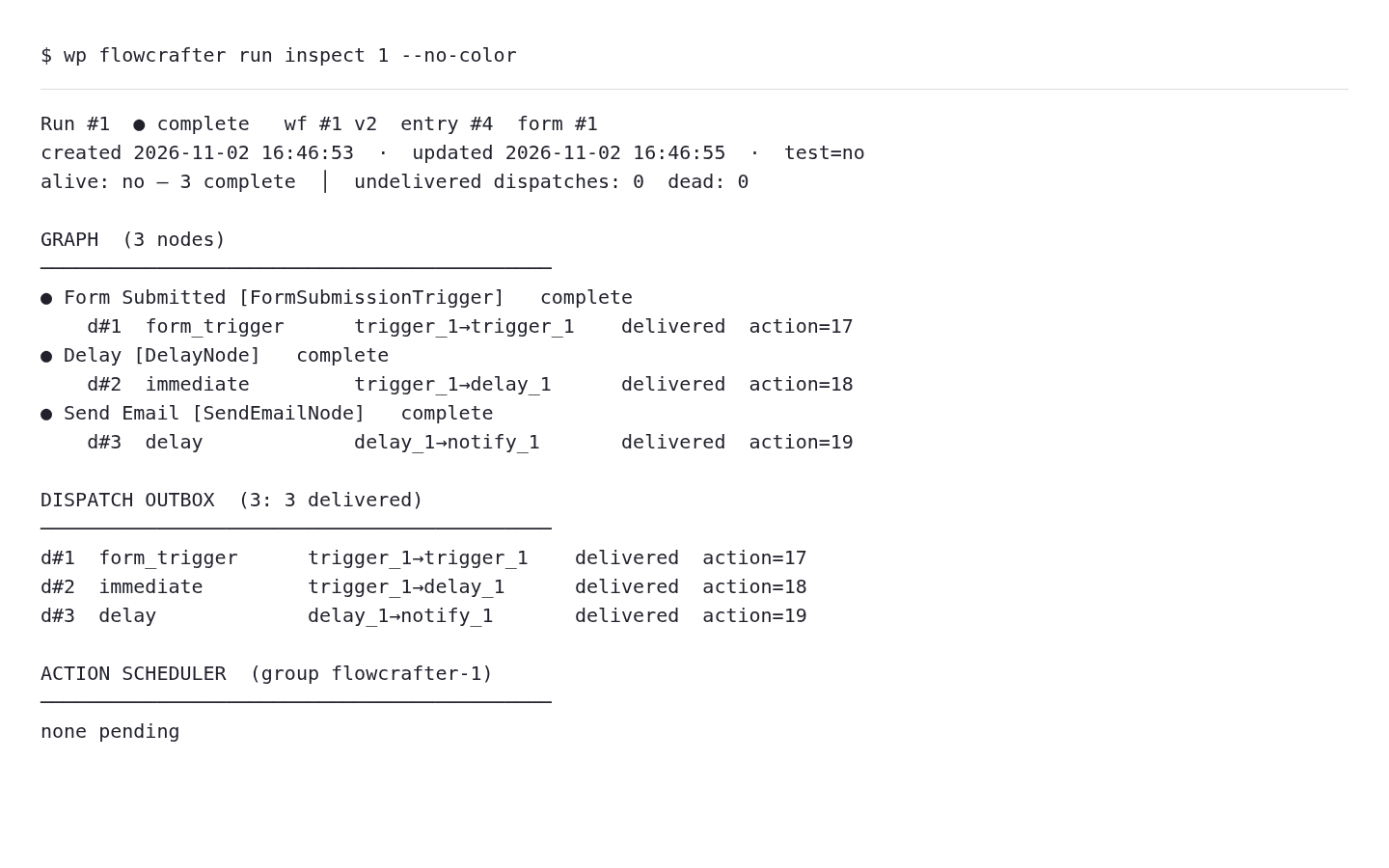
Flowcrafter’s WP-CLI commands cover run inspection, retrying and rerunning, plus development fixtures and resets. They don’t mirror every builder or REST operation. The star of the show is run inspect — the whole story of a single run on one screen.
Commands
Section titled “Commands”| Command | What it does |
|---|---|
wp flowcrafter run inspect <run-id> |
The whole run in one screen: every node’s state, its logs, loop iterations, collections, the dispatch outbox, and any pending Action Scheduler jobs — all correlated. Add --format=json to dump the correlated run as one blob. |
wp flowcrafter run show <run-id> |
The run’s high-level record. |
wp flowcrafter run logs <run-id> |
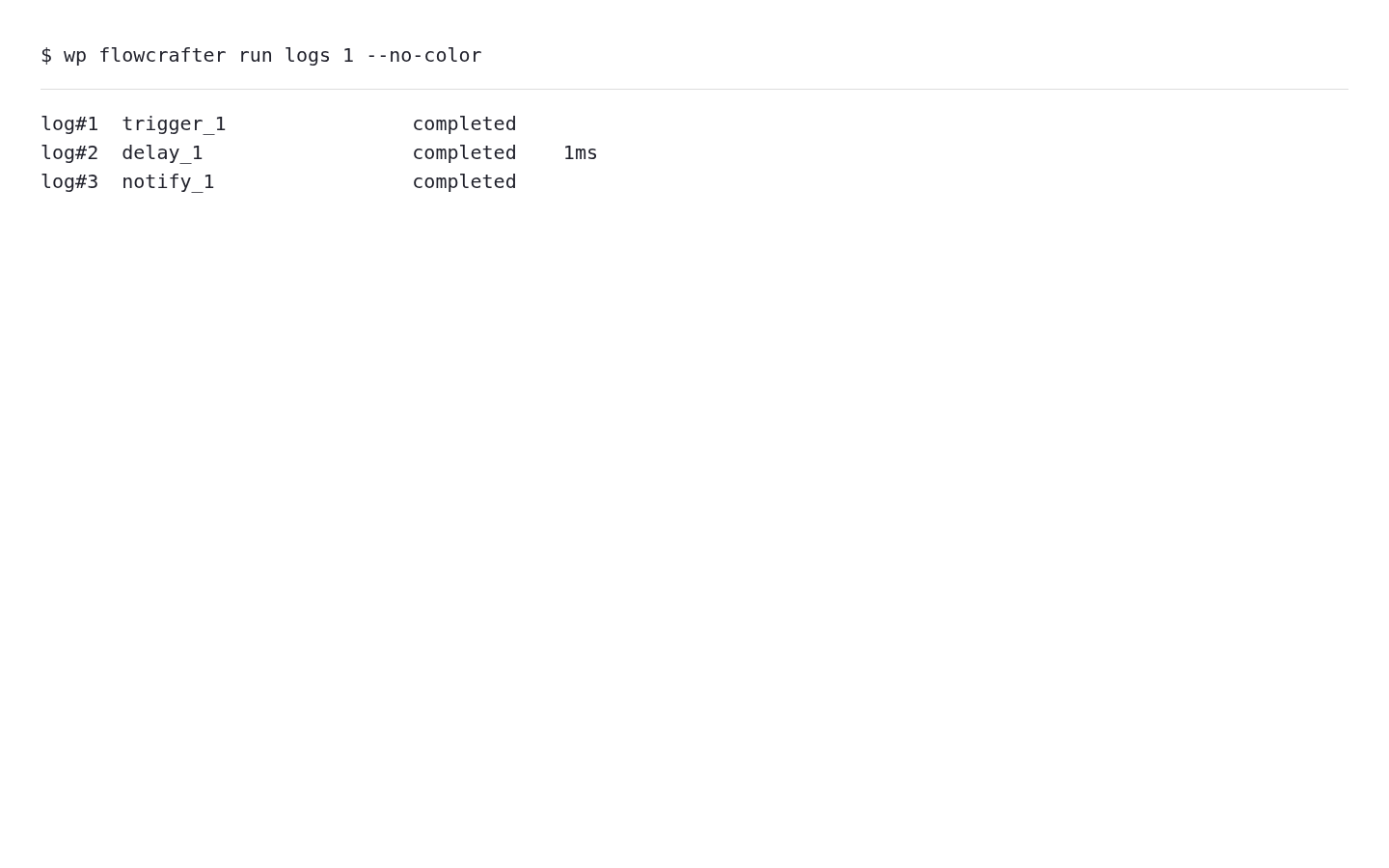
Just the log lines for a run. |
wp flowcrafter run dispatches <run-id> |
The run’s outbox — the jobs it queued and their status. |
wp flowcrafter run retry <run-id> <node-id> [--saved] |
Retry one failed node. Add --saved to use the workflow’s current saved definition after fixing its configuration. |
wp flowcrafter run rerun <run-id> |
Run the whole workflow again from the top. |
wp flowcrafter seed |
Build a ready-made form + workflow for testing, from a code preset or a bundled recipe. See Seeding a form + workflow for presets and flags. |
wp flowcrafter seed-demo |
Seed a fuller demo setup. |
wp flowcrafter reset |
Tear down Flowcrafter data (destructive — for dev/test environments only). |
Debugging a run from the terminal
Section titled “Debugging a run from the terminal”When a run does something you didn’t expect, run inspect beats clicking through the builder. It shows why a node is delayed, parked, or waiting — not just that it is — by laying the node states, logs, and the outbox side by side.
wp flowcrafter run inspect 42# or, for tooling:wp flowcrafter run inspect 42 --format=jsonThese are real outputs from the documentation sandbox, rendered as plain text for readability. The run completed from a form submission; no node states or log lines were filled in by hand.
Seeding a form + workflow
Section titled “Seeding a form + workflow”wp flowcrafter seed spins up a real form and workflow so you have something to open in the builder or run in a test. You point it at either a code preset or a bundled recipe — exactly one of --preset or --template is required.
Presets (--preset=<name>):
basictoken-richtoken-selectenhancement-httplocked-upsellapprovalreview-loopwebhookschedulebranchinggppa
The alternative is --template=<id>, which seeds straight from a bundled recipe (a Template_Registry id, e.g. email-the-submitter) instead of a code preset. The recipe’s sentinel field references get remapped to the seeded form’s real fields.
Flags:
| Flag | What it does |
|---|---|
--preset=<name> |
Build from one of the code presets above. |
--template=<id> |
Build from a bundled recipe id instead. |
--with-entries=<n> |
Create N sample entries on the form (default 0). |
--status=<status> |
Workflow status, active or inactive (default active). |
--force |
Delete prior [fc-seed] workflows for this preset/template name before seeding. |
--format=<format> |
Output as table (default), json, or ids. |
wp flowcrafter seed --preset=basic# straight from a recipe, as JSON:wp flowcrafter seed --template=email-the-submitter --format=jsontable (the default) and json both give you the editor_url so you can jump straight to the seeded workflow — json returns the whole record (form id, entry ids, workflow id, and that URL) as one blob. --format=ids prints the workflow id on its own and nothing else, which is what you want when piping into another command.
Where to go next
Section titled “Where to go next”- The Execution Model — what
run inspectis actually showing you: the run loop, the state machines, and Action Scheduler. - REST API — drive the same operations over HTTP.
- Abilities (Agent Surface) — the same operations, exposed to AI agents.