Flow
Format List
Turn a list into one block of text, one row per item.
Format List renders every item with a row template, joins the rows, and returns one text value.
When to use it
Section titled “When to use it”Use it for one email containing many order lines, a readable digest, or a comma-separated list for an API.
Settings
Section titled “Settings”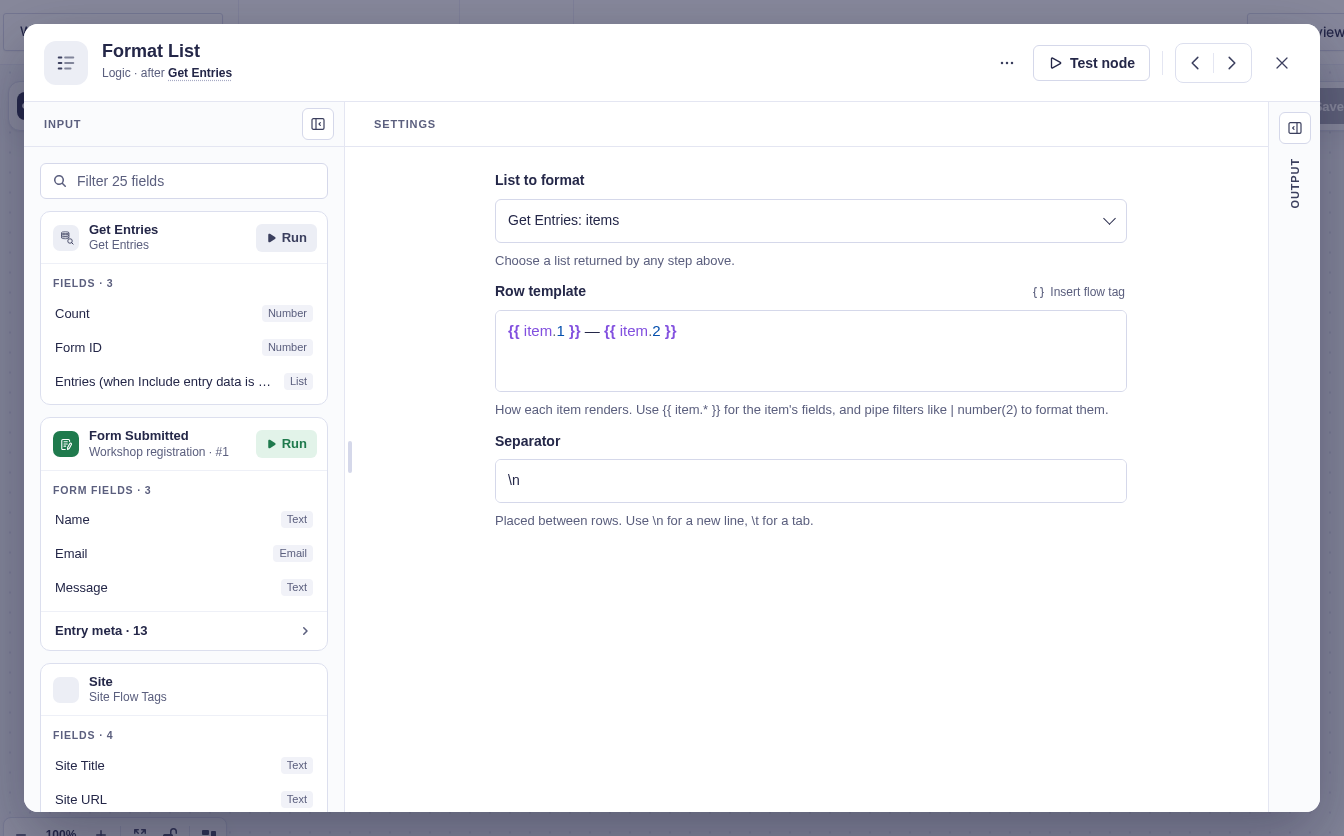
| Setting | What it does |
|---|---|
| List to format | Chooses a list from any earlier step. Test the source step first if no list appears. |
| Row template | Defines one row with flow tags such as {{ item.name }} or {{ item.3 }}. |
| Separator | Joins the rows. Defaults to \n (a new line); \t becomes a tab, and other text is used literally. |
When the list comes from Get Entries and every entry is from one form, Insert flow tag → Current item lists that form’s fields by label, such as Email or Name · First, so you don’t need to look up field IDs. That works when Get Entries’ Form source is a specific form or left automatic. If it’s a flow tag, or you entered specific Entry IDs, the menu shows field IDs once you’ve tested Get Entries.
Output and branches
Section titled “Output and branches”Format List has one output path and provides:
| Flow tag | Value |
|---|---|
{{ "Format List".text }} |
The joined text. |
{{ "Format List".count }} |
The number of input items. |
An empty list returns an empty string and count 0.
Good-to-knows
Section titled “Good-to-knows”- New lines are collapsed in HTML email. Use
<br>as the separator or send plain text. - With Get Entries, set Return to Full entries.
- Inside a For Each iteration,
{{ item.* }}in the row template refers to Format List’s row item, not the outer iteration’s item.
Example
Section titled “Example”For items with name and qty, use this row template:
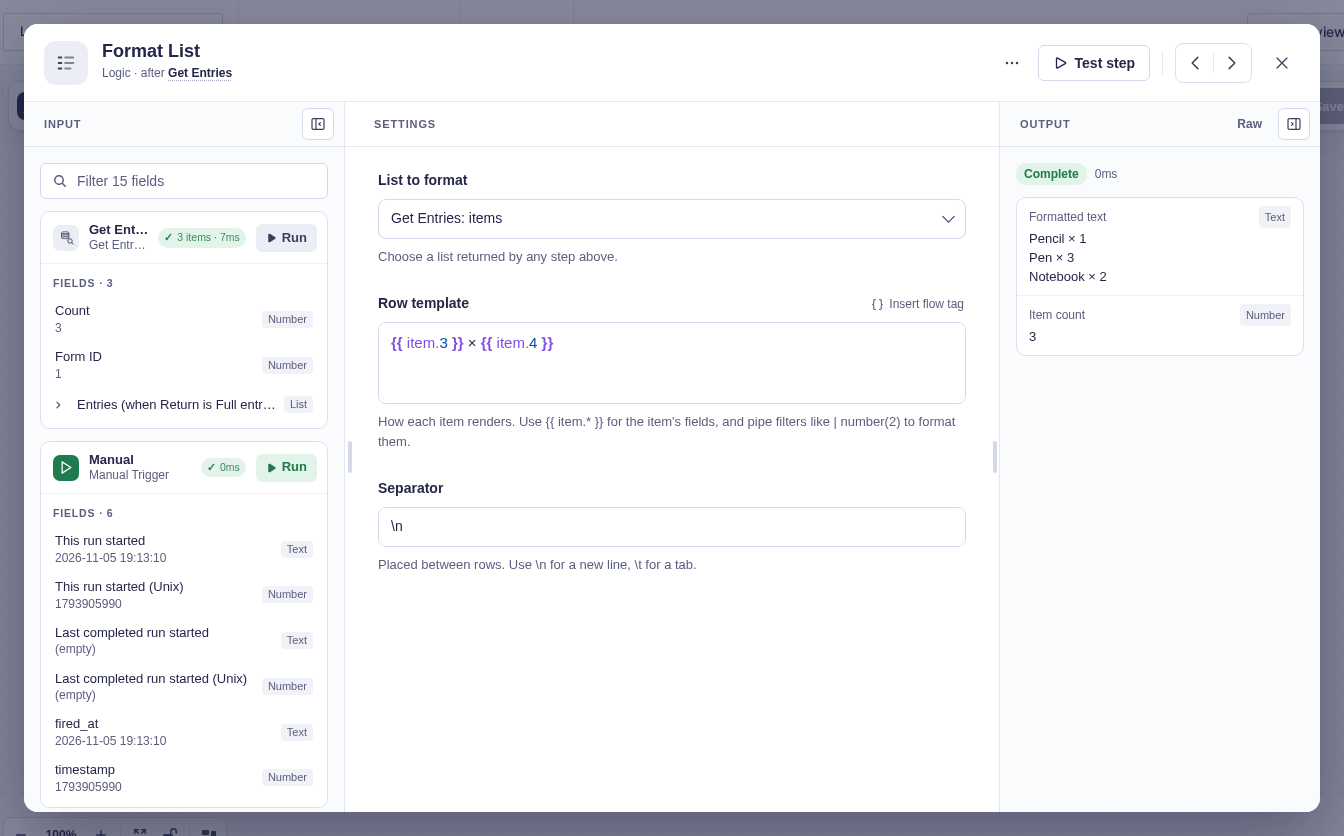
{{ item.name }} × {{ item.qty }}Set the separator to \n. Three items become one three-line string that you can insert with {{ "Format List".text }}.
For the Get Entries list below, the product name is stored in field 3 and Quantity is field 4, so the row template is {{ item.3 }} × {{ item.4 }}. The quick test produces three real lines—Pencil × 1, Pen × 3, and Notebook × 2—with an item count of 3.