Actions
Send Email
Compose and send a one-off email from a workflow.
Send an email without creating a Gravity Forms notification first.
When to use it
Section titled “When to use it”Use Send Email for messages built inside the workflow, including scheduled emails and messages based on earlier step output. If the form already has the message as a notification, use Send Notification.
Settings
Section titled “Settings”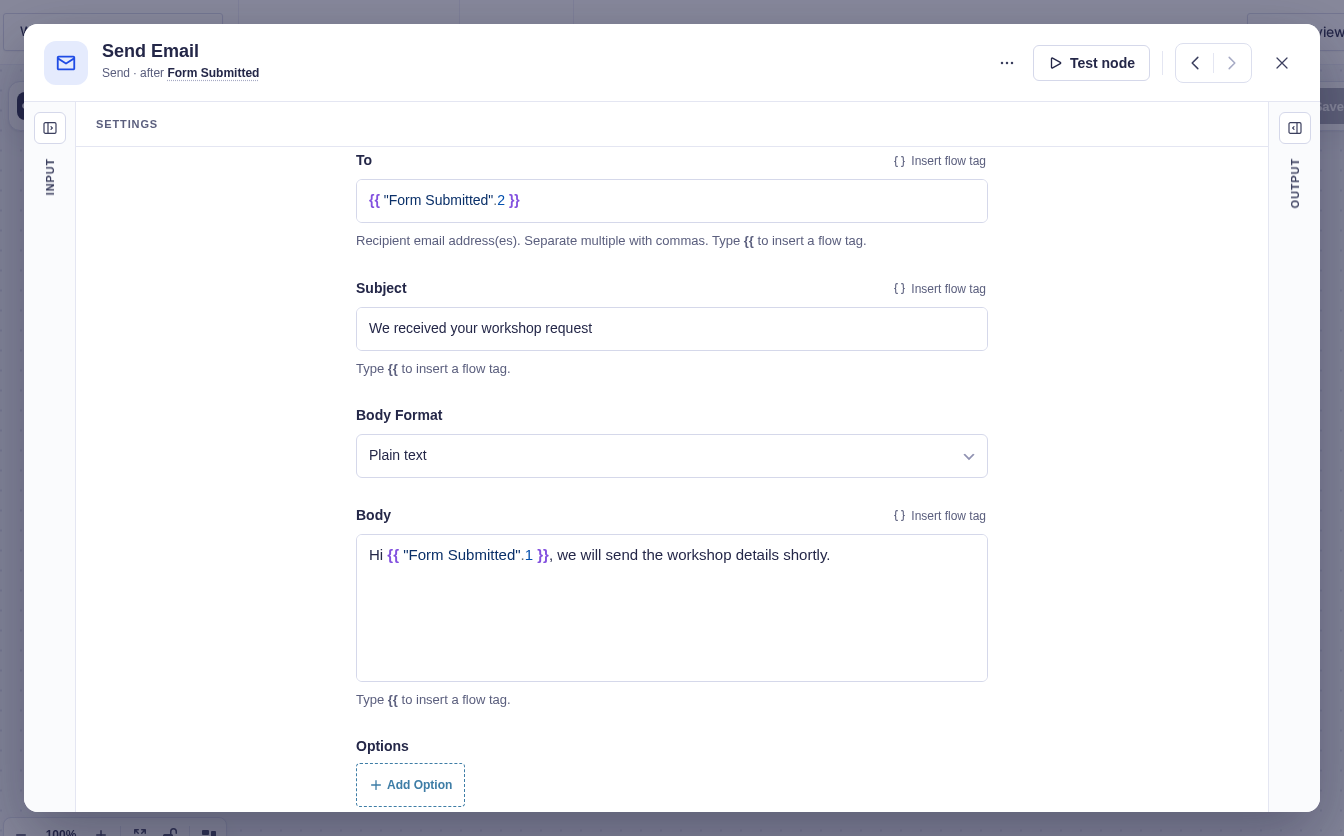
| Setting | What it controls |
|---|---|
| To | Required recipient address or comma-separated addresses. Supports flow tags. |
| Subject and Body | Message content. Both support flow tags. |
| Body Format | HTML (default) or Plain Text. |
| Options | Optional CC, BCC, Reply-To, From name/address, and custom headers. Values support flow tags. |
| Attachments | File URL, data URI, path under WordPress uploads, or an earlier step’s file value. The optional key sets the displayed filename. |
Output and branches
Section titled “Output and branches”The step has one output with Sent, To, Subject, and Attachment count. An empty recipient, an attachment that cannot be resolved, or a failed wp_mail() call fails the step.
Good-to-knows
Section titled “Good-to-knows”- The WordPress mail setup still controls actual delivery. A successful
wp_mail()call means WordPress accepted the message, not that the recipient opened or received it. - Remote and data-URI attachments are downloaded to temporary files and cleaned up after the send. Existing upload files are left in place.
Example
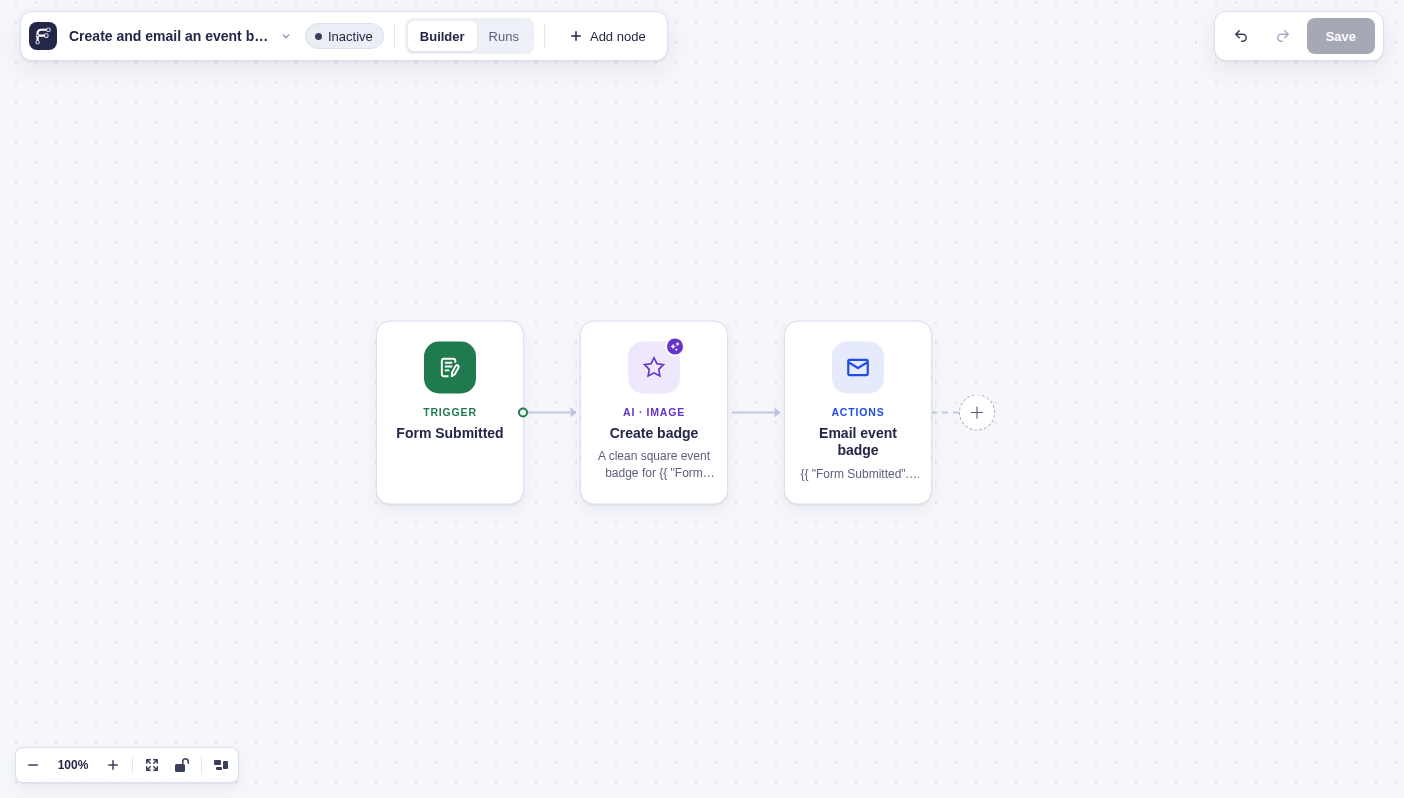
Section titled “Example”Create a personalized event badge with OpenAI Image, then email the saved file to the person who submitted the form:
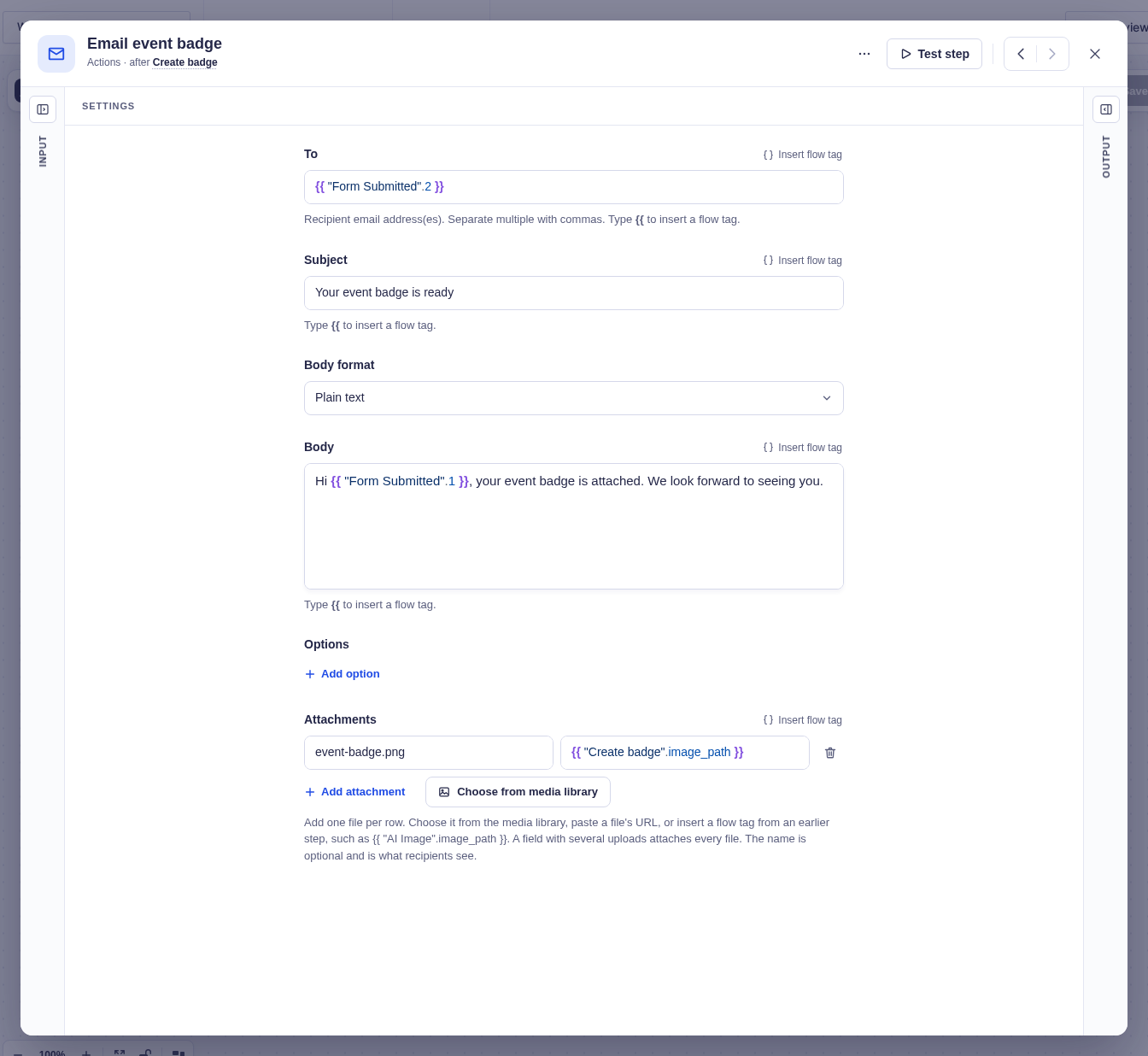
- Name the OpenAI Image node Create badge. Set Image Prompt to
A clean square event badge for {{ "Form Submitted".1 }}, navy and gold, no photograph, and choose a square PNG image. - In Send Email, set To to the form’s Email field,
{{ "Form Submitted".2 }}, and Subject toYour event badge is ready. - Add an attachment with
event-badge.pngas the filename and{{ "Create badge".image_path }}as the file source.
Create the badge
Section titled “Create the badge”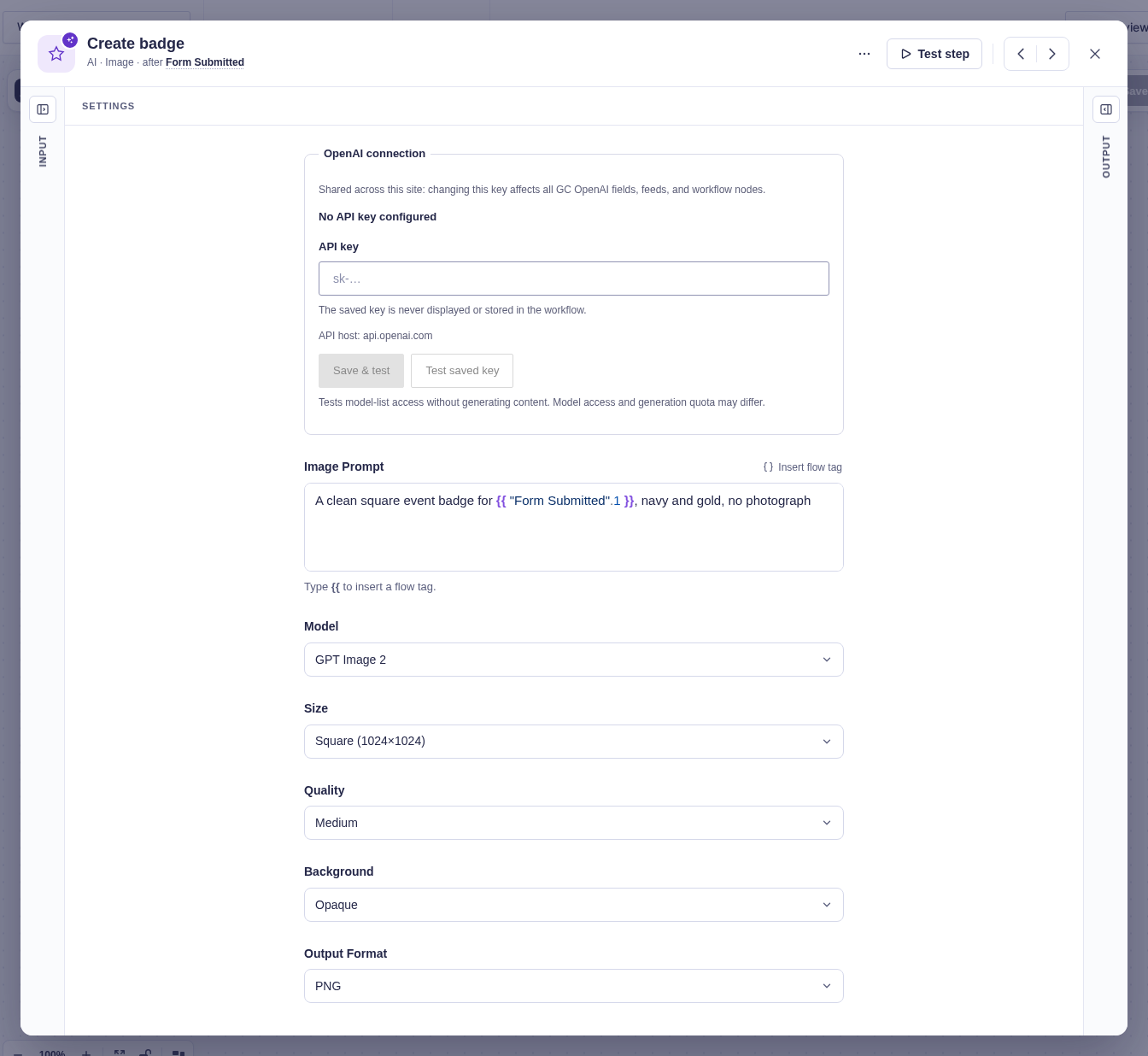
Attach the badge
Section titled “Attach the badge”