Flow
Wait for Approval
Email approvers and pause until they approve, reject, or the request expires.
Wait for Approval emails assigned approvers with signed Approve and Reject links, then parks the workflow until a decision or automatic expiry.
When to use it
Section titled “When to use it”Use it when a person must approve a submission, refund, order, or publication before the workflow continues.
Settings
Section titled “Settings”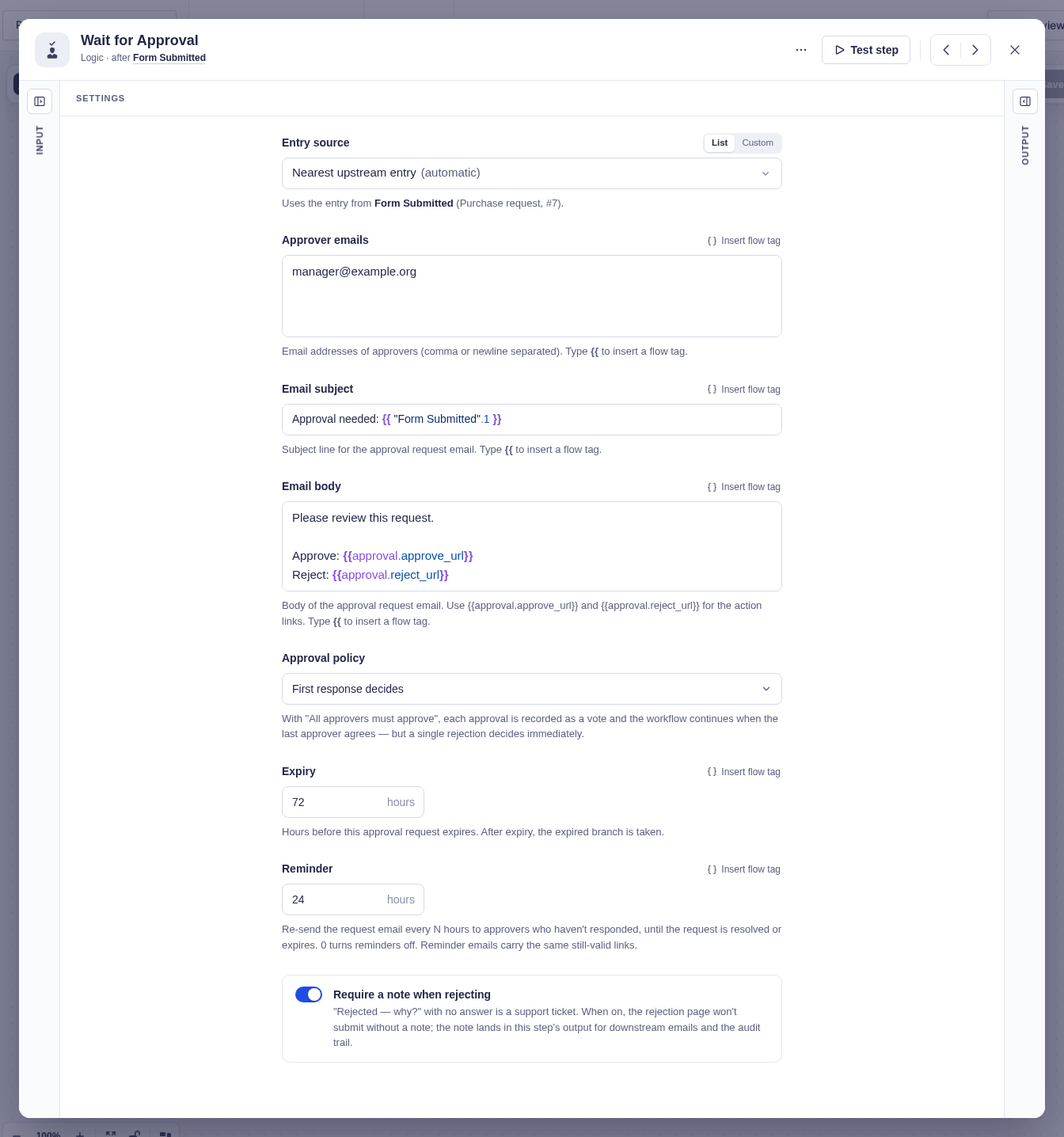
| Setting | What it does |
|---|---|
| Form Source / Entry Source | Selects the Gravity Forms entry being reviewed. These are usually detected automatically. |
| Approver emails | Required comma- or newline-separated addresses. Accepts flow tags. |
| Email Subject / Email Body | Defines the request. Keep {{approval.approve_url}} and {{approval.reject_url}} in the body. |
| Approval policy | First response decides (default), or All approvers must approve. Under the latter, one rejection still decides immediately. |
| Expiry (hours) | Automatically takes Expired after this many hours. Defaults to 72 and accepts flow tags. Invalid or non-positive values fall back to 72. |
| Reminder (hours) | Resends to approvers who have not answered. 0 disables reminders. |
| Require a note when rejecting | Prevents rejection without a note. Off by default. |
Branches and output
Section titled “Branches and output”| Branch | When it runs |
|---|---|
| Approved | The approval policy is satisfied. |
| Rejected | An approver rejects. |
| Expired | The scheduled expiry arrives before resolution. |
After approval or rejection, output includes Resolved by, Resolved at, Action, and Note. A late expiry job does nothing after the request has already been resolved.
When Go To visits this step again
Section titled “When Go To visits this step again”Each visit creates a fresh request with its own emails and votes. Use the latest request email: links, reminders, and votes from an earlier visit cannot answer the new request. An old link shows This approval request is no longer current while a newer approval is waiting. A link whose own expiry has passed still shows Link Expired instead.
Good-to-knows
Section titled “Good-to-knows”- You can approve or reject a waiting request from Forms › Workflows › Pending Tasks, without opening the request email.
- Each approver receives a personal signed link for that request, action, and expiry. It does not require login: anyone holding the link can submit that approver’s decision. Avoid forwarding approval emails, and add an identity check when the decision is sensitive.
- Wait steps are not allowed inside a For Each Each item branch.
- Test mode sends no email and does not wait. You choose Approve or Reject in the builder; automatic expiry is a production behavior.
Example
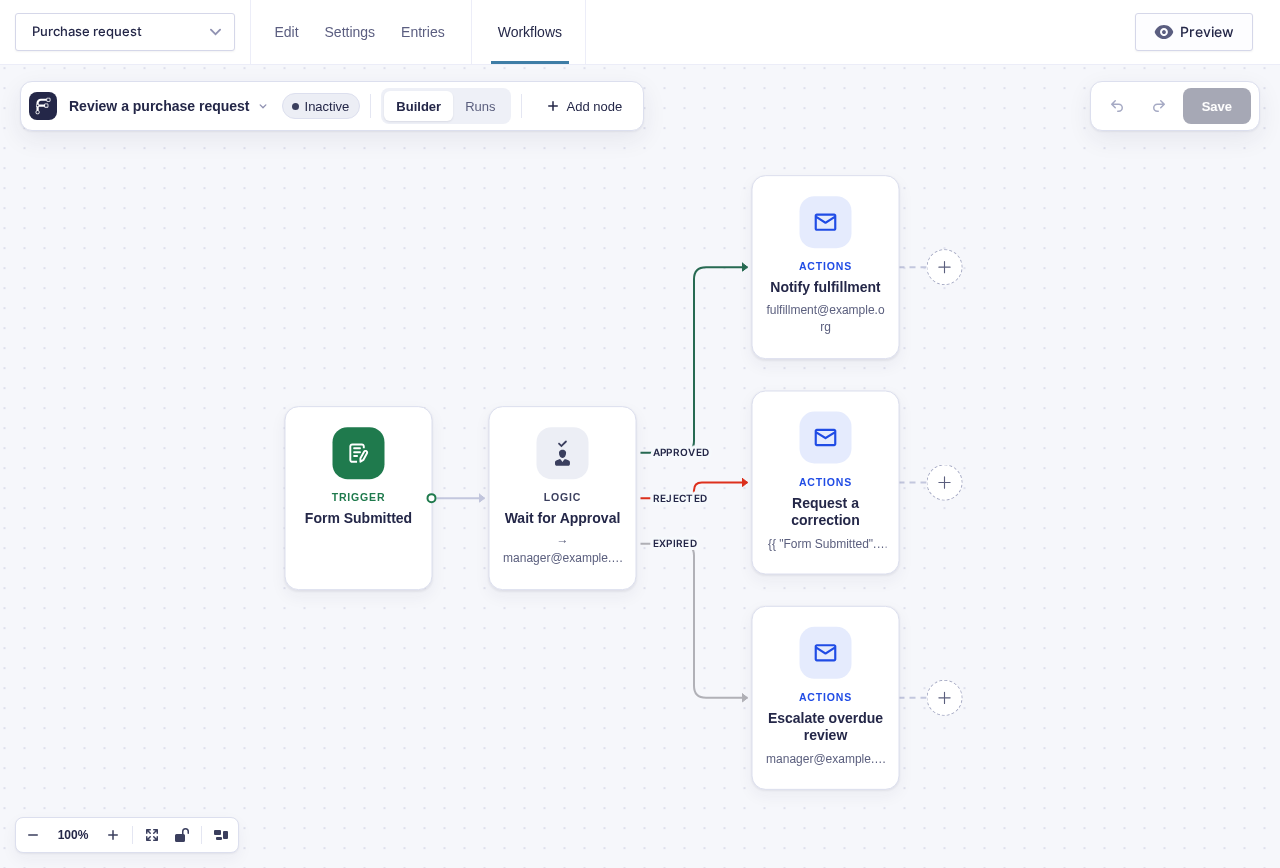
Section titled “Example”Set the approver to manager@example.org, choose First response decides, and leave expiry at 72. Connect Approved to an email notifying your fulfillment team, Rejected to a correction email, and Expired to an escalation email.