Flow
Split
Sort one list into buckets and give each bucket its own branch.
Split routes each item in a list to the first matching bucket. Every non-empty bucket runs its branch once; unmatched items go to Else.
When to use it
Section titled “When to use it”Use Split when known categories need different paths, such as VIP, standard, and staff registrations. Use Filter when you only need one matching subset, or Group By when the categories come from the data.
Settings
Section titled “Settings”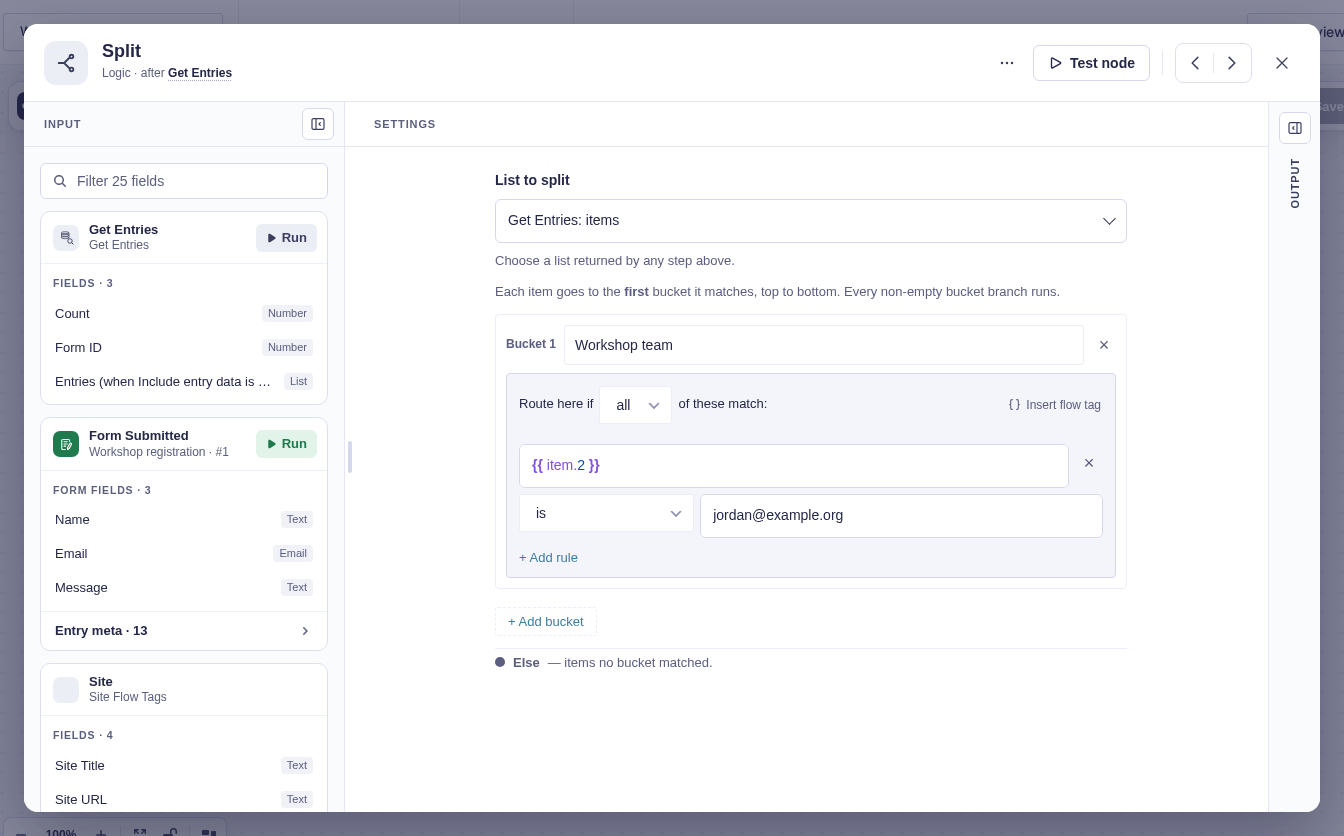
| Setting | What it does |
|---|---|
| List to split | Chooses a list from any earlier step. Test the source step first if no list appears. |
| Label | Names the branch. A blank label becomes Bucket N. |
| Route here if | Defines the bucket’s item-level rules. Buckets are checked from top to bottom. |
Branches and output
Section titled “Branches and output”Each configured bucket has a branch, plus the permanent Else branch. Empty branches do not run.
| Flow tag | Value |
|---|---|
{{ "Split".bucket_0 }} |
Items in the first bucket. Later buckets use bucket_1, and so on. |
{{ "Split".else }} |
Unmatched items. |
{{ "Split".counts.bucket_0 }} |
Count for the first bucket, including 0. |
{{ "Split".counts.else }} |
Count for Else. |
Good-to-knows
Section titled “Good-to-knows”- A bucket branch runs once with a list, not once per item. Add For Each for per-item actions.
- If an item matches multiple buckets, it will only enter in the first matching one.
- A bucket with no rules matches every remaining item.
- Removing a middle bucket changes later
bucket_Nnumbers; check the wires and flow tags. - With Get Entries, set Return to Full entries.
Example
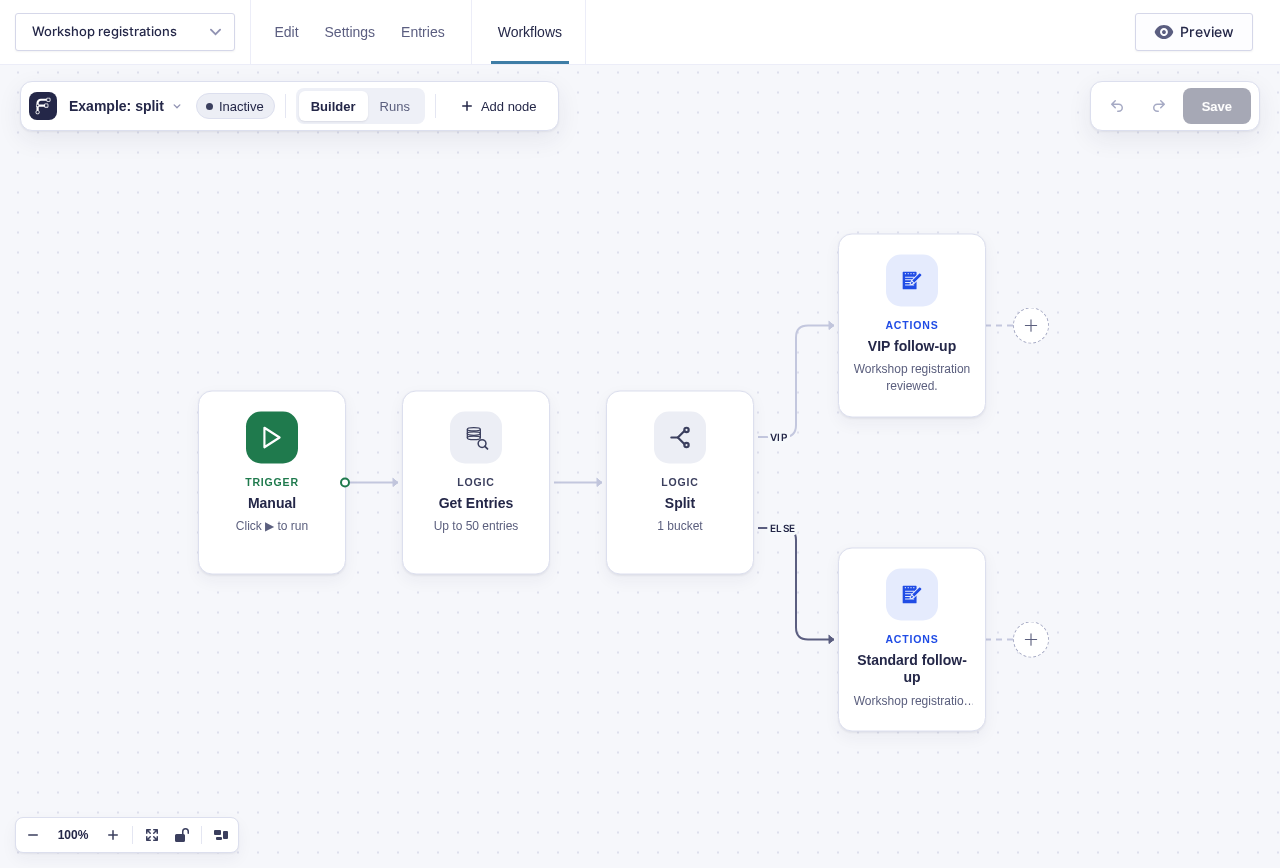
Section titled “Example”Create a VIP bucket where {{ item.ticket_type }} is VIP. VIP items run that branch once, while every other item runs Else once. Put For Each on VIP if each person needs a separate email.
In this Get Entries example, Ticket type is field 6, so the bucket rule uses {{ item.6 }} is VIP. VIP follow-up receives the matching list and Standard follow-up receives Else.