Actions
OpenAI Image
Generate an image with OpenAI from a prompt built out of your form data.
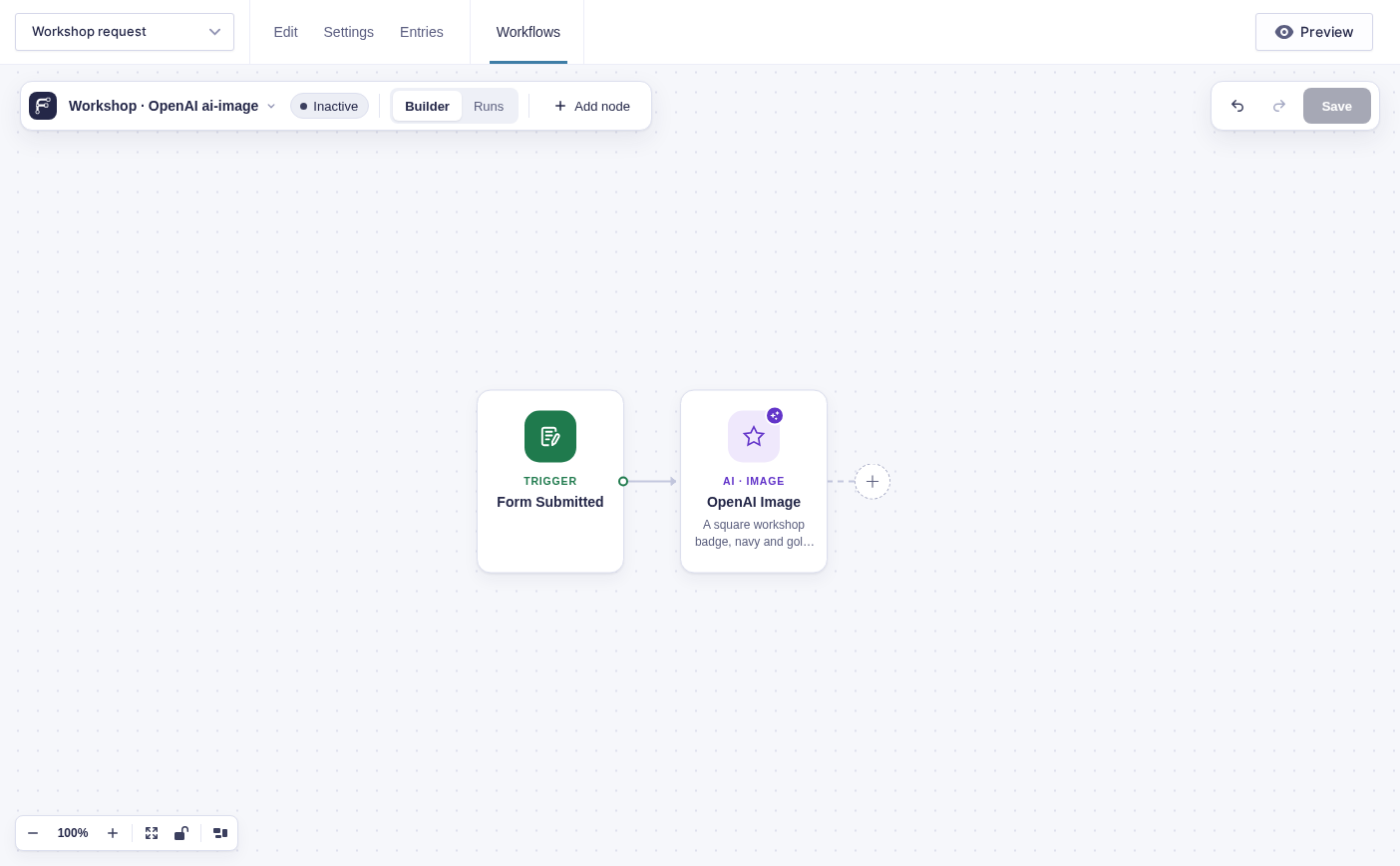
Use GC OpenAI to generate one image from a prompt, then pass the saved file to later steps. If GC OpenAI is not active, Flowcrafter advertises this node as a locked integration.
When to use it
Section titled “When to use it”Use OpenAI Image for submission-specific artwork, certificates, mockups, or other images that need form values or earlier results in the prompt. Use OpenAI Text when you need written content instead.
OpenAI connection
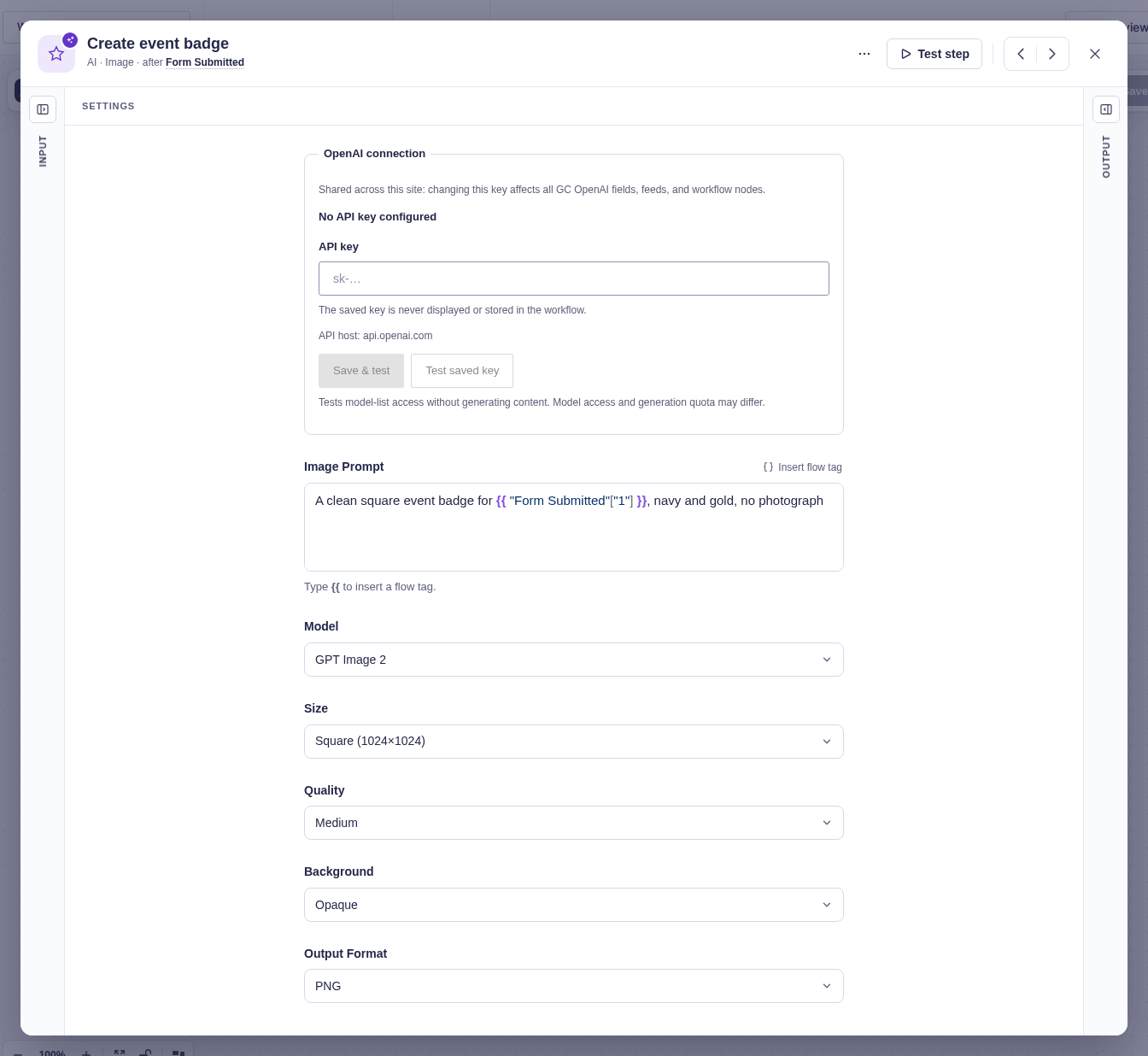
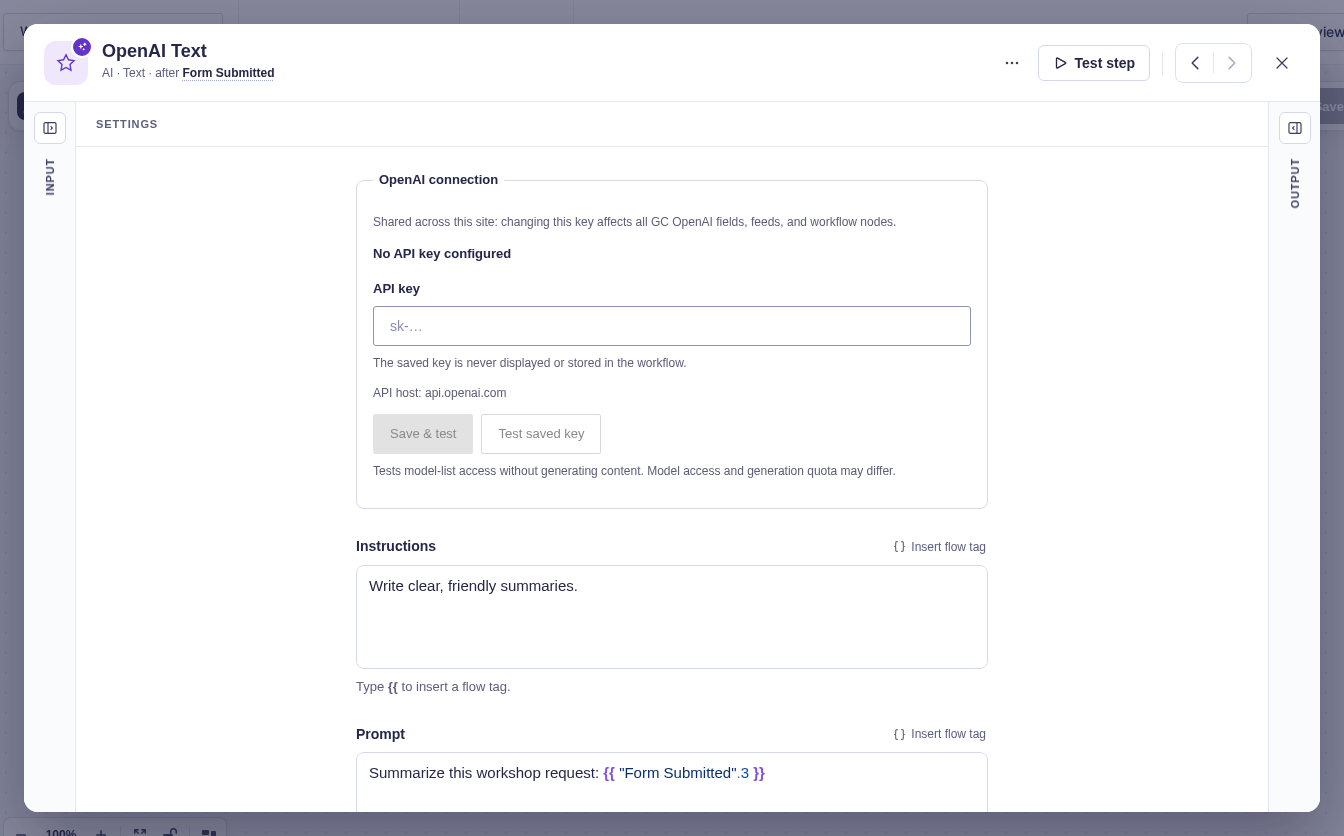
Section titled “OpenAI connection”Activate GC OpenAI, then enter an API key in the node’s OpenAI connection panel and choose Save & test. Test saved key checks the current connection without showing its key. You can also configure the connection under Forms → Settings → OpenAI.
The connection is shared by all GC OpenAI fields, feeds, and workflow nodes; changing it requires GC OpenAI settings permission and does not put the key in this workflow. A failed test does not replace the saved key.
The quick test checks model-list access without generating an image. Image-model permissions and generation quota may still differ.
Settings
Section titled “Settings”A node test uses the real OpenAI integration and can incur usage charges.
| Setting | What it controls |
|---|---|
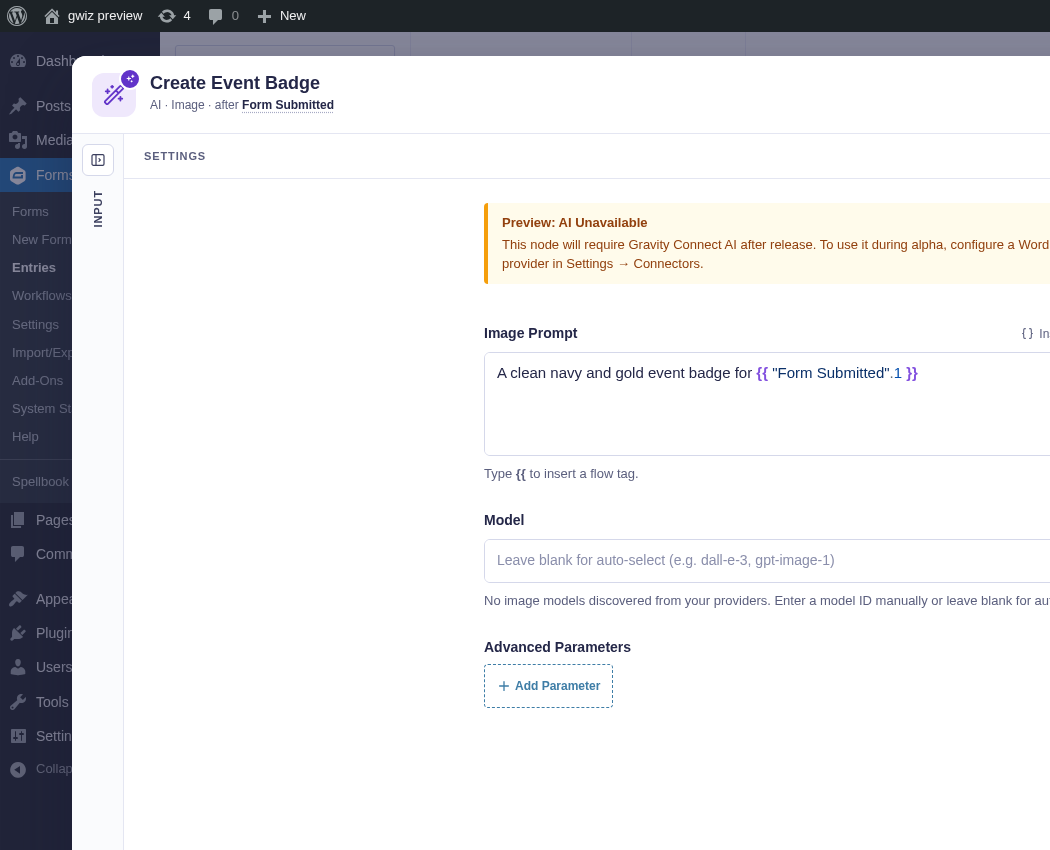
| Image Prompt | The image description. It must resolve to non-empty text and supports flow tags. |
| Model | An OpenAI image model offered by GC OpenAI. |
| Size | Square, landscape, or portrait OpenAI dimensions. |
| Quality | OpenAI’s automatic, low, medium, or high quality. |
| Background | Automatic, opaque, or transparent background handling. |
| Output Format | PNG, JPEG, or WebP. |
Output and branches
Section titled “Output and branches”The single output provides Image URL, Image Path, filename, MIME type, byte size, model ID and name, and OpenAI’s revised prompt when available.
The image is stored in Flowcrafter’s private uploads area, not the WordPress Media Library. Image URL is a signed Flowcrafter download URL; Image Path is the relative private-storage path and is useful for Send Email attachments. The step fails rather than returning a temporary OpenAI URL if the file cannot be saved.
Example
Section titled “Example”Set Image Prompt to A clean square event badge for {{ "Form Submitted"["1"] }}, navy and gold, no photograph, then use Image Path as a Send Email attachment.
This example shows configuration only; no image has been generated.