Actions
OpenAI Text
Generate text with OpenAI from a prompt built out of your form data.
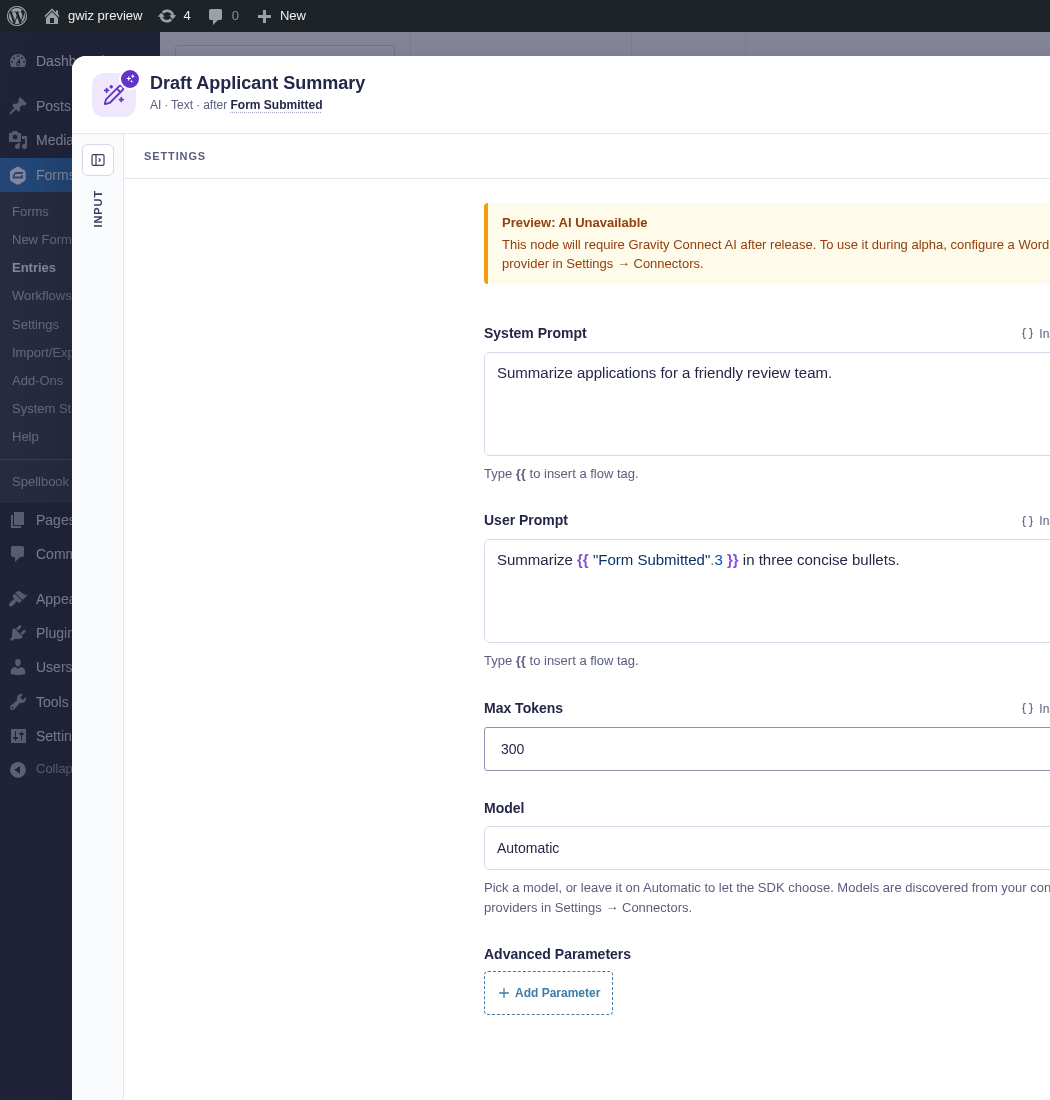
Use GC OpenAI to generate text from form values and earlier workflow results. If GC OpenAI is not active, Flowcrafter advertises this node as a locked integration.
When to use it
Section titled “When to use it”Use OpenAI Text to summarize a submission, draft a reply, classify content, or create a value for a later Condition (data) or action. Do not use it for decisions that require guaranteed, deterministic results.
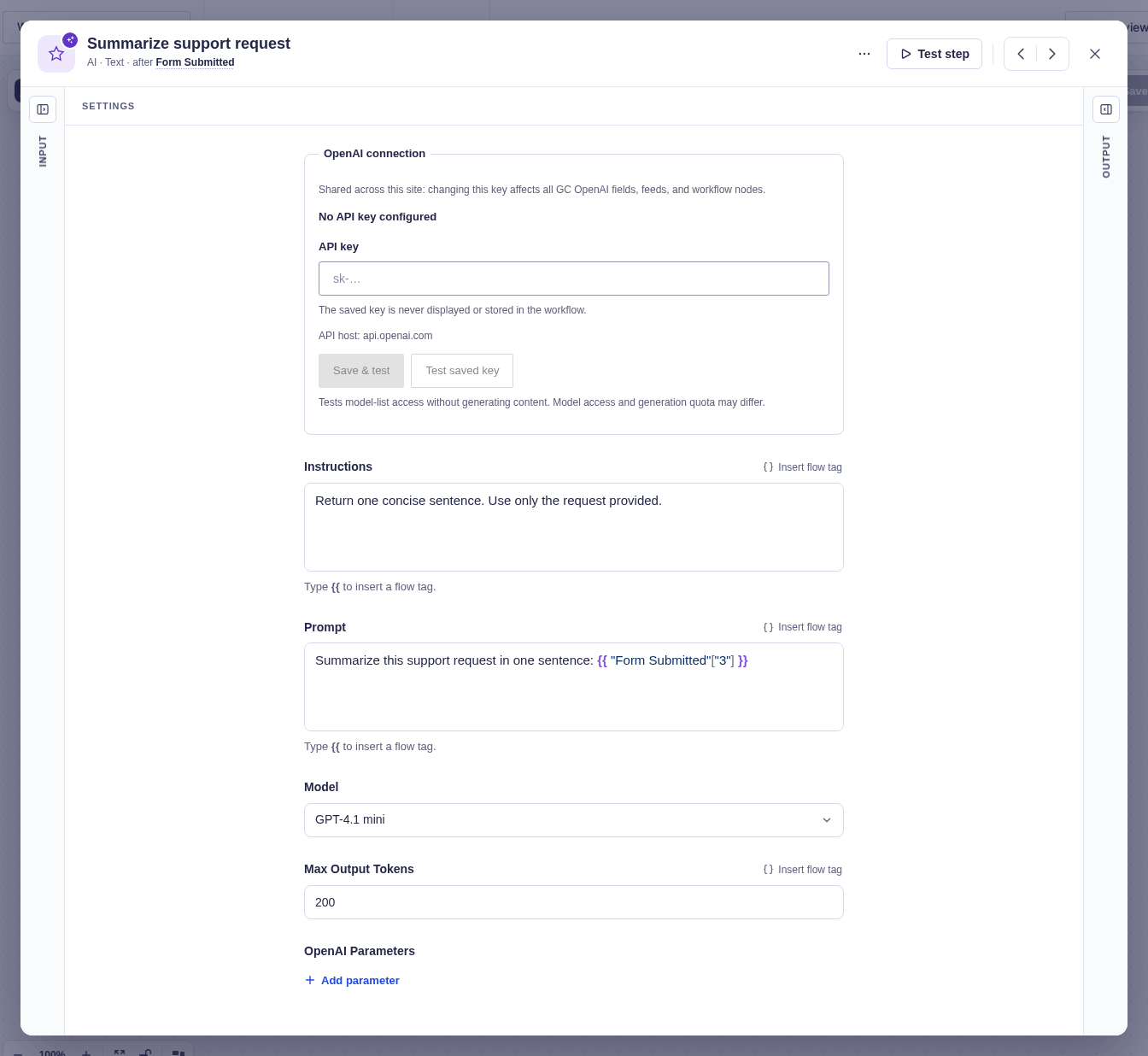
OpenAI connection
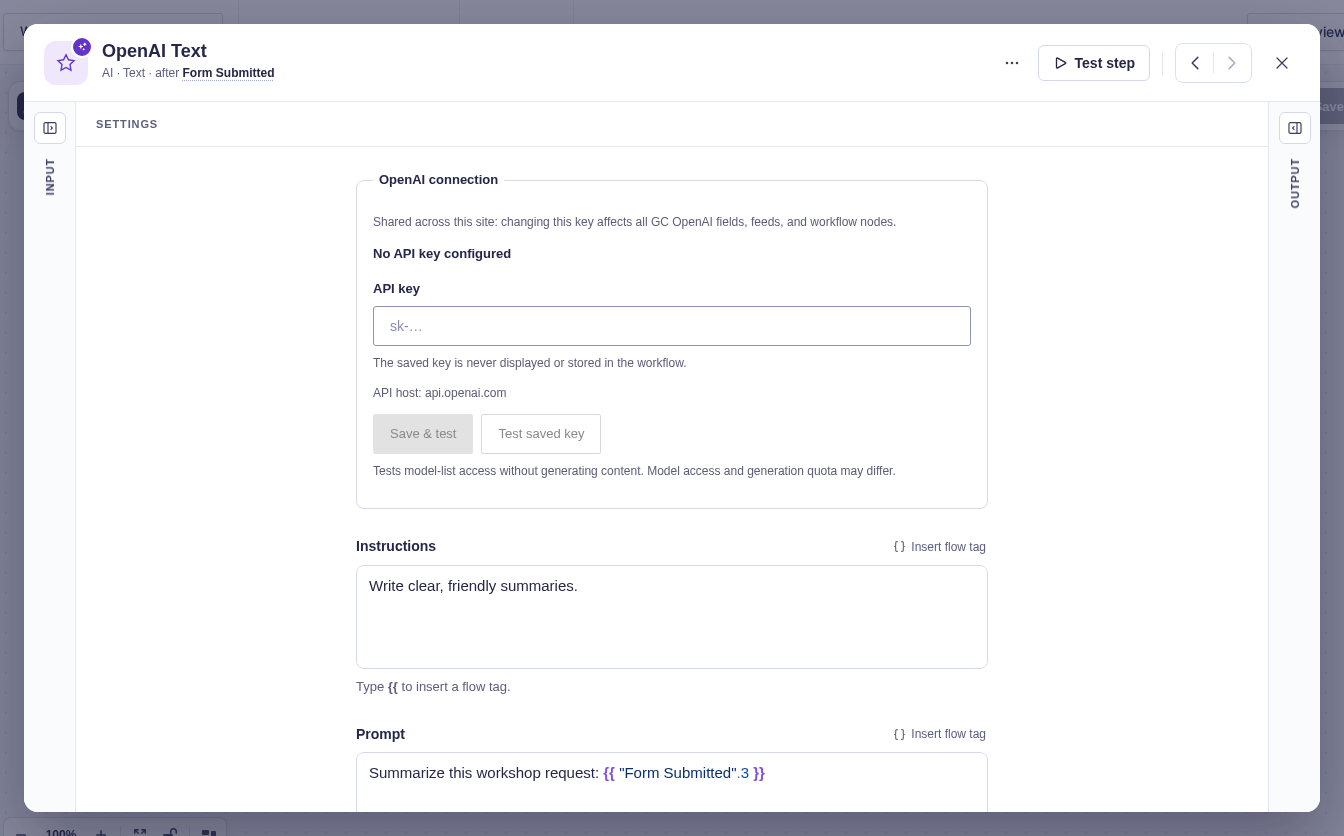
Section titled “OpenAI connection”Activate GC OpenAI, then enter an API key in the node’s OpenAI connection panel and choose Save & test. Test saved key checks the current connection without showing its key. You can also configure the connection under Forms → Settings → OpenAI.
This is a shared site-wide connection: replacing it affects all GC OpenAI fields, feeds, and workflow nodes, not just this step. Only users with GC OpenAI settings permission can change it. A failed test leaves the saved key unchanged, and the key is never stored in the workflow.
The quick test checks model-list access without generating content. Model-specific permissions and generation quota may still differ.
Settings
Section titled “Settings”| Setting | What it controls |
|---|---|
| Instructions | Optional high-level rules for the model. Supports flow tags. |
| Prompt | The required request. It must resolve to non-empty text and supports flow tags. |
| Model | An OpenAI text model offered by GC OpenAI. |
| Max Output Tokens | An optional response limit. Leave it empty to use the model default. |
| OpenAI Parameters | Optional Responses API controls for reasoning effort, sampling, penalties, and structured output. Use only options supported by the selected model. |
Output and branches
Section titled “Output and branches”The step has one output. It provides Response Text, optional Reasoning Summary, response and model IDs, model name, plus input, output, reasoning, and total token counts when OpenAI reports them.
OpenAI errors fail the step. Model output can be incomplete or inaccurate, so validate it before using it for sensitive actions.
Good to knows
Section titled “Good to knows”- A node test uses the real OpenAI integration and can incur usage charges.
Example
Section titled “Example”Use Summarize this support request in one sentence: {{ "Form Submitted"["3"] }} as the Prompt. Name the node Summarize support request, then use {{ "Summarize support request".response_text }} as the note in an Add Entry Note step.