

Use Cases
Send new-hire paperwork and team handoffs
Collect returned paperwork, notify HR and IT in order, and record when every handoff has been sent.
A new hire touches several teams. HR needs signed paperwork, IT needs provisioning details, and the manager needs a clear handoff without relying on a spreadsheet.
What you’ll build
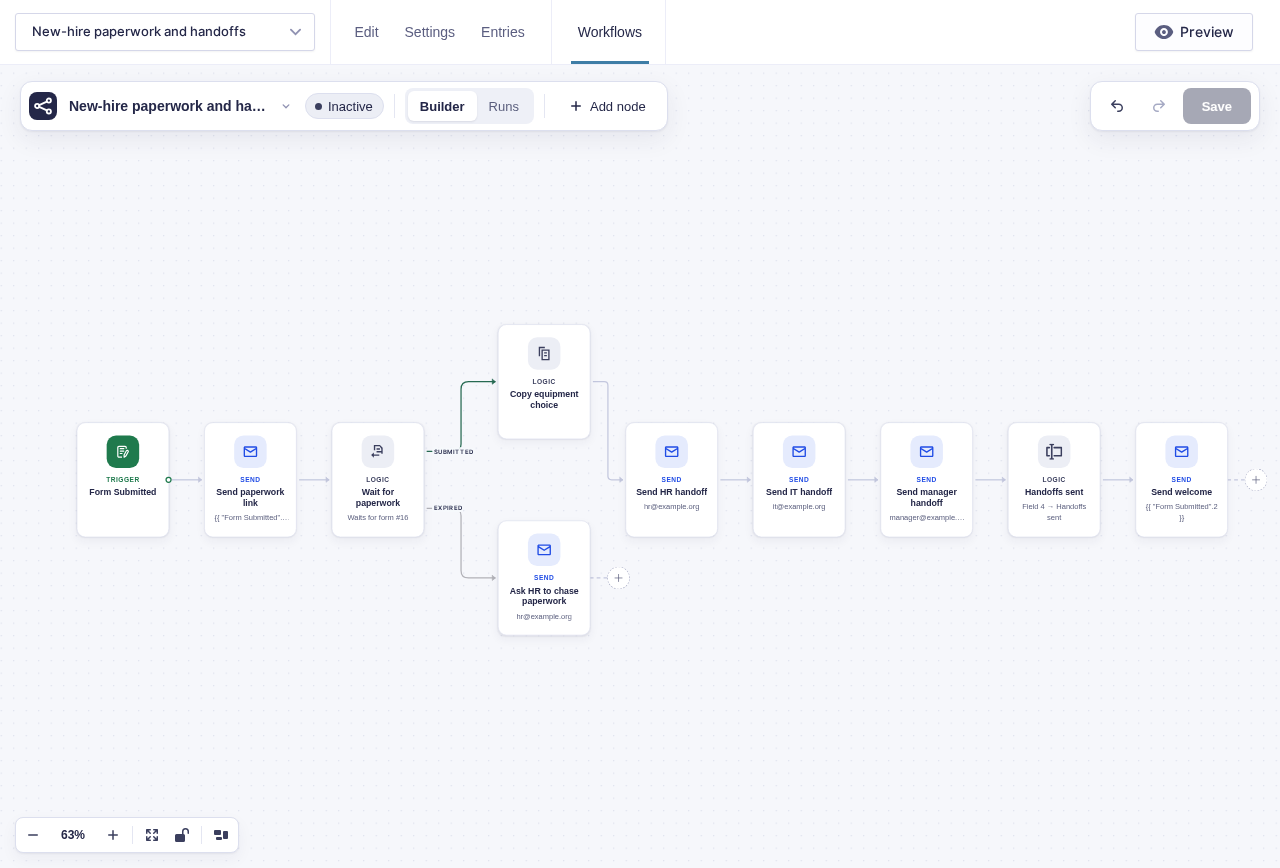
Section titled “What you’ll build”One intake form starts the process. The workflow sends the new hire a paperwork form and waits for it to come back, notifies each team with its own instructions, and records when those handoffs have been sent.
flowchart TD
    A[New hire form submitted] --> B[Send Email: paperwork<br/>link with run key]
    B --> C[Wait for Form Submission:<br/>signed paperwork]
    C -->|Submitted| D[Copy Entry Fields:<br/>paperwork answers]
    C -->|Expired| E[Email HR to chase]
    D --> E1[Send Notification: HR file]
    E1 --> F[Send Notification: IT provisioning]
    F --> G[Send Notification:<br/>manager welcome prep]
    G --> H[Set onboarding status:<br/>Handoffs sent]
    H --> I[Send Email: welcome]
Before you build
Section titled “Before you build”- Create separate intake and paperwork forms.
- Add an administrative Onboarding status field to the intake form.
- Decide which paperwork answers may be copied to the intake entry. Avoid duplicating sensitive values unless staff truly need them there.
- Prepare the HR, IT, manager, and new-hire messages.
Build it step by step
Section titled “Build it step by step”-
Create a second New hire paperwork form with the fields that need answers or signatures — tax forms, bank details, emergency contact, equipment choices. Add a hidden field for the workflow key and turn on Allow field to be populated dynamically with
keyas its parameter name. -
Open your new hire intake form and click Workflows in the form toolbar. Click New Workflow, then Add Trigger and choose Form Submitted.
-
Add Send Email with the paperwork form link, populating the hidden field from the query string:
https://your-site.test/paperwork/?key={{run.key}}. Replace the domain and path with the real paperwork page. -
Add Wait for Form Submission named Wait for paperwork. Set Form to wait for to the paperwork form, add a match rule where its hidden key field equals
{{run.key}}, and set Expiry (hours) to168for a one-week deadline.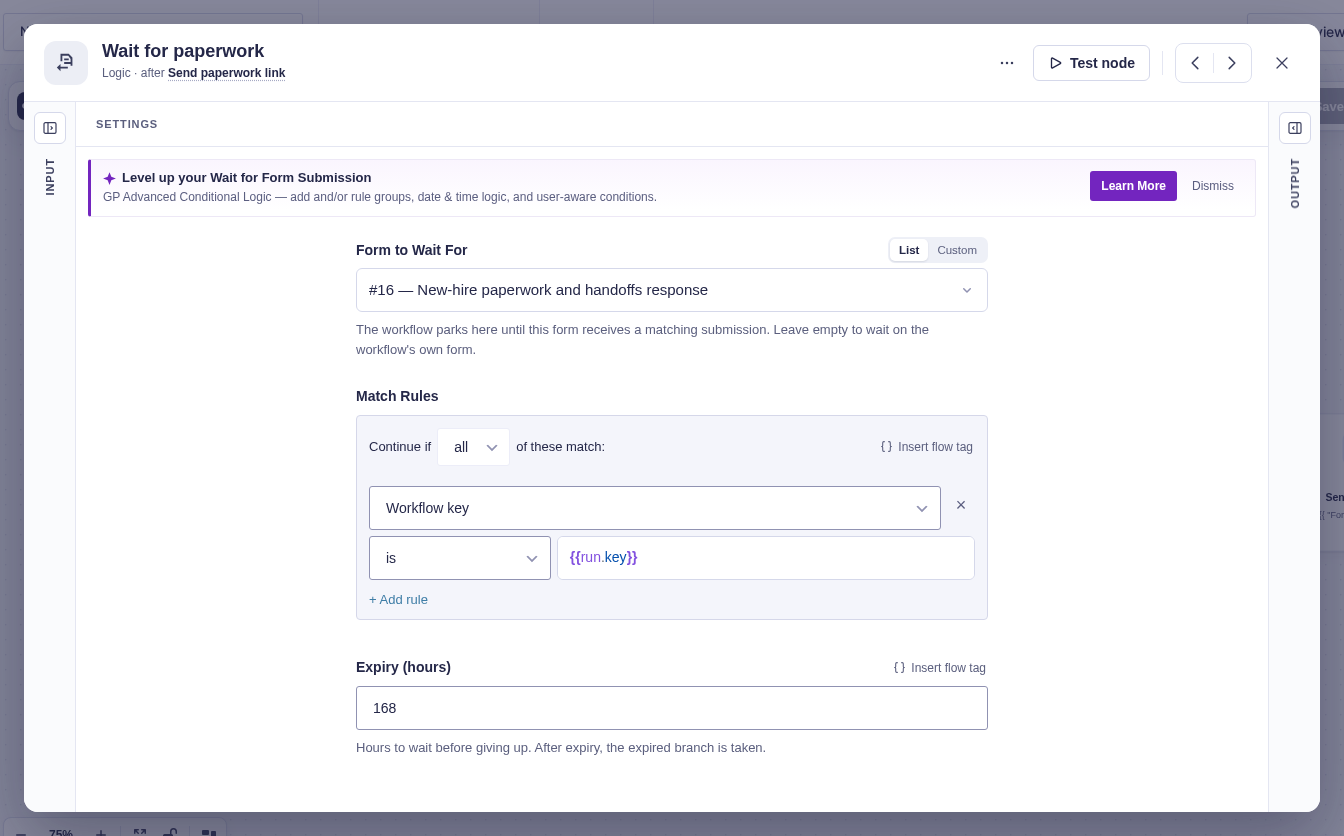
-
On Submitted, add Copy Entry Fields. Use
{{ "Wait for paperwork".entry_id }}as the source, leave the target empty to use the intake entry, and map the answers you want on the master record — insurance option, equipment choice, tax status. -
Add Send Notification or Send Email for each team in sequence: HR with the file to complete, IT with the accounts and equipment to provision, then the manager with the start date. Each notification fires only when the run reaches it, in order.
-
Finish with Update Entry Field setting Onboarding status to
Handoffs sent, followed by a welcome email to the new hire. Do not call the hireReadyunless later nodes actually wait for HR and IT to confirm completion. -
Wire Expired to an email to HR so an unanswered paperwork form gets chased before the start date, not after it.
Data passed between nodes
Section titled “Data passed between nodes”| From | Data used later | Where it goes |
|---|---|---|
| Run context | run.key |
Paperwork URL and Wait for Form Submission match |
| Wait for paperwork | Returned paperwork entry_id |
Copy Entry Fields source |
| Copy Entry Fields | updated_count and skipped_fields |
Optional audit note and staff review |
| Updated intake entry | Fresh copied answers | HR, IT, and manager notifications |
Edge cases
Section titled “Edge cases”- The run key correlates the response; it is not proof of the person’s identity.
- A present blank source field can clear its mapped target. A missing or null source field is skipped.
- A handoff queue, not a task manager: Each team gets instructions in order, and the run history records each step. Flowcrafter does not give teams a personal task inbox or a per-team done button. Add Wait for Approval or another Wait for Form Submission when a team must confirm completion before the run continues.
- Permanently deleting the original intake entry through Gravity Forms cancels its active runs, including parked waits. Moving it to Trash does not cancel them.
Test and activate safely
Section titled “Test and activate safely”New workflows start Inactive. Point every message at test inboxes, then temporarily activate on staging or for a controlled live run so the intake can create a parked wait. Submit paperwork with the correct key and confirm that run resumes; submit an incorrect key and confirm it does not. Inspect every copied field. The Expired path requires a real parked run, so verify it on staging or during a controlled live test with a short deadline. Restore the real expiry and recipients, activate, and follow the first hire through Runs before treating the status as operational truth.
What Flowcrafter adds
Section titled “What Flowcrafter adds”Gravity Forms can collect the intake and send a notification. Flowcrafter holds the sequence together: the paperwork wait parks until the right person responds, every team is notified in order, progress is written to the entry, and the welcome email waits until the run actually reaches it.
The same shape works for client onboarding, volunteer onboarding, and student enrollment — anywhere one intake starts a checklist across several people.
Related resources
Section titled “Related resources”- Wait for Form Submission — wait for the returned paperwork
- Copy Entry Fields — write answers onto the master entry
- Send Notification — notify each team at its point in the process
- Pausing & Waiting — how event-driven waits resume